> ## Documentation Index
> Fetch the complete documentation index at: https://docs.digifist.com/llms.txt
> Use this file to discover all available pages before exploring further.
# Creating Campaigns
> The 3-step campaign wizard in Galantis Discount Flow — choose a template, build the discount logic, then schedule and publish.
New campaigns are created through a 3-step wizard: **Choose Template**, **Details**, and **Publish**. The wizard takes you from a blank canvas (or a ready-made template) to a live Shopify discount in a few minutes, and validation at each step ensures you can't publish a flow that doesn't work.
To start, open **Campaigns** and click **Create Campaign**.
## The wizard, step by step
The first step shows the template gallery — six ready-made campaign types covering the most common discount patterns. Selecting one prefills the campaign name and the entire discount flow, and everything stays editable in the next step.
Prefer a blank canvas? Click **Start from scratch** below the gallery to begin with an empty flow.
See [Templates](/galantis/discount/campaigns/templates) for what each template contains.
This step combines the campaign's identity with its logic:
* **Campaign Name** — required. The field shows the placeholder "e.g. Summer Sale 20%". Names must be unique across your campaigns.
* **Rule Builder** — the visual canvas where you build the discount flow: the conditions a cart must meet and the discount action that applies when it does.
If you started from a template, a badge shows which template is in use, with a **Change template** option to go back and pick another.
You cannot advance past this step until the flow has a working action. Validation errors appear when you click **Next**, so a blank starter canvas won't show errors before you've built anything.
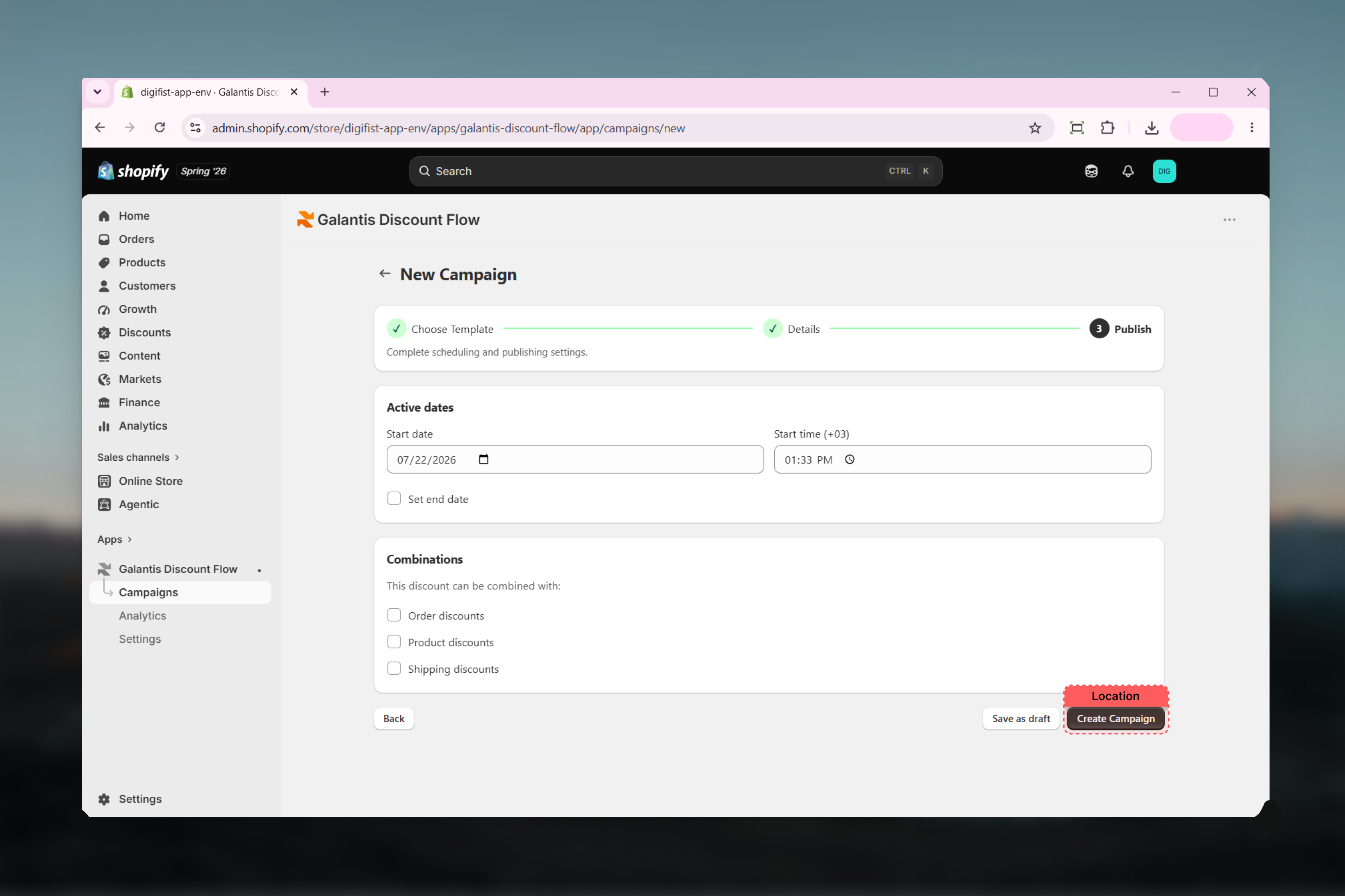
The final step holds two cards:
* **Active dates** — the start date and time (defaults to now, in your store's timezone) and an optional **Set end date** checkbox. See [Scheduling](/galantis/discount/campaigns/scheduling).
* **Combinations** — checkboxes controlling which other discount classes this campaign can stack with. See [Combinations](/galantis/discount/campaigns/combinations).
The footer offers two ways to finish:
* **Save as draft** — stores the campaign without publishing. No discount is created in Shopify.
* **Create Campaign** — publishes the campaign to Shopify as a live (or scheduled) discount.
 ## Draft or publish?
| | Save as draft | Create Campaign |
| ------------------------------------ | ------------- | ------------------------------------------------------ |
| Status after saving | **Draft** | **Active** (or **Scheduled** with a future start date) |
| Discount created in Shopify | No | Yes |
| Counts toward active-campaign limits | No | Yes |
| Flow must be valid | Yes | Yes |
Draft early, publish late. A draft lets you build and refine a flow over several sessions without touching your live store — then publish from the campaign detail page when the promotion is ready.
## Publish-time limit checks
Publishing runs two checks that drafting does not:
**Free plan limit** — on the Free plan, at most **3 campaigns** can be active at once. Publishing a fourth is blocked until you pause or archive another campaign, or upgrade your plan.
**Shopify's automatic discount limit** — Shopify allows at most 25 active automatic discounts per store, across all apps and native discounts. If publishing would exceed it, you'll see the message "A store can have at most 25 active automatic discounts." Campaigns with a **Discount code** condition publish as code-based discounts and do not count toward this limit.
If a limit blocks publishing, the campaign is not lost — save it as a draft and publish once there's room.
## Automatic or code-based?
The wizard decides this from your flow, not from a separate setting. A flow with a **Discount code** condition publishes as a code-based discount that customers redeem at checkout; any other flow publishes as an automatic discount that applies on its own.
## Related guides
* [Templates](/galantis/discount/campaigns/templates) — what each of the six templates prefills
* [Scheduling](/galantis/discount/campaigns/scheduling) — start dates, end dates, and timezone behavior
* [Combinations](/galantis/discount/campaigns/combinations) — stacking rules to set before you publish
* [Managing campaigns](/galantis/discount/campaigns/managing-campaigns) — editing and controlling campaigns after creation
## Draft or publish?
| | Save as draft | Create Campaign |
| ------------------------------------ | ------------- | ------------------------------------------------------ |
| Status after saving | **Draft** | **Active** (or **Scheduled** with a future start date) |
| Discount created in Shopify | No | Yes |
| Counts toward active-campaign limits | No | Yes |
| Flow must be valid | Yes | Yes |
Draft early, publish late. A draft lets you build and refine a flow over several sessions without touching your live store — then publish from the campaign detail page when the promotion is ready.
## Publish-time limit checks
Publishing runs two checks that drafting does not:
**Free plan limit** — on the Free plan, at most **3 campaigns** can be active at once. Publishing a fourth is blocked until you pause or archive another campaign, or upgrade your plan.
**Shopify's automatic discount limit** — Shopify allows at most 25 active automatic discounts per store, across all apps and native discounts. If publishing would exceed it, you'll see the message "A store can have at most 25 active automatic discounts." Campaigns with a **Discount code** condition publish as code-based discounts and do not count toward this limit.
If a limit blocks publishing, the campaign is not lost — save it as a draft and publish once there's room.
## Automatic or code-based?
The wizard decides this from your flow, not from a separate setting. A flow with a **Discount code** condition publishes as a code-based discount that customers redeem at checkout; any other flow publishes as an automatic discount that applies on its own.
## Related guides
* [Templates](/galantis/discount/campaigns/templates) — what each of the six templates prefills
* [Scheduling](/galantis/discount/campaigns/scheduling) — start dates, end dates, and timezone behavior
* [Combinations](/galantis/discount/campaigns/combinations) — stacking rules to set before you publish
* [Managing campaigns](/galantis/discount/campaigns/managing-campaigns) — editing and controlling campaigns after creation