> ## Documentation Index
> Fetch the complete documentation index at: https://docs.digifist.com/llms.txt
> Use this file to discover all available pages before exploring further.
# Scheduling
> The Active dates card in Galantis Discount Flow — start and end times in your store's timezone, and how the Scheduled and Ended statuses work.
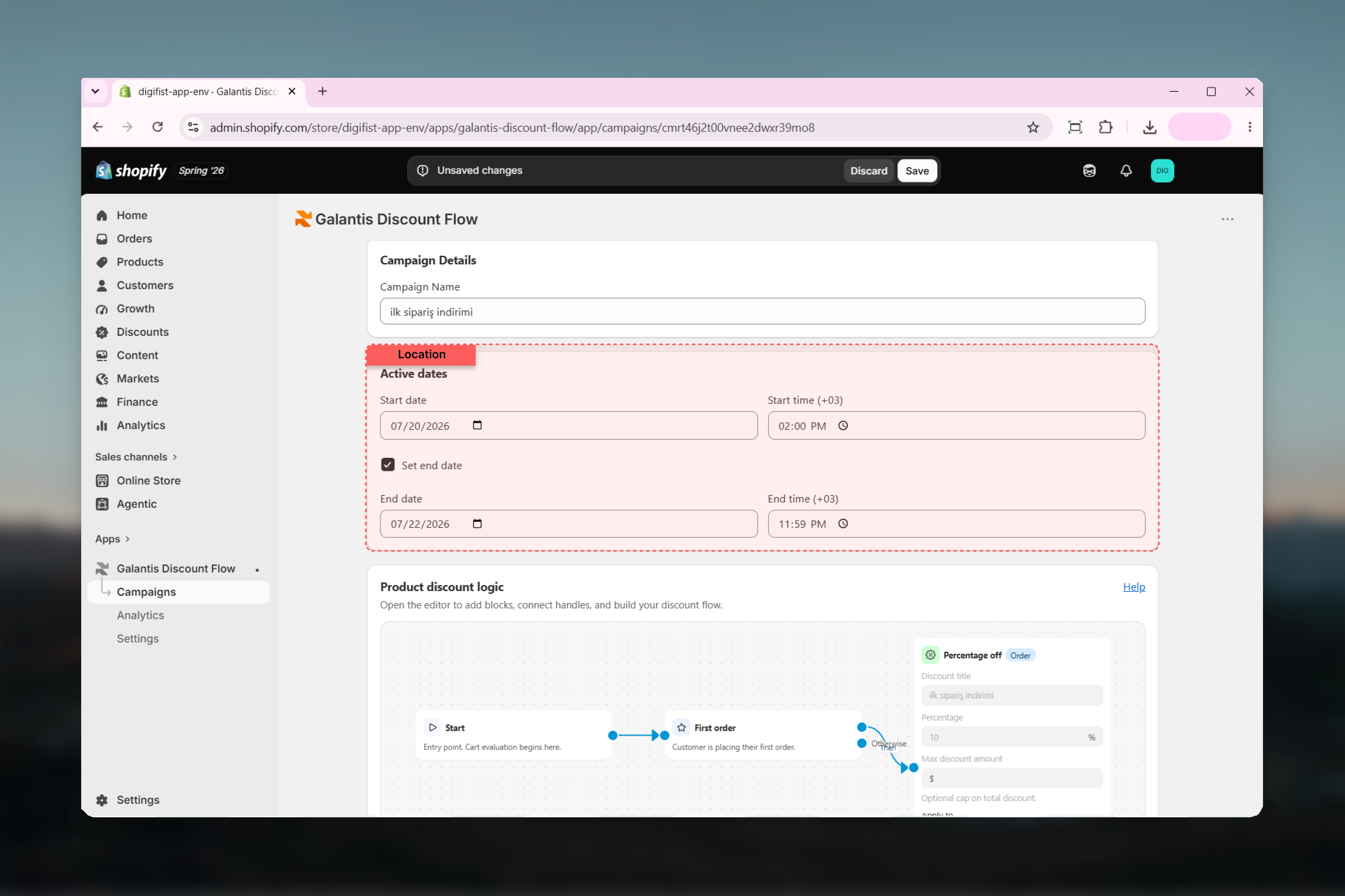
Every campaign in Galantis Discount Flow has an **Active dates** card that controls when its discount runs. Set a start in the future and the campaign publishes as **Scheduled**, going live on its own at the right moment; add an end date and it winds down automatically as **Ended** — no midnight logins required.
The card appears in step 3 of the creation wizard and on every campaign detail page, so schedules can be adjusted at any time.
 ## The Active dates card
* **Start date** and **Start time** — when the discount begins applying. Defaults to now, so a freshly published campaign is live immediately unless you change it.
* **Set end date** — an optional checkbox. Tick it to reveal **End date** and **End time** fields; leave it unticked and the campaign runs indefinitely until you pause, end, or archive it.
Two validation rules apply to the end:
* The end must be **after the start**
* The end cannot be **in the past**
If either rule is broken, an inline error appears on the end fields and the campaign can't be saved until it's fixed.
## Everything runs on store time
All dates and times are entered in your **store's timezone** — the one configured in your Shopify settings, not your laptop's clock or UTC. As a reminder, the store's UTC offset is shown right next to the time inputs (for example, **Start time (UTC+02:00)**).
If you manage a store from another timezone, trust the offset shown next to the field. A "9:00 PM launch" means 9:00 PM where your store lives.
## How schedules map to statuses
| Schedule | Status | What happens |
| -------------------------------- | ------------- | ------------------------------------------------------------------- |
| Start now (default), no end date | **Active** | Live immediately, runs until you stop it |
| Start in the future | **Scheduled** | Published to Shopify but dormant; flips to Active at the start time |
| End date reached | **Ended** | The discount stops applying; the campaign moves to the Ended tab |
A **Scheduled** campaign is a real published discount — it counts toward active-campaign limits and appears on Shopify's Discounts page — it simply hasn't started applying yet. An **Ended** campaign keeps all its analytics and can be relaunched by updating its dates and activating it again.
## Scheduling patterns
Set both a start and an end a few hours apart — for example, Friday 18:00 to Friday 23:59 store time. Publish in advance as **Scheduled**; the sale starts and stops on its own, with no one on call to flip switches.
For a multi-week promotion like an end-of-season sale, set the start to the season's first day and tick **Set end date** for its last. Pair with the [End of Season template](/galantis/discount/campaigns/templates) for a ready-made flow.
Leave **Set end date** unticked for offers that should always be on, such as a permanent free-shipping threshold. The campaign runs until you pause or archive it.
Build and publish a campaign days ahead with a future start date. It sits safely in **Scheduled** — visible, reviewable, and editable — until launch time.
Schedule big promotions as far ahead as you like. Scheduled campaigns can still be edited freely — name, flow, dates, and combinations — right up until they go live.
## Related guides
* [Creating campaigns](/galantis/discount/campaigns/creating-campaigns) — where Active dates fits in the wizard
* [Managing campaigns](/galantis/discount/campaigns/managing-campaigns) — pausing and archiving as manual alternatives to end dates
* [Campaigns overview](/galantis/discount/campaigns/index) — the full status lifecycle
## The Active dates card
* **Start date** and **Start time** — when the discount begins applying. Defaults to now, so a freshly published campaign is live immediately unless you change it.
* **Set end date** — an optional checkbox. Tick it to reveal **End date** and **End time** fields; leave it unticked and the campaign runs indefinitely until you pause, end, or archive it.
Two validation rules apply to the end:
* The end must be **after the start**
* The end cannot be **in the past**
If either rule is broken, an inline error appears on the end fields and the campaign can't be saved until it's fixed.
## Everything runs on store time
All dates and times are entered in your **store's timezone** — the one configured in your Shopify settings, not your laptop's clock or UTC. As a reminder, the store's UTC offset is shown right next to the time inputs (for example, **Start time (UTC+02:00)**).
If you manage a store from another timezone, trust the offset shown next to the field. A "9:00 PM launch" means 9:00 PM where your store lives.
## How schedules map to statuses
| Schedule | Status | What happens |
| -------------------------------- | ------------- | ------------------------------------------------------------------- |
| Start now (default), no end date | **Active** | Live immediately, runs until you stop it |
| Start in the future | **Scheduled** | Published to Shopify but dormant; flips to Active at the start time |
| End date reached | **Ended** | The discount stops applying; the campaign moves to the Ended tab |
A **Scheduled** campaign is a real published discount — it counts toward active-campaign limits and appears on Shopify's Discounts page — it simply hasn't started applying yet. An **Ended** campaign keeps all its analytics and can be relaunched by updating its dates and activating it again.
## Scheduling patterns
Set both a start and an end a few hours apart — for example, Friday 18:00 to Friday 23:59 store time. Publish in advance as **Scheduled**; the sale starts and stops on its own, with no one on call to flip switches.
For a multi-week promotion like an end-of-season sale, set the start to the season's first day and tick **Set end date** for its last. Pair with the [End of Season template](/galantis/discount/campaigns/templates) for a ready-made flow.
Leave **Set end date** unticked for offers that should always be on, such as a permanent free-shipping threshold. The campaign runs until you pause or archive it.
Build and publish a campaign days ahead with a future start date. It sits safely in **Scheduled** — visible, reviewable, and editable — until launch time.
Schedule big promotions as far ahead as you like. Scheduled campaigns can still be edited freely — name, flow, dates, and combinations — right up until they go live.
## Related guides
* [Creating campaigns](/galantis/discount/campaigns/creating-campaigns) — where Active dates fits in the wizard
* [Managing campaigns](/galantis/discount/campaigns/managing-campaigns) — pausing and archiving as manual alternatives to end dates
* [Campaigns overview](/galantis/discount/campaigns/index) — the full status lifecycle