> ## Documentation Index
> Fetch the complete documentation index at: https://docs.digifist.com/llms.txt
> Use this file to discover all available pages before exploring further.
# Installation
> Install Galantis Discount Flow from the Shopify App Store, review the requested permissions, select a plan, and land on the Dashboard.
Galantis Discount Flow installs like any public Shopify app: open the listing, review permissions, approve, and you're redirected into the app inside your Shopify admin. The one extra step is plan selection — every merchant picks a plan (including the \$0 Free plan) before reaching the Dashboard.
The whole flow usually takes a couple of minutes. There is no separate account to create; the app runs entirely inside Shopify, and billing is handled by Shopify.
## The install flow
Find Galantis Discount Flow in the Shopify App Store and click install. Sign in to the Shopify account that owns the store you want to install on.
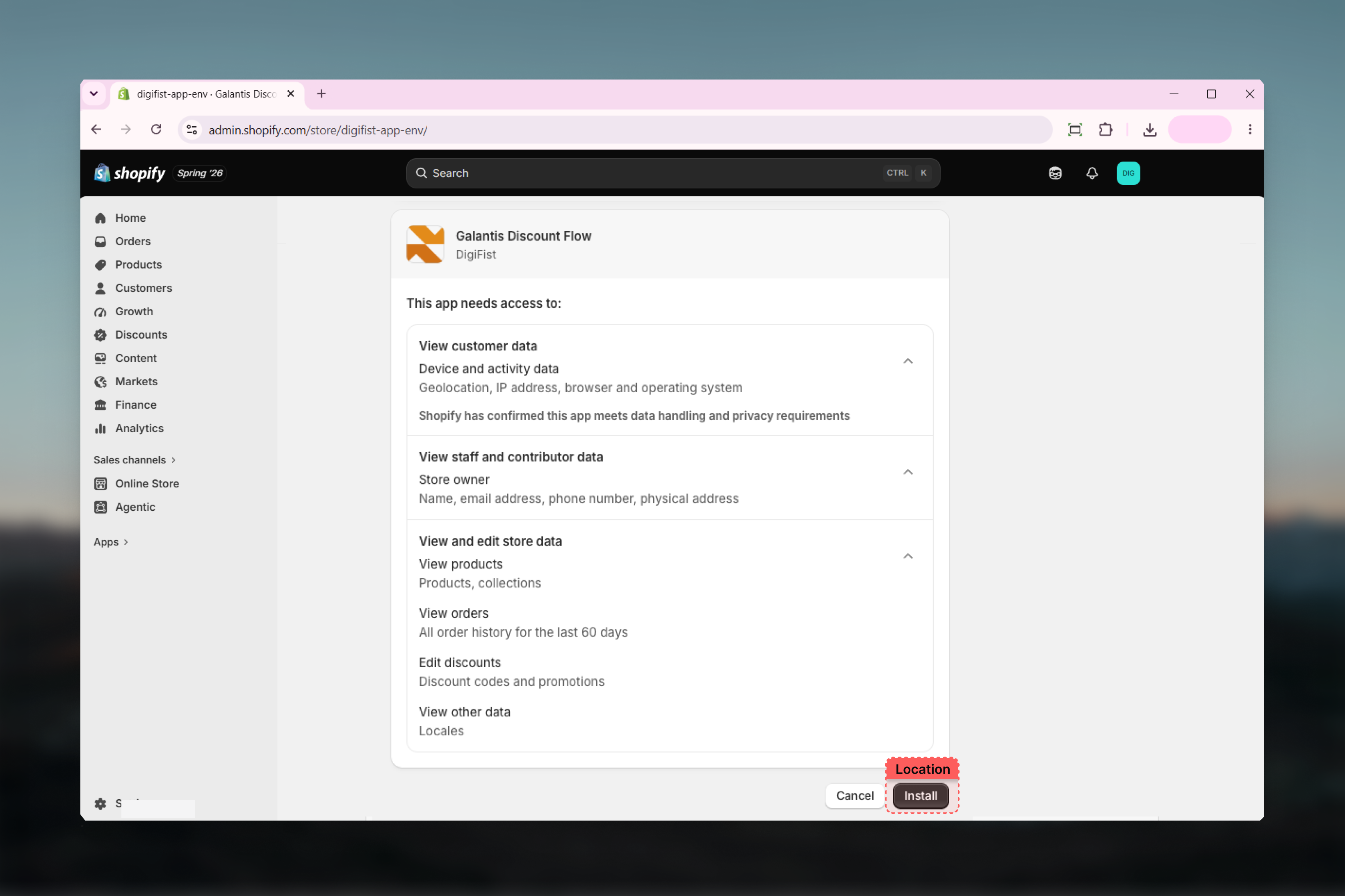
Shopify shows the access the app requests: read discounts, read locales, read orders, read products, and write discounts. Each scope powers a specific part of the app — see [What each permission is for](#what-each-permission-is-for) below.
If you've never selected a plan for this store, Shopify redirects you to its hosted plan-selection page. You must pick a plan to continue — **even the \$0 Free plan must be actively selected**. Free gives you up to 3 active campaigns with monthly usage caps; Pro is unlimited. You can switch later under **Settings → Change plan**.
Once a plan is selected, you land on the Galantis Discount Flow Dashboard inside your Shopify admin, ready to create your first campaign.
 ## What each permission is for
**Read and write discounts** — The core of the app. When you publish a campaign, Galantis Discount Flow creates a real automatic or code-based discount in Shopify; reading discounts keeps the app in sync with what's live on Shopify's native Discounts page.
**Read orders** — Powers Analytics (revenue, usage, conversion rate, ROI, refund tracking) and order-history conditions in the Rule Builder such as **Order count** and **First order**.
**Read products** — Lets you pick products and collections in Rule Builder conditions and actions, such as **Specific products**, **Free gift**, and **Bundle discount**.
**Read locales** — Used together with your shop settings to sync currency, locale, and timezone, so amounts and schedules display correctly for your store.
All five scopes are required for the app to work end to end. Shopify presents them together during install; there is no partial-install path.
## What happens right after install
As soon as the install completes, Galantis Discount Flow syncs your **shop currency, locale, and timezone**. This means:
* Discount amounts in the Rule Builder are shown in your store currency.
* Campaign **Active dates** are scheduled in your store timezone — a campaign that starts "at midnight" starts at midnight for your store, not UTC.
* Your Free-plan usage period (if applicable) is anchored to your install date and resets monthly from that anchor.
No further configuration is needed before creating a campaign. The one remaining setup task is the storefront: enabling the theme app embed, covered in [Storefront setup](/galantis/discount/getting-started/storefront-setup).
## Uninstalling and the 48-hour grace window
To uninstall, go to **Settings → Apps and sales channels** in your Shopify admin, find Galantis Discount Flow, and click **Uninstall**. Shopify revokes the granted permissions automatically.
Uninstalling starts a **48-hour grace window**. If you reinstall within 48 hours, your campaigns are restored automatically. After 48 hours, your data is deleted and cannot be recovered — you would start from a clean install.
***
Walk through the 3-step wizard with the Percentage Discount template — the natural next step after installing.
Enable the theme app embed so free-gift auto-add and storefront signals work on your store.
## What each permission is for
**Read and write discounts** — The core of the app. When you publish a campaign, Galantis Discount Flow creates a real automatic or code-based discount in Shopify; reading discounts keeps the app in sync with what's live on Shopify's native Discounts page.
**Read orders** — Powers Analytics (revenue, usage, conversion rate, ROI, refund tracking) and order-history conditions in the Rule Builder such as **Order count** and **First order**.
**Read products** — Lets you pick products and collections in Rule Builder conditions and actions, such as **Specific products**, **Free gift**, and **Bundle discount**.
**Read locales** — Used together with your shop settings to sync currency, locale, and timezone, so amounts and schedules display correctly for your store.
All five scopes are required for the app to work end to end. Shopify presents them together during install; there is no partial-install path.
## What happens right after install
As soon as the install completes, Galantis Discount Flow syncs your **shop currency, locale, and timezone**. This means:
* Discount amounts in the Rule Builder are shown in your store currency.
* Campaign **Active dates** are scheduled in your store timezone — a campaign that starts "at midnight" starts at midnight for your store, not UTC.
* Your Free-plan usage period (if applicable) is anchored to your install date and resets monthly from that anchor.
No further configuration is needed before creating a campaign. The one remaining setup task is the storefront: enabling the theme app embed, covered in [Storefront setup](/galantis/discount/getting-started/storefront-setup).
## Uninstalling and the 48-hour grace window
To uninstall, go to **Settings → Apps and sales channels** in your Shopify admin, find Galantis Discount Flow, and click **Uninstall**. Shopify revokes the granted permissions automatically.
Uninstalling starts a **48-hour grace window**. If you reinstall within 48 hours, your campaigns are restored automatically. After 48 hours, your data is deleted and cannot be recovered — you would start from a clean install.
***
Walk through the 3-step wizard with the Percentage Discount template — the natural next step after installing.
Enable the theme app embed so free-gift auto-add and storefront signals work on your store.