> ## Documentation Index
> Fetch the complete documentation index at: https://docs.digifist.com/llms.txt
> Use this file to discover all available pages before exploring further.
# Testing flows
> The Test panel in Galantis Discount Flow — simulating carts and customers, reading the highlighted path, and a pre-publish checklist.
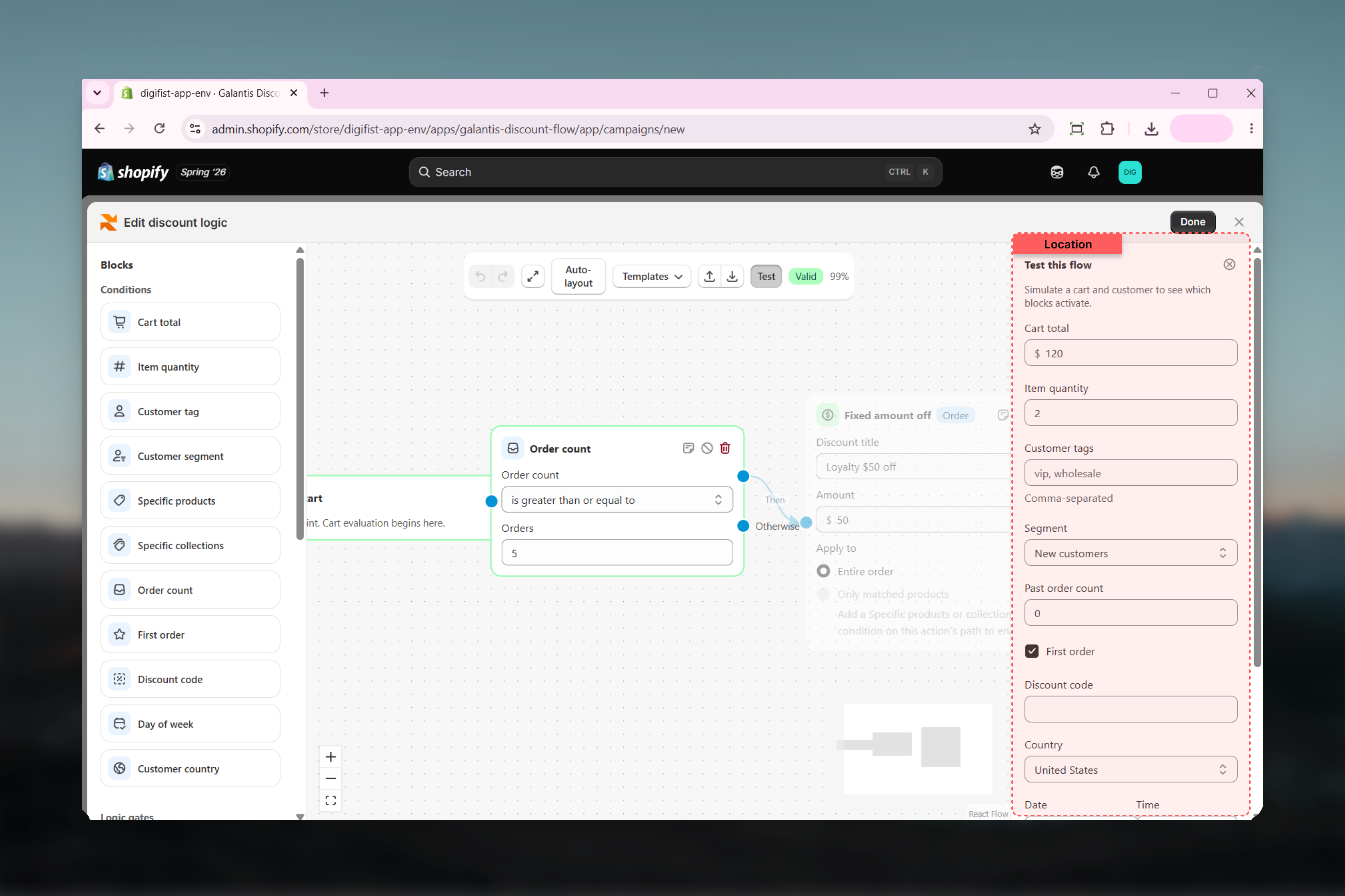
The Test panel is a dry-run environment built into the Rule Builder. It feeds a simulated cart and customer into your flow and shows exactly which blocks activate and which discounts would apply — using the same evaluation logic that runs on the storefront and at checkout. Because all three surfaces execute the flow identically, a result in the Test panel is the result your customer will get.
Open it with the **Test** button in the canvas toolbar. The **Test this flow** panel appears alongside the canvas, and every change you make to the simulated inputs re-evaluates the flow instantly.
 ## What you can simulate
The panel covers every input a condition can check:
| Input | What it feeds |
| -------------------------------------- | ----------------------------------------------------------------------- |
| **Cart total** | The **Cart total** condition, spend thresholds in **Tiered discount** |
| **Item quantity** | The **Item quantity** condition, **Volume pricing** tiers |
| **Customer tags** | The **Customer tag** condition (comma-separated, e.g. `vip, wholesale`) |
| **Segment** | The **Customer segment** condition |
| **Past order count** | The **Order count** condition |
| **First order** | The **First order** condition |
| **Discount code** | The **Discount code** condition |
| **Country** | The **Customer country** condition |
| **Date** | The **Day of week** condition |
| **Cart contains selected products** | The **Specific products** condition |
| **Cart contains selected collections** | The **Specific collections** condition |
## Reading the results
As you adjust inputs, two things update at once:
* **On the canvas** — the active path through the graph lights up, so you can see which conditions passed, which **Then** or **Otherwise** branches were taken, and which blocks the simulated cart never reached.
* **In the Result section** — every action that fires is listed with an **Applies** badge and a description of the discount. If nothing fires, the panel says so: "No discount applies for this cart and customer."
Watching the highlighted path is the fastest way to debug a flow. If a discount is not applying, follow the lit edges to the first condition that routed the flow to **Otherwise** — that is the check the simulated cart failed.
Testing is completely safe. The Test panel evaluates the flow in the builder only — it never publishes anything, never creates a discount, and never affects your live store or real customers.
## Pre-publish test checklist
Run through these simulations before publishing any campaign:
Set the inputs to a cart and customer that should clearly qualify. Confirm the intended action fires with an **Applies** badge and that the description matches the discount you meant to build.
Flip one input below the threshold — drop the **Cart total**, clear the **Customer tags**, or untick **Cart contains selected products**. Confirm the panel reports that no discount applies.
Test values right at your thresholds — a cart total exactly equal to the amount, the precise quantity of a volume tier. This catches "is greater than" where you meant "is greater than or equal to".
If your flow branches, simulate inputs that send the cart down each **Otherwise** path and confirm each branch does what you expect — including doing nothing where nothing is intended.
Conditions like **Customer tag**, **Customer segment**, **Order count**, and **First order** require a logged-in customer. Simulate both a qualifying customer and an empty guest-like profile so you know what anonymous shoppers get.
Check the toolbar shows the **Valid** badge rather than an issue count. A flow with errors cannot be saved or published until every issue is resolved.
If a flow uses a **Discount code** condition, type the exact code into the panel's **Discount code** field during testing — with the field empty, the condition fails and the whole campaign correctly reports no discount, which is easy to mistake for a broken flow.
## Related guides
* [Rule Builder overview](/galantis/discount/rule-builder/index) — The canvas, toolbar, and validation
* [Conditions](/galantis/discount/rule-builder/conditions) — What each simulated input is checked against
* [Actions & discount types](/galantis/discount/rule-builder/actions) — The discounts that appear in the Result section
## What you can simulate
The panel covers every input a condition can check:
| Input | What it feeds |
| -------------------------------------- | ----------------------------------------------------------------------- |
| **Cart total** | The **Cart total** condition, spend thresholds in **Tiered discount** |
| **Item quantity** | The **Item quantity** condition, **Volume pricing** tiers |
| **Customer tags** | The **Customer tag** condition (comma-separated, e.g. `vip, wholesale`) |
| **Segment** | The **Customer segment** condition |
| **Past order count** | The **Order count** condition |
| **First order** | The **First order** condition |
| **Discount code** | The **Discount code** condition |
| **Country** | The **Customer country** condition |
| **Date** | The **Day of week** condition |
| **Cart contains selected products** | The **Specific products** condition |
| **Cart contains selected collections** | The **Specific collections** condition |
## Reading the results
As you adjust inputs, two things update at once:
* **On the canvas** — the active path through the graph lights up, so you can see which conditions passed, which **Then** or **Otherwise** branches were taken, and which blocks the simulated cart never reached.
* **In the Result section** — every action that fires is listed with an **Applies** badge and a description of the discount. If nothing fires, the panel says so: "No discount applies for this cart and customer."
Watching the highlighted path is the fastest way to debug a flow. If a discount is not applying, follow the lit edges to the first condition that routed the flow to **Otherwise** — that is the check the simulated cart failed.
Testing is completely safe. The Test panel evaluates the flow in the builder only — it never publishes anything, never creates a discount, and never affects your live store or real customers.
## Pre-publish test checklist
Run through these simulations before publishing any campaign:
Set the inputs to a cart and customer that should clearly qualify. Confirm the intended action fires with an **Applies** badge and that the description matches the discount you meant to build.
Flip one input below the threshold — drop the **Cart total**, clear the **Customer tags**, or untick **Cart contains selected products**. Confirm the panel reports that no discount applies.
Test values right at your thresholds — a cart total exactly equal to the amount, the precise quantity of a volume tier. This catches "is greater than" where you meant "is greater than or equal to".
If your flow branches, simulate inputs that send the cart down each **Otherwise** path and confirm each branch does what you expect — including doing nothing where nothing is intended.
Conditions like **Customer tag**, **Customer segment**, **Order count**, and **First order** require a logged-in customer. Simulate both a qualifying customer and an empty guest-like profile so you know what anonymous shoppers get.
Check the toolbar shows the **Valid** badge rather than an issue count. A flow with errors cannot be saved or published until every issue is resolved.
If a flow uses a **Discount code** condition, type the exact code into the panel's **Discount code** field during testing — with the field empty, the condition fails and the whole campaign correctly reports no discount, which is easy to mistake for a broken flow.
## Related guides
* [Rule Builder overview](/galantis/discount/rule-builder/index) — The canvas, toolbar, and validation
* [Conditions](/galantis/discount/rule-builder/conditions) — What each simulated input is checked against
* [Actions & discount types](/galantis/discount/rule-builder/actions) — The discounts that appear in the Result section