> ## Documentation Index
> Fetch the complete documentation index at: https://docs.digifist.com/llms.txt
> Use this file to discover all available pages before exploring further.
# Choose a Phone Number
> Pick the right WhatsApp Business phone number for your store: dedicated new number (recommended), an existing number, or your WhatsApp Business app number with coexistence — all handled inside the connection modal.
The phone number you connect to Galantis becomes your store's WhatsApp identity. Customers see it on every campaign, automation, and inbox conversation. Picking the right number on day one prevents quality issues, brand confusion, and migration hassle later.
You have three legitimate paths. **We strongly recommend a new dedicated number** — but the other two work, and Meta's connection modal (Embedded Signup) handles all of them from inside the Galantis app.
You don't need to prepare anything in Meta Business Manager before installing Galantis. The connection modal lets you add a new number, pick an existing WABA number, or connect a WhatsApp Business app number with coexistence — all in one flow.
## Why a dedicated number is the best choice
A dedicated number is one that **only** powers your business WhatsApp on Galantis. Not your owner's personal WhatsApp, not your store's customer-service WhatsApp Business app, not a shared team phone.
Meta tracks message quality per phone number. A dedicated number means your marketing volume won't bring down a number you use for support — and vice versa.
Customers know exactly which number is "the store." No accidental personal replies, no confusion when a team member leaves.
A fresh number goes through Meta's verification once, with no surprises from prior usage. The display-name approval is clean.
When you later add a second number (different brand, region, or use case), the original stays clean. See [Multiple phone numbers](/galantis/whatsapp/integrations/meta-whatsapp/multiple-phone-numbers).
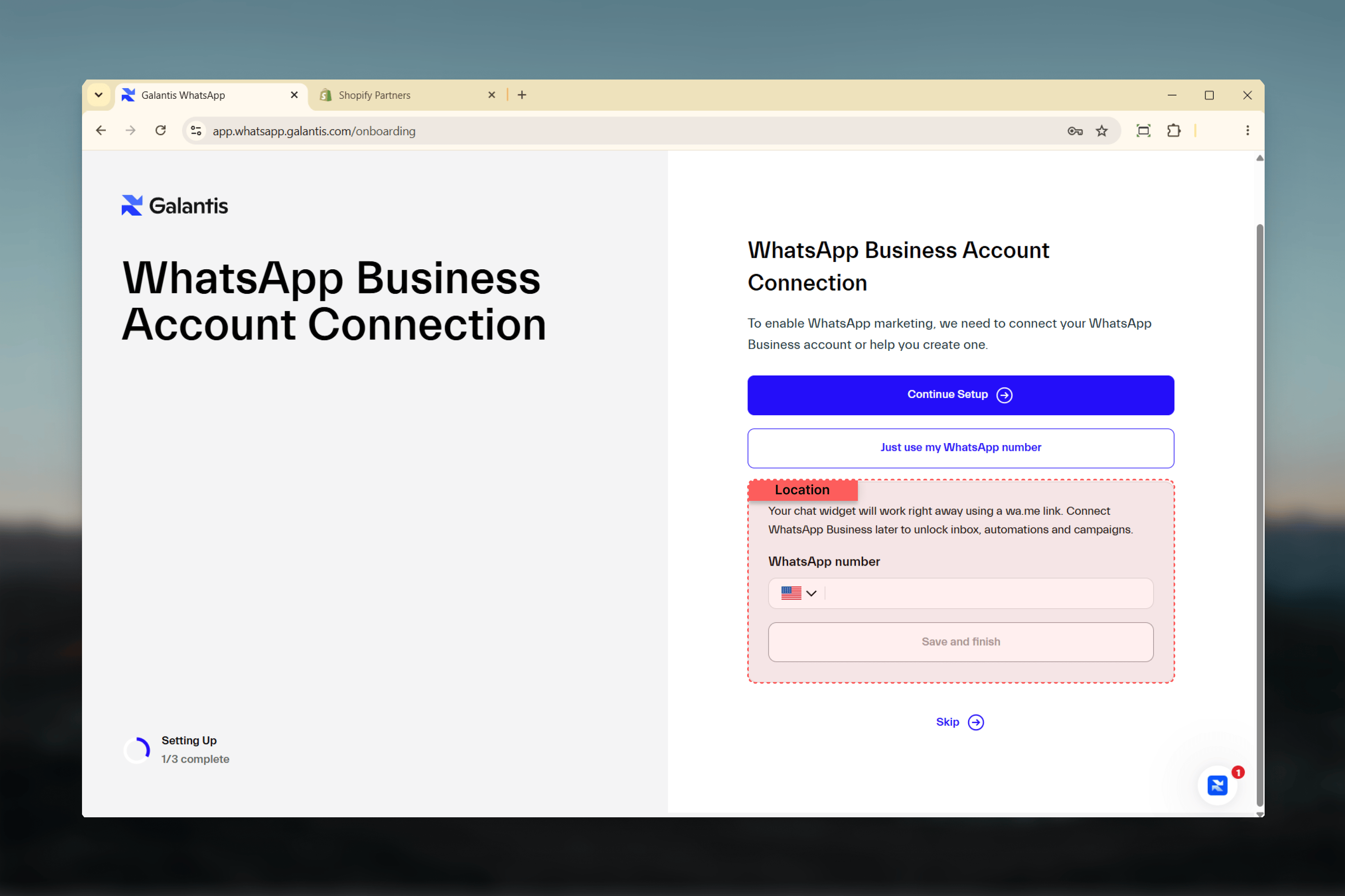 ## Your three options
Get a fresh SIM or business line that has never been used on consumer WhatsApp, WhatsApp Business app, or another WABA. You add it inside the connection modal — Meta sends a verification code to that number to confirm ownership.
**Best for:** every store that doesn't already have a customer-facing WhatsApp number it can't change.
Most mobile or landline numbers from a major carrier work. Some VoIP and toll-free numbers are not supported by Meta — check before purchasing a number specifically for WhatsApp.
Meta verifies the number by sending a one-time code via SMS or voice call to confirm ownership.
In the Galantis app, click **Connect WhatsApp**. In the Embedded Signup modal, choose "Add a new phone number" and follow the prompts. See [Connect WhatsApp](/galantis/whatsapp/getting-started/whatsapp-connection).
If you already own a business number that has **never** been registered on consumer WhatsApp or the WhatsApp Business app, you can use it directly. The flow is the same as adding a new number — the modal sends a verification code and registers the number to your WABA.
**Best for:** stores that already have a published business line they want to keep using.
This path is for a number that has **never** been on WhatsApp — it registers directly on the Cloud API. If your number is currently on the **WhatsApp Business app** and you want to keep using the app, use the coexistence flow in the next tab instead.
If your number is currently on the **WhatsApp Business app**, you can connect it to Galantis with **coexistence**: you keep using the WhatsApp Business app exactly as you do today, while Galantis sends campaigns, automations and order updates on the same number. No migration, and you do not lose the app.
On the connect screen, choose **Continue setup**, then continue into Meta's Embedded Signup and select your existing WhatsApp Business app number.
Meta shows a screen titled "Transfer your contacts and chat history". Your business profile, your contacts and the **last 6 months of chat history** are shared with the connected account, so your recent conversations carry over.
On the phone that holds the number, scan the on-screen QR code with the **WhatsApp Business app**. Then look for a message from the official Facebook Business Account, tap **Connect**, and confirm sharing your chats. The account links in about 45 seconds.
Back in the browser, complete the remaining steps (region, payment method, business verification) on the Galantis page.
You keep replying to customers in the WhatsApp Business app as usual. New conversations also appear in the Galantis Inbox, and Galantis runs campaigns and automations on the number.
Coexistence depends on Meta eligibility: a recent WhatsApp Business app version, the number already active on that app, and regional availability. If your number is not eligible, connect a new dedicated number for Galantis and keep your existing number on the WhatsApp Business app.
## Phone number requirements
Whichever path you choose, the number must be:
* **Owned by your business** — you can receive an SMS or voice call to confirm verification
* **Not currently active on consumer WhatsApp** — if it is, sign out from consumer WhatsApp on that device first; the Embedded Signup modal will explain the next step if there's a conflict
* **From a Meta-supported number type** — most mobile and landline numbers work; some VoIP / toll-free numbers don't. See [Meta's phone number requirements](https://developers.facebook.com/docs/whatsapp/cloud-api/get-started)
## What's a display name?
The **display name** is the human-readable name shown to recipients alongside your number — for example, "Sahara Style" rather than just `+1 555 0142`. You set it during the Embedded Signup flow.
* Pick a name that matches your brand and your Meta Business name
* Avoid promotional language, all-caps shouting, or third-party brand names
* Meta reviews display names — approval is typically quick but can take 1–2 business days
For Meta's current display name rules and prohibited terms, see [Meta's WhatsApp Business Display Name guidelines](https://developers.facebook.com/docs/whatsapp/embedded-signup/onboard-clients).
## Quick decision guide
Lowest friction, cleanest quality rating, easiest to change later if your strategy evolves. Pick a fresh number, give it a clear display name aligned with your brand, and connect it through the modal.
## FAQ
Yes — you can add a second number and route campaigns / automations / inbox to it, then deactivate the original. The original number's quality rating doesn't transfer. See [Multiple phone numbers](/galantis/whatsapp/integrations/meta-whatsapp/multiple-phone-numbers).
Technically possible, but strongly discouraged. Personal WhatsApp activity affects the number's quality rating, your owner's private chats live next to business chats on the same number, and removing the owner from the team later becomes painful.
No. Connecting a WhatsApp Business app number uses **coexistence**, so you keep the app and keep replying to customers there. During setup Meta shares your business profile, contacts, and the last 6 months of chat history with the connected account, and new conversations also appear in the Galantis Inbox.
The SMS / voice-call verification is instant. The display-name review by Meta typically clears in 1–2 business days. You can start sending utility messages immediately after verification; marketing-category messages require display-name approval.
Yes. A landline is verified **by phone call** rather than SMS — Meta calls the number and reads out the code, so make sure someone can answer it. VoIP and toll-free numbers are often not accepted; use a regular mobile or landline.
Meta supports phone numbers from most countries, but a small list of regions is restricted. If verification fails because of country support, the Embedded Signup modal will explain — and Galantis support can suggest alternatives.
***
Get the app installed on your store, then connect WhatsApp.
Walk through the Embedded Signup modal step by step.
## Your three options
Get a fresh SIM or business line that has never been used on consumer WhatsApp, WhatsApp Business app, or another WABA. You add it inside the connection modal — Meta sends a verification code to that number to confirm ownership.
**Best for:** every store that doesn't already have a customer-facing WhatsApp number it can't change.
Most mobile or landline numbers from a major carrier work. Some VoIP and toll-free numbers are not supported by Meta — check before purchasing a number specifically for WhatsApp.
Meta verifies the number by sending a one-time code via SMS or voice call to confirm ownership.
In the Galantis app, click **Connect WhatsApp**. In the Embedded Signup modal, choose "Add a new phone number" and follow the prompts. See [Connect WhatsApp](/galantis/whatsapp/getting-started/whatsapp-connection).
If you already own a business number that has **never** been registered on consumer WhatsApp or the WhatsApp Business app, you can use it directly. The flow is the same as adding a new number — the modal sends a verification code and registers the number to your WABA.
**Best for:** stores that already have a published business line they want to keep using.
This path is for a number that has **never** been on WhatsApp — it registers directly on the Cloud API. If your number is currently on the **WhatsApp Business app** and you want to keep using the app, use the coexistence flow in the next tab instead.
If your number is currently on the **WhatsApp Business app**, you can connect it to Galantis with **coexistence**: you keep using the WhatsApp Business app exactly as you do today, while Galantis sends campaigns, automations and order updates on the same number. No migration, and you do not lose the app.
On the connect screen, choose **Continue setup**, then continue into Meta's Embedded Signup and select your existing WhatsApp Business app number.
Meta shows a screen titled "Transfer your contacts and chat history". Your business profile, your contacts and the **last 6 months of chat history** are shared with the connected account, so your recent conversations carry over.
On the phone that holds the number, scan the on-screen QR code with the **WhatsApp Business app**. Then look for a message from the official Facebook Business Account, tap **Connect**, and confirm sharing your chats. The account links in about 45 seconds.
Back in the browser, complete the remaining steps (region, payment method, business verification) on the Galantis page.
You keep replying to customers in the WhatsApp Business app as usual. New conversations also appear in the Galantis Inbox, and Galantis runs campaigns and automations on the number.
Coexistence depends on Meta eligibility: a recent WhatsApp Business app version, the number already active on that app, and regional availability. If your number is not eligible, connect a new dedicated number for Galantis and keep your existing number on the WhatsApp Business app.
## Phone number requirements
Whichever path you choose, the number must be:
* **Owned by your business** — you can receive an SMS or voice call to confirm verification
* **Not currently active on consumer WhatsApp** — if it is, sign out from consumer WhatsApp on that device first; the Embedded Signup modal will explain the next step if there's a conflict
* **From a Meta-supported number type** — most mobile and landline numbers work; some VoIP / toll-free numbers don't. See [Meta's phone number requirements](https://developers.facebook.com/docs/whatsapp/cloud-api/get-started)
## What's a display name?
The **display name** is the human-readable name shown to recipients alongside your number — for example, "Sahara Style" rather than just `+1 555 0142`. You set it during the Embedded Signup flow.
* Pick a name that matches your brand and your Meta Business name
* Avoid promotional language, all-caps shouting, or third-party brand names
* Meta reviews display names — approval is typically quick but can take 1–2 business days
For Meta's current display name rules and prohibited terms, see [Meta's WhatsApp Business Display Name guidelines](https://developers.facebook.com/docs/whatsapp/embedded-signup/onboard-clients).
## Quick decision guide
Lowest friction, cleanest quality rating, easiest to change later if your strategy evolves. Pick a fresh number, give it a clear display name aligned with your brand, and connect it through the modal.
## FAQ
Yes — you can add a second number and route campaigns / automations / inbox to it, then deactivate the original. The original number's quality rating doesn't transfer. See [Multiple phone numbers](/galantis/whatsapp/integrations/meta-whatsapp/multiple-phone-numbers).
Technically possible, but strongly discouraged. Personal WhatsApp activity affects the number's quality rating, your owner's private chats live next to business chats on the same number, and removing the owner from the team later becomes painful.
No. Connecting a WhatsApp Business app number uses **coexistence**, so you keep the app and keep replying to customers there. During setup Meta shares your business profile, contacts, and the last 6 months of chat history with the connected account, and new conversations also appear in the Galantis Inbox.
The SMS / voice-call verification is instant. The display-name review by Meta typically clears in 1–2 business days. You can start sending utility messages immediately after verification; marketing-category messages require display-name approval.
Yes. A landline is verified **by phone call** rather than SMS — Meta calls the number and reads out the code, so make sure someone can answer it. VoIP and toll-free numbers are often not accepted; use a regular mobile or landline.
Meta supports phone numbers from most countries, but a small list of regions is restricted. If verification fails because of country support, the Embedded Signup modal will explain — and Galantis support can suggest alternatives.
***
Get the app installed on your store, then connect WhatsApp.
Walk through the Embedded Signup modal step by step.