> ## Documentation Index
> Fetch the complete documentation index at: https://docs.digifist.com/llms.txt
> Use this file to discover all available pages before exploring further.
# First Catalog Sync
> Sync your Shopify products and collections into Galantis and optionally push them to Meta.
The Catalog module keeps your Shopify product data in sync with Galantis and Meta, making it available for product message templates — Single Product Messages (SPM), Multi-Product Messages (MPM), and Whole Catalog messages. Without a synced catalog, these message formats cannot function.
This guide walks you through your first manual sync, reviewing product data, and optionally connecting Meta for product messages.
## What this covers
* Triggering a full Shopify catalog sync
* Reviewing synced products and excluding items if needed
* Connecting Meta and pushing products for product messages
* Understanding sync status per product
## Before you begin
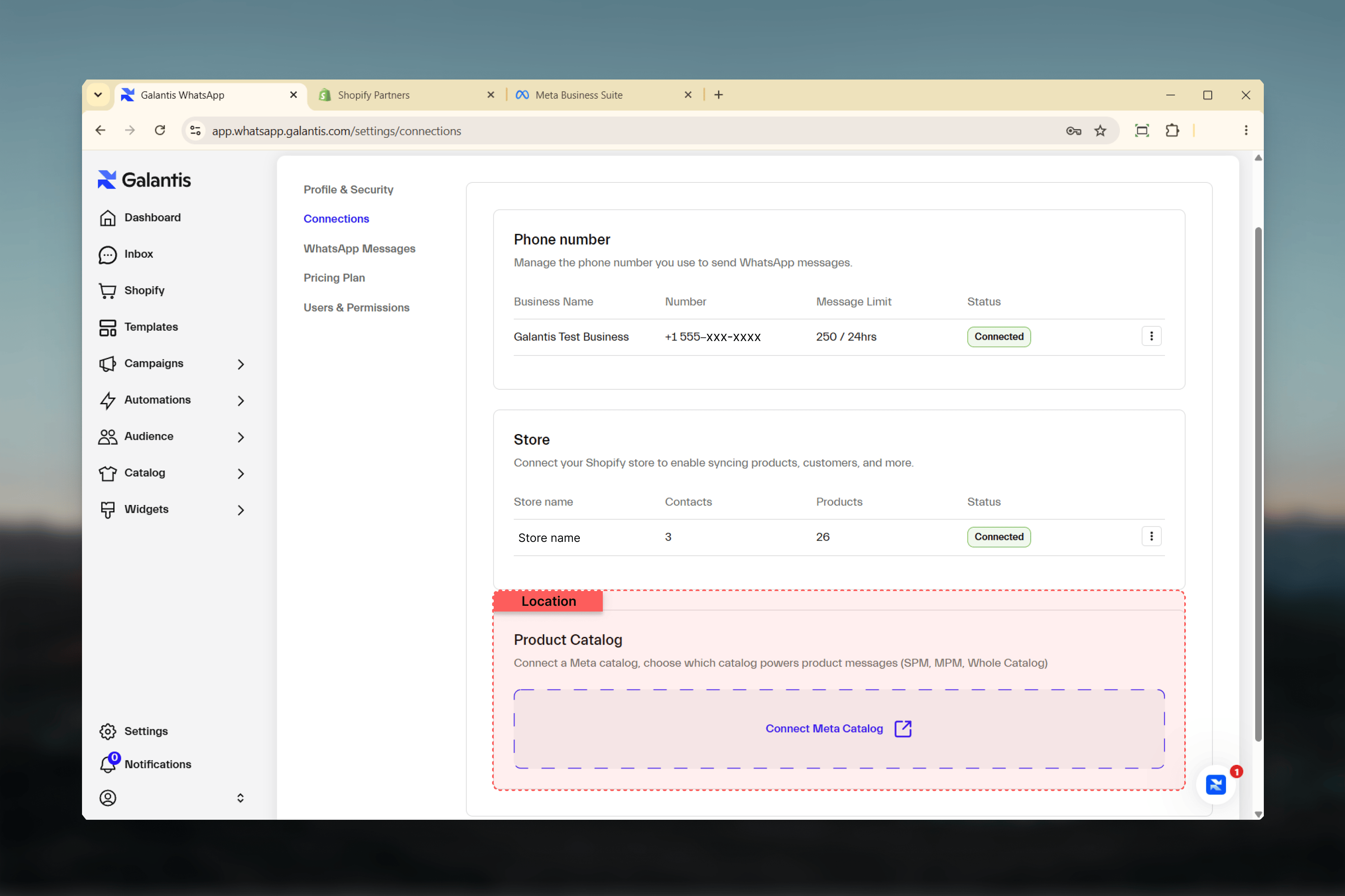
Your WhatsApp Business Account must be connected before setting up a Meta Catalog push. A catalog connection is only required if you plan to use product message formats — standard campaigns and automations do not require it.
 ## Syncing your Shopify catalog
In the Galantis dashboard, go to **Catalog → Shopify Sync**.
Click **Sync Now** to import all your Shopify products and collections into Galantis. This is a one-time full import — after this, Galantis keeps product data current automatically via Shopify webhooks.
Once the sync completes, browse the product list. Check that titles, prices, variants, and images have imported correctly.
If specific products should not be synced to Meta, flag them with the `exclude_from_syncforce` option on the individual product record. This does not remove them from Galantis — it only prevents them from being pushed to Meta.
## Pushing products to Meta (optional)
This step is only required if you plan to use SPM, MPM, or Whole Catalog message formats.
Go to **Catalog → Meta Sync**. You have two options:
* **Import an existing Meta Catalog** — connect a catalog you have already configured in Meta Commerce Manager.
* **Create a new Meta Catalog from Galantis** — build and push directly from your Shopify data, without setting anything up in Meta Commerce Manager.
Once connected, trigger a Meta push. Products that are successfully pushed will show a `SYNCED` status.
Review the status column per product. Address any `FAILED` items by checking the error details and resolving the issue (for example, images that do not meet Meta's size requirements).
## Sync status reference
| Status | Description |
| --------- | --------------------------------------------- |
| `PENDING` | Queued for Meta upload |
| `SYNCED` | Successfully pushed to Meta |
| `FAILED` | Sync error — review error details per product |
## How ongoing sync works
After your first manual sync, Galantis keeps product data current automatically. Shopify triggers a webhook whenever a product is created, updated, or deleted — Galantis processes these in near real time. You only need to run a manual sync again after bulk edits or if you need to recover from a sync error.
Product images must be JPEG or PNG format and at least 500×500px to pass Meta's validation. Images that do not meet this requirement will cause the product to show a `FAILED` status on the Meta push.
## Related guides
* [Catalog](/whatsapp/catalog/index) — Full reference for sync configuration, product fields, and catalog health
* [WhatsApp Connection](./whatsapp-connection) — Required for Meta Catalog integration
* [First Campaign](./first-campaign) — Use catalog products in campaign messages
## Syncing your Shopify catalog
In the Galantis dashboard, go to **Catalog → Shopify Sync**.
Click **Sync Now** to import all your Shopify products and collections into Galantis. This is a one-time full import — after this, Galantis keeps product data current automatically via Shopify webhooks.
Once the sync completes, browse the product list. Check that titles, prices, variants, and images have imported correctly.
If specific products should not be synced to Meta, flag them with the `exclude_from_syncforce` option on the individual product record. This does not remove them from Galantis — it only prevents them from being pushed to Meta.
## Pushing products to Meta (optional)
This step is only required if you plan to use SPM, MPM, or Whole Catalog message formats.
Go to **Catalog → Meta Sync**. You have two options:
* **Import an existing Meta Catalog** — connect a catalog you have already configured in Meta Commerce Manager.
* **Create a new Meta Catalog from Galantis** — build and push directly from your Shopify data, without setting anything up in Meta Commerce Manager.
Once connected, trigger a Meta push. Products that are successfully pushed will show a `SYNCED` status.
Review the status column per product. Address any `FAILED` items by checking the error details and resolving the issue (for example, images that do not meet Meta's size requirements).
## Sync status reference
| Status | Description |
| --------- | --------------------------------------------- |
| `PENDING` | Queued for Meta upload |
| `SYNCED` | Successfully pushed to Meta |
| `FAILED` | Sync error — review error details per product |
## How ongoing sync works
After your first manual sync, Galantis keeps product data current automatically. Shopify triggers a webhook whenever a product is created, updated, or deleted — Galantis processes these in near real time. You only need to run a manual sync again after bulk edits or if you need to recover from a sync error.
Product images must be JPEG or PNG format and at least 500×500px to pass Meta's validation. Images that do not meet this requirement will cause the product to show a `FAILED` status on the Meta push.
## Related guides
* [Catalog](/whatsapp/catalog/index) — Full reference for sync configuration, product fields, and catalog health
* [WhatsApp Connection](./whatsapp-connection) — Required for Meta Catalog integration
* [First Campaign](./first-campaign) — Use catalog products in campaign messages