> ## Documentation Index
> Fetch the complete documentation index at: https://docs.digifist.com/llms.txt
> Use this file to discover all available pages before exploring further.
# Blog Posts
> Configure Everest's article template, content blocks, metadata, sharing, and comment-aware behavior.
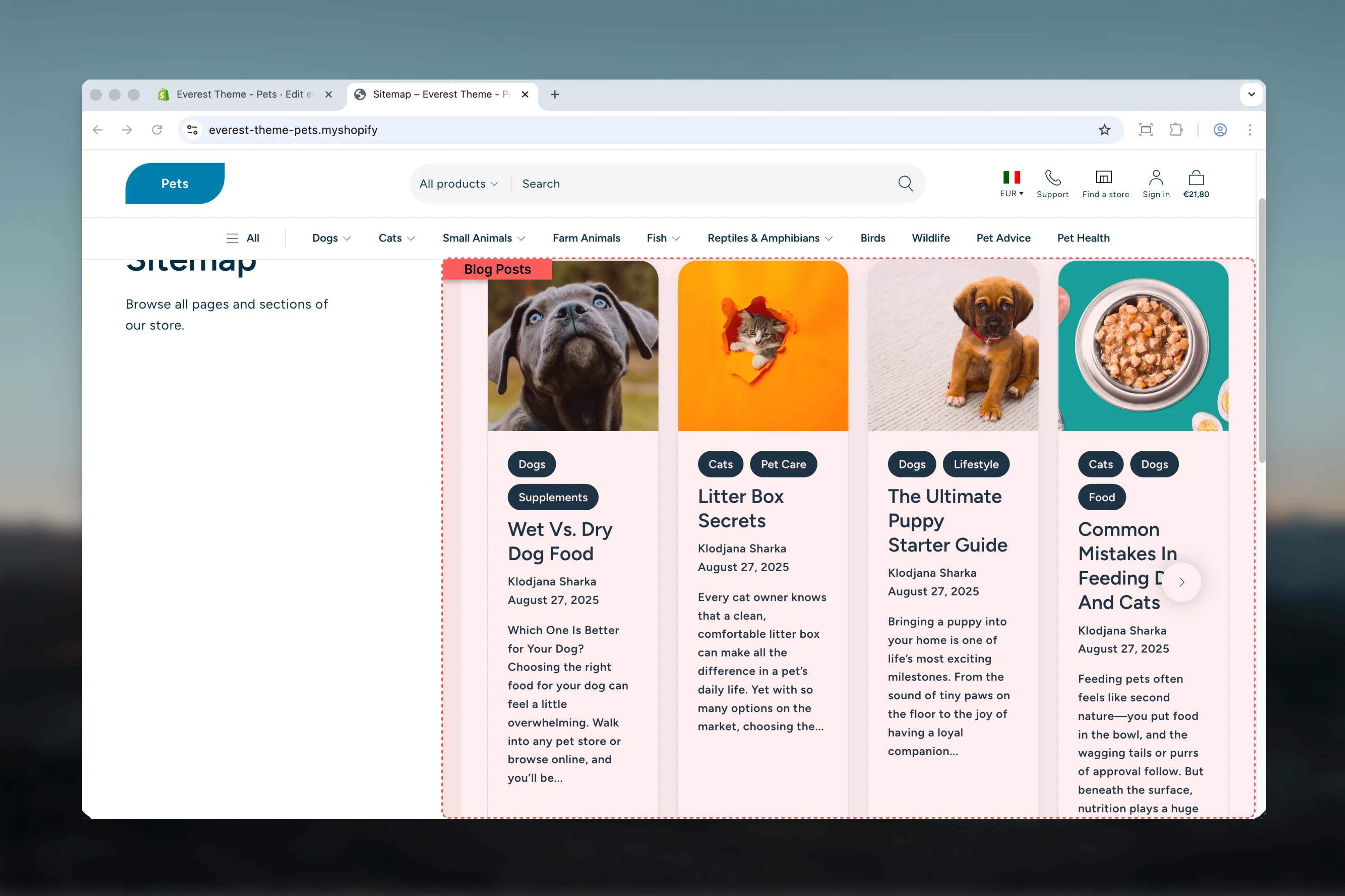
Blog Posts control the article detail template in Everest. The template is powered by the `main-article` section, which renders the article through reorderable blocks for tags, metadata, heading, share actions, featured image, and rich article content.
 ## What this template controls
* The block order used to present article content
* Back-to-blog navigation behavior
* Article metadata such as author and publish date
* Tag links, sharing, featured image, and article content output
* Shared width, color, and spacing settings for the article wrapper
* Comment form and comment list visibility when blog comments are enabled in Shopify
## Template structure
This template uses the following main section and default blocks:
* **Article**
* **Tags**
* **Info**
* **Heading**
* **Share**
* **Featured Image**
* **Content**
## Getting started
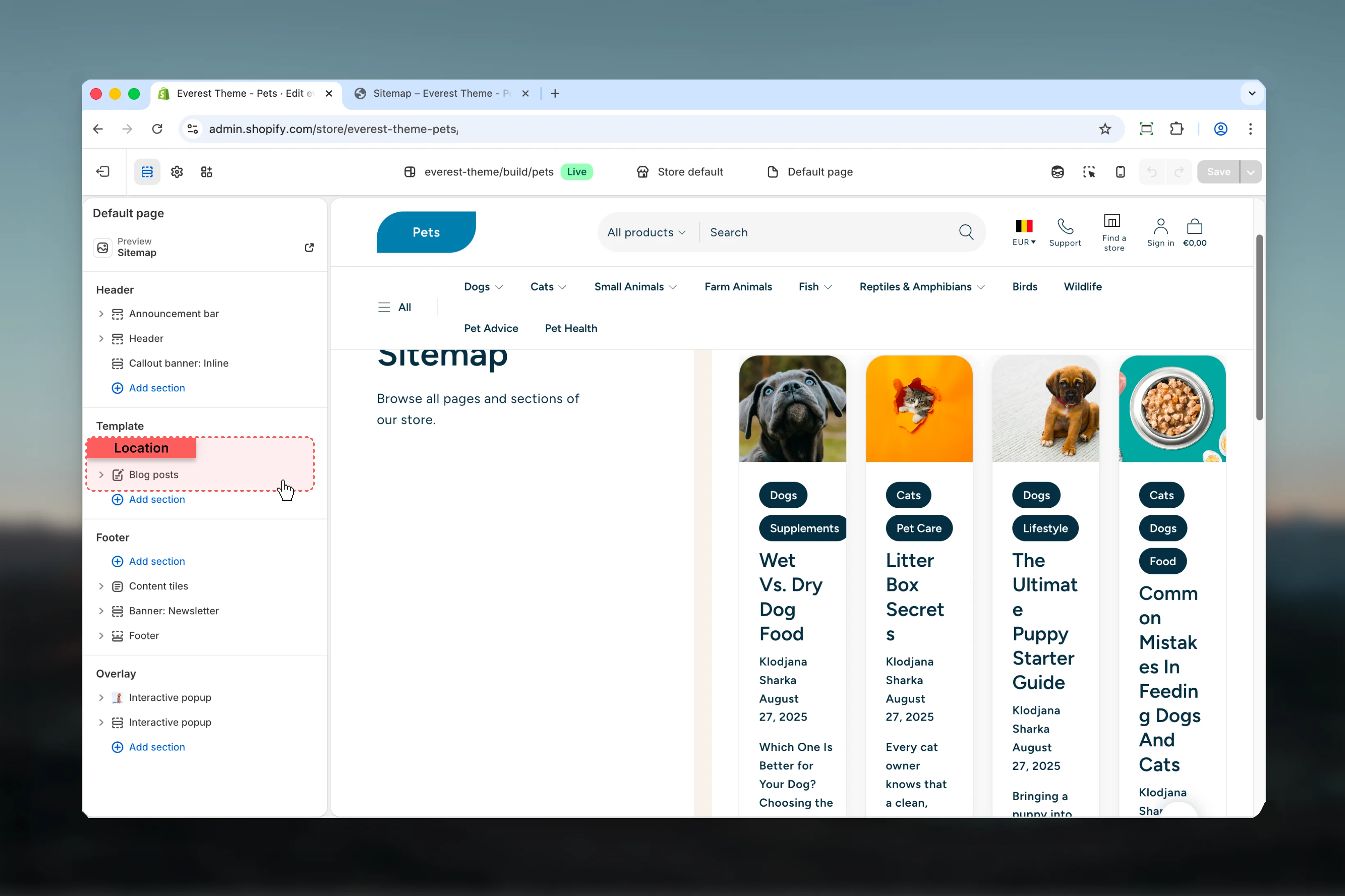
In Theme Customizer, open a blog post resource so Everest loads the article template with real content.
Review the article blocks first because their order defines how readers move through the post.
Choose the article width before adjusting styling so text-heavy content remains comfortable to scan.
Decide whether back navigation, post details, tags, and comments support the way your blog is meant to be read.
## What this template controls
* The block order used to present article content
* Back-to-blog navigation behavior
* Article metadata such as author and publish date
* Tag links, sharing, featured image, and article content output
* Shared width, color, and spacing settings for the article wrapper
* Comment form and comment list visibility when blog comments are enabled in Shopify
## Template structure
This template uses the following main section and default blocks:
* **Article**
* **Tags**
* **Info**
* **Heading**
* **Share**
* **Featured Image**
* **Content**
## Getting started
In Theme Customizer, open a blog post resource so Everest loads the article template with real content.
Review the article blocks first because their order defines how readers move through the post.
Choose the article width before adjusting styling so text-heavy content remains comfortable to scan.
Decide whether back navigation, post details, tags, and comments support the way your blog is meant to be read.
 ## Main settings
### Article settings
## Main settings
### Article settings
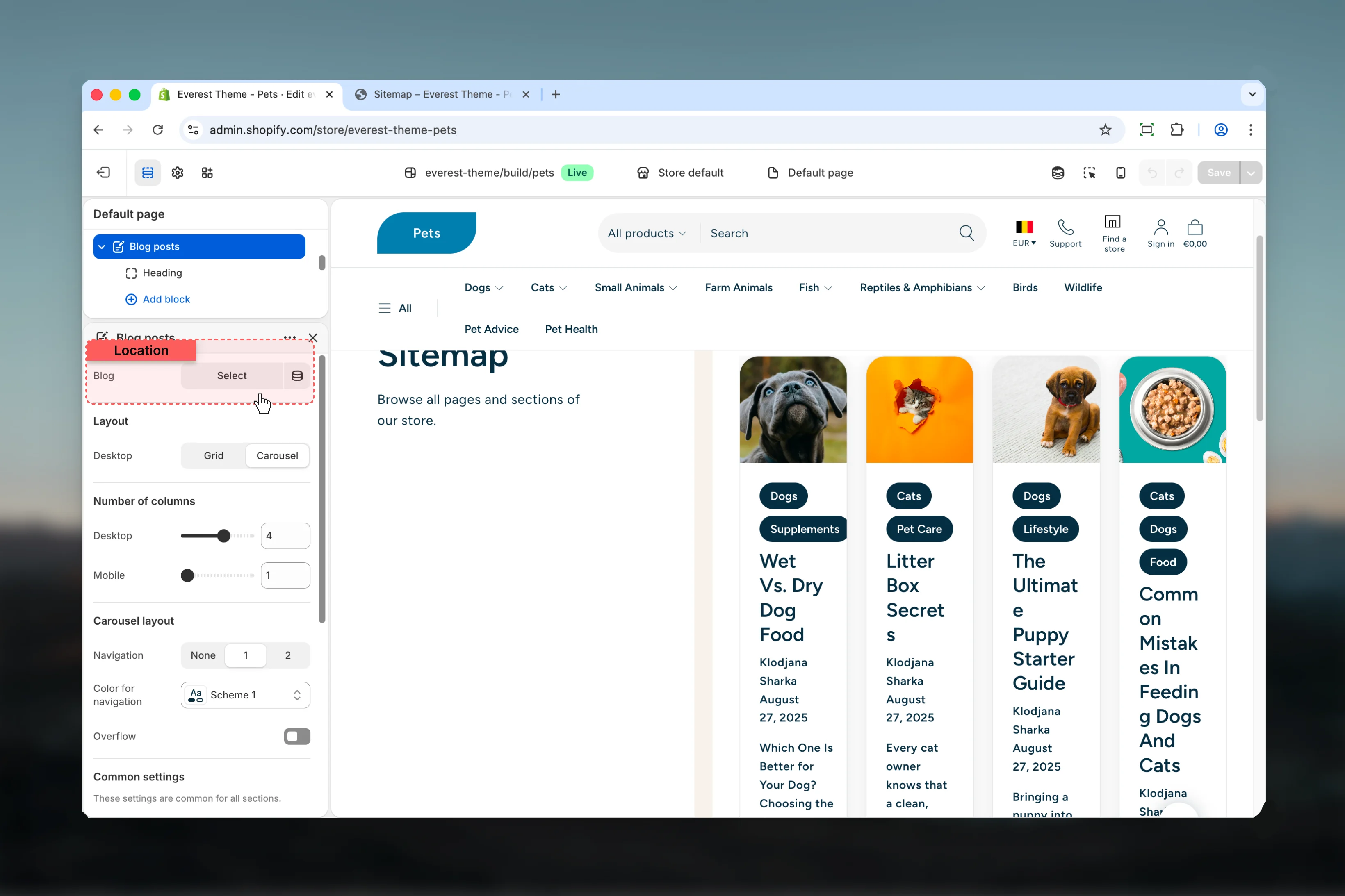 Adds a link below the article content that sends visitors back to the parent blog.
**Default:** Enabled
### Layout
Adds a link below the article content that sends visitors back to the parent blog.
**Default:** Enabled
### Layout
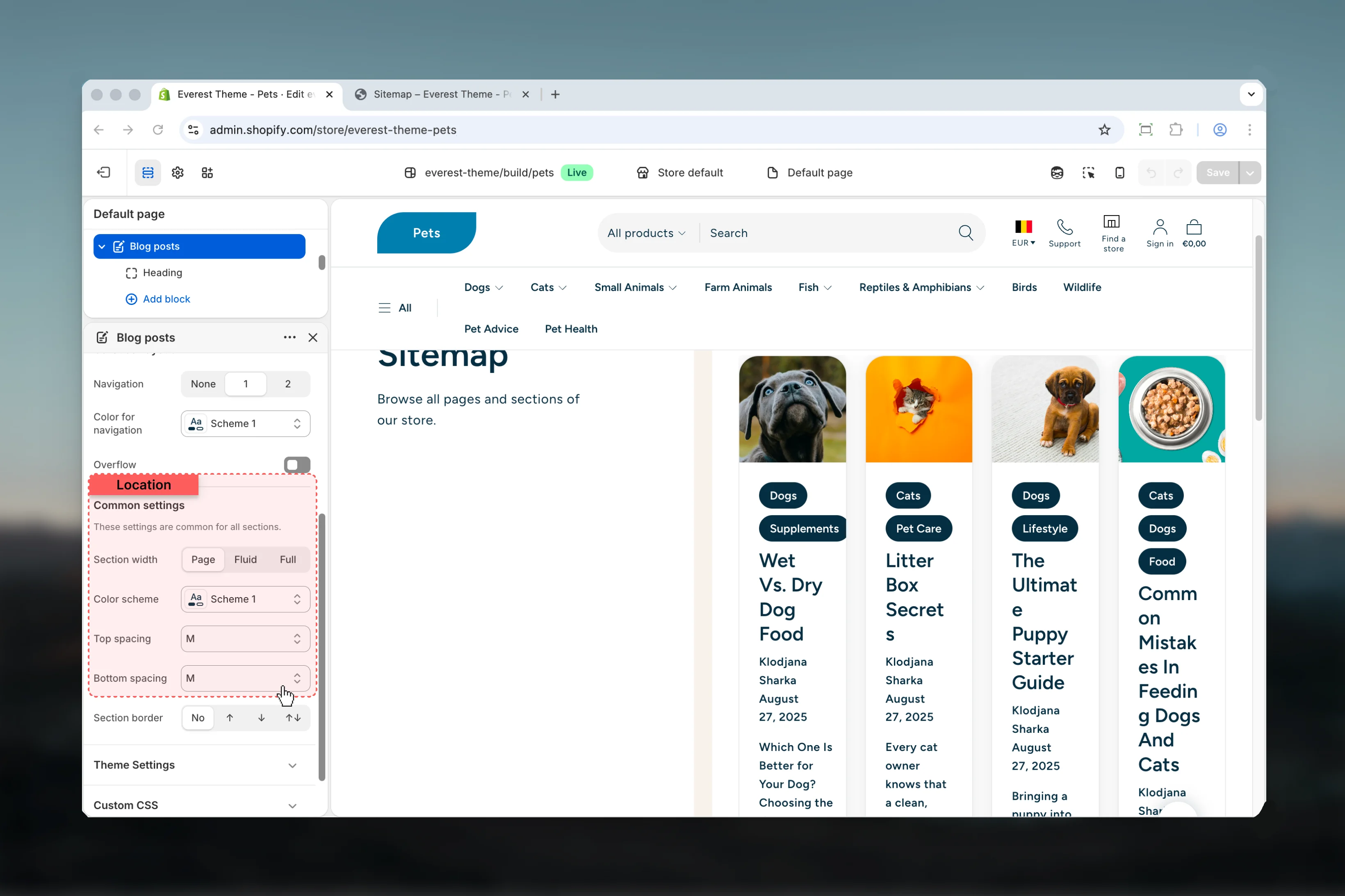 Controls the reading width of the article container.
**Available options:** `XXS`, `Page`, `Fluid`\
**Default:** `XXS`
`XXS` keeps long-form reading narrower and is the default Everest article presentation.
Sets the visual treatment for the article section wrapper.
Control the vertical space around the article section.
**Available options:** `No`, `S`, `M`, `L`, `XL`
## Default blocks
Renders article tags as linked buttons that take visitors to the tagged blog archive.
Displays author, publish date, or both depending on block settings.
Outputs the article title. Everest promotes it to `h1` when the section appears first on the page.
Adds the shared social sharing control for the current article URL.
Displays the article image when one exists.
The block also controls the image aspect ratio used for the article hero.
Renders the main blog post body from Shopify's article content field.
## Comment behavior
Everest only shows the comment list and comment form when comments are enabled on the parent Shopify blog. When comments are moderated, the template also shows moderation-aware success messaging after form submission.
## Best practices
* Keep article width narrow enough for comfortable reading, especially on text-heavy posts.
* Use metadata and tag blocks consistently so archive pages and article pages feel connected.
* Review featured image ratios with real article imagery before publishing layout changes.
* If comments are enabled, test the full submission flow so validation and moderation messages are clear.
## Related guides
* [Blogs](/themes/everest/blogs)
* [Theme Settings: Typography](/themes/everest/theme-settings/typography)
* [Theme Settings: Colors](/themes/everest/theme-settings/colors)
Controls the reading width of the article container.
**Available options:** `XXS`, `Page`, `Fluid`\
**Default:** `XXS`
`XXS` keeps long-form reading narrower and is the default Everest article presentation.
Sets the visual treatment for the article section wrapper.
Control the vertical space around the article section.
**Available options:** `No`, `S`, `M`, `L`, `XL`
## Default blocks
Renders article tags as linked buttons that take visitors to the tagged blog archive.
Displays author, publish date, or both depending on block settings.
Outputs the article title. Everest promotes it to `h1` when the section appears first on the page.
Adds the shared social sharing control for the current article URL.
Displays the article image when one exists.
The block also controls the image aspect ratio used for the article hero.
Renders the main blog post body from Shopify's article content field.
## Comment behavior
Everest only shows the comment list and comment form when comments are enabled on the parent Shopify blog. When comments are moderated, the template also shows moderation-aware success messaging after form submission.
## Best practices
* Keep article width narrow enough for comfortable reading, especially on text-heavy posts.
* Use metadata and tag blocks consistently so archive pages and article pages feel connected.
* Review featured image ratios with real article imagery before publishing layout changes.
* If comments are enabled, test the full submission flow so validation and moderation messages are clear.
## Related guides
* [Blogs](/themes/everest/blogs)
* [Theme Settings: Typography](/themes/everest/theme-settings/typography)
* [Theme Settings: Colors](/themes/everest/theme-settings/colors)