> ## Documentation Index
> Fetch the complete documentation index at: https://docs.digifist.com/llms.txt
> Use this file to discover all available pages before exploring further.

# 404 Page

> Configure Everest's 404 template and the recovery content shown when a page cannot be found.

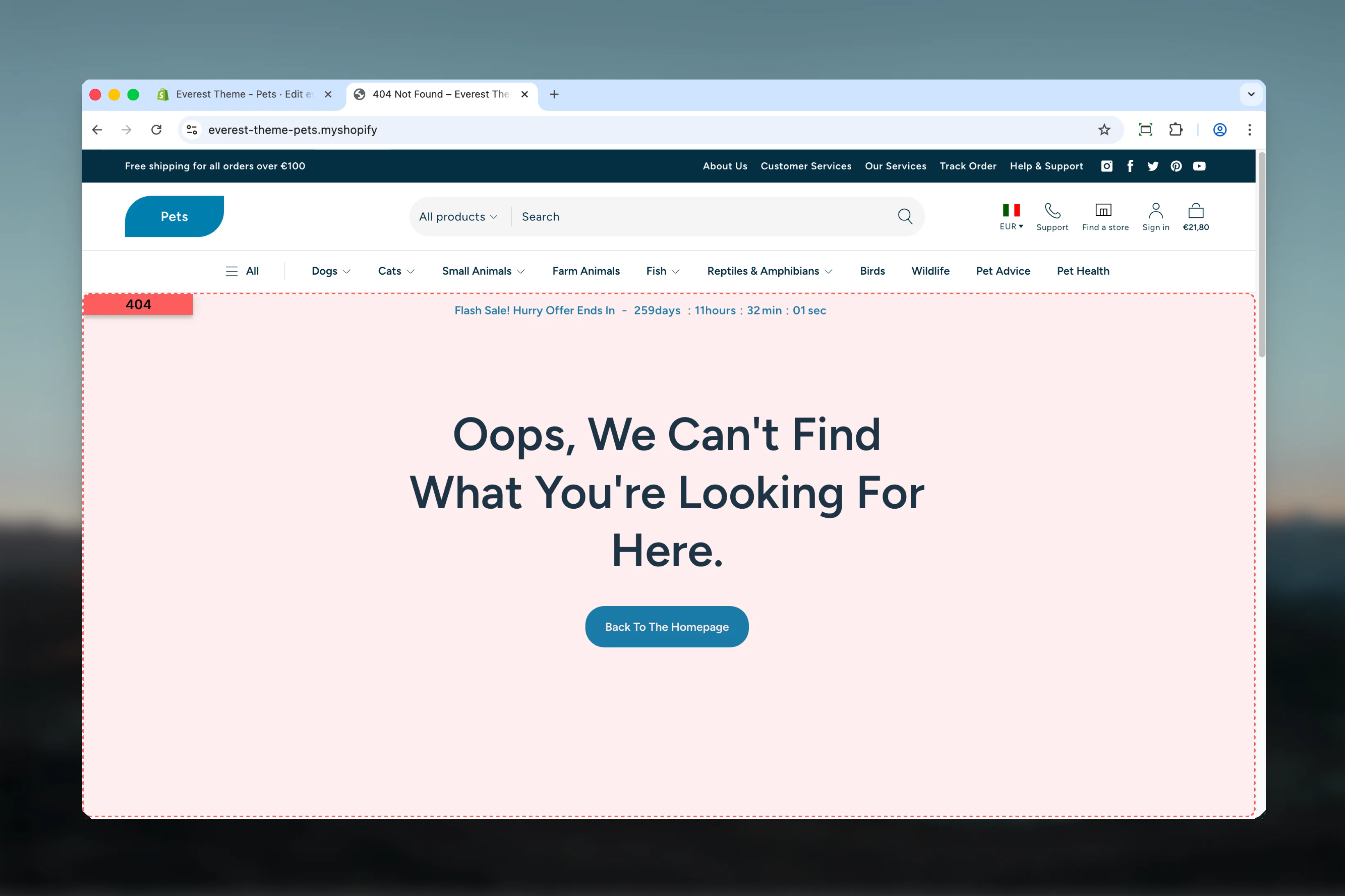
The 404 Page template controls the main structure used for this page type in Everest. It combines template-specific sections with reusable content blocks, which means most storefront behavior can be adjusted in the Theme Customizer without editing theme code.

<img src="https://mintcdn.com/digifist/nCsbQaljAlcQ8sro/images/theme/everest/pages-templates/404-overview.png?fit=max&auto=format&n=nCsbQaljAlcQ8sro&q=85&s=148ead853f0f5c0cfa8e0b9d046a02b9" alt="404 Page overview" width="3280" height="2186" data-path="images/theme/everest/pages-templates/404-overview.png" />

## What this template controls

* Headings, text content, and on-page messaging
* Layout structure, width, alignment, and spacing
* Calls to action, links, and navigation behavior
* Color schemes, contrast, and shared visual styling
* The template section order and the supporting sections included by default

## Template structure

This template uses the following main sections or related theme building blocks by default:

* **404**
* **Featured Collections**

## Getting started
<Steps>
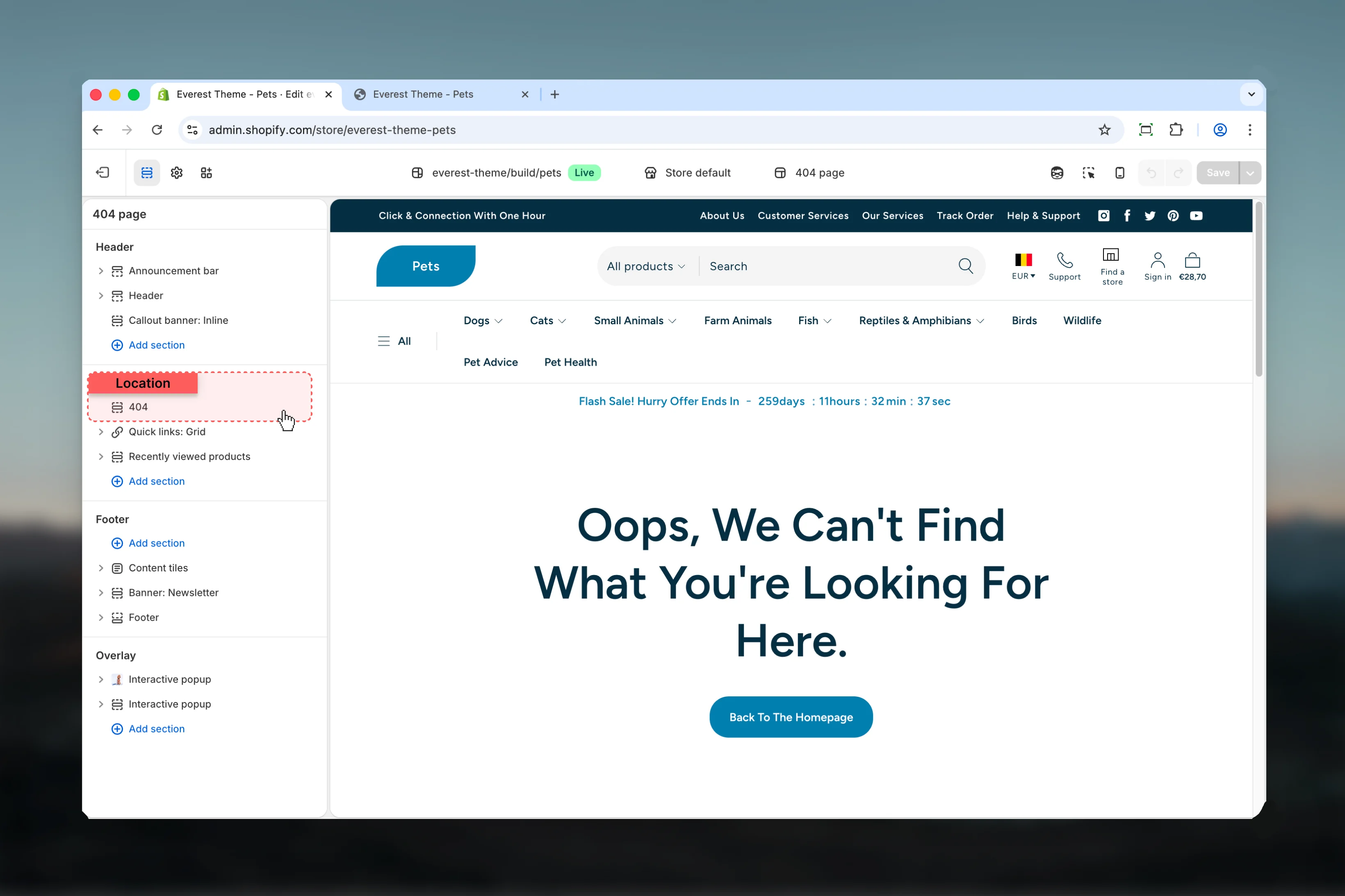
  <Step title="Open the template in Theme Customizer">
    Open the relevant page type or assign the template to a resource before customizing it.
  </Step>

  <Step title="Review the main section first">
    Start with the primary content section so layout, filtering, gallery, or page-level behavior is defined before refining supporting content.
  </Step>

  <Step title="Adjust supporting sections">
    Review any banners, content sections, or utility sections included in the template so the full page works together as a set.
  </Step>
</Steps>

<img src="https://mintcdn.com/digifist/nCsbQaljAlcQ8sro/images/theme/everest/pages-templates/404-location.png?fit=max&auto=format&n=nCsbQaljAlcQ8sro&q=85&s=82aa28a2596bd791d897155aa71a913f" alt="404 Page location in Theme Customizer" width="3280" height="2186" data-path="images/theme/everest/pages-templates/404-location.png" />

## Main settings

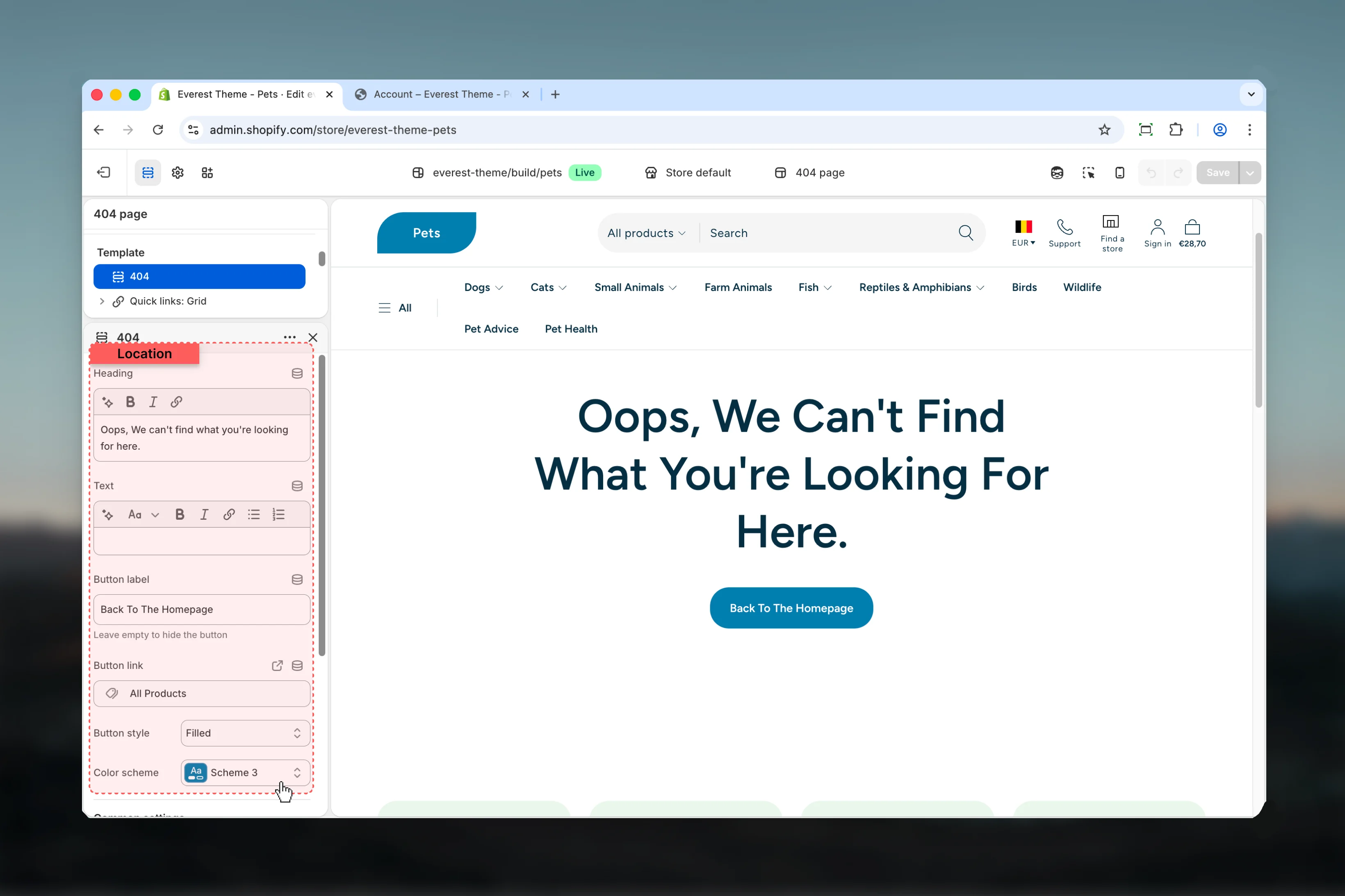
### Settings

<img src="https://mintcdn.com/digifist/nCsbQaljAlcQ8sro/images/theme/everest/pages-templates/404-settings.png?fit=max&auto=format&n=nCsbQaljAlcQ8sro&q=85&s=d4b1795726692daf851d587e5181785b" alt="404 Page Settings settings" width="3280" height="2186" data-path="images/theme/everest/pages-templates/404-settings.png" />

<AccordionGroup>
  <Accordion title="Heading" icon="text-size">
    Enter the content used for **heading**.

    **Default:** `404 - Page not found`
  </Accordion>

  <Accordion title="Text" icon="text-size">
    Enter the content used for **text**.

    **Default:** `<p>Oops, We can't find what you're looking for here.</p>`
  </Accordion>

  <Accordion title="Button label" icon="text-size">
    Enter the content used for **button label**.

    Keep action labels short so they remain readable across devices.

    **Default:** `Continue shopping`

    Leave empty to hide the button
  </Accordion>

  <Accordion title="Button link" icon="link">
    Set the destination URL for **button link**.

    Keep action labels short so they remain readable across devices.

    **Default:** `/collections/all`
  </Accordion>

  <Accordion title="Button style" icon="link">
    Choose how **Button style** behaves in the section.

    Keep action labels short so they remain readable across devices.

    **Available options:** Filled, Outlined, Text.

    **Default:** `outlined`
  </Accordion>

  <Accordion title="Color scheme" icon="palette">
    Select the color scheme used for **color scheme**.

    Use this to keep contrast and branding consistent with the rest of the store.

    **Default:** `scheme-1`
  </Accordion>
</AccordionGroup>

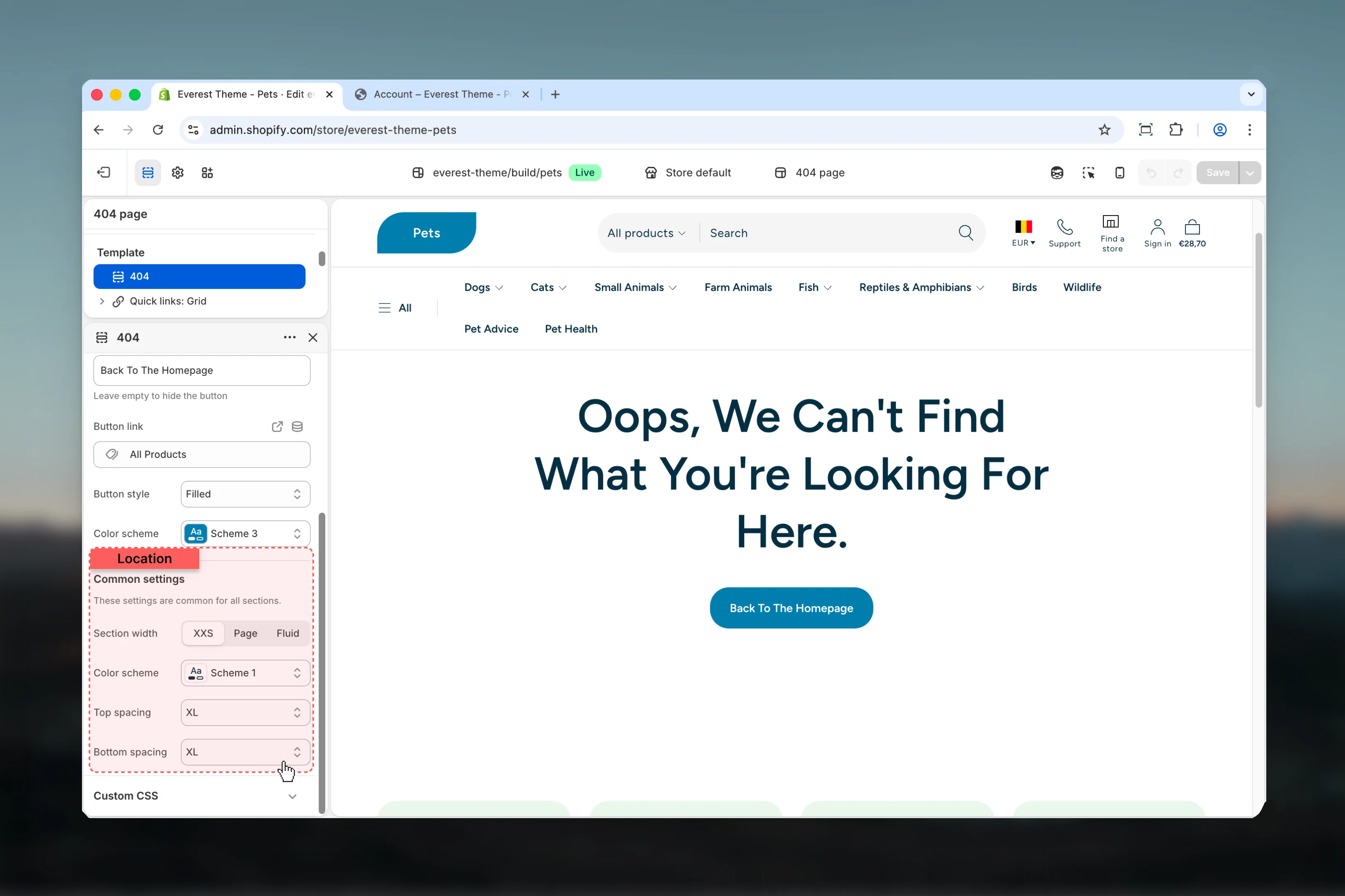
### Common settings

<img src="https://mintcdn.com/digifist/nCsbQaljAlcQ8sro/images/theme/everest/pages-templates/404-common-settings.png?fit=max&auto=format&n=nCsbQaljAlcQ8sro&q=85&s=70f2f5949788f51790f3aee8f578485b" alt="404 Page Common settings" width="3280" height="2186" data-path="images/theme/everest/pages-templates/404-common-settings.png" />

<AccordionGroup>
  <Accordion title="Section width" icon="grid">
    Choose how **Section width** behaves in the section.

    This setting shapes the section container and how it sits against surrounding content.

    **Available options:** XXS, Page, Fluid.

    **Default:** `xxs`
  </Accordion>

  <Accordion title="Color scheme" icon="palette">
    Select the color scheme used for **color scheme**.

    Use this to keep contrast and branding consistent with the rest of the store.

    **Default:** `scheme-1`
  </Accordion>

  <Accordion title="Top spacing" icon="grid">
    Choose how **Top spacing** behaves in the section.

    This setting shapes the section container and how it sits against surrounding content.

    **Available options:** No, S, M, L, XL.

    **Default:** `2`
  </Accordion>

  <Accordion title="Bottom spacing" icon="grid">
    Choose how **Bottom spacing** behaves in the section.

    This setting shapes the section container and how it sits against surrounding content.

    **Available options:** No, S, M, L, XL.

    **Default:** `2`
  </Accordion>
</AccordionGroup>

## Best practices

* Check contrast after changing color schemes so text and controls remain easy to read.
* Keep labels short and scannable, especially in tighter layouts or utility areas.
* Adjust layout changes alongside neighboring sections so page rhythm stays consistent.
* Test this template with real content volume so headings, cards, and filters behave as expected.
* Review supporting sections together because template defaults often work as a coordinated set.

## Related guides

* [Everest Theme Overview](/themes/everest/index)