> ## Documentation Index
> Fetch the complete documentation index at: https://docs.digifist.com/llms.txt
> Use this file to discover all available pages before exploring further.
# Page
> Configure Everest's standard page template and the rich content blocks that support it.
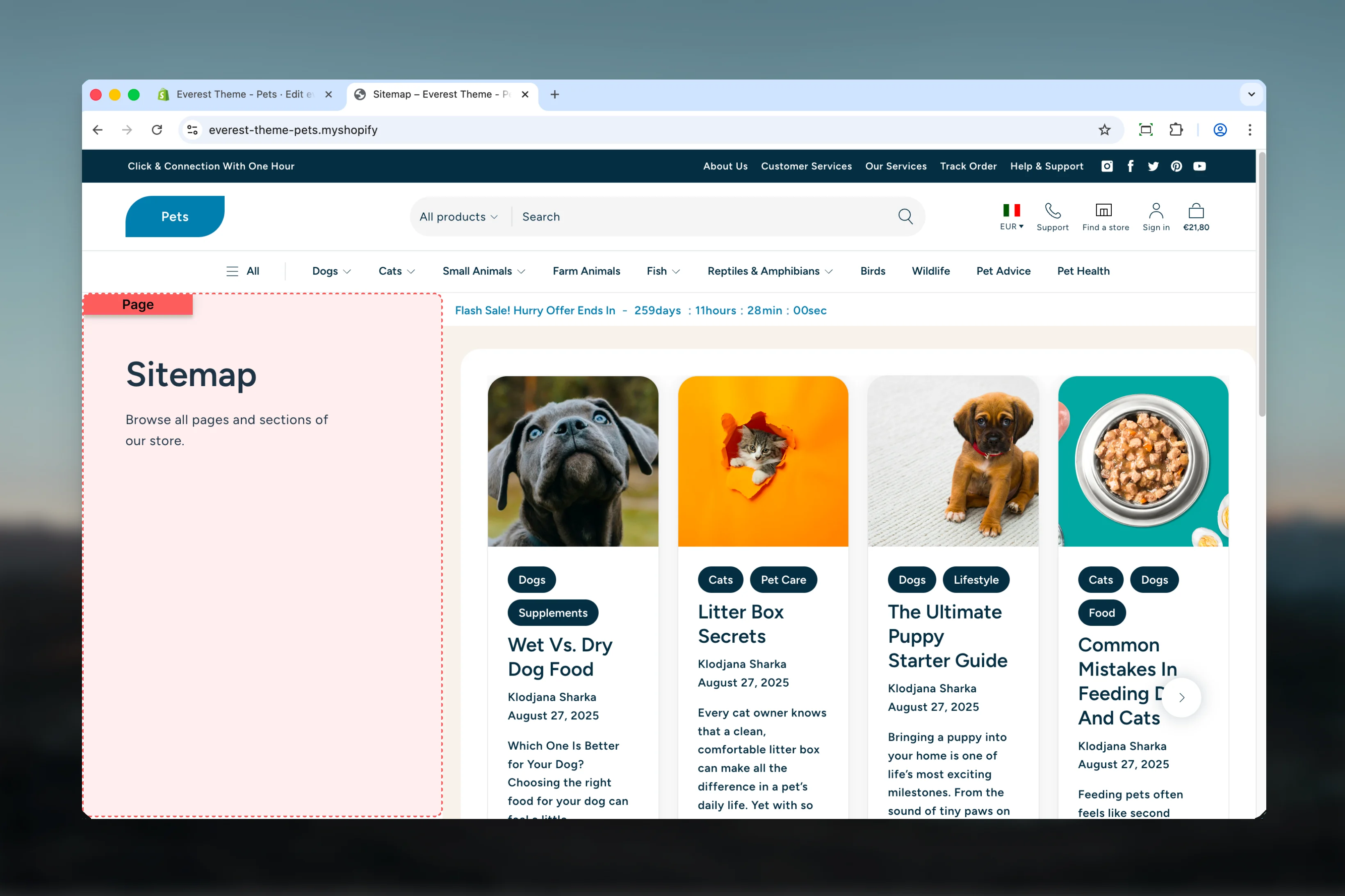
The Page template controls the main structure used for this page type in Everest. It combines template-specific sections with reusable content blocks, which means most storefront behavior can be adjusted in the Theme Customizer without editing theme code.
 ## What this template controls
* Headings, text content, and on-page messaging
* Layout structure, width, alignment, and spacing
* Color schemes, contrast, and shared visual styling
* Block types such as Content, Custom Liquid
* The template section order and the supporting sections included by default
## Template structure
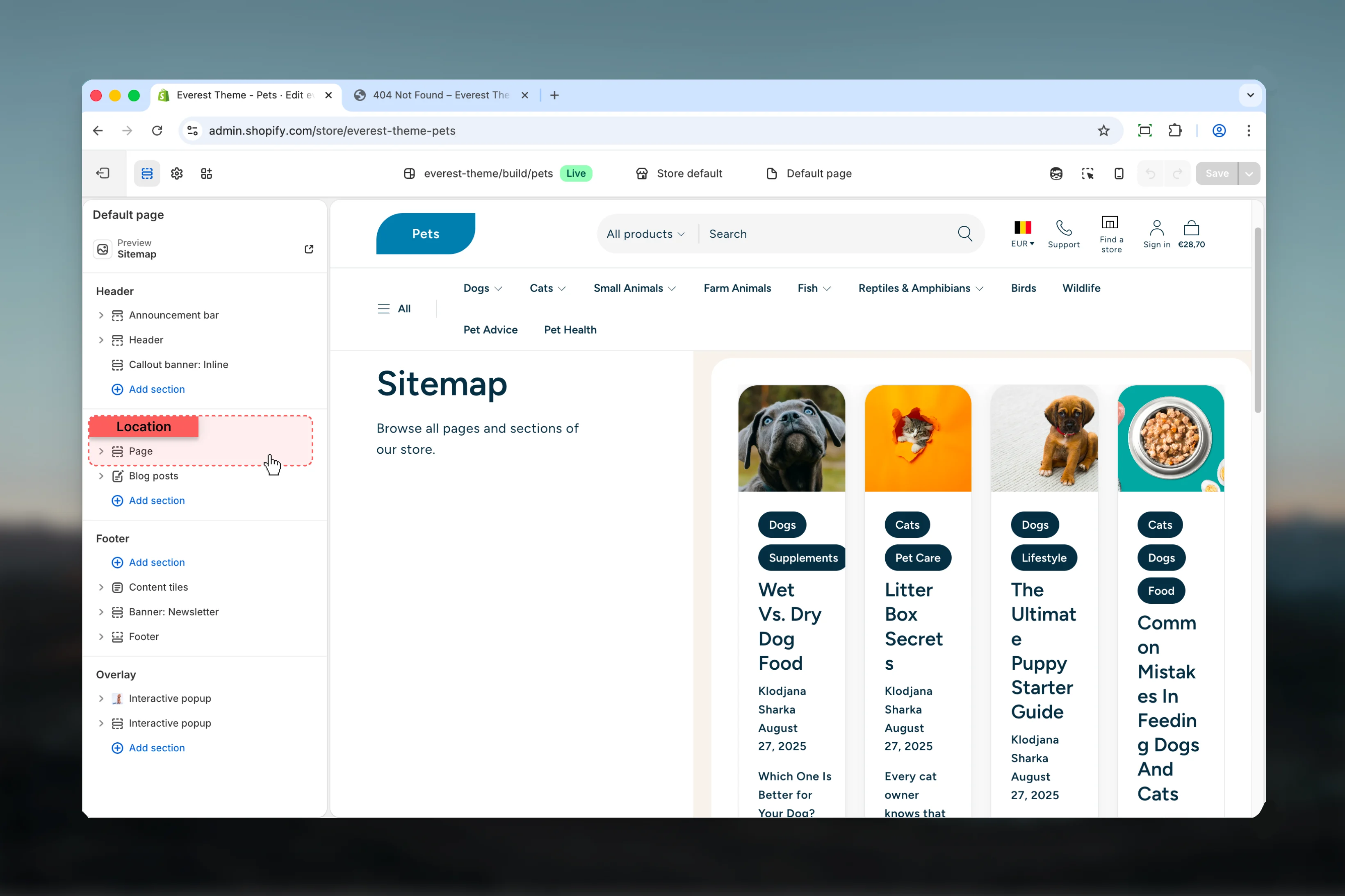
This template uses the following main sections or related theme building blocks by default:
* **Page**
## Getting started
Open the relevant page type or assign the template to a resource before customizing it.
Start with the primary content section so layout, filtering, gallery, or page-level behavior is defined before refining supporting content.
Review any banners, content sections, or utility sections included in the template so the full page works together as a set.
## What this template controls
* Headings, text content, and on-page messaging
* Layout structure, width, alignment, and spacing
* Color schemes, contrast, and shared visual styling
* Block types such as Content, Custom Liquid
* The template section order and the supporting sections included by default
## Template structure
This template uses the following main sections or related theme building blocks by default:
* **Page**
## Getting started
Open the relevant page type or assign the template to a resource before customizing it.
Start with the primary content section so layout, filtering, gallery, or page-level behavior is defined before refining supporting content.
Review any banners, content sections, or utility sections included in the template so the full page works together as a set.
 ## Main settings
### Settings
## Main settings
### Settings
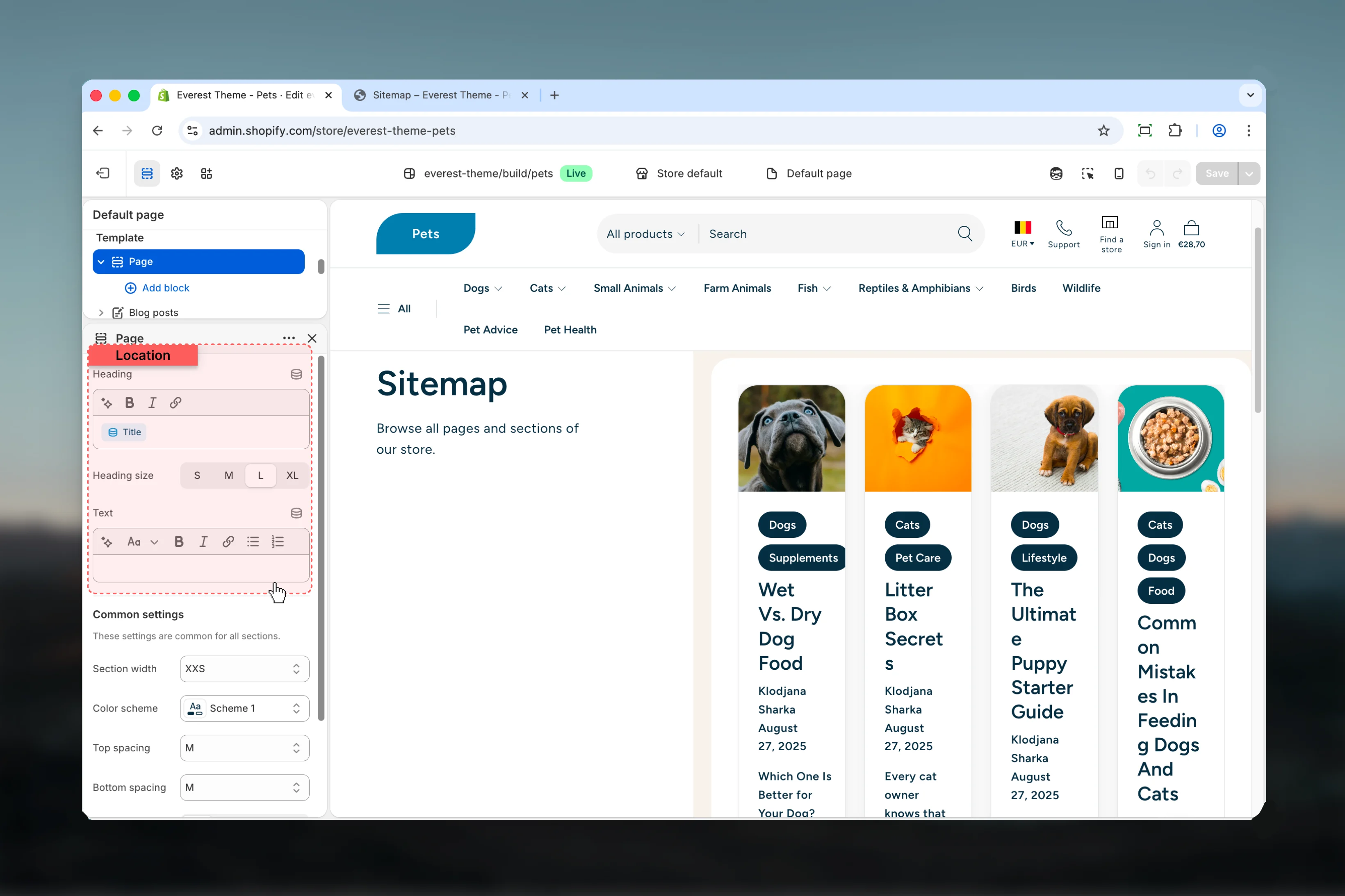 Enter the content used for **heading**.
**Default:** `{{ page.title }}`
Choose how **Heading size** behaves in the section.
**Available options:** S, M, L, XL.
**Default:** `h2`
Enter the content used for **text**.
### Common settings
Enter the content used for **heading**.
**Default:** `{{ page.title }}`
Choose how **Heading size** behaves in the section.
**Available options:** S, M, L, XL.
**Default:** `h2`
Enter the content used for **text**.
### Common settings
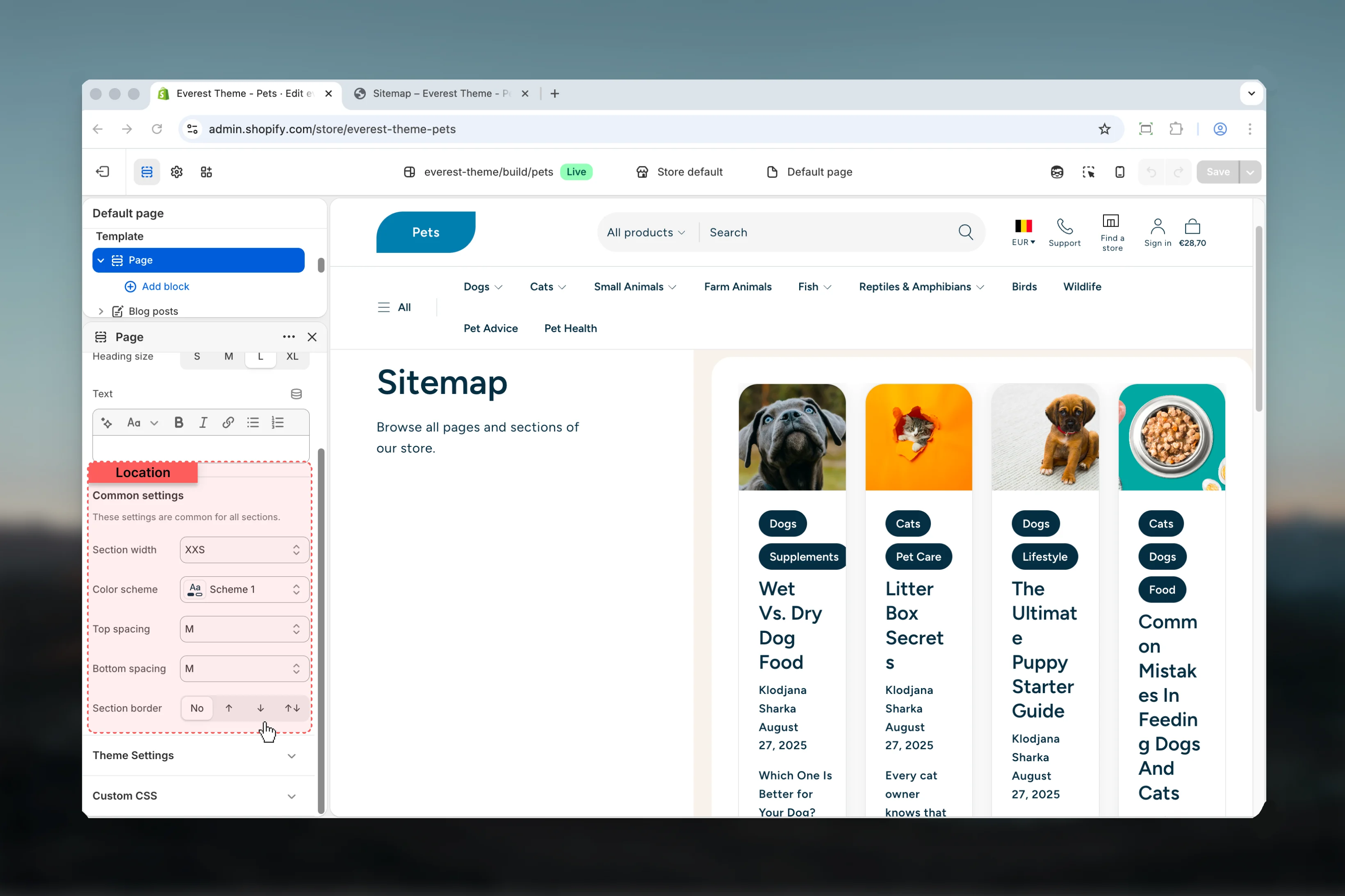 Choose how **Section width** behaves in the section.
This setting shapes the section container and how it sits against surrounding content.
**Available options:** XXS, Page, Fluid, Full.
**Default:** `xxs`
Select the color scheme used for **color scheme**.
Use this to keep contrast and branding consistent with the rest of the store.
**Default:** `scheme-1`
Choose how **Top spacing** behaves in the section.
This setting shapes the section container and how it sits against surrounding content.
**Available options:** No, S, M, L, XL.
**Default:** `2`
Choose how **Bottom spacing** behaves in the section.
This setting shapes the section container and how it sits against surrounding content.
**Available options:** No, S, M, L, XL.
**Default:** `2`
Choose how **Section border** behaves in the section.
This setting shapes the section container and how it sits against surrounding content.
**Available options:** None, Top, Bottom, Both.
**Default:** `none`
## Best practices
* Check contrast after changing color schemes so text and controls remain easy to read.
* Adjust layout changes alongside neighboring sections so page rhythm stays consistent.
* Test this template with real content volume so headings, cards, and filters behave as expected.
* Review supporting sections together because template defaults often work as a coordinated set.
## Related guides
* [Everest Theme Overview](/themes/everest/index)
Choose how **Section width** behaves in the section.
This setting shapes the section container and how it sits against surrounding content.
**Available options:** XXS, Page, Fluid, Full.
**Default:** `xxs`
Select the color scheme used for **color scheme**.
Use this to keep contrast and branding consistent with the rest of the store.
**Default:** `scheme-1`
Choose how **Top spacing** behaves in the section.
This setting shapes the section container and how it sits against surrounding content.
**Available options:** No, S, M, L, XL.
**Default:** `2`
Choose how **Bottom spacing** behaves in the section.
This setting shapes the section container and how it sits against surrounding content.
**Available options:** No, S, M, L, XL.
**Default:** `2`
Choose how **Section border** behaves in the section.
This setting shapes the section container and how it sits against surrounding content.
**Available options:** None, Top, Bottom, Both.
**Default:** `none`
## Best practices
* Check contrast after changing color schemes so text and controls remain easy to read.
* Adjust layout changes alongside neighboring sections so page rhythm stays consistent.
* Test this template with real content volume so headings, cards, and filters behave as expected.
* Review supporting sections together because template defaults often work as a coordinated set.
## Related guides
* [Everest Theme Overview](/themes/everest/index)