> ## Documentation Index
> Fetch the complete documentation index at: https://docs.digifist.com/llms.txt
> Use this file to discover all available pages before exploring further.
# Password
> Configure Everest's locked-store password experience, launch messaging, brand presentation, and access flow.
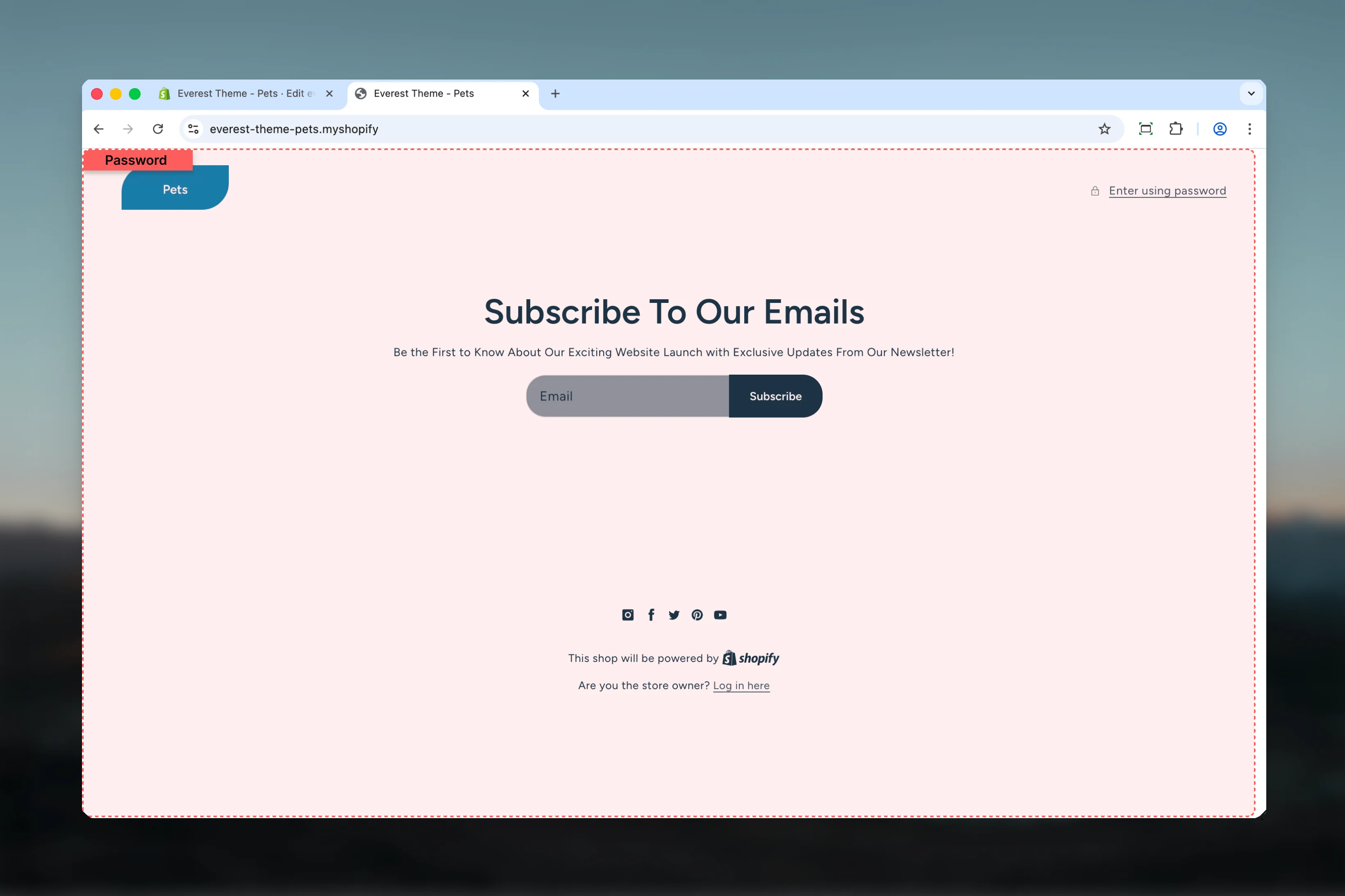
Password controls the temporary storefront experience shown while the store is protected. In Everest, this page uses the dedicated password layout together with the `main-password-header`, `banner`, and `main-password-footer` sections, so the final result depends on both page-level content and shared brand or social settings.
 ## What this template controls
* Brand logo or shop name display at the top of the locked store
* The password entry modal and admin access link
* Shopify password message output
* The main banner content used for launch messaging or newsletter signup
* Social icons and footer utility content on the password page
* Color schemes for the dedicated password header and footer sections
## Template structure
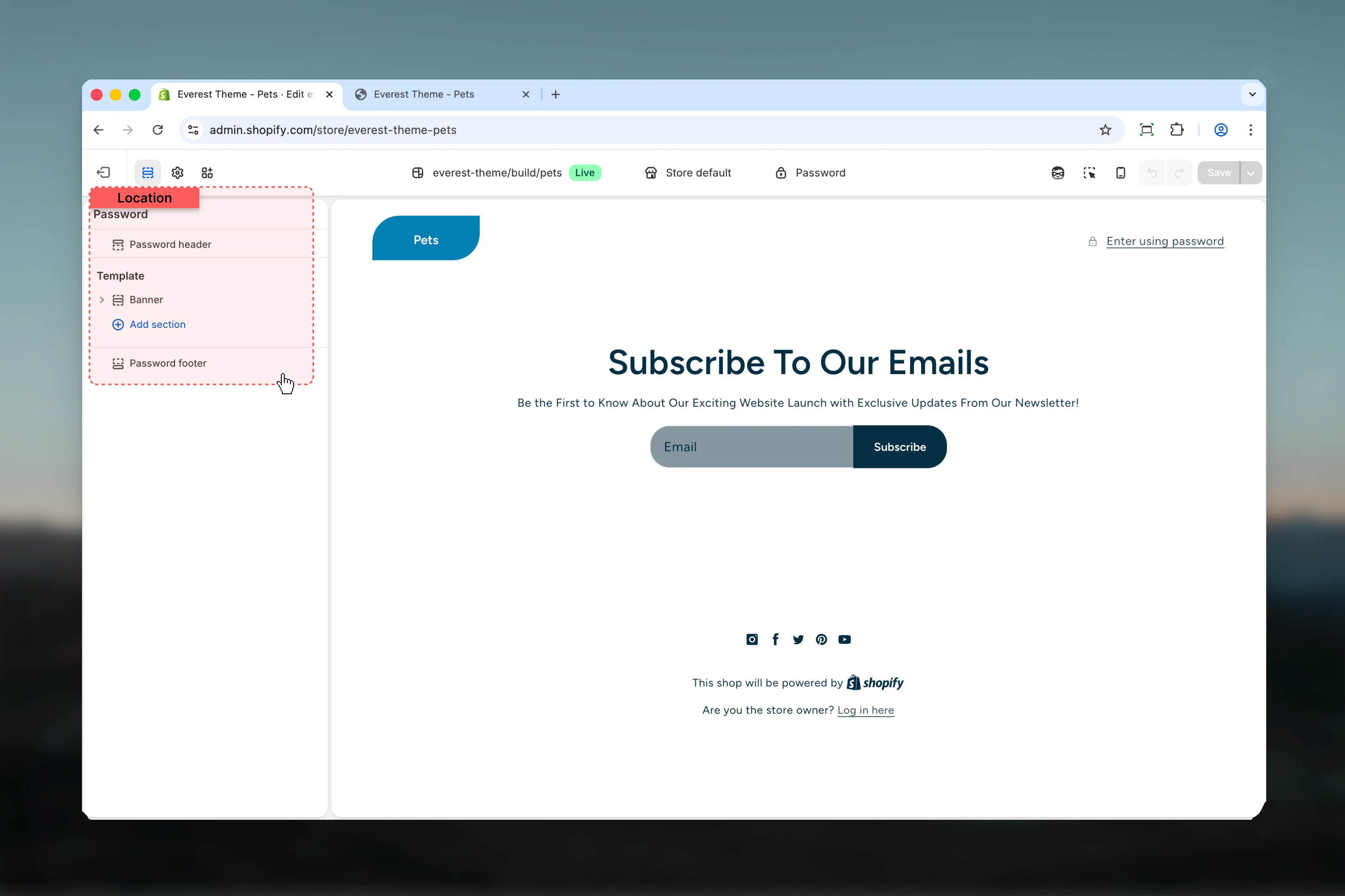
This template uses the following password-specific layout pieces by default:
* **Password Header**
* **Banner**
* **Password Footer**
## Getting started
In Theme Customizer, open the password template while the store password is enabled.
Start with the banner content because it carries the main message visitors see before the store opens.
Check the header logo, store name fallback, password entry flow, and any store password message set in Shopify.
Review social icons and footer styling last so the page feels complete without distracting from the launch message.
## What this template controls
* Brand logo or shop name display at the top of the locked store
* The password entry modal and admin access link
* Shopify password message output
* The main banner content used for launch messaging or newsletter signup
* Social icons and footer utility content on the password page
* Color schemes for the dedicated password header and footer sections
## Template structure
This template uses the following password-specific layout pieces by default:
* **Password Header**
* **Banner**
* **Password Footer**
## Getting started
In Theme Customizer, open the password template while the store password is enabled.
Start with the banner content because it carries the main message visitors see before the store opens.
Check the header logo, store name fallback, password entry flow, and any store password message set in Shopify.
Review social icons and footer styling last so the page feels complete without distracting from the launch message.
 ## How Everest's password page works
The header shows the brand logo when a global brand logo or SVG logo exists. If no logo is configured, Everest falls back to the shop name.
It also displays the optional Shopify password message and opens the storefront password form inside a modal dialog.
The main content area comes from the standard Everest banner section.
In the default password template, the banner is configured as a newsletter-style launch section with heading, text, and newsletter blocks.
The footer shows social icons, the Shopify attribution text, and the admin access link.
Social icons only appear when the related links are filled in Everest's global social settings.
Everest uses `layout/password.liquid` for this page type instead of the standard storefront layout. That is why the password page has its own header and footer sections separate from the main storefront header and footer.
## Section settings
### Password Header and Password Footer
## How Everest's password page works
The header shows the brand logo when a global brand logo or SVG logo exists. If no logo is configured, Everest falls back to the shop name.
It also displays the optional Shopify password message and opens the storefront password form inside a modal dialog.
The main content area comes from the standard Everest banner section.
In the default password template, the banner is configured as a newsletter-style launch section with heading, text, and newsletter blocks.
The footer shows social icons, the Shopify attribution text, and the admin access link.
Social icons only appear when the related links are filled in Everest's global social settings.
Everest uses `layout/password.liquid` for this page type instead of the standard storefront layout. That is why the password page has its own header and footer sections separate from the main storefront header and footer.
## Section settings
### Password Header and Password Footer
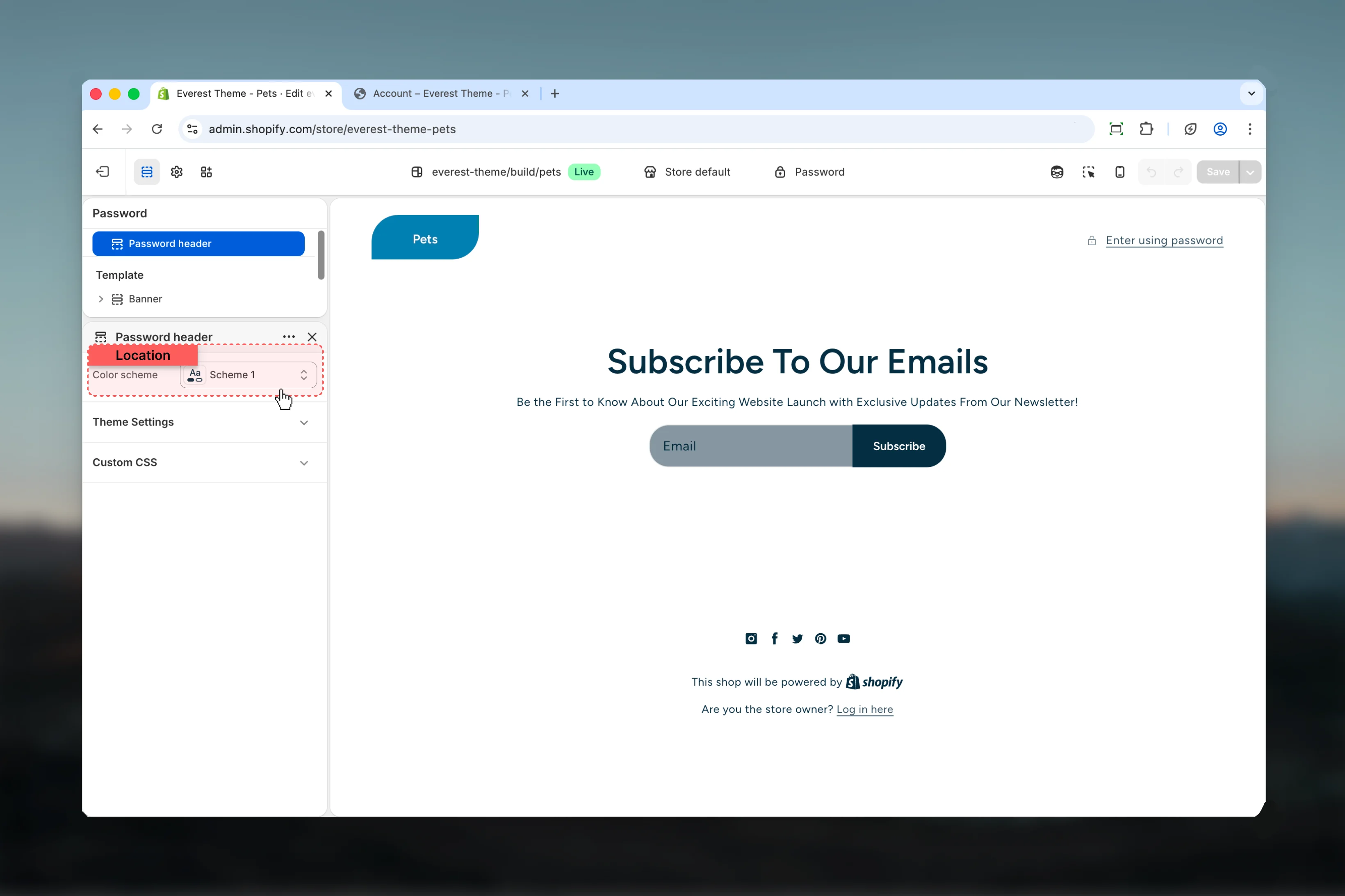 Both password-specific utility sections expose a single color scheme setting so you can keep the locked-store experience aligned with the rest of your launch styling.
### Banner dependency
Both password-specific utility sections expose a single color scheme setting so you can keep the locked-store experience aligned with the rest of your launch styling.
### Banner dependency
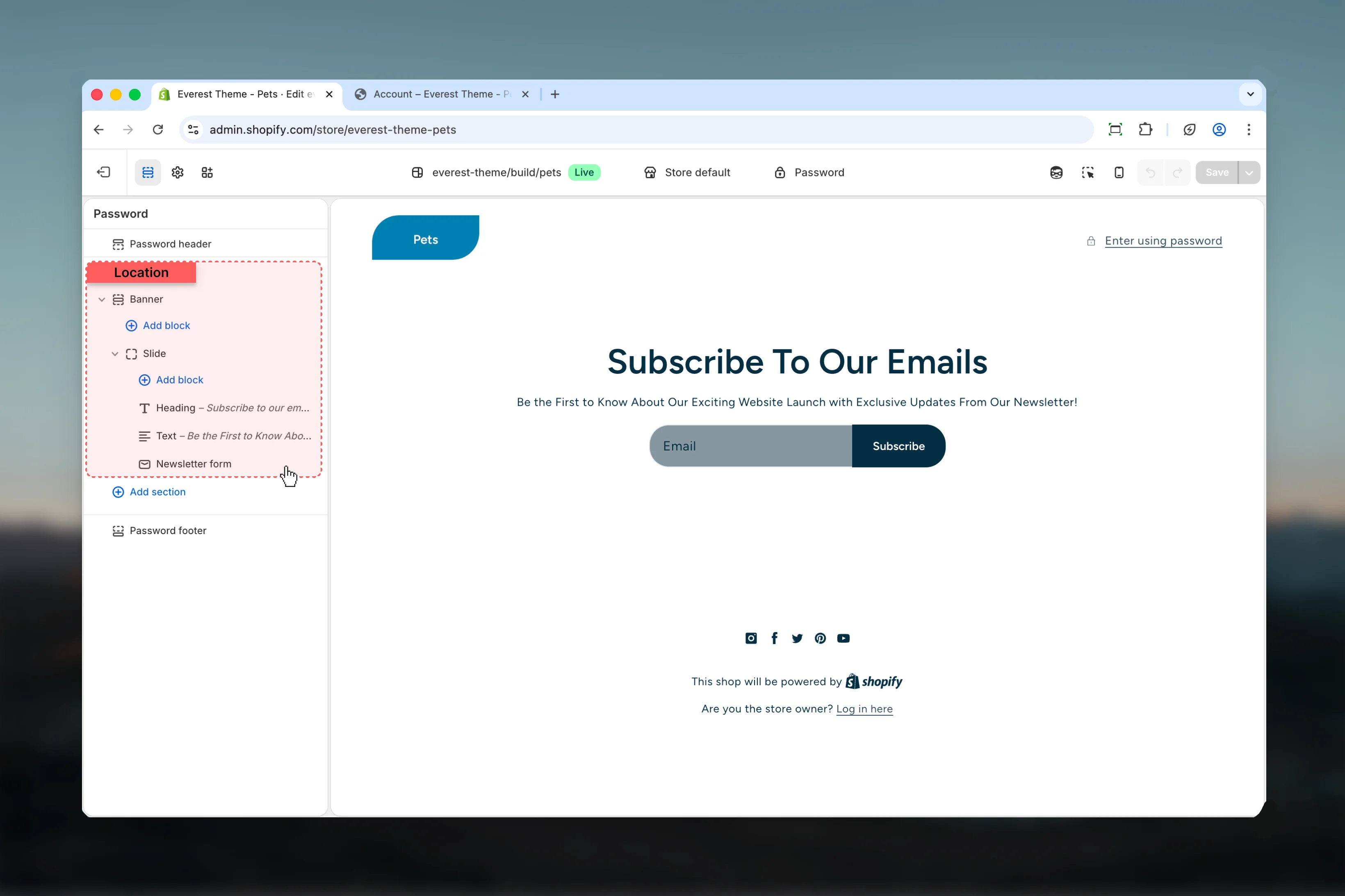 The banner carries most of the visible launch content. Text, newsletter signup, spacing, and layout choices for the password page are primarily managed through the Banner section rather than through the password header or footer.
## Best practices
* Keep the banner message short so visitors understand the launch state immediately.
* Configure brand and social settings before troubleshooting missing password-page content.
* Test the password modal on mobile to make sure access remains easy while the store is locked.
* Use the password page to support a launch goal such as email capture, early access, or simple status messaging.
## Related guides
* [Banner](/themes/everest/sections/banner)
* [Theme Settings: Brand](/themes/everest/theme-settings/brand)
* [Theme Settings: Social Media](/themes/everest/theme-settings/social-media)
The banner carries most of the visible launch content. Text, newsletter signup, spacing, and layout choices for the password page are primarily managed through the Banner section rather than through the password header or footer.
## Best practices
* Keep the banner message short so visitors understand the launch state immediately.
* Configure brand and social settings before troubleshooting missing password-page content.
* Test the password modal on mobile to make sure access remains easy while the store is locked.
* Use the password page to support a launch goal such as email capture, early access, or simple status messaging.
## Related guides
* [Banner](/themes/everest/sections/banner)
* [Theme Settings: Brand](/themes/everest/theme-settings/brand)
* [Theme Settings: Social Media](/themes/everest/theme-settings/social-media)