> ## Documentation Index
> Fetch the complete documentation index at: https://docs.digifist.com/llms.txt
> Use this file to discover all available pages before exploring further.
# Testimonials
> Configure Everest's testimonials section and its main settings, content structure, and styling controls.
The Testimonials section lets you control the content, layout, and presentation of this part of the Everest storefront. Most changes happen directly in the Theme Customizer, so you can adjust structure first and then refine styling, spacing, and supporting blocks with confidence.
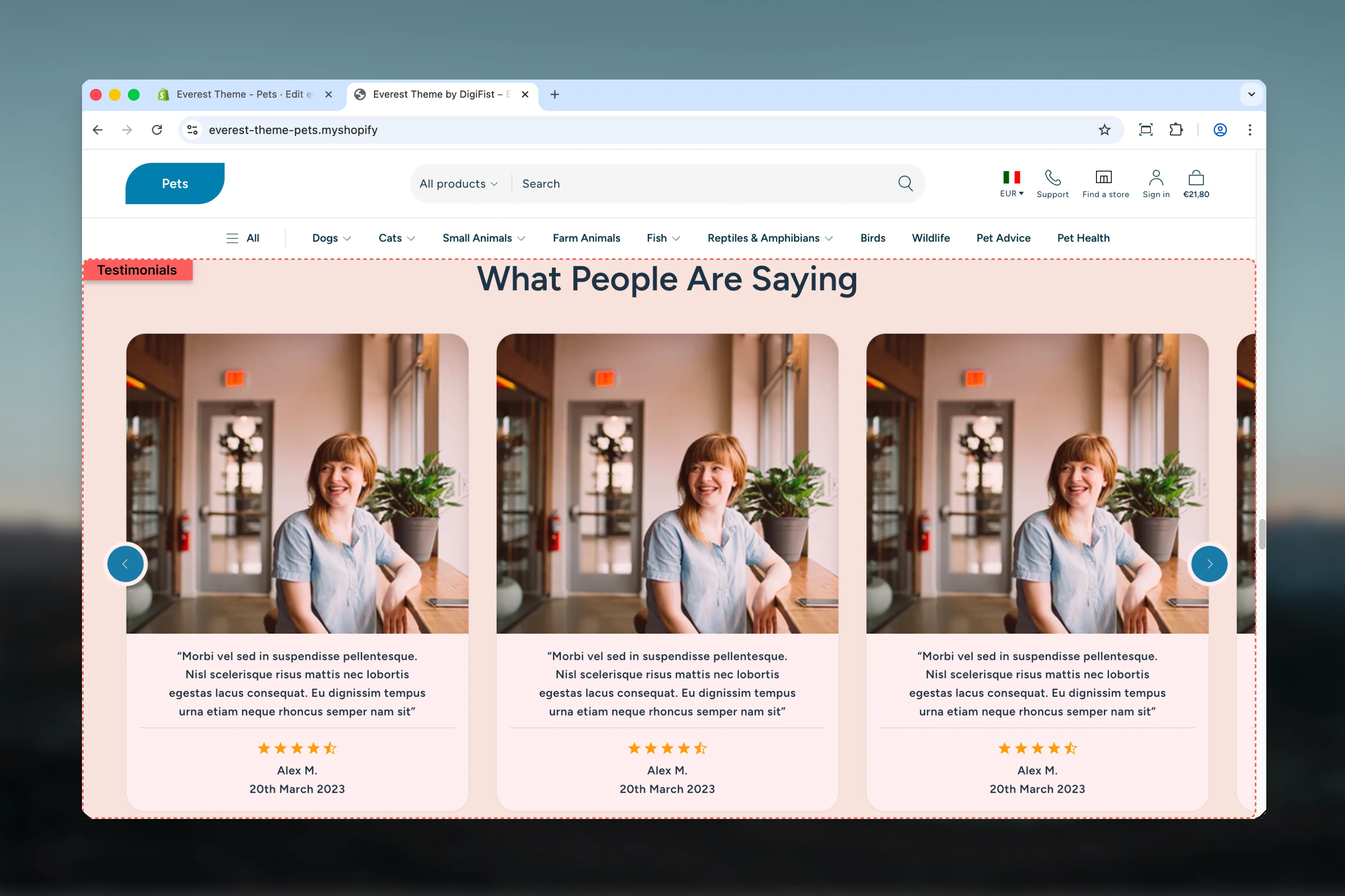 ## What this section controls
* Layout structure, width, alignment, and spacing
* Calls to action, links, and navigation behavior
* Color schemes, contrast, and shared visual styling
* Block types such as Testimonial
## Getting started
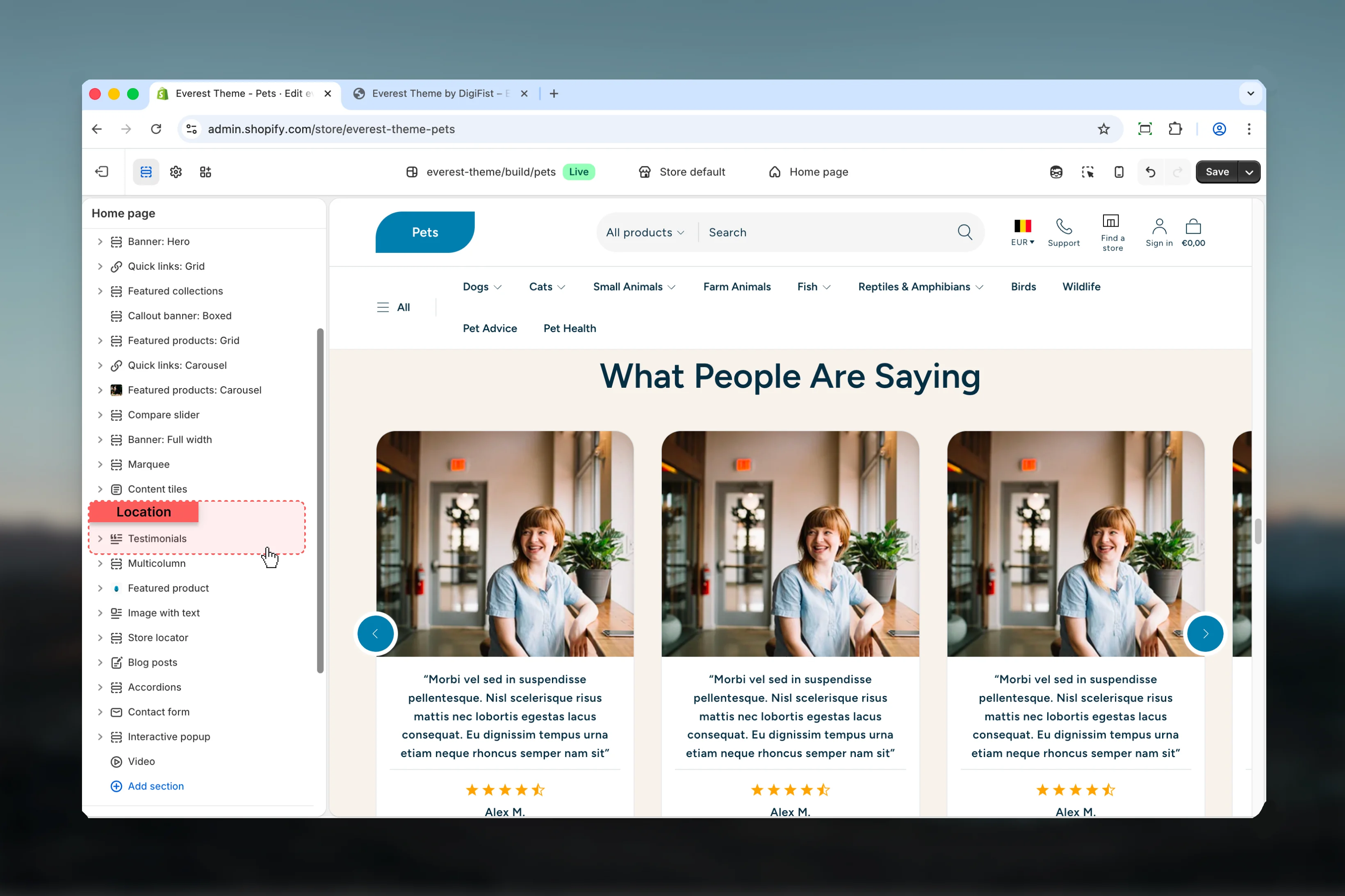
In Shopify admin, go to **Online Store** -> **Themes** -> **Customize**.
Add the **Testimonials** section to a compatible template or select the existing section from the left sidebar.
Start with the structural settings such as layout, width, color scheme, spacing, or content source before refining smaller details.
Add, remove, or reorder blocks after the main layout feels right so content hierarchy stays easier to manage.
## What this section controls
* Layout structure, width, alignment, and spacing
* Calls to action, links, and navigation behavior
* Color schemes, contrast, and shared visual styling
* Block types such as Testimonial
## Getting started
In Shopify admin, go to **Online Store** -> **Themes** -> **Customize**.
Add the **Testimonials** section to a compatible template or select the existing section from the left sidebar.
Start with the structural settings such as layout, width, color scheme, spacing, or content source before refining smaller details.
Add, remove, or reorder blocks after the main layout feels right so content hierarchy stays easier to manage.
 ## Section settings
### Number of columns
## Section settings
### Number of columns
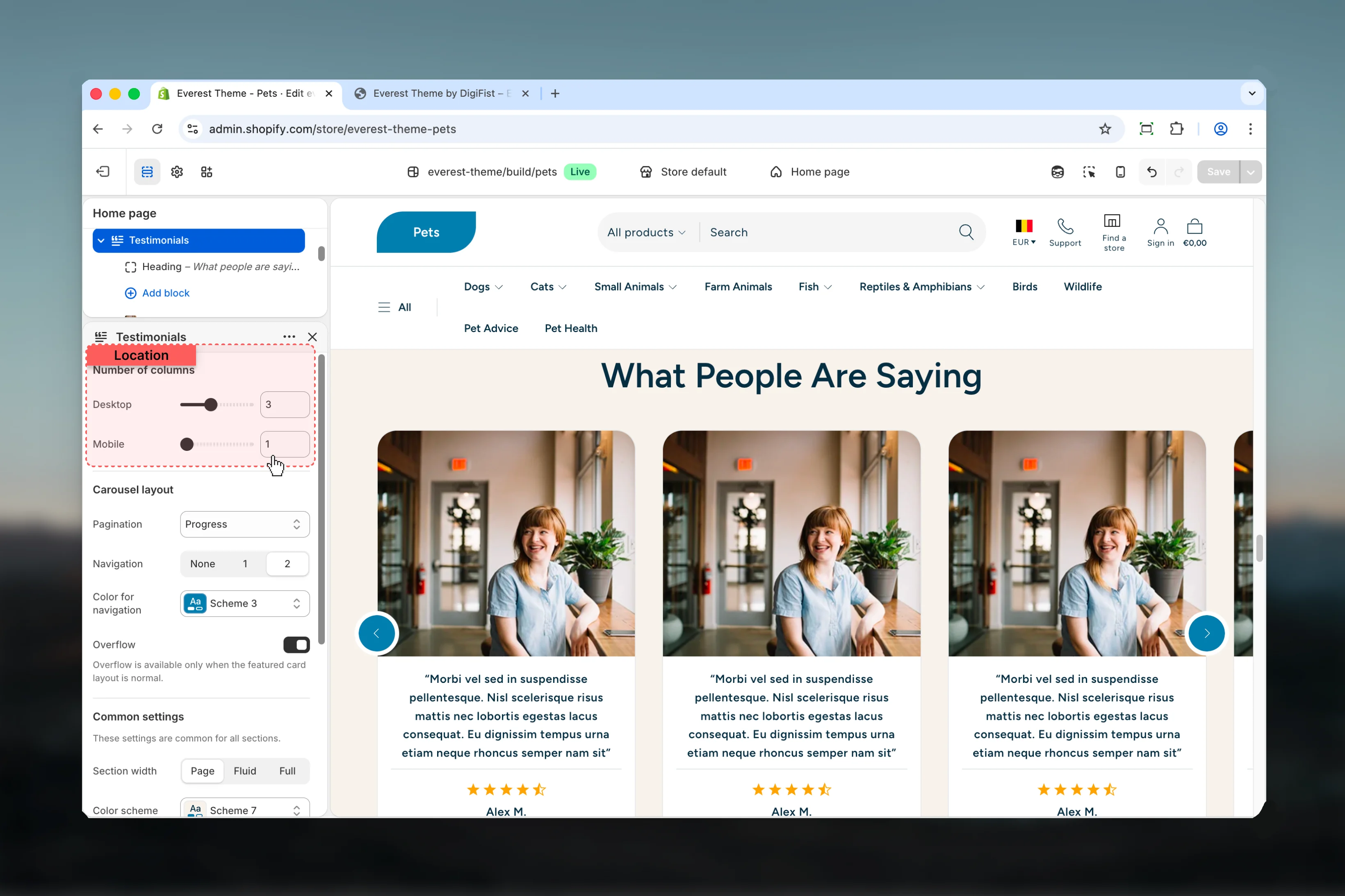 Adjust **Desktop** with a slider-based control.
It has the strongest effect on layout balance and visual hierarchy.
**Range:** `1` to `6` **Default:** `3`
Adjust **Mobile** with a slider-based control.
It has the strongest effect on layout balance and visual hierarchy.
**Range:** `1` to `1.4` **Default:** `1`
### Carousel layout
Adjust **Desktop** with a slider-based control.
It has the strongest effect on layout balance and visual hierarchy.
**Range:** `1` to `6` **Default:** `3`
Adjust **Mobile** with a slider-based control.
It has the strongest effect on layout balance and visual hierarchy.
**Range:** `1` to `1.4` **Default:** `1`
### Carousel layout
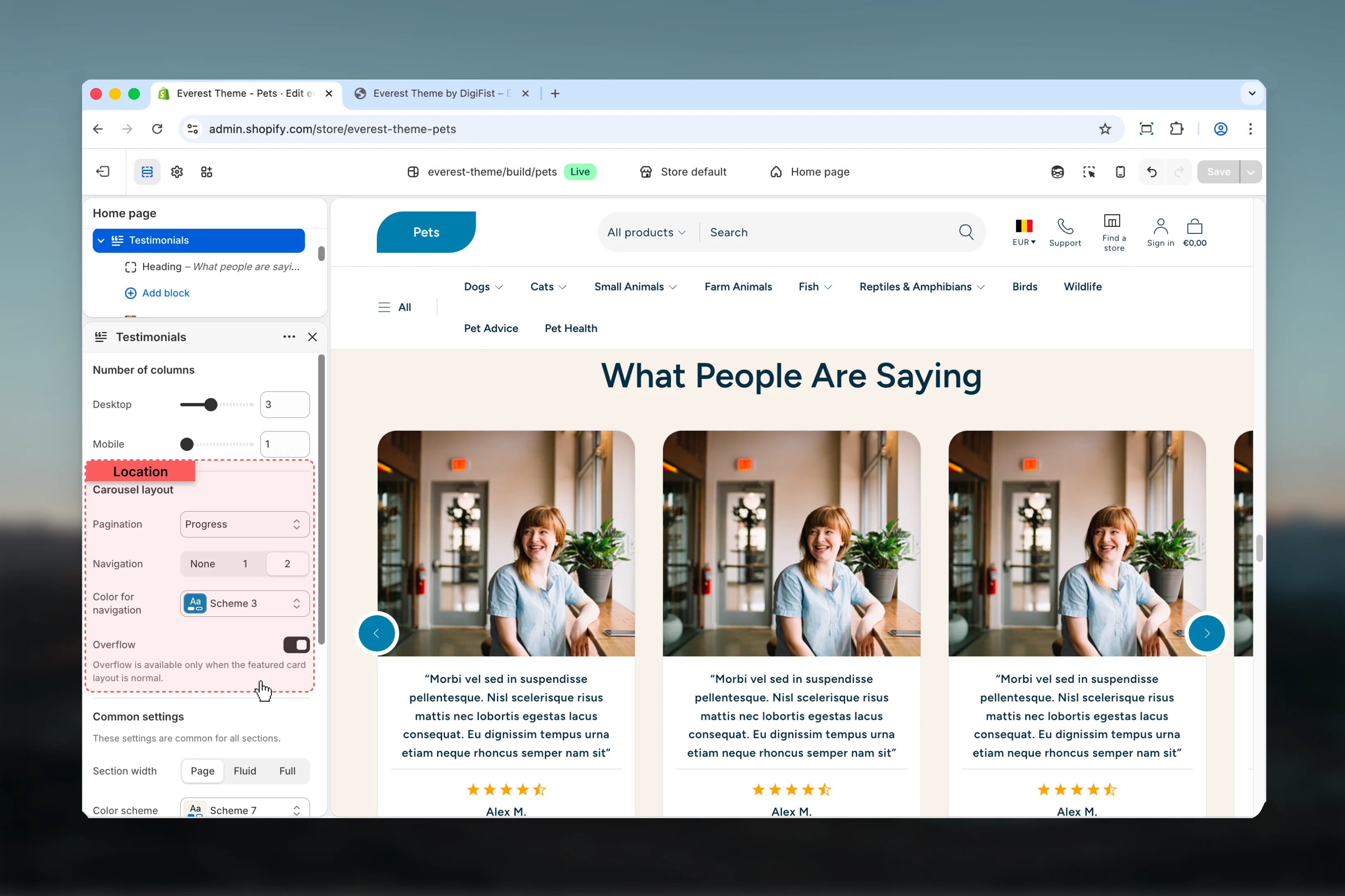 Choose how **Pagination** behaves in the section.
**Available options:** None, Dots, Progress, Dynamic.
**Default:** `dots`
Choose how **Navigation** behaves in the section.
Make sure the chosen option still feels easy to scan and use on smaller screens.
**Available options:** None, 1, 2.
**Default:** `style-1`
Select the color scheme used for **color for navigation**.
Use this to keep contrast and branding consistent with the rest of the store.
**Default:** `scheme-1`
Enable or disable **Overflow**.
**Default:** `disabled`
Overflow is available only when the featured card layout is normal.
### Common settings
Choose how **Pagination** behaves in the section.
**Available options:** None, Dots, Progress, Dynamic.
**Default:** `dots`
Choose how **Navigation** behaves in the section.
Make sure the chosen option still feels easy to scan and use on smaller screens.
**Available options:** None, 1, 2.
**Default:** `style-1`
Select the color scheme used for **color for navigation**.
Use this to keep contrast and branding consistent with the rest of the store.
**Default:** `scheme-1`
Enable or disable **Overflow**.
**Default:** `disabled`
Overflow is available only when the featured card layout is normal.
### Common settings
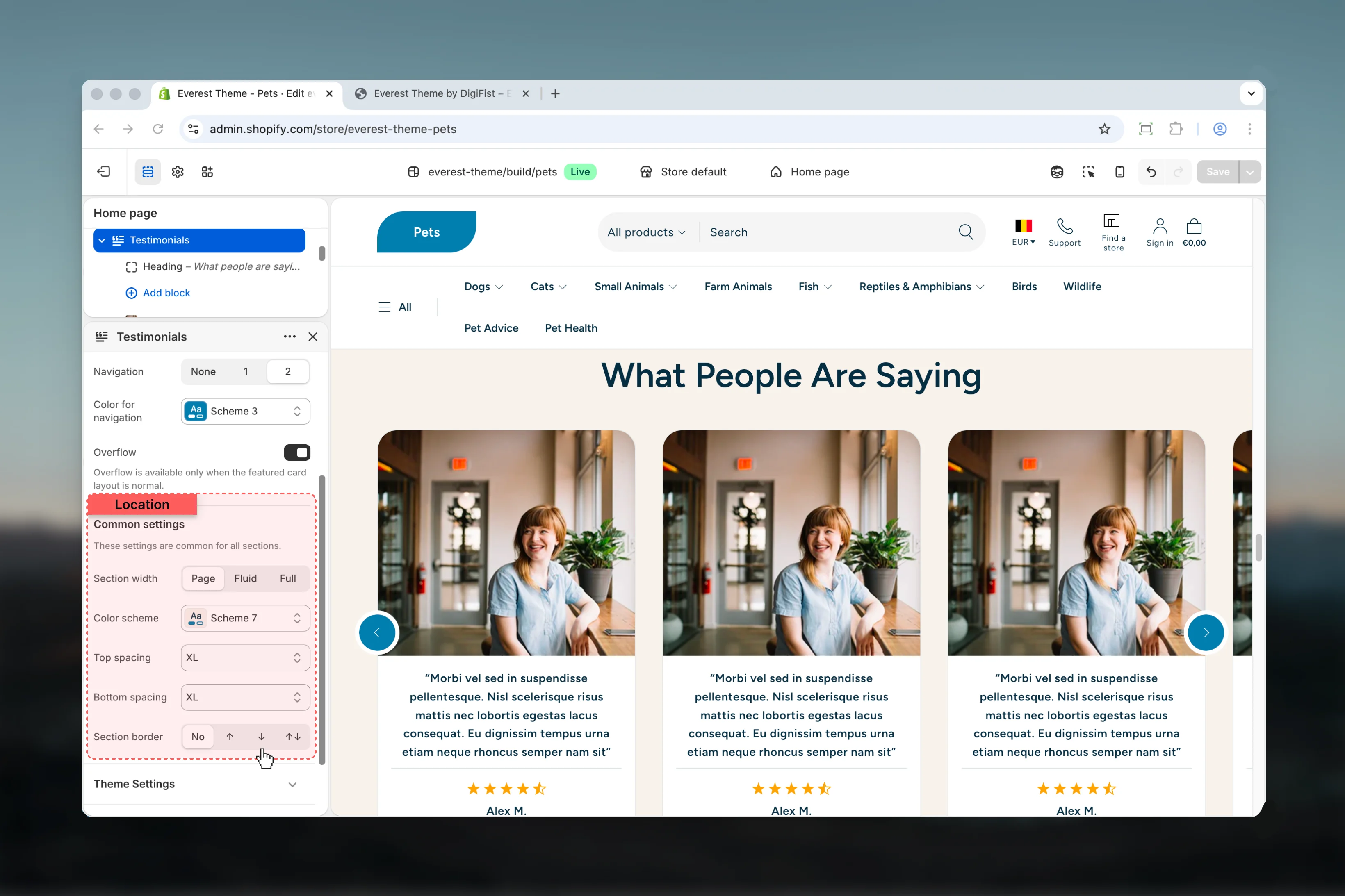 Choose how **Section width** behaves in the section.
This setting shapes the section container and how it sits against surrounding content.
**Available options:** Page, Fluid, Full.
**Default:** `page`
Select the color scheme used for **color scheme**.
Use this to keep contrast and branding consistent with the rest of the store.
**Default:** `scheme-1`
Choose how **Top spacing** behaves in the section.
This setting shapes the section container and how it sits against surrounding content.
**Available options:** No, S, M, L, XL.
**Default:** `2`
Choose how **Bottom spacing** behaves in the section.
This setting shapes the section container and how it sits against surrounding content.
**Available options:** No, S, M, L, XL.
**Default:** `2`
Choose how **Section border** behaves in the section.
This setting shapes the section container and how it sits against surrounding content.
**Available options:** None, Top, Bottom, Both.
**Default:** `none`
## Block settings
### Testimonial
Choose how **Section width** behaves in the section.
This setting shapes the section container and how it sits against surrounding content.
**Available options:** Page, Fluid, Full.
**Default:** `page`
Select the color scheme used for **color scheme**.
Use this to keep contrast and branding consistent with the rest of the store.
**Default:** `scheme-1`
Choose how **Top spacing** behaves in the section.
This setting shapes the section container and how it sits against surrounding content.
**Available options:** No, S, M, L, XL.
**Default:** `2`
Choose how **Bottom spacing** behaves in the section.
This setting shapes the section container and how it sits against surrounding content.
**Available options:** No, S, M, L, XL.
**Default:** `2`
Choose how **Section border** behaves in the section.
This setting shapes the section container and how it sits against surrounding content.
**Available options:** None, Top, Bottom, Both.
**Default:** `none`
## Block settings
### Testimonial
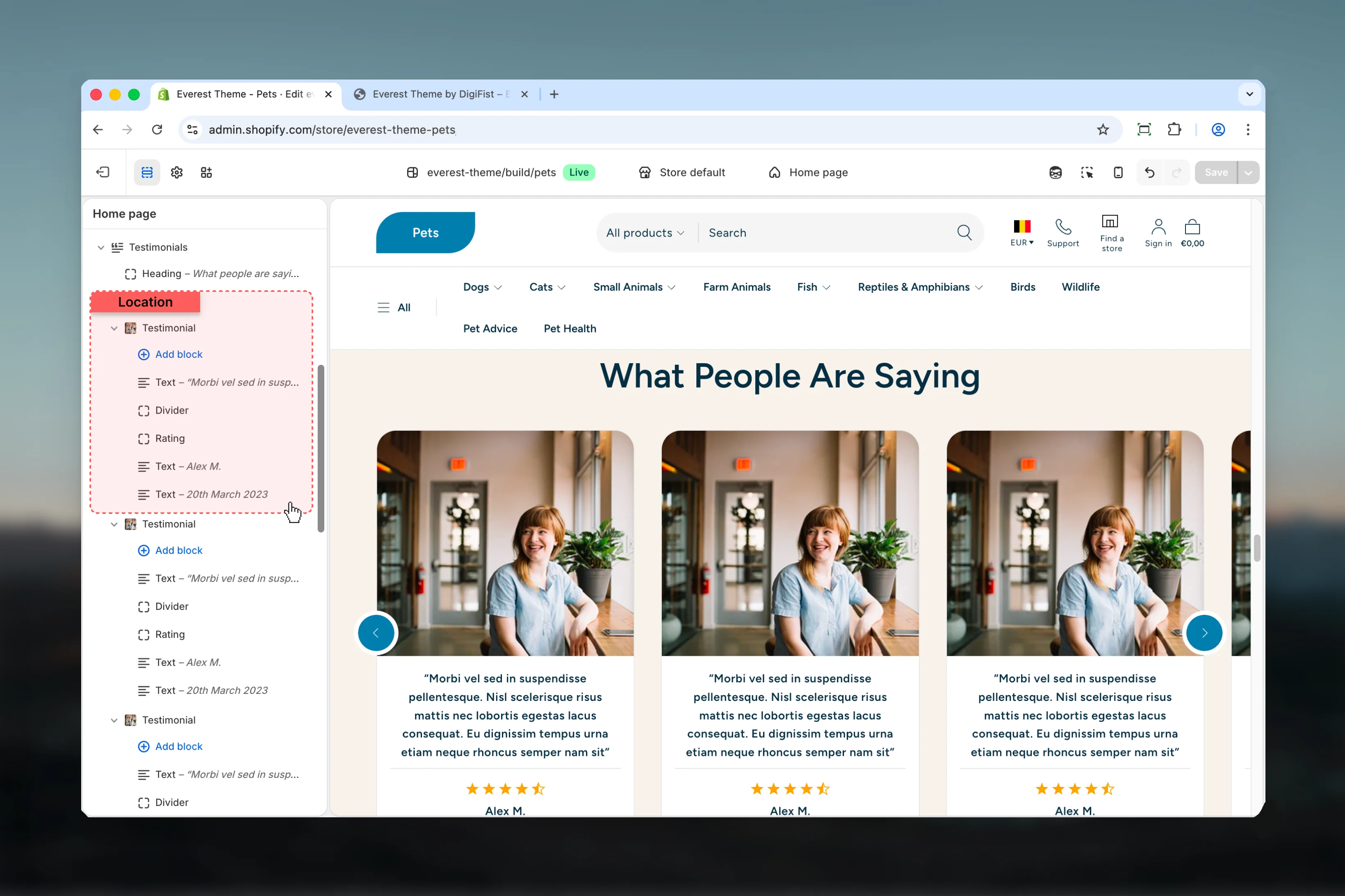 This block controls the **testimonial** content used inside the Testimonials section.
### Settings
This block controls the **testimonial** content used inside the Testimonials section.
### Settings
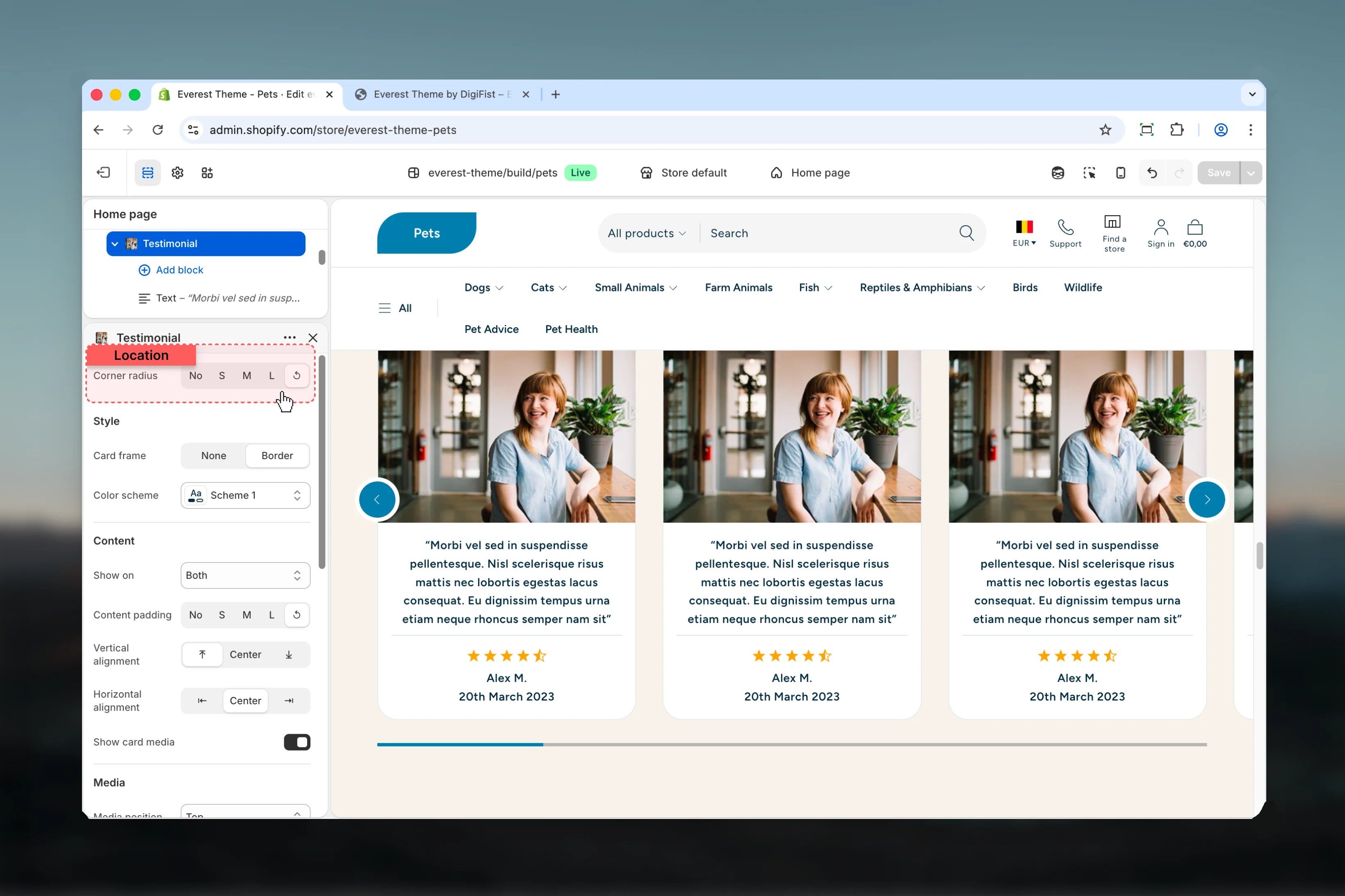 Choose how **Corner radius** behaves in the section.
**Available options:** No, S, M, L, ↺.
**Default:** `default`
### Style
Choose how **Corner radius** behaves in the section.
**Available options:** No, S, M, L, ↺.
**Default:** `default`
### Style
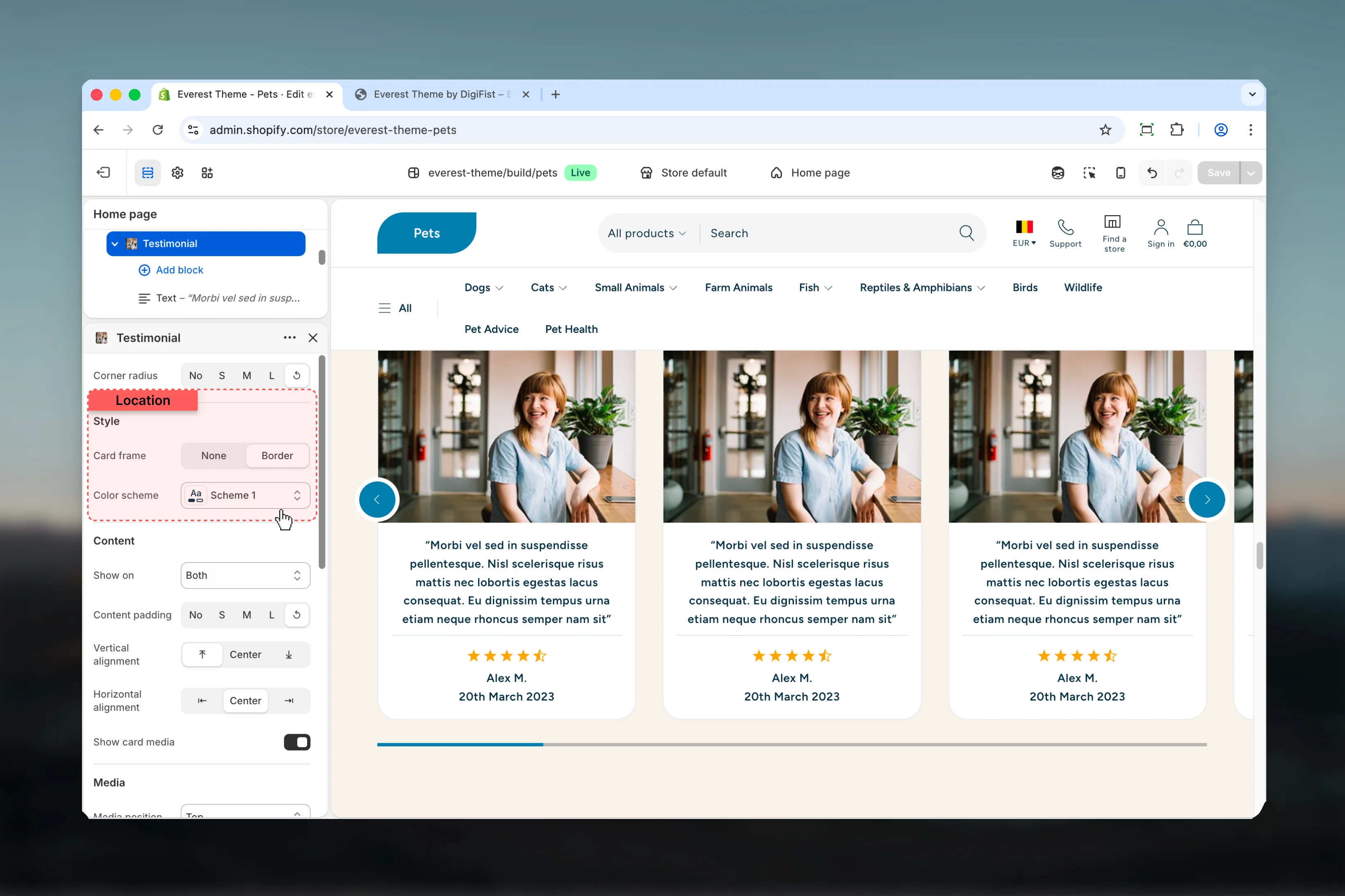 Choose how **Card frame** behaves in the section.
**Available options:** None, Border.
**Default:** `border`
Select the color scheme used for **color scheme**.
Use this to keep contrast and branding consistent with the rest of the store.
### Content
Choose how **Card frame** behaves in the section.
**Available options:** None, Border.
**Default:** `border`
Select the color scheme used for **color scheme**.
Use this to keep contrast and branding consistent with the rest of the store.
### Content
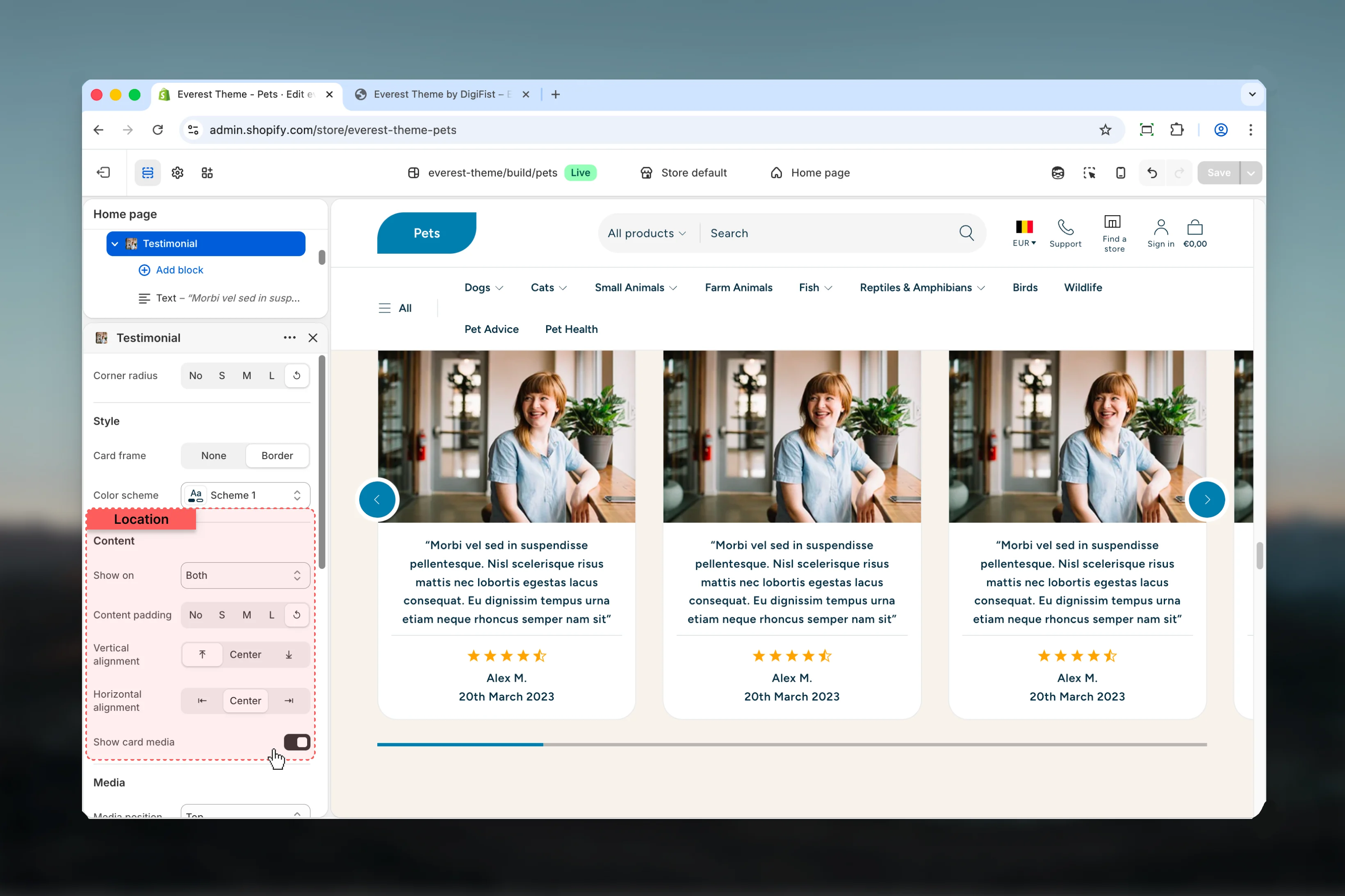 Choose how **Show on** behaves in the section.
**Available options:** Desktop, Mobile, Both.
**Default:** `both`
Choose how **Content padding** behaves in the section.
**Available options:** No, S, M, L, ↺.
**Default:** `default`
Choose how **Vertical alignment** behaves in the section.
It has the strongest effect on layout balance and visual hierarchy.
**Available options:** ⤒, Center, ⤓.
**Default:** `start`
Choose how **Horizontal alignment** behaves in the section.
It has the strongest effect on layout balance and visual hierarchy.
**Available options:** ⇤, Center, ⇥.
**Default:** `start`
Enable or disable **Show card media**.
Review the result on both desktop and mobile when media changes are involved.
**Default:** `disabled`
### Media
Choose how **Show on** behaves in the section.
**Available options:** Desktop, Mobile, Both.
**Default:** `both`
Choose how **Content padding** behaves in the section.
**Available options:** No, S, M, L, ↺.
**Default:** `default`
Choose how **Vertical alignment** behaves in the section.
It has the strongest effect on layout balance and visual hierarchy.
**Available options:** ⤒, Center, ⤓.
**Default:** `start`
Choose how **Horizontal alignment** behaves in the section.
It has the strongest effect on layout balance and visual hierarchy.
**Available options:** ⇤, Center, ⇥.
**Default:** `start`
Enable or disable **Show card media**.
Review the result on both desktop and mobile when media changes are involved.
**Default:** `disabled`
### Media
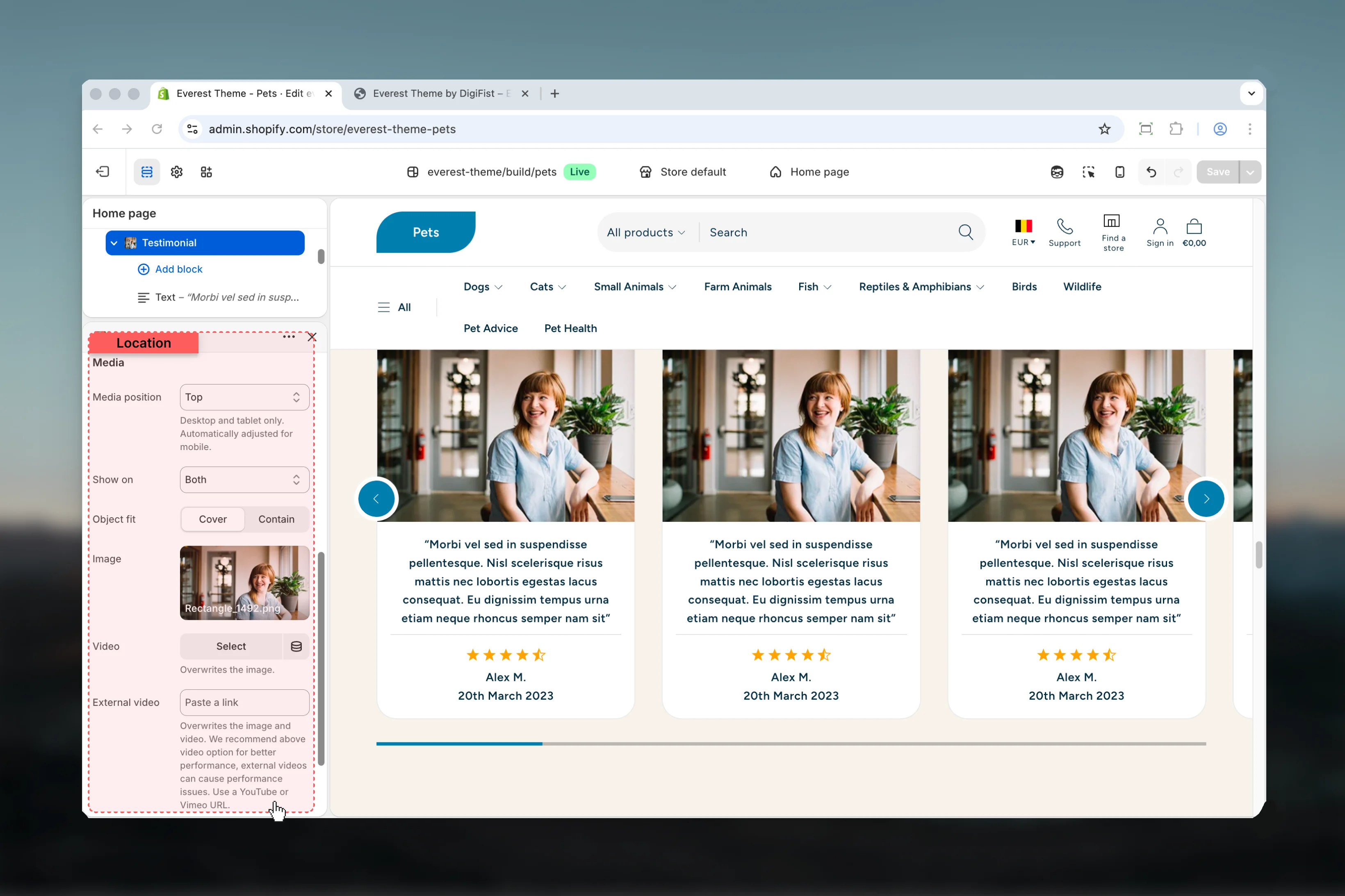 Choose how **Media position** behaves in the section.
It has the strongest effect on layout balance and visual hierarchy.
**Available options:** Top, Bottom, Start, End, Background.
**Default:** `top`
This setting only appears when its related parent option is enabled.
Desktop and tablet only. Automatically adjusted for mobile.
Adjust **Media width** with a slider-based control.
It has the strongest effect on layout balance and visual hierarchy.
**Range:** `2` to `12` **Default:** `6`
This setting only appears when its related parent option is enabled.
If you set 0, media will use automatic width.
Choose how **Show on** behaves in the section.
Review the result on both desktop and mobile when media changes are involved.
**Available options:** Desktop, Mobile, Both.
**Default:** `both`
This setting only appears when its related parent option is enabled.
Choose how **Object fit** behaves in the section.
Review the result on both desktop and mobile when media changes are involved.
**Available options:** Cover, Contain.
**Default:** `cover`
This setting only appears when its related parent option is enabled.
Upload or choose an image for **image**.
Review the result on both desktop and mobile when media changes are involved.
This setting only appears when its related parent option is enabled.
Choose a hosted video for **video**.
Review the result on both desktop and mobile when media changes are involved.
This setting only appears when its related parent option is enabled.
Overwrites the image.
Paste an external video URL for **external video**.
Review the result on both desktop and mobile when media changes are involved.
This setting only appears when its related parent option is enabled.
Overwrites the image and video. We recommend above video option for better performance, external videos can cause performance issues. Use a YouTube or Vimeo URL.
Enable or disable **Enable mobile specific media**.
Review the result on both desktop and mobile when media changes are involved.
**Default:** `disabled`
This setting only appears when its related parent option is enabled.
Displays mobile-specific alternative media. Add a media before setting a mobile alternative.
### Media for mobile
Choose how **Media position** behaves in the section.
It has the strongest effect on layout balance and visual hierarchy.
**Available options:** Top, Bottom, Start, End, Background.
**Default:** `top`
This setting only appears when its related parent option is enabled.
Desktop and tablet only. Automatically adjusted for mobile.
Adjust **Media width** with a slider-based control.
It has the strongest effect on layout balance and visual hierarchy.
**Range:** `2` to `12` **Default:** `6`
This setting only appears when its related parent option is enabled.
If you set 0, media will use automatic width.
Choose how **Show on** behaves in the section.
Review the result on both desktop and mobile when media changes are involved.
**Available options:** Desktop, Mobile, Both.
**Default:** `both`
This setting only appears when its related parent option is enabled.
Choose how **Object fit** behaves in the section.
Review the result on both desktop and mobile when media changes are involved.
**Available options:** Cover, Contain.
**Default:** `cover`
This setting only appears when its related parent option is enabled.
Upload or choose an image for **image**.
Review the result on both desktop and mobile when media changes are involved.
This setting only appears when its related parent option is enabled.
Choose a hosted video for **video**.
Review the result on both desktop and mobile when media changes are involved.
This setting only appears when its related parent option is enabled.
Overwrites the image.
Paste an external video URL for **external video**.
Review the result on both desktop and mobile when media changes are involved.
This setting only appears when its related parent option is enabled.
Overwrites the image and video. We recommend above video option for better performance, external videos can cause performance issues. Use a YouTube or Vimeo URL.
Enable or disable **Enable mobile specific media**.
Review the result on both desktop and mobile when media changes are involved.
**Default:** `disabled`
This setting only appears when its related parent option is enabled.
Displays mobile-specific alternative media. Add a media before setting a mobile alternative.
### Media for mobile
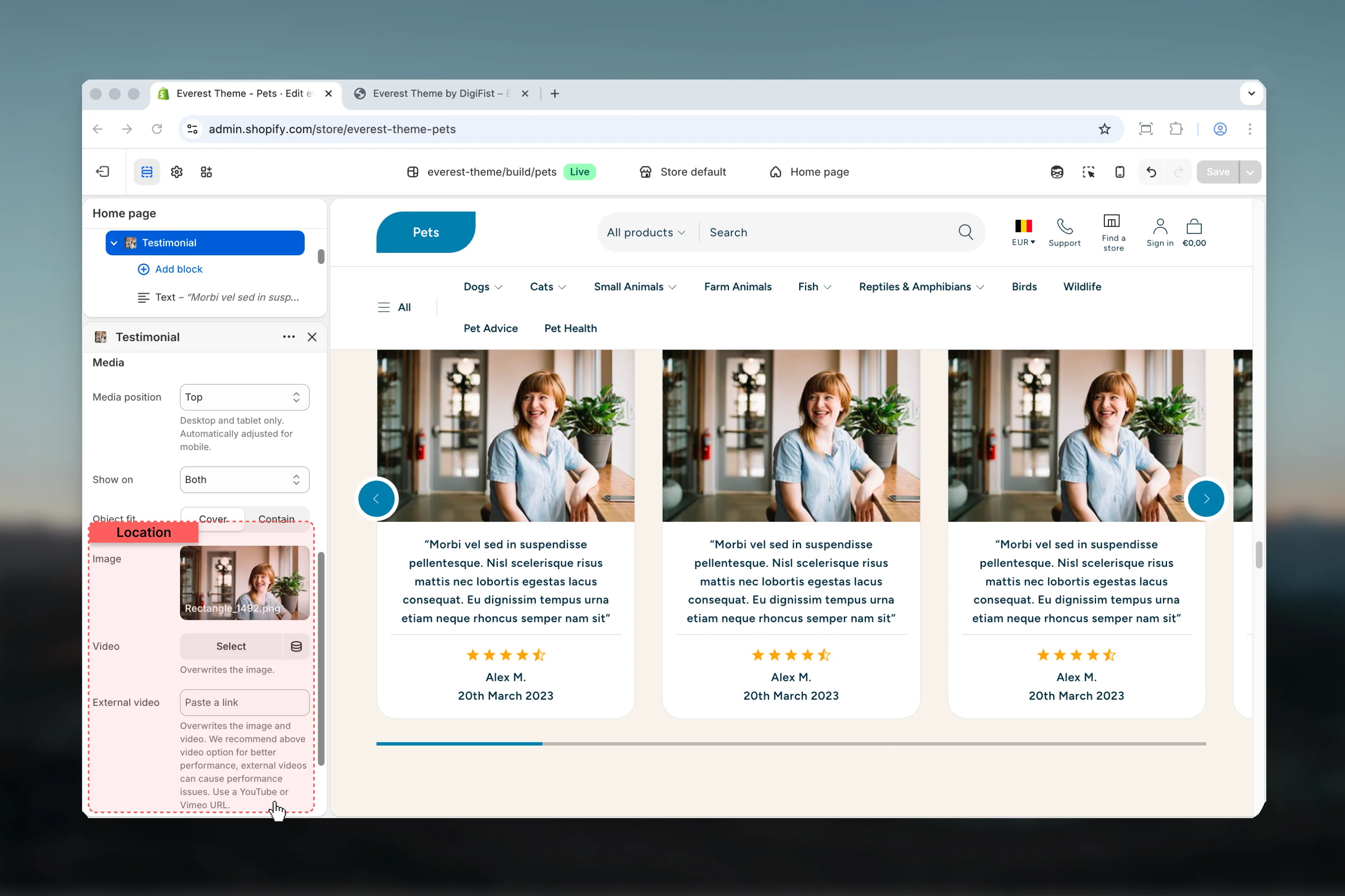 Upload or choose an image for **image**.
Review the result on both desktop and mobile when media changes are involved.
This setting only appears when its related parent option is enabled.
Choose a hosted video for **video**.
Review the result on both desktop and mobile when media changes are involved.
This setting only appears when its related parent option is enabled.
Overwrites the image.
Paste an external video URL for **external video**.
Review the result on both desktop and mobile when media changes are involved.
This setting only appears when its related parent option is enabled.
Overwrites the image and video. We recommend above video option for better performance, external videos can cause performance issues. Use a YouTube or Vimeo URL.
**Supports nested blocks:**
* **Text** for more granular content inside this block.
* **Button** for more granular content inside this block.
* **Divider** for more granular content inside this block.
* **Rating** for more granular content inside this block.
## Best practices
* Check contrast after changing color schemes so text and controls remain easy to read.
* Keep labels short and scannable, especially in tighter layouts or utility areas.
* Adjust layout changes alongside neighboring sections so page rhythm stays consistent.
* Start with the structural settings first, then refine decorative styling after the layout feels settled.
* Preview the section with realistic content length to catch spacing and wrapping issues early.
## Related guides
* [Everest Theme Overview](/themes/everest/index)
* [Everest Header](/themes/everest/header/header)
Upload or choose an image for **image**.
Review the result on both desktop and mobile when media changes are involved.
This setting only appears when its related parent option is enabled.
Choose a hosted video for **video**.
Review the result on both desktop and mobile when media changes are involved.
This setting only appears when its related parent option is enabled.
Overwrites the image.
Paste an external video URL for **external video**.
Review the result on both desktop and mobile when media changes are involved.
This setting only appears when its related parent option is enabled.
Overwrites the image and video. We recommend above video option for better performance, external videos can cause performance issues. Use a YouTube or Vimeo URL.
**Supports nested blocks:**
* **Text** for more granular content inside this block.
* **Button** for more granular content inside this block.
* **Divider** for more granular content inside this block.
* **Rating** for more granular content inside this block.
## Best practices
* Check contrast after changing color schemes so text and controls remain easy to read.
* Keep labels short and scannable, especially in tighter layouts or utility areas.
* Adjust layout changes alongside neighboring sections so page rhythm stays consistent.
* Start with the structural settings first, then refine decorative styling after the layout feels settled.
* Preview the section with realistic content length to catch spacing and wrapping issues early.
## Related guides
* [Everest Theme Overview](/themes/everest/index)
* [Everest Header](/themes/everest/header/header)