> ## Documentation Index
> Fetch the complete documentation index at: https://docs.digifist.com/llms.txt
> Use this file to discover all available pages before exploring further.
# Customer Account
> Configure Everest's global customer account settings and the shared behavior they control across the store.
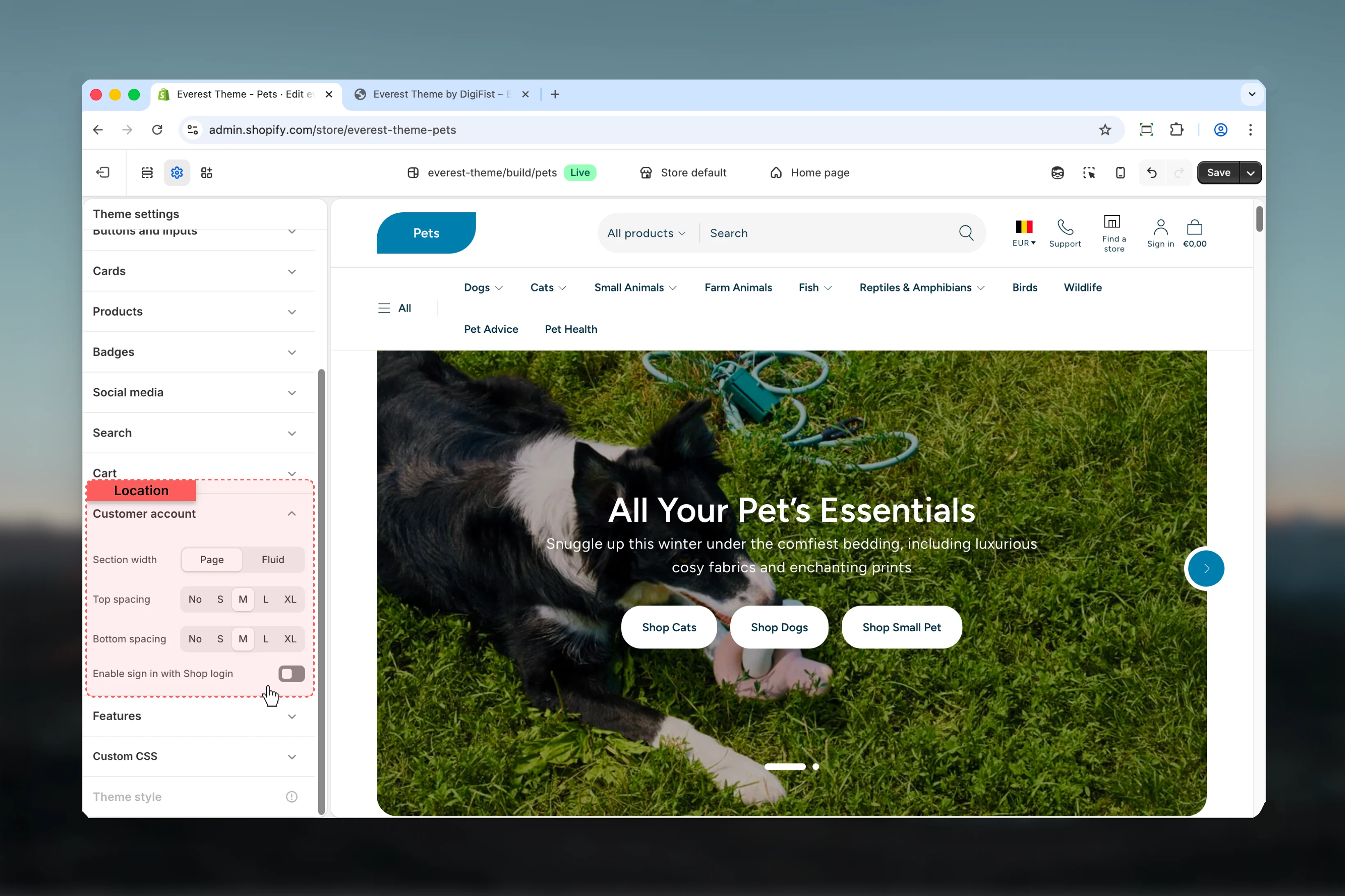
The Customer Account settings control shared theme behavior across Everest. Because these values affect multiple sections and templates at once, they are best used to set global design direction and core storefront behavior before adjusting individual sections.
 ## What these settings control
* Layout structure, width, alignment, and spacing
## How to access
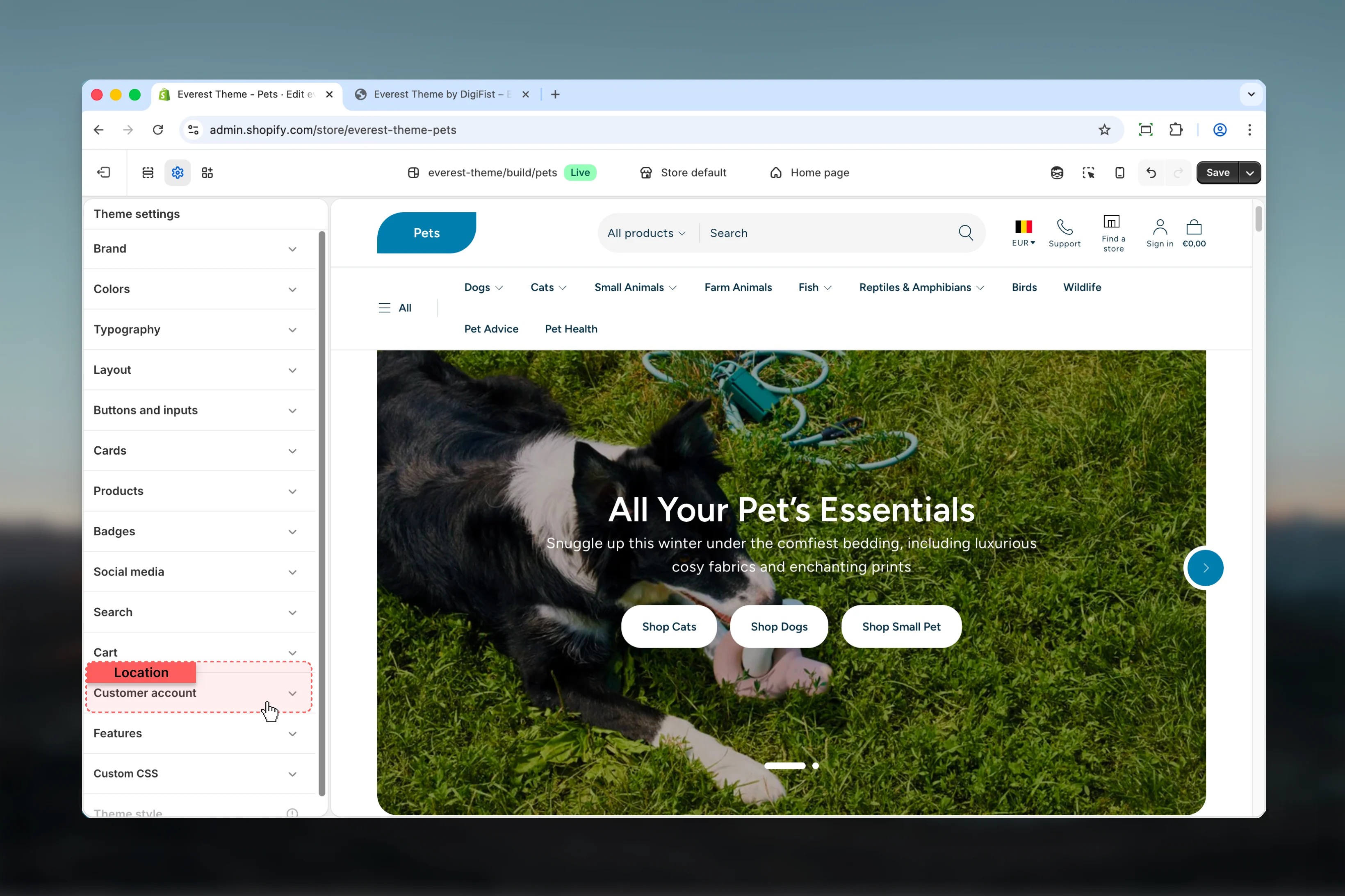
In Shopify admin, go to **Online Store** -> **Themes** -> **Customize**.
Select **Theme settings** in the customizer sidebar.
Open **Customer Account** to review and update the shared settings in this category.
## What these settings control
* Layout structure, width, alignment, and spacing
## How to access
In Shopify admin, go to **Online Store** -> **Themes** -> **Customize**.
Select **Theme settings** in the customizer sidebar.
Open **Customer Account** to review and update the shared settings in this category.
 ## Settings
### Settings
## Settings
### Settings
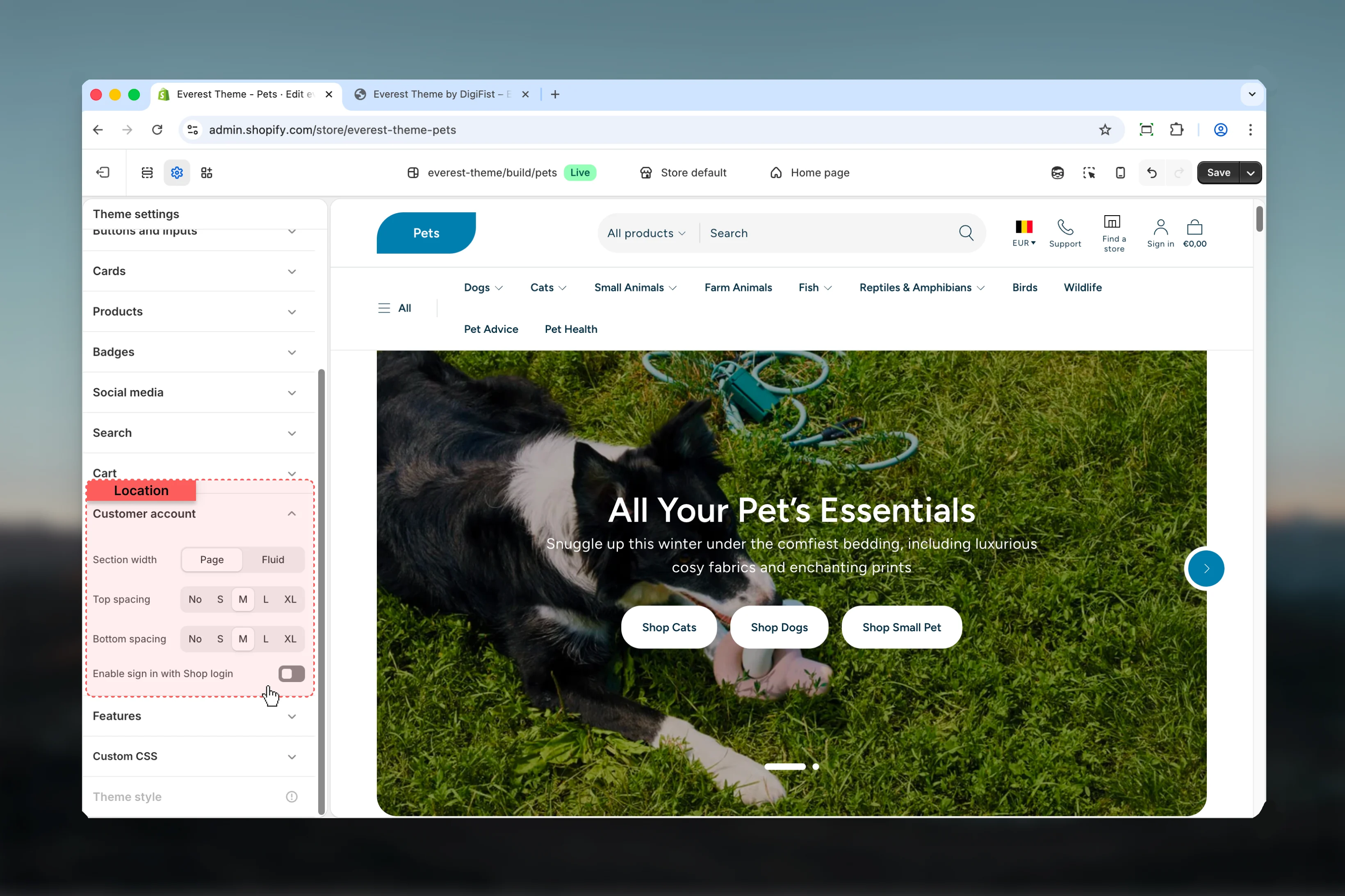 Choose how **Section width** behaves in the section.
This setting shapes the section container and how it sits against surrounding content.
**Available options:** Page, Fluid.
**Default:** `page`
Choose how **Top spacing** behaves in the section.
This setting shapes the section container and how it sits against surrounding content.
**Available options:** No, S, M, L, XL.
**Default:** `2`
Choose how **Bottom spacing** behaves in the section.
This setting shapes the section container and how it sits against surrounding content.
**Available options:** No, S, M, L, XL.
**Default:** `2`
Enable or disable **Enable sign in with Shop login**.
**Default:** `disabled`
## Best practices
* Adjust layout changes alongside neighboring sections so page rhythm stays consistent.
* Change one global setting area at a time and preview multiple templates before publishing.
* Remember that theme settings affect many sections at once, so small adjustments can have wide impact.
## Related guides
* [Everest Theme Overview](/themes/everest/index)
* [Customer Accounts](/themes/everest/pages-templates/customer-accounts)
Choose how **Section width** behaves in the section.
This setting shapes the section container and how it sits against surrounding content.
**Available options:** Page, Fluid.
**Default:** `page`
Choose how **Top spacing** behaves in the section.
This setting shapes the section container and how it sits against surrounding content.
**Available options:** No, S, M, L, XL.
**Default:** `2`
Choose how **Bottom spacing** behaves in the section.
This setting shapes the section container and how it sits against surrounding content.
**Available options:** No, S, M, L, XL.
**Default:** `2`
Enable or disable **Enable sign in with Shop login**.
**Default:** `disabled`
## Best practices
* Adjust layout changes alongside neighboring sections so page rhythm stays consistent.
* Change one global setting area at a time and preview multiple templates before publishing.
* Remember that theme settings affect many sections at once, so small adjustments can have wide impact.
## Related guides
* [Everest Theme Overview](/themes/everest/index)
* [Customer Accounts](/themes/everest/pages-templates/customer-accounts)