> ## Documentation Index
> Fetch the complete documentation index at: https://docs.digifist.com/llms.txt
> Use this file to discover all available pages before exploring further.
# Products
> Configure Everest's global products settings and the shared behavior they control across the store.
The Products settings control shared theme behavior across Everest. Because these values affect multiple sections and templates at once, they are best used to set global design direction and core storefront behavior before adjusting individual sections.
 ## What these settings control
* Calls to action, links, and navigation behavior
* Product, collection, or cart-related storefront behavior
## How to access
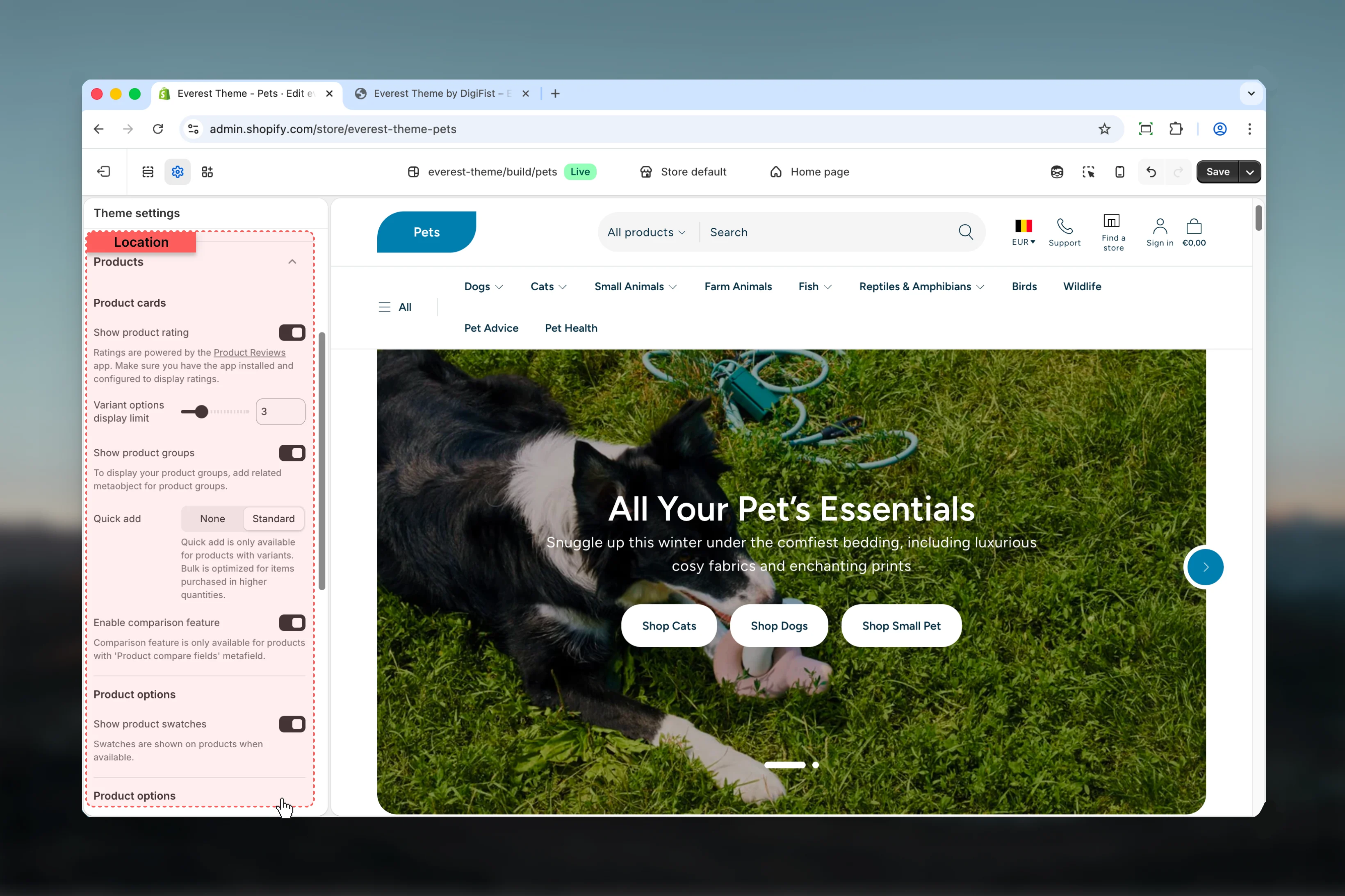
In Shopify admin, go to **Online Store** -> **Themes** -> **Customize**.
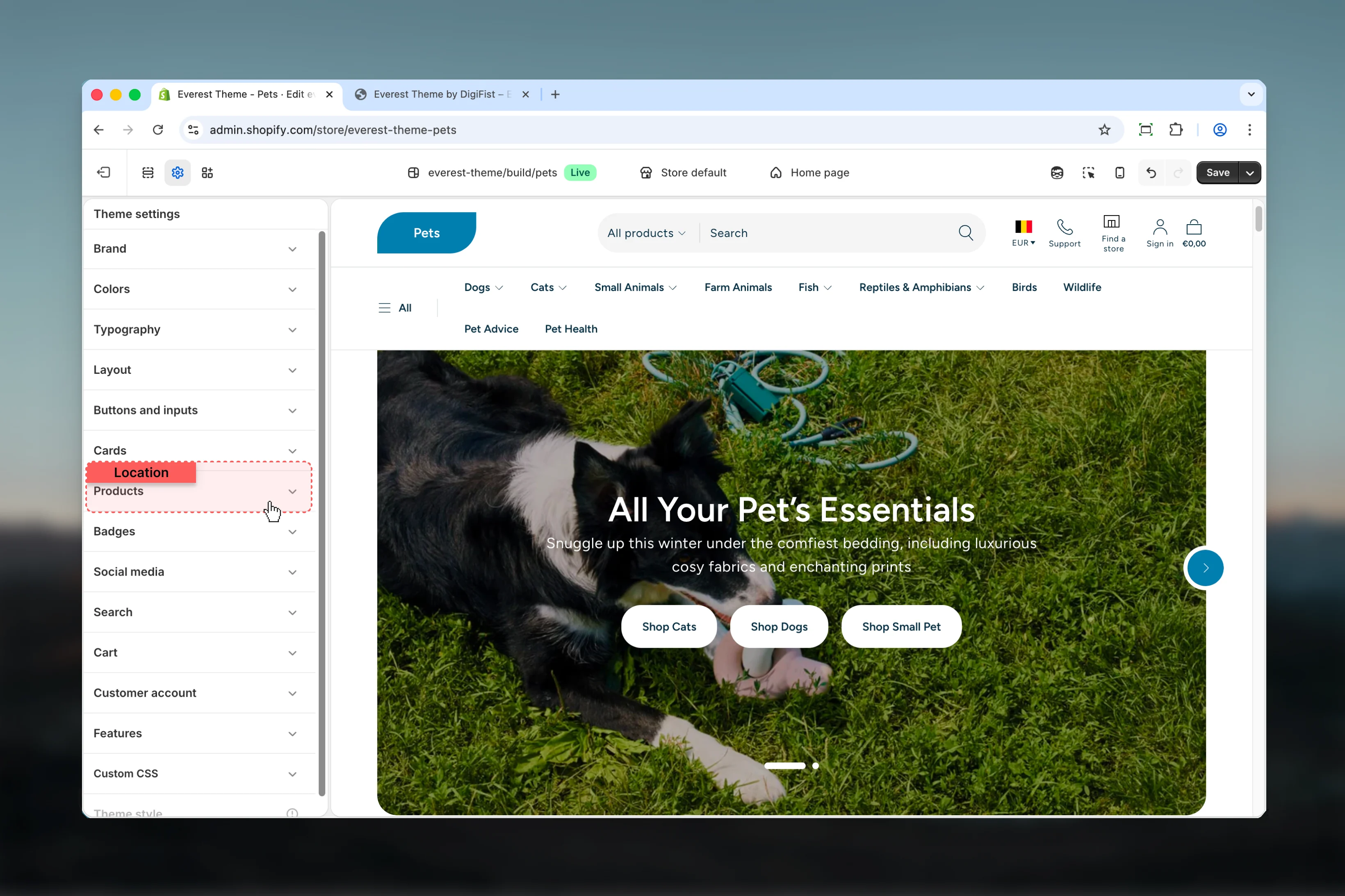
Select **Theme settings** in the customizer sidebar.
Open **Products** to review and update the shared settings in this category.
## What these settings control
* Calls to action, links, and navigation behavior
* Product, collection, or cart-related storefront behavior
## How to access
In Shopify admin, go to **Online Store** -> **Themes** -> **Customize**.
Select **Theme settings** in the customizer sidebar.
Open **Products** to review and update the shared settings in this category.
 ## Settings
### Product cards
## Settings
### Product cards
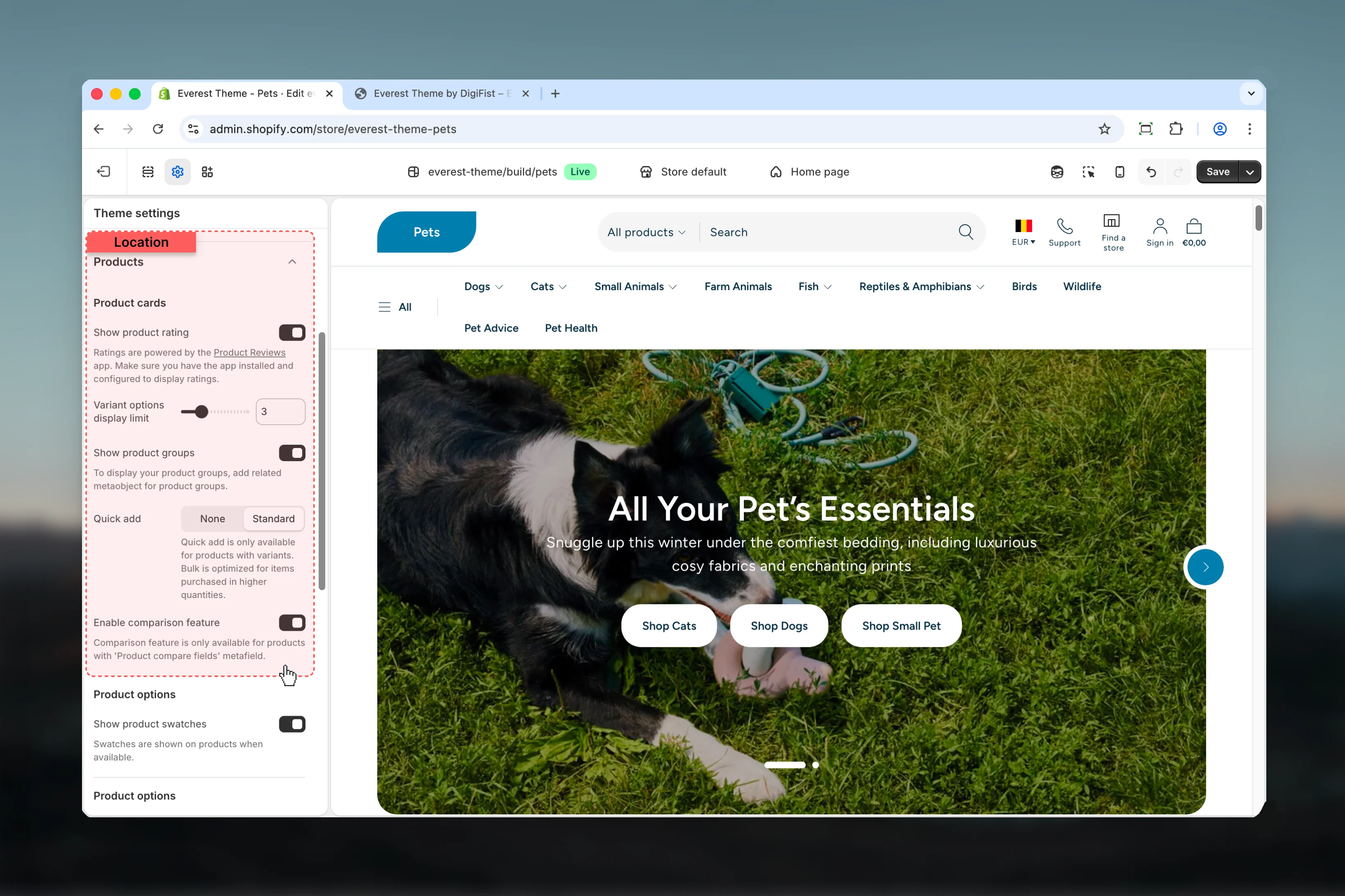 Enable or disable **Show product rating**.
**Default:** `disabled`
Ratings are powered by the [Product Reviews](https://apps.shopify.com/product-reviews) app. Make sure you have the app installed and configured to display ratings.
Adjust **Variant options display limit** with a slider-based control.
**Range:** `2` to `6` **Default:** `3`
Enable or disable **Show product groups**.
**Default:** `enabled`
To display your product groups, add related metaobject for product groups.
Choose how **Quick add** behaves in the section.
**Available options:** None, Standard.
**Default:** `none`
Quick add is only available for products with variants. Bulk is optimized for items purchased in higher quantities.
Enable or disable **Enable comparison feature**.
Keep action labels short so they remain readable across devices.
**Default:** `enabled`
Comparison feature is only available for products with 'Product compare fields' metafield.
### Product options
Enable or disable **Show product rating**.
**Default:** `disabled`
Ratings are powered by the [Product Reviews](https://apps.shopify.com/product-reviews) app. Make sure you have the app installed and configured to display ratings.
Adjust **Variant options display limit** with a slider-based control.
**Range:** `2` to `6` **Default:** `3`
Enable or disable **Show product groups**.
**Default:** `enabled`
To display your product groups, add related metaobject for product groups.
Choose how **Quick add** behaves in the section.
**Available options:** None, Standard.
**Default:** `none`
Quick add is only available for products with variants. Bulk is optimized for items purchased in higher quantities.
Enable or disable **Enable comparison feature**.
Keep action labels short so they remain readable across devices.
**Default:** `enabled`
Comparison feature is only available for products with 'Product compare fields' metafield.
### Product options
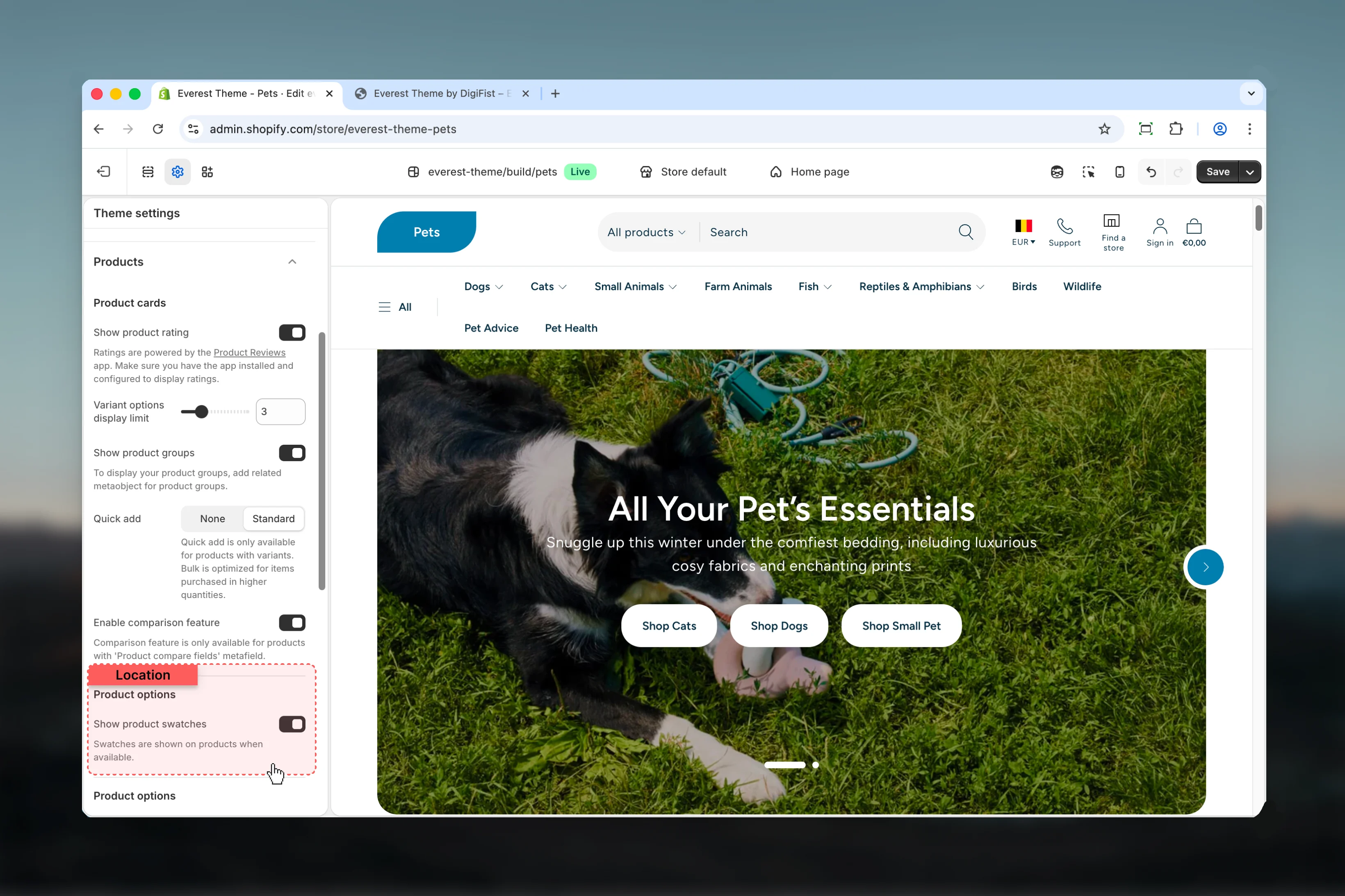 Enable or disable **Show product swatches**.
**Default:** `enabled`
Swatches are shown on products when available.
### Product options
Enable or disable **Show product swatches**.
**Default:** `enabled`
Swatches are shown on products when available.
### Product options
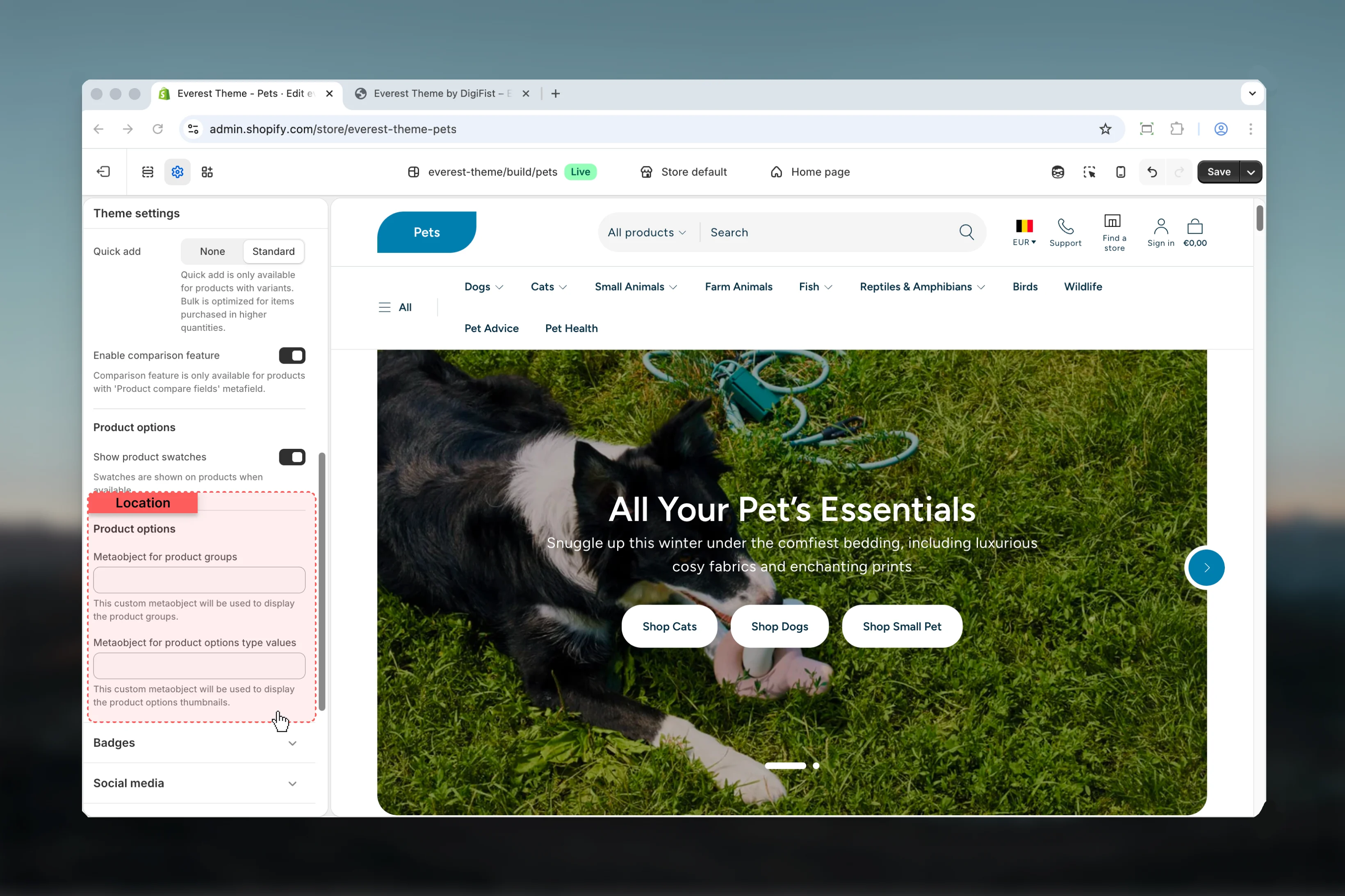 Enter the content used for **metaobject for product groups**.
This custom metaobject will be used to display the product groups.
Enter the content used for **metaobject for product options type values**.
This custom metaobject will be used to display the product options thumbnails.
## Best practices
* Keep labels short and scannable, especially in tighter layouts or utility areas.
* Change one global setting area at a time and preview multiple templates before publishing.
* Remember that theme settings affect many sections at once, so small adjustments can have wide impact.
## Related guides
* [Everest Theme Overview](/themes/everest/index)
Enter the content used for **metaobject for product groups**.
This custom metaobject will be used to display the product groups.
Enter the content used for **metaobject for product options type values**.
This custom metaobject will be used to display the product options thumbnails.
## Best practices
* Keep labels short and scannable, especially in tighter layouts or utility areas.
* Change one global setting area at a time and preview multiple templates before publishing.
* Remember that theme settings affect many sections at once, so small adjustments can have wide impact.
## Related guides
* [Everest Theme Overview](/themes/everest/index)