> ## Documentation Index
> Fetch the complete documentation index at: https://docs.digifist.com/llms.txt
> Use this file to discover all available pages before exploring further.
# Countdown Timer
> Create urgency with customizable countdown timers for sales, launches, and limited-time offers with optional media and flexible display options
## What this section does
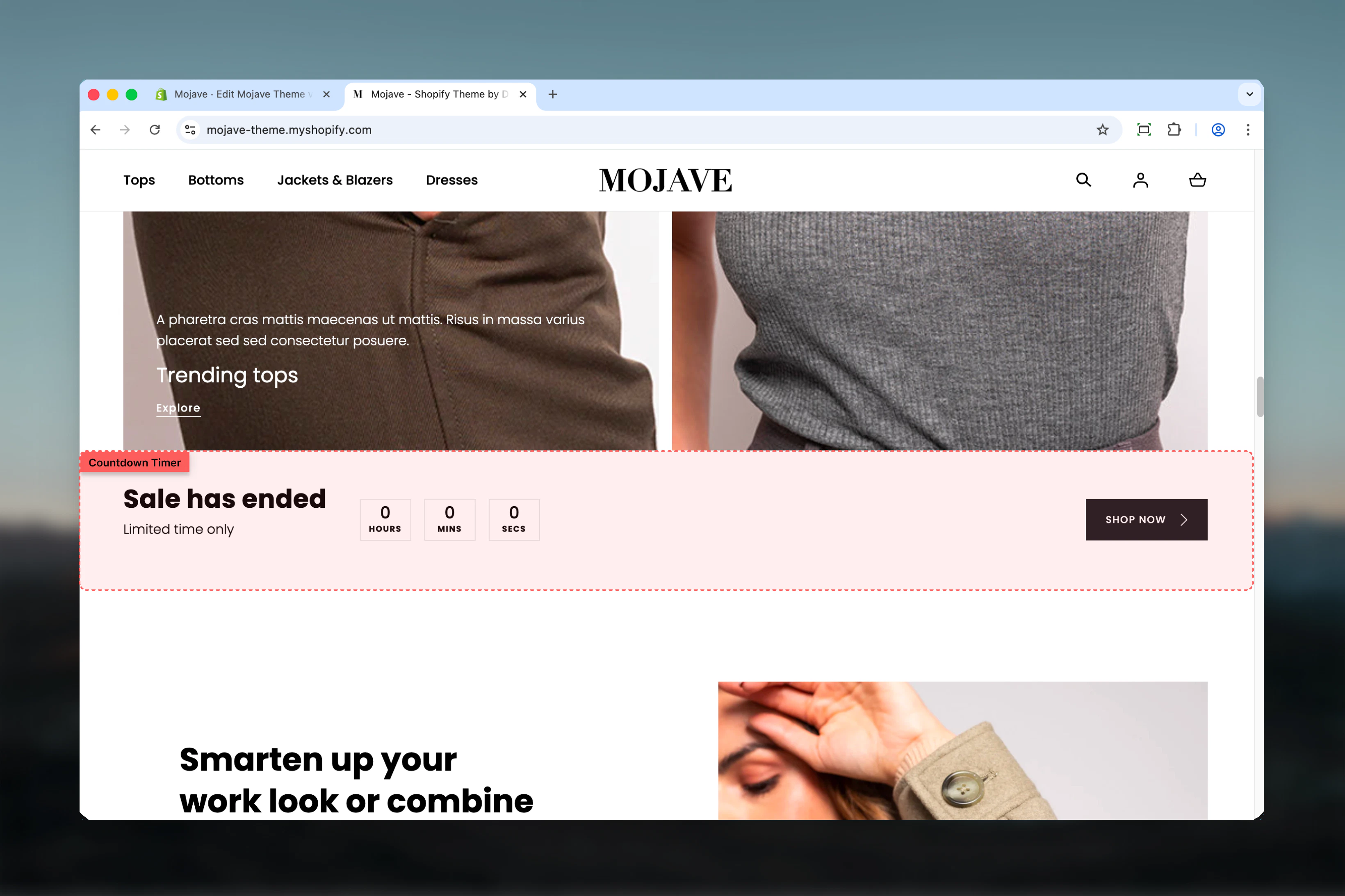
The **Countdown timer** section creates urgency and drives conversions by displaying a live countdown to a specific date and time. Features include:
* **Live countdown** with configurable date/time (year, month, day, hour, minute)
* **Customizable timer units**: Show/hide days, hours, minutes, seconds
* **Two layout modes**: With media or without media
* Heading, subheading (with separate mobile version), and CTA button
* Timer end message that displays when countdown reaches zero
* Optional promotional image
Perfect for flash sales, product launches, limited-time offers, or any time-sensitive campaigns.
 ## Getting started
From the Theme Customizer, click **Add section** and select **Countdown timer**
Configure the countdown end date: Year, Month, Day, Hour, and Minute
Choose which units to display (days, hours, minutes, seconds) and add your heading/subheading text
Upload an image and select "Media" layout to include promotional imagery alongside the timer
## Section settings
**Checkbox** (default: unchecked)
Controls section container width:
* Unchecked: Section contained within standard page width
* Checked: Section spans full browser width (edge-to-edge)
Fullwidth creates more dramatic, attention-grabbing timers.
**Dropdown** (default: Media none)
Controls whether promotional image is displayed:
* **Media**: Shows uploaded image alongside timer content
* **Media none**: Timer only, no image (default)
Use **Media** layout for visual campaigns (e.g., product image with sale timer). Use **Media none** for clean, focused timer displays.
**Image picker** (optional)
Promotional image displayed when Layout is set to "Media":
* Appears beside timer content (split-screen on desktop)
* Hidden when Layout is "Media none"
* Use product images, lifestyle photography, or promotional graphics
Image only displays when Layout setting is set to "Media".
**Desktop** (default: Default) and **Mobile** (default: Compact)
Controls vertical spacing above and below the section:
* **Default**: Standard spacing
* **Medium**: Moderate spacing
* **Compact**: Minimal spacing
* **None**: No spacing
**Text field** (default: "50% Off Everything")
Main heading/title for the countdown section. Should communicate the offer or event.
Examples: "Flash Sale", "Product Launch", "Limited Time Offer", "Black Friday Sale"
Keep concise and impactful (2-5 words).
**Text field** (default: "Limited time only")
Supporting text displayed below heading (desktop and tablet).
Examples: "Ends soon", "While supplies last", "Don't miss out", "24 hours only"
**Text field** (default: "Limited time only")
Separate subheading text specifically for mobile devices.
Use to shorten text for smaller screens or adjust messaging for mobile users.
**Inline rich text** (default: "Sale has ended")
Message displayed when countdown reaches zero:
* Replaces the timer display
* Can include basic formatting (bold, italic, links)
* Info: "This message will be displayed when the timer ends"
Examples: "Offer expired", "Sale ended - check back soon!", "Event has started"
**Button label** (text, default: "Shop now")
* Primary CTA button text
**Button URL** (URL, default: /collections)
* Destination for the button
Drive urgency with CTAs like "Shop now", "Claim offer", "Get started", "Buy now"
Set the countdown end date and time:
**Year** — Number input (default: 2024)
* Four-digit year (e.g., 2024, 2025)
**Month** — Dropdown (default: January)
* Select from 12 months
**Day** — Range slider: 1-31 (default: 1)
* Day of the month
**Hour** — Range slider: 0-23 (default: 0)
* 24-hour format (0 = midnight, 12 = noon, 23 = 11 PM)
**Minute** — Range slider: 0-59 (default: 0)
* Minutes past the hour
Set dates in the future for countdown to work. Past dates will immediately show the timer end message.
**Checkbox** (default: checked)
Shows/hides the **days** unit in the countdown display:
* Checked: Days displayed (e.g., "5 days 12:30:45")
* Unchecked: Days hidden (timer starts at hours)
Disable for short countdowns (\< 24 hours).
**Checkbox** (default: checked)
Shows/hides the **hours** unit in the countdown display.
Disable for very short countdowns (minutes only).
**Checkbox** (default: checked)
Shows/hides the **minutes** unit in the countdown display.
Rarely disabled—minutes are essential for most countdowns.
**Checkbox** (default: checked)
Shows/hides the **seconds** unit in the countdown display:
* Checked: Seconds displayed (creates more urgency with constant movement)
* Unchecked: Seconds hidden (cleaner, less busy display)
**Seconds create urgency** through constant visual change. Disable for cleaner aesthetics or less pressure.
## Best practices
Keep seconds enabled (default) for maximum urgency. The constant ticking creates psychological pressure to act quickly.
Use real, enforced deadlines. Fake urgency damages trust. If countdown ends, the offer should actually end.
For 24+ hour sales: enable days. For 1-24 hours: disable days, show hours. For \< 1 hour: show minutes/seconds only.
Heading should immediately communicate the offer (e.g., "50% Off", "Flash Sale", "Launch Event"). Make value obvious.
Use urgent button text: "Shop now", "Claim offer", "Get yours" rather than generic "Learn more" or "Click here".
Enable fullwidth for homepage banners or major sales. Contained width works better for secondary placements.
Use shorter subheading for mobile to avoid text wrapping or overwhelming small screens.
Timer end message should guide next action: "Sale ended" (passive) vs "Check our new collection" (active redirect).
## Common use cases
**Flash sales** — Homepage banner with countdown to end of limited-time discount (e.g., "24 Hour Flash Sale")
**Product launches** — Countdown to new product release or collection drop to build anticipation
**Holiday sales** — Black Friday, Cyber Monday, or seasonal sale countdowns on homepage
**Cart/checkout abandonment** — Use in email campaigns or on cart page to create urgency for completing purchase
**Webinar/event registration** — Countdown to event start time to drive registrations
**Stock limitation** — "Limited stock - offer ends in..." to create scarcity and urgency together
## Layout behavior
**Desktop - Media layout**:
* Split-screen: Timer content on one side, image on other
* Timer displays prominently with all enabled units
* Button and subheading clearly visible
**Desktop - Media none layout**:
* Timer content centered, no image
* Full width allocated to countdown and text
* More prominent, focused display
**Mobile (all layouts)**:
* Always stacks vertically
* Image at top (if Media layout), then timer, then text/button
* Timer scales responsively
* Uses mobile-specific subheading
**Timer display format**:
```
Days: 05 Hours: 12 Minutes: 30 Seconds: 45
```
Units can be enabled/disabled independently. Displays in large, readable font with labels.
## Timer behavior
**Before countdown end**:
* Live countdown updates every second (if seconds enabled) or minute
* All enabled units display with current values
* Button and content visible
**When countdown reaches zero**:
* Timer display **replaced** with "Timer end message" text
* Heading and button remain visible (unless customized)
* No automatic page refresh or section hiding
**Timezone**:
* Countdown uses **customer's local timezone** (browser-based)
* Set time in your local timezone, customers see countdown in theirs
* Consider timezone differences for global audiences
## Customization tips
**For very short sales (\< 1 hour)**:
* Disable: Days, Hours
* Enable: Minutes, Seconds only
* Results in: "30:45" (minutes:seconds)
**For daily deals (resets daily)**:
* Set end time to midnight (00:00) of next day
* Enable: Hours, Minutes, Seconds
* Disable: Days (implies daily reset)
**For multi-day sales**:
* Enable: Days, Hours, Minutes
* Seconds optional (disable for cleaner look)
* Result: "3 days 14:30:00"
**For minimal pressure**:
* Enable: Days, Hours only
* Disable: Minutes, Seconds
* Creates awareness without anxiety
## Related sections
* **Hero** — Dramatic banners that can include urgency messaging
* **Newsletter** — Email signup sections for post-sale engagement
* **Featured Products** — Pair timer with specific sale products
* **Banner Fullwidth** — Alternative promotional banner without timer
## Getting started
From the Theme Customizer, click **Add section** and select **Countdown timer**
Configure the countdown end date: Year, Month, Day, Hour, and Minute
Choose which units to display (days, hours, minutes, seconds) and add your heading/subheading text
Upload an image and select "Media" layout to include promotional imagery alongside the timer
## Section settings
**Checkbox** (default: unchecked)
Controls section container width:
* Unchecked: Section contained within standard page width
* Checked: Section spans full browser width (edge-to-edge)
Fullwidth creates more dramatic, attention-grabbing timers.
**Dropdown** (default: Media none)
Controls whether promotional image is displayed:
* **Media**: Shows uploaded image alongside timer content
* **Media none**: Timer only, no image (default)
Use **Media** layout for visual campaigns (e.g., product image with sale timer). Use **Media none** for clean, focused timer displays.
**Image picker** (optional)
Promotional image displayed when Layout is set to "Media":
* Appears beside timer content (split-screen on desktop)
* Hidden when Layout is "Media none"
* Use product images, lifestyle photography, or promotional graphics
Image only displays when Layout setting is set to "Media".
**Desktop** (default: Default) and **Mobile** (default: Compact)
Controls vertical spacing above and below the section:
* **Default**: Standard spacing
* **Medium**: Moderate spacing
* **Compact**: Minimal spacing
* **None**: No spacing
**Text field** (default: "50% Off Everything")
Main heading/title for the countdown section. Should communicate the offer or event.
Examples: "Flash Sale", "Product Launch", "Limited Time Offer", "Black Friday Sale"
Keep concise and impactful (2-5 words).
**Text field** (default: "Limited time only")
Supporting text displayed below heading (desktop and tablet).
Examples: "Ends soon", "While supplies last", "Don't miss out", "24 hours only"
**Text field** (default: "Limited time only")
Separate subheading text specifically for mobile devices.
Use to shorten text for smaller screens or adjust messaging for mobile users.
**Inline rich text** (default: "Sale has ended")
Message displayed when countdown reaches zero:
* Replaces the timer display
* Can include basic formatting (bold, italic, links)
* Info: "This message will be displayed when the timer ends"
Examples: "Offer expired", "Sale ended - check back soon!", "Event has started"
**Button label** (text, default: "Shop now")
* Primary CTA button text
**Button URL** (URL, default: /collections)
* Destination for the button
Drive urgency with CTAs like "Shop now", "Claim offer", "Get started", "Buy now"
Set the countdown end date and time:
**Year** — Number input (default: 2024)
* Four-digit year (e.g., 2024, 2025)
**Month** — Dropdown (default: January)
* Select from 12 months
**Day** — Range slider: 1-31 (default: 1)
* Day of the month
**Hour** — Range slider: 0-23 (default: 0)
* 24-hour format (0 = midnight, 12 = noon, 23 = 11 PM)
**Minute** — Range slider: 0-59 (default: 0)
* Minutes past the hour
Set dates in the future for countdown to work. Past dates will immediately show the timer end message.
**Checkbox** (default: checked)
Shows/hides the **days** unit in the countdown display:
* Checked: Days displayed (e.g., "5 days 12:30:45")
* Unchecked: Days hidden (timer starts at hours)
Disable for short countdowns (\< 24 hours).
**Checkbox** (default: checked)
Shows/hides the **hours** unit in the countdown display.
Disable for very short countdowns (minutes only).
**Checkbox** (default: checked)
Shows/hides the **minutes** unit in the countdown display.
Rarely disabled—minutes are essential for most countdowns.
**Checkbox** (default: checked)
Shows/hides the **seconds** unit in the countdown display:
* Checked: Seconds displayed (creates more urgency with constant movement)
* Unchecked: Seconds hidden (cleaner, less busy display)
**Seconds create urgency** through constant visual change. Disable for cleaner aesthetics or less pressure.
## Best practices
Keep seconds enabled (default) for maximum urgency. The constant ticking creates psychological pressure to act quickly.
Use real, enforced deadlines. Fake urgency damages trust. If countdown ends, the offer should actually end.
For 24+ hour sales: enable days. For 1-24 hours: disable days, show hours. For \< 1 hour: show minutes/seconds only.
Heading should immediately communicate the offer (e.g., "50% Off", "Flash Sale", "Launch Event"). Make value obvious.
Use urgent button text: "Shop now", "Claim offer", "Get yours" rather than generic "Learn more" or "Click here".
Enable fullwidth for homepage banners or major sales. Contained width works better for secondary placements.
Use shorter subheading for mobile to avoid text wrapping or overwhelming small screens.
Timer end message should guide next action: "Sale ended" (passive) vs "Check our new collection" (active redirect).
## Common use cases
**Flash sales** — Homepage banner with countdown to end of limited-time discount (e.g., "24 Hour Flash Sale")
**Product launches** — Countdown to new product release or collection drop to build anticipation
**Holiday sales** — Black Friday, Cyber Monday, or seasonal sale countdowns on homepage
**Cart/checkout abandonment** — Use in email campaigns or on cart page to create urgency for completing purchase
**Webinar/event registration** — Countdown to event start time to drive registrations
**Stock limitation** — "Limited stock - offer ends in..." to create scarcity and urgency together
## Layout behavior
**Desktop - Media layout**:
* Split-screen: Timer content on one side, image on other
* Timer displays prominently with all enabled units
* Button and subheading clearly visible
**Desktop - Media none layout**:
* Timer content centered, no image
* Full width allocated to countdown and text
* More prominent, focused display
**Mobile (all layouts)**:
* Always stacks vertically
* Image at top (if Media layout), then timer, then text/button
* Timer scales responsively
* Uses mobile-specific subheading
**Timer display format**:
```
Days: 05 Hours: 12 Minutes: 30 Seconds: 45
```
Units can be enabled/disabled independently. Displays in large, readable font with labels.
## Timer behavior
**Before countdown end**:
* Live countdown updates every second (if seconds enabled) or minute
* All enabled units display with current values
* Button and content visible
**When countdown reaches zero**:
* Timer display **replaced** with "Timer end message" text
* Heading and button remain visible (unless customized)
* No automatic page refresh or section hiding
**Timezone**:
* Countdown uses **customer's local timezone** (browser-based)
* Set time in your local timezone, customers see countdown in theirs
* Consider timezone differences for global audiences
## Customization tips
**For very short sales (\< 1 hour)**:
* Disable: Days, Hours
* Enable: Minutes, Seconds only
* Results in: "30:45" (minutes:seconds)
**For daily deals (resets daily)**:
* Set end time to midnight (00:00) of next day
* Enable: Hours, Minutes, Seconds
* Disable: Days (implies daily reset)
**For multi-day sales**:
* Enable: Days, Hours, Minutes
* Seconds optional (disable for cleaner look)
* Result: "3 days 14:30:00"
**For minimal pressure**:
* Enable: Days, Hours only
* Disable: Minutes, Seconds
* Creates awareness without anxiety
## Related sections
* **Hero** — Dramatic banners that can include urgency messaging
* **Newsletter** — Email signup sections for post-sale engagement
* **Featured Products** — Pair timer with specific sale products
* **Banner Fullwidth** — Alternative promotional banner without timer