> ## Documentation Index
> Fetch the complete documentation index at: https://docs.digifist.com/llms.txt
> Use this file to discover all available pages before exploring further.
# Featured Articles
> Showcase blog articles in a grid layout, either automatically from a blog or manually curated through article blocks
## What this section does
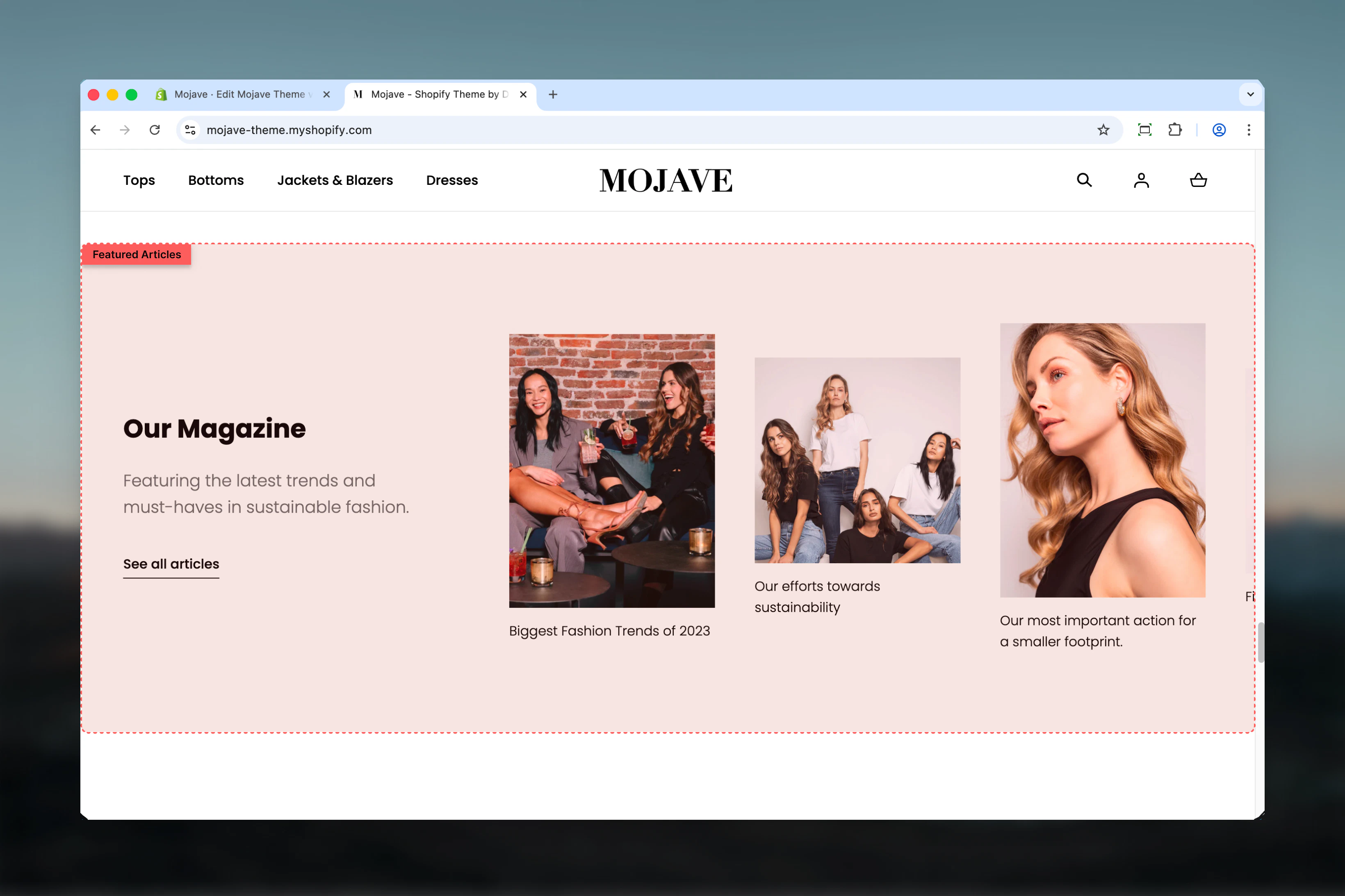
The **Featured Articles** section displays blog content in an attractive card grid, perfect for promoting your latest posts or highlighting curated content. You can:
* Automatically pull recent articles from a selected blog (dynamic)
* Manually select specific articles using blocks (curated)
This section brings your blog content to the forefront of your homepage or landing pages, encouraging visitors to engage with your brand story and content marketing.
 ## Getting started
From the Theme Customizer, click **Add section** and select **Featured articles**
Either select a **Blog** to pull articles automatically, OR add **Article blocks** to manually select specific articles
Add a heading and subheading, set the article count (if using a blog), and toggle fullwidth mode based on your design preferences
## Section settings
**Checkbox** (default: checked)
Controls the section width:
* **Checked**: Section spans full browser width (edge-to-edge)
* **Unchecked**: Section contained within standard page width
**When to use fullwidth**: Dramatic, showcase-style blog promotion that dominates the page
**When to disable**: Matching other contained sections for cohesive page rhythm
**Text field** (default: "Blog posts")
Main heading for the section. Automatically populates with the blog name when you select a blog, but can be overridden.
Use descriptive headings like "Latest News", "From the Blog", or "Our Stories".
**Textarea** (default: "Give your customers a summary of your blog posts.")
Supporting text that provides context about the blog content. Keep concise (1-2 sentences).
**Text field** (optional)
Text displayed on the call-to-action button below the articles (e.g., "Read more", "View all posts").
**URL field** (optional)
Destination for the CTA button. Automatically populates with the blog URL when you select a blog, but can be overridden.
Typically links to:
* The main blog page
* A specific blog category
* A custom landing page
**Blog picker** — Select a Shopify blog to automatically pull articles from
* Displays the most recent articles based on publish date
* Updates automatically as new articles are published
* **Overrides manual article blocks** if both are configured
* Auto-fills Heading and Link URL with blog info (can be overridden)
**When to use**: Dynamic article displays that stay current without manual updates (e.g., "Latest News", "Recent Posts").
**Range slider** — 4 to 10 articles (default: 4)
Controls how many articles are displayed when using the Blog setting.
* 4 articles: Recommended for most layouts (default)
* 6-8 articles: Use when you have more vertical space
* 10 articles: Maximum for comprehensive blog showcases
This setting only applies when a Blog is selected. When using manual article blocks, the number of articles matches the number of blocks added.
**Dropdown** (default: Compact)
Controls vertical spacing above and below the section on desktop devices:
* **Default** — Standard spacing for balanced layouts
* **Medium** — Moderate spacing for tighter designs
* **Compact** — Minimal spacing (recommended for fullwidth sections)
* **None** — No spacing for seamless layouts
**Dropdown** (default: Compact)
Controls vertical spacing above and below the section on mobile devices:
* **Default** — Standard mobile spacing
* **Compact** — Reduced spacing (recommended for mobile)
* **None** — No spacing for seamless mobile layouts
## Block types
### Article block
Add **Article** blocks to manually select specific articles to feature. Each block represents one article.
**Article picker** — Select a specific blog article to display
* Info: "Overwrites the Blog, if chosen"
* Choose any published article from any blog
* Articles display in the order blocks are arranged in the Theme Customizer
**Important**: All article blocks are ignored if the **Blog** setting (section-level) is filled. Remove the Blog selection to use manual article blocks.
**When to use blocks**: Curated, hand-picked article displays for campaigns, featured content, or themed collections (e.g., "Summer Recipe Collection", "Holiday Gift Guides").
**How to add article blocks**:
1. In the Theme Customizer, click **Add block**
2. Select **Article**
3. Choose the article from the picker
4. Repeat to add more articles
5. Drag blocks to reorder articles
## Best practices
Use **Blog** for dynamic, auto-updating displays. Use **Article blocks** for static, curated selections tied to specific campaigns or themes.
Display 4 articles by default for balanced visual impact. Use 6-8 only if you have substantial blog content and vertical space.
Enable fullwidth for dramatic blog showcases that dominate the page. Disable when stacking with other standard-width sections.
Use specific headings like "Latest News", "Style Tips", or "From the Journal" instead of generic "Blog posts" to set expectations.
Keep subheadings to 1-2 sentences that explain the value of your blog content (e.g., "Discover styling tips, trends, and inspiration from our team").
Always include Link text and Link URL to drive visitors to your full blog where they can discover more content.
When using manual article blocks, refresh featured articles seasonally or with new campaigns to keep content fresh and relevant.
Use Compact spacing (default) for fullwidth sections. Use Default spacing when the section sits between lighter content areas.
## Common use cases
**Homepage blog showcase** — Feature your most recent blog posts on the homepage to drive traffic to your content and establish brand authority
**Content hub landing page** — Create a dedicated blog landing page that showcases featured or popular articles before the full blog list
**Campaign-specific content** — Manually curate articles related to a seasonal campaign, holiday, or product launch using article blocks
**Category highlights** — Pull articles from a specific blog category to introduce customers to themed content (e.g., "Recipes", "Tutorials")
**Editorial storytelling** — Showcase long-form brand stories, founder interviews, or behind-the-scenes content to build emotional connections
## Layout behavior
**Desktop**: Articles display in a grid layout, typically 2-4 columns depending on the number of articles. Each article card includes:
* Featured image
* Article title
* Excerpt (if available)
* Publish date and author (if configured in theme settings)
* Read more link
**Mobile**: Articles stack vertically in a single column for optimal mobile reading.
**Article order**:
* **Blog mode**: Most recent articles first (sorted by publish date)
* **Block mode**: Order matches the arrangement of article blocks in the Theme Customizer
## Content population logic
### When using Blog setting:
1. Select a blog using the **Blog** picker
2. **Heading** auto-fills with blog name (can be overridden)
3. **Link URL** auto-fills with blog URL (can be overridden)
4. Most recent X articles display (X = **Articles count** setting)
5. All article blocks are ignored
### When using Article blocks:
1. Leave **Blog** setting empty
2. Add **Article** blocks for each article you want to feature
3. Manually set **Heading** and **Link URL**
4. Articles display in block order
5. **Articles count** setting has no effect
## Related sections
* **Featured Collection** — Similar editorial layout but for products instead of articles
* **Featured Products** — Display curated products in a grid or slider
* **Main Blog** — Full blog template with hero banner, filtering, and pagination
## Getting started
From the Theme Customizer, click **Add section** and select **Featured articles**
Either select a **Blog** to pull articles automatically, OR add **Article blocks** to manually select specific articles
Add a heading and subheading, set the article count (if using a blog), and toggle fullwidth mode based on your design preferences
## Section settings
**Checkbox** (default: checked)
Controls the section width:
* **Checked**: Section spans full browser width (edge-to-edge)
* **Unchecked**: Section contained within standard page width
**When to use fullwidth**: Dramatic, showcase-style blog promotion that dominates the page
**When to disable**: Matching other contained sections for cohesive page rhythm
**Text field** (default: "Blog posts")
Main heading for the section. Automatically populates with the blog name when you select a blog, but can be overridden.
Use descriptive headings like "Latest News", "From the Blog", or "Our Stories".
**Textarea** (default: "Give your customers a summary of your blog posts.")
Supporting text that provides context about the blog content. Keep concise (1-2 sentences).
**Text field** (optional)
Text displayed on the call-to-action button below the articles (e.g., "Read more", "View all posts").
**URL field** (optional)
Destination for the CTA button. Automatically populates with the blog URL when you select a blog, but can be overridden.
Typically links to:
* The main blog page
* A specific blog category
* A custom landing page
**Blog picker** — Select a Shopify blog to automatically pull articles from
* Displays the most recent articles based on publish date
* Updates automatically as new articles are published
* **Overrides manual article blocks** if both are configured
* Auto-fills Heading and Link URL with blog info (can be overridden)
**When to use**: Dynamic article displays that stay current without manual updates (e.g., "Latest News", "Recent Posts").
**Range slider** — 4 to 10 articles (default: 4)
Controls how many articles are displayed when using the Blog setting.
* 4 articles: Recommended for most layouts (default)
* 6-8 articles: Use when you have more vertical space
* 10 articles: Maximum for comprehensive blog showcases
This setting only applies when a Blog is selected. When using manual article blocks, the number of articles matches the number of blocks added.
**Dropdown** (default: Compact)
Controls vertical spacing above and below the section on desktop devices:
* **Default** — Standard spacing for balanced layouts
* **Medium** — Moderate spacing for tighter designs
* **Compact** — Minimal spacing (recommended for fullwidth sections)
* **None** — No spacing for seamless layouts
**Dropdown** (default: Compact)
Controls vertical spacing above and below the section on mobile devices:
* **Default** — Standard mobile spacing
* **Compact** — Reduced spacing (recommended for mobile)
* **None** — No spacing for seamless mobile layouts
## Block types
### Article block
Add **Article** blocks to manually select specific articles to feature. Each block represents one article.
**Article picker** — Select a specific blog article to display
* Info: "Overwrites the Blog, if chosen"
* Choose any published article from any blog
* Articles display in the order blocks are arranged in the Theme Customizer
**Important**: All article blocks are ignored if the **Blog** setting (section-level) is filled. Remove the Blog selection to use manual article blocks.
**When to use blocks**: Curated, hand-picked article displays for campaigns, featured content, or themed collections (e.g., "Summer Recipe Collection", "Holiday Gift Guides").
**How to add article blocks**:
1. In the Theme Customizer, click **Add block**
2. Select **Article**
3. Choose the article from the picker
4. Repeat to add more articles
5. Drag blocks to reorder articles
## Best practices
Use **Blog** for dynamic, auto-updating displays. Use **Article blocks** for static, curated selections tied to specific campaigns or themes.
Display 4 articles by default for balanced visual impact. Use 6-8 only if you have substantial blog content and vertical space.
Enable fullwidth for dramatic blog showcases that dominate the page. Disable when stacking with other standard-width sections.
Use specific headings like "Latest News", "Style Tips", or "From the Journal" instead of generic "Blog posts" to set expectations.
Keep subheadings to 1-2 sentences that explain the value of your blog content (e.g., "Discover styling tips, trends, and inspiration from our team").
Always include Link text and Link URL to drive visitors to your full blog where they can discover more content.
When using manual article blocks, refresh featured articles seasonally or with new campaigns to keep content fresh and relevant.
Use Compact spacing (default) for fullwidth sections. Use Default spacing when the section sits between lighter content areas.
## Common use cases
**Homepage blog showcase** — Feature your most recent blog posts on the homepage to drive traffic to your content and establish brand authority
**Content hub landing page** — Create a dedicated blog landing page that showcases featured or popular articles before the full blog list
**Campaign-specific content** — Manually curate articles related to a seasonal campaign, holiday, or product launch using article blocks
**Category highlights** — Pull articles from a specific blog category to introduce customers to themed content (e.g., "Recipes", "Tutorials")
**Editorial storytelling** — Showcase long-form brand stories, founder interviews, or behind-the-scenes content to build emotional connections
## Layout behavior
**Desktop**: Articles display in a grid layout, typically 2-4 columns depending on the number of articles. Each article card includes:
* Featured image
* Article title
* Excerpt (if available)
* Publish date and author (if configured in theme settings)
* Read more link
**Mobile**: Articles stack vertically in a single column for optimal mobile reading.
**Article order**:
* **Blog mode**: Most recent articles first (sorted by publish date)
* **Block mode**: Order matches the arrangement of article blocks in the Theme Customizer
## Content population logic
### When using Blog setting:
1. Select a blog using the **Blog** picker
2. **Heading** auto-fills with blog name (can be overridden)
3. **Link URL** auto-fills with blog URL (can be overridden)
4. Most recent X articles display (X = **Articles count** setting)
5. All article blocks are ignored
### When using Article blocks:
1. Leave **Blog** setting empty
2. Add **Article** blocks for each article you want to feature
3. Manually set **Heading** and **Link URL**
4. Articles display in block order
5. **Articles count** setting has no effect
## Related sections
* **Featured Collection** — Similar editorial layout but for products instead of articles
* **Featured Products** — Display curated products in a grid or slider
* **Main Blog** — Full blog template with hero banner, filtering, and pagination