> ## Documentation Index
> Fetch the complete documentation index at: https://docs.digifist.com/llms.txt
> Use this file to discover all available pages before exploring further.
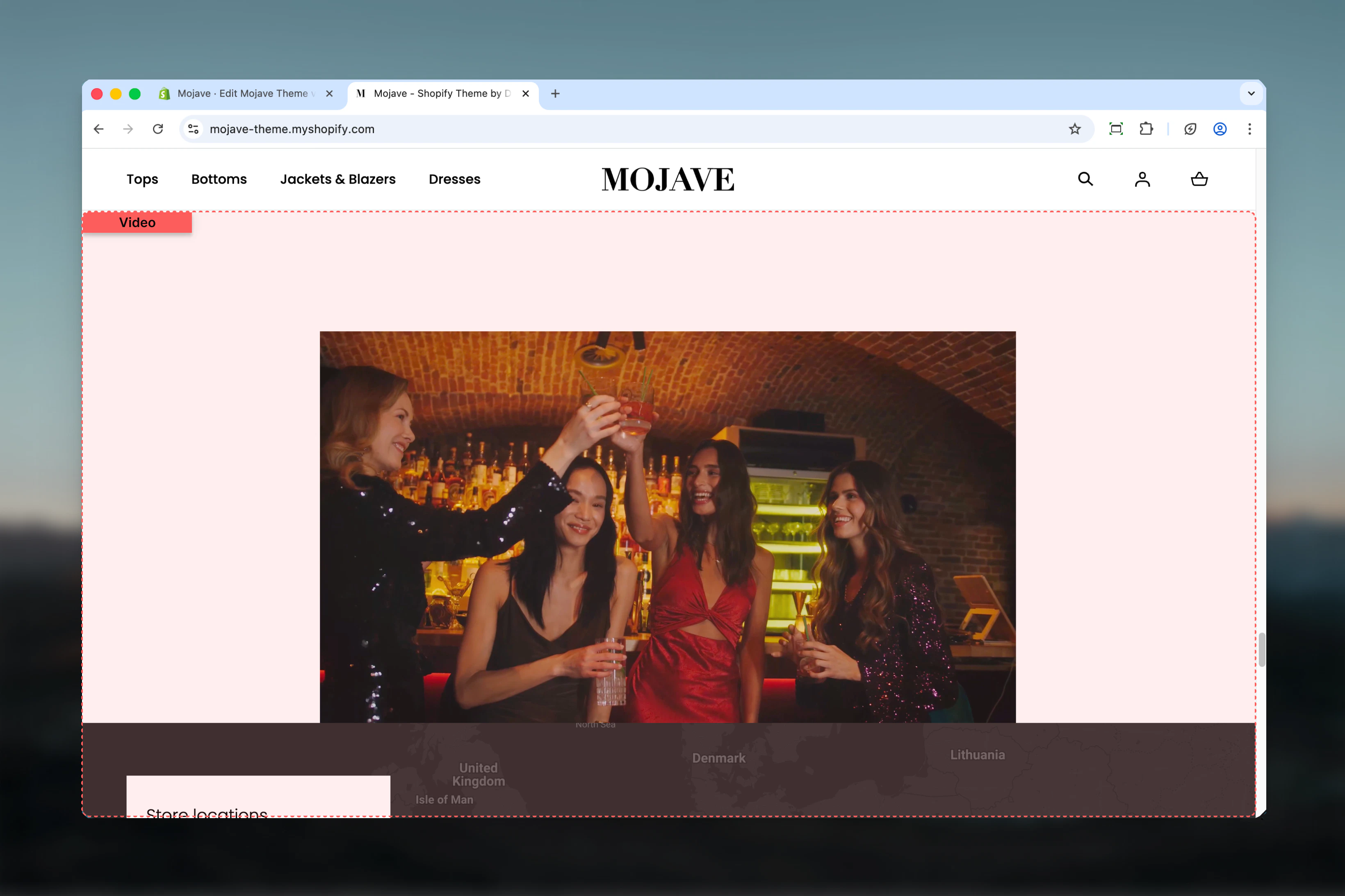
# Video
> Embed YouTube/Vimeo videos or upload self-hosted videos with customizable aspect ratios, autoplay options, and optional cover images
## What this section does
The **Video** section creates professional video players with:
* **YouTube/Vimeo embedding** or **self-hosted video uploads**
* Six aspect ratio options (1:1, 4:3, 16:9, 3:1, 3:2, fullscreen)
* Optional cover image before video plays
* Autoplay muted video option
* Fullwidth or contained layout
* Accessibility-friendly video descriptions
Perfect for product demos, brand stories, tutorials, testimonials, or any video content that enhances your store experience.
 ## Getting started
From the Theme Customizer, click **Add section** and select **Video**
Either paste a YouTube/Vimeo URL in **External video** OR upload an MP4 file in **Video**. Self-hosted video takes priority if both are provided.
Select aspect ratio, optionally add a cover image, enable fullwidth mode, and add accessibility description
## Section settings
**Image picker** (optional)
Static image displayed before video plays (video poster/thumbnail):
* Shows until visitor clicks play button
* Useful for branding or creating visual interest before video loads
* Should be representative frame from video or custom thumbnail
* If empty, video first frame appears or video loads immediately (if autoplay enabled)
Use high-quality cover images that entice visitors to click play. Include play button overlay for clarity.
**Video file upload**
Upload self-hosted video files (MP4 recommended):
* Recommended aspect ratio: 16:9
* File format: MP4 (most compatible)
* **Takes priority** over External video if both are provided
* Videos loop automatically when autoplay is enabled
**When to use self-hosted**:
* Full control over video quality and compression
* No external dependencies (YouTube/Vimeo)
* Faster load times with optimized files
* No branding from external platforms
Keep video files under 10-15MB for optimal performance. Compress before uploading.
**Video URL field** (default: YouTube example)
Paste YouTube or Vimeo video URL to embed from external platforms:
* Accepts: YouTube and Vimeo URLs
* Recommended aspect ratio: 16:9
* **Ignored if Video (self-hosted) is uploaded**
**When to use external**:
* Leveraging existing YouTube/Vimeo content
* Very long videos (no file size concerns)
* YouTube/Vimeo analytics integration
Example URLs:
* YouTube: `https://www.youtube.com/watch?v=VIDEO_ID`
* Vimeo: `https://vimeo.com/VIDEO_ID`
**Text field** (optional but recommended)
Accessibility description for screen reader users:
* Describes video content for visually impaired visitors
* Does not display visually, only read by assistive technologies
* **Best practice**: Briefly describe what's happening in the video
Example: "Product demo showing how to assemble the bookshelf in 5 easy steps"
Providing video descriptions improves accessibility compliance and SEO.
**Checkbox** (default: checked)
Controls section container width:
* **Checked**: Video spans full browser width (edge-to-edge)
* **Unchecked**: Video contained within standard page width
Fullwidth creates dramatic, cinematic video presentations. Contained width works better when video is part of a broader content layout.
**Checkbox** (default: unchecked)
Automatically plays video on page load (muted, as required by browsers):
* **Checked**: Video starts playing immediately, muted, in a loop
* **Unchecked**: Video requires click to play (shows cover image or first frame)
**Important**: When autoplay is enabled, the cover image will NOT appear. Video loads and plays immediately.
**When to use autoplay**:
* Short ambient/lifestyle videos (5-15 seconds)
* Background videos without important audio
* Hero sections with looping visuals
**When NOT to use**:
* Talking-head videos or content with important dialogue
* Tutorials or demos requiring audio
* Long-form content
**Dropdown** (default: 16:9)
Controls the width-to-height proportions of the video player:
* **1:1** — Square (Instagram-style)
* **4:3** — Classic TV format
* **16:9** — Widescreen (most common, recommended)
* **3:1** — Ultra-wide cinematic
* **3:2** — Standard photography
* **Fullscreen** — Matches viewport height (100vh)
**Recommendations**:
* **16:9**: Default for most YouTube/Vimeo content
* **1:1**: Product videos shot for social media
* **Fullscreen**: Hero videos or immersive brand stories
* Match aspect ratio to your source video to avoid black bars
## Best practices
Use 16:9 aspect ratio for most videos—it matches YouTube/Vimeo standards and looks professional on all devices.
For self-hosted videos, compress files to under 10MB. Use tools like HandBrake to optimize without quality loss.
Always provide compelling cover images unless using autoplay. Good thumbnails significantly increase play rates.
Only use autoplay for short (5-15s), looping, ambient videos. Never autoplay videos with important dialogue or sound.
Always provide video description text for accessibility. It improves SEO and helps visually impaired customers.
Use fullwidth mode for hero videos or standalone video sections. Disable for videos within broader content layouts.
Use YouTube/Vimeo external videos when you need view analytics, engagement metrics, or existing video library.
Use self-hosted videos for critical brand content where you need full control over quality, performance, and branding.
## Common use cases
**Product demonstrations** — Show products in action with 16:9 videos featuring usage, assembly, or styling
**Brand storytelling** — Feature fullwidth, autoplay muted videos with your brand story or mission statement
**Customer testimonials** — Embed YouTube testimonial videos with cover images to build trust
**Tutorial content** — Step-by-step guides for product usage, styling tips, or how-to content
**Homepage hero videos** — Fullscreen aspect ratio with autoplay muted for dramatic, immersive homepage experience
**Category intros** — Place videos at top of collection pages to introduce product categories or showcase collections
## Layout behavior
**Desktop**:
* Fullwidth mode: Video spans edge-to-edge across full browser width
* Contained mode: Video centered within standard page width container
* Aspect ratio maintains proportions regardless of screen size
**Mobile**:
* Always responsive, scaling proportionally
* Fullwidth spans full mobile screen width
* Play button overlay for non-autoplay videos
* Autoplay videos may pause on mobile depending on browser/connection
**Video player controls**:
* External videos: YouTube/Vimeo native controls (play, pause, volume, fullscreen)
* Self-hosted videos: Browser default HTML5 video controls (play, pause, volume, scrubbing, fullscreen)
## Video priority
When multiple video sources are configured, they're used in this priority order:
1. **Video** (self-hosted upload) — highest priority
2. **External video** (YouTube/Vimeo) — used if no self-hosted video
3. **Fallback**: If neither is provided, section displays empty or placeholder
## Autoplay vs. cover image
| Setting | Cover Image Behavior | Video Behavior |
| --------------------- | ---------------------------------------------- | --------------------------------- |
| **Autoplay disabled** | Shows cover image (if provided) or first frame | Plays on click |
| **Autoplay enabled** | **Hidden** (never displays) | Plays immediately, muted, looping |
**Key point**: Enabling autoplay **removes the cover image** from display. The cover image setting is ignored when autoplay is checked.
## Related sections
* **Hero** — Hero banners with background video support and text overlays
* **Banner Fullwidth** — Promotional banners that can include video media
* **Images with Text** — Combine video with editorial text layouts
## Getting started
From the Theme Customizer, click **Add section** and select **Video**
Either paste a YouTube/Vimeo URL in **External video** OR upload an MP4 file in **Video**. Self-hosted video takes priority if both are provided.
Select aspect ratio, optionally add a cover image, enable fullwidth mode, and add accessibility description
## Section settings
**Image picker** (optional)
Static image displayed before video plays (video poster/thumbnail):
* Shows until visitor clicks play button
* Useful for branding or creating visual interest before video loads
* Should be representative frame from video or custom thumbnail
* If empty, video first frame appears or video loads immediately (if autoplay enabled)
Use high-quality cover images that entice visitors to click play. Include play button overlay for clarity.
**Video file upload**
Upload self-hosted video files (MP4 recommended):
* Recommended aspect ratio: 16:9
* File format: MP4 (most compatible)
* **Takes priority** over External video if both are provided
* Videos loop automatically when autoplay is enabled
**When to use self-hosted**:
* Full control over video quality and compression
* No external dependencies (YouTube/Vimeo)
* Faster load times with optimized files
* No branding from external platforms
Keep video files under 10-15MB for optimal performance. Compress before uploading.
**Video URL field** (default: YouTube example)
Paste YouTube or Vimeo video URL to embed from external platforms:
* Accepts: YouTube and Vimeo URLs
* Recommended aspect ratio: 16:9
* **Ignored if Video (self-hosted) is uploaded**
**When to use external**:
* Leveraging existing YouTube/Vimeo content
* Very long videos (no file size concerns)
* YouTube/Vimeo analytics integration
Example URLs:
* YouTube: `https://www.youtube.com/watch?v=VIDEO_ID`
* Vimeo: `https://vimeo.com/VIDEO_ID`
**Text field** (optional but recommended)
Accessibility description for screen reader users:
* Describes video content for visually impaired visitors
* Does not display visually, only read by assistive technologies
* **Best practice**: Briefly describe what's happening in the video
Example: "Product demo showing how to assemble the bookshelf in 5 easy steps"
Providing video descriptions improves accessibility compliance and SEO.
**Checkbox** (default: checked)
Controls section container width:
* **Checked**: Video spans full browser width (edge-to-edge)
* **Unchecked**: Video contained within standard page width
Fullwidth creates dramatic, cinematic video presentations. Contained width works better when video is part of a broader content layout.
**Checkbox** (default: unchecked)
Automatically plays video on page load (muted, as required by browsers):
* **Checked**: Video starts playing immediately, muted, in a loop
* **Unchecked**: Video requires click to play (shows cover image or first frame)
**Important**: When autoplay is enabled, the cover image will NOT appear. Video loads and plays immediately.
**When to use autoplay**:
* Short ambient/lifestyle videos (5-15 seconds)
* Background videos without important audio
* Hero sections with looping visuals
**When NOT to use**:
* Talking-head videos or content with important dialogue
* Tutorials or demos requiring audio
* Long-form content
**Dropdown** (default: 16:9)
Controls the width-to-height proportions of the video player:
* **1:1** — Square (Instagram-style)
* **4:3** — Classic TV format
* **16:9** — Widescreen (most common, recommended)
* **3:1** — Ultra-wide cinematic
* **3:2** — Standard photography
* **Fullscreen** — Matches viewport height (100vh)
**Recommendations**:
* **16:9**: Default for most YouTube/Vimeo content
* **1:1**: Product videos shot for social media
* **Fullscreen**: Hero videos or immersive brand stories
* Match aspect ratio to your source video to avoid black bars
## Best practices
Use 16:9 aspect ratio for most videos—it matches YouTube/Vimeo standards and looks professional on all devices.
For self-hosted videos, compress files to under 10MB. Use tools like HandBrake to optimize without quality loss.
Always provide compelling cover images unless using autoplay. Good thumbnails significantly increase play rates.
Only use autoplay for short (5-15s), looping, ambient videos. Never autoplay videos with important dialogue or sound.
Always provide video description text for accessibility. It improves SEO and helps visually impaired customers.
Use fullwidth mode for hero videos or standalone video sections. Disable for videos within broader content layouts.
Use YouTube/Vimeo external videos when you need view analytics, engagement metrics, or existing video library.
Use self-hosted videos for critical brand content where you need full control over quality, performance, and branding.
## Common use cases
**Product demonstrations** — Show products in action with 16:9 videos featuring usage, assembly, or styling
**Brand storytelling** — Feature fullwidth, autoplay muted videos with your brand story or mission statement
**Customer testimonials** — Embed YouTube testimonial videos with cover images to build trust
**Tutorial content** — Step-by-step guides for product usage, styling tips, or how-to content
**Homepage hero videos** — Fullscreen aspect ratio with autoplay muted for dramatic, immersive homepage experience
**Category intros** — Place videos at top of collection pages to introduce product categories or showcase collections
## Layout behavior
**Desktop**:
* Fullwidth mode: Video spans edge-to-edge across full browser width
* Contained mode: Video centered within standard page width container
* Aspect ratio maintains proportions regardless of screen size
**Mobile**:
* Always responsive, scaling proportionally
* Fullwidth spans full mobile screen width
* Play button overlay for non-autoplay videos
* Autoplay videos may pause on mobile depending on browser/connection
**Video player controls**:
* External videos: YouTube/Vimeo native controls (play, pause, volume, fullscreen)
* Self-hosted videos: Browser default HTML5 video controls (play, pause, volume, scrubbing, fullscreen)
## Video priority
When multiple video sources are configured, they're used in this priority order:
1. **Video** (self-hosted upload) — highest priority
2. **External video** (YouTube/Vimeo) — used if no self-hosted video
3. **Fallback**: If neither is provided, section displays empty or placeholder
## Autoplay vs. cover image
| Setting | Cover Image Behavior | Video Behavior |
| --------------------- | ---------------------------------------------- | --------------------------------- |
| **Autoplay disabled** | Shows cover image (if provided) or first frame | Plays on click |
| **Autoplay enabled** | **Hidden** (never displays) | Plays immediately, muted, looping |
**Key point**: Enabling autoplay **removes the cover image** from display. The cover image setting is ignored when autoplay is checked.
## Related sections
* **Hero** — Hero banners with background video support and text overlays
* **Banner Fullwidth** — Promotional banners that can include video media
* **Images with Text** — Combine video with editorial text layouts