> ## Documentation Index
> Fetch the complete documentation index at: https://docs.digifist.com/llms.txt
> Use this file to discover all available pages before exploring further.
# Cart page
> Customize the appearance and functionality of your shopping cart page.
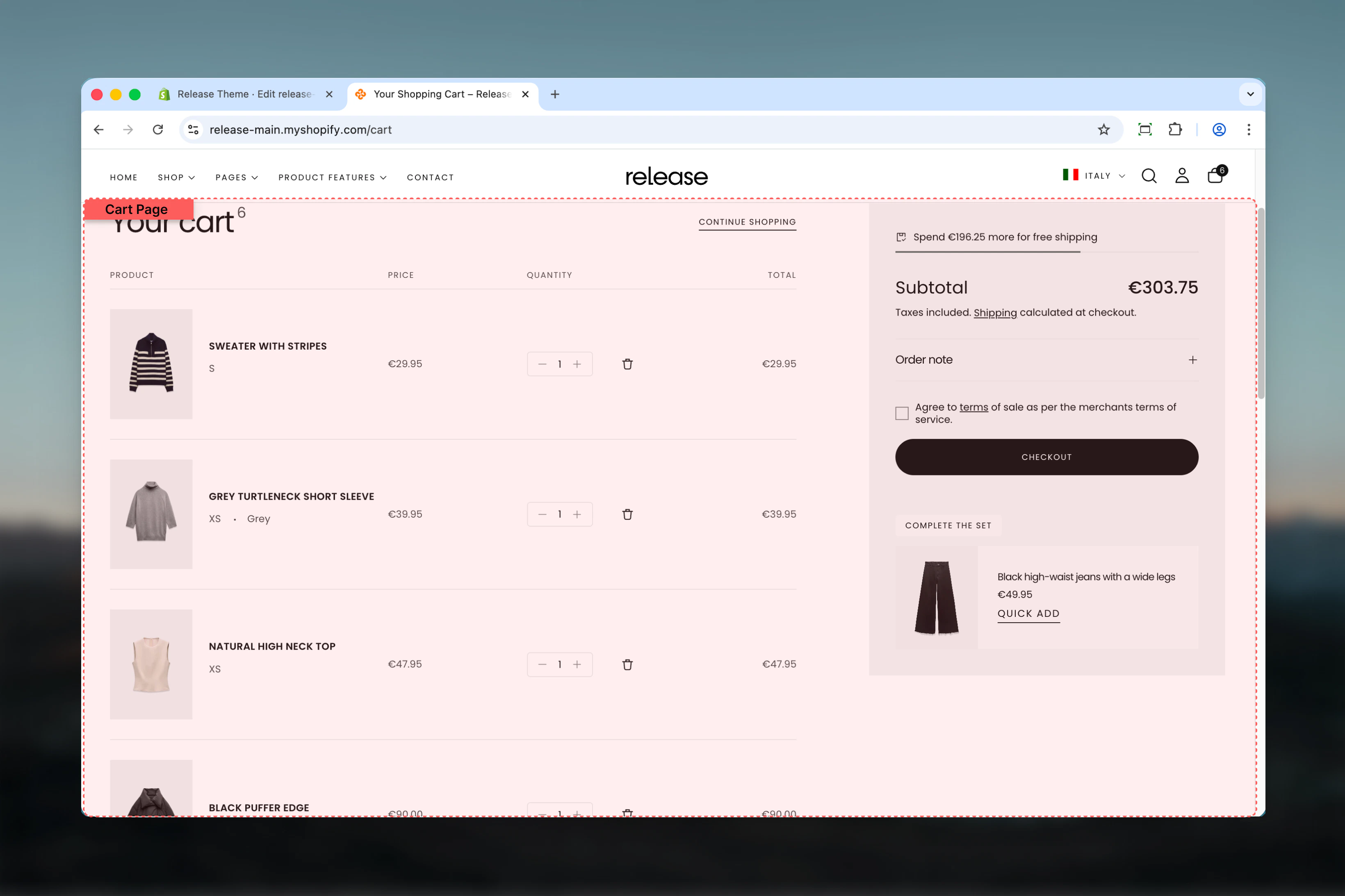
The cart page displays customer's selected items with prices, quantities, and checkout options. You can configure shipping notifications, terms acceptance, dynamic checkout buttons, upsell products, order notes, and layout settings to optimize the checkout experience.
 ## What this section controls
This page template manages:
* **Cart items display** - Show selected products with images, prices, quantities, and variants
* **Free shipping notifications** - Display progress bars and messages for shipping thresholds
* **Terms and conditions** - Require customer agreement before checkout
* **Dynamic checkout buttons** - Enable express checkout options (Shop Pay, Apple Pay, etc.)
* **Upsell products** - Recommend additional products based on cart contents
* **Order notes** - Allow customers to add special instructions
* **Empty cart content** - Customize messaging and button when cart is empty
* **Section layout** - Adjust cart page width, color scheme, and spacing
## Getting started
From Shopify admin, access the Theme Customizer to design your cart page
In the left sidebar, click **Pages** > **Cart**
Enable free shipping notifications and set your threshold price to encourage higher cart values
Add terms checkbox text and choose where to display it (cart page, cart drawer, or both)
Turn on product recommendations to increase average order value with AI-powered suggestions
Set the button URL for empty cart state (typically to collections or homepage)
Choose section width (recommend max-w-page), color scheme, and spacing for optimal cart experience
## Section Settings
Display free shipping progress and notifications to encourage higher cart values.
**Type:** Toggle\
**Default:** Disabled
Show a free shipping notification based on cart price. Displays a progress bar or message showing how much more customers need to spend to qualify for free shipping.
When enabled, customers see:
* Progress bar showing amount remaining for free shipping
* Celebratory message when threshold is reached
* Real-time updates as cart value changes
Free shipping notifications can increase average order value by 10-30%. Enable this to encourage customers to add more items.
The notification appears above cart items and updates dynamically as customers adjust quantities or add products.
**Type:** Number input\
**Default:** 0 (always free shipping)
Minimum cart price value for free delivery qualification. When cart total reaches this amount, free shipping notification shows success message.
**How it works:**
* Set to `0` or leave blank: Always shows "Free shipping available"
* Set to `50`: Shows progress until cart reaches \$50
* Set to `100`: Customers see how much more to add for free shipping
**Example values by store type:**
* Budget stores: $25-$35
* Mid-range stores: $50-$75
* Premium stores: $100-$150
Set threshold slightly above your average order value to encourage customers to add one more item. If AOV is $45, try a $60 threshold.
Ensure this threshold matches your actual shipping settings in Shopify. Don't promise free shipping here if you charge shipping at checkout.
Configure cart page specific features and customer agreement options.
**Type:** Text input\
**Default:** Empty
Text for the terms and conditions checkbox that appears before checkout. Shows a required checkbox that customers must accept before proceeding to checkout.
**Example terms text:**
* "I agree to the [Terms of Service](/pages/terms) and [Privacy Policy](/pages/privacy)"
* "I have read and accept the [Terms & Conditions](/policies/terms-of-service)"
* "I agree to the terms of sale and understand the return policy"
Supports HTML links to your policy pages:
```html theme={null}
I agree to the Terms of Service
```
Include clickable links to your full terms and privacy policy pages. Use relative URLs like `/pages/terms` or `/policies/terms-of-service`.
If you add terms text but don't specify where to show it (see next setting), the checkbox won't appear anywhere.
**Type:** Dropdown\
**Options:** None, Cart page, Cart drawer, Both\
**Default:** None
Choose where to display the terms checkbox:
* **None** - Terms checkbox is hidden (not recommended if you have terms text)
* **Cart page** - Shows only on full cart page
* **Cart drawer** - Shows only in cart drawer/popup
* **Both** - Shows on both cart page and cart drawer
Choose "Both" for consistent terms acceptance across all cart experiences. This ensures customers always agree to terms regardless of how they checkout.
When terms checkbox is required and unchecked, the checkout button is disabled until customer accepts.
**Type:** Toggle\
**Default:** Enabled
Enable or disable dynamic checkout buttons on the cart page. Dynamic checkout buttons provide express payment options like:
* **Shop Pay** - Shopify's one-click checkout
* **Apple Pay** - For Apple device users
* **Google Pay** - For Google account users
* **PayPal** - Direct PayPal checkout
* **Amazon Pay** - Amazon account checkout
**When enabled:**
* Customers see express checkout options above standard checkout button
* Can complete purchase faster with saved payment info
* Typically increases conversion rates by 5-15%
**When disabled:**
* Only standard "Checkout" button appears
* Simpler, cleaner cart interface
* May be preferred for wholesale or B2B stores
Keep dynamic checkout buttons enabled for most stores. They significantly improve conversion rates by reducing checkout friction.
Third-party apps can sometimes disable these buttons. If enabled but not showing, check for app conflicts.
Configure product recommendations in the cart to increase average order value.
**Type:** Toggle\
**Default:** Disabled
Enable or disable the display of upsell product recommendations in the cart. When enabled, shows recommended products based on:
* **First cart product** - Primary product in customer's cart
* **Shopify Recommendations API** - AI-powered product suggestions
* **Search & Discovery app** - Shopify's native recommendation engine
**Recommendation logic:**
1. Analyzes first product in cart
2. Finds complementary or frequently bought together products
3. Displays 3-6 recommended products below cart items
4. Updates dynamically as cart changes
Enable upsell products to increase average order value by 15-25%. Most effective for stores with diverse product catalogs and clear product relationships.
Upsell products use Shopify's native recommendation system. No manual product selection needed - recommendations are automatic and personalized.
**Type:** Text input\
**Default:** "You may also like"
Set the heading text for the upsell products section in the cart.
**Example titles:**
* "You may also like"
* "Complete your order"
* "Recommended for you"
* "Frequently bought together"
* "Add these to your order"
* "Customers also purchased"
* "Don't forget these"
Use action-oriented titles that create urgency or FOMO. "Complete your order" performs better than generic "Related products".
**Type:** Dropdown\
**Default:** scheme-1
Choose a color scheme for the upsell products section. This controls the background, text, and card styling of recommended products.
Available schemes are defined in **Theme settings > Colors**.
**Best practices:**
* Use a contrasting scheme to make upsells stand out
* Or use the same scheme as cart for cohesive experience
* Test which approach drives more upsell conversions
A subtly different color scheme can draw attention to upsell products without being jarring. Try scheme-2 or scheme-3 if cart uses scheme-1.
Configure optional cart features like order notes.
**Type:** Toggle\
**Default:** Disabled
Enable or disable the order notes feature in the cart. When enabled, displays a text area where customers can add special instructions or messages with their order.
**Common uses for order notes:**
* Gift messages
* Delivery instructions
* Special requests
* Customization details
* Packaging preferences
**Note field appears as:**
* Text area below cart items
* Optional (not required)
* Labeled "Order notes" or "Special instructions"
* Submitted with order and visible in Shopify admin
Enable for stores selling gifts, custom products, or offering special services. Disable for streamlined checkout with fewer fields.
Order notes appear in order details in Shopify admin. They're visible on packing slips and can be included in order notifications.
Customize what customers see when their cart is empty.
**Type:** URL input\
**Default:** /collections
Set the destination URL for the call-to-action button on the empty cart page. This button helps customers navigate to products when cart is empty.
**Common button destinations:**
* `/collections` - All collections page
* `/collections/all` - All products
* `/collections/new-arrivals` - Latest products
* `/collections/best-sellers` - Popular items
* `/` - Homepage
* `/collections/sale` - Sale/discounted products
**Button text is managed in theme locales** under the cart section.
Link to your best-converting collection or featured products. For most stores, new arrivals or best sellers work better than generic "all products".
Empty cart title and description text are managed via theme locales (language files), not in Theme Customizer. Edit via theme code or language settings.
Control the overall cart page layout, width, and spacing.
**Type:** Dropdown\
**Options:** max-w-page, max-w-narrow, max-w-fluid, max-w-full\
**Default:** max-w-page
Maximum width of the cart page section:
* **max-w-page** - Standard container matching theme width (recommended)
* **max-w-narrow** - Narrower width for focused checkout experience
* **max-w-fluid** - Wider container utilizing more screen space
* **max-w-full** - Full browser width (not recommended for cart)
Use max-w-page (default) for balanced cart layout. Use max-w-narrow for minimal, distraction-free checkout experience.
**Type:** Dropdown\
**Default:** scheme-1
Select the color scheme for the cart page section. Available schemes are defined in **Theme settings > Colors**.
Use your primary/neutral color scheme for cart page. Avoid busy or colorful schemes that distract from checkout.
**Type:** Dropdown\
**Options:** No (0), S (1), M (2), L (4), XL (6)\
**Default:** M (2)
Padding above the cart section, controlling vertical space from the header.
Medium (M) spacing works well for most stores. Increase to Large (L) for premium stores with spacious design.
**Type:** Dropdown\
**Options:** No (0), S (1), M (2), L (4), XL (6)\
**Default:** M (2)
Padding below the cart section, controlling vertical space to the footer.
## How the cart page works
The cart page is a crucial step in the customer journey from browsing to purchase:
### Cart page flow
1. **Customer adds products** - Items are added to cart from product pages
2. **Cart page displays** - Shows all cart items with images, prices, quantities
3. **Customer reviews order** - Can adjust quantities, remove items, see totals
4. **Optional features engage:**
* Free shipping notification encourages adding more
* Upsell products suggest complementary items
* Terms checkbox ensures agreement to policies
* Order notes field collects special requests
5. **Checkout initiated** - Customer clicks checkout or dynamic checkout button
6. **Redirect to checkout** - Shopify's checkout process begins
### Empty cart experience
When cart is empty (no items added or all items removed):
1. Empty cart message appears (managed via locales)
2. Call-to-action button shows with configured URL
3. Customer clicks button to browse products
4. Redirects to configured collection or page
Empty cart title and description are managed through theme locale files, not Theme Customizer. Only the button URL is configurable in settings.
## Common use cases
Typical online store cart optimized for conversions.
**Configuration:**
* Enable shipping notification: Yes
* Threshold cart price: $50-$75 (slightly above AOV)
* Show cart terms on: Both
* Show dynamic checkout buttons: Yes
* Enable upsell products: Yes
* Enable order notes: No (streamlined)
* Section width: max-w-page
**Strategy:**
* Encourage higher cart values with free shipping
* Reduce friction with express checkout options
* Increase AOV with AI-powered upsells
* Keep checkout simple without extra fields
Premium store emphasizing quality over speed.
**Configuration:**
* Enable shipping notification: Yes
* Threshold cart price: $150-$200
* Show cart terms on: Both
* Show dynamic checkout buttons: Optional
* Enable upsell products: Yes
* Enable order notes: Yes (gift messages)
* Section width: max-w-narrow
**Strategy:**
* Higher free shipping threshold matches premium positioning
* Order notes for personalized service
* Narrow width creates focused, premium experience
* Upsells show complementary luxury items
Business customer cart with minimal distractions.
**Configuration:**
* Enable shipping notification: No
* Show cart terms on: Cart page
* Terms text: Custom B2B terms
* Show dynamic checkout buttons: No
* Enable upsell products: No
* Enable order notes: Yes (PO numbers, instructions)
* Section width: max-w-page
**Strategy:**
* No shipping notifications (custom freight)
* No upsells (B2B knows what they need)
* No dynamic checkout (requires approval workflows)
* Order notes for business-specific info
Store optimized for gift purchases and personalization.
**Configuration:**
* Enable shipping notification: Yes
* Threshold cart price: $35-$50
* Show cart terms on: Both
* Show dynamic checkout buttons: Yes
* Enable upsell products: Yes
* Upsell title: "Complete your gift"
* Enable order notes: Yes (gift messages)
* Section width: max-w-page
**Strategy:**
* Order notes essential for gift messages
* Upsells suggest gift wrap, cards, complementary gifts
* Free shipping threshold encourages gift bundles
* Express checkout for last-minute shoppers
Recurring subscription cart experience.
**Configuration:**
* Enable shipping notification: No (free shipping included)
* Show cart terms on: Both
* Terms text: Subscription terms and cancellation policy
* Show dynamic checkout buttons: Yes
* Enable upsell products: Yes
* Upsell title: "Add to this month's box"
* Enable order notes: Yes (preferences)
* Section width: max-w-narrow
**Strategy:**
* Clear subscription terms required
* Upsells for box add-ons or upgrades
* Order notes for dietary/preference details
* Narrow focused layout for subscription clarity
Streamlined cart reducing all friction points.
**Configuration:**
* Enable shipping notification: No
* Show cart terms on: None
* Show dynamic checkout buttons: Yes
* Enable upsell products: No
* Enable order notes: No
* Section width: max-w-narrow
**Strategy:**
* Remove everything non-essential
* Maximum simplicity for fastest checkout
* Only cart items and checkout button
* Best for single-product stores or low-complexity catalogs
## Best practices
Set free shipping threshold 10-20% above your average order value to encourage customers to add one more item. If AOV is $45, try $55-60 threshold.
Product recommendations in cart increase AOV by 15-25% on average. Enable upsells unless you're a B2B or single-product store.
Keep express checkout buttons enabled. They improve conversion rates by 5-15% by reducing checkout friction for returning customers.
Show terms checkbox on "Both" cart page and drawer for consistent policy acceptance regardless of how customers checkout.
Link empty cart button to your best-converting collection (new arrivals or best sellers) rather than generic "all products" page.
Only enable order notes if you need them (gifts, customization). Each extra field increases checkout friction slightly.
Use max-w-page or max-w-narrow for cart. Narrow width creates more focused checkout experience with fewer distractions.
Ensure shipping notification threshold matches your actual Shopify shipping rates. Don't promise free shipping you won't honor.
Test cart page on mobile devices. Ensure upsells, shipping notifications, and buttons work well on small screens.
In terms checkbox text, use clear HTML links to your full policy pages. Test that links work before launching.
## Related guides
Configure the slide-out cart drawer popup
Customize Shopify checkout page and payment options
Configure shipping rates and free shipping rules
Learn how Shopify's AI recommendation engine works
## What this section controls
This page template manages:
* **Cart items display** - Show selected products with images, prices, quantities, and variants
* **Free shipping notifications** - Display progress bars and messages for shipping thresholds
* **Terms and conditions** - Require customer agreement before checkout
* **Dynamic checkout buttons** - Enable express checkout options (Shop Pay, Apple Pay, etc.)
* **Upsell products** - Recommend additional products based on cart contents
* **Order notes** - Allow customers to add special instructions
* **Empty cart content** - Customize messaging and button when cart is empty
* **Section layout** - Adjust cart page width, color scheme, and spacing
## Getting started
From Shopify admin, access the Theme Customizer to design your cart page
In the left sidebar, click **Pages** > **Cart**
Enable free shipping notifications and set your threshold price to encourage higher cart values
Add terms checkbox text and choose where to display it (cart page, cart drawer, or both)
Turn on product recommendations to increase average order value with AI-powered suggestions
Set the button URL for empty cart state (typically to collections or homepage)
Choose section width (recommend max-w-page), color scheme, and spacing for optimal cart experience
## Section Settings
Display free shipping progress and notifications to encourage higher cart values.
**Type:** Toggle\
**Default:** Disabled
Show a free shipping notification based on cart price. Displays a progress bar or message showing how much more customers need to spend to qualify for free shipping.
When enabled, customers see:
* Progress bar showing amount remaining for free shipping
* Celebratory message when threshold is reached
* Real-time updates as cart value changes
Free shipping notifications can increase average order value by 10-30%. Enable this to encourage customers to add more items.
The notification appears above cart items and updates dynamically as customers adjust quantities or add products.
**Type:** Number input\
**Default:** 0 (always free shipping)
Minimum cart price value for free delivery qualification. When cart total reaches this amount, free shipping notification shows success message.
**How it works:**
* Set to `0` or leave blank: Always shows "Free shipping available"
* Set to `50`: Shows progress until cart reaches \$50
* Set to `100`: Customers see how much more to add for free shipping
**Example values by store type:**
* Budget stores: $25-$35
* Mid-range stores: $50-$75
* Premium stores: $100-$150
Set threshold slightly above your average order value to encourage customers to add one more item. If AOV is $45, try a $60 threshold.
Ensure this threshold matches your actual shipping settings in Shopify. Don't promise free shipping here if you charge shipping at checkout.
Configure cart page specific features and customer agreement options.
**Type:** Text input\
**Default:** Empty
Text for the terms and conditions checkbox that appears before checkout. Shows a required checkbox that customers must accept before proceeding to checkout.
**Example terms text:**
* "I agree to the [Terms of Service](/pages/terms) and [Privacy Policy](/pages/privacy)"
* "I have read and accept the [Terms & Conditions](/policies/terms-of-service)"
* "I agree to the terms of sale and understand the return policy"
Supports HTML links to your policy pages:
```html theme={null}
I agree to the Terms of Service
```
Include clickable links to your full terms and privacy policy pages. Use relative URLs like `/pages/terms` or `/policies/terms-of-service`.
If you add terms text but don't specify where to show it (see next setting), the checkbox won't appear anywhere.
**Type:** Dropdown\
**Options:** None, Cart page, Cart drawer, Both\
**Default:** None
Choose where to display the terms checkbox:
* **None** - Terms checkbox is hidden (not recommended if you have terms text)
* **Cart page** - Shows only on full cart page
* **Cart drawer** - Shows only in cart drawer/popup
* **Both** - Shows on both cart page and cart drawer
Choose "Both" for consistent terms acceptance across all cart experiences. This ensures customers always agree to terms regardless of how they checkout.
When terms checkbox is required and unchecked, the checkout button is disabled until customer accepts.
**Type:** Toggle\
**Default:** Enabled
Enable or disable dynamic checkout buttons on the cart page. Dynamic checkout buttons provide express payment options like:
* **Shop Pay** - Shopify's one-click checkout
* **Apple Pay** - For Apple device users
* **Google Pay** - For Google account users
* **PayPal** - Direct PayPal checkout
* **Amazon Pay** - Amazon account checkout
**When enabled:**
* Customers see express checkout options above standard checkout button
* Can complete purchase faster with saved payment info
* Typically increases conversion rates by 5-15%
**When disabled:**
* Only standard "Checkout" button appears
* Simpler, cleaner cart interface
* May be preferred for wholesale or B2B stores
Keep dynamic checkout buttons enabled for most stores. They significantly improve conversion rates by reducing checkout friction.
Third-party apps can sometimes disable these buttons. If enabled but not showing, check for app conflicts.
Configure product recommendations in the cart to increase average order value.
**Type:** Toggle\
**Default:** Disabled
Enable or disable the display of upsell product recommendations in the cart. When enabled, shows recommended products based on:
* **First cart product** - Primary product in customer's cart
* **Shopify Recommendations API** - AI-powered product suggestions
* **Search & Discovery app** - Shopify's native recommendation engine
**Recommendation logic:**
1. Analyzes first product in cart
2. Finds complementary or frequently bought together products
3. Displays 3-6 recommended products below cart items
4. Updates dynamically as cart changes
Enable upsell products to increase average order value by 15-25%. Most effective for stores with diverse product catalogs and clear product relationships.
Upsell products use Shopify's native recommendation system. No manual product selection needed - recommendations are automatic and personalized.
**Type:** Text input\
**Default:** "You may also like"
Set the heading text for the upsell products section in the cart.
**Example titles:**
* "You may also like"
* "Complete your order"
* "Recommended for you"
* "Frequently bought together"
* "Add these to your order"
* "Customers also purchased"
* "Don't forget these"
Use action-oriented titles that create urgency or FOMO. "Complete your order" performs better than generic "Related products".
**Type:** Dropdown\
**Default:** scheme-1
Choose a color scheme for the upsell products section. This controls the background, text, and card styling of recommended products.
Available schemes are defined in **Theme settings > Colors**.
**Best practices:**
* Use a contrasting scheme to make upsells stand out
* Or use the same scheme as cart for cohesive experience
* Test which approach drives more upsell conversions
A subtly different color scheme can draw attention to upsell products without being jarring. Try scheme-2 or scheme-3 if cart uses scheme-1.
Configure optional cart features like order notes.
**Type:** Toggle\
**Default:** Disabled
Enable or disable the order notes feature in the cart. When enabled, displays a text area where customers can add special instructions or messages with their order.
**Common uses for order notes:**
* Gift messages
* Delivery instructions
* Special requests
* Customization details
* Packaging preferences
**Note field appears as:**
* Text area below cart items
* Optional (not required)
* Labeled "Order notes" or "Special instructions"
* Submitted with order and visible in Shopify admin
Enable for stores selling gifts, custom products, or offering special services. Disable for streamlined checkout with fewer fields.
Order notes appear in order details in Shopify admin. They're visible on packing slips and can be included in order notifications.
Customize what customers see when their cart is empty.
**Type:** URL input\
**Default:** /collections
Set the destination URL for the call-to-action button on the empty cart page. This button helps customers navigate to products when cart is empty.
**Common button destinations:**
* `/collections` - All collections page
* `/collections/all` - All products
* `/collections/new-arrivals` - Latest products
* `/collections/best-sellers` - Popular items
* `/` - Homepage
* `/collections/sale` - Sale/discounted products
**Button text is managed in theme locales** under the cart section.
Link to your best-converting collection or featured products. For most stores, new arrivals or best sellers work better than generic "all products".
Empty cart title and description text are managed via theme locales (language files), not in Theme Customizer. Edit via theme code or language settings.
Control the overall cart page layout, width, and spacing.
**Type:** Dropdown\
**Options:** max-w-page, max-w-narrow, max-w-fluid, max-w-full\
**Default:** max-w-page
Maximum width of the cart page section:
* **max-w-page** - Standard container matching theme width (recommended)
* **max-w-narrow** - Narrower width for focused checkout experience
* **max-w-fluid** - Wider container utilizing more screen space
* **max-w-full** - Full browser width (not recommended for cart)
Use max-w-page (default) for balanced cart layout. Use max-w-narrow for minimal, distraction-free checkout experience.
**Type:** Dropdown\
**Default:** scheme-1
Select the color scheme for the cart page section. Available schemes are defined in **Theme settings > Colors**.
Use your primary/neutral color scheme for cart page. Avoid busy or colorful schemes that distract from checkout.
**Type:** Dropdown\
**Options:** No (0), S (1), M (2), L (4), XL (6)\
**Default:** M (2)
Padding above the cart section, controlling vertical space from the header.
Medium (M) spacing works well for most stores. Increase to Large (L) for premium stores with spacious design.
**Type:** Dropdown\
**Options:** No (0), S (1), M (2), L (4), XL (6)\
**Default:** M (2)
Padding below the cart section, controlling vertical space to the footer.
## How the cart page works
The cart page is a crucial step in the customer journey from browsing to purchase:
### Cart page flow
1. **Customer adds products** - Items are added to cart from product pages
2. **Cart page displays** - Shows all cart items with images, prices, quantities
3. **Customer reviews order** - Can adjust quantities, remove items, see totals
4. **Optional features engage:**
* Free shipping notification encourages adding more
* Upsell products suggest complementary items
* Terms checkbox ensures agreement to policies
* Order notes field collects special requests
5. **Checkout initiated** - Customer clicks checkout or dynamic checkout button
6. **Redirect to checkout** - Shopify's checkout process begins
### Empty cart experience
When cart is empty (no items added or all items removed):
1. Empty cart message appears (managed via locales)
2. Call-to-action button shows with configured URL
3. Customer clicks button to browse products
4. Redirects to configured collection or page
Empty cart title and description are managed through theme locale files, not Theme Customizer. Only the button URL is configurable in settings.
## Common use cases
Typical online store cart optimized for conversions.
**Configuration:**
* Enable shipping notification: Yes
* Threshold cart price: $50-$75 (slightly above AOV)
* Show cart terms on: Both
* Show dynamic checkout buttons: Yes
* Enable upsell products: Yes
* Enable order notes: No (streamlined)
* Section width: max-w-page
**Strategy:**
* Encourage higher cart values with free shipping
* Reduce friction with express checkout options
* Increase AOV with AI-powered upsells
* Keep checkout simple without extra fields
Premium store emphasizing quality over speed.
**Configuration:**
* Enable shipping notification: Yes
* Threshold cart price: $150-$200
* Show cart terms on: Both
* Show dynamic checkout buttons: Optional
* Enable upsell products: Yes
* Enable order notes: Yes (gift messages)
* Section width: max-w-narrow
**Strategy:**
* Higher free shipping threshold matches premium positioning
* Order notes for personalized service
* Narrow width creates focused, premium experience
* Upsells show complementary luxury items
Business customer cart with minimal distractions.
**Configuration:**
* Enable shipping notification: No
* Show cart terms on: Cart page
* Terms text: Custom B2B terms
* Show dynamic checkout buttons: No
* Enable upsell products: No
* Enable order notes: Yes (PO numbers, instructions)
* Section width: max-w-page
**Strategy:**
* No shipping notifications (custom freight)
* No upsells (B2B knows what they need)
* No dynamic checkout (requires approval workflows)
* Order notes for business-specific info
Store optimized for gift purchases and personalization.
**Configuration:**
* Enable shipping notification: Yes
* Threshold cart price: $35-$50
* Show cart terms on: Both
* Show dynamic checkout buttons: Yes
* Enable upsell products: Yes
* Upsell title: "Complete your gift"
* Enable order notes: Yes (gift messages)
* Section width: max-w-page
**Strategy:**
* Order notes essential for gift messages
* Upsells suggest gift wrap, cards, complementary gifts
* Free shipping threshold encourages gift bundles
* Express checkout for last-minute shoppers
Recurring subscription cart experience.
**Configuration:**
* Enable shipping notification: No (free shipping included)
* Show cart terms on: Both
* Terms text: Subscription terms and cancellation policy
* Show dynamic checkout buttons: Yes
* Enable upsell products: Yes
* Upsell title: "Add to this month's box"
* Enable order notes: Yes (preferences)
* Section width: max-w-narrow
**Strategy:**
* Clear subscription terms required
* Upsells for box add-ons or upgrades
* Order notes for dietary/preference details
* Narrow focused layout for subscription clarity
Streamlined cart reducing all friction points.
**Configuration:**
* Enable shipping notification: No
* Show cart terms on: None
* Show dynamic checkout buttons: Yes
* Enable upsell products: No
* Enable order notes: No
* Section width: max-w-narrow
**Strategy:**
* Remove everything non-essential
* Maximum simplicity for fastest checkout
* Only cart items and checkout button
* Best for single-product stores or low-complexity catalogs
## Best practices
Set free shipping threshold 10-20% above your average order value to encourage customers to add one more item. If AOV is $45, try $55-60 threshold.
Product recommendations in cart increase AOV by 15-25% on average. Enable upsells unless you're a B2B or single-product store.
Keep express checkout buttons enabled. They improve conversion rates by 5-15% by reducing checkout friction for returning customers.
Show terms checkbox on "Both" cart page and drawer for consistent policy acceptance regardless of how customers checkout.
Link empty cart button to your best-converting collection (new arrivals or best sellers) rather than generic "all products" page.
Only enable order notes if you need them (gifts, customization). Each extra field increases checkout friction slightly.
Use max-w-page or max-w-narrow for cart. Narrow width creates more focused checkout experience with fewer distractions.
Ensure shipping notification threshold matches your actual Shopify shipping rates. Don't promise free shipping you won't honor.
Test cart page on mobile devices. Ensure upsells, shipping notifications, and buttons work well on small screens.
In terms checkbox text, use clear HTML links to your full policy pages. Test that links work before launching.
## Related guides
Configure the slide-out cart drawer popup
Customize Shopify checkout page and payment options
Configure shipping rates and free shipping rules
Learn how Shopify's AI recommendation engine works