> ## Documentation Index
> Fetch the complete documentation index at: https://docs.digifist.com/llms.txt
> Use this file to discover all available pages before exploring further.
# FAQ page
> Customize the layout and features of your FAQ page.
The FAQ page provides answers to common questions your customers may have using collapsible accordion sections. This template helps reduce support requests, improve customer experience, and can be organized into multiple question groups using the Accordions section.
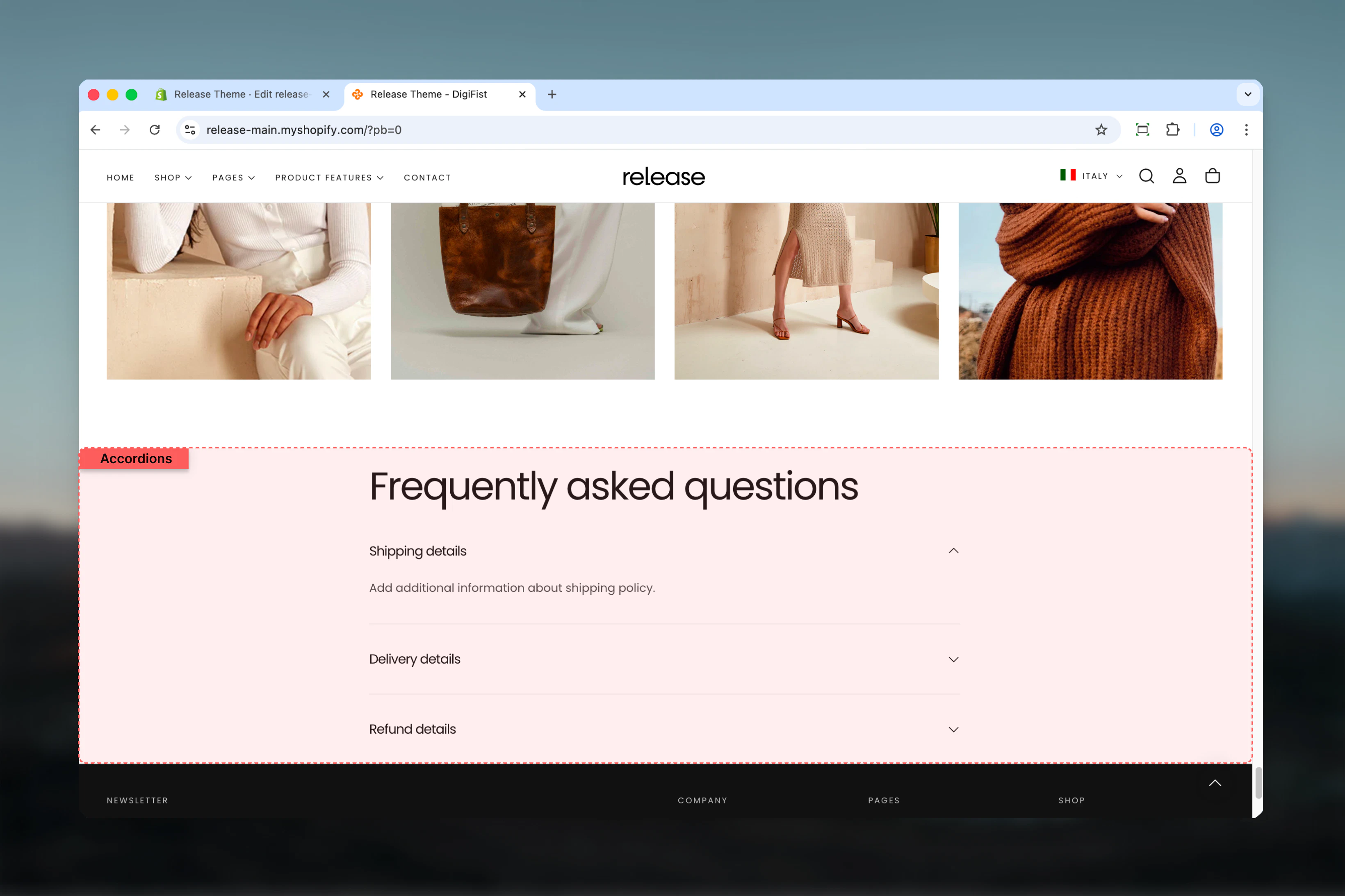 ## What this section controls
This section manages:
* **Expandable accordion topics** - Create collapsible Q\&A items
* **Default expanded state** - Control which topics show on page load
* **Rich text content** - Format answers with bold, italic, links
* **Dynamic page content** - Connect accordion bodies to Shopify pages
* **Multiple accordion groups** - Organize FAQs into logical categories
* **Progressive disclosure** - Reduce visual clutter with collapsible content
* **Section layout** - Adjust heading size, color scheme, and spacing
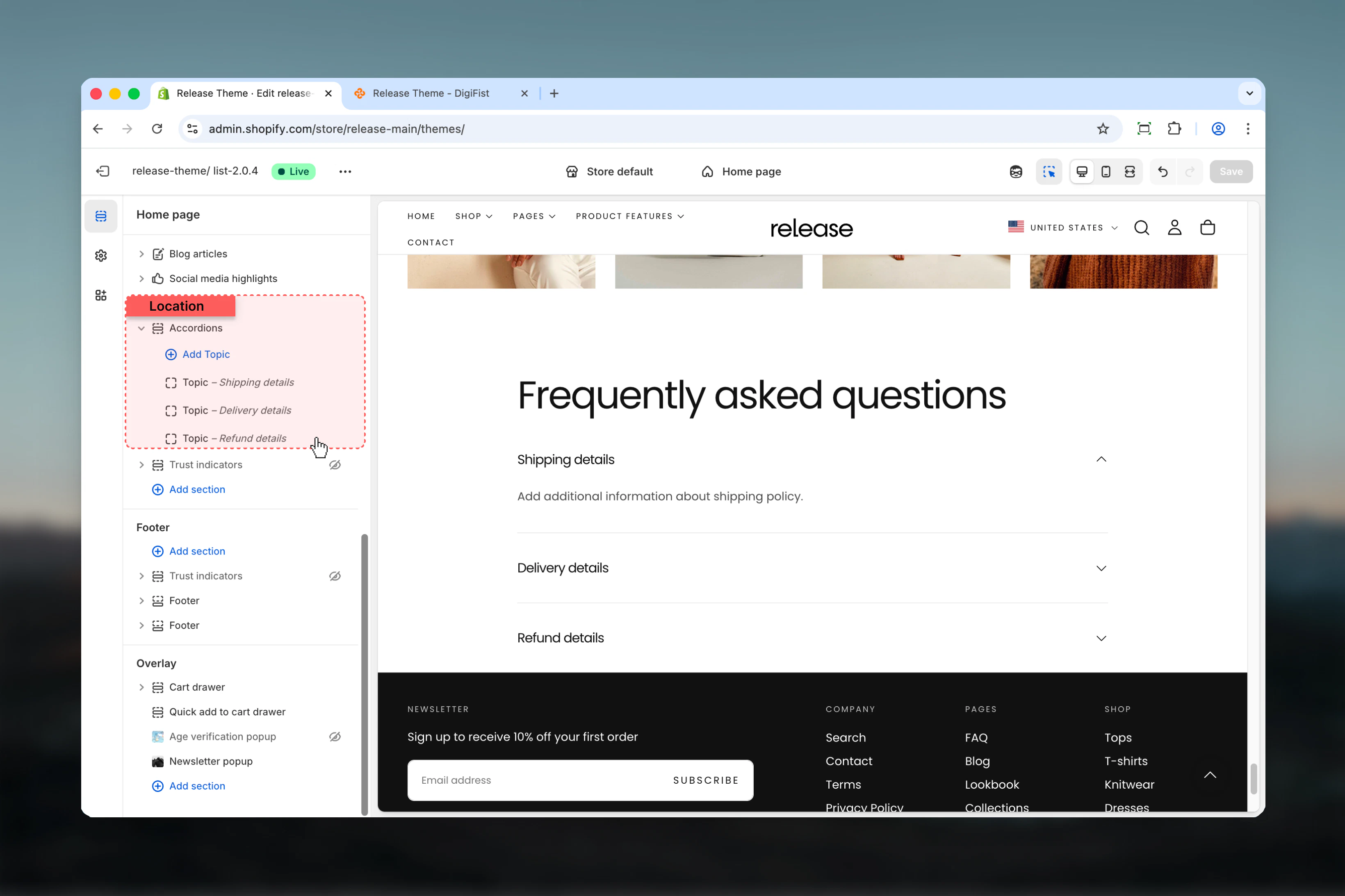
## Getting started
From Shopify admin, access the Theme Customizer
In the left sidebar, click **Pages** > **FAQ**
Click **Add section** > **Accordions** to create an accordion group
Set the main heading for this FAQ group (e.g., "Shipping Questions", "Returns & Exchanges")
Click **Add block** > **Topic** to create individual Q\&A accordion items
Add question as heading, answer as text content, and set default expand state
Create multiple Accordions sections to organize FAQs by category
## What this section controls
This section manages:
* **Expandable accordion topics** - Create collapsible Q\&A items
* **Default expanded state** - Control which topics show on page load
* **Rich text content** - Format answers with bold, italic, links
* **Dynamic page content** - Connect accordion bodies to Shopify pages
* **Multiple accordion groups** - Organize FAQs into logical categories
* **Progressive disclosure** - Reduce visual clutter with collapsible content
* **Section layout** - Adjust heading size, color scheme, and spacing
## Getting started
From Shopify admin, access the Theme Customizer
In the left sidebar, click **Pages** > **FAQ**
Click **Add section** > **Accordions** to create an accordion group
Set the main heading for this FAQ group (e.g., "Shipping Questions", "Returns & Exchanges")
Click **Add block** > **Topic** to create individual Q\&A accordion items
Add question as heading, answer as text content, and set default expand state
Create multiple Accordions sections to organize FAQs by category
 ## Section Settings
### Accordions Section
Section settings control the main heading and appearance of each accordion group on the FAQ page.
Configure the main heading for this FAQ category group.
## Section Settings
### Accordions Section
Section settings control the main heading and appearance of each accordion group on the FAQ page.
Configure the main heading for this FAQ category group.
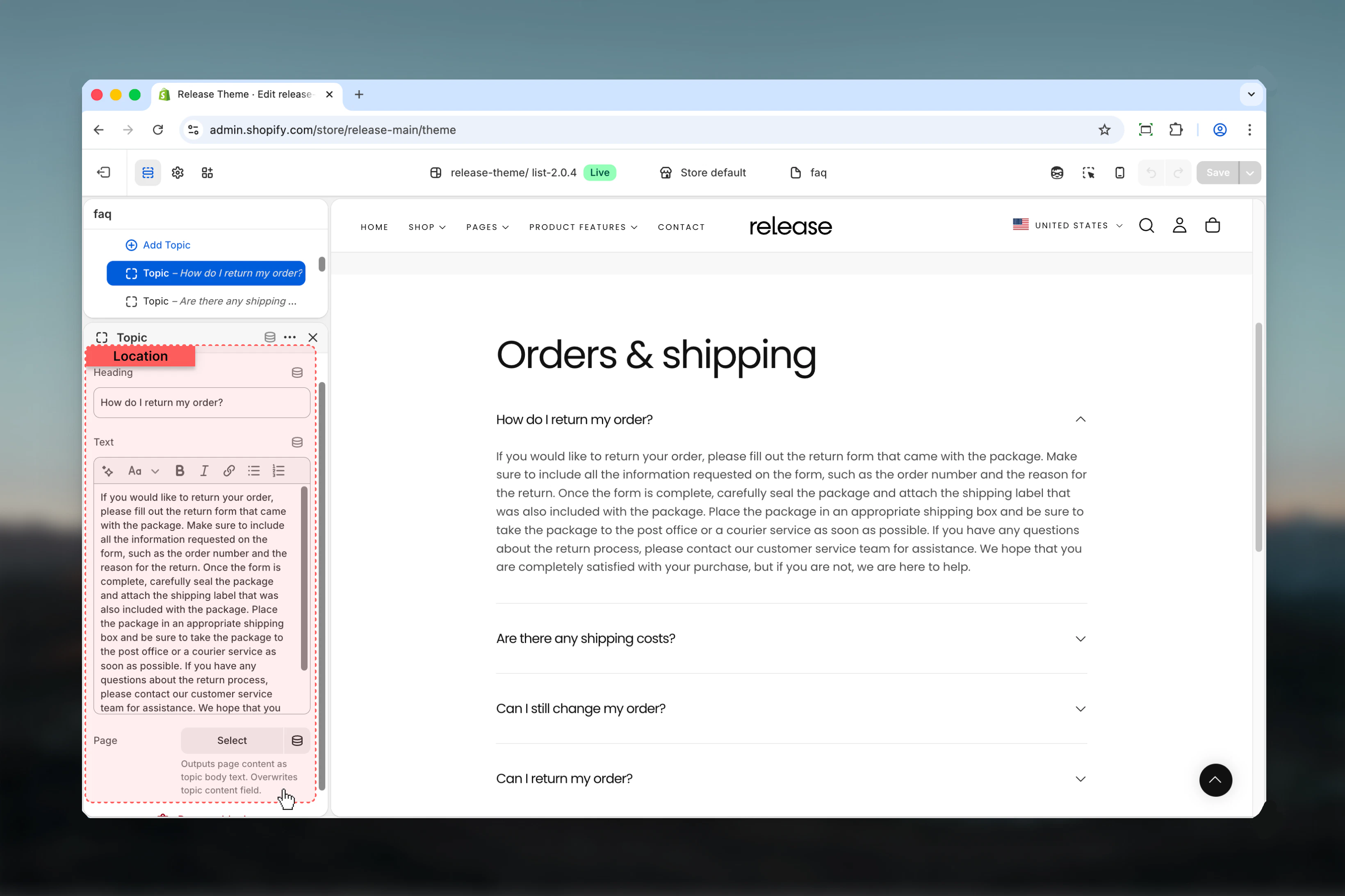 **Type:** Rich text field\
**Default:** Empty
Main title displayed above the accordion list. Use this to categorize groups of related questions.
**Examples:**
* "Shipping & Delivery"
* "Returns & Exchanges"
* "Product Information"
* "Account & Orders"
Rich text formatting supported:
* **Bold**, *Italic*, Underline
* Links to other pages
Use descriptive category headings to help customers quickly find relevant questions.
**Type:** Dropdown\
**Options:** XS, S, M, L, XL\
**Default:** M
Controls the size of the section heading.
* **XS** - Extra small, subtle category labels
* **S** - Small, secondary categories
* **M** - Medium, standard category headings
* **L** - Large, primary section headings
* **XL** - Extra large, prominent main headings
Use larger sizes (L or XL) for main FAQ categories, smaller sizes (S or M) for subcategories.
Control the overall section layout, width, and spacing.
**Type:** Dropdown\
**Options:** max-w-page, max-w-narrow, max-w-fluid\
**Default:** max-w-page
Maximum width of the FAQ accordion section:
* **max-w-page** - Standard container matching theme width
* **max-w-narrow** - Narrow focused layout for better readability
* **max-w-fluid** - Wider container utilizing more screen space
Use max-w-page or max-w-narrow for better FAQ readability. Wide layouts can make long text harder to read.
**Type:** Dropdown\
**Default:** scheme-1
Select the color scheme for the FAQ section. Available schemes are defined in **Theme settings > Colors**.
Color scheme affects background, text, accordion headers, and borders throughout the section.
**Type:** Dropdown\
**Options:** No (0), S (1), M (2), L (4), XL (6)\
**Default:** M (2)
Padding above the FAQ section, controlling vertical space from the previous section.
**Type:** Dropdown\
**Options:** No (0), S (1), M (2), L (4), XL (6)\
**Default:** M (2)
Padding below the FAQ section, controlling vertical space to the next section.
## Block Settings
### Topic Block
Topic blocks control individual accordion items. Each block represents a single FAQ question and answer.
Configure the question and answer content for each accordion item.
**Type:** Rich text field\
**Default:** Empty
Main title displayed above the accordion list. Use this to categorize groups of related questions.
**Examples:**
* "Shipping & Delivery"
* "Returns & Exchanges"
* "Product Information"
* "Account & Orders"
Rich text formatting supported:
* **Bold**, *Italic*, Underline
* Links to other pages
Use descriptive category headings to help customers quickly find relevant questions.
**Type:** Dropdown\
**Options:** XS, S, M, L, XL\
**Default:** M
Controls the size of the section heading.
* **XS** - Extra small, subtle category labels
* **S** - Small, secondary categories
* **M** - Medium, standard category headings
* **L** - Large, primary section headings
* **XL** - Extra large, prominent main headings
Use larger sizes (L or XL) for main FAQ categories, smaller sizes (S or M) for subcategories.
Control the overall section layout, width, and spacing.
**Type:** Dropdown\
**Options:** max-w-page, max-w-narrow, max-w-fluid\
**Default:** max-w-page
Maximum width of the FAQ accordion section:
* **max-w-page** - Standard container matching theme width
* **max-w-narrow** - Narrow focused layout for better readability
* **max-w-fluid** - Wider container utilizing more screen space
Use max-w-page or max-w-narrow for better FAQ readability. Wide layouts can make long text harder to read.
**Type:** Dropdown\
**Default:** scheme-1
Select the color scheme for the FAQ section. Available schemes are defined in **Theme settings > Colors**.
Color scheme affects background, text, accordion headers, and borders throughout the section.
**Type:** Dropdown\
**Options:** No (0), S (1), M (2), L (4), XL (6)\
**Default:** M (2)
Padding above the FAQ section, controlling vertical space from the previous section.
**Type:** Dropdown\
**Options:** No (0), S (1), M (2), L (4), XL (6)\
**Default:** M (2)
Padding below the FAQ section, controlling vertical space to the next section.
## Block Settings
### Topic Block
Topic blocks control individual accordion items. Each block represents a single FAQ question and answer.
Configure the question and answer content for each accordion item.
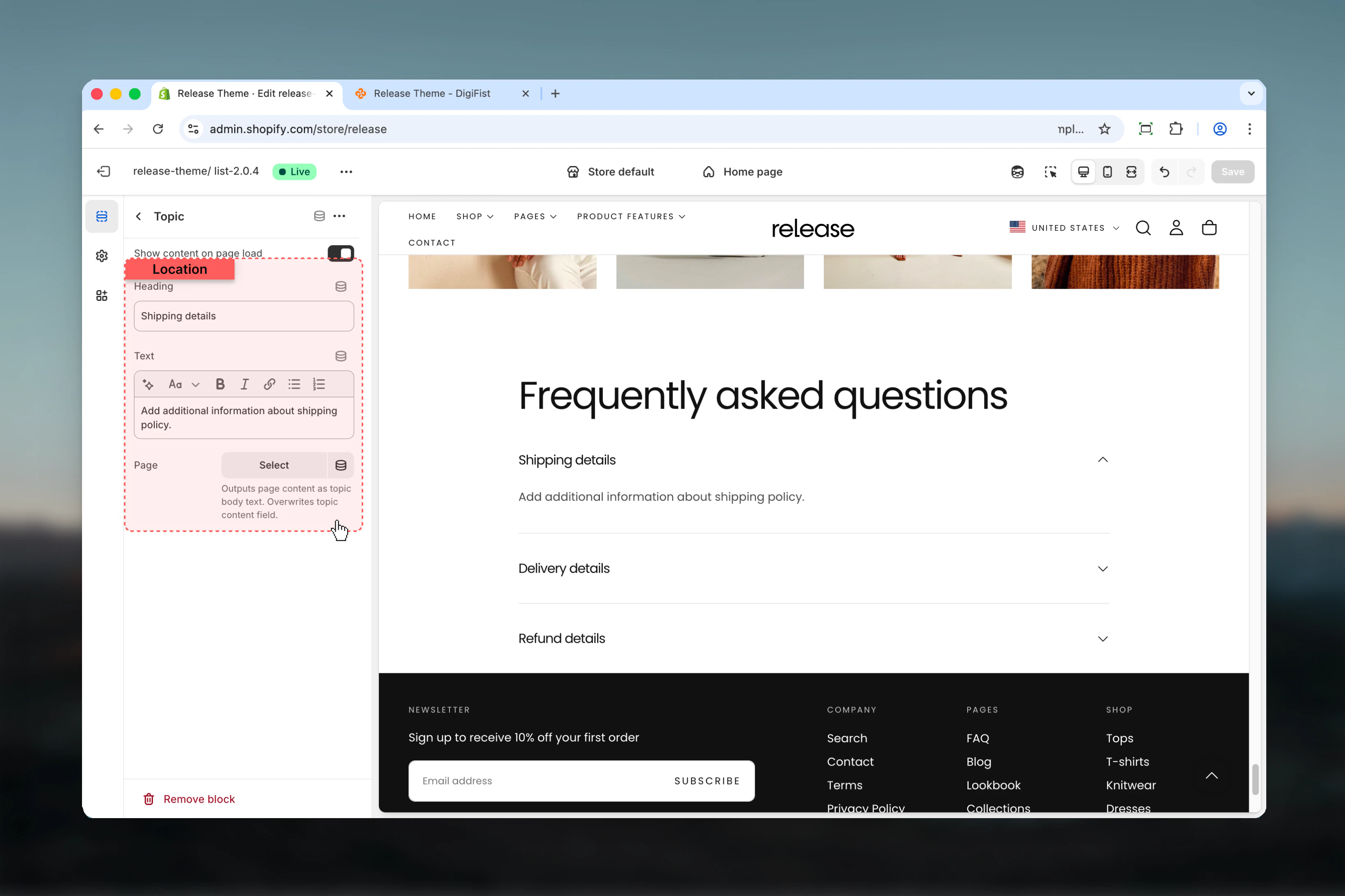 **Type:** Text field\
**Required:** Yes
Title of the accordion topic - your FAQ question.
**Examples:**
* "What are your shipping times?"
* "How do I return an item?"
* "Do you ship internationally?"
* "What payment methods do you accept?"
Write questions from the customer's perspective using natural language they would search for.
**Type:** Rich text field\
**Default:** Empty
Main answer content displayed when the topic is expanded.
Rich text formatting supported:
* Paragraphs and line breaks
* **Bold**, *Italic* text
* Bulleted and numbered lists
* Links to other pages or external resources
Keep answers concise (2-4 sentences) and use bullet points for steps or multiple points.
If a Page is selected, this Text field will be overridden by the page content.
**Type:** Shopify page picker\
**Optional:** Yes
Outputs the content of a selected Shopify page as the accordion body. Use this for lengthy or frequently updated answers.
Selecting a page overwrites the Text field content. The page's full content will display when the accordion is expanded.
Use this option to manage large policies (shipping, returns, privacy) or reusable content from a single Shopify page that can be updated independently.
Control how the accordion item displays on page load.
**Type:** Text field\
**Required:** Yes
Title of the accordion topic - your FAQ question.
**Examples:**
* "What are your shipping times?"
* "How do I return an item?"
* "Do you ship internationally?"
* "What payment methods do you accept?"
Write questions from the customer's perspective using natural language they would search for.
**Type:** Rich text field\
**Default:** Empty
Main answer content displayed when the topic is expanded.
Rich text formatting supported:
* Paragraphs and line breaks
* **Bold**, *Italic* text
* Bulleted and numbered lists
* Links to other pages or external resources
Keep answers concise (2-4 sentences) and use bullet points for steps or multiple points.
If a Page is selected, this Text field will be overridden by the page content.
**Type:** Shopify page picker\
**Optional:** Yes
Outputs the content of a selected Shopify page as the accordion body. Use this for lengthy or frequently updated answers.
Selecting a page overwrites the Text field content. The page's full content will display when the accordion is expanded.
Use this option to manage large policies (shipping, returns, privacy) or reusable content from a single Shopify page that can be updated independently.
Control how the accordion item displays on page load.
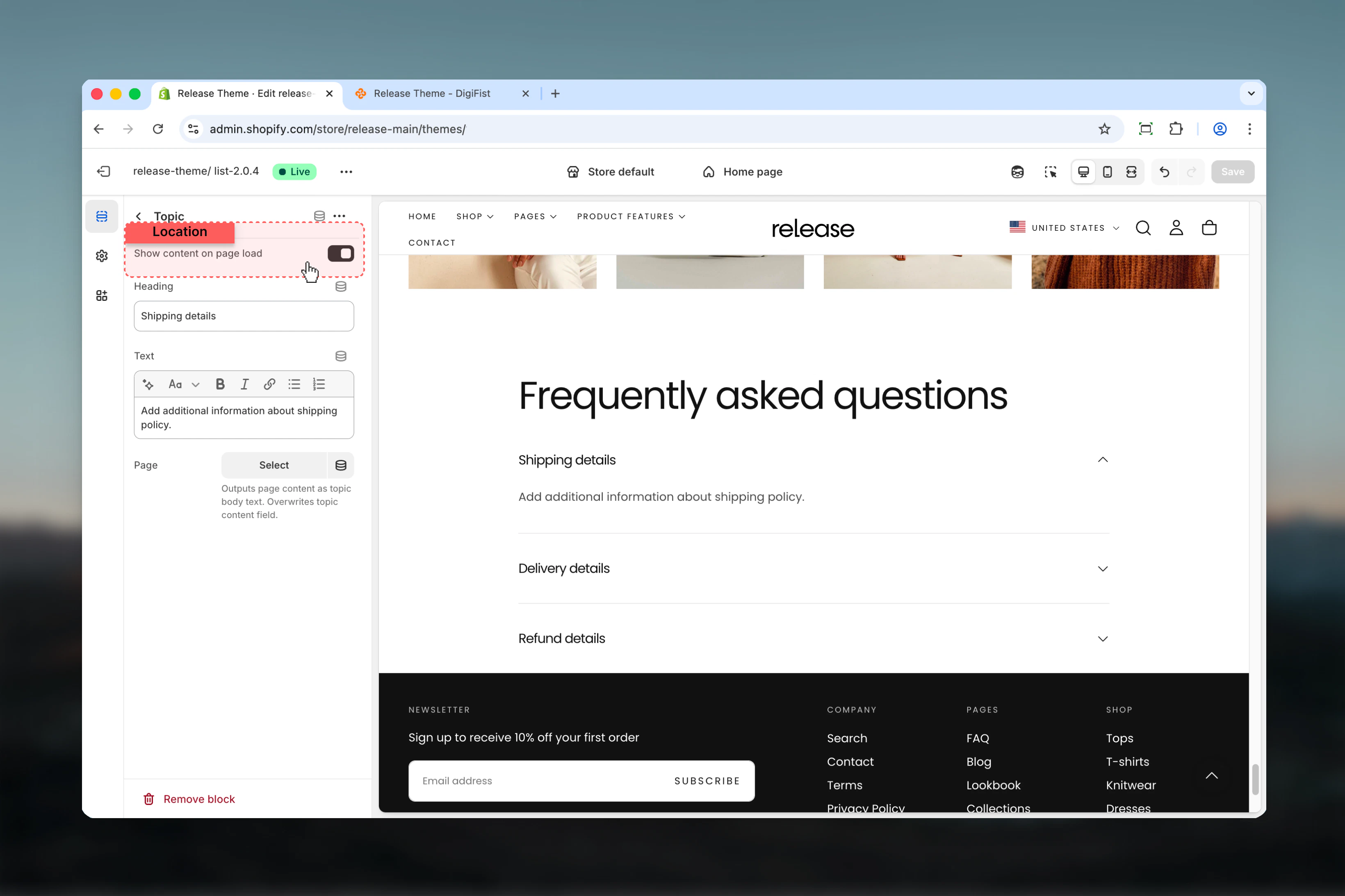 **Type:** Toggle\
**Default:** False (collapsed)
Controls whether the accordion content is visible when the page loads:
* **True (Enabled)** - Content is expanded by default, answer visible immediately
* **False (Disabled)** - Content is hidden until the user clicks the heading
Enable for the first topic in each category to demonstrate functionality and provide immediate value. Keep others collapsed to maintain clean initial page state.
Don't expand too many topics by default (2-3 maximum per page) to avoid overwhelming visitors with information.
## How the FAQ page works
The FAQ page uses a block-based accordion system:
* **Multiple Accordions sections** - Add multiple sections to organize FAQs by category
* **Independent topics** - Each Q\&A can be expanded/collapsed independently
* **Progressive disclosure** - Customers reveal only information they need
* **Default states** - Control which questions show answers on page load
* **Rich or dynamic content** - Use inline rich text or connect to Shopify pages
* **Clean organization** - Reduces visual clutter on pages with many questions
The FAQ page template itself has no page-level settings. All content and customization is managed through Accordions sections added to the page.
## Common use cases
Comprehensive FAQ page covering all store policies.
**Structure:**
* Accordions Section 1: "Shipping & Delivery" (5-7 questions)
* Accordions Section 2: "Returns & Exchanges" (4-6 questions)
* Accordions Section 3: "Orders & Payments" (5-8 questions)
* Accordions Section 4: "Product Information" (3-5 questions)
**Configuration:**
* First topic in each section: Show on load (enabled)
* Others: Collapsed by default
* Section width: max-w-page
* Heading size: L for category headings
Product-specific questions on product pages.
**Structure:**
* Single Accordions Section: "Frequently Asked Questions"
* Topics: Sizing, materials, care, compatibility (4-6 questions)
**Configuration:**
* All topics: Collapsed by default
* Section width: max-w-narrow
* Heading size: M
* Rich text answers with size charts, care instructions
Detailed policy information using page content.
**Structure:**
* Accordions Section: "Policies & Legal"
* Topics connected to Shopify pages:
* Shipping Policy (Page: shipping-policy)
* Return Policy (Page: return-policy)
* Privacy Policy (Page: privacy-policy)
* Terms of Service (Page: terms-of-service)
**Configuration:**
* All topics: Collapsed by default
* Use Page picker for each topic
* Section width: max-w-page
Organized support documentation by topic.
**Structure:**
* Accordions Section 1: "Getting Started"
* Accordions Section 2: "Account Management"
* Accordions Section 3: "Troubleshooting"
* Accordions Section 4: "Contact Us"
**Configuration:**
* 3-5 topics per section
* First topic per section: Show on load
* Include links to contact form in answers
* Section width: max-w-page
Detailed sizing information with tables.
**Structure:**
* Accordions Section: "Size Guide"
* Topics: Clothing sizes, shoe sizes, fit guide, measurements
**Configuration:**
* First topic: Show on load (general sizing)
* Use rich text with tables for size charts
* Include measurement instructions with images
* Section width: max-w-fluid (for wide tables)
Focused shipping information page.
**Structure:**
* Accordions Section 1: "Domestic Shipping"
* Accordions Section 2: "International Shipping"
* Accordions Section 3: "Tracking & Delivery"
**Configuration:**
* 4-6 topics per section
* Include shipping time estimates
* Link to carrier tracking pages
* First topic per section: Show on load
## Best practices
Keep headings concise and descriptive (5-8 words maximum) for quick scanning. Use customer language, not internal jargon.
Avoid opening too many topics by default to maintain clean initial page state. 1-2 expanded per section maximum.
Use Page content for long or frequently updated information to simplify management. Ideal for policies that need legal review.
Group related topics together logically for better user experience. Use multiple Accordions sections for different categories.
Ideal for FAQs, size guides, and policy sections where users seek specific information without overwhelming them.
Test accordion interactions on mobile to ensure smooth expand/collapse. Accordions are particularly valuable on mobile for saving screen space.
Consider using first topic as expanded by default to demonstrate functionality and provide immediate value.
Order topics by importance or frequency of access. Most common questions should appear first in each category.
Use consistent formatting within accordion content for professional appearance. Maintain same tone, structure, and style.
Keep answers concise (2-4 sentences) and use bullet points for steps or multiple points. Link to detailed pages if needed.
## Related guides
Create contact forms for questions not covered in FAQs
Create custom pages to link from FAQ answers
**Type:** Toggle\
**Default:** False (collapsed)
Controls whether the accordion content is visible when the page loads:
* **True (Enabled)** - Content is expanded by default, answer visible immediately
* **False (Disabled)** - Content is hidden until the user clicks the heading
Enable for the first topic in each category to demonstrate functionality and provide immediate value. Keep others collapsed to maintain clean initial page state.
Don't expand too many topics by default (2-3 maximum per page) to avoid overwhelming visitors with information.
## How the FAQ page works
The FAQ page uses a block-based accordion system:
* **Multiple Accordions sections** - Add multiple sections to organize FAQs by category
* **Independent topics** - Each Q\&A can be expanded/collapsed independently
* **Progressive disclosure** - Customers reveal only information they need
* **Default states** - Control which questions show answers on page load
* **Rich or dynamic content** - Use inline rich text or connect to Shopify pages
* **Clean organization** - Reduces visual clutter on pages with many questions
The FAQ page template itself has no page-level settings. All content and customization is managed through Accordions sections added to the page.
## Common use cases
Comprehensive FAQ page covering all store policies.
**Structure:**
* Accordions Section 1: "Shipping & Delivery" (5-7 questions)
* Accordions Section 2: "Returns & Exchanges" (4-6 questions)
* Accordions Section 3: "Orders & Payments" (5-8 questions)
* Accordions Section 4: "Product Information" (3-5 questions)
**Configuration:**
* First topic in each section: Show on load (enabled)
* Others: Collapsed by default
* Section width: max-w-page
* Heading size: L for category headings
Product-specific questions on product pages.
**Structure:**
* Single Accordions Section: "Frequently Asked Questions"
* Topics: Sizing, materials, care, compatibility (4-6 questions)
**Configuration:**
* All topics: Collapsed by default
* Section width: max-w-narrow
* Heading size: M
* Rich text answers with size charts, care instructions
Detailed policy information using page content.
**Structure:**
* Accordions Section: "Policies & Legal"
* Topics connected to Shopify pages:
* Shipping Policy (Page: shipping-policy)
* Return Policy (Page: return-policy)
* Privacy Policy (Page: privacy-policy)
* Terms of Service (Page: terms-of-service)
**Configuration:**
* All topics: Collapsed by default
* Use Page picker for each topic
* Section width: max-w-page
Organized support documentation by topic.
**Structure:**
* Accordions Section 1: "Getting Started"
* Accordions Section 2: "Account Management"
* Accordions Section 3: "Troubleshooting"
* Accordions Section 4: "Contact Us"
**Configuration:**
* 3-5 topics per section
* First topic per section: Show on load
* Include links to contact form in answers
* Section width: max-w-page
Detailed sizing information with tables.
**Structure:**
* Accordions Section: "Size Guide"
* Topics: Clothing sizes, shoe sizes, fit guide, measurements
**Configuration:**
* First topic: Show on load (general sizing)
* Use rich text with tables for size charts
* Include measurement instructions with images
* Section width: max-w-fluid (for wide tables)
Focused shipping information page.
**Structure:**
* Accordions Section 1: "Domestic Shipping"
* Accordions Section 2: "International Shipping"
* Accordions Section 3: "Tracking & Delivery"
**Configuration:**
* 4-6 topics per section
* Include shipping time estimates
* Link to carrier tracking pages
* First topic per section: Show on load
## Best practices
Keep headings concise and descriptive (5-8 words maximum) for quick scanning. Use customer language, not internal jargon.
Avoid opening too many topics by default to maintain clean initial page state. 1-2 expanded per section maximum.
Use Page content for long or frequently updated information to simplify management. Ideal for policies that need legal review.
Group related topics together logically for better user experience. Use multiple Accordions sections for different categories.
Ideal for FAQs, size guides, and policy sections where users seek specific information without overwhelming them.
Test accordion interactions on mobile to ensure smooth expand/collapse. Accordions are particularly valuable on mobile for saving screen space.
Consider using first topic as expanded by default to demonstrate functionality and provide immediate value.
Order topics by importance or frequency of access. Most common questions should appear first in each category.
Use consistent formatting within accordion content for professional appearance. Maintain same tone, structure, and style.
Keep answers concise (2-4 sentences) and use bullet points for steps or multiple points. Link to detailed pages if needed.
## Related guides
Create contact forms for questions not covered in FAQs
Create custom pages to link from FAQ answers