> ## Documentation Index
> Fetch the complete documentation index at: https://docs.digifist.com/llms.txt
> Use this file to discover all available pages before exploring further.
# Product badges
> Learn how to enable and configure product badges for highlighting important product information.
Product badges are visual indicators that highlight important product information like sale status, new arrivals, bestsellers, or custom promotional messages. They appear on product cards throughout your store and on product pages to draw attention to key product attributes. The theme uses a tag-based system with custom localization support for displaying badges in multiple languages.
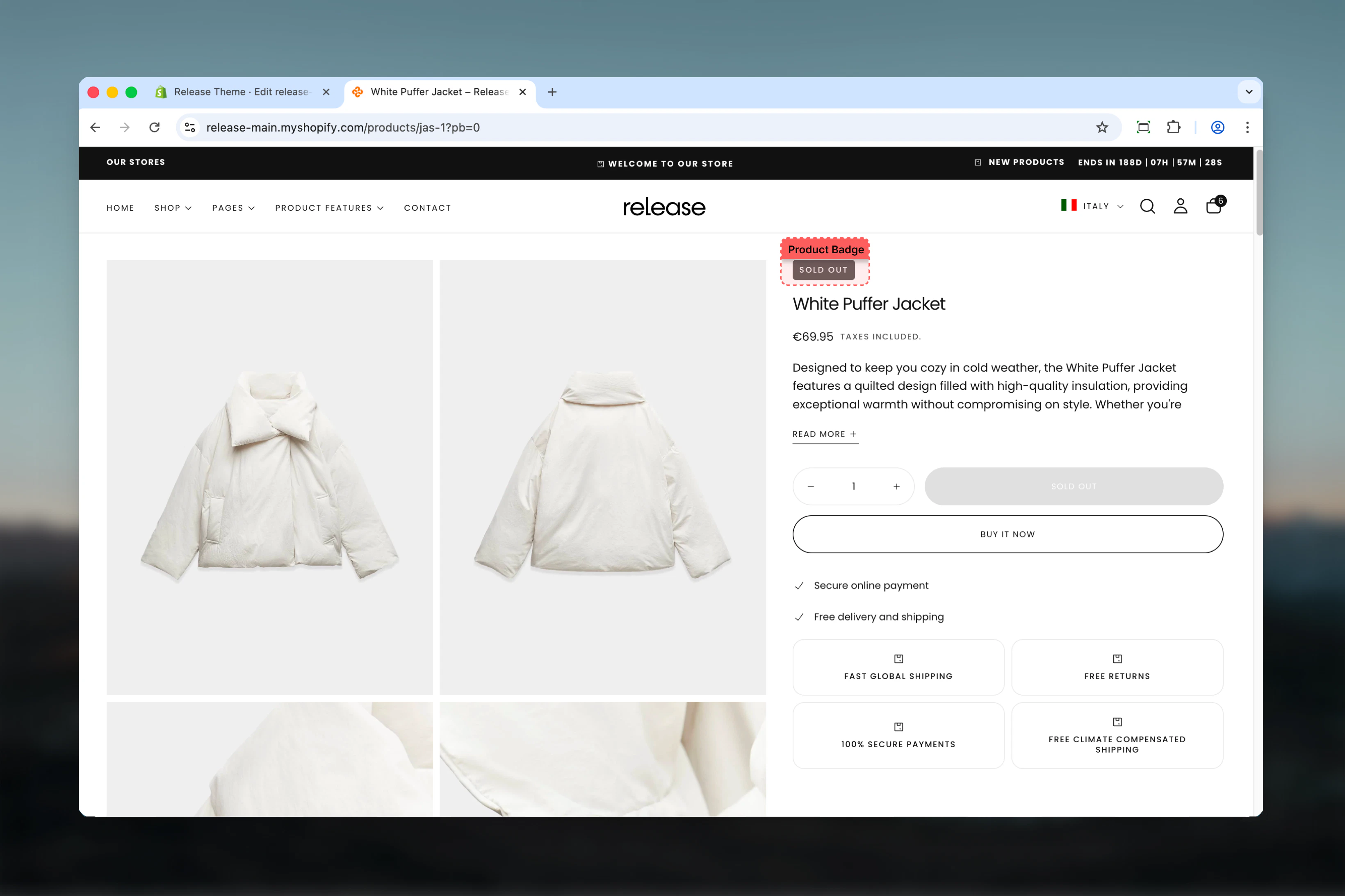 ## What this feature controls
Product badges manages:
* **Visual indicators** - Display badges on product cards and product pages
* **Tag-based system** - Use product tags to trigger badge display
* **Custom messages** - Create unlimited custom badge types
* **Multi-language support** - Translate badges into multiple languages
* **Pre-configured badges** - Built-in badges for common use cases (sale, new, bestseller)
* **Placement control** - Show badges on cards, pages, or both
* **Automatic display** - Badges appear automatically based on product tags
* **Locale integration** - Seamless integration with Shopify's locale system
## Getting started
Add specific tags to products you want to highlight with badges.
1. In Shopify admin, go to **Products**
2. Open the product you want to add a badge to
3. In the **Tags** section, add badge tags using this format:
* **Format:** `badge:badge_key`
* **Examples:** `badge:sale`, `badge:new`, `badge:best_seller`
4. Save the product
Use underscores (`_`) instead of spaces in badge keys. For example, use `badge:best_seller` not `badge:best seller`.
You can add multiple badge tags to a single product. All badges will display according to your theme settings.
Configure badge display in Theme Customizer settings.
1. Go to **Online Store → Themes → Customize**
2. Open **Theme settings → Products**
3. Enable the **Product Badges** option for product cards
4. Save your changes
This setting controls badge display on collection pages, search results, and anywhere product cards appear.
Add the Badges block to product page template.
1. In Theme Customizer, navigate to **Product pages**
2. Add the **Badges** block to the product page template
3. Configure badge position and styling in block settings
4. Save your changes
Position the Badges block near the product title or price for maximum visibility.
Verify badges appear correctly on your storefront.
1. Visit a product with badge tags
2. Check badge appearance on collection pages
3. Check badge appearance on product page
4. Test with different languages if using translations
## How product badges work
Product badges use a simple but powerful tag-based system:
### Tag format
Badges are triggered by product tags following this format:
```
badge:badge_key
```
**Components:**
* **`badge:`** - Required prefix that identifies this as a badge tag
* **`badge_key`** - Unique identifier for the badge type
**Examples:**
* `badge:sale` - Triggers "Sale" badge
* `badge:new` - Triggers "New" badge
* `badge:limited_edition` - Triggers "Limited Edition" badge
### Display logic
1. **Tag check** - Theme scans product tags for `badge:` prefix
2. **Key extraction** - Extracts badge\_key from tag
3. **Translation lookup** - Looks for translation in locale file
4. **Badge render** - Displays badge with translated text
5. **Fallback** - If no translation found, displays badge\_key as-is
### Pre-configured badges
The theme includes seven built-in badge translations:
**Tag:** `badge:new`\
**Display:** "New"\
**Use for:** New arrivals, recent additions, latest products
**Tag:** `badge:best_seller`\
**Display:** "Best seller"\
**Use for:** Top-selling products, popular items, customer favorites
**Tag:** `badge:featured`\
**Display:** "Featured"\
**Use for:** Highlighted products, editor's picks, curated selections
**Tag:** `badge:on_sale`\
**Display:** "On sale"\
**Use for:** Discounted products, sale items, promotions
**Tag:** `badge:coming_soon`\
**Display:** "Coming soon"\
**Use for:** Pre-launch products, upcoming releases, future availability
**Tag:** `badge:pre_order`\
**Display:** "Pre-order"\
**Use for:** Products available for pre-order, advance purchases
**Tag:** `badge:sold_out`\
**Display:** "Sold out"\
**Use for:** Out of stock products, unavailable items
### Locale file structure
Badges are defined in theme locale files under the `badges` section:
```json locales/en.default.json theme={null}
{
"badges": {
"new": "New",
"best_seller": "Best seller",
"featured": "Featured",
"on_sale": "On sale",
"coming_soon": "Coming soon",
"pre_order": "Pre-order",
"sold_out": "Sold out"
}
}
```
## Creating custom badges
Add custom badges for one language.
Decide on a unique key for your badge.
**Guidelines:**
* Use lowercase letters
* Use underscores for spaces: `limited_edition`
* Keep it short and descriptive
* Examples: `eco_friendly`, `handmade`, `local`, `exclusive`
Add your custom badge to the locale file.
1. In your theme code, open `locales/en.default.json`
2. Find the `badges` section
3. Add your custom badge key and text:
```json theme={null}
"badges": {
"new": "New",
"best_seller": "Best seller",
"limited_edition": "Limited Edition",
"eco_friendly": "Eco-Friendly",
"handmade": "Handmade"
}
```
4. Save the file
Apply the badge tag to products.
1. Go to **Products** in Shopify admin
2. Open a product
3. Add tag: `badge:limited_edition`
4. Save the product
Create translated badges for multiple languages.
Start with your default language.
Edit `locales/en.default.json`:
```json theme={null}
"badges": {
"limited_edition": "Limited Edition",
"eco_friendly": "Eco-Friendly"
}
```
Add the same keys to other locale files.
Edit `locales/es.json`:
```json theme={null}
"badges": {
"limited_edition": "Edición Limitada",
"eco_friendly": "Ecológico"
}
```
Edit `locales/fr.json`:
```json theme={null}
"badges": {
"limited_edition": "Édition Limitée",
"eco_friendly": "Écologique"
}
```
Edit `locales/de.json`:
```json theme={null}
"badges": {
"limited_edition": "Limitierte Auflage",
"eco_friendly": "Umweltfreundlich"
}
```
Verify badges appear correctly in each language.
1. Change storefront language
2. Visit product with badge
3. Confirm translated badge appears
4. Repeat for all supported languages
## Badge configuration
### Product card settings
Configure badge display on product cards (collection pages, search results):
**Location:** Theme Customizer → **Theme settings → Products**
**Type:** Toggle\
**Default:** Enabled
Enable or disable badge display on product cards throughout the store.
**When enabled:**
* Badges appear on all product cards
* Visible in collections, search, home page sections
* Automatically displays based on product tags
**When disabled:**
* No badges show on product cards
* Product page badges are unaffected
* Clean minimal card appearance
Keep enabled for most stores. Badges increase engagement and help customers identify special products quickly.
### Product page settings
Configure badge display on individual product pages:
**Location:** Theme Customizer → **Product pages** → Add **Badges** block
**Type:** Block\
**Location:** Product page template
Add the Badges block to display badges on product pages.
**Block settings:**
* Position (above/below title, near price)
* Badge style (color scheme, size)
* Multiple badge display
**Placement options:**
* Above product title
* Below product title
* Near product price
* In product info section
Place badges near the product title for maximum visibility. This draws immediate attention to special product attributes.
## Translation management
### Fallback behavior
When a badge translation is missing:
1. **Tag:** Product has `badge:custom_badge`
2. **Lookup:** Theme searches locale file for `"custom_badge": "..."`
3. **Not found:** Translation doesn't exist in current locale
4. **Fallback:** Badge displays as "custom\_badge" (the key itself)
**Example:**
* Tag: `badge:summer_sale`
* No translation defined
* Displays: "summer\_sale" on storefront
Always provide translations for all badge keys in all supported languages to maintain consistent branding and user experience.
### Translation best practices
Translate badges to match your brand voice in each language, not just literal translations. "Hot Deal" might be "Oferta Caliente" (literal) or "Oferta Especial" (better branding) in Spanish.
Badge text should be 1-3 words maximum. Long text doesn't fit well on badges. "Limited Edition" works better than "Available in Limited Quantities Only".
Use the same badge keys across all products. Don't create `badge:sale1`, `badge:sale2`, etc. Use one `badge:sale` for consistency.
After adding translations, test badge appearance in every language your store supports. Ensure text fits and looks good.
## Common use cases
Highlight discounted products during sales.
**Setup:**
* Badge tag: `badge:on_sale`
* Display: "On sale" (or translated)
* Products: All items with active discounts
**Implementation:**
1. Add `badge:on_sale` tag to sale products
2. Enable badges on product cards and pages
3. When sale ends, remove tags
**Bulk tag management:**
* Use bulk editor to add/remove tags quickly
* Filter by collection or discount code
* Add/remove sale badges en masse
Combine with product badges automation apps to automatically add sale badges when discount is applied and remove when sale ends.
Feature recently added products.
**Setup:**
* Badge tag: `badge:new`
* Display: "New"
* Products: Recent additions (last 30-60 days)
**Implementation:**
1. Add `badge:new` to products when publishing
2. Create workflow to remove after 30-60 days
3. Badge draws attention to latest inventory
**Automation options:**
* Use Shopify Flow to auto-add "new" tag on publish
* Schedule tag removal after X days
* Keep new arrivals collection fresh
Showcase popular products.
**Setup:**
* Badge tag: `badge:best_seller`
* Display: "Best seller"
* Products: Top 10-20% by sales
**Implementation:**
1. Review sales data monthly
2. Add badge to top performers
3. Social proof increases conversions
**Selection criteria:**
* Top 10% by unit sales
* Top revenue generators
* Highest rated products
* Most favorited/wishlisted
Highlight eco-friendly products.
**Setup:**
* Custom badges: `badge:eco_friendly`, `badge:organic`, `badge:recycled`
* Products: Sustainable product line
**Locale setup:**
```json theme={null}
"badges": {
"eco_friendly": "Eco-Friendly",
"organic": "Organic",
"recycled": "Recycled Materials",
"carbon_neutral": "Carbon Neutral"
}
```
**Implementation:**
1. Create custom sustainability badges
2. Add translations in all languages
3. Apply to certified/verified eco products
4. Build trust with eco-conscious customers
Create urgency with limited availability.
**Setup:**
* Custom badge: `badge:limited_edition`
* Display: "Limited Edition"
* Products: Exclusive or time-limited items
**Implementation:**
1. Add custom badge to locale files
2. Apply to limited quantity products
3. Remove badge when sold out
4. Creates FOMO and urgency
**Variations:**
* `badge:exclusive` - "Exclusive"
* `badge:limited_stock` - "Limited Stock"
* `badge:last_chance` - "Last Chance"
Inform customers about production time.
**Setup:**
* Custom badges: `badge:made_to_order`, `badge:handmade`, `badge:custom`
* Products: Custom/made-to-order items
**Locale setup:**
```json theme={null}
"badges": {
"made_to_order": "Made to Order",
"handmade": "Handmade",
"custom": "Customizable",
"artisan": "Artisan Made"
}
```
**Implementation:**
1. Create badges for production types
2. Set customer expectations upfront
3. Reduce support inquiries about shipping times
## Best practices
Don't use more than 1-2 badges per product. Multiple badges create visual clutter and reduce impact. Choose the most important badge.
Every badge should provide valuable information to customers. Avoid generic badges that don't influence purchase decisions.
Use underscore format consistently: `best_seller`, not `bestseller` or `best-seller`. Maintain consistent key formatting across all badges.
Provide translations for all badge keys in every language your store supports. Missing translations look unprofessional.
Review and update badges regularly. Remove "new" badges after 60 days, update "bestseller" badges monthly based on sales data.
Use Shopify's bulk editor to add/remove badge tags efficiently. Filter products by collection or condition, then edit tags in bulk.
Enable badges where they matter most. High-traffic collection pages benefit most. Consider disabling on pages where badges distract.
Test different badge wording to see what drives conversions. "On Sale" vs "Limited Offer" vs "Special Price" may perform differently.
For large catalogs, consider Shopify Flow or apps to automatically manage badge tags based on rules (sales data, publish date, stock levels).
Ensure badge styling matches your brand. Customize badge colors and styles in theme settings to align with overall design.
## Technical implementation
### Tag format requirements
**Critical:** Badge tags must follow this exact format: `badge:badge_key`
**Correct:**
* `badge:sale`
* `badge:new_arrival`
* `badge:limited_edition`
**Incorrect:**
* `Badge:sale` (capital B)
* `badge: sale` (space after colon)
* `badges:sale` (plural badges)
* `sale` (missing badge: prefix)
### Key naming rules
**Badge key requirements:**
* Use lowercase only
* Use underscores for spaces: `best_seller` not `best seller`
* No special characters except underscores
* Keep under 20 characters
* Use descriptive names: `eco_friendly` not `eco`
### Multiple badges per product
Products can have multiple badge tags:
```
Tags: badge:new, badge:on_sale, badge:eco_friendly
```
**Display behavior:**
* All badges appear on product
* Order determined by theme settings
* May stack or display inline depending on theme style
* Consider limiting to 2 badges maximum for clean appearance
## Related guides
Configure the product page template and Badges block
Manage product card display settings including badges
Learn more about Shopify product tags and management
Understanding Shopify theme locale files and translations
## What this feature controls
Product badges manages:
* **Visual indicators** - Display badges on product cards and product pages
* **Tag-based system** - Use product tags to trigger badge display
* **Custom messages** - Create unlimited custom badge types
* **Multi-language support** - Translate badges into multiple languages
* **Pre-configured badges** - Built-in badges for common use cases (sale, new, bestseller)
* **Placement control** - Show badges on cards, pages, or both
* **Automatic display** - Badges appear automatically based on product tags
* **Locale integration** - Seamless integration with Shopify's locale system
## Getting started
Add specific tags to products you want to highlight with badges.
1. In Shopify admin, go to **Products**
2. Open the product you want to add a badge to
3. In the **Tags** section, add badge tags using this format:
* **Format:** `badge:badge_key`
* **Examples:** `badge:sale`, `badge:new`, `badge:best_seller`
4. Save the product
Use underscores (`_`) instead of spaces in badge keys. For example, use `badge:best_seller` not `badge:best seller`.
You can add multiple badge tags to a single product. All badges will display according to your theme settings.
Configure badge display in Theme Customizer settings.
1. Go to **Online Store → Themes → Customize**
2. Open **Theme settings → Products**
3. Enable the **Product Badges** option for product cards
4. Save your changes
This setting controls badge display on collection pages, search results, and anywhere product cards appear.
Add the Badges block to product page template.
1. In Theme Customizer, navigate to **Product pages**
2. Add the **Badges** block to the product page template
3. Configure badge position and styling in block settings
4. Save your changes
Position the Badges block near the product title or price for maximum visibility.
Verify badges appear correctly on your storefront.
1. Visit a product with badge tags
2. Check badge appearance on collection pages
3. Check badge appearance on product page
4. Test with different languages if using translations
## How product badges work
Product badges use a simple but powerful tag-based system:
### Tag format
Badges are triggered by product tags following this format:
```
badge:badge_key
```
**Components:**
* **`badge:`** - Required prefix that identifies this as a badge tag
* **`badge_key`** - Unique identifier for the badge type
**Examples:**
* `badge:sale` - Triggers "Sale" badge
* `badge:new` - Triggers "New" badge
* `badge:limited_edition` - Triggers "Limited Edition" badge
### Display logic
1. **Tag check** - Theme scans product tags for `badge:` prefix
2. **Key extraction** - Extracts badge\_key from tag
3. **Translation lookup** - Looks for translation in locale file
4. **Badge render** - Displays badge with translated text
5. **Fallback** - If no translation found, displays badge\_key as-is
### Pre-configured badges
The theme includes seven built-in badge translations:
**Tag:** `badge:new`\
**Display:** "New"\
**Use for:** New arrivals, recent additions, latest products
**Tag:** `badge:best_seller`\
**Display:** "Best seller"\
**Use for:** Top-selling products, popular items, customer favorites
**Tag:** `badge:featured`\
**Display:** "Featured"\
**Use for:** Highlighted products, editor's picks, curated selections
**Tag:** `badge:on_sale`\
**Display:** "On sale"\
**Use for:** Discounted products, sale items, promotions
**Tag:** `badge:coming_soon`\
**Display:** "Coming soon"\
**Use for:** Pre-launch products, upcoming releases, future availability
**Tag:** `badge:pre_order`\
**Display:** "Pre-order"\
**Use for:** Products available for pre-order, advance purchases
**Tag:** `badge:sold_out`\
**Display:** "Sold out"\
**Use for:** Out of stock products, unavailable items
### Locale file structure
Badges are defined in theme locale files under the `badges` section:
```json locales/en.default.json theme={null}
{
"badges": {
"new": "New",
"best_seller": "Best seller",
"featured": "Featured",
"on_sale": "On sale",
"coming_soon": "Coming soon",
"pre_order": "Pre-order",
"sold_out": "Sold out"
}
}
```
## Creating custom badges
Add custom badges for one language.
Decide on a unique key for your badge.
**Guidelines:**
* Use lowercase letters
* Use underscores for spaces: `limited_edition`
* Keep it short and descriptive
* Examples: `eco_friendly`, `handmade`, `local`, `exclusive`
Add your custom badge to the locale file.
1. In your theme code, open `locales/en.default.json`
2. Find the `badges` section
3. Add your custom badge key and text:
```json theme={null}
"badges": {
"new": "New",
"best_seller": "Best seller",
"limited_edition": "Limited Edition",
"eco_friendly": "Eco-Friendly",
"handmade": "Handmade"
}
```
4. Save the file
Apply the badge tag to products.
1. Go to **Products** in Shopify admin
2. Open a product
3. Add tag: `badge:limited_edition`
4. Save the product
Create translated badges for multiple languages.
Start with your default language.
Edit `locales/en.default.json`:
```json theme={null}
"badges": {
"limited_edition": "Limited Edition",
"eco_friendly": "Eco-Friendly"
}
```
Add the same keys to other locale files.
Edit `locales/es.json`:
```json theme={null}
"badges": {
"limited_edition": "Edición Limitada",
"eco_friendly": "Ecológico"
}
```
Edit `locales/fr.json`:
```json theme={null}
"badges": {
"limited_edition": "Édition Limitée",
"eco_friendly": "Écologique"
}
```
Edit `locales/de.json`:
```json theme={null}
"badges": {
"limited_edition": "Limitierte Auflage",
"eco_friendly": "Umweltfreundlich"
}
```
Verify badges appear correctly in each language.
1. Change storefront language
2. Visit product with badge
3. Confirm translated badge appears
4. Repeat for all supported languages
## Badge configuration
### Product card settings
Configure badge display on product cards (collection pages, search results):
**Location:** Theme Customizer → **Theme settings → Products**
**Type:** Toggle\
**Default:** Enabled
Enable or disable badge display on product cards throughout the store.
**When enabled:**
* Badges appear on all product cards
* Visible in collections, search, home page sections
* Automatically displays based on product tags
**When disabled:**
* No badges show on product cards
* Product page badges are unaffected
* Clean minimal card appearance
Keep enabled for most stores. Badges increase engagement and help customers identify special products quickly.
### Product page settings
Configure badge display on individual product pages:
**Location:** Theme Customizer → **Product pages** → Add **Badges** block
**Type:** Block\
**Location:** Product page template
Add the Badges block to display badges on product pages.
**Block settings:**
* Position (above/below title, near price)
* Badge style (color scheme, size)
* Multiple badge display
**Placement options:**
* Above product title
* Below product title
* Near product price
* In product info section
Place badges near the product title for maximum visibility. This draws immediate attention to special product attributes.
## Translation management
### Fallback behavior
When a badge translation is missing:
1. **Tag:** Product has `badge:custom_badge`
2. **Lookup:** Theme searches locale file for `"custom_badge": "..."`
3. **Not found:** Translation doesn't exist in current locale
4. **Fallback:** Badge displays as "custom\_badge" (the key itself)
**Example:**
* Tag: `badge:summer_sale`
* No translation defined
* Displays: "summer\_sale" on storefront
Always provide translations for all badge keys in all supported languages to maintain consistent branding and user experience.
### Translation best practices
Translate badges to match your brand voice in each language, not just literal translations. "Hot Deal" might be "Oferta Caliente" (literal) or "Oferta Especial" (better branding) in Spanish.
Badge text should be 1-3 words maximum. Long text doesn't fit well on badges. "Limited Edition" works better than "Available in Limited Quantities Only".
Use the same badge keys across all products. Don't create `badge:sale1`, `badge:sale2`, etc. Use one `badge:sale` for consistency.
After adding translations, test badge appearance in every language your store supports. Ensure text fits and looks good.
## Common use cases
Highlight discounted products during sales.
**Setup:**
* Badge tag: `badge:on_sale`
* Display: "On sale" (or translated)
* Products: All items with active discounts
**Implementation:**
1. Add `badge:on_sale` tag to sale products
2. Enable badges on product cards and pages
3. When sale ends, remove tags
**Bulk tag management:**
* Use bulk editor to add/remove tags quickly
* Filter by collection or discount code
* Add/remove sale badges en masse
Combine with product badges automation apps to automatically add sale badges when discount is applied and remove when sale ends.
Feature recently added products.
**Setup:**
* Badge tag: `badge:new`
* Display: "New"
* Products: Recent additions (last 30-60 days)
**Implementation:**
1. Add `badge:new` to products when publishing
2. Create workflow to remove after 30-60 days
3. Badge draws attention to latest inventory
**Automation options:**
* Use Shopify Flow to auto-add "new" tag on publish
* Schedule tag removal after X days
* Keep new arrivals collection fresh
Showcase popular products.
**Setup:**
* Badge tag: `badge:best_seller`
* Display: "Best seller"
* Products: Top 10-20% by sales
**Implementation:**
1. Review sales data monthly
2. Add badge to top performers
3. Social proof increases conversions
**Selection criteria:**
* Top 10% by unit sales
* Top revenue generators
* Highest rated products
* Most favorited/wishlisted
Highlight eco-friendly products.
**Setup:**
* Custom badges: `badge:eco_friendly`, `badge:organic`, `badge:recycled`
* Products: Sustainable product line
**Locale setup:**
```json theme={null}
"badges": {
"eco_friendly": "Eco-Friendly",
"organic": "Organic",
"recycled": "Recycled Materials",
"carbon_neutral": "Carbon Neutral"
}
```
**Implementation:**
1. Create custom sustainability badges
2. Add translations in all languages
3. Apply to certified/verified eco products
4. Build trust with eco-conscious customers
Create urgency with limited availability.
**Setup:**
* Custom badge: `badge:limited_edition`
* Display: "Limited Edition"
* Products: Exclusive or time-limited items
**Implementation:**
1. Add custom badge to locale files
2. Apply to limited quantity products
3. Remove badge when sold out
4. Creates FOMO and urgency
**Variations:**
* `badge:exclusive` - "Exclusive"
* `badge:limited_stock` - "Limited Stock"
* `badge:last_chance` - "Last Chance"
Inform customers about production time.
**Setup:**
* Custom badges: `badge:made_to_order`, `badge:handmade`, `badge:custom`
* Products: Custom/made-to-order items
**Locale setup:**
```json theme={null}
"badges": {
"made_to_order": "Made to Order",
"handmade": "Handmade",
"custom": "Customizable",
"artisan": "Artisan Made"
}
```
**Implementation:**
1. Create badges for production types
2. Set customer expectations upfront
3. Reduce support inquiries about shipping times
## Best practices
Don't use more than 1-2 badges per product. Multiple badges create visual clutter and reduce impact. Choose the most important badge.
Every badge should provide valuable information to customers. Avoid generic badges that don't influence purchase decisions.
Use underscore format consistently: `best_seller`, not `bestseller` or `best-seller`. Maintain consistent key formatting across all badges.
Provide translations for all badge keys in every language your store supports. Missing translations look unprofessional.
Review and update badges regularly. Remove "new" badges after 60 days, update "bestseller" badges monthly based on sales data.
Use Shopify's bulk editor to add/remove badge tags efficiently. Filter products by collection or condition, then edit tags in bulk.
Enable badges where they matter most. High-traffic collection pages benefit most. Consider disabling on pages where badges distract.
Test different badge wording to see what drives conversions. "On Sale" vs "Limited Offer" vs "Special Price" may perform differently.
For large catalogs, consider Shopify Flow or apps to automatically manage badge tags based on rules (sales data, publish date, stock levels).
Ensure badge styling matches your brand. Customize badge colors and styles in theme settings to align with overall design.
## Technical implementation
### Tag format requirements
**Critical:** Badge tags must follow this exact format: `badge:badge_key`
**Correct:**
* `badge:sale`
* `badge:new_arrival`
* `badge:limited_edition`
**Incorrect:**
* `Badge:sale` (capital B)
* `badge: sale` (space after colon)
* `badges:sale` (plural badges)
* `sale` (missing badge: prefix)
### Key naming rules
**Badge key requirements:**
* Use lowercase only
* Use underscores for spaces: `best_seller` not `best seller`
* No special characters except underscores
* Keep under 20 characters
* Use descriptive names: `eco_friendly` not `eco`
### Multiple badges per product
Products can have multiple badge tags:
```
Tags: badge:new, badge:on_sale, badge:eco_friendly
```
**Display behavior:**
* All badges appear on product
* Order determined by theme settings
* May stack or display inline depending on theme style
* Consider limiting to 2 badges maximum for clean appearance
## Related guides
Configure the product page template and Badges block
Manage product card display settings including badges
Learn more about Shopify product tags and management
Understanding Shopify theme locale files and translations