> ## Documentation Index
> Fetch the complete documentation index at: https://docs.digifist.com/llms.txt
> Use this file to discover all available pages before exploring further.
# Callout Banner
> Highlight important messages, campaigns, or time-sensitive announcements with images and countdown timers.
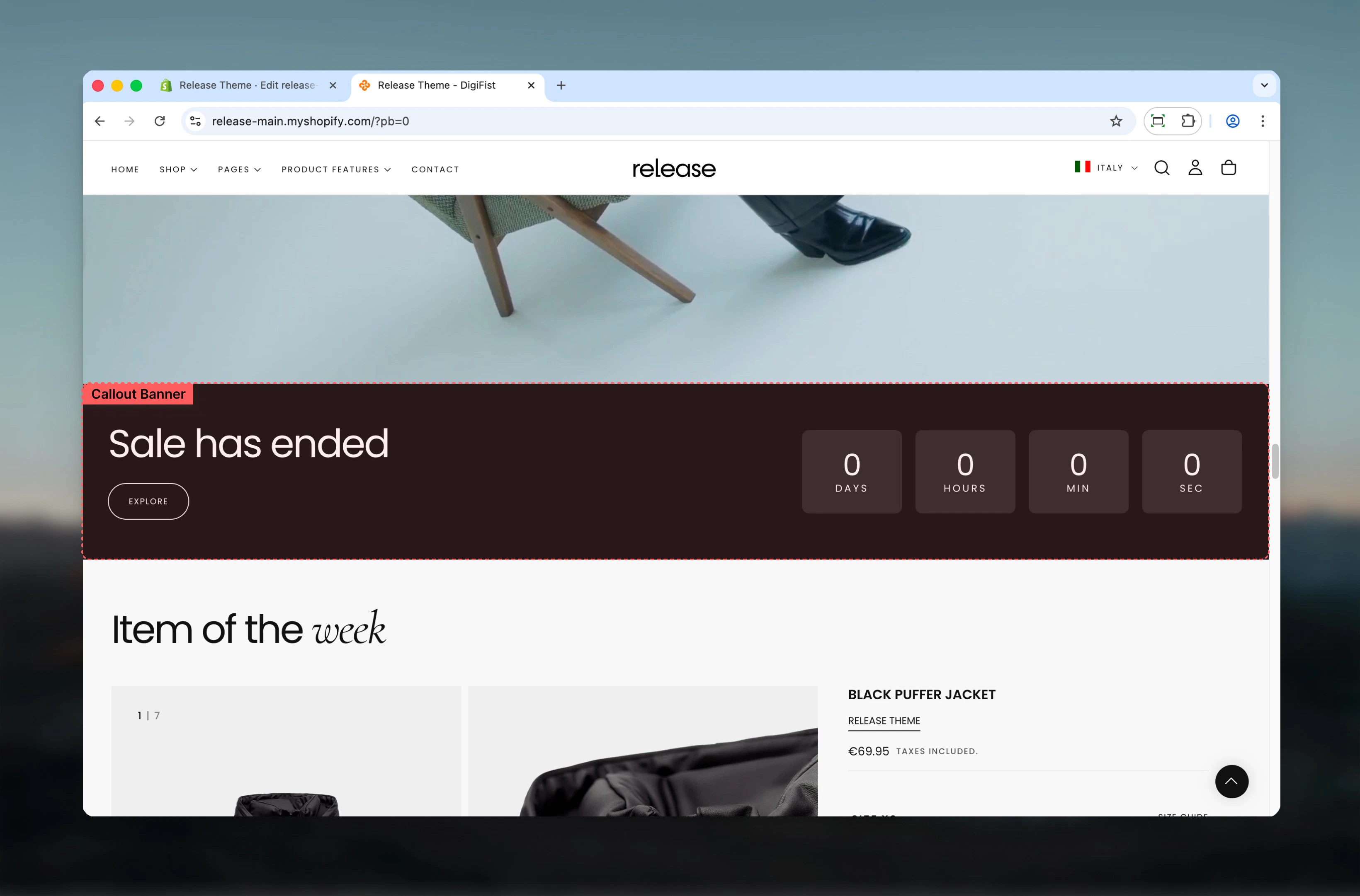
The Callout Banner section highlights important messages, campaigns, or time-sensitive announcements. It supports images, text content, call-to-action elements, and an optional countdown timer.
Callout banners help create urgency and draw attention to promotional campaigns, product launches, or limited-time offers through flexible layout options and integrated countdown functionality.
 ## What this section controls
This section controls callout banner displays with the following capabilities:
* Horizontal or vertical layout arrangements
* Flexible media positioning (start, end, or full background)
* Button or newsletter signup action types
* Optional countdown timer with customizable display
* Desktop and mobile-specific image support
## How the Callout Banner works
The Callout Banner uses a flexible content system:
* The section can be displayed horizontally or vertically
* Media placement adapts based on the selected layout
* Content can trigger either a button action or a newsletter signup
* An optional countdown timer can be used to create urgency
## Getting started
From Shopify admin, access the Theme Customizer.
Add the Callout Banner section to your page or template.
Select section layout and media positioning.
Add heading, text, and configure button or newsletter action.
## What this section controls
This section controls callout banner displays with the following capabilities:
* Horizontal or vertical layout arrangements
* Flexible media positioning (start, end, or full background)
* Button or newsletter signup action types
* Optional countdown timer with customizable display
* Desktop and mobile-specific image support
## How the Callout Banner works
The Callout Banner uses a flexible content system:
* The section can be displayed horizontally or vertically
* Media placement adapts based on the selected layout
* Content can trigger either a button action or a newsletter signup
* An optional countdown timer can be used to create urgency
## Getting started
From Shopify admin, access the Theme Customizer.
Add the Callout Banner section to your page or template.
Select section layout and media positioning.
Add heading, text, and configure button or newsletter action.
 ## Section settings
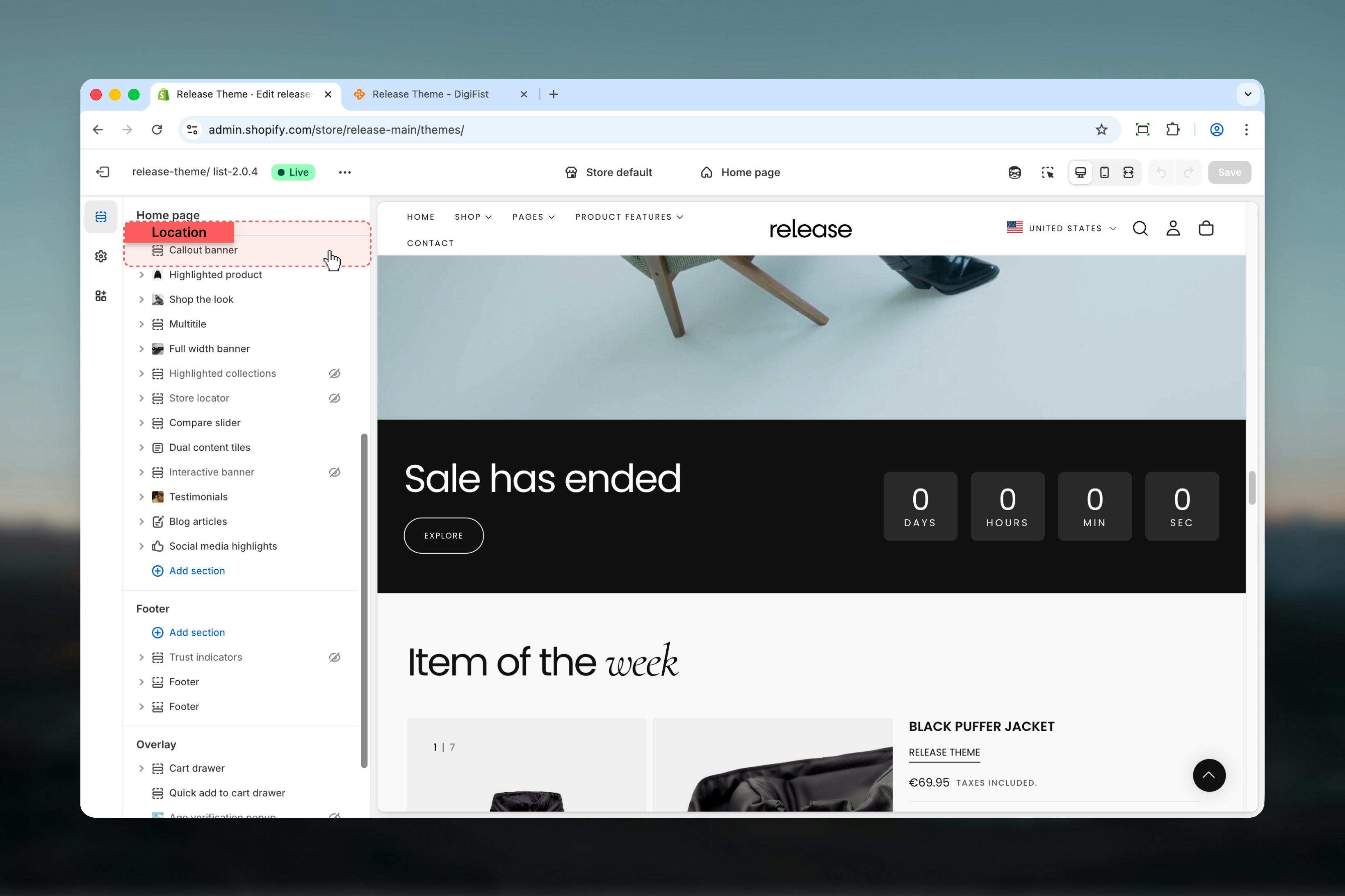
Section settings control the overall layout, media behavior, and content structure.
### Section layout
Controls how the banner content is arranged.
**Available options:**
* **Horizontal:** Content and media are arranged side by side
* **Vertical:** Content and media are stacked vertically
## Section settings
Section settings control the overall layout, media behavior, and content structure.
### Section layout
Controls how the banner content is arranged.
**Available options:**
* **Horizontal:** Content and media are arranged side by side
* **Vertical:** Content and media are stacked vertically
 ### Image
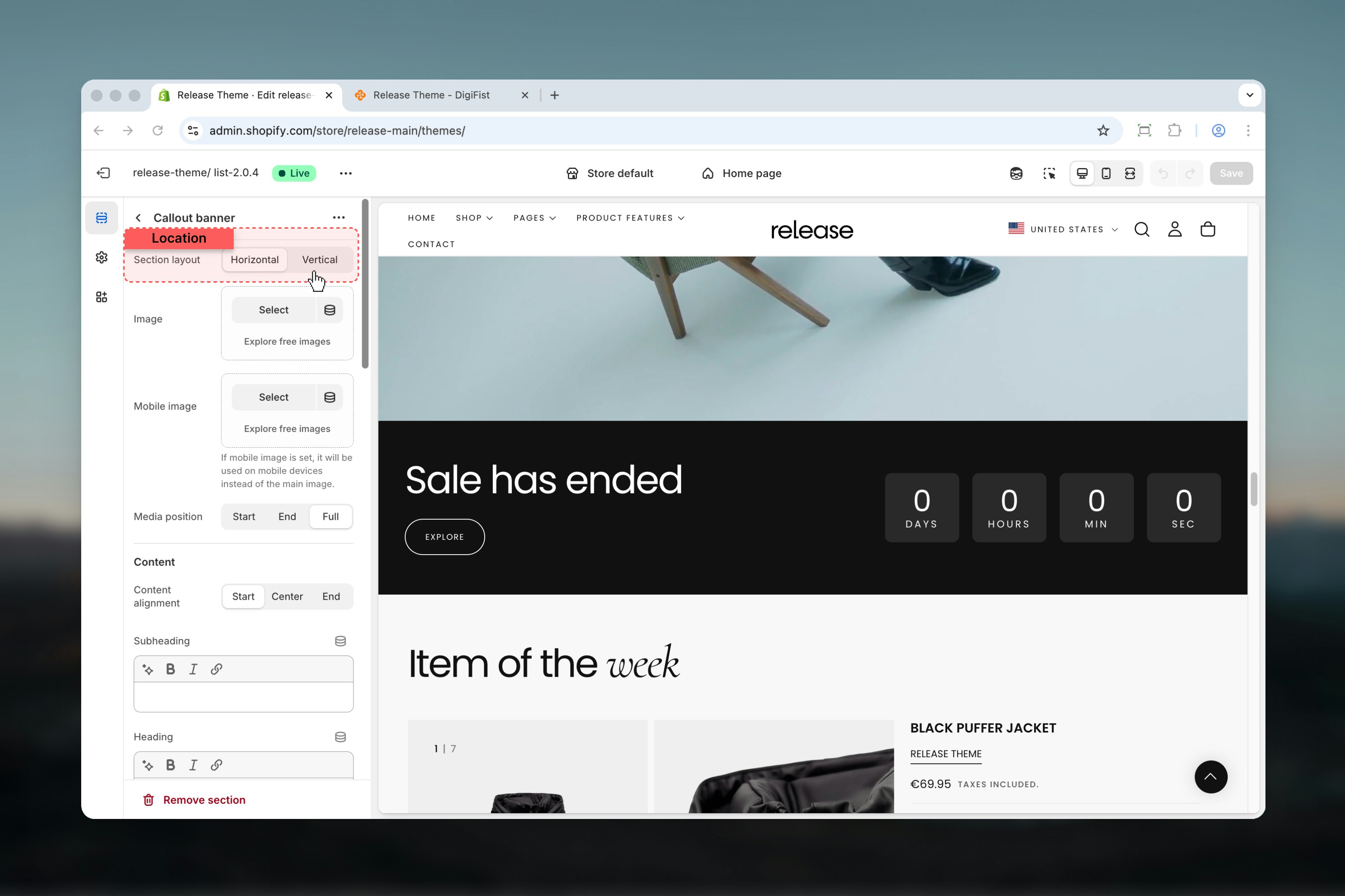
Main image displayed in the banner.
Uses Shopify's image selector.
### Mobile image
Image used on mobile devices.
If a mobile image is set, it will be used on mobile instead of the main image.
### Media position
Controls how the image is positioned within the section.
**Available options:**
* **Start:** Media appears at the start of the section
* Left side in horizontal layout
* Top area in vertical layout
* **End:** Media appears at the end of the section
* Right side in horizontal layout
* Bottom area in vertical layout
* **Full:** Media fills the entire section and behaves like a background
Media positioning adapts automatically based on the selected section layout.
### Image
Main image displayed in the banner.
Uses Shopify's image selector.
### Mobile image
Image used on mobile devices.
If a mobile image is set, it will be used on mobile instead of the main image.
### Media position
Controls how the image is positioned within the section.
**Available options:**
* **Start:** Media appears at the start of the section
* Left side in horizontal layout
* Top area in vertical layout
* **End:** Media appears at the end of the section
* Right side in horizontal layout
* Bottom area in vertical layout
* **Full:** Media fills the entire section and behaves like a background
Media positioning adapts automatically based on the selected section layout.
 ### Subheading
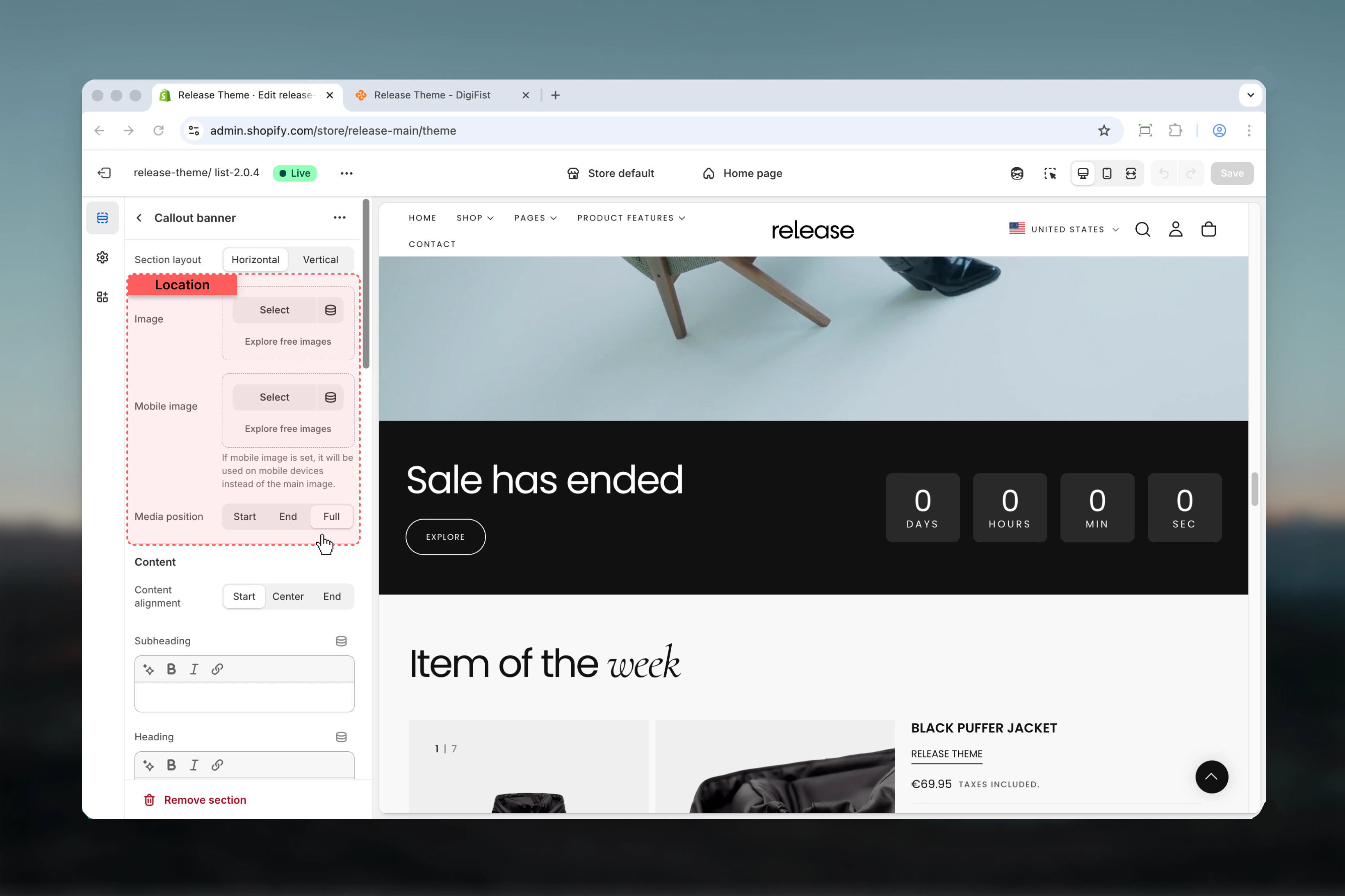
Secondary text displayed above or below the main heading.
* Supports bold, italic, and links
### Heading
Main heading text.
* Supports bold, italic, and links
### Heading size
Controls the size of the heading.
**Available options:** S, M, L, XL
### Text
Supporting content displayed below the heading.
Uses a rich text editor.
### Action preference
Defines the primary interaction type for the banner.
**Available options:**
* **Button:** Displays a call-to-action button
* **Newsletter:** Displays a newsletter signup form
### Subheading
Secondary text displayed above or below the main heading.
* Supports bold, italic, and links
### Heading
Main heading text.
* Supports bold, italic, and links
### Heading size
Controls the size of the heading.
**Available options:** S, M, L, XL
### Text
Supporting content displayed below the heading.
Uses a rich text editor.
### Action preference
Defines the primary interaction type for the banner.
**Available options:**
* **Button:** Displays a call-to-action button
* **Newsletter:** Displays a newsletter signup form
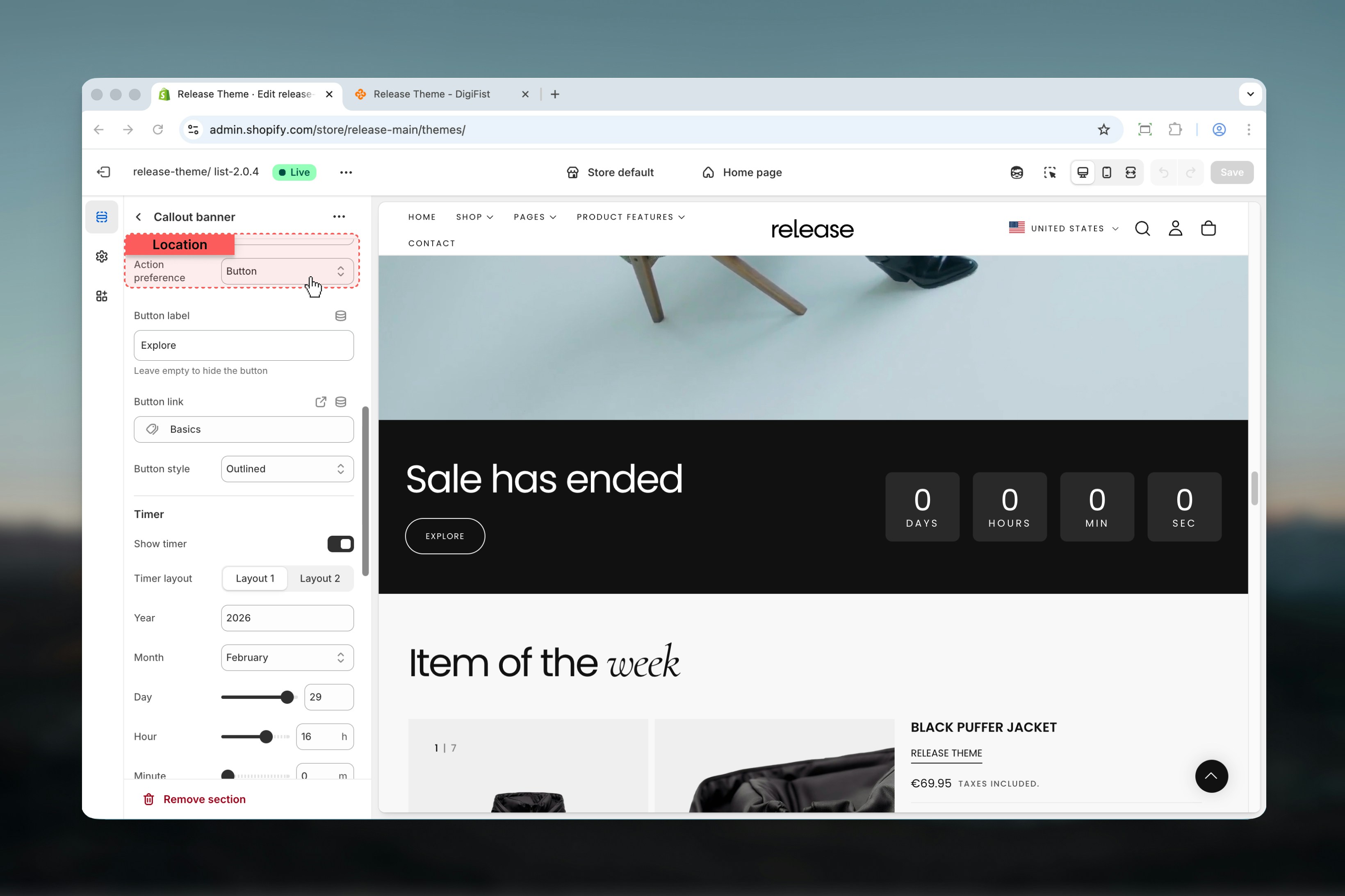 ### Button label
Defines the button text.
Leave empty to hide the button.
### Button link
Destination URL for the button.
### Newsletter button
Controls the submit button label for the newsletter form.
**Example:** `Subscribe`, `Submit`, `Join now`
### Button style
Controls the visual style of the action button.
**Available options:** Filled, Outlined, Default
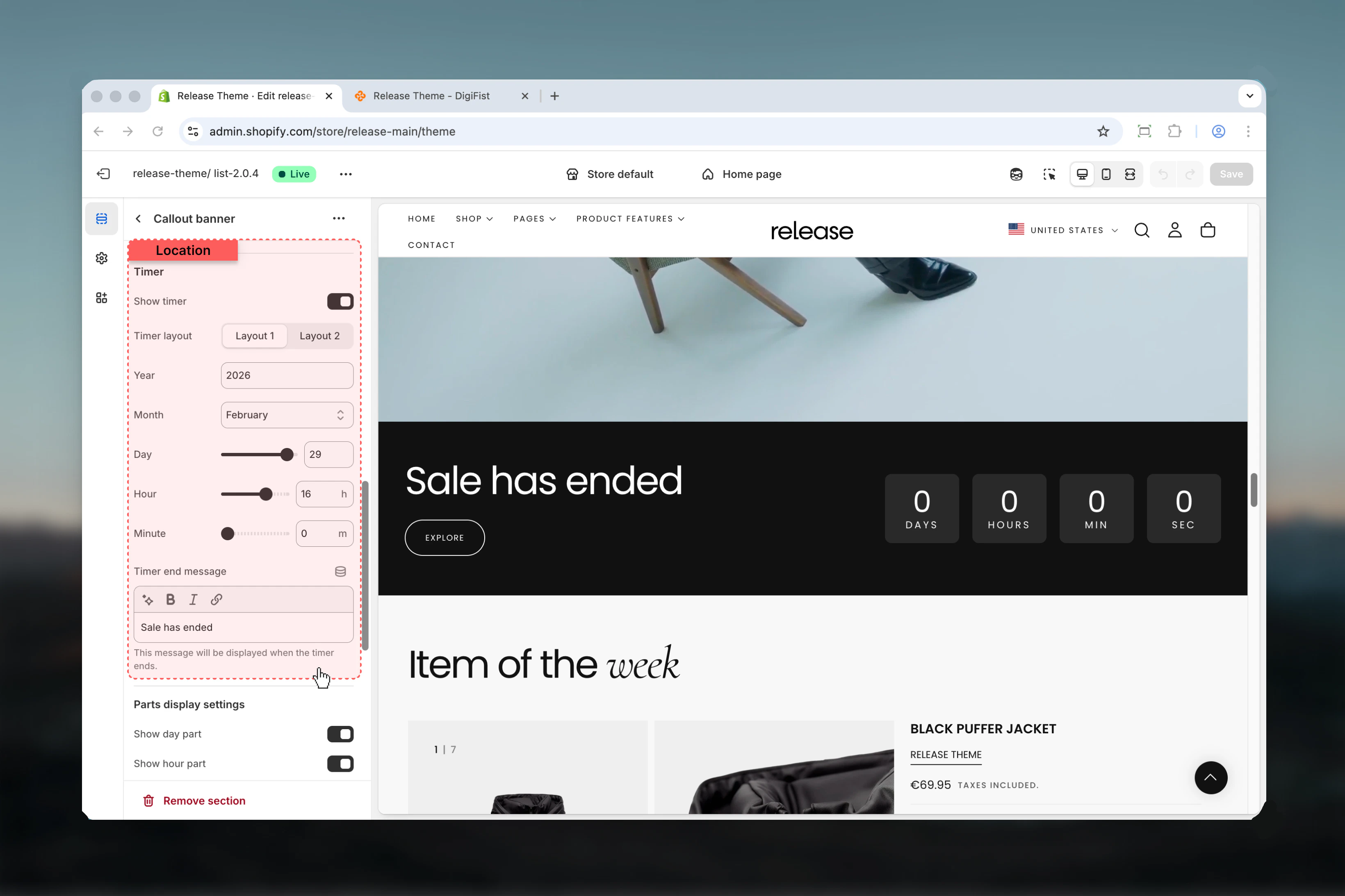
The timer is used to display a countdown for campaigns or events.
### Show timer
Enables or disables the countdown timer.
**Options:** True / False
### Timer layout
Controls the visual layout of the timer.
**Available options:** Layout 1, Layout 2
### Timer size
Controls the size of the timer display.
**Available options:** S, M, L, XL
### Timer end date
Defines when the timer ends.
* **Year:** Manual number input
* **Month:** Select input with all months
* **Day:** Range 1 – 31
* **Hour:** Range 0 – 23
* **Minute:** Range 0 – 59
### Timer end message
Message displayed when the countdown reaches zero.
* Supports bold, italic, and links
### Button label
Defines the button text.
Leave empty to hide the button.
### Button link
Destination URL for the button.
### Newsletter button
Controls the submit button label for the newsletter form.
**Example:** `Subscribe`, `Submit`, `Join now`
### Button style
Controls the visual style of the action button.
**Available options:** Filled, Outlined, Default
The timer is used to display a countdown for campaigns or events.
### Show timer
Enables or disables the countdown timer.
**Options:** True / False
### Timer layout
Controls the visual layout of the timer.
**Available options:** Layout 1, Layout 2
### Timer size
Controls the size of the timer display.
**Available options:** S, M, L, XL
### Timer end date
Defines when the timer ends.
* **Year:** Manual number input
* **Month:** Select input with all months
* **Day:** Range 1 – 31
* **Hour:** Range 0 – 23
* **Minute:** Range 0 – 59
### Timer end message
Message displayed when the countdown reaches zero.
* Supports bold, italic, and links
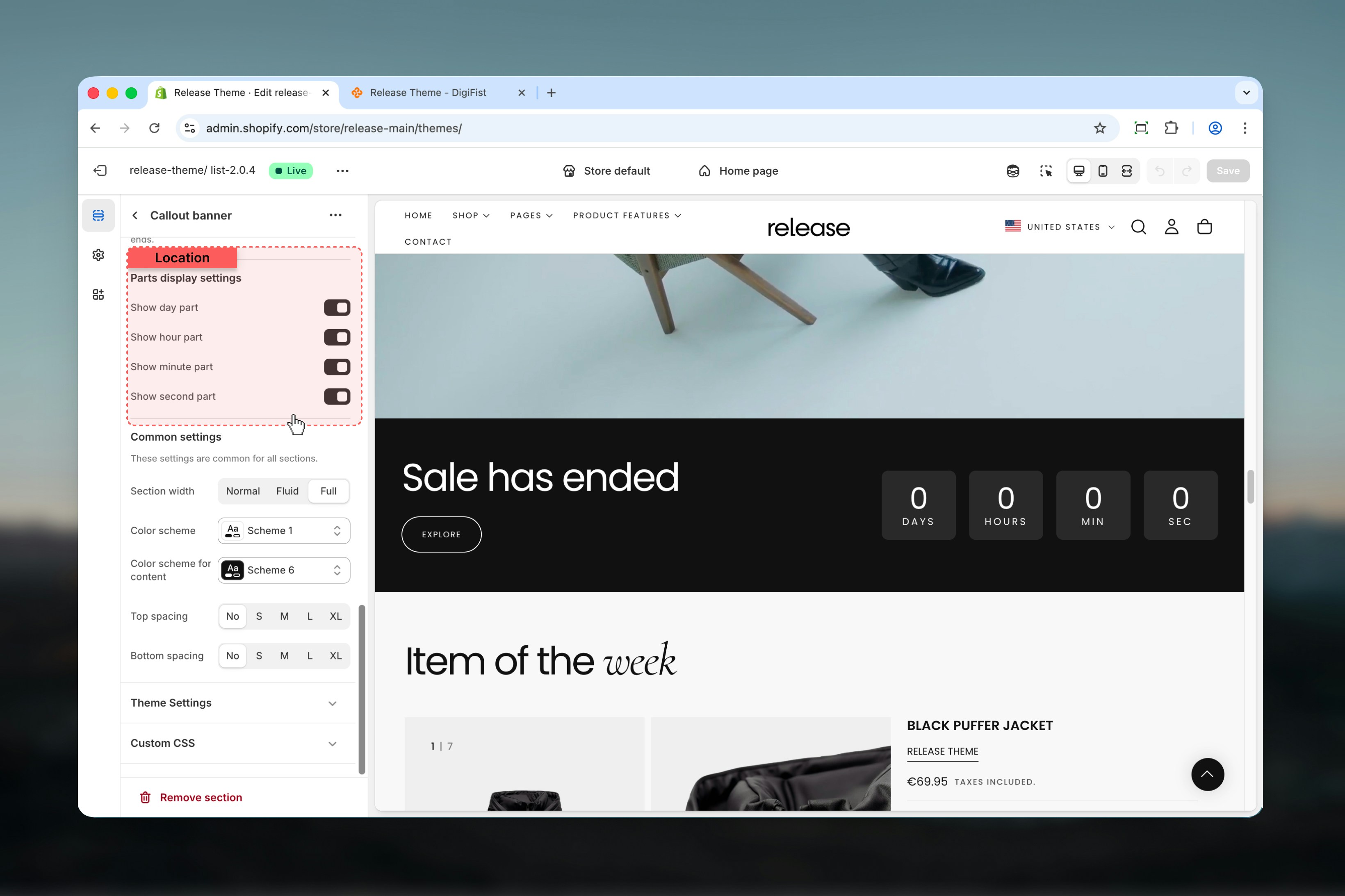
 ## Parts display settings
These settings control which time units are shown in the timer.
### Show day part
Displays days in the timer.
**Options:** True / False
### Show hour part
Displays hours in the timer.
**Options:** True / False
### Show minute part
Displays minutes in the timer.
**Options:** True / False
### Show second part
Displays seconds in the timer.
**Options:** True / False
## Parts display settings
These settings control which time units are shown in the timer.
### Show day part
Displays days in the timer.
**Options:** True / False
### Show hour part
Displays hours in the timer.
**Options:** True / False
### Show minute part
Displays minutes in the timer.
**Options:** True / False
### Show second part
Displays seconds in the timer.
**Options:** True / False
 ## Best practices
* Use **Full** media position for strong visual impact and immersive experiences
* Prefer Horizontal layout for promotional banners to maximize screen real estate
* Use Vertical layout for stacked or mobile-focused designs for better readability
* Always test contrast when using full-background images to ensure text visibility
* Keep timer durations clear and intentional to create genuine urgency
* Choose between button and newsletter actions based on campaign goals
* Test mobile image separately to ensure optimal display on smaller screens
* Consider disabling timer parts (like seconds) for cleaner, less distracting displays
## Related guides
Learn about common settings shared across sections
## Best practices
* Use **Full** media position for strong visual impact and immersive experiences
* Prefer Horizontal layout for promotional banners to maximize screen real estate
* Use Vertical layout for stacked or mobile-focused designs for better readability
* Always test contrast when using full-background images to ensure text visibility
* Keep timer durations clear and intentional to create genuine urgency
* Choose between button and newsletter actions based on campaign goals
* Test mobile image separately to ensure optimal display on smaller screens
* Consider disabling timer parts (like seconds) for cleaner, less distracting displays
## Related guides
Learn about common settings shared across sections