> ## Documentation Index
> Fetch the complete documentation index at: https://docs.digifist.com/llms.txt
> Use this file to discover all available pages before exploring further.
# Custom Liquid
> Add custom Liquid code snippets for advanced customizations and app integrations.
The Custom Liquid section allows you to add custom Liquid code, app snippets, or advanced customizations directly into your theme. This section provides developers and advanced users the flexibility to extend theme functionality.
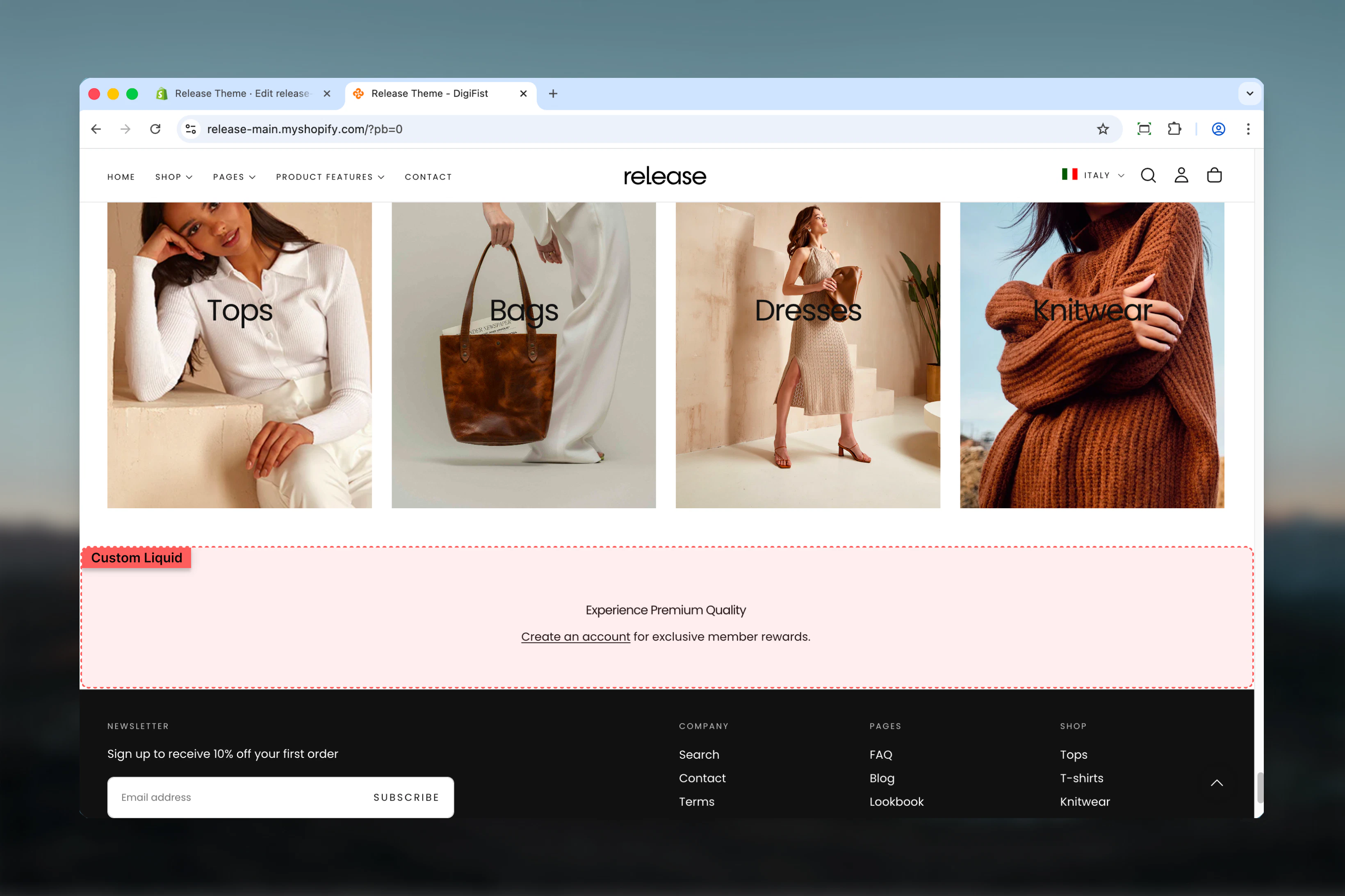 ## What this section controls
* Custom Liquid code editor
* Section width and container options
* Color scheme selection
* Vertical spacing control
* Direct HTML/Liquid output
## Getting started
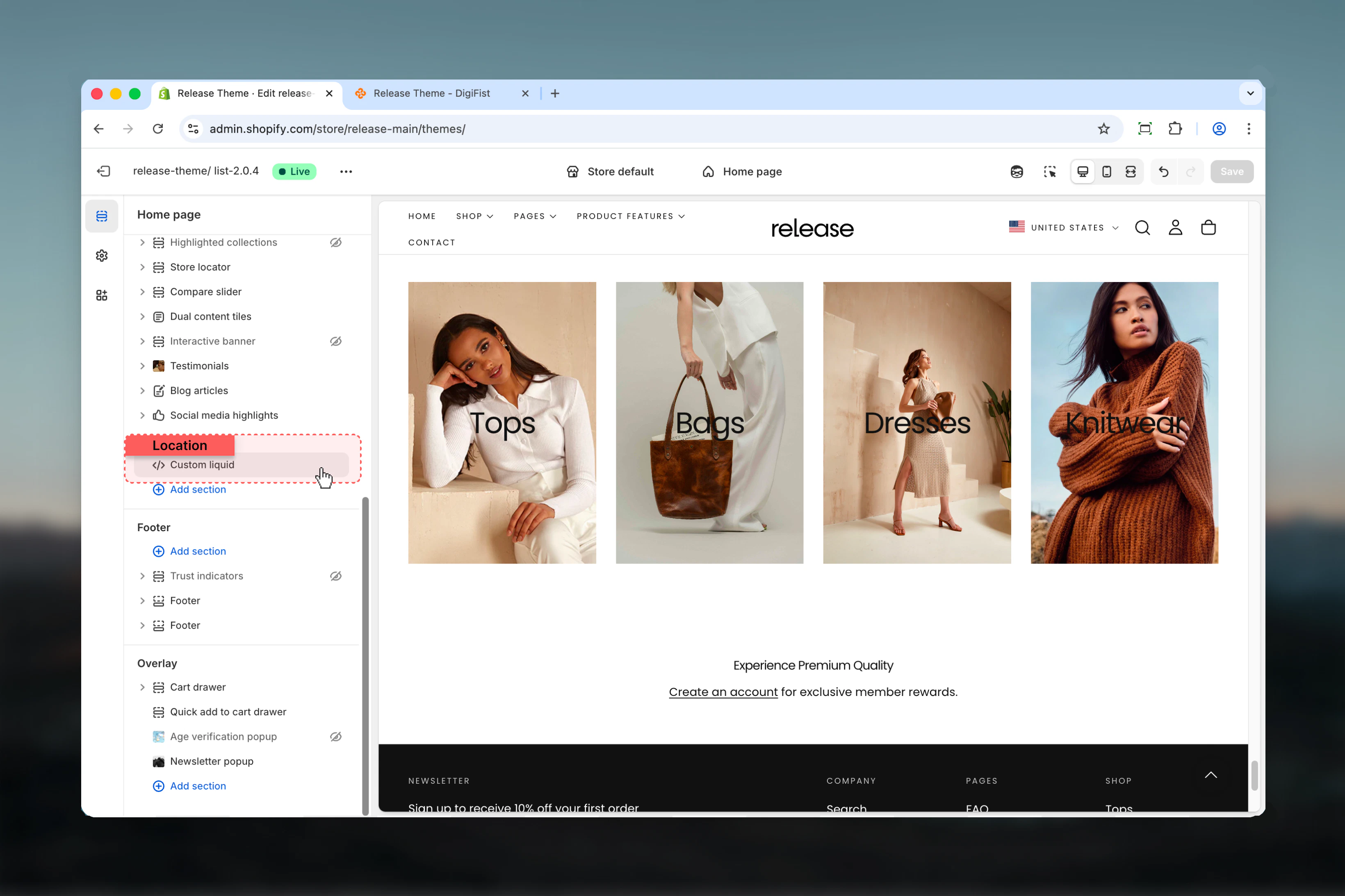
From Shopify admin, access the Theme Customizer.
Add the section where you need custom code.
Enter your custom Liquid, HTML, or app snippet code.
Set section width, color scheme, and spacing.
## What this section controls
* Custom Liquid code editor
* Section width and container options
* Color scheme selection
* Vertical spacing control
* Direct HTML/Liquid output
## Getting started
From Shopify admin, access the Theme Customizer.
Add the section where you need custom code.
Enter your custom Liquid, HTML, or app snippet code.
Set section width, color scheme, and spacing.
 ## Section settings
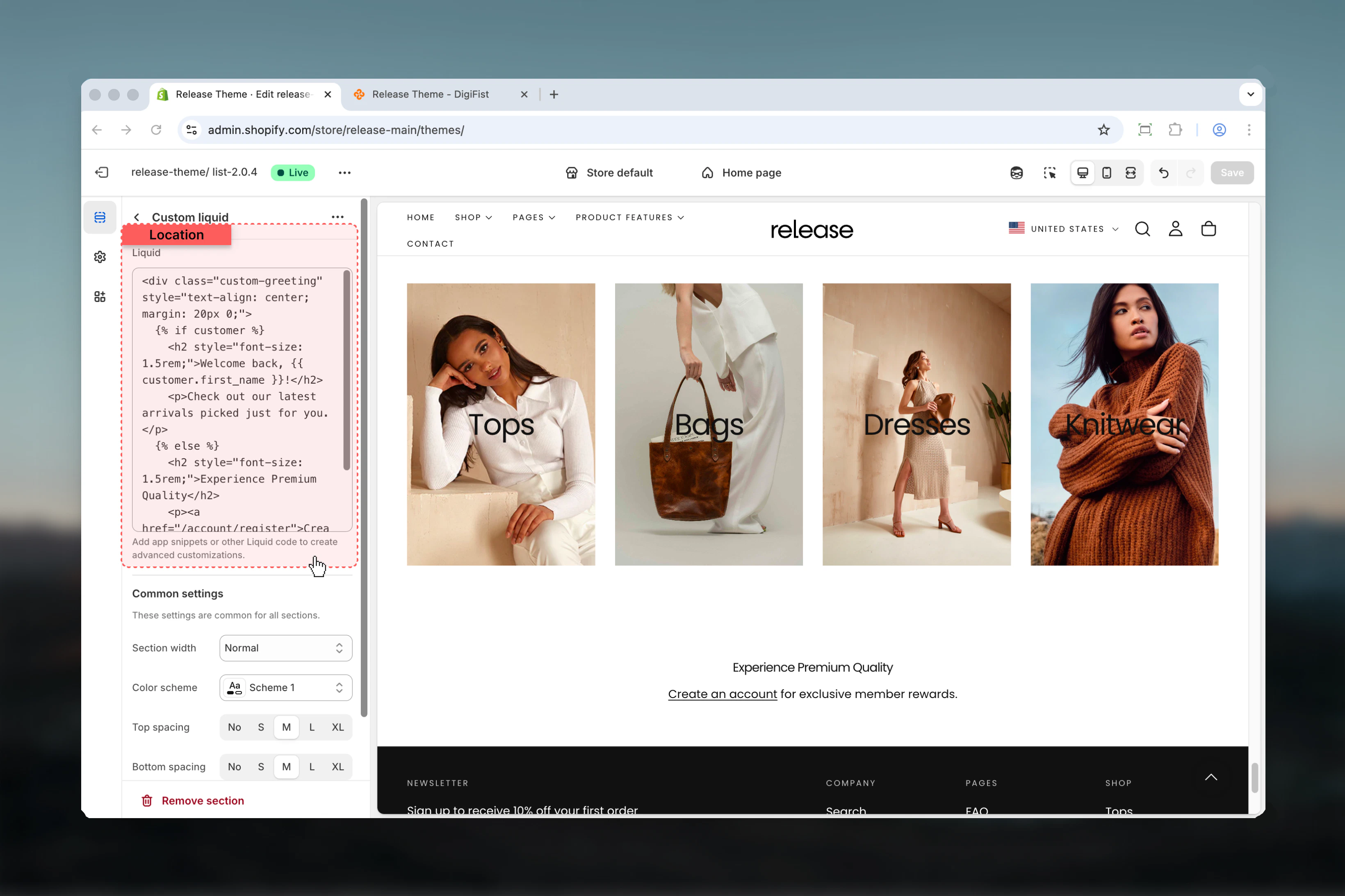
### Liquid
Custom Liquid code editor.
* Full Liquid syntax support
* HTML allowed
* App snippet integration
Add app snippets or other Liquid code to create advanced customizations.
Invalid Liquid code can break your theme. Always test in a duplicate theme first.
## Section settings
### Liquid
Custom Liquid code editor.
* Full Liquid syntax support
* HTML allowed
* App snippet integration
Add app snippets or other Liquid code to create advanced customizations.
Invalid Liquid code can break your theme. Always test in a duplicate theme first.
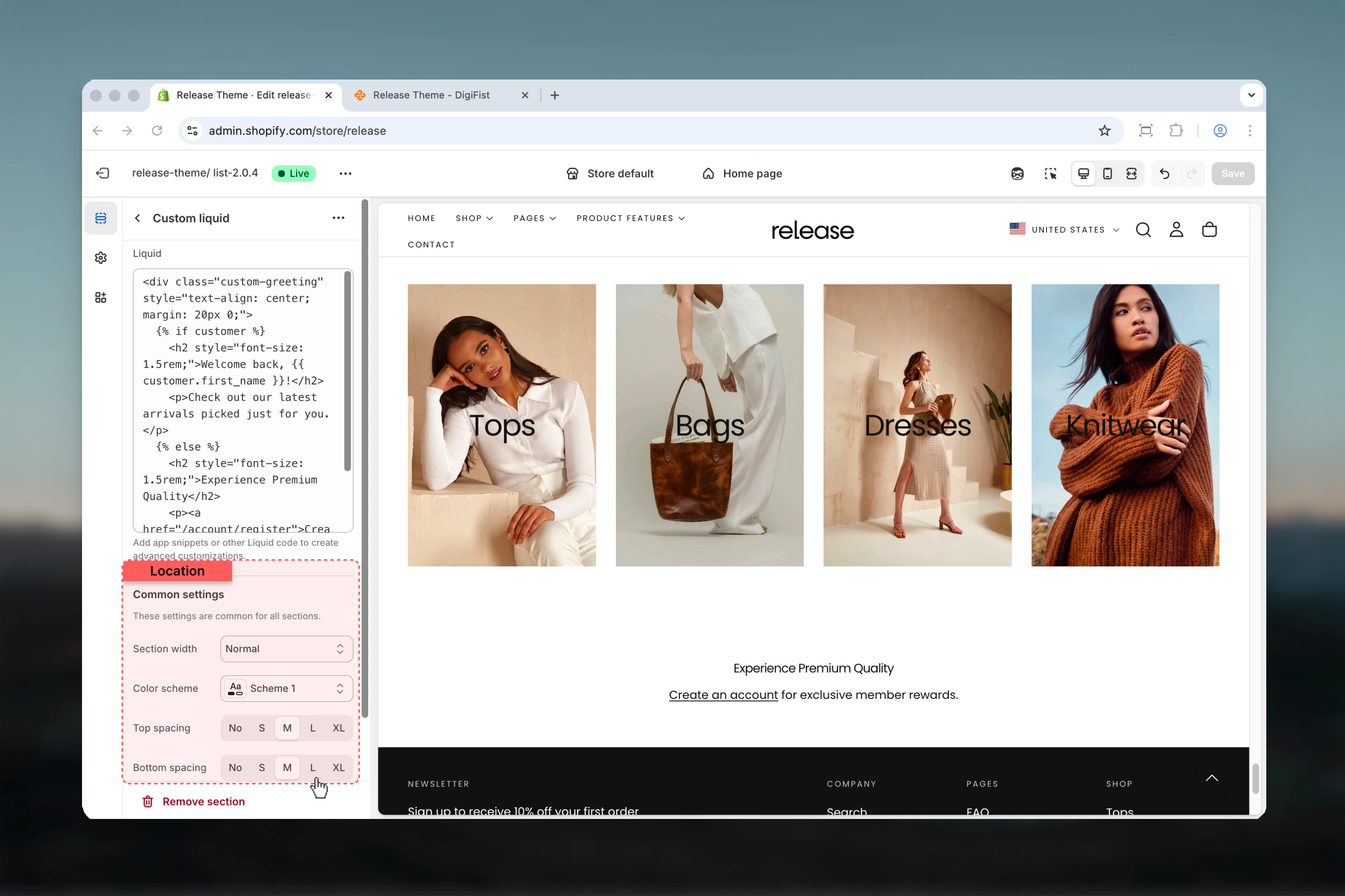
 ### Section width
Maximum width of content container.
**Available options:**
* **Page:** Standard page width
* **Narrower:** Narrower than page
* **Fluid:** Wider than page
* **Full:** Full viewport width
**Default:** Page
### Color scheme
Background and text colors for the section.
* Shopify color scheme selector
* **Default:** Scheme 1
### Spacing top
Space above section.
**Available options:** None, S, M, L, XL
**Default:** M
### Spacing bottom
Space below section.
**Available options:** None, S, M, L, XL
**Default:** M
### Section width
Maximum width of content container.
**Available options:**
* **Page:** Standard page width
* **Narrower:** Narrower than page
* **Fluid:** Wider than page
* **Full:** Full viewport width
**Default:** Page
### Color scheme
Background and text colors for the section.
* Shopify color scheme selector
* **Default:** Scheme 1
### Spacing top
Space above section.
**Available options:** None, S, M, L, XL
**Default:** M
### Spacing bottom
Space below section.
**Available options:** None, S, M, L, XL
**Default:** M
 ## Best practices
* Always test custom Liquid code in a duplicate theme before applying to live store
* Use proper Liquid syntax and validate code before publishing
* Comment your code for future reference and maintainability
* Keep code organized and indented for readability
* Test on multiple devices and browsers after adding custom code
* Use section width "Full" when creating full-width custom layouts
* Avoid complex logic that could slow down page load times
* Follow Shopify's Liquid best practices and coding standards
* Use app snippets from trusted Shopify apps only
* Document what custom code does for future maintenance
## Common use cases
* **App integrations** - Add third-party app widgets and functionality
* **Custom HTML widgets** - Insert custom HTML elements not available in theme
* **Advanced product displays** - Create custom product layouts with Liquid
* **Custom forms** - Build specialized contact or registration forms
* **External embeds** - Integrate external services and tools
* **Custom data display** - Show metafields or custom product data
* **Analytics tracking** - Add custom tracking scripts (use responsibly)
* **A/B testing** - Implement custom A/B testing code
## Liquid resources
Official Liquid documentation
Shopify theme development docs
## Related guides
Learn about common settings shared across sections
## Best practices
* Always test custom Liquid code in a duplicate theme before applying to live store
* Use proper Liquid syntax and validate code before publishing
* Comment your code for future reference and maintainability
* Keep code organized and indented for readability
* Test on multiple devices and browsers after adding custom code
* Use section width "Full" when creating full-width custom layouts
* Avoid complex logic that could slow down page load times
* Follow Shopify's Liquid best practices and coding standards
* Use app snippets from trusted Shopify apps only
* Document what custom code does for future maintenance
## Common use cases
* **App integrations** - Add third-party app widgets and functionality
* **Custom HTML widgets** - Insert custom HTML elements not available in theme
* **Advanced product displays** - Create custom product layouts with Liquid
* **Custom forms** - Build specialized contact or registration forms
* **External embeds** - Integrate external services and tools
* **Custom data display** - Show metafields or custom product data
* **Analytics tracking** - Add custom tracking scripts (use responsibly)
* **A/B testing** - Implement custom A/B testing code
## Liquid resources
Official Liquid documentation
Shopify theme development docs
## Related guides
Learn about common settings shared across sections