> ## Documentation Index
> Fetch the complete documentation index at: https://docs.digifist.com/llms.txt
> Use this file to discover all available pages before exploring further.
# Map
> Embed a Google Map displaying a specific location with customizable zoom level and styling.
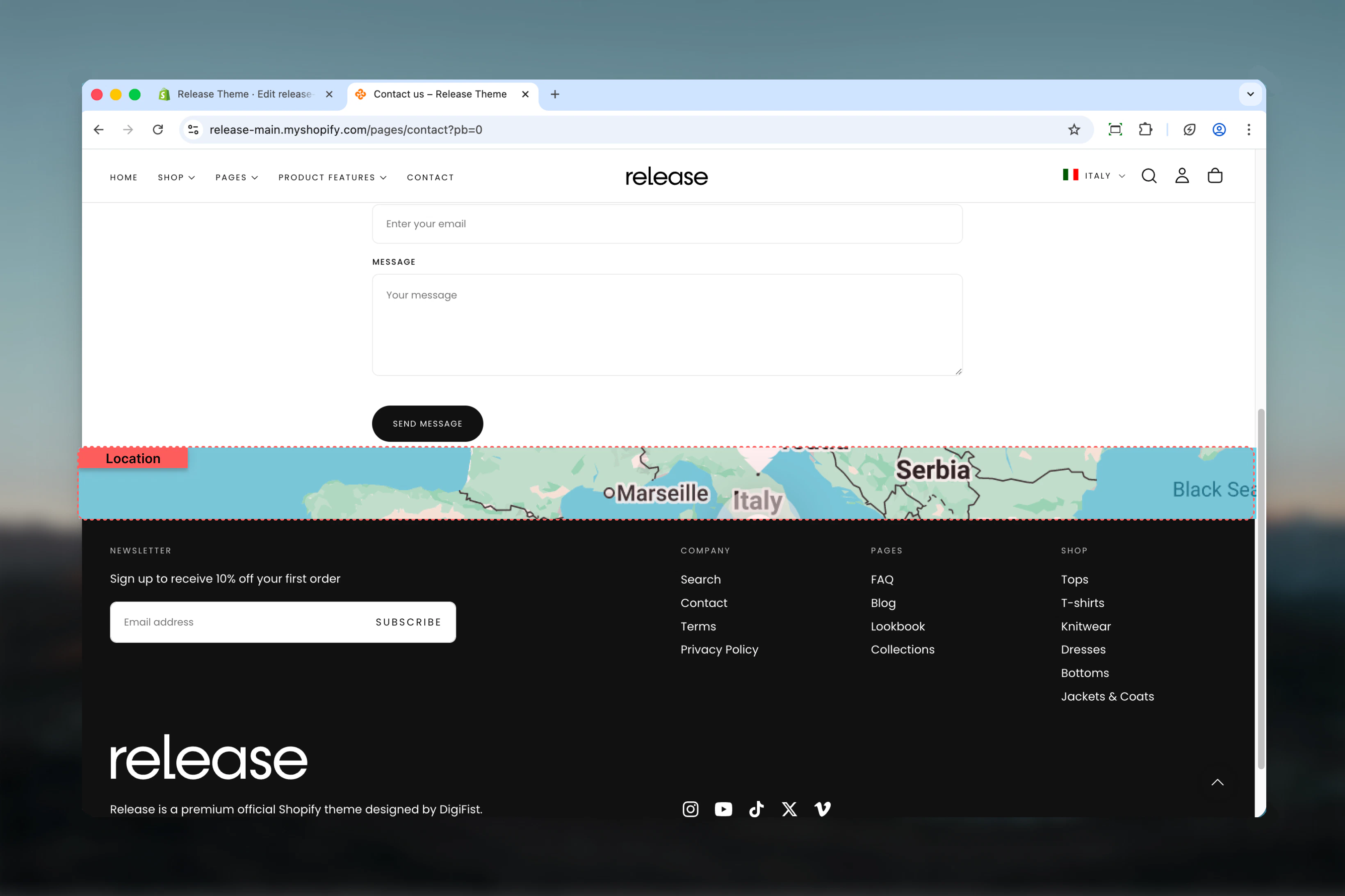
The Map section embeds a Google Map displaying a specific location or address. It uses the Google Maps Embed API to show an interactive map with customizable zoom level and styling.
Map sections are essential for showcasing physical store locations, office addresses, or event venues, helping customers find your business easily.
 ## What this section controls
This section controls map displays with the following capabilities:
* Google Maps Embed API integration
* Shop address default or custom address input
* Zoom level control (0-21)
* Responsive iframe embed
* Multiple section width options
* Border radius customization
## How the Map section works
The Map section displays an embedded Google Map:
* Requires a Google Maps API key to function
* Uses shop address by default or accepts custom address
* Configurable zoom level (0-21)
* Responsive iframe embed with border radius
* Full width or contained layout options
## Getting started
Create a Google Maps API key in Google Cloud Console. [Learn how](https://support.google.com/googleapi/answer/6158862?hl=en)
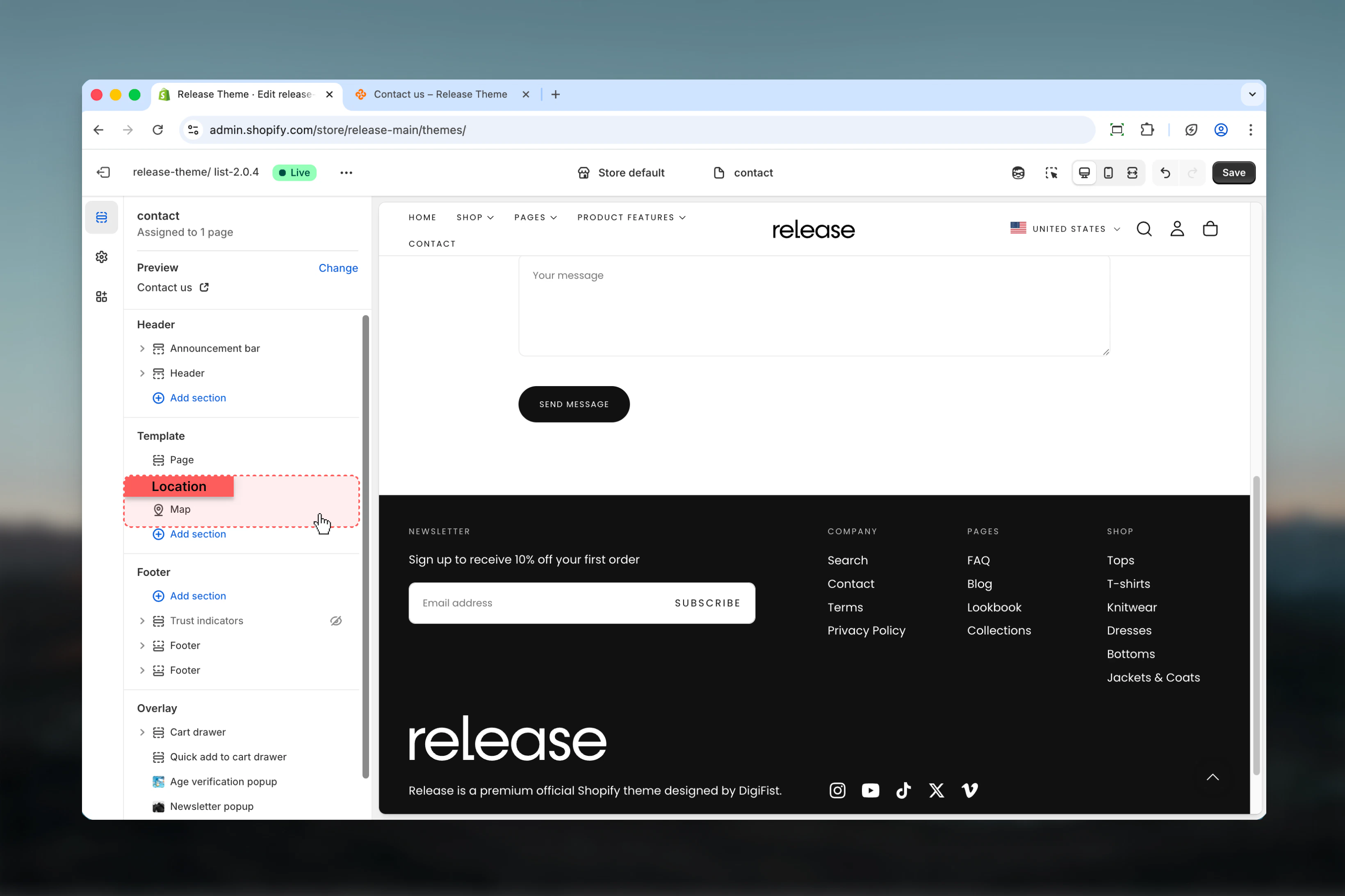
From Shopify admin, access the Theme Customizer.
Add the Map section to your page or template.
Enter your API key, set address (optional), and adjust zoom level.
## What this section controls
This section controls map displays with the following capabilities:
* Google Maps Embed API integration
* Shop address default or custom address input
* Zoom level control (0-21)
* Responsive iframe embed
* Multiple section width options
* Border radius customization
## How the Map section works
The Map section displays an embedded Google Map:
* Requires a Google Maps API key to function
* Uses shop address by default or accepts custom address
* Configurable zoom level (0-21)
* Responsive iframe embed with border radius
* Full width or contained layout options
## Getting started
Create a Google Maps API key in Google Cloud Console. [Learn how](https://support.google.com/googleapi/answer/6158862?hl=en)
From Shopify admin, access the Theme Customizer.
Add the Map section to your page or template.
Enter your API key, set address (optional), and adjust zoom level.
 ## Section settings
Section settings control map configuration and display options.
### API key
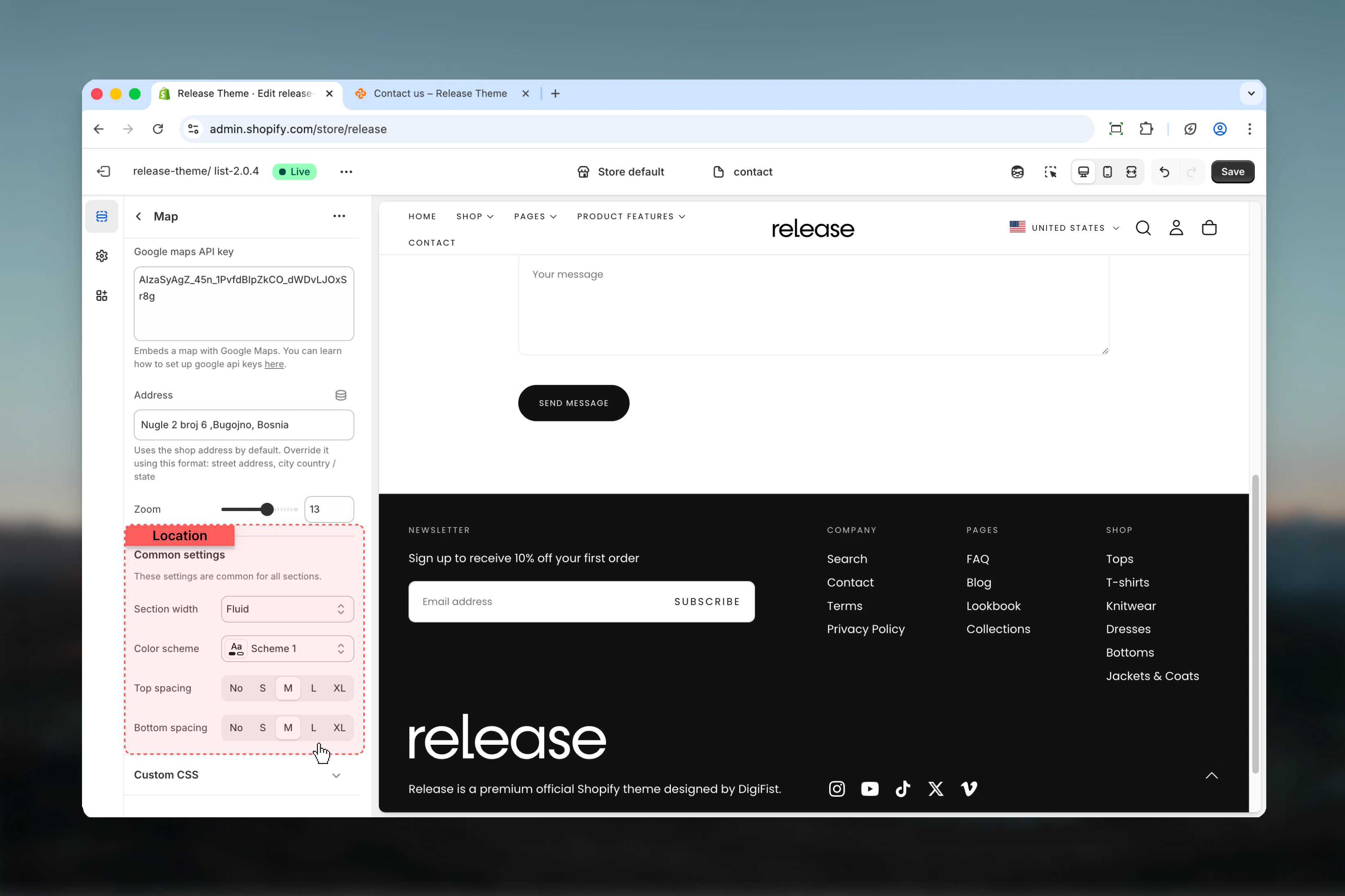
Google Maps API key for embedding maps.
**Type:** Text area
The map will not display without a valid API key.
## Section settings
Section settings control map configuration and display options.
### API key
Google Maps API key for embedding maps.
**Type:** Text area
The map will not display without a valid API key.
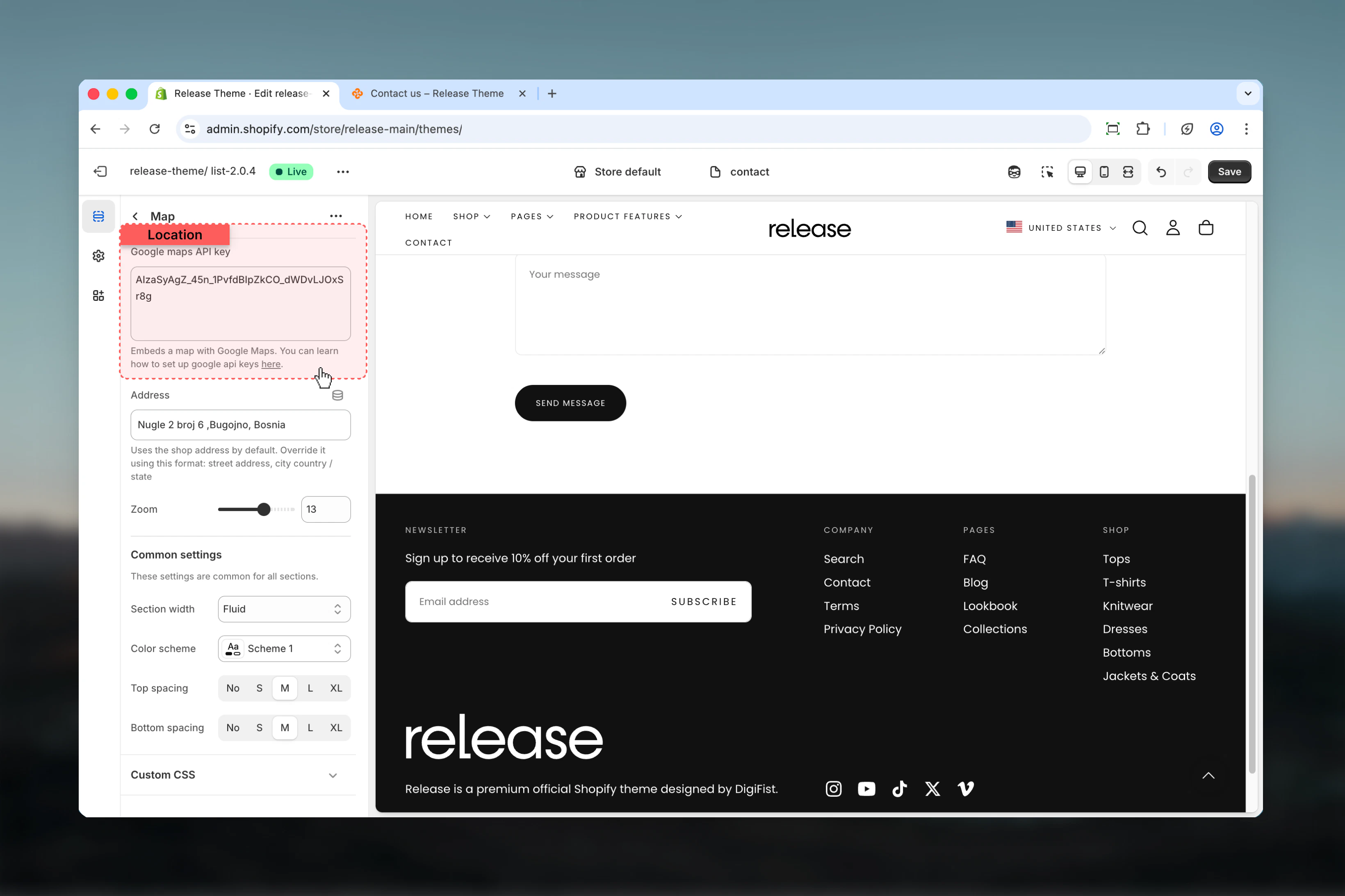 You can learn how to set up Google API keys [here](https://support.google.com/googleapi/answer/6158862?hl=en).
### Address
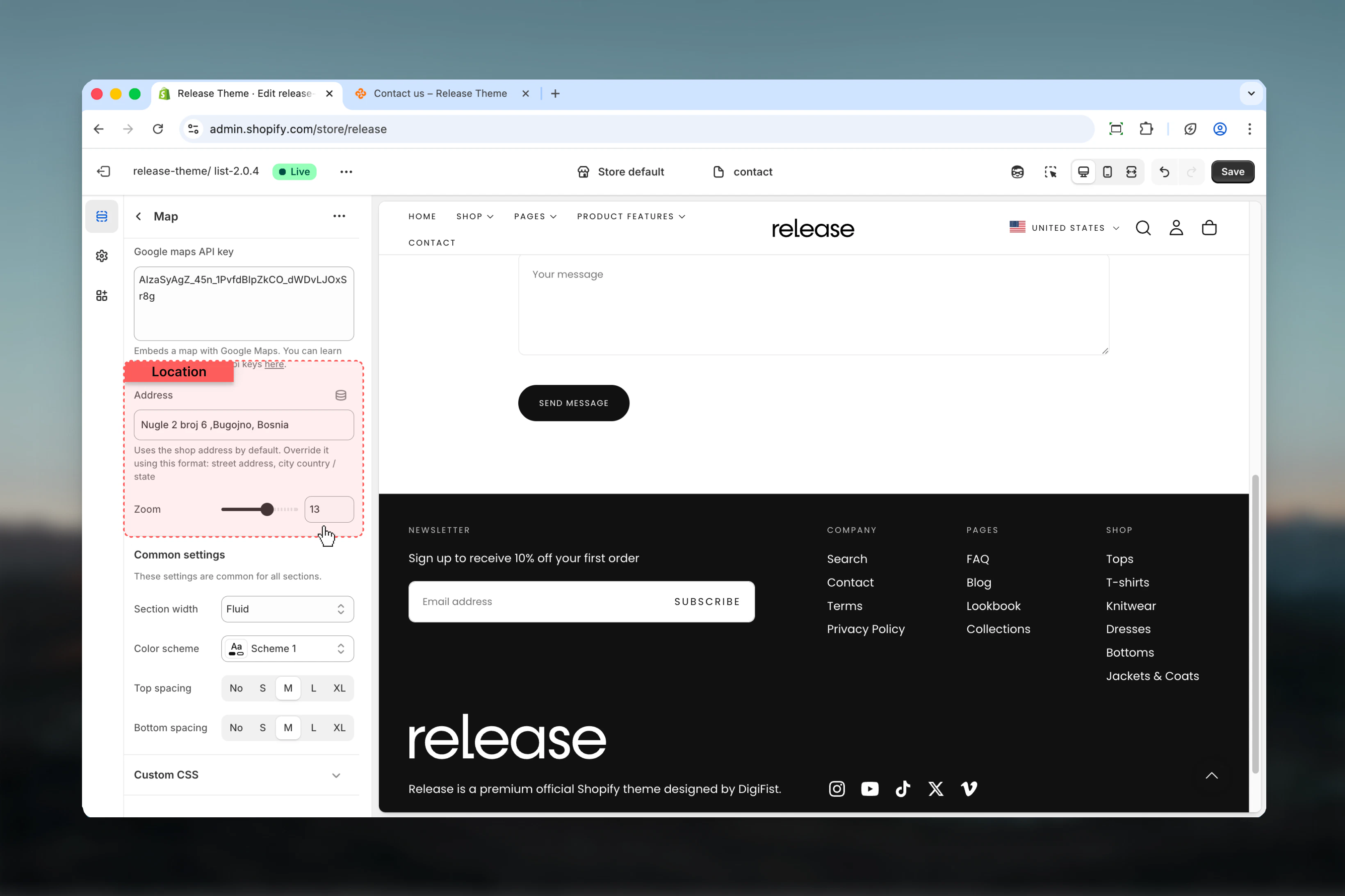
Custom address to display on the map.
**Type:** Text input
Uses the shop address by default. Override it using this format: street address, city country / state
### Zoom level
Controls the zoom level of the map.
**Range:** 0 – 21
**Default:** 16
* Lower values show larger area
* Higher values show more detail
You can learn how to set up Google API keys [here](https://support.google.com/googleapi/answer/6158862?hl=en).
### Address
Custom address to display on the map.
**Type:** Text input
Uses the shop address by default. Override it using this format: street address, city country / state
### Zoom level
Controls the zoom level of the map.
**Range:** 0 – 21
**Default:** 16
* Lower values show larger area
* Higher values show more detail
 ### Section width
Controls the maximum width of the map.
**Available options:**
* **Page:** Standard page width
* **Narrower:** Narrower than page width
* **Fluid:** Wider than page width
* **Full:** Full viewport width
**Default:** Full
### Color scheme
Controls background and text colors for the section container.
* Shopify color scheme selector
* **Default:** Scheme 1
### Spacing top
Controls spacing above the section.
**Available options:** None, S, M, L, XL
**Default:** M
### Spacing bottom
Controls spacing below the section.
**Available options:** None, S, M, L, XL
**Default:** M
### Section width
Controls the maximum width of the map.
**Available options:**
* **Page:** Standard page width
* **Narrower:** Narrower than page width
* **Fluid:** Wider than page width
* **Full:** Full viewport width
**Default:** Full
### Color scheme
Controls background and text colors for the section container.
* Shopify color scheme selector
* **Default:** Scheme 1
### Spacing top
Controls spacing above the section.
**Available options:** None, S, M, L, XL
**Default:** M
### Spacing bottom
Controls spacing below the section.
**Available options:** None, S, M, L, XL
**Default:** M
 ## Best practices
* Set up Google Maps API key with proper restrictions for security
* Use full address format for accurate location display (street address, city, country/state)
* Test zoom level to ensure relevant landmarks are visible
* Consider using full width for prominent store location displays
* Use narrower or page width for inline contact page maps
* Add address information in surrounding content for accessibility
* Test map loading on different connection speeds
* Consider adding a fallback address link for users with JavaScript disabled
* Keep API key secure and monitor usage in Google Cloud Console
* Restrict API key to your domain to prevent unauthorized usage
## Common use cases
* **Store locator page** - Display primary store location on a dedicated page
* **Contact page** - Show office or retail location alongside contact information
* **About page** - Highlight headquarters or flagship store location
* **Event page** - Display event venue location for in-person gatherings
* **Multiple locations** - Use multiple map sections for businesses with several physical locations
## Related guides
Learn about common settings shared across sections
## Best practices
* Set up Google Maps API key with proper restrictions for security
* Use full address format for accurate location display (street address, city, country/state)
* Test zoom level to ensure relevant landmarks are visible
* Consider using full width for prominent store location displays
* Use narrower or page width for inline contact page maps
* Add address information in surrounding content for accessibility
* Test map loading on different connection speeds
* Consider adding a fallback address link for users with JavaScript disabled
* Keep API key secure and monitor usage in Google Cloud Console
* Restrict API key to your domain to prevent unauthorized usage
## Common use cases
* **Store locator page** - Display primary store location on a dedicated page
* **Contact page** - Show office or retail location alongside contact information
* **About page** - Highlight headquarters or flagship store location
* **Event page** - Display event venue location for in-person gatherings
* **Multiple locations** - Use multiple map sections for businesses with several physical locations
## Related guides
Learn about common settings shared across sections