> ## Documentation Index
> Fetch the complete documentation index at: https://docs.digifist.com/llms.txt
> Use this file to discover all available pages before exploring further.
# Newsletter Popup
> Display a timed popup modal to capture email subscriptions with customizable content and delay.
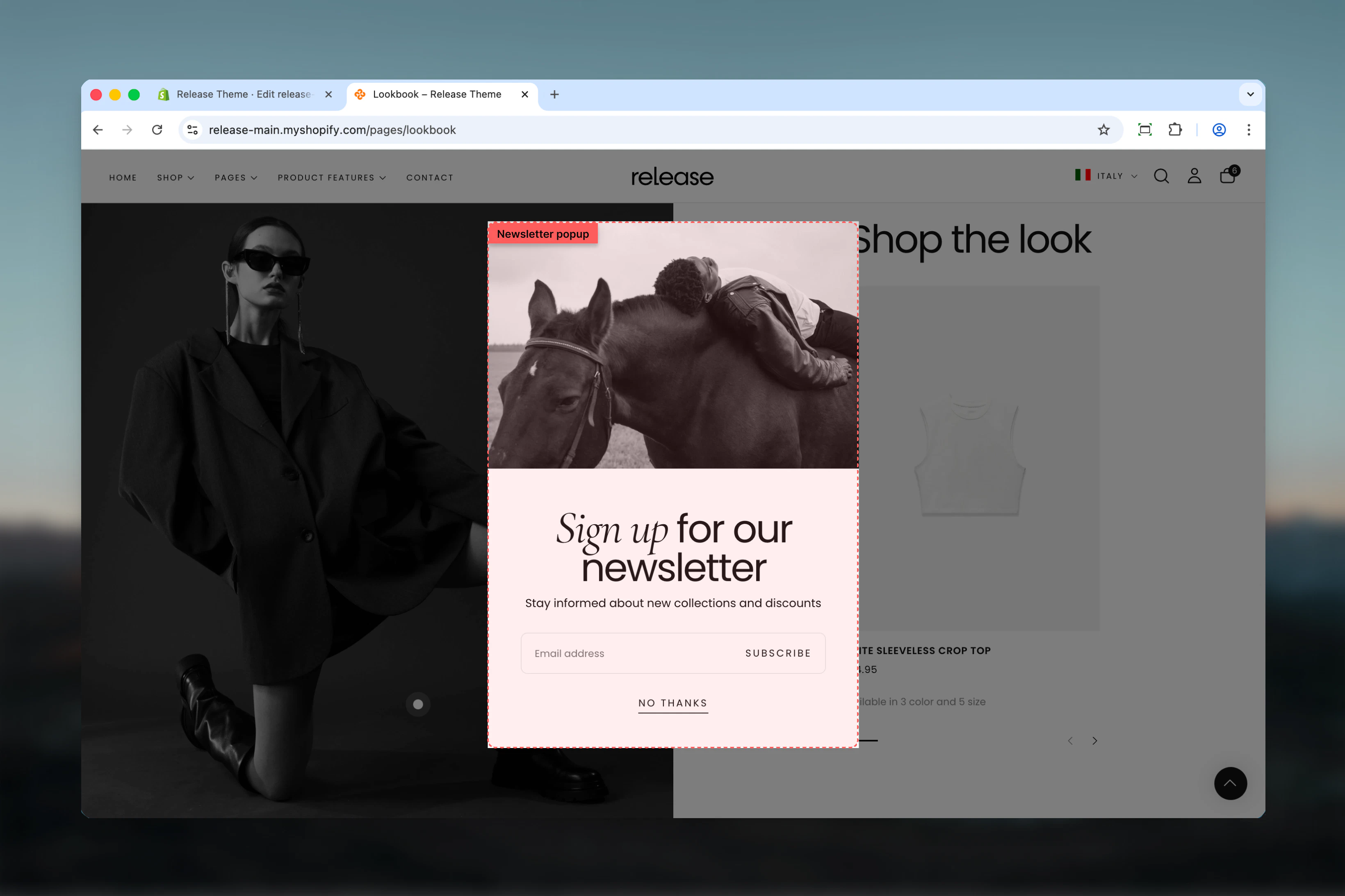
The Newsletter Popup section creates a modal popup that appears after a configurable delay to capture email subscriptions. The popup includes optional imagery, customizable text, and an integrated newsletter signup form.
This section is essential for building your email list and engaging first-time visitors with special offers or exclusive content.
 ## What this section controls
This section controls newsletter popup display with the following capabilities:
* Timed appearance after page load (4-30 seconds)
* Optional image for visual appeal
* Customizable heading and text
* Integrated newsletter signup form
* Friendly close/dismiss option
* Theme Customizer preview mode
## How the Newsletter Popup section works
The Newsletter Popup displays a modal overlay:
* Appears automatically after configured delay
* Shows optional image alongside content
* Displays heading, text, and email form
* User can submit email or close popup
* Remembers if user dismissed (session-based)
* Mobile responsive design
## Getting started
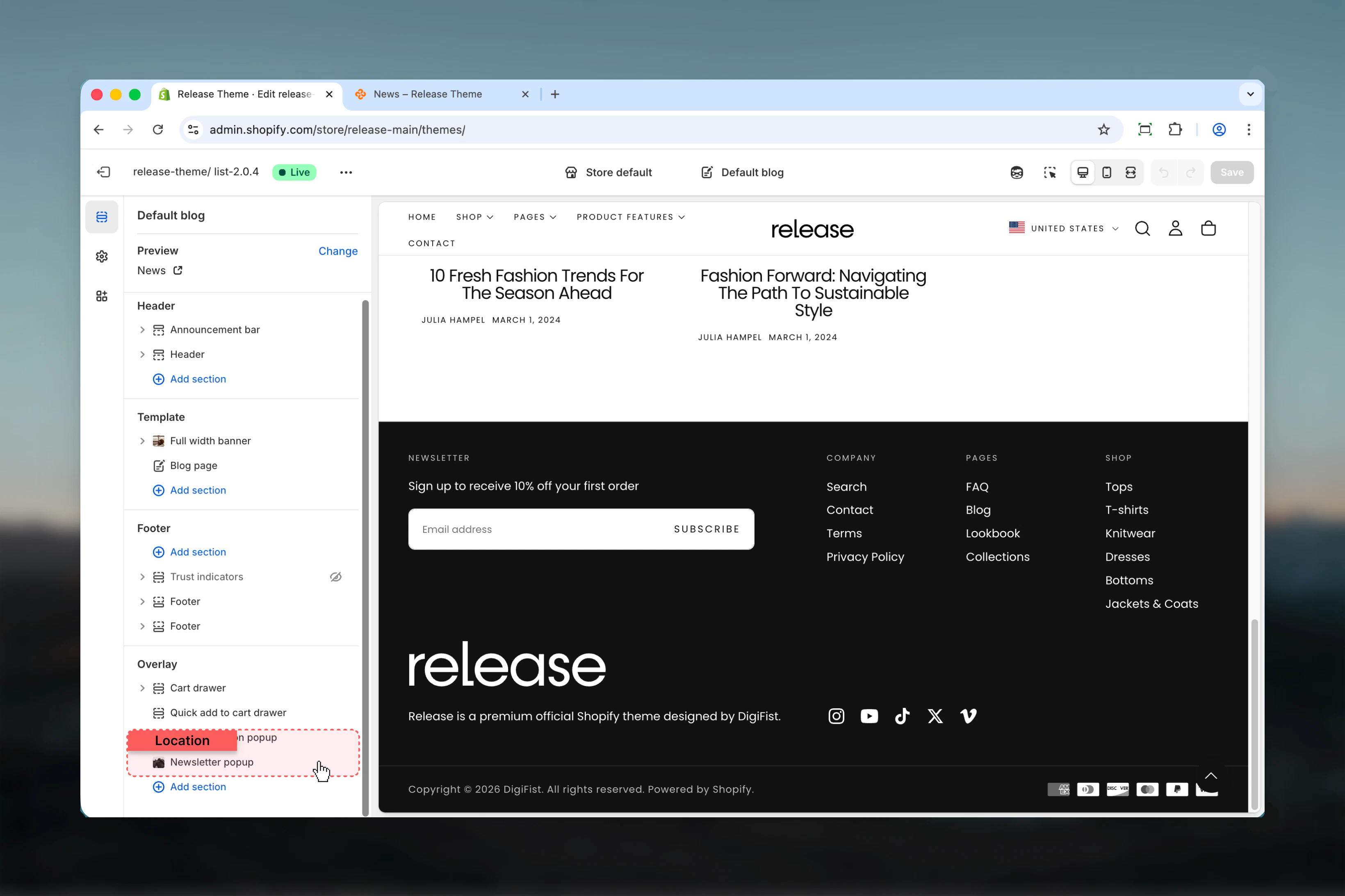
From Shopify admin, access the Theme Customizer.
This section is typically added to your theme's global sections.
Set heading, text, and optional image.
Adjust delay to control when popup appears (recommend 10-15 seconds).
## What this section controls
This section controls newsletter popup display with the following capabilities:
* Timed appearance after page load (4-30 seconds)
* Optional image for visual appeal
* Customizable heading and text
* Integrated newsletter signup form
* Friendly close/dismiss option
* Theme Customizer preview mode
## How the Newsletter Popup section works
The Newsletter Popup displays a modal overlay:
* Appears automatically after configured delay
* Shows optional image alongside content
* Displays heading, text, and email form
* User can submit email or close popup
* Remembers if user dismissed (session-based)
* Mobile responsive design
## Getting started
From Shopify admin, access the Theme Customizer.
This section is typically added to your theme's global sections.
Set heading, text, and optional image.
Adjust delay to control when popup appears (recommend 10-15 seconds).
 ## Section settings
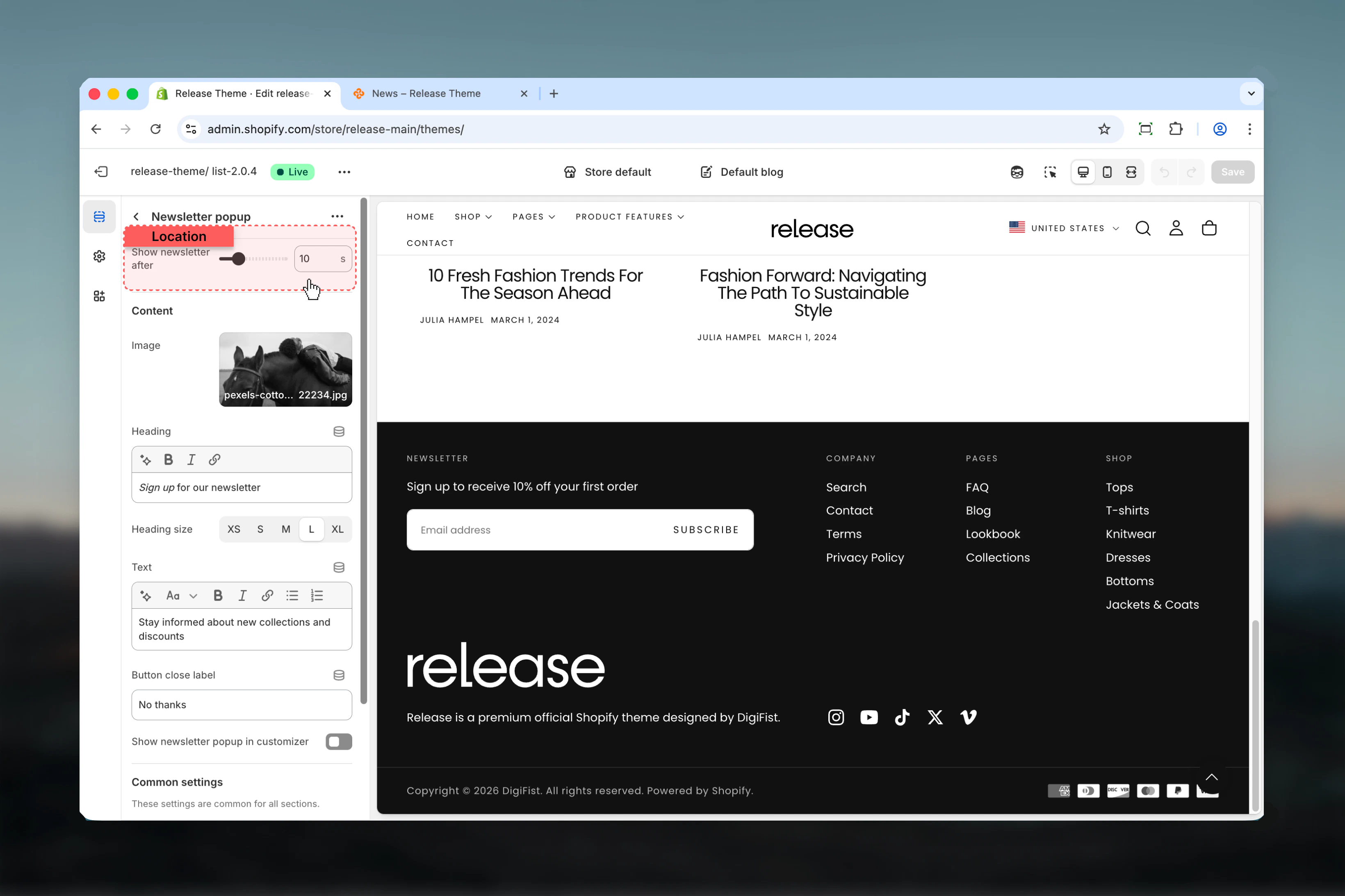
### Show newsletter after
Controls when the popup appears after page load.
**Range:** 4 – 30 seconds
**Default:** 10 seconds
Setting the delay too short (\< 8 seconds) may interrupt users before they engage with your content.
A delay of 10-15 seconds balances user experience with conversion opportunity.
## Section settings
### Show newsletter after
Controls when the popup appears after page load.
**Range:** 4 – 30 seconds
**Default:** 10 seconds
Setting the delay too short (\< 8 seconds) may interrupt users before they engage with your content.
A delay of 10-15 seconds balances user experience with conversion opportunity.
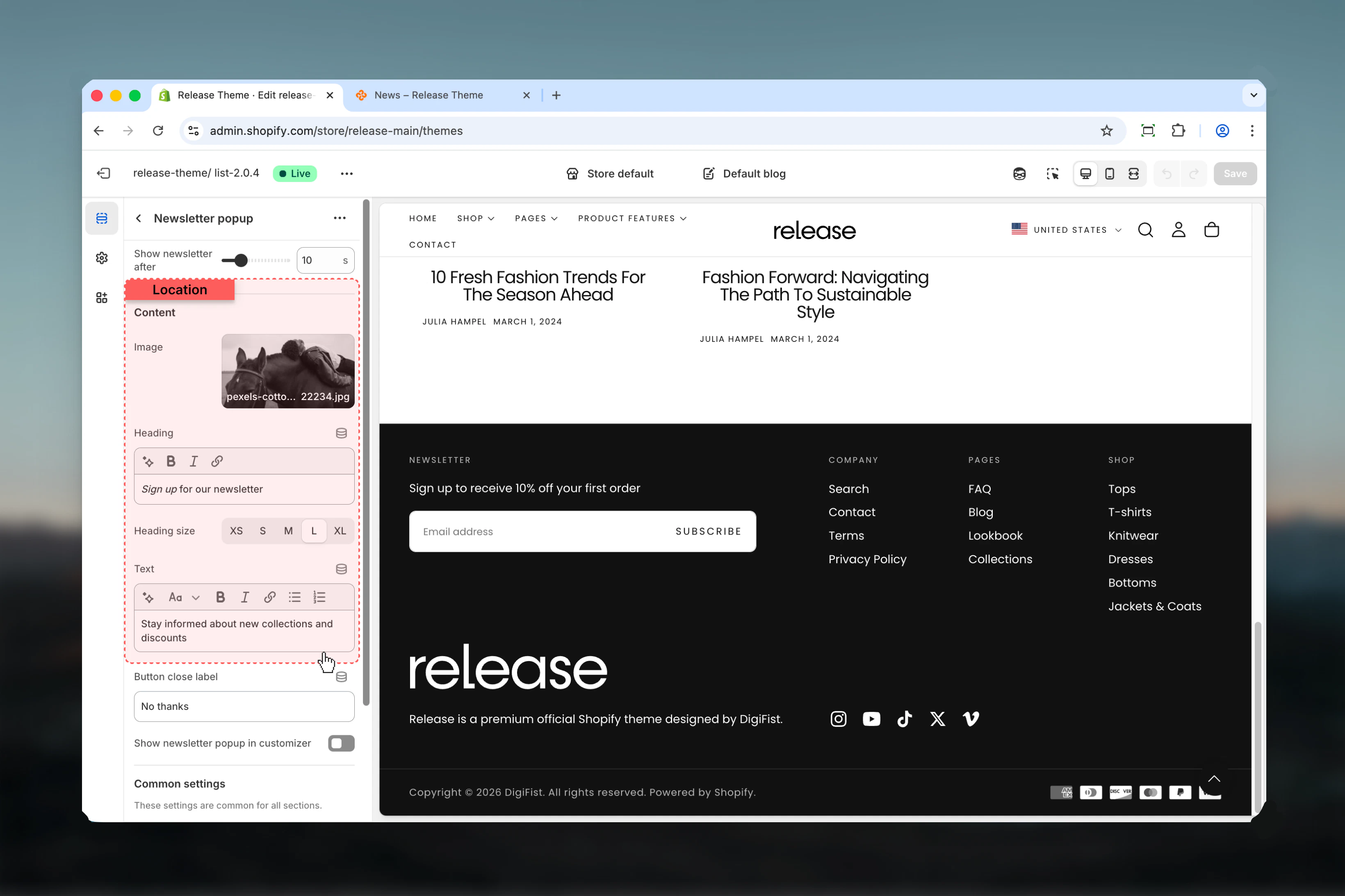
 ### Image
Optional image displayed in the popup.
* Shopify image picker
* Displays on left side (desktop)
* Renders at 550px width
Use brand imagery or product visuals that support your newsletter value proposition.
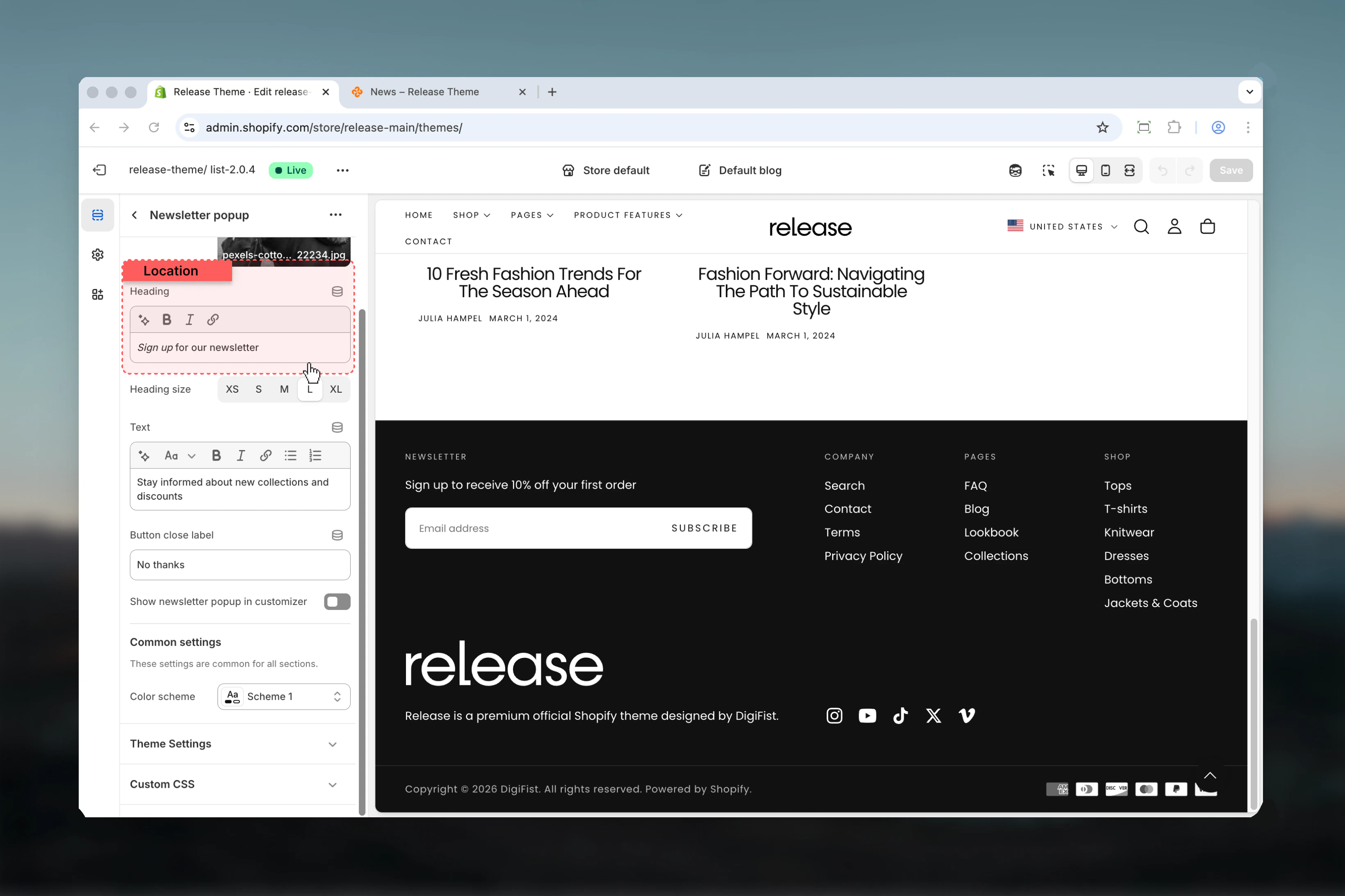
### Heading
Main heading text for the popup.
* Inline rich text supported
* **Default:** "Newsletter heading here"
### Heading size
Controls the size of heading text.
**Available options:** XS, S, M, L, XL
**Default:** L
### Text
Descriptive text below heading.
* Rich text supported (paragraphs, formatting)
* **Default:** "An example subheading for new subscribers."
Keep text brief (1-2 sentences) to maintain focus on the signup form.
### Image
Optional image displayed in the popup.
* Shopify image picker
* Displays on left side (desktop)
* Renders at 550px width
Use brand imagery or product visuals that support your newsletter value proposition.
### Heading
Main heading text for the popup.
* Inline rich text supported
* **Default:** "Newsletter heading here"
### Heading size
Controls the size of heading text.
**Available options:** XS, S, M, L, XL
**Default:** L
### Text
Descriptive text below heading.
* Rich text supported (paragraphs, formatting)
* **Default:** "An example subheading for new subscribers."
Keep text brief (1-2 sentences) to maintain focus on the signup form.
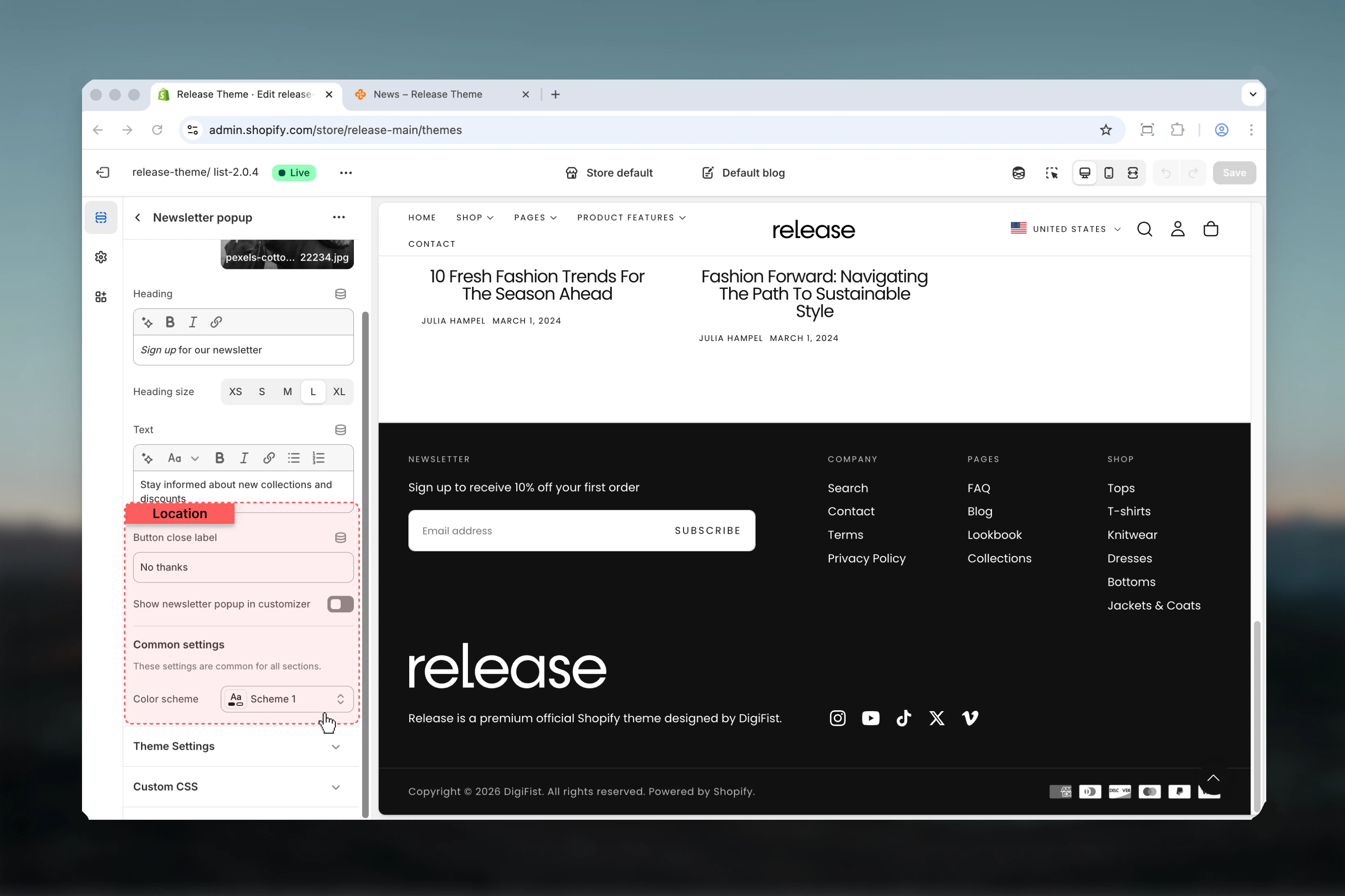
 ### Button close label
Text for the close/dismiss link.
* **Default:** "No thanks"
Use friendly language that doesn't pressure users. "No thanks" or "Maybe later" work well.
### Show newsletter popup in customizer
Controls whether popup displays in Theme Customizer.
**Options:** True / False
**Default:** False
Enable this temporarily to preview and style your popup without waiting for the delay.
### Color scheme
Controls background and text colors for the popup.
* Shopify color scheme selector
* **Default:** Scheme 1
Ensure your color scheme provides sufficient contrast for readability and accessibility.
### Button close label
Text for the close/dismiss link.
* **Default:** "No thanks"
Use friendly language that doesn't pressure users. "No thanks" or "Maybe later" work well.
### Show newsletter popup in customizer
Controls whether popup displays in Theme Customizer.
**Options:** True / False
**Default:** False
Enable this temporarily to preview and style your popup without waiting for the delay.
### Color scheme
Controls background and text colors for the popup.
* Shopify color scheme selector
* **Default:** Scheme 1
Ensure your color scheme provides sufficient contrast for readability and accessibility.
 ## Newsletter form
The popup includes an integrated newsletter signup form:
* **Email input field** - Standard email validation
* **Submit button** - Label from theme translations
* **Form handling** - Integrates with Shopify customer accounts
* **Error messaging** - Displays validation errors
* **Success state** - Shows confirmation message
## Newsletter form
The popup includes an integrated newsletter signup form:
* **Email input field** - Standard email validation
* **Submit button** - Label from theme translations
* **Form handling** - Integrates with Shopify customer accounts
* **Error messaging** - Displays validation errors
* **Success state** - Shows confirmation message
 ## Best practices
* Set delay to 10-15 seconds to allow users to engage with page content first
* Keep heading concise and value-focused - emphasize benefits like "Get 10% off" or "Exclusive access"
* Use high-quality brand imagery that supports your value proposition
* Make close button text friendly and non-pushy - "No thanks" or "Maybe later" work well
* Enable "Show in customizer" temporarily for testing appearance without waiting
* Avoid very short delays (\< 8 seconds) that interrupt users immediately
* Test with different color schemes to ensure popup stands out but doesn't clash
* Keep descriptive text brief - one or two sentences maximum for quick scanning
* Ensure color scheme provides strong contrast for text readability and accessibility
* Consider A/B testing different delays, headlines, and images to optimize conversion
## Common use cases
* **Email list building** - Capture subscriber emails on homepage and key landing pages
* **First-time visitor capture** - Engage new visitors with welcome offers
* **Special offer announcements** - Promote limited-time discounts or free shipping
* **Exclusive content access** - Gate premium content like guides or lookbooks
* **Product launch notifications** - Build pre-launch email list for new products
* **Seasonal campaign signups** - Capture emails for holiday sales or seasonal collections
* **VIP club invitations** - Invite customers to join loyalty programs
* **Early access signups** - Offer early access to sales or new releases
## Related guides
Learn about common settings shared across sections
## Best practices
* Set delay to 10-15 seconds to allow users to engage with page content first
* Keep heading concise and value-focused - emphasize benefits like "Get 10% off" or "Exclusive access"
* Use high-quality brand imagery that supports your value proposition
* Make close button text friendly and non-pushy - "No thanks" or "Maybe later" work well
* Enable "Show in customizer" temporarily for testing appearance without waiting
* Avoid very short delays (\< 8 seconds) that interrupt users immediately
* Test with different color schemes to ensure popup stands out but doesn't clash
* Keep descriptive text brief - one or two sentences maximum for quick scanning
* Ensure color scheme provides strong contrast for text readability and accessibility
* Consider A/B testing different delays, headlines, and images to optimize conversion
## Common use cases
* **Email list building** - Capture subscriber emails on homepage and key landing pages
* **First-time visitor capture** - Engage new visitors with welcome offers
* **Special offer announcements** - Promote limited-time discounts or free shipping
* **Exclusive content access** - Gate premium content like guides or lookbooks
* **Product launch notifications** - Build pre-launch email list for new products
* **Seasonal campaign signups** - Capture emails for holiday sales or seasonal collections
* **VIP club invitations** - Invite customers to join loyalty programs
* **Early access signups** - Offer early access to sales or new releases
## Related guides
Learn about common settings shared across sections