> ## Documentation Index
> Fetch the complete documentation index at: https://docs.digifist.com/llms.txt
> Use this file to discover all available pages before exploring further.
# Quick Add to Cart Drawer
> Configure the quick add drawer that appears when customers click quick add buttons on product cards.
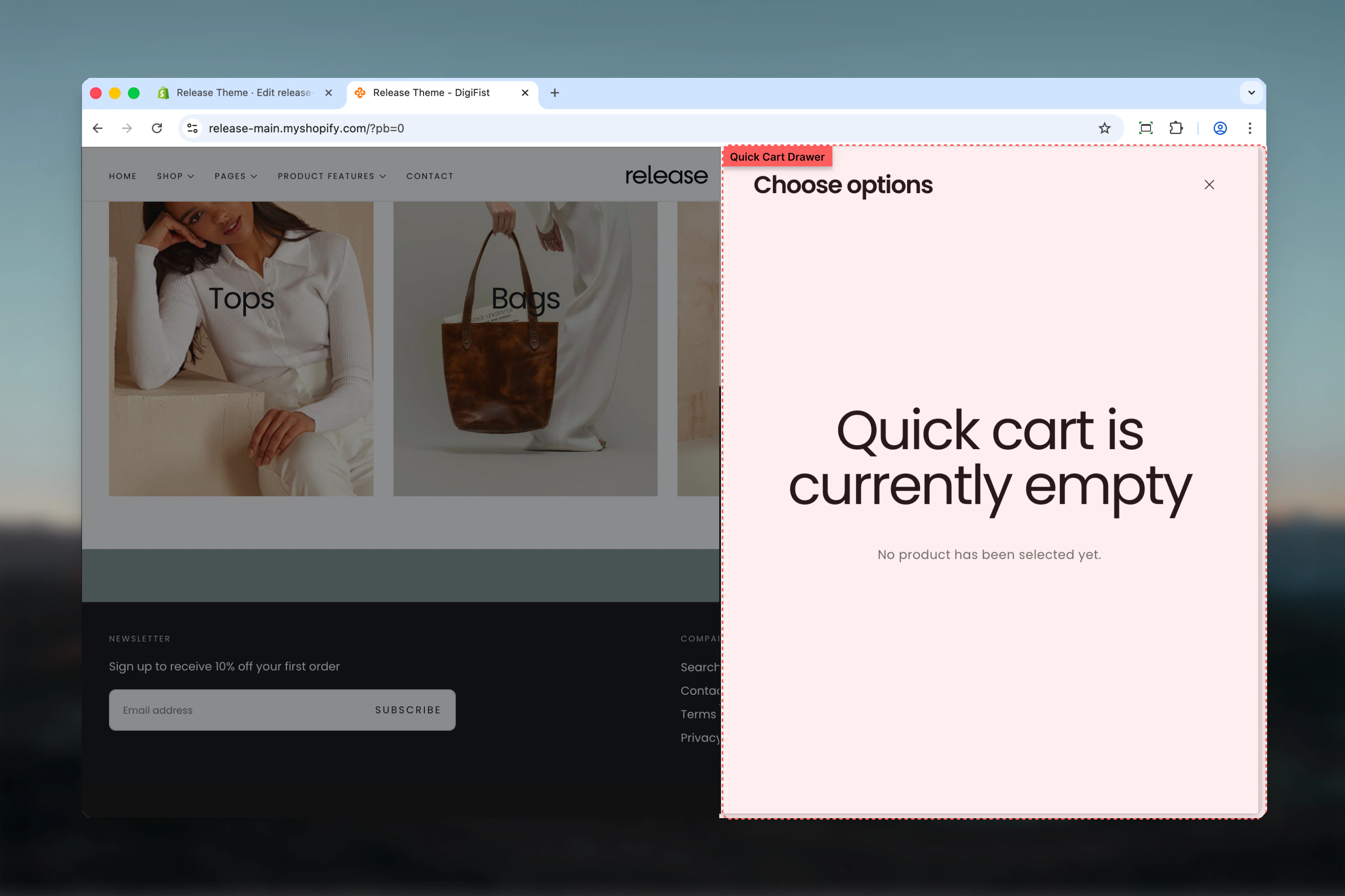
The Quick Add to Cart Drawer section controls the drawer that displays product options when customers click "Quick Add" buttons on product cards throughout the site.
 ## What this section controls
* Quick add drawer appearance
* Product option selection interface
* Color scheme for drawer
* Empty state messaging
## How it works
When quick add buttons are enabled in theme settings:
1. Customer clicks "Quick Add" on a product card
2. Drawer opens showing product options (variants, quantity)
3. Customer selects options and adds to cart
4. Drawer closes automatically after adding
## Section settings
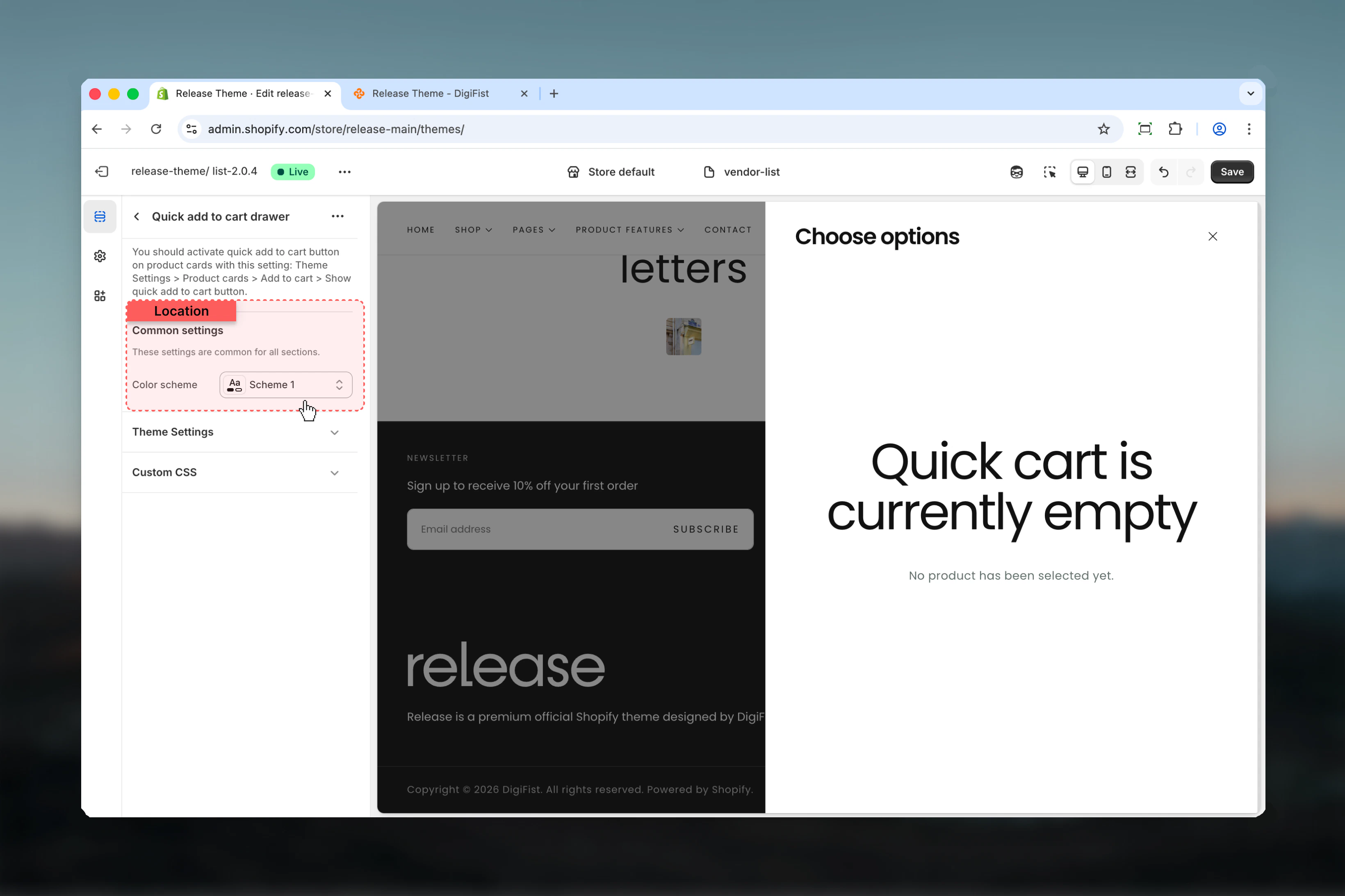
### Color scheme
Background and text colors for the drawer.
* Shopify color scheme selector
* **Default:** Scheme 1
This section only appears when "Enable quick add to cart button" is enabled in Theme Settings > Products.
## What this section controls
* Quick add drawer appearance
* Product option selection interface
* Color scheme for drawer
* Empty state messaging
## How it works
When quick add buttons are enabled in theme settings:
1. Customer clicks "Quick Add" on a product card
2. Drawer opens showing product options (variants, quantity)
3. Customer selects options and adds to cart
4. Drawer closes automatically after adding
## Section settings
### Color scheme
Background and text colors for the drawer.
* Shopify color scheme selector
* **Default:** Scheme 1
This section only appears when "Enable quick add to cart button" is enabled in Theme Settings > Products.
 ## Empty state
When drawer is opened without product data:
**Title:** "Choose your options"
**Empty message:** Displayed when no product is loaded
Empty state messages can be customized in theme locales under product translations.
## Best practices
* Match color scheme with your cart drawer for consistency
* Ensure product media aspect ratio is set in theme settings
* Test quick add functionality on product grids
* Verify variant selection works correctly
* Check mobile experience for smooth interactions
## Common use cases
* **Collection pages** - Quick add from product grids
* **Search results** - Fast add to cart from search
* **Related products** - Quick add from recommendations
* **Featured products sections** - Homepage quick purchases
## Related guides
Enable and configure quick add buttons
Learn about the main cart drawer
## Empty state
When drawer is opened without product data:
**Title:** "Choose your options"
**Empty message:** Displayed when no product is loaded
Empty state messages can be customized in theme locales under product translations.
## Best practices
* Match color scheme with your cart drawer for consistency
* Ensure product media aspect ratio is set in theme settings
* Test quick add functionality on product grids
* Verify variant selection works correctly
* Check mobile experience for smooth interactions
## Common use cases
* **Collection pages** - Quick add from product grids
* **Search results** - Fast add to cart from search
* **Related products** - Quick add from recommendations
* **Featured products sections** - Homepage quick purchases
## Related guides
Enable and configure quick add buttons
Learn about the main cart drawer