> ## Documentation Index
> Fetch the complete documentation index at: https://docs.digifist.com/llms.txt
> Use this file to discover all available pages before exploring further.
# Store Locator
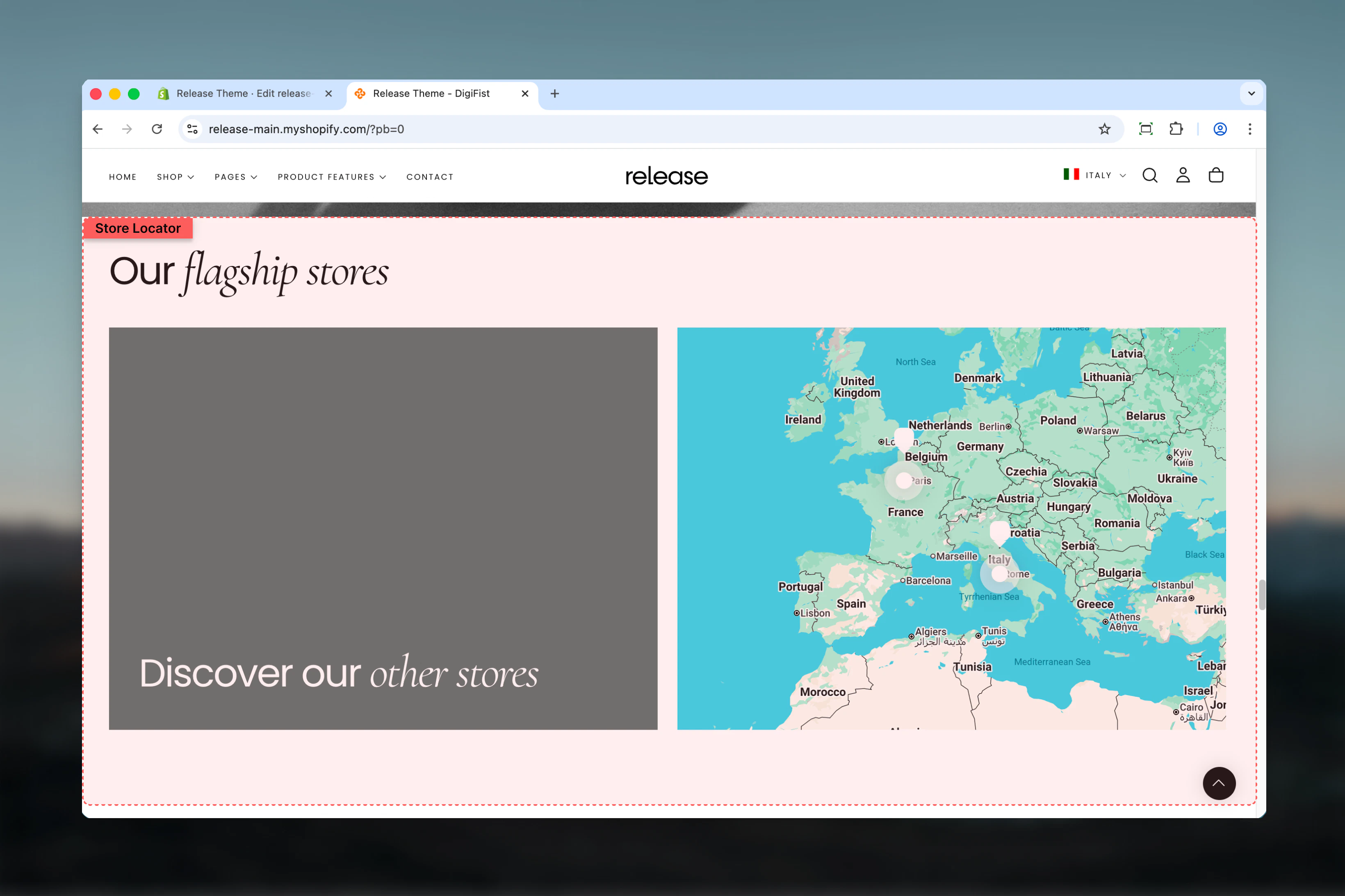
> Display physical store locations using interactive maps or image-based layouts with custom actions.
The Store Locator section allows merchants to display physical store locations using an interactive map or image-based layout. It supports multiple store pins, custom actions, and flexible layouts for desktop and mobile.
Store locators help customers find nearby physical locations, providing essential information like addresses, opening hours, and contact options in an intuitive, searchable format.
 ## What this section controls
This section controls store location displays with the following capabilities:
* Google Maps integration or image-based grid layout
* Individual store pins with detailed information
* Click-to-call and directions functionality
* Customizable card backgrounds and styles
* Optional "See more" navigation card
* Desktop and mobile-specific height controls
## How the Store Locator works
The Store Locator uses a block-based system:
* Displays store locations using Google Maps or image layout
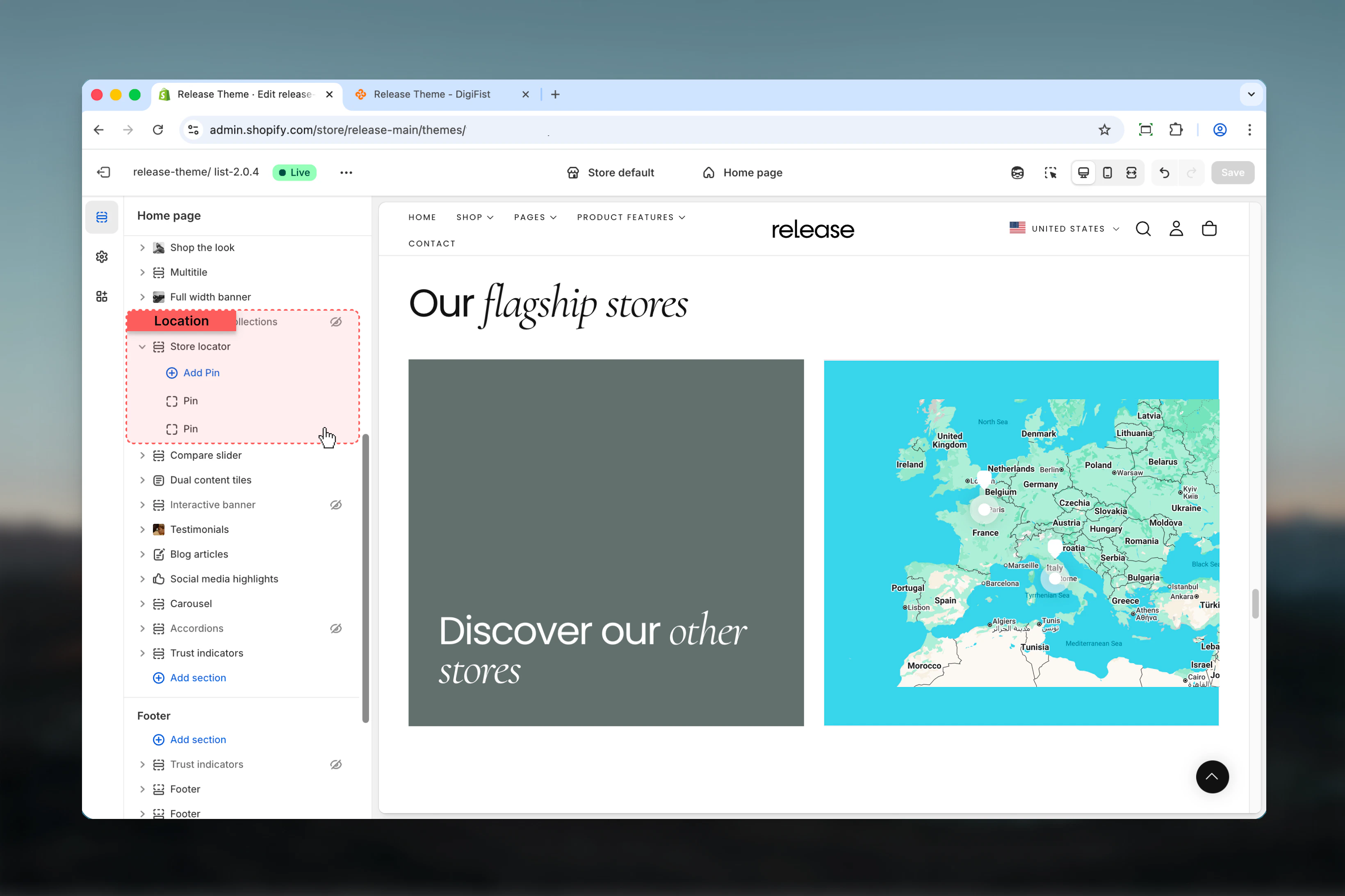
* Each store is represented by a **Pin block**
* Supports store details such as address, opening hours, contact actions
* Optionally includes a **See more card** for additional navigation
* Layout adapts for desktop and mobile devices
## Getting started
From Shopify admin, access the Theme Customizer.
Add the Store Locator section to your page or template.
Click **Add block** and select **Pin** to add store locations.
If using Map layout, add your Google Maps API key and adjust zoom level.
## What this section controls
This section controls store location displays with the following capabilities:
* Google Maps integration or image-based grid layout
* Individual store pins with detailed information
* Click-to-call and directions functionality
* Customizable card backgrounds and styles
* Optional "See more" navigation card
* Desktop and mobile-specific height controls
## How the Store Locator works
The Store Locator uses a block-based system:
* Displays store locations using Google Maps or image layout
* Each store is represented by a **Pin block**
* Supports store details such as address, opening hours, contact actions
* Optionally includes a **See more card** for additional navigation
* Layout adapts for desktop and mobile devices
## Getting started
From Shopify admin, access the Theme Customizer.
Add the Store Locator section to your page or template.
Click **Add block** and select **Pin** to add store locations.
If using Map layout, add your Google Maps API key and adjust zoom level.
 ## Section settings
Section settings control layout type, sizing, map behavior, and global card styles.
### Heading
Main title of the store locator section.
* Supports bold, italic, underline, and links
### Heading size
Controls the size of the heading.
**Available options:** S, M, L, XL
### Section layout
Defines how store locations are displayed.
**Available options:**
* **Image:** Uses store images in a grid layout
* **Map:** Displays stores on an interactive Google Map
## Section settings
Section settings control layout type, sizing, map behavior, and global card styles.
### Heading
Main title of the store locator section.
* Supports bold, italic, underline, and links
### Heading size
Controls the size of the heading.
**Available options:** S, M, L, XL
### Section layout
Defines how store locations are displayed.
**Available options:**
* **Image:** Uses store images in a grid layout
* **Map:** Displays stores on an interactive Google Map
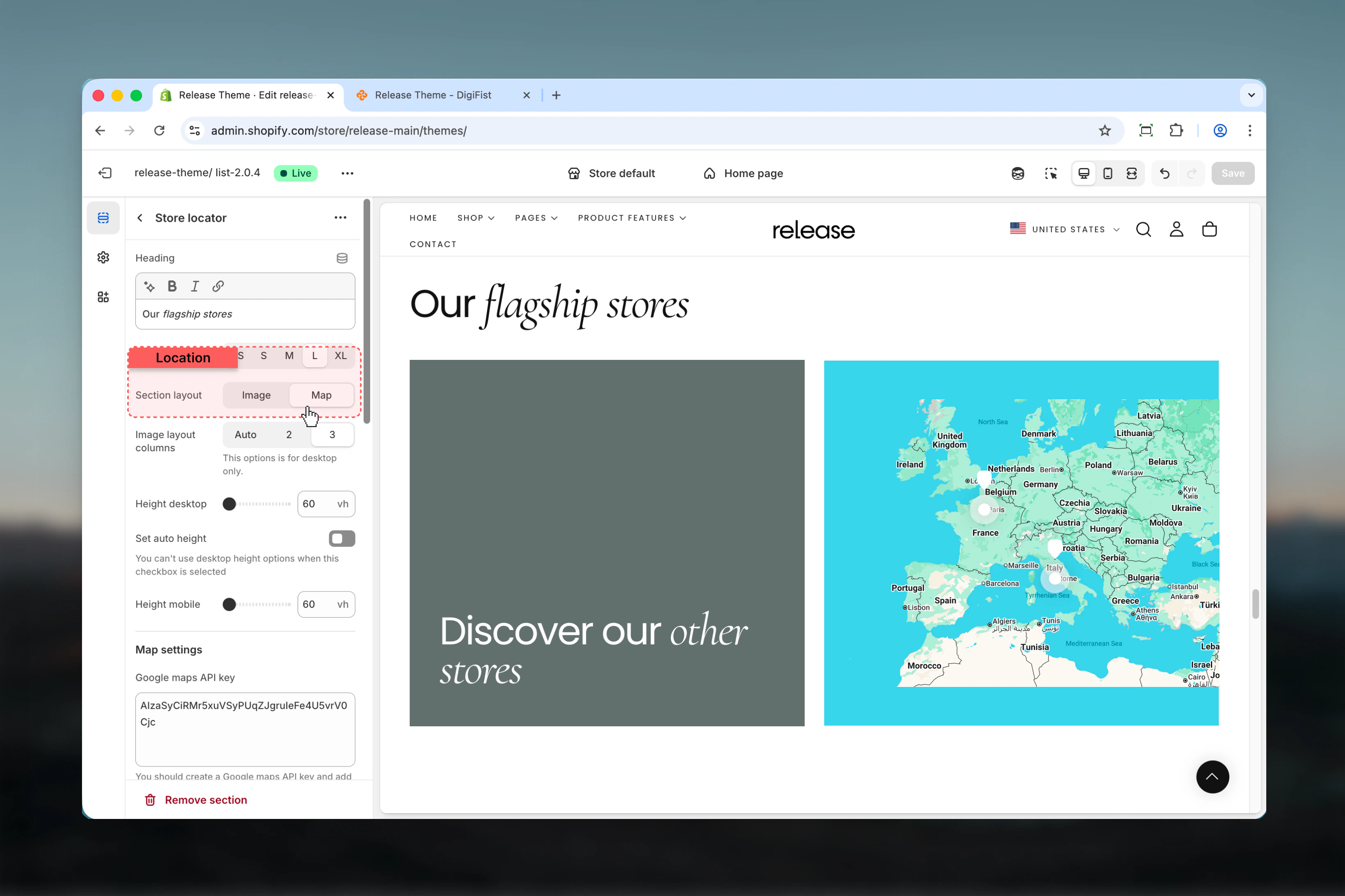 ### Image layout columns (Desktop only)
Controls the number of columns when **Image** layout is selected.
**Available options:** Auto, 2, 3
### Height desktop
Sets the section height on desktop devices.
**Range:** 40vh – 80vh
### Set auto height
When enabled, the section height adjusts automatically based on content.
Desktop height options are disabled when this setting is active.
### Height mobile
Sets the section height on mobile devices.
**Range:** 40vh – 80vh
These settings apply when **Map** layout is selected.
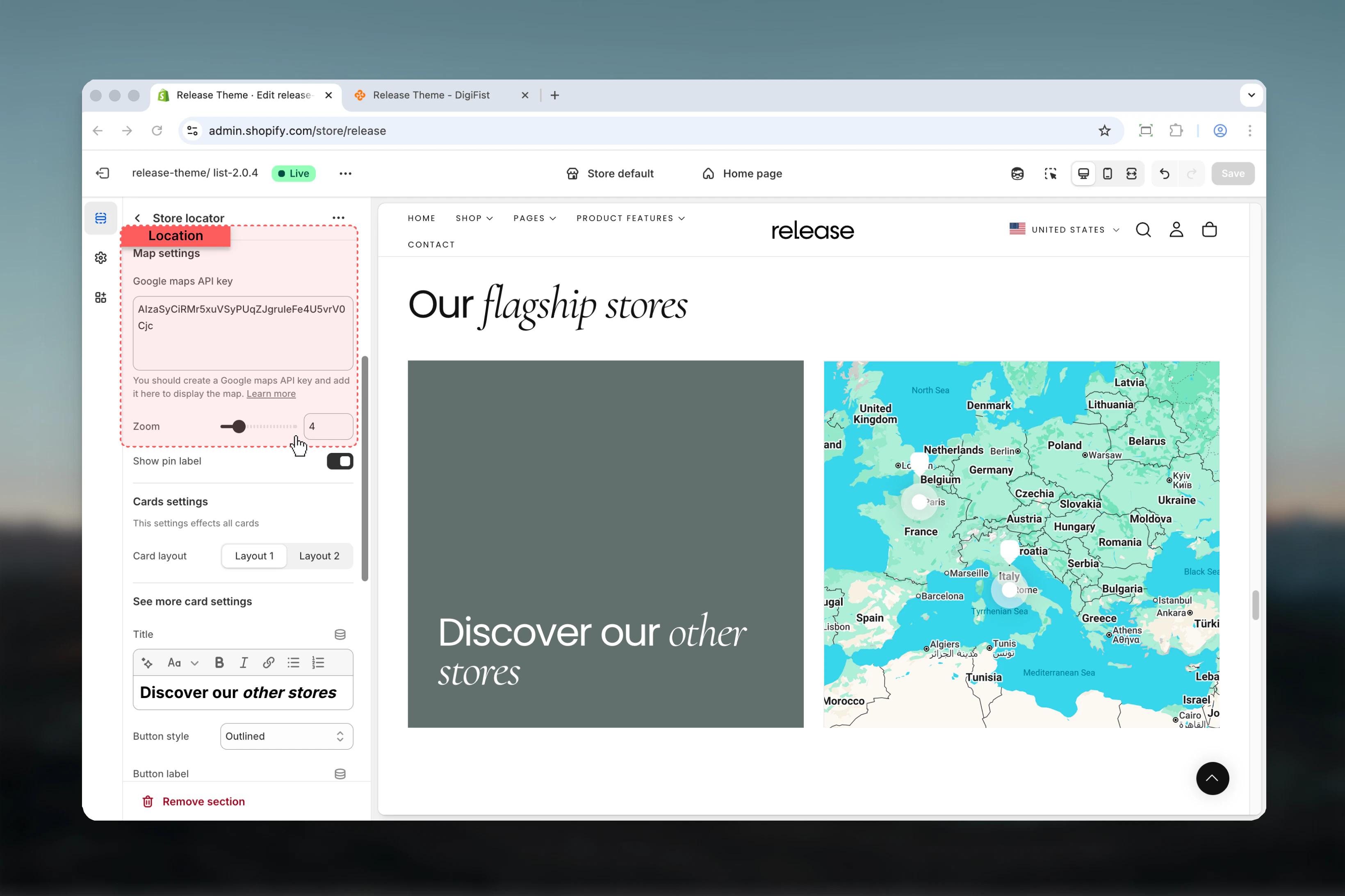
### Google Maps API key
Required to display the Google Map.
You must create a Google Maps API key and paste it here.
### Zoom
Controls how close the map is to the store pins.
**Range:** 0 – 21
Higher values zoom in closer to the location.
### Image layout columns (Desktop only)
Controls the number of columns when **Image** layout is selected.
**Available options:** Auto, 2, 3
### Height desktop
Sets the section height on desktop devices.
**Range:** 40vh – 80vh
### Set auto height
When enabled, the section height adjusts automatically based on content.
Desktop height options are disabled when this setting is active.
### Height mobile
Sets the section height on mobile devices.
**Range:** 40vh – 80vh
These settings apply when **Map** layout is selected.
### Google Maps API key
Required to display the Google Map.
You must create a Google Maps API key and paste it here.
### Zoom
Controls how close the map is to the store pins.
**Range:** 0 – 21
Higher values zoom in closer to the location.
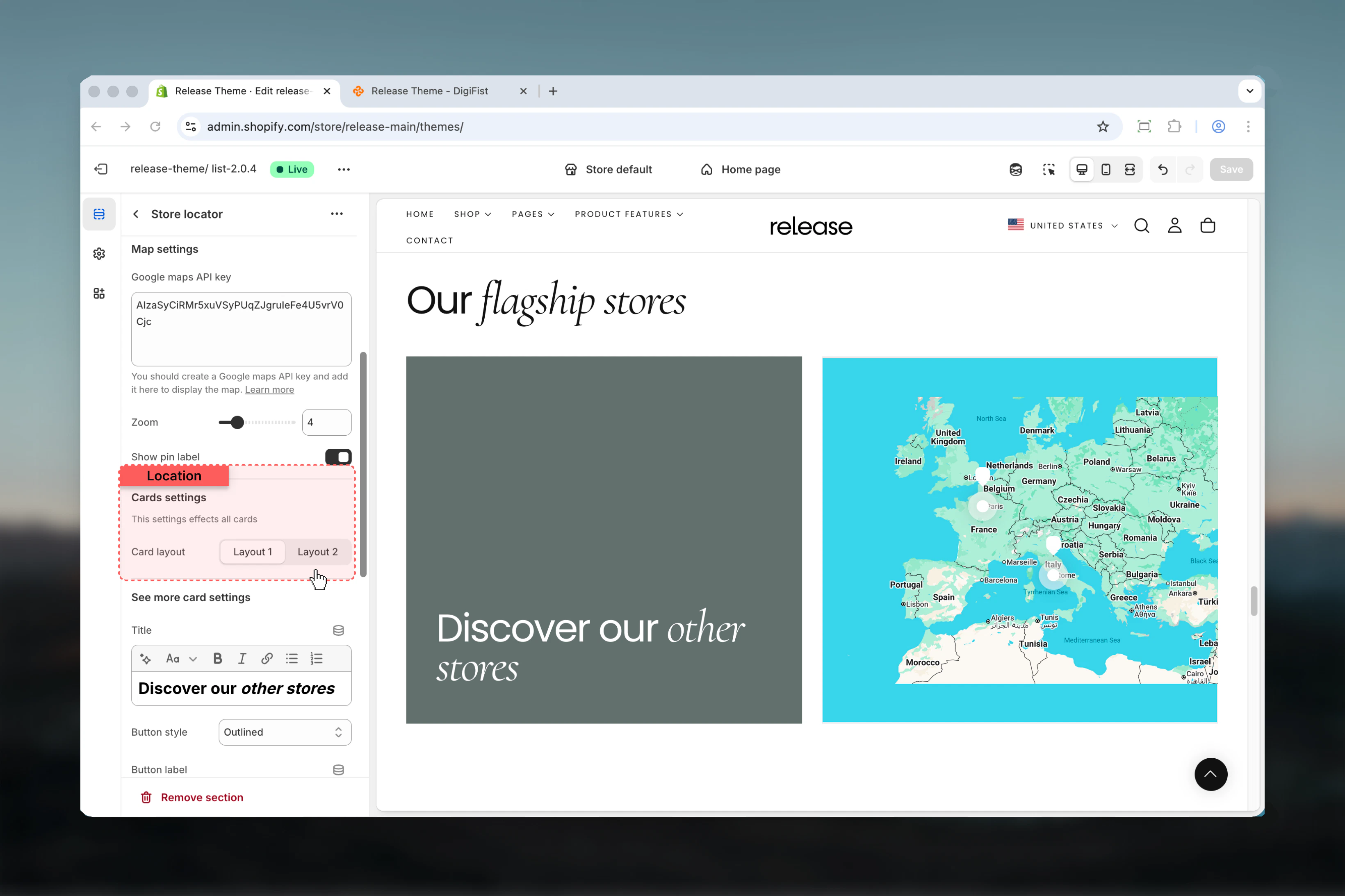
 These settings affect all store cards.
### Card background styles
Controls the visual appearance of store cards.
**Available options:** Solid color, Blurred, Transparent
These settings affect all store cards.
### Card background styles
Controls the visual appearance of store cards.
**Available options:** Solid color, Blurred, Transparent
 ## Block settings
Block settings control individual store locations and navigation cards. There are **two block types**:
* Pin (multiple allowed)
* See more card (maximum 1)
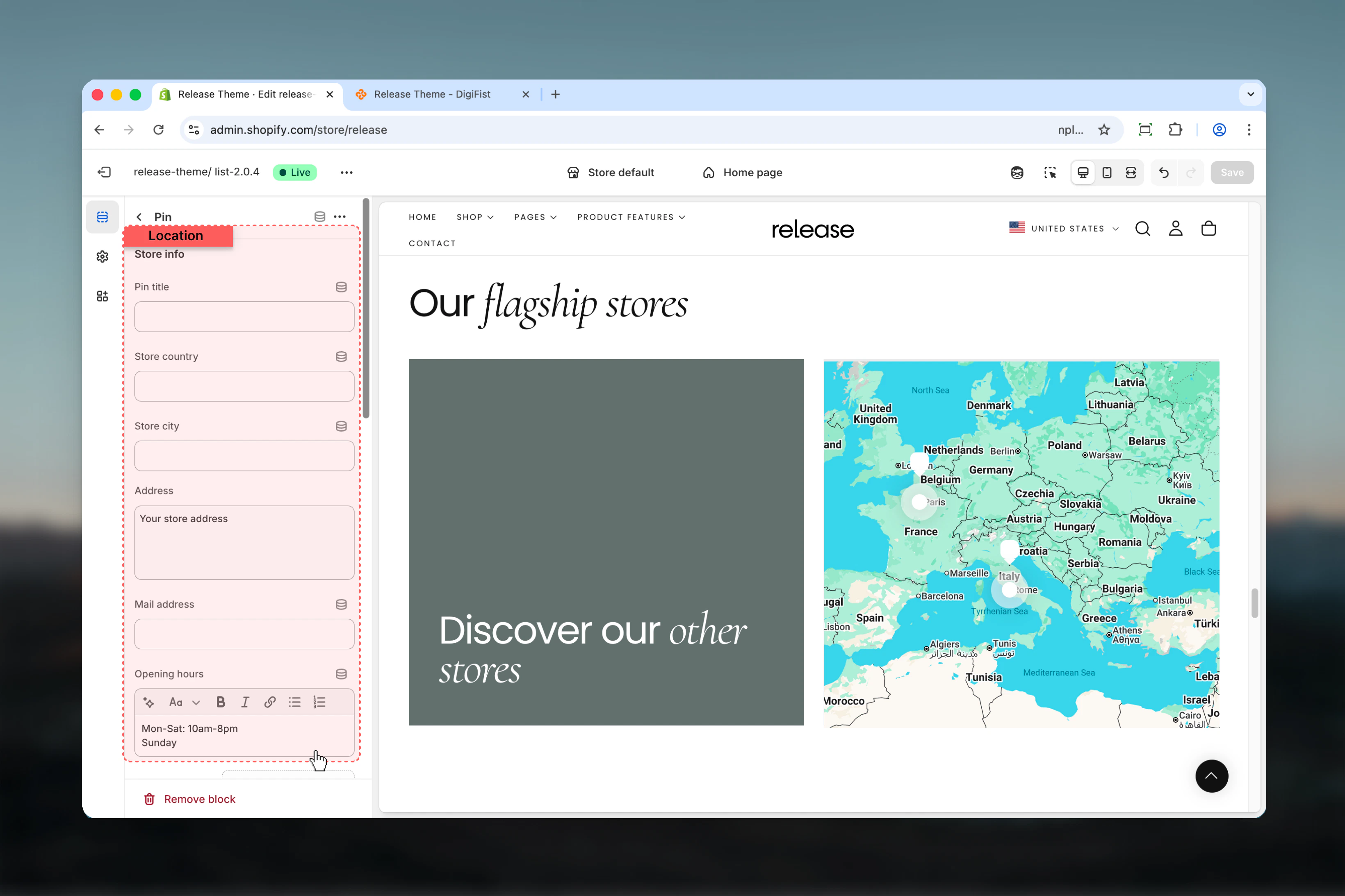
Represents an individual store location.
### Store name
Store title displayed on the card and map.
* Rich text support (bold, italic, links)
### Address
Store address information.
* Textarea input
### Opening hours
Store working hours.
* Rich text support
### Store image
Optional image representing the store.
* Shopify image selector
## Block settings
Block settings control individual store locations and navigation cards. There are **two block types**:
* Pin (multiple allowed)
* See more card (maximum 1)
Represents an individual store location.
### Store name
Store title displayed on the card and map.
* Rich text support (bold, italic, links)
### Address
Store address information.
* Textarea input
### Opening hours
Store working hours.
* Rich text support
### Store image
Optional image representing the store.
* Shopify image selector
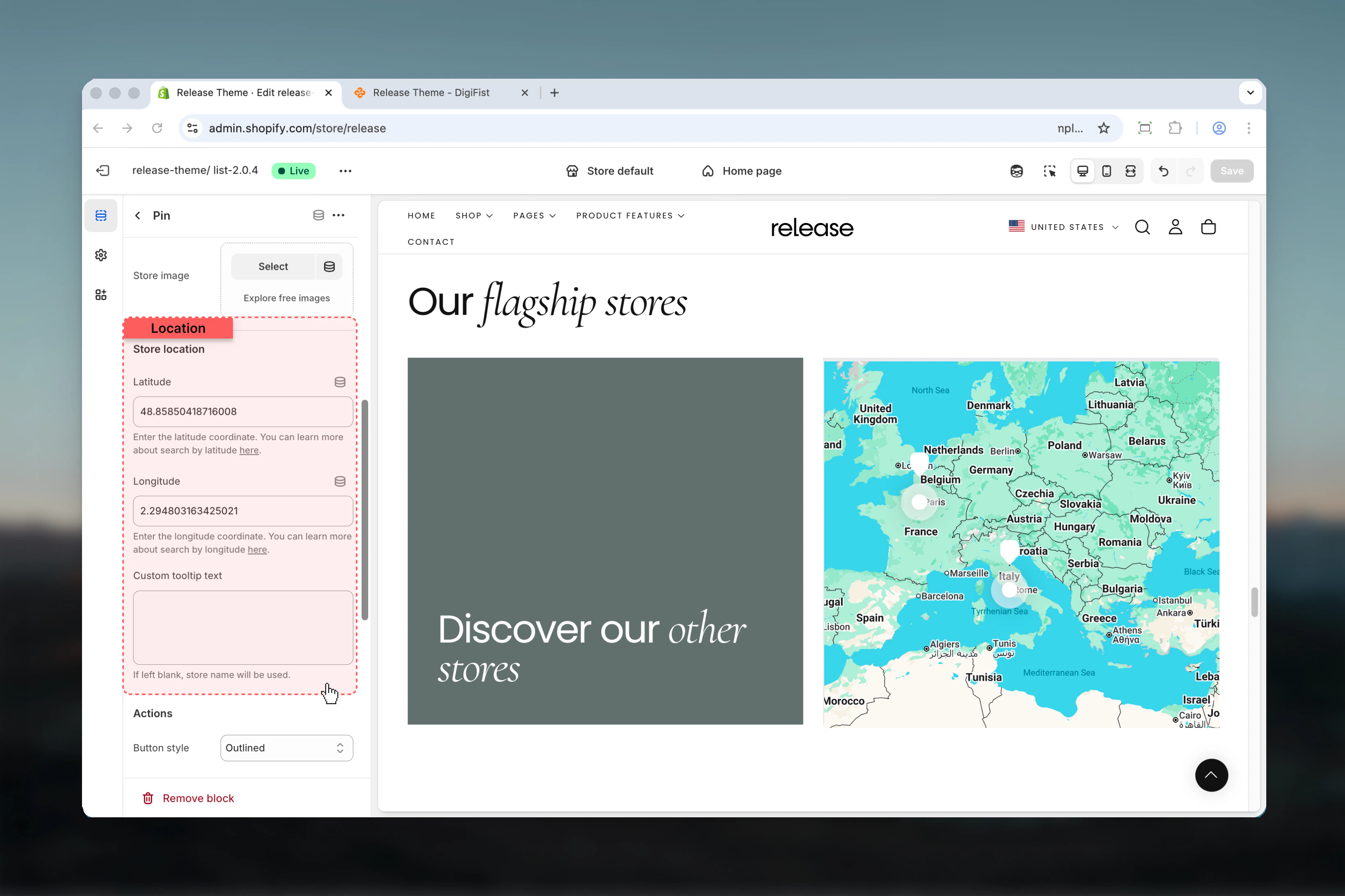
 ## Store location
Used to position the pin on the map.
### Latitude
Latitude coordinate of the store.
* Text input
### Longitude
Longitude coordinate of the store.
* Text input
### Custom tooltip text
Text shown when hovering over the map pin.
* Textarea input
If left blank, the store name will be used.
## Store location
Used to position the pin on the map.
### Latitude
Latitude coordinate of the store.
* Text input
### Longitude
Longitude coordinate of the store.
* Text input
### Custom tooltip text
Text shown when hovering over the map pin.
* Textarea input
If left blank, the store name will be used.
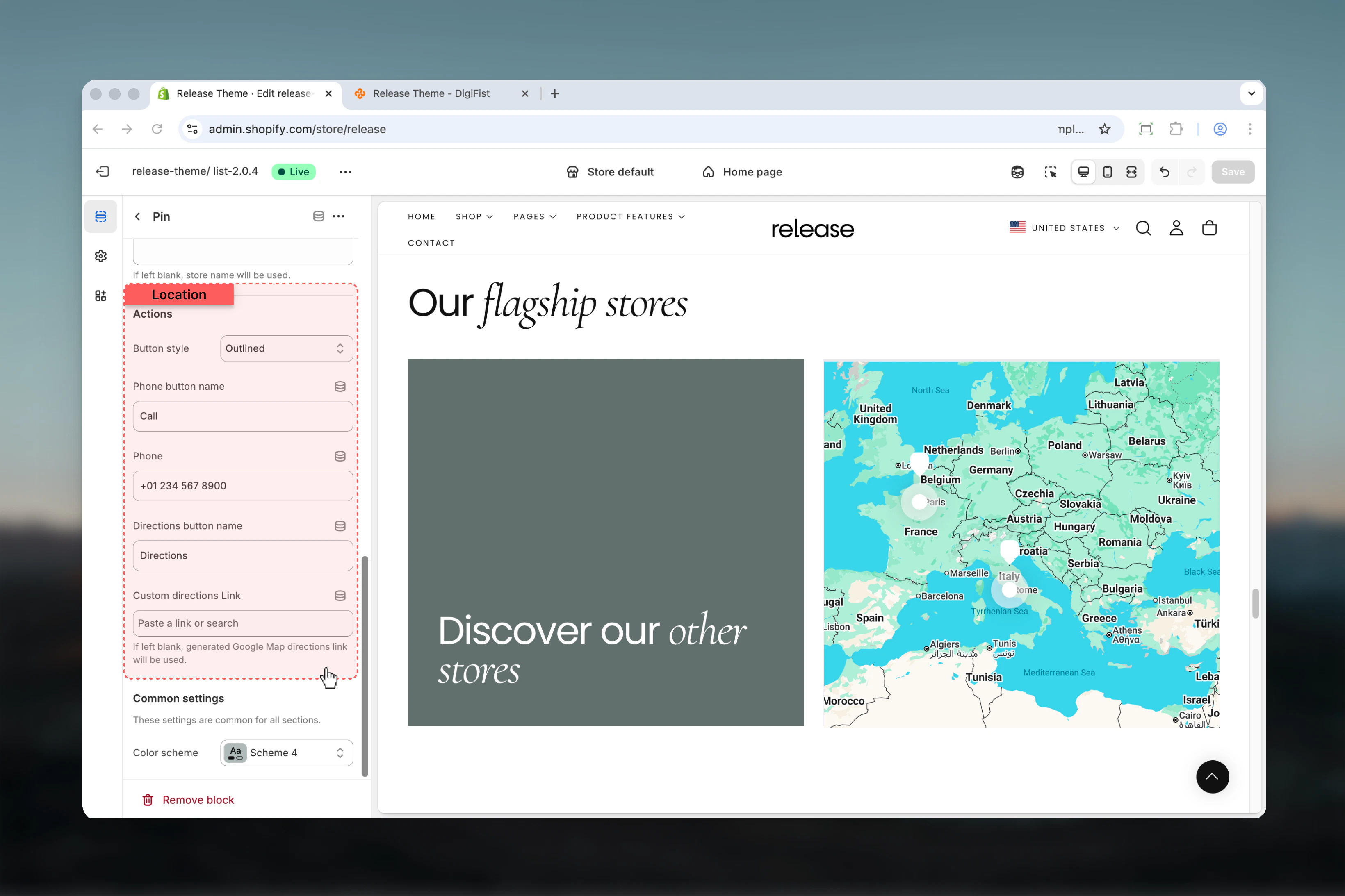
 ## Actions
Interactive buttons displayed on the store card.
### Button style
Controls the style of action buttons.
**Available options:** Filled, Outlined, Default
### Phone button name
Label for the phone call button.
### Phone
Phone number used for click-to-call action.
### Directions button name
Label for the directions button.
### Custom directions link
Custom URL for directions.
* Shopify URL input
If left blank, a Google Maps directions link will be generated automatically.
## Actions
Interactive buttons displayed on the store card.
### Button style
Controls the style of action buttons.
**Available options:** Filled, Outlined, Default
### Phone button name
Label for the phone call button.
### Phone
Phone number used for click-to-call action.
### Directions button name
Label for the directions button.
### Custom directions link
Custom URL for directions.
* Shopify URL input
If left blank, a Google Maps directions link will be generated automatically.
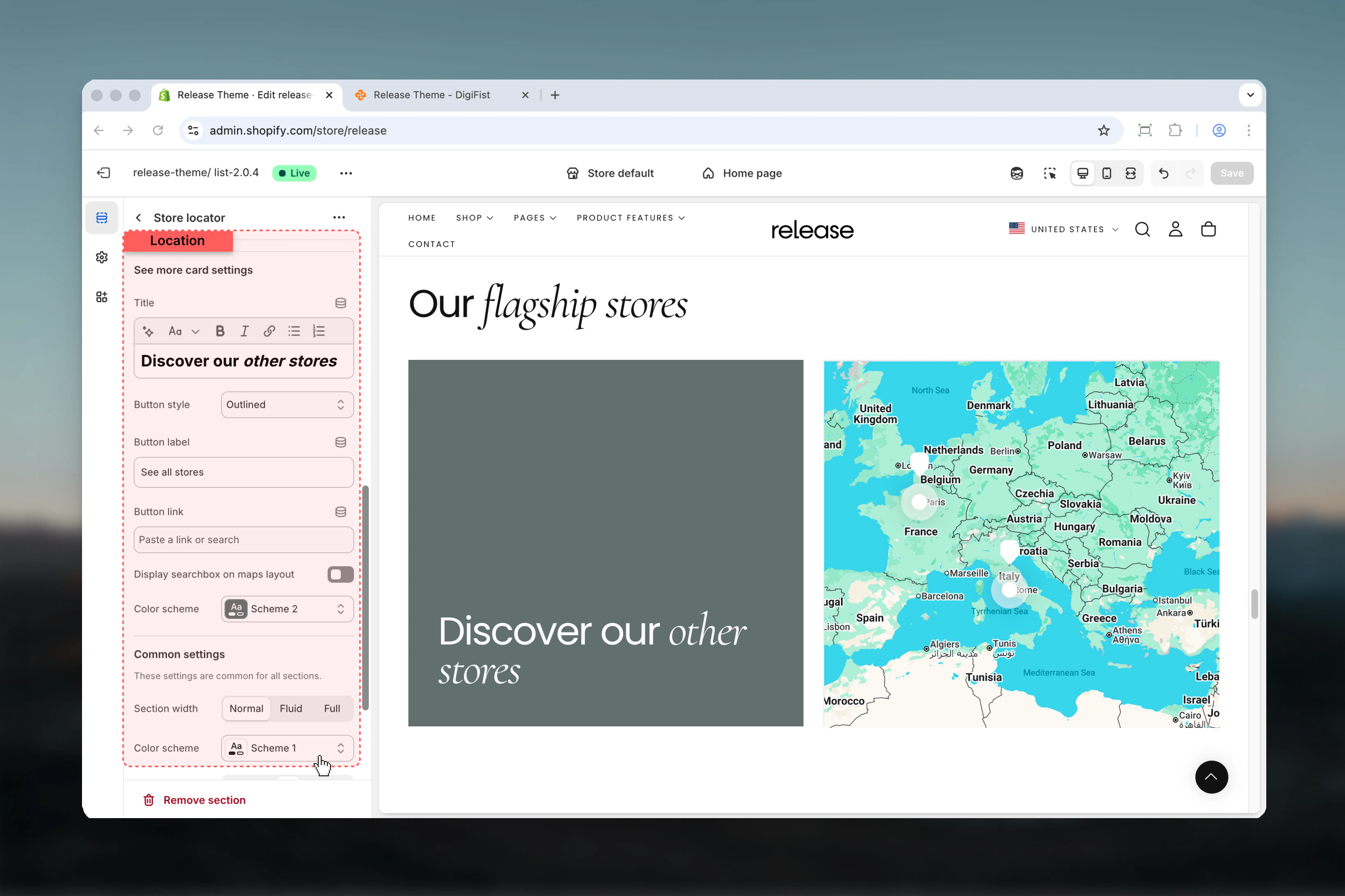
 Optional block used to direct users to a full store list or another page.
Only **one See more card** can be added per section.
### Title
Main title of the card.
* Rich text support
### Button style
Controls the button appearance.
**Available options:** Filled, Outlined, Default
### Button label
Text displayed on the button.
### Button link
Destination URL for the button.
### Display search box on maps layout
Shows a search box when **Map** layout is active.
**Available options:** True / False
### Color scheme
Controls background and text colors of the card.
* Shopify color scheme selector
Optional block used to direct users to a full store list or another page.
Only **one See more card** can be added per section.
### Title
Main title of the card.
* Rich text support
### Button style
Controls the button appearance.
**Available options:** Filled, Outlined, Default
### Button label
Text displayed on the button.
### Button link
Destination URL for the button.
### Display search box on maps layout
Shows a search box when **Map** layout is active.
**Available options:** True / False
### Color scheme
Controls background and text colors of the card.
* Shopify color scheme selector
 ## Best practices
* Always verify latitude and longitude values using a reliable mapping service
* Use consistent card background styles across all store locations for visual harmony
* Keep store names and addresses concise and easy to scan
* Use the See more card to link to a dedicated store page with additional locations
* Ensure Google Maps API key is active and properly configured with necessary restrictions
* Include accurate opening hours and update them for holidays or special occasions
* Test map pins on mobile devices to ensure proper touch interaction
* Use high-quality store images that represent the location accurately
* Provide both phone and directions options for better user experience
## Common use cases
* **Physical store listings** - Display retail locations for customers to visit
* **Dealer or reseller maps** - Show authorized dealers or distributors
* **Multi-location businesses** - Showcase franchise or chain locations
* **Showroom finders** - Help customers find product showrooms or experience centers
## Related guides
Learn about common settings shared across sections
## Best practices
* Always verify latitude and longitude values using a reliable mapping service
* Use consistent card background styles across all store locations for visual harmony
* Keep store names and addresses concise and easy to scan
* Use the See more card to link to a dedicated store page with additional locations
* Ensure Google Maps API key is active and properly configured with necessary restrictions
* Include accurate opening hours and update them for holidays or special occasions
* Test map pins on mobile devices to ensure proper touch interaction
* Use high-quality store images that represent the location accurately
* Provide both phone and directions options for better user experience
## Common use cases
* **Physical store listings** - Display retail locations for customers to visit
* **Dealer or reseller maps** - Show authorized dealers or distributors
* **Multi-location businesses** - Showcase franchise or chain locations
* **Showroom finders** - Help customers find product showrooms or experience centers
## Related guides
Learn about common settings shared across sections