> ## Documentation Index
> Fetch the complete documentation index at: https://docs.digifist.com/llms.txt
> Use this file to discover all available pages before exploring further.
# Vendors
> Display a list of product vendors/brands with optional logos and navigation.
The Vendors section creates a directory of product brands/vendors with optional logos, vendor-specific navigation, and metaobject integration. Perfect for multi-brand stores showcasing their brand partners.
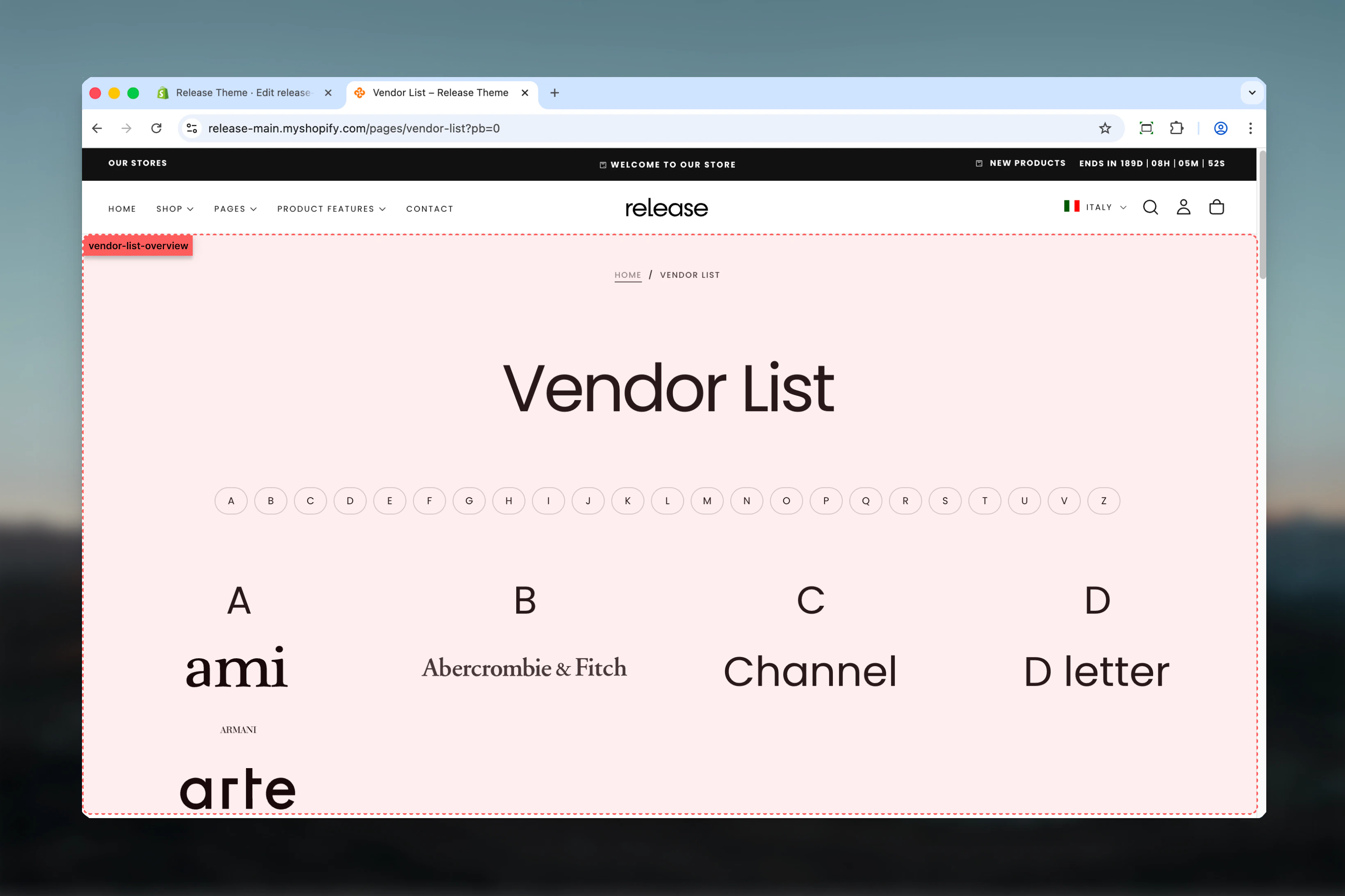 ## What this section controls
* Automatic vendor list from product collections
* Optional vendor logo display
* Metaobject integration for enhanced vendor data
* Vendor navigation filtering
* Logo height customization
* Card-based layout with color schemes
* Content alignment options
## Getting started
From Shopify admin, access the Theme Customizer.
Add the section to your desired page or template.
Enable vendor logos and set logo height preferences.
Connect a metaobject for enhanced vendor information.
## What this section controls
* Automatic vendor list from product collections
* Optional vendor logo display
* Metaobject integration for enhanced vendor data
* Vendor navigation filtering
* Logo height customization
* Card-based layout with color schemes
* Content alignment options
## Getting started
From Shopify admin, access the Theme Customizer.
Add the section to your desired page or template.
Enable vendor logos and set logo height preferences.
Connect a metaobject for enhanced vendor information.
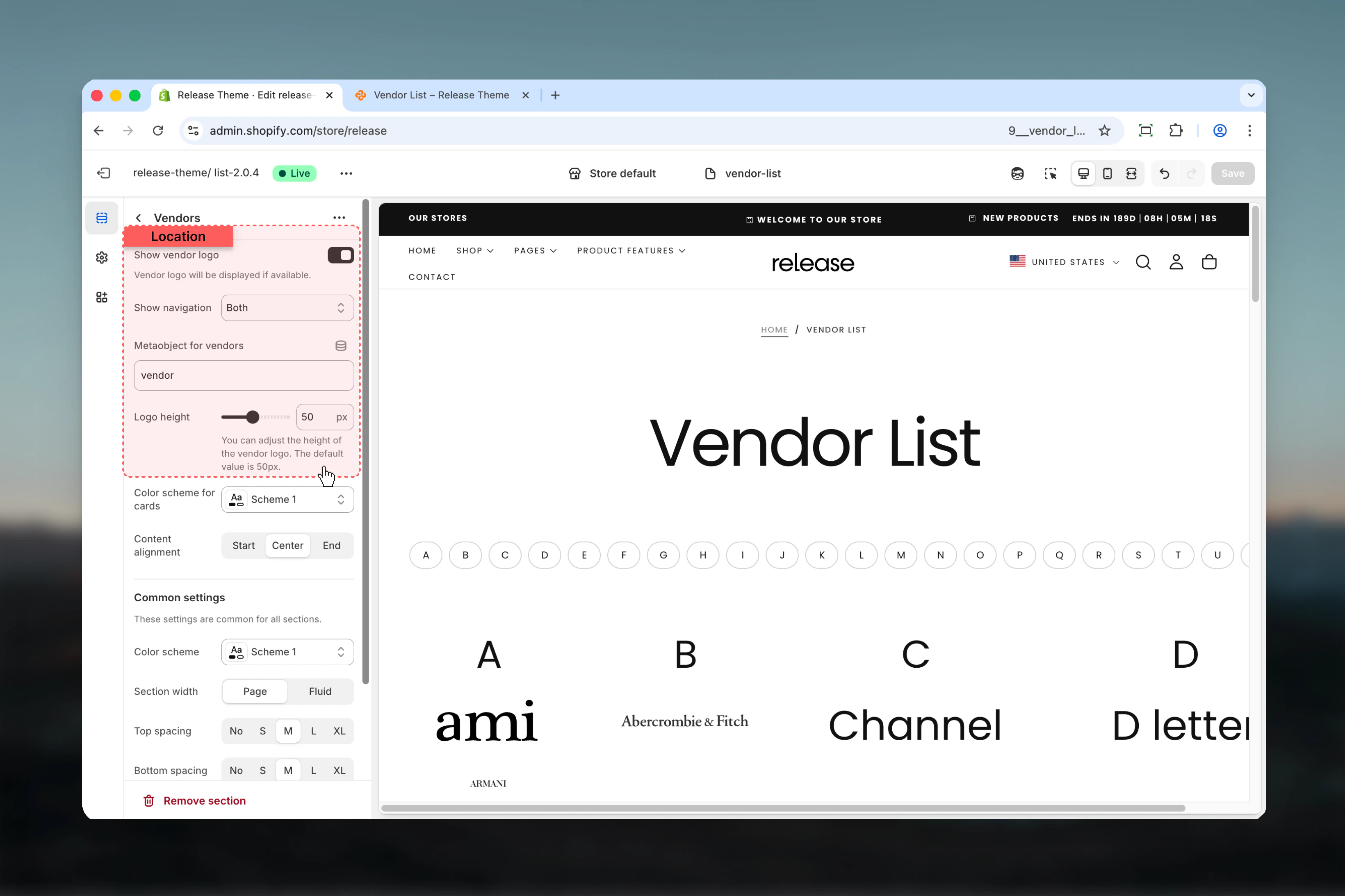
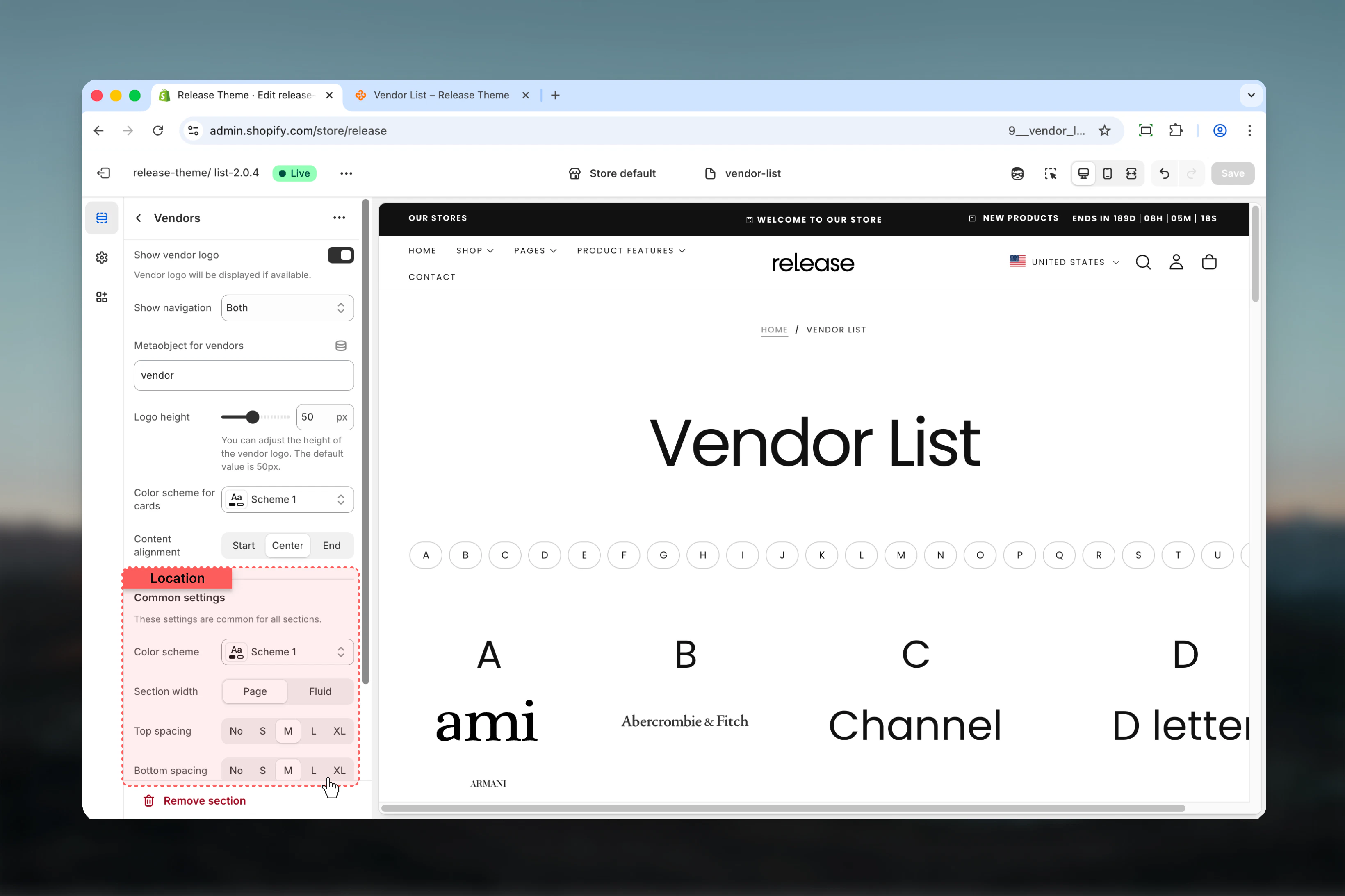
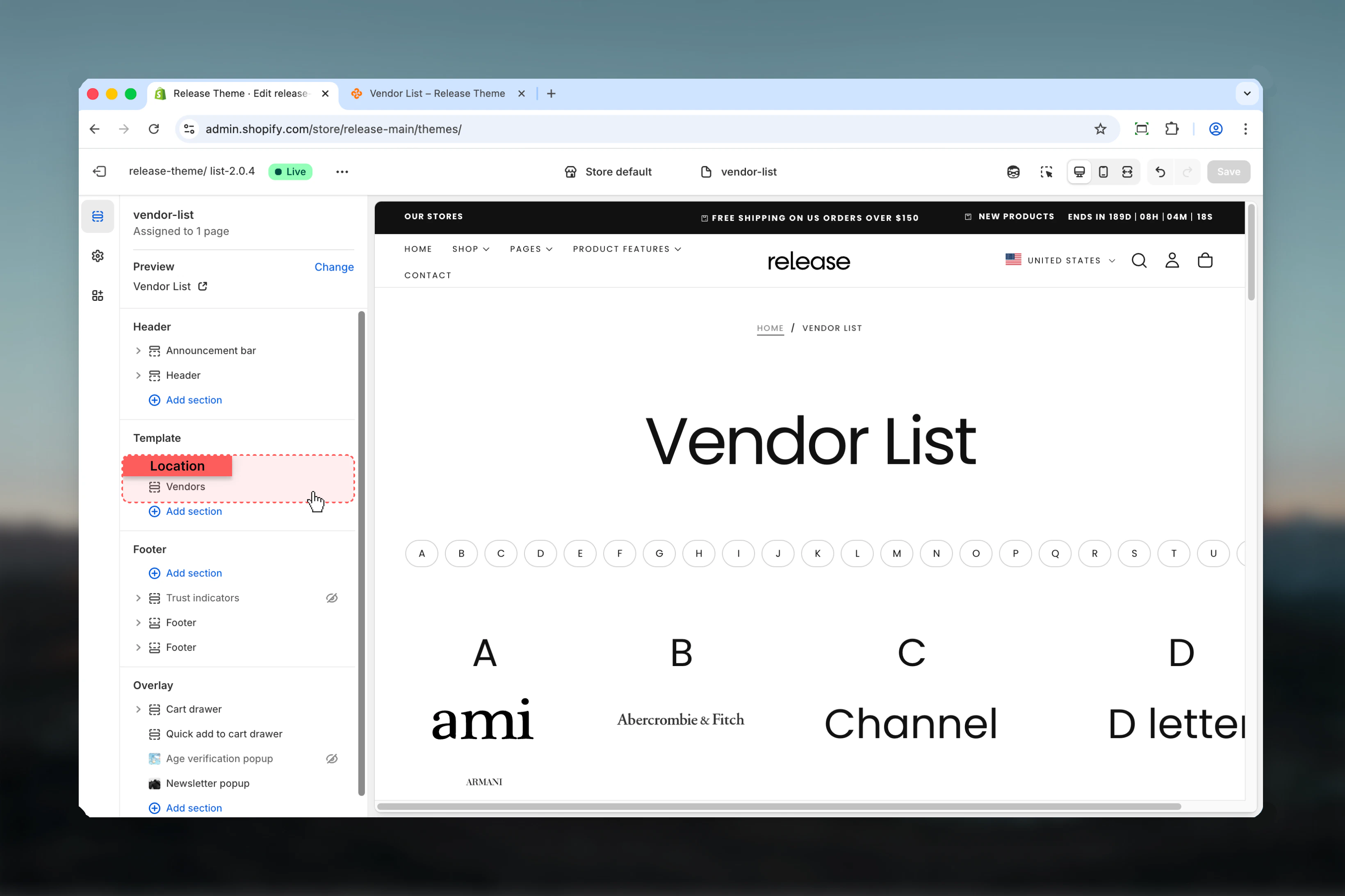 ## Section settings
### Show vendor logo
Displays vendor logos when available.
**Default:** False
Vendor logo will be displayed if available in your product data or metaobject.
### Show navigation
Controls where vendor navigation filtering appears.
**Available options:**
* **Desktop:** Desktop only
* **Mobile:** Mobile only
* **Both:** All devices
**Default:** Both
Navigation allows customers to filter vendors alphabetically or by category.
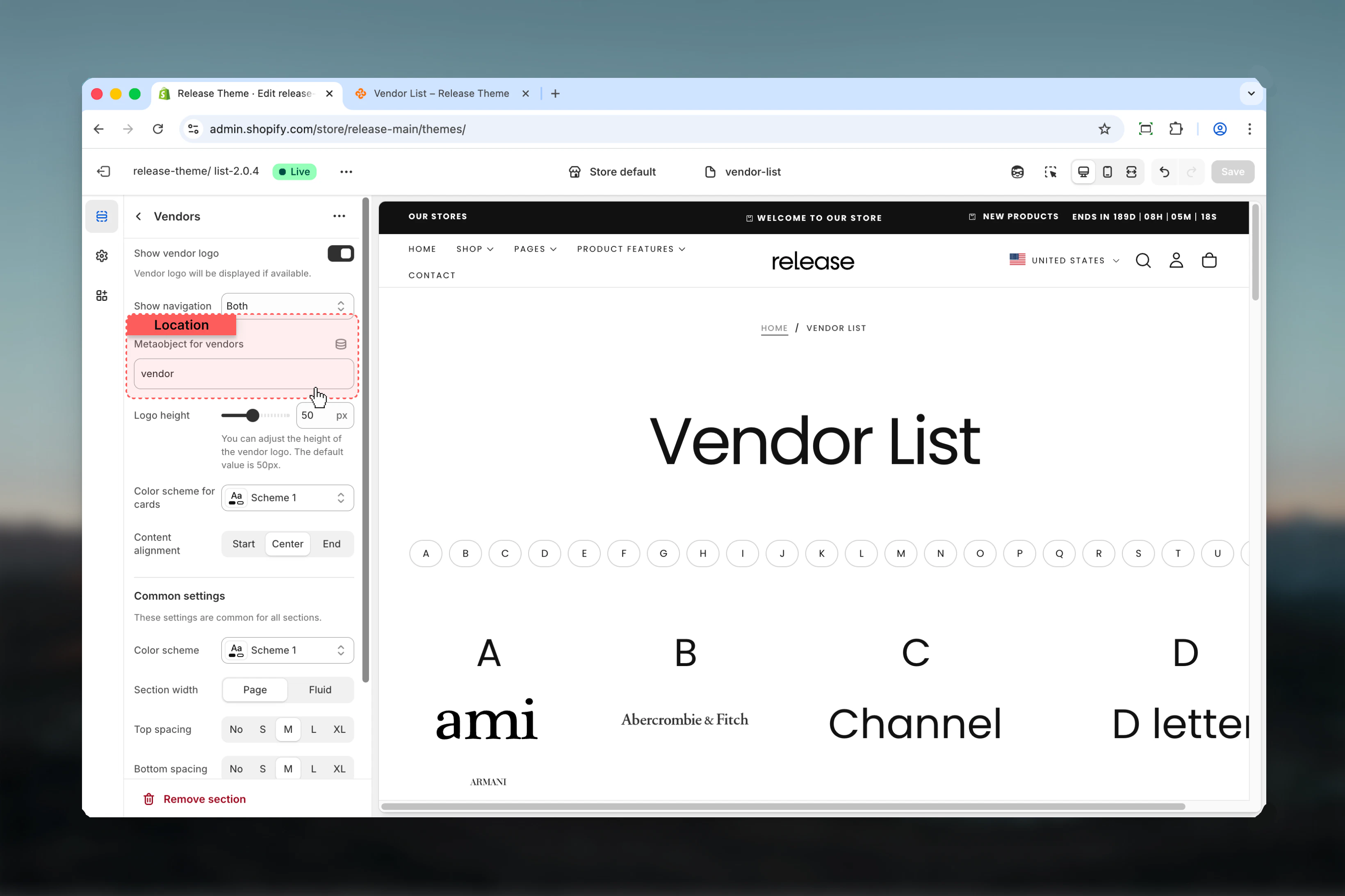
### Metaobject for vendors
Connect a metaobject definition for additional vendor data.
* Text field for metaobject handle
Use metaobjects to add custom vendor information like descriptions, logos, or links.
### Logo height
Controls the height of vendor logos.
**Range:** 10 – 100 px
**Default:** 50 px
Default value is 50px. Adjust based on your logo dimensions for optimal display.
## Section settings
### Show vendor logo
Displays vendor logos when available.
**Default:** False
Vendor logo will be displayed if available in your product data or metaobject.
### Show navigation
Controls where vendor navigation filtering appears.
**Available options:**
* **Desktop:** Desktop only
* **Mobile:** Mobile only
* **Both:** All devices
**Default:** Both
Navigation allows customers to filter vendors alphabetically or by category.
### Metaobject for vendors
Connect a metaobject definition for additional vendor data.
* Text field for metaobject handle
Use metaobjects to add custom vendor information like descriptions, logos, or links.
### Logo height
Controls the height of vendor logos.
**Range:** 10 – 100 px
**Default:** 50 px
Default value is 50px. Adjust based on your logo dimensions for optimal display.
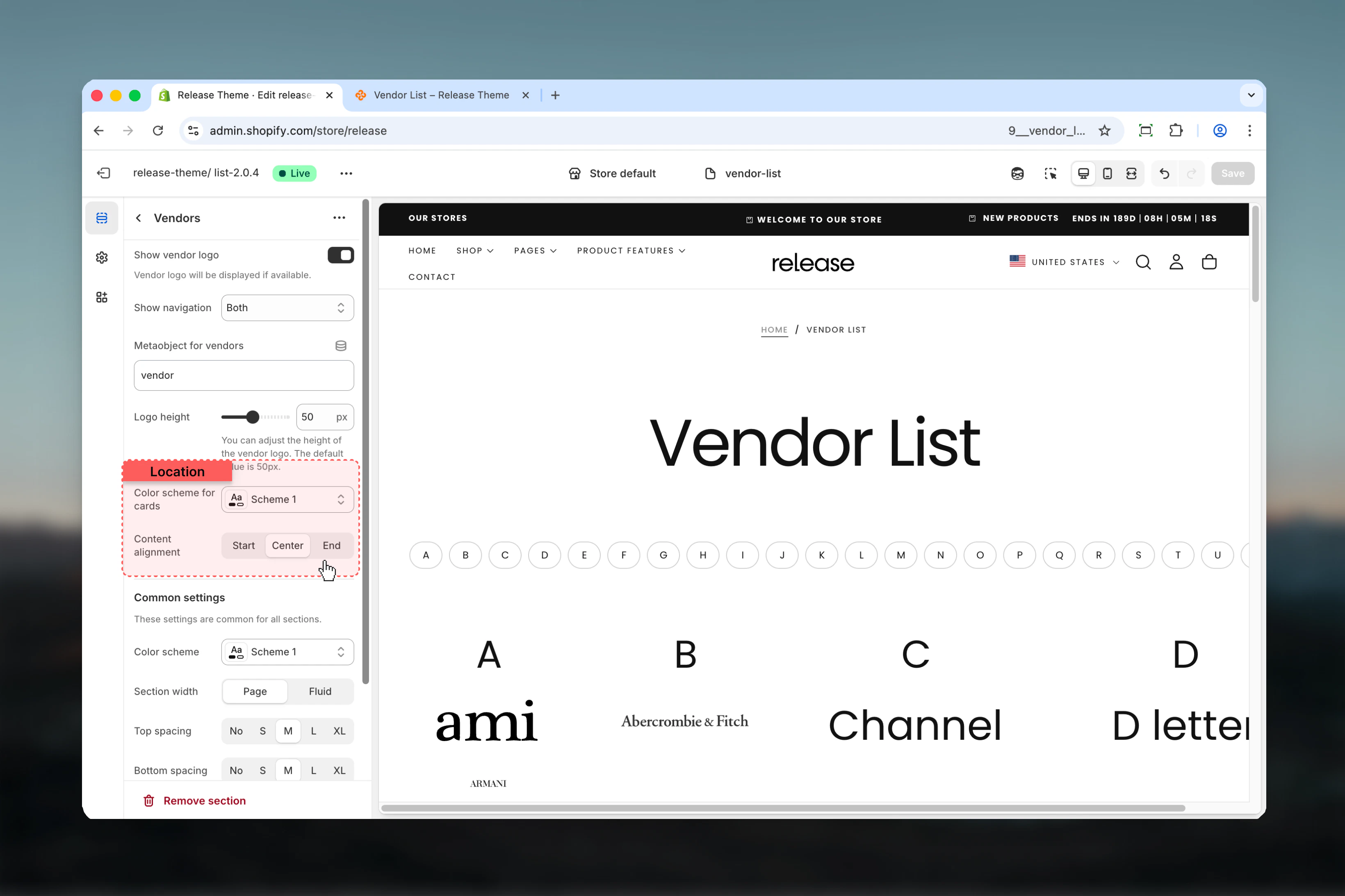
 ### Color scheme for cards
Background and text colors for vendor cards.
* Shopify color scheme selector
* **Default:** Scheme 1
### Content alignment
Controls alignment of vendor names and logos within cards.
**Available options:** Start, Center, End
**Default:** Center
### Color scheme for cards
Background and text colors for vendor cards.
* Shopify color scheme selector
* **Default:** Scheme 1
### Content alignment
Controls alignment of vendor names and logos within cards.
**Available options:** Start, Center, End
**Default:** Center
 ### Color scheme
Overall section background and text colors.
* Shopify color scheme selector
* **Default:** Scheme 1
### Section container width
Maximum width of section.
**Available options:**
* **Page:** Standard page width
* **Fluid:** Wider than page width
**Default:** Page
### Spacing top
Space above section.
**Available options:** No, S, M, L, XL
**Default:** M
### Spacing bottom
Space below section.
**Available options:** No, S, M, L, XL
**Default:** M
### Color scheme
Overall section background and text colors.
* Shopify color scheme selector
* **Default:** Scheme 1
### Section container width
Maximum width of section.
**Available options:**
* **Page:** Standard page width
* **Fluid:** Wider than page width
**Default:** Page
### Spacing top
Space above section.
**Available options:** No, S, M, L, XL
**Default:** M
### Spacing bottom
Space below section.
**Available options:** No, S, M, L, XL
**Default:** M
 ## How vendors are populated
The Vendors section automatically collects all unique vendors from your product catalog:
* Extracts vendor names from product metadata
* Displays each vendor as a clickable card
* Links to vendor-specific collection pages
* Shows vendor logo when available
## Metaobject integration
Enhance vendor listings with metaobjects:
1. Create a metaobject definition for vendors in Shopify admin
2. Add fields like logo, description, website URL, social links
3. Enter the metaobject handle in section settings
4. Section automatically displays enhanced vendor information
## How vendors are populated
The Vendors section automatically collects all unique vendors from your product catalog:
* Extracts vendor names from product metadata
* Displays each vendor as a clickable card
* Links to vendor-specific collection pages
* Shows vendor logo when available
## Metaobject integration
Enhance vendor listings with metaobjects:
1. Create a metaobject definition for vendors in Shopify admin
2. Add fields like logo, description, website URL, social links
3. Enter the metaobject handle in section settings
4. Section automatically displays enhanced vendor information
 ## Best practices
* Enable vendor logos for visual brand recognition and credibility
* Set logo height between 40-60px for optimal card display
* Use metaobjects to add rich vendor information beyond basic product data
* Enable navigation on both devices for better filtering experience
* Use center alignment for logo-centric displays
* Use start alignment when including vendor descriptions
* Match card color scheme with your brand colors
* Keep vendor names consistent across products for accurate grouping
* Test with different logo sizes to find optimal balance
* Ensure vendor logos are high-resolution for crisp display
## Common use cases
* **Multi-brand stores** - Showcase all brands carried in your store
* **Designer directory** - Display fashion designers or artists
* **Manufacturer listings** - Show product manufacturers
* **Brand partnerships** - Highlight brand collaborations
* **Wholesale portals** - Vendor directories for B2B stores
* **Marketplace platforms** - Display all sellers or creators
* **Beauty brands** - Cosmetics and skincare brand showcases
## Related guides
Learn more about the vendors page template
Learn about common settings shared across sections
## Best practices
* Enable vendor logos for visual brand recognition and credibility
* Set logo height between 40-60px for optimal card display
* Use metaobjects to add rich vendor information beyond basic product data
* Enable navigation on both devices for better filtering experience
* Use center alignment for logo-centric displays
* Use start alignment when including vendor descriptions
* Match card color scheme with your brand colors
* Keep vendor names consistent across products for accurate grouping
* Test with different logo sizes to find optimal balance
* Ensure vendor logos are high-resolution for crisp display
## Common use cases
* **Multi-brand stores** - Showcase all brands carried in your store
* **Designer directory** - Display fashion designers or artists
* **Manufacturer listings** - Show product manufacturers
* **Brand partnerships** - Highlight brand collaborations
* **Wholesale portals** - Vendor directories for B2B stores
* **Marketplace platforms** - Display all sellers or creators
* **Beauty brands** - Cosmetics and skincare brand showcases
## Related guides
Learn more about the vendors page template
Learn about common settings shared across sections