> ## Documentation Index
> Fetch the complete documentation index at: https://docs.digifist.com/llms.txt
> Use this file to discover all available pages before exploring further.
# Pre-order
> Enable and configure pre-order functionality for upcoming product releases.
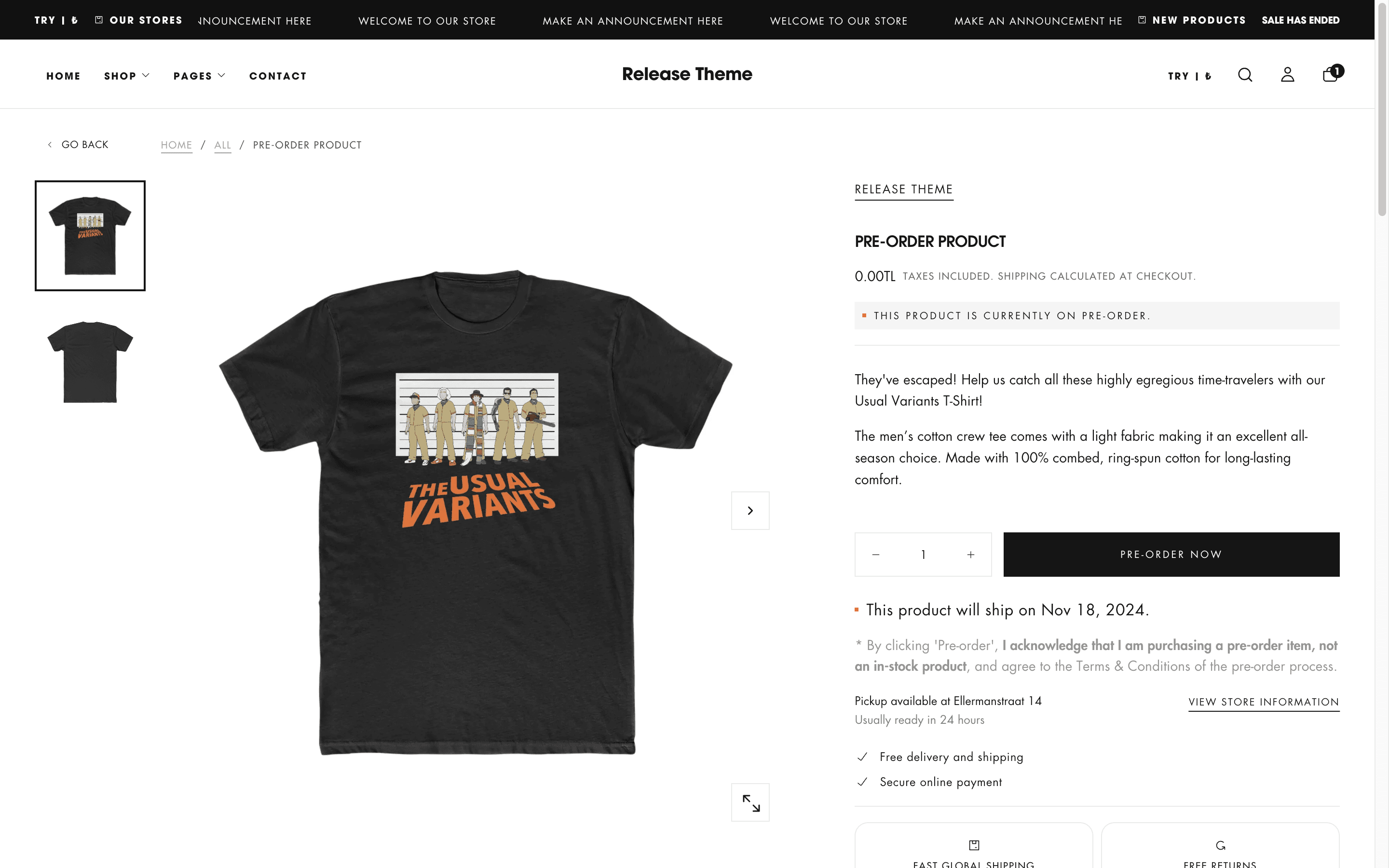
Pre-orders allow customers to purchase products before they are officially released, helping you generate buzz, secure sales in advance, and gauge demand for new products. The theme supports pre-order messaging on product pages, custom buy button labels, optional estimated shipping dates, and pre-order badges on product cards.
 ## What this feature controls
Pre-order functionality manages:
* **Pre-order availability** - Enable products for advance purchase before launch
* **Custom button labels** - Replace "Add to cart" with "Pre-order" button
* **Shipping date display** - Show estimated availability/shipping dates
* **Product badges** - Display "Pre-order" badges on product cards
* **Metafield integration** - Use Shopify metafields to mark pre-order products
* **Inventory management** - Accept orders while awaiting stock arrival
* **Customer expectations** - Clearly communicate future delivery dates
* **Launch momentum** - Build anticipation and secure early sales
## Getting started
Set up the metafield to mark products as pre-order.
1. In Shopify admin, go to **Settings → Custom data → Metafield definitions**
2. Click **Products** → **Add definition**
3. Create the **Preorder** metafield:
* **Name:** Preorder
* **Namespace and key:** `theme.preorder`
* **Type:** True or false
* **Description:** "Enable pre-order for this product"
4. Save the definition
The namespace and key must be exactly `theme.preorder` for the theme to recognize pre-order products.
Add a metafield for estimated shipping/availability dates.
1. In **Settings → Custom data → Metafield definitions → Products**
2. Click **Add definition**
3. Create the **Preorder shipping date** metafield:
* **Name:** Preorder shipping date
* **Namespace and key:** `theme.preorder_shipping_date`
* **Type:** Date
* **Description:** "Estimated shipping or availability date"
4. Save the definition
Shipping dates are optional but highly recommended. They set clear customer expectations and reduce support inquiries about delivery timing.
Set metafields on products you want to offer as pre-order.
1. Go to **Products** and open a product
2. Scroll to the **Metafields** section
3. Set **Preorder** to `True`
4. (Optional) Add **Preorder shipping date** if you have an estimated date
5. Save the product
You can enable pre-order on products with or without inventory. Pre-order works for both out-of-stock items awaiting restock and unreleased products.
Enable pre-order display on product pages and cards.
1. Go to **Online Store → Themes → Customize**
2. Navigate to **Product pages**
3. Add the **Pre-order** block to the product page template
4. Configure block settings (messaging, date format)
5. Go to **Theme settings → Products**
6. Enable **Pre-order** option in product card settings
7. Save your changes
Verify pre-order appears correctly on your storefront.
1. Visit a product with pre-order enabled
2. Check that "Pre-order" button replaces "Add to cart"
3. Verify shipping date displays (if set)
4. Check pre-order badge on product cards
5. Test adding pre-order item to cart
## How pre-order works
Pre-order transforms the standard purchase flow to accommodate unreleased or out-of-stock products:
### Standard purchase vs. Pre-order
**Standard purchase:**
* Product is in stock
* "Add to cart" button
* Ships immediately after order
* Inventory decremented on purchase
**Pre-order:**
* Product not yet available
* "Pre-order" button (customizable)
* Ships on future date
* Captures orders before availability
* Inventory managed separately or accepts unlimited orders
### Pre-order flow
1. **Product marked as pre-order** - Metafield set to True
2. **Customer visits product page** - Sees "Pre-order" button and estimated date
3. **Customer adds to cart** - Item added with pre-order status
4. **Checkout process** - Standard checkout, payment collected
5. **Order fulfillment** - Held until product available
6. **Shipping on date** - Order fulfilled when inventory arrives
### Metafield structure
**Namespace and key:** `theme.preorder`\
**Type:** True or false\
**Purpose:** Indicates if product is available for pre-order
**Values:**
* `True` - Product is pre-order, shows pre-order messaging
* `False` or empty - Standard product, normal buy button
**Where it affects:**
* Product page buy button text
* Product page messaging
* Product card badges
* Cart item display (optional)
The namespace and key must be exactly `theme.preorder`. Any variation will not work.
**Namespace and key:** `theme.preorder_shipping_date`\
**Type:** Date\
**Purpose:** Estimated shipping or availability date
**Format:** YYYY-MM-DD (standard date format)
**Display examples:**
* "Ships March 15, 2026"
* "Available April 2026"
* "Estimated delivery: May 2026"
**Benefits:**
* Sets clear customer expectations
* Reduces "when will this ship?" inquiries
* Builds trust with transparency
* Can be displayed on product page and cart
Even if you don't have an exact date, provide an estimated month/quarter. "Ships Q2 2026" is better than no date information.
## Pre-order configuration
### Product page settings
Configure how pre-order appears on individual product pages:
**Location:** Theme Customizer → **Product pages** → Add **Pre-order** block
**Type:** Block\
**Location:** Product page template
Add the Pre-order block to customize pre-order messaging and button text.
**Block settings:**
**Buy button text**
* Customize "Pre-order" button label
* Examples: "Pre-order now", "Reserve yours", "Order in advance"
* Default: "Pre-order"
**Pre-order message**
* Text displayed near button
* Explain pre-order terms
* Example: "This item will ship when available"
**Show shipping date**
* Toggle to display estimated date
* Uses `theme.preorder_shipping_date` metafield
* Formats date based on locale
**Date format**
* Choose how date displays
* Options: Full date, Month/Year, Custom
Place the Pre-order block near the buy button area for maximum visibility. Customers need to immediately understand this is a pre-order product.
**Type:** Text input\
**Default:** "Pre-order"
Customize the buy button label for pre-order products.
**Effective button text examples:**
* "Pre-order" - Clear and standard
* "Pre-order now" - Adds urgency
* "Reserve yours" - Emphasizes exclusivity
* "Order in advance" - Descriptive
* "Secure your order" - Trust-building
**Avoid:**
* "Buy now" - Confusing, implies immediate shipment
* "Add to cart" - Same as regular products
* Overly long text that doesn't fit button
Keep button text short (1-3 words) so it fits comfortably on mobile devices.
**Type:** Text input\
**Default:** Empty
Additional message explaining pre-order terms or shipping timeline.
**Effective messaging examples:**
* "This item will ship when available in March 2026"
* "Pre-order now. Estimated shipping: \[date]"
* "Reserve yours today. Ships upon release."
* "Launching soon. Pre-order to guarantee yours."
* "Your card will be charged now. Item ships \[date]."
**Key information to include:**
* When product will ship
* When payment is charged (now or later)
* That this is a pre-order product
* Any pre-order benefits (discount, exclusivity)
Be transparent about payment timing. Clarify if you charge immediately or upon shipping to avoid confusion and chargebacks.
**Type:** Toggle\
**Default:** Enabled
Show or hide the estimated shipping date from the `theme.preorder_shipping_date` metafield.
**When enabled:**
* Date displays prominently on product page
* Formats automatically based on store locale
* Updates if metafield date changes
**When disabled:**
* No date shown to customers
* Use when dates are uncertain
* Rely on pre-order message text instead
Always show shipping dates when available. Transparency about timing builds customer trust and reduces inquiries.
### Product card settings
Configure pre-order badges and indicators on product cards:
**Location:** Theme Customizer → **Theme settings → Products**
**Type:** Toggle\
**Default:** Enabled
Display "Pre-order" badge on product cards for pre-order items.
**When enabled:**
* Badge appears on collection pages
* Shows on search results
* Visible on homepage product sections
* Clearly identifies pre-order products
**Badge appearance:**
* Usually displays near product image
* Styled to match theme badge design
* Can combine with other badges (New, Sale)
Keep pre-order badges enabled. They help customers identify pre-order products before clicking through to product pages.
**Type:** Text input\
**Default:** Inherits from product page setting
Optional: Override button text specifically for product cards.
**Use cases:**
* Shorter text for cards: "Pre-order" vs "Pre-order now"
* Different messaging for collection views
* A/B test card vs. page button text
If left empty, uses the same button text as product page pre-order block.
## Common use cases
Generate buzz and secure sales before official release.
**Setup:**
* Set `theme.preorder` to True
* Add `theme.preorder_shipping_date` with launch date
* Enable pre-order badges on cards
* Button text: "Pre-order now"
* Message: "Launches \[date]. Pre-order to guarantee yours."
**Strategy:**
* Open pre-orders 2-4 weeks before launch
* Offer pre-order incentive (10% off, free shipping)
* Build email list of pre-order customers
* Create urgency with limited quantities
* Send reminder emails as launch approaches
**Benefits:**
* Generate revenue before launch
* Gauge demand accurately
* Build anticipation and buzz
* Reduce launch day traffic issues
Accept orders while awaiting inventory arrival.
**Setup:**
* Set `theme.preorder` to True on out-of-stock products
* Add estimated restock date to shipping date metafield
* Button text: "Pre-order"
* Message: "Currently out of stock. Pre-order now, ships \[date]"
**Strategy:**
* Enable pre-order when inventory depletes
* Clearly communicate restock timeline
* Update shipping date as restock approaches
* Convert lost sales into pre-orders
* Disable pre-order when inventory arrives
**Benefits:**
* Don't lose sales during stockouts
* Keep customers engaged with brand
* Forecast demand for restock quantity
* Maintain revenue during supply gaps
Take pre-orders for seasonal products before season starts.
**Setup:**
* Enable pre-order 1-3 months before season
* Set shipping date to season start
* Button text: "Reserve yours"
* Message: "New \[Season] collection. Ships \[month]"
**Strategy:**
* Launch pre-orders for Fall collection in July
* Spring collection pre-orders in January
* Holiday collection in September
* Give early customers first access
**Benefits:**
* Predict seasonal demand
* Order correct inventory quantities
* Build excitement before season
* Reward loyal customers with early access
Create exclusivity with limited pre-order quantities.
**Setup:**
* Enable pre-order with inventory tracking
* Set limited quantity (e.g., 100 units)
* Add shipping date 2-4 weeks out
* Button text: "Secure yours"
* Message: "Limited to \[X] units. Pre-order now."
* Add `badge:limited_edition` tag
**Strategy:**
* Emphasize scarcity in messaging
* Show inventory countdown
* Close pre-orders at quantity limit
* Create FOMO with limited availability
**Benefits:**
* Generate urgency and demand
* Sell limited quantities quickly
* Create collector appeal
* Premium positioning
Accept orders for custom or handmade products.
**Setup:**
* Enable pre-order permanently
* Set realistic production timeline (2-6 weeks)
* Update shipping date regularly
* Button text: "Order now"
* Message: "Handmade to order. Ships in \[X] weeks"
**Strategy:**
* Use for artisan/handmade products
* Custom or personalized items
* Small batch production
* Build-to-order business model
**Benefits:**
* No inventory costs
* Reduce waste
* Offer customization
* Sustainable business model
For made-to-order, use a relative date ("Ships in 3-4 weeks") rather than specific date, as production time varies.
Test demand before committing to production.
**Setup:**
* Enable pre-order with goal quantity
* Set shipping date 2-3 months out
* Button text: "Back this project"
* Message: "Pre-order now. Production starts at \[X] orders."
* Show progress toward goal
**Strategy:**
* Set minimum order quantity for production
* Show progress bar (50 of 100 orders)
* Offer early-bird pricing
* Refund if goal not met
**Benefits:**
* Validate product demand
* Fund production with pre-orders
* Minimize financial risk
* Build community around product
## Best practices
Always clearly communicate that this is a pre-order. State when payment is charged (now or later) and when product ships. Transparency prevents confusion and disputes.
Only provide shipping dates you're confident you can meet. Missing pre-order dates damages trust and creates refund requests. Build in buffer time.
Send regular updates to pre-order customers. Notify when shipping date changes, when product is ready, and when order ships. Keep customers informed.
Offer incentive to pre-order: 10-15% discount, free shipping, exclusive variants, or bonus items. Reward customers for committing early.
Include pre-order terms on product page: when charged, when ships, cancellation policy, refund terms. Link to full pre-order policy page.
Decide if pre-orders track inventory or accept unlimited orders. Set limits if you want to cap pre-order quantity at production capacity.
Decide when to charge: immediately (most common) or upon shipping. Immediate payment is simpler. Charging later reduces chargebacks but complicates accounting.
Remove pre-order metafield when product becomes available. Switch to standard "Add to cart" button once inventory arrives and ships immediately.
Tag pre-order customers in email system. Send targeted updates about their pre-order. Thank them for early support. Notify first when product launches.
Test pre-order messaging on mobile devices. Ensure shipping dates and messages display properly. Pre-order button should be clearly tappable.
## Legal and operational considerations
**Payment timing regulations:** Some regions have laws about when you can charge for pre-orders (e.g., can't charge more than 30 days before shipping). Research applicable laws for your store's location and customer locations.
**Refund policies:** Clearly state your pre-order refund/cancellation policy. Some jurisdictions require allowing cancellations before shipping. Make policy easy to find.
**Shopify Payments:** If using Shopify Payments, be aware of their policies on pre-orders. Orders must ship within 7 days of the maximum estimated delivery date you provide at checkout.
### Operational checklist
Before launching pre-orders:
* [ ] Create clear pre-order terms and policy page
* [ ] Set up email templates for pre-order updates
* [ ] Plan production/ordering timeline with buffer
* [ ] Decide payment timing (now or at shipping)
* [ ] Set up inventory tracking or limits
* [ ] Configure notification systems for updates
* [ ] Train support team on pre-order questions
* [ ] Test full pre-order flow (order to fulfillment)
* [ ] Prepare post-launch communication plan
* [ ] Set calendar reminders for status updates
## Technical notes
**Metafield namespace:** The theme specifically looks for `theme.preorder` and `theme.preorder_shipping_date` namespaces. Using different namespaces will not work without theme code modifications.
**Date format:** The shipping date metafield must use Shopify's Date type. String dates won't format properly. Ensure you select "Date" not "Single line text" when creating the metafield.
**Bulk editing:** Use Shopify's bulk editor to add/remove pre-order metafields across multiple products. Filter by collection or tag, then edit metafields in bulk.
### Combining with other features
Pre-order works alongside:
* **Product badges** - Add `badge:pre_order` tag for pre-order badge
* **Inventory tracking** - Can track pre-order inventory or accept unlimited
* **Variants** - Each variant can have separate pre-order dates
* **Discounts** - Apply discount codes to pre-order products
* **Back in stock notifications** - Disable when switching from pre-order to in-stock
## Related guides
Configure the product page template and Pre-order block
Add pre-order badges to product cards
Learn more about Shopify metafields and custom data
Managing inventory for pre-order products
## What this feature controls
Pre-order functionality manages:
* **Pre-order availability** - Enable products for advance purchase before launch
* **Custom button labels** - Replace "Add to cart" with "Pre-order" button
* **Shipping date display** - Show estimated availability/shipping dates
* **Product badges** - Display "Pre-order" badges on product cards
* **Metafield integration** - Use Shopify metafields to mark pre-order products
* **Inventory management** - Accept orders while awaiting stock arrival
* **Customer expectations** - Clearly communicate future delivery dates
* **Launch momentum** - Build anticipation and secure early sales
## Getting started
Set up the metafield to mark products as pre-order.
1. In Shopify admin, go to **Settings → Custom data → Metafield definitions**
2. Click **Products** → **Add definition**
3. Create the **Preorder** metafield:
* **Name:** Preorder
* **Namespace and key:** `theme.preorder`
* **Type:** True or false
* **Description:** "Enable pre-order for this product"
4. Save the definition
The namespace and key must be exactly `theme.preorder` for the theme to recognize pre-order products.
Add a metafield for estimated shipping/availability dates.
1. In **Settings → Custom data → Metafield definitions → Products**
2. Click **Add definition**
3. Create the **Preorder shipping date** metafield:
* **Name:** Preorder shipping date
* **Namespace and key:** `theme.preorder_shipping_date`
* **Type:** Date
* **Description:** "Estimated shipping or availability date"
4. Save the definition
Shipping dates are optional but highly recommended. They set clear customer expectations and reduce support inquiries about delivery timing.
Set metafields on products you want to offer as pre-order.
1. Go to **Products** and open a product
2. Scroll to the **Metafields** section
3. Set **Preorder** to `True`
4. (Optional) Add **Preorder shipping date** if you have an estimated date
5. Save the product
You can enable pre-order on products with or without inventory. Pre-order works for both out-of-stock items awaiting restock and unreleased products.
Enable pre-order display on product pages and cards.
1. Go to **Online Store → Themes → Customize**
2. Navigate to **Product pages**
3. Add the **Pre-order** block to the product page template
4. Configure block settings (messaging, date format)
5. Go to **Theme settings → Products**
6. Enable **Pre-order** option in product card settings
7. Save your changes
Verify pre-order appears correctly on your storefront.
1. Visit a product with pre-order enabled
2. Check that "Pre-order" button replaces "Add to cart"
3. Verify shipping date displays (if set)
4. Check pre-order badge on product cards
5. Test adding pre-order item to cart
## How pre-order works
Pre-order transforms the standard purchase flow to accommodate unreleased or out-of-stock products:
### Standard purchase vs. Pre-order
**Standard purchase:**
* Product is in stock
* "Add to cart" button
* Ships immediately after order
* Inventory decremented on purchase
**Pre-order:**
* Product not yet available
* "Pre-order" button (customizable)
* Ships on future date
* Captures orders before availability
* Inventory managed separately or accepts unlimited orders
### Pre-order flow
1. **Product marked as pre-order** - Metafield set to True
2. **Customer visits product page** - Sees "Pre-order" button and estimated date
3. **Customer adds to cart** - Item added with pre-order status
4. **Checkout process** - Standard checkout, payment collected
5. **Order fulfillment** - Held until product available
6. **Shipping on date** - Order fulfilled when inventory arrives
### Metafield structure
**Namespace and key:** `theme.preorder`\
**Type:** True or false\
**Purpose:** Indicates if product is available for pre-order
**Values:**
* `True` - Product is pre-order, shows pre-order messaging
* `False` or empty - Standard product, normal buy button
**Where it affects:**
* Product page buy button text
* Product page messaging
* Product card badges
* Cart item display (optional)
The namespace and key must be exactly `theme.preorder`. Any variation will not work.
**Namespace and key:** `theme.preorder_shipping_date`\
**Type:** Date\
**Purpose:** Estimated shipping or availability date
**Format:** YYYY-MM-DD (standard date format)
**Display examples:**
* "Ships March 15, 2026"
* "Available April 2026"
* "Estimated delivery: May 2026"
**Benefits:**
* Sets clear customer expectations
* Reduces "when will this ship?" inquiries
* Builds trust with transparency
* Can be displayed on product page and cart
Even if you don't have an exact date, provide an estimated month/quarter. "Ships Q2 2026" is better than no date information.
## Pre-order configuration
### Product page settings
Configure how pre-order appears on individual product pages:
**Location:** Theme Customizer → **Product pages** → Add **Pre-order** block
**Type:** Block\
**Location:** Product page template
Add the Pre-order block to customize pre-order messaging and button text.
**Block settings:**
**Buy button text**
* Customize "Pre-order" button label
* Examples: "Pre-order now", "Reserve yours", "Order in advance"
* Default: "Pre-order"
**Pre-order message**
* Text displayed near button
* Explain pre-order terms
* Example: "This item will ship when available"
**Show shipping date**
* Toggle to display estimated date
* Uses `theme.preorder_shipping_date` metafield
* Formats date based on locale
**Date format**
* Choose how date displays
* Options: Full date, Month/Year, Custom
Place the Pre-order block near the buy button area for maximum visibility. Customers need to immediately understand this is a pre-order product.
**Type:** Text input\
**Default:** "Pre-order"
Customize the buy button label for pre-order products.
**Effective button text examples:**
* "Pre-order" - Clear and standard
* "Pre-order now" - Adds urgency
* "Reserve yours" - Emphasizes exclusivity
* "Order in advance" - Descriptive
* "Secure your order" - Trust-building
**Avoid:**
* "Buy now" - Confusing, implies immediate shipment
* "Add to cart" - Same as regular products
* Overly long text that doesn't fit button
Keep button text short (1-3 words) so it fits comfortably on mobile devices.
**Type:** Text input\
**Default:** Empty
Additional message explaining pre-order terms or shipping timeline.
**Effective messaging examples:**
* "This item will ship when available in March 2026"
* "Pre-order now. Estimated shipping: \[date]"
* "Reserve yours today. Ships upon release."
* "Launching soon. Pre-order to guarantee yours."
* "Your card will be charged now. Item ships \[date]."
**Key information to include:**
* When product will ship
* When payment is charged (now or later)
* That this is a pre-order product
* Any pre-order benefits (discount, exclusivity)
Be transparent about payment timing. Clarify if you charge immediately or upon shipping to avoid confusion and chargebacks.
**Type:** Toggle\
**Default:** Enabled
Show or hide the estimated shipping date from the `theme.preorder_shipping_date` metafield.
**When enabled:**
* Date displays prominently on product page
* Formats automatically based on store locale
* Updates if metafield date changes
**When disabled:**
* No date shown to customers
* Use when dates are uncertain
* Rely on pre-order message text instead
Always show shipping dates when available. Transparency about timing builds customer trust and reduces inquiries.
### Product card settings
Configure pre-order badges and indicators on product cards:
**Location:** Theme Customizer → **Theme settings → Products**
**Type:** Toggle\
**Default:** Enabled
Display "Pre-order" badge on product cards for pre-order items.
**When enabled:**
* Badge appears on collection pages
* Shows on search results
* Visible on homepage product sections
* Clearly identifies pre-order products
**Badge appearance:**
* Usually displays near product image
* Styled to match theme badge design
* Can combine with other badges (New, Sale)
Keep pre-order badges enabled. They help customers identify pre-order products before clicking through to product pages.
**Type:** Text input\
**Default:** Inherits from product page setting
Optional: Override button text specifically for product cards.
**Use cases:**
* Shorter text for cards: "Pre-order" vs "Pre-order now"
* Different messaging for collection views
* A/B test card vs. page button text
If left empty, uses the same button text as product page pre-order block.
## Common use cases
Generate buzz and secure sales before official release.
**Setup:**
* Set `theme.preorder` to True
* Add `theme.preorder_shipping_date` with launch date
* Enable pre-order badges on cards
* Button text: "Pre-order now"
* Message: "Launches \[date]. Pre-order to guarantee yours."
**Strategy:**
* Open pre-orders 2-4 weeks before launch
* Offer pre-order incentive (10% off, free shipping)
* Build email list of pre-order customers
* Create urgency with limited quantities
* Send reminder emails as launch approaches
**Benefits:**
* Generate revenue before launch
* Gauge demand accurately
* Build anticipation and buzz
* Reduce launch day traffic issues
Accept orders while awaiting inventory arrival.
**Setup:**
* Set `theme.preorder` to True on out-of-stock products
* Add estimated restock date to shipping date metafield
* Button text: "Pre-order"
* Message: "Currently out of stock. Pre-order now, ships \[date]"
**Strategy:**
* Enable pre-order when inventory depletes
* Clearly communicate restock timeline
* Update shipping date as restock approaches
* Convert lost sales into pre-orders
* Disable pre-order when inventory arrives
**Benefits:**
* Don't lose sales during stockouts
* Keep customers engaged with brand
* Forecast demand for restock quantity
* Maintain revenue during supply gaps
Take pre-orders for seasonal products before season starts.
**Setup:**
* Enable pre-order 1-3 months before season
* Set shipping date to season start
* Button text: "Reserve yours"
* Message: "New \[Season] collection. Ships \[month]"
**Strategy:**
* Launch pre-orders for Fall collection in July
* Spring collection pre-orders in January
* Holiday collection in September
* Give early customers first access
**Benefits:**
* Predict seasonal demand
* Order correct inventory quantities
* Build excitement before season
* Reward loyal customers with early access
Create exclusivity with limited pre-order quantities.
**Setup:**
* Enable pre-order with inventory tracking
* Set limited quantity (e.g., 100 units)
* Add shipping date 2-4 weeks out
* Button text: "Secure yours"
* Message: "Limited to \[X] units. Pre-order now."
* Add `badge:limited_edition` tag
**Strategy:**
* Emphasize scarcity in messaging
* Show inventory countdown
* Close pre-orders at quantity limit
* Create FOMO with limited availability
**Benefits:**
* Generate urgency and demand
* Sell limited quantities quickly
* Create collector appeal
* Premium positioning
Accept orders for custom or handmade products.
**Setup:**
* Enable pre-order permanently
* Set realistic production timeline (2-6 weeks)
* Update shipping date regularly
* Button text: "Order now"
* Message: "Handmade to order. Ships in \[X] weeks"
**Strategy:**
* Use for artisan/handmade products
* Custom or personalized items
* Small batch production
* Build-to-order business model
**Benefits:**
* No inventory costs
* Reduce waste
* Offer customization
* Sustainable business model
For made-to-order, use a relative date ("Ships in 3-4 weeks") rather than specific date, as production time varies.
Test demand before committing to production.
**Setup:**
* Enable pre-order with goal quantity
* Set shipping date 2-3 months out
* Button text: "Back this project"
* Message: "Pre-order now. Production starts at \[X] orders."
* Show progress toward goal
**Strategy:**
* Set minimum order quantity for production
* Show progress bar (50 of 100 orders)
* Offer early-bird pricing
* Refund if goal not met
**Benefits:**
* Validate product demand
* Fund production with pre-orders
* Minimize financial risk
* Build community around product
## Best practices
Always clearly communicate that this is a pre-order. State when payment is charged (now or later) and when product ships. Transparency prevents confusion and disputes.
Only provide shipping dates you're confident you can meet. Missing pre-order dates damages trust and creates refund requests. Build in buffer time.
Send regular updates to pre-order customers. Notify when shipping date changes, when product is ready, and when order ships. Keep customers informed.
Offer incentive to pre-order: 10-15% discount, free shipping, exclusive variants, or bonus items. Reward customers for committing early.
Include pre-order terms on product page: when charged, when ships, cancellation policy, refund terms. Link to full pre-order policy page.
Decide if pre-orders track inventory or accept unlimited orders. Set limits if you want to cap pre-order quantity at production capacity.
Decide when to charge: immediately (most common) or upon shipping. Immediate payment is simpler. Charging later reduces chargebacks but complicates accounting.
Remove pre-order metafield when product becomes available. Switch to standard "Add to cart" button once inventory arrives and ships immediately.
Tag pre-order customers in email system. Send targeted updates about their pre-order. Thank them for early support. Notify first when product launches.
Test pre-order messaging on mobile devices. Ensure shipping dates and messages display properly. Pre-order button should be clearly tappable.
## Legal and operational considerations
**Payment timing regulations:** Some regions have laws about when you can charge for pre-orders (e.g., can't charge more than 30 days before shipping). Research applicable laws for your store's location and customer locations.
**Refund policies:** Clearly state your pre-order refund/cancellation policy. Some jurisdictions require allowing cancellations before shipping. Make policy easy to find.
**Shopify Payments:** If using Shopify Payments, be aware of their policies on pre-orders. Orders must ship within 7 days of the maximum estimated delivery date you provide at checkout.
### Operational checklist
Before launching pre-orders:
* [ ] Create clear pre-order terms and policy page
* [ ] Set up email templates for pre-order updates
* [ ] Plan production/ordering timeline with buffer
* [ ] Decide payment timing (now or at shipping)
* [ ] Set up inventory tracking or limits
* [ ] Configure notification systems for updates
* [ ] Train support team on pre-order questions
* [ ] Test full pre-order flow (order to fulfillment)
* [ ] Prepare post-launch communication plan
* [ ] Set calendar reminders for status updates
## Technical notes
**Metafield namespace:** The theme specifically looks for `theme.preorder` and `theme.preorder_shipping_date` namespaces. Using different namespaces will not work without theme code modifications.
**Date format:** The shipping date metafield must use Shopify's Date type. String dates won't format properly. Ensure you select "Date" not "Single line text" when creating the metafield.
**Bulk editing:** Use Shopify's bulk editor to add/remove pre-order metafields across multiple products. Filter by collection or tag, then edit metafields in bulk.
### Combining with other features
Pre-order works alongside:
* **Product badges** - Add `badge:pre_order` tag for pre-order badge
* **Inventory tracking** - Can track pre-order inventory or accept unlimited
* **Variants** - Each variant can have separate pre-order dates
* **Discounts** - Apply discount codes to pre-order products
* **Back in stock notifications** - Disable when switching from pre-order to in-stock
## Related guides
Configure the product page template and Pre-order block
Add pre-order badges to product cards
Learn more about Shopify metafields and custom data
Managing inventory for pre-order products