> ## Documentation Index
> Fetch the complete documentation index at: https://docs.digifist.com/llms.txt
> Use this file to discover all available pages before exploring further.
# Performance
> Optimize site speed with image compression, animation control, and fine-tuning settings
Performance settings optimize your store's loading speed and rendering behavior through image compression, mobile animation control, and layout fine-tuning for custom header configurations. Better performance directly impacts conversion rates - a 1-second improvement in page load time can increase conversions by 7% and improve Core Web Vitals scores for SEO rankings. Configure these performance settings early to balance speed, quality, and user experience across all devices and connection speeds.
## What this controls
Performance settings optimize your store's loading speed and rendering behavior. Control image compression for faster loads, disable animations on mobile for better compatibility, and fine-tune layout calculations for custom header configurations.
Better performance = higher conversion rates. A 1-second improvement in page load time can increase conversions by 7%.
## How it works
Three optimization layers:
1. **Image Optimization:** Compress images for faster loading vs preserve maximum quality
2. **Animation Control:** Disable motion effects on mobile for older device support
3. **Fine Tuning:** Adjust header height for accurate full-height section calculations
Each setting balances speed, quality, and user experience.
These settings affect Core Web Vitals scores, which impact SEO rankings and user experience.
## Getting started
From Shopify admin → **Online Store** → **Themes** → **Customize**
Click **Theme settings** → Select **Performance**
Select Optimized (faster) or Best detailed (higher quality)
Enable/disable animations on mobile devices
Use Google PageSpeed Insights to verify improvements
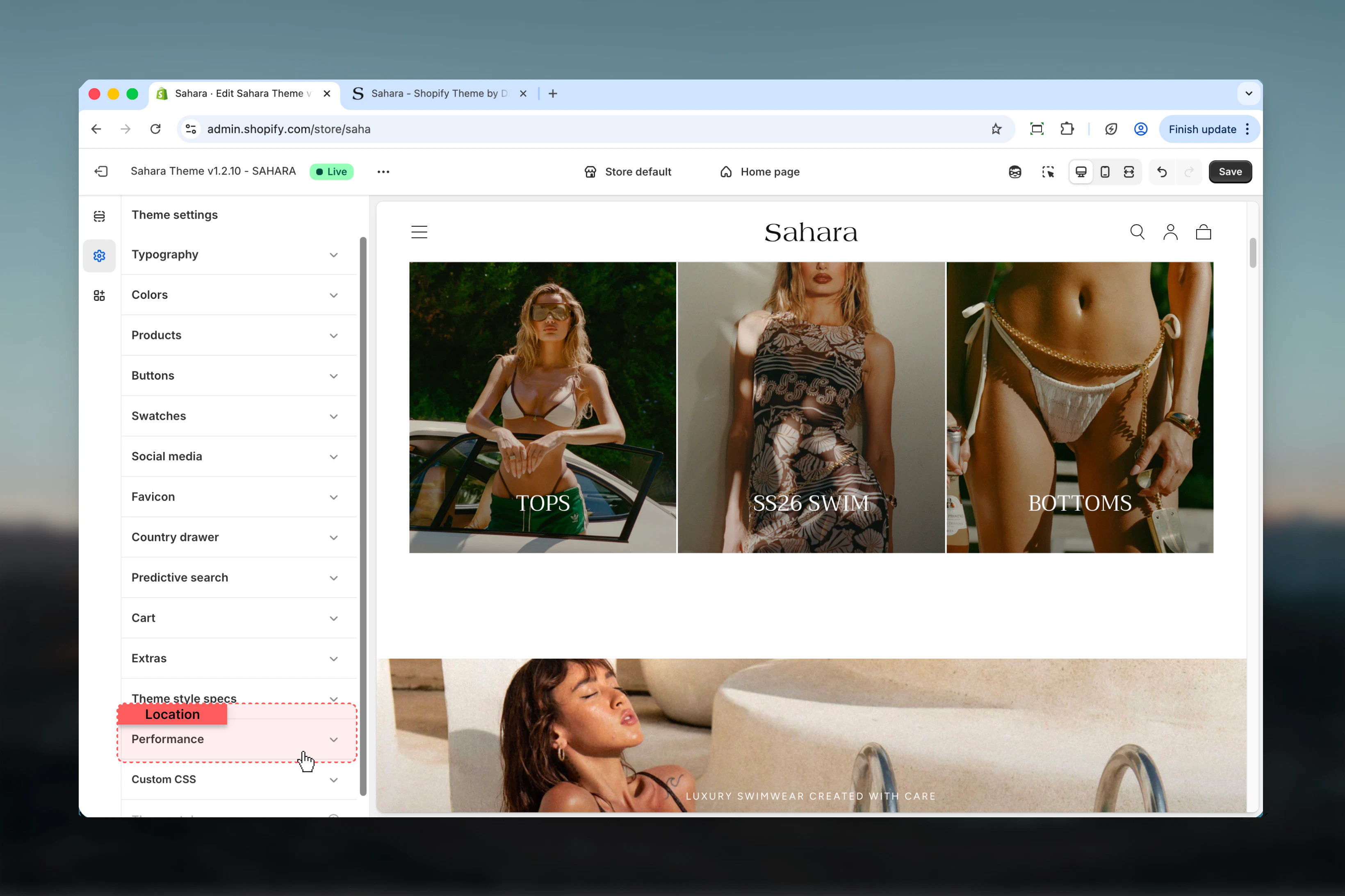
## Location
**Path:** Theme settings → Performance
 ## Settings
### Image Optimization
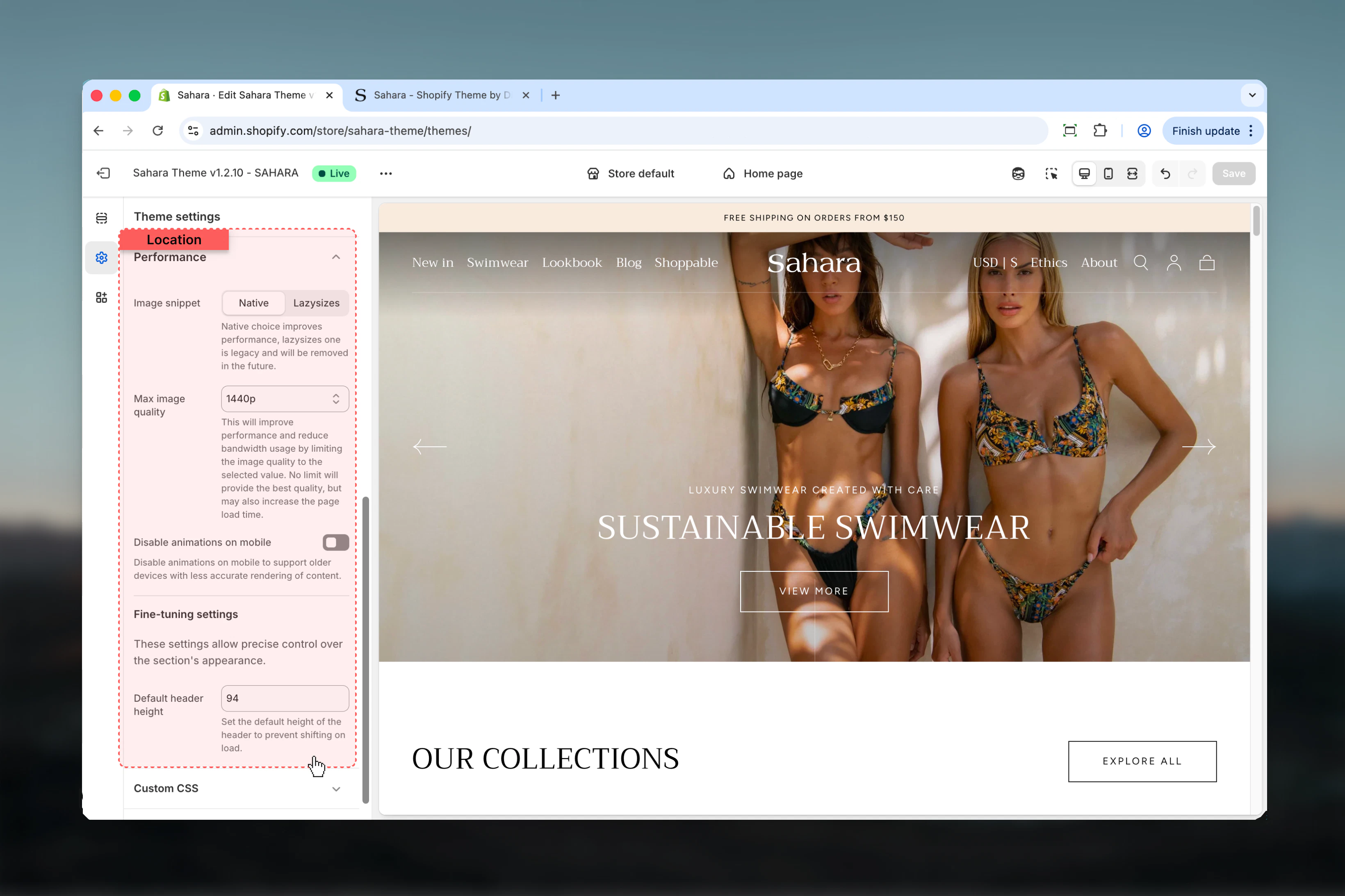
Choose between image compression for speed or original quality for detail.
**Options:**
* **Optimized:** Compressed images, faster loading (recommended)
* **Best detailed:** Original quality, larger files
**Default:** Optimized
This affects ALL images in your store: products, collections, sections, blog posts. Changing this setting impacts every page.
**Optimized (Recommended for Most Stores):**
**Benefits:**
* **30-50% smaller file sizes** (e.g., 500KB → 200KB)
* **20-30% faster page loads**
* Better Core Web Vitals scores (LCP, FID)
* Lower bandwidth costs
* Better mobile experience
* Improved SEO (page speed is ranking factor)
**Trade-offs:**
* Slight quality reduction (usually imperceptible)
* Fine details may be softer
* Heavy compression artifacts if source images are already compressed
**Best for:**
* Most e-commerce stores
* Mobile-first audiences
* International traffic (slower connections)
* Large product catalogs (100+ products)
* Performance-focused brands
**Best Detailed:**
**Benefits:**
* **Maximum image quality** (original uploaded quality)
* Fine details preserved
* No compression artifacts
* Best for high-resolution product photography
**Trade-offs:**
* **2-3x larger file sizes** (e.g., 200KB → 600KB)
* 20-30% slower page loads
* Poor mobile performance on slow connections
* Higher bandwidth costs
* Lower Core Web Vitals scores
**Best for:**
* Luxury brands where image quality is critical
* Jewelry stores (fine detail matters)
* Art/photography sales (quality is product)
* Textile/fabric stores (texture detail important)
* Audiences with fast connections only
**Page Load Time Impact:**
**Example Product Page (10 images):**
**Optimized:**
* Total image size: \~2MB
* LCP (Largest Contentful Paint): 1.5s
* Full page load: 3.0s
* Mobile 4G load: 5.0s
**Best Detailed:**
* Total image size: \~6MB
* LCP: 3.0s
* Full page load: 6.0s
* Mobile 4G load: 12.0s
**Conversion Impact:**
Research shows:
* 1s delay = 7% reduction in conversions
* Best detailed adds 3s = \~20% conversion drop
* Only use if image quality truly increases sales
**Core Web Vitals Scores:**
**Optimized:**
* LCP: Good (under 2.5s)
* CLS: Good (proper dimensions)
* FID: Good (faster image processing)
**Best Detailed:**
* LCP: Needs improvement (over 2.5s)
* May affect mobile usability score
* Lower PageSpeed Insights score
**Use Optimized If:**
**Performance Priority:**
* Page speed is top concern
* Targeting mobile users (60%+ of traffic)
* International audience with varied connection speeds
* Want better SEO (Core Web Vitals matter)
**Product Type:**
* Apparel/fashion (general)
* Electronics
* Home goods
* Beauty products (bottles/packaging)
* Books, media
**Business Model:**
* High-volume sales
* Impulse purchases
* Browse-heavy stores
**Use Best Detailed If:**
**Quality Priority:**
* Image quality directly impacts purchase decision
* Product details are complex and intricate
* Photography is primary sales tool
* Luxury brand positioning
**Product Type:**
* Fine jewelry (details matter)
* Art prints/photography (quality is product)
* High-end watches (intricate details)
* Luxury textiles (fabric texture visible)
* Custom/handmade items (craftsmanship details)
**Audience:**
* Desktop-primarily audience
* Fast connection markets only
* Users who zoom in on images
**Quick Test:**
Try Optimized first. If customers complain about image quality, switch to Best detailed. Most stores won't notice quality difference but will see speed improvement.
**Regardless of Setting, Upload Properly:**
**Image Requirements:**
* Minimum 2000px wide for product images
* JPG for photos, PNG for graphics/transparency
* sRGB color space
* Don't pre-compress before uploading
**Photography Tips:**
* Shoot in good lighting
* Use consistent white balance
* Avoid over-sharpening (compression amplifies artifacts)
* Center important details (compression affects edges more)
**Testing:**
1. Enable Optimized
2. Test on mobile device (4G connection)
3. Check PageSpeed Insights score
4. Visually inspect product images (zoom in)
5. If quality is unacceptable, switch to Best detailed
6. Re-test performance
**Alternative Solutions:**
* Use fewer images per page (if speed is critical)
* Lazy load images below the fold
* Use progressive JPEGs (loads blurry then sharp)
### Disable Animations on Mobile
Turn off animation effects on mobile devices for better performance on older phones.
**Default:** Disabled (animations work on mobile)
**Effect:**
* **Unchecked (default):** Animations work on mobile (smooth transitions, fade-ins, parallax)
* **Checked:** Animations removed on mobile (instant transitions, no motion)
Desktop animations always work regardless of this setting. Only mobile is affected.
**Animations That Get Disabled:**
**Scroll Animations:**
* Fade-in on scroll effects
* Slide-in from side/bottom
* Elements appearing as you scroll
**Parallax Effects:**
* Background images moving at different speeds
* Layered scroll depth effects
**Entrance Animations:**
* Section fade-ins on page load
* Staggered element appearances
**Transition Effects:**
* Smooth transitions between states
* Hover effects (on mobile tap)
* Image lazy-load animations
**Animations NOT Affected:**
* Essential UI animations (cart drawer opening)
* Loading spinners
* Product image zoom
* Required interactions
* Desktop animations (still work)
**Enable Disabling (Check Box) If:**
**Performance Issues:**
* Targeting older mobile devices
* Emerging markets (older Android phones)
* Performance complaints from mobile users
* PageSpeed Insights shows mobile performance issues
**Audience Demographics:**
* Lower-income markets (older devices)
* International audience (varied device quality)
* Budget-conscious customers
**Accessibility:**
* Users with motion sensitivity
* Vestibular disorders (animations cause nausea)
* WCAG compliance focus (reduced motion)
**Business Model:**
* Fast checkout is critical (no distractions)
* Older demographic (prefer simple interfaces)
**Keep Animations (Uncheck Box) If:**
**Modern Audience:**
* Targeting newer devices (iPhone 12+, modern Android)
* Premium/luxury market (expect polished UX)
* Tech-savvy audience
**Brand Identity:**
* Animations are part of brand experience
* Premium/modern positioning
* Interactive product demonstrations
**Most Stores:**
* Modern mobile devices handle animations well
* Animations improve perceived quality
* Smooth UX is expected today
**Animation Performance Cost:**
**With Animations (Default):**
* Smooth, polished feel
* 10-15% CPU usage increase on scroll
* Slightly higher battery consumption
* May lag on phones 3+ years old
* 60fps on modern devices, 30-45fps on older
**Without Animations:**
* Instant, snappy transitions
* Minimal CPU usage
* Better battery life
* No lag on any device
* Perceived as "fast" but "plain"
**Real-World Impact:**
* iPhone 13/14/15: No noticeable difference (animations run smoothly)
* iPhone X/11/12: Slight performance gain without animations
* iPhone 8 and older: Significant improvement without animations
* Modern Android (2022+): Smooth with animations
* Budget Android (2020 or older): Much better without animations
**User Experience Trade-off:**
* Modern users expect animations (feels premium)
* Older device users prefer speed over polish
* Consider your audience's device upgrade cycle
**Accessibility Benefits of Disabling:**
**Motion Sensitivity:**
* \~35% of users prefer reduced motion
* Vestibular disorders triggered by parallax/scrolling effects
* Motion sickness from animations
**WCAG Guidelines:**
* Success Criterion 2.3.3: Animation from Interactions (Level AAA)
* Recommends respecting `prefers-reduced-motion` media query
* Disabling animations helps meet this
**How Sahara Handles It:**
* When disabled: Instant transitions (no motion)
* Users with motion sensitivity get better experience
* Still functional, just not animated
**Best Practice:**
* If targeting accessibility-conscious audience, disable animations
* Or test if theme respects `prefers-reduced-motion` (ask developer)
* Provide option for users to disable in UI (advanced)
### Default Header Height
Set expected header height for accurate full-height section calculations.
**Default:** 94 pixels
**Input type:** Number (pixels)
This is an advanced setting for developers. Only adjust if you've customized header height via CSS or code. Incorrect values cause full-height sections to miscalculate.
**Purpose:**
Full-height sections (hero sections set to "Full height") need to know header height to calculate visible area correctly.
**Calculation:**
**Example:**
* Viewport height: 800px
* Header height: 94px
* Section displays at: 800 - 94 = 706px
**Without Correct Value:**
* Section too tall: Content hidden behind header
* Section too short: White space below section
**Where This Matters:**
* Full-height hero sections
* Video sections set to full viewport
* Landing page sections
* Sections with "Full height" option enabled
**Default Works If:**
* Using standard Sahara header (no modifications)
* Default logo size
* No custom CSS affecting header
**Adjust If:**
**Larger Logo:**
* Logo increases header from 94px to 120px
* Set value to 120
**Custom Header CSS:**
* Developer modified header height
* Measure actual header height in browser inspector
* Set to measured value
**Announcement Bar Confusion:**
* Note: Announcement bar is SEPARATE from header
* Header height is just header, not including announcement bar
* Theme handles announcement bar separately
**Sticky Header Mode:**
* Sticky header may be shorter than default header
* Set to sticky header height if always sticky
* Or leave at default (full header height)
**How to Measure:**
1. Open your store in browser
2. Right-click header → Inspect
3. Find header element height in computed styles
4. Enter that pixel value here
**Problem: Content Hidden Behind Header**
**Symptoms:**
* Hero section title cut off at top
* Button hidden behind fixed header
* Content starts too high
**Solution:**
* Header height set too low
* Increase value by 10-20px at a time
* Test until content visible
**Problem: White Space Below Section**
**Symptoms:**
* Gap between hero section and next section
* Section doesn't reach bottom of viewport
* Looks incomplete
**Solution:**
* Header height set too high
* Decrease value by 10-20px at a time
* Test until section fills viewport
**Problem: Mobile vs Desktop Height Different**
**Issue:**
* Header height changes between mobile and desktop
* One value doesn't work for both
**Solution:**
* Set to desktop header height (mobile usually same)
* Or use CSS custom property override (developer task)
* Sahara typically has same header height on both
**Testing:**
1. Change header height value
2. Navigate to page with full-height hero section
3. Check if content aligns properly
4. Test on both desktop and mobile
5. Adjust as needed
## Settings
### Image Optimization
Choose between image compression for speed or original quality for detail.
**Options:**
* **Optimized:** Compressed images, faster loading (recommended)
* **Best detailed:** Original quality, larger files
**Default:** Optimized
This affects ALL images in your store: products, collections, sections, blog posts. Changing this setting impacts every page.
**Optimized (Recommended for Most Stores):**
**Benefits:**
* **30-50% smaller file sizes** (e.g., 500KB → 200KB)
* **20-30% faster page loads**
* Better Core Web Vitals scores (LCP, FID)
* Lower bandwidth costs
* Better mobile experience
* Improved SEO (page speed is ranking factor)
**Trade-offs:**
* Slight quality reduction (usually imperceptible)
* Fine details may be softer
* Heavy compression artifacts if source images are already compressed
**Best for:**
* Most e-commerce stores
* Mobile-first audiences
* International traffic (slower connections)
* Large product catalogs (100+ products)
* Performance-focused brands
**Best Detailed:**
**Benefits:**
* **Maximum image quality** (original uploaded quality)
* Fine details preserved
* No compression artifacts
* Best for high-resolution product photography
**Trade-offs:**
* **2-3x larger file sizes** (e.g., 200KB → 600KB)
* 20-30% slower page loads
* Poor mobile performance on slow connections
* Higher bandwidth costs
* Lower Core Web Vitals scores
**Best for:**
* Luxury brands where image quality is critical
* Jewelry stores (fine detail matters)
* Art/photography sales (quality is product)
* Textile/fabric stores (texture detail important)
* Audiences with fast connections only
**Page Load Time Impact:**
**Example Product Page (10 images):**
**Optimized:**
* Total image size: \~2MB
* LCP (Largest Contentful Paint): 1.5s
* Full page load: 3.0s
* Mobile 4G load: 5.0s
**Best Detailed:**
* Total image size: \~6MB
* LCP: 3.0s
* Full page load: 6.0s
* Mobile 4G load: 12.0s
**Conversion Impact:**
Research shows:
* 1s delay = 7% reduction in conversions
* Best detailed adds 3s = \~20% conversion drop
* Only use if image quality truly increases sales
**Core Web Vitals Scores:**
**Optimized:**
* LCP: Good (under 2.5s)
* CLS: Good (proper dimensions)
* FID: Good (faster image processing)
**Best Detailed:**
* LCP: Needs improvement (over 2.5s)
* May affect mobile usability score
* Lower PageSpeed Insights score
**Use Optimized If:**
**Performance Priority:**
* Page speed is top concern
* Targeting mobile users (60%+ of traffic)
* International audience with varied connection speeds
* Want better SEO (Core Web Vitals matter)
**Product Type:**
* Apparel/fashion (general)
* Electronics
* Home goods
* Beauty products (bottles/packaging)
* Books, media
**Business Model:**
* High-volume sales
* Impulse purchases
* Browse-heavy stores
**Use Best Detailed If:**
**Quality Priority:**
* Image quality directly impacts purchase decision
* Product details are complex and intricate
* Photography is primary sales tool
* Luxury brand positioning
**Product Type:**
* Fine jewelry (details matter)
* Art prints/photography (quality is product)
* High-end watches (intricate details)
* Luxury textiles (fabric texture visible)
* Custom/handmade items (craftsmanship details)
**Audience:**
* Desktop-primarily audience
* Fast connection markets only
* Users who zoom in on images
**Quick Test:**
Try Optimized first. If customers complain about image quality, switch to Best detailed. Most stores won't notice quality difference but will see speed improvement.
**Regardless of Setting, Upload Properly:**
**Image Requirements:**
* Minimum 2000px wide for product images
* JPG for photos, PNG for graphics/transparency
* sRGB color space
* Don't pre-compress before uploading
**Photography Tips:**
* Shoot in good lighting
* Use consistent white balance
* Avoid over-sharpening (compression amplifies artifacts)
* Center important details (compression affects edges more)
**Testing:**
1. Enable Optimized
2. Test on mobile device (4G connection)
3. Check PageSpeed Insights score
4. Visually inspect product images (zoom in)
5. If quality is unacceptable, switch to Best detailed
6. Re-test performance
**Alternative Solutions:**
* Use fewer images per page (if speed is critical)
* Lazy load images below the fold
* Use progressive JPEGs (loads blurry then sharp)
### Disable Animations on Mobile
Turn off animation effects on mobile devices for better performance on older phones.
**Default:** Disabled (animations work on mobile)
**Effect:**
* **Unchecked (default):** Animations work on mobile (smooth transitions, fade-ins, parallax)
* **Checked:** Animations removed on mobile (instant transitions, no motion)
Desktop animations always work regardless of this setting. Only mobile is affected.
**Animations That Get Disabled:**
**Scroll Animations:**
* Fade-in on scroll effects
* Slide-in from side/bottom
* Elements appearing as you scroll
**Parallax Effects:**
* Background images moving at different speeds
* Layered scroll depth effects
**Entrance Animations:**
* Section fade-ins on page load
* Staggered element appearances
**Transition Effects:**
* Smooth transitions between states
* Hover effects (on mobile tap)
* Image lazy-load animations
**Animations NOT Affected:**
* Essential UI animations (cart drawer opening)
* Loading spinners
* Product image zoom
* Required interactions
* Desktop animations (still work)
**Enable Disabling (Check Box) If:**
**Performance Issues:**
* Targeting older mobile devices
* Emerging markets (older Android phones)
* Performance complaints from mobile users
* PageSpeed Insights shows mobile performance issues
**Audience Demographics:**
* Lower-income markets (older devices)
* International audience (varied device quality)
* Budget-conscious customers
**Accessibility:**
* Users with motion sensitivity
* Vestibular disorders (animations cause nausea)
* WCAG compliance focus (reduced motion)
**Business Model:**
* Fast checkout is critical (no distractions)
* Older demographic (prefer simple interfaces)
**Keep Animations (Uncheck Box) If:**
**Modern Audience:**
* Targeting newer devices (iPhone 12+, modern Android)
* Premium/luxury market (expect polished UX)
* Tech-savvy audience
**Brand Identity:**
* Animations are part of brand experience
* Premium/modern positioning
* Interactive product demonstrations
**Most Stores:**
* Modern mobile devices handle animations well
* Animations improve perceived quality
* Smooth UX is expected today
**Animation Performance Cost:**
**With Animations (Default):**
* Smooth, polished feel
* 10-15% CPU usage increase on scroll
* Slightly higher battery consumption
* May lag on phones 3+ years old
* 60fps on modern devices, 30-45fps on older
**Without Animations:**
* Instant, snappy transitions
* Minimal CPU usage
* Better battery life
* No lag on any device
* Perceived as "fast" but "plain"
**Real-World Impact:**
* iPhone 13/14/15: No noticeable difference (animations run smoothly)
* iPhone X/11/12: Slight performance gain without animations
* iPhone 8 and older: Significant improvement without animations
* Modern Android (2022+): Smooth with animations
* Budget Android (2020 or older): Much better without animations
**User Experience Trade-off:**
* Modern users expect animations (feels premium)
* Older device users prefer speed over polish
* Consider your audience's device upgrade cycle
**Accessibility Benefits of Disabling:**
**Motion Sensitivity:**
* \~35% of users prefer reduced motion
* Vestibular disorders triggered by parallax/scrolling effects
* Motion sickness from animations
**WCAG Guidelines:**
* Success Criterion 2.3.3: Animation from Interactions (Level AAA)
* Recommends respecting `prefers-reduced-motion` media query
* Disabling animations helps meet this
**How Sahara Handles It:**
* When disabled: Instant transitions (no motion)
* Users with motion sensitivity get better experience
* Still functional, just not animated
**Best Practice:**
* If targeting accessibility-conscious audience, disable animations
* Or test if theme respects `prefers-reduced-motion` (ask developer)
* Provide option for users to disable in UI (advanced)
### Default Header Height
Set expected header height for accurate full-height section calculations.
**Default:** 94 pixels
**Input type:** Number (pixels)
This is an advanced setting for developers. Only adjust if you've customized header height via CSS or code. Incorrect values cause full-height sections to miscalculate.
**Purpose:**
Full-height sections (hero sections set to "Full height") need to know header height to calculate visible area correctly.
**Calculation:**
**Example:**
* Viewport height: 800px
* Header height: 94px
* Section displays at: 800 - 94 = 706px
**Without Correct Value:**
* Section too tall: Content hidden behind header
* Section too short: White space below section
**Where This Matters:**
* Full-height hero sections
* Video sections set to full viewport
* Landing page sections
* Sections with "Full height" option enabled
**Default Works If:**
* Using standard Sahara header (no modifications)
* Default logo size
* No custom CSS affecting header
**Adjust If:**
**Larger Logo:**
* Logo increases header from 94px to 120px
* Set value to 120
**Custom Header CSS:**
* Developer modified header height
* Measure actual header height in browser inspector
* Set to measured value
**Announcement Bar Confusion:**
* Note: Announcement bar is SEPARATE from header
* Header height is just header, not including announcement bar
* Theme handles announcement bar separately
**Sticky Header Mode:**
* Sticky header may be shorter than default header
* Set to sticky header height if always sticky
* Or leave at default (full header height)
**How to Measure:**
1. Open your store in browser
2. Right-click header → Inspect
3. Find header element height in computed styles
4. Enter that pixel value here
**Problem: Content Hidden Behind Header**
**Symptoms:**
* Hero section title cut off at top
* Button hidden behind fixed header
* Content starts too high
**Solution:**
* Header height set too low
* Increase value by 10-20px at a time
* Test until content visible
**Problem: White Space Below Section**
**Symptoms:**
* Gap between hero section and next section
* Section doesn't reach bottom of viewport
* Looks incomplete
**Solution:**
* Header height set too high
* Decrease value by 10-20px at a time
* Test until section fills viewport
**Problem: Mobile vs Desktop Height Different**
**Issue:**
* Header height changes between mobile and desktop
* One value doesn't work for both
**Solution:**
* Set to desktop header height (mobile usually same)
* Or use CSS custom property override (developer task)
* Sahara typically has same header height on both
**Testing:**
1. Change header height value
2. Navigate to page with full-height hero section
3. Check if content aligns properly
4. Test on both desktop and mobile
5. Adjust as needed
 ## Best practices
1. **Use Optimized images for most stores**\
30-50% file size reduction with minimal quality loss. Better performance = higher conversions.
2. **Test with PageSpeed Insights**\
Measure impact before/after changes. Target 90+ on mobile for best SEO.
3. **Keep animations enabled for modern audiences**\
Most users (60%+) have devices that handle animations smoothly. Disable only if targeting older devices.
4. **Don't touch header height unless customizing**\
Default 94px works for standard Sahara. Only adjust if you've modified header CSS.
5. **Prioritize mobile performance**\
60-70% of traffic is mobile. Optimize for mobile-first, desktop will follow.
6. **Consider your product type**\
Jewelry/art needs Best detailed. Fashion/electronics can use Optimized.
7. **Monitor Core Web Vitals**\
Google Search Console shows real-world performance. Aim for "Good" ratings.
8. **Test image quality after optimization**\
Visually inspect product images on mobile. If quality is unacceptable, switch to Best detailed.
9. **Balance quality and speed**\
Conversion rate drops 7% per second of load time. Weigh quality vs speed for your market.
10. **Use optimized images + disable animations for maximum speed**\
If targeting emerging markets or older devices, combine both for best performance.
## Common use cases
**Settings:**
* Image optimization: **Optimized**
* Disable animations on mobile: **Unchecked** (animations work)
* Default header height: **94px** (default)
**Why:**
* Optimized images for fast loading without sacrificing quality
* Animations for modern polished UX
* Default header height works without customization
**PageSpeed Target:** 85-95 mobile, 95-100 desktop
**Best for:** Fashion, electronics, home goods, beauty, general retail
**Settings:**
* Image optimization: **Best detailed**
* Disable animations on mobile: **Unchecked** (animations work)
* Default header height: **94px** (default)
**Why:**
* Maximum image quality for fine details and premium presentation
* Smooth animations reinforce luxury positioning
* Accept slower load times for quality
**Trade-off:** PageSpeed 60-75 mobile, 85-95 desktop (still acceptable)
**Best for:** Fine jewelry, luxury watches, art/photography sales, high-end fashion, custom/handmade
**Settings:**
* Image optimization: **Optimized**
* Disable animations on mobile: **Checked** (animations off)
* Default header height: **94px** (default)
**Why:**
* Maximum performance for slower connections
* No animations for older devices (common in emerging markets)
* Fast, functional experience prioritized
**PageSpeed Target:** 90-100 mobile, 95-100 desktop
**Best for:** International stores, budget-focused audiences, older demographics, accessibility-first brands
**Settings:**
* Image optimization: **Optimized**
* Disable animations on mobile: **Unchecked** (animations work)
* Default header height: **Custom value** (measure actual header)
**Why:**
* Custom header CSS requires adjusted height value
* Optimized images unless custom photography demands quality
* Animations match custom design intent
**Setup:**
* Measure header height with browser inspector
* Set exact pixel value
* Test full-height sections
**Best for:** Stores with custom header designs, unique layouts, developer-customized themes
## Related settings
* [Products](/themes/sahara/theme-settings/products) - Product images affected by optimization
* [Layout](/themes/sahara/theme-settings/layout) - Header height interacts with layout calculations
* [Features](/themes/sahara/theme-settings/features) - Back-to-top button animation affected by mobile animation setting
***
**Need help?** Test your store with Google PageSpeed Insights before and after changes. Measure real impact on Core Web Vitals and adjust accordingly. Most stores should use Optimized images and keep animations enabled.
## Best practices
1. **Use Optimized images for most stores**\
30-50% file size reduction with minimal quality loss. Better performance = higher conversions.
2. **Test with PageSpeed Insights**\
Measure impact before/after changes. Target 90+ on mobile for best SEO.
3. **Keep animations enabled for modern audiences**\
Most users (60%+) have devices that handle animations smoothly. Disable only if targeting older devices.
4. **Don't touch header height unless customizing**\
Default 94px works for standard Sahara. Only adjust if you've modified header CSS.
5. **Prioritize mobile performance**\
60-70% of traffic is mobile. Optimize for mobile-first, desktop will follow.
6. **Consider your product type**\
Jewelry/art needs Best detailed. Fashion/electronics can use Optimized.
7. **Monitor Core Web Vitals**\
Google Search Console shows real-world performance. Aim for "Good" ratings.
8. **Test image quality after optimization**\
Visually inspect product images on mobile. If quality is unacceptable, switch to Best detailed.
9. **Balance quality and speed**\
Conversion rate drops 7% per second of load time. Weigh quality vs speed for your market.
10. **Use optimized images + disable animations for maximum speed**\
If targeting emerging markets or older devices, combine both for best performance.
## Common use cases
**Settings:**
* Image optimization: **Optimized**
* Disable animations on mobile: **Unchecked** (animations work)
* Default header height: **94px** (default)
**Why:**
* Optimized images for fast loading without sacrificing quality
* Animations for modern polished UX
* Default header height works without customization
**PageSpeed Target:** 85-95 mobile, 95-100 desktop
**Best for:** Fashion, electronics, home goods, beauty, general retail
**Settings:**
* Image optimization: **Best detailed**
* Disable animations on mobile: **Unchecked** (animations work)
* Default header height: **94px** (default)
**Why:**
* Maximum image quality for fine details and premium presentation
* Smooth animations reinforce luxury positioning
* Accept slower load times for quality
**Trade-off:** PageSpeed 60-75 mobile, 85-95 desktop (still acceptable)
**Best for:** Fine jewelry, luxury watches, art/photography sales, high-end fashion, custom/handmade
**Settings:**
* Image optimization: **Optimized**
* Disable animations on mobile: **Checked** (animations off)
* Default header height: **94px** (default)
**Why:**
* Maximum performance for slower connections
* No animations for older devices (common in emerging markets)
* Fast, functional experience prioritized
**PageSpeed Target:** 90-100 mobile, 95-100 desktop
**Best for:** International stores, budget-focused audiences, older demographics, accessibility-first brands
**Settings:**
* Image optimization: **Optimized**
* Disable animations on mobile: **Unchecked** (animations work)
* Default header height: **Custom value** (measure actual header)
**Why:**
* Custom header CSS requires adjusted height value
* Optimized images unless custom photography demands quality
* Animations match custom design intent
**Setup:**
* Measure header height with browser inspector
* Set exact pixel value
* Test full-height sections
**Best for:** Stores with custom header designs, unique layouts, developer-customized themes
## Related settings
* [Products](/themes/sahara/theme-settings/products) - Product images affected by optimization
* [Layout](/themes/sahara/theme-settings/layout) - Header height interacts with layout calculations
* [Features](/themes/sahara/theme-settings/features) - Back-to-top button animation affected by mobile animation setting
***
**Need help?** Test your store with Google PageSpeed Insights before and after changes. Measure real impact on Core Web Vitals and adjust accordingly. Most stores should use Optimized images and keep animations enabled.