

The template gallery
The gallery is step 1 of the creation wizard (Campaigns → Create Campaign). Each template shows its name, a short description, and a category badge; below the grid, Start from scratch begins with an empty canvas instead.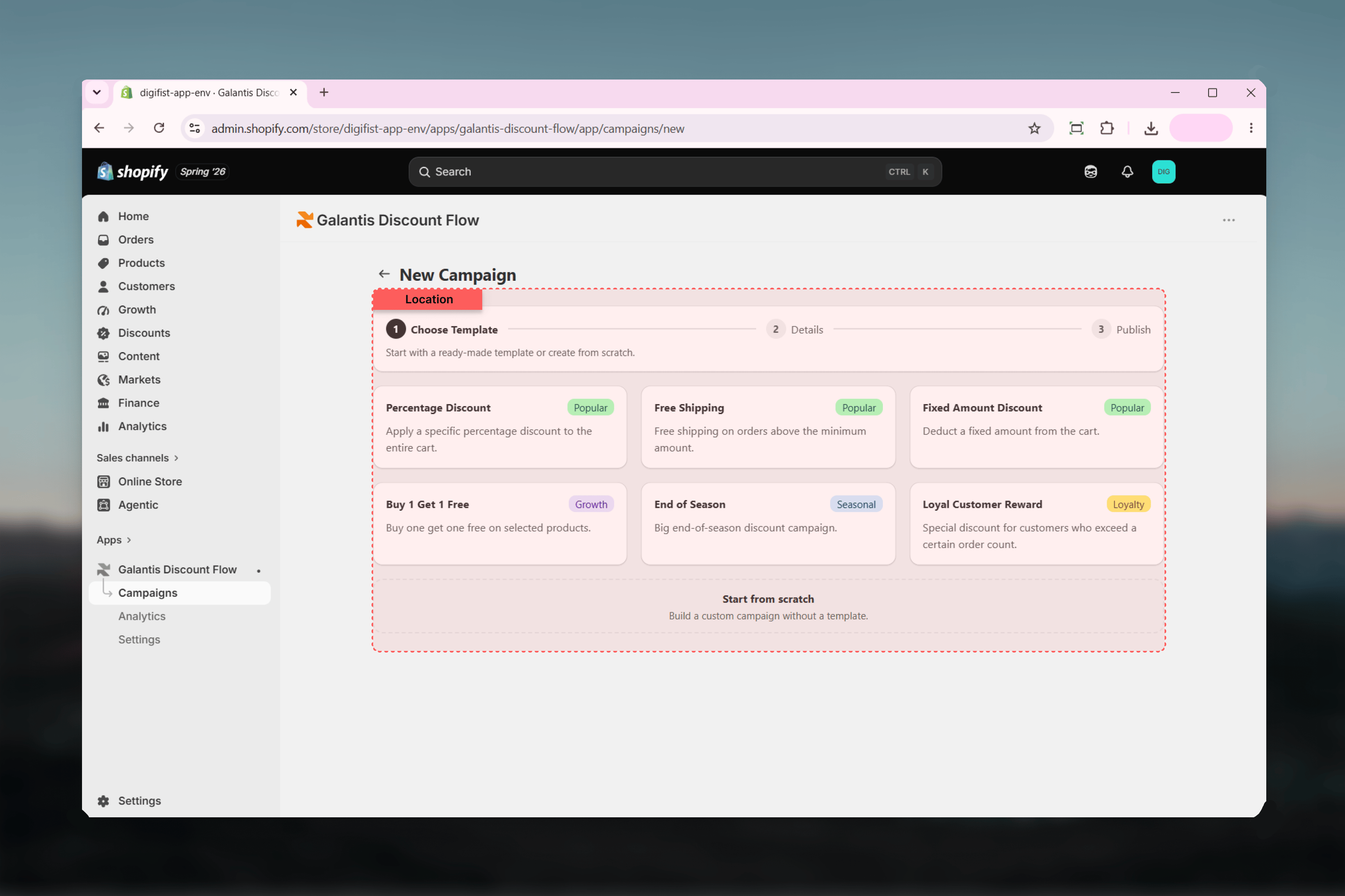
The six templates
Percentage Discount
Popular — “Apply a specific percentage discount to the entire cart.” Prefills a flat 10% off the whole cart.
Free Shipping
Popular — “Free shipping on orders above the minimum amount.” Prefills free shipping when the cart total reaches 150.
Fixed Amount Discount
Popular — “Deduct a fixed amount from the cart.” Prefills 25 off when the cart total reaches 100.
Buy 1 Get 1 Free
Growth — “Buy one get one free on selected products.” Prefills a BOGO flow for products you select.
End of Season
Seasonal — “Big end-of-season discount campaign.” Prefills a 30% discount for clearing out a season’s stock.
Loyal Customer Reward
Retention — “Special discount for customers who exceed a certain order count.” Prefills 50 off for customers with more than 5 orders.
All template amounts are in your store’s own currency — the “25 off” in Fixed Amount Discount means 25 of whatever your store sells in.
At a glance
Customizing after selecting
Selecting a template jumps you to step 2 of the wizard with everything prefilled:1
Rename the campaign
The Campaign Name field is prefilled with the template’s name. Replace it with something specific — “Summer Sale 20%” tells you more in the Campaigns list than “Percentage Discount”.
2
Adjust the flow in the Rule Builder
Change the discount value, raise or lower thresholds, pick different products, or add further conditions — such as a Discount code condition to make the campaign code-based. The template’s flow is fully editable, and a badge above the canvas shows which template you started from, with a Change template option to pick another.
3
Schedule and publish
Continue to step 3 to set Active dates and Combinations, then Create Campaign to publish or Save as draft to keep working later.
Related guides
- Creating campaigns — the full 3-step wizard walkthrough
- Scheduling — putting a time window around a templated campaign
- Combinations — how a templated campaign stacks with your other discounts