

The Campaigns list
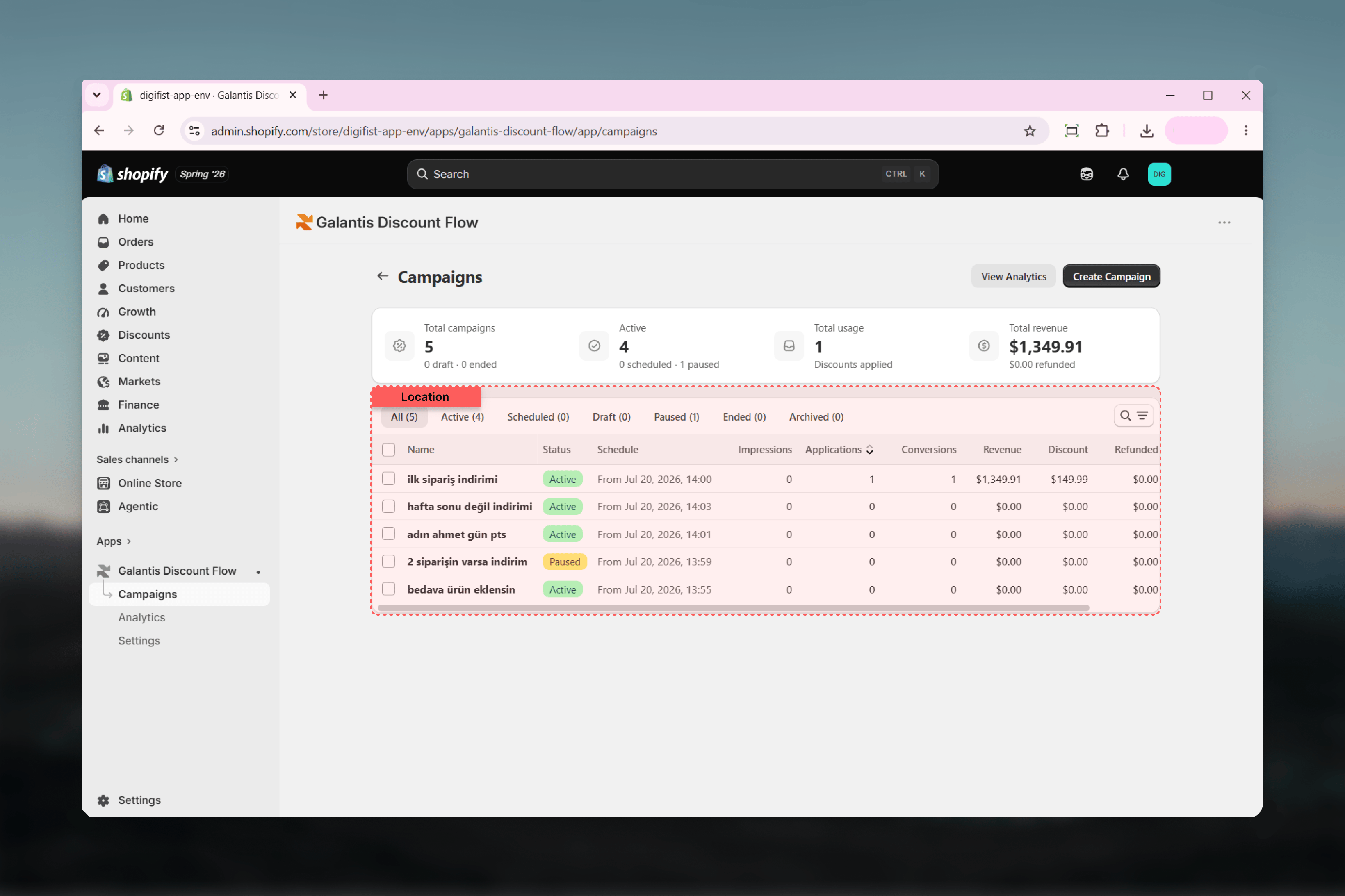
Summary bar
Above the table, four tiles summarize your whole campaign portfolio:- Total campaigns — with a breakdown of drafts and ended campaigns
- Active — with scheduled and paused counts alongside
- Total usage — the total number of discounts applied
- Total revenue — with the refunded amount alongside
Tabs and search
Campaigns are grouped into status tabs, each showing its count: All, Active, Scheduled, Draft, Paused, Ended, and Archived. Use the search field to filter by campaign name within the current tab.Columns
Metric columns are sortable. Campaigns that only give free shipping show ”—” in the revenue-related columns, since there is no discounted product revenue to attribute.
Bulk actions
Select one or more campaigns to reveal bulk actions, each confirmed in a modal before anything changes:- Activate — the selected campaigns’ discounts go live for eligible customers
- Pause — their discounts stop applying until re-activated
- Archive — their live discounts are removed from Shopify; analytics are kept
On the Free plan, when the monthly usage cap is reached (25 discounted orders or 1,000 applications), all discounts are paused until the next monthly period or an upgrade — and a banner appears on both the Dashboard and the Campaigns list.
The campaign detail page
Clicking a campaign opens its detail page, titled with the campaign name and its status badge. The header offers:- A Pause or Activate button, depending on whether the campaign is currently published
- A More actions menu containing Archive
- Performance — the campaign’s Usage and Revenue at a glance
- Campaign Details — the Campaign Name field
- Active dates — the schedule (see Scheduling)
- Rule Builder — the full discount flow, editable in place
- Combinations — stacking settings (see Combinations)
Editing with the save bar
Any change to the name, dates, flow, or combinations activates a save bar with Save and Cancel. The page tracks unsaved changes, so you can’t navigate away and silently lose an edit — save to apply everything at once, or cancel to revert to the last saved state.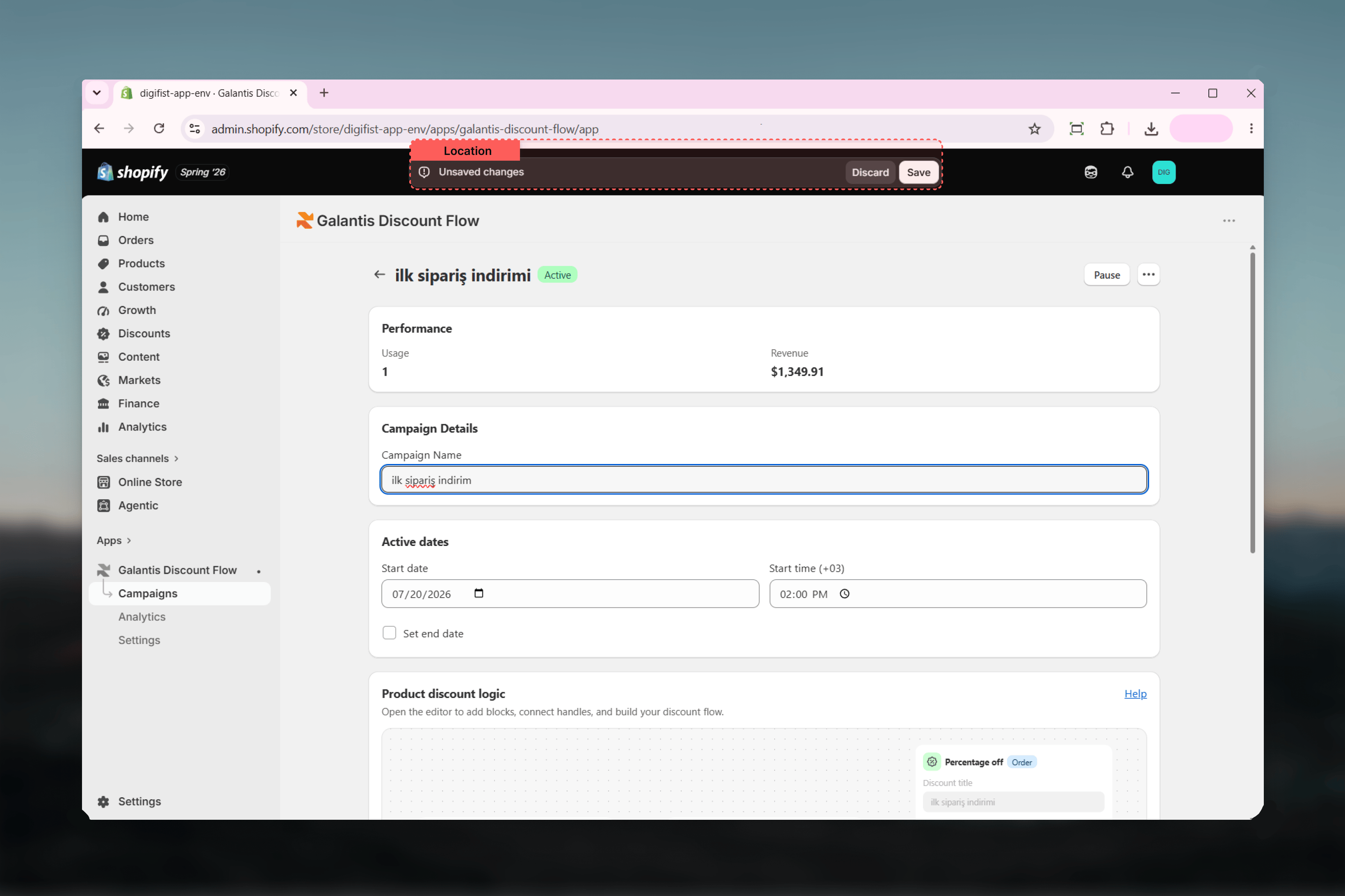
Archive and restore semantics
Archiving is the safe way to retire a campaign:- The live discount is removed from Shopify, so it immediately stops applying
- All analytics are preserved — the campaign stays visible on the Archived tab
- Restore brings it back as Paused, ready to review and re-activate; if the name was reused in the meantime, the restored campaign is automatically renamed
Sync errors and Resync
If the last sync of a campaign to Shopify failed, a sync error banner appears at the top of the detail page explaining the failure. Click Resync to queue a fresh sync attempt. While a sync is running, the banner shows the in-progress state instead.Related guides
- Creating campaigns — the 3-step wizard
- Scheduling — how Scheduled and Ended statuses work
- Campaigns overview — the full status lifecycle reference