

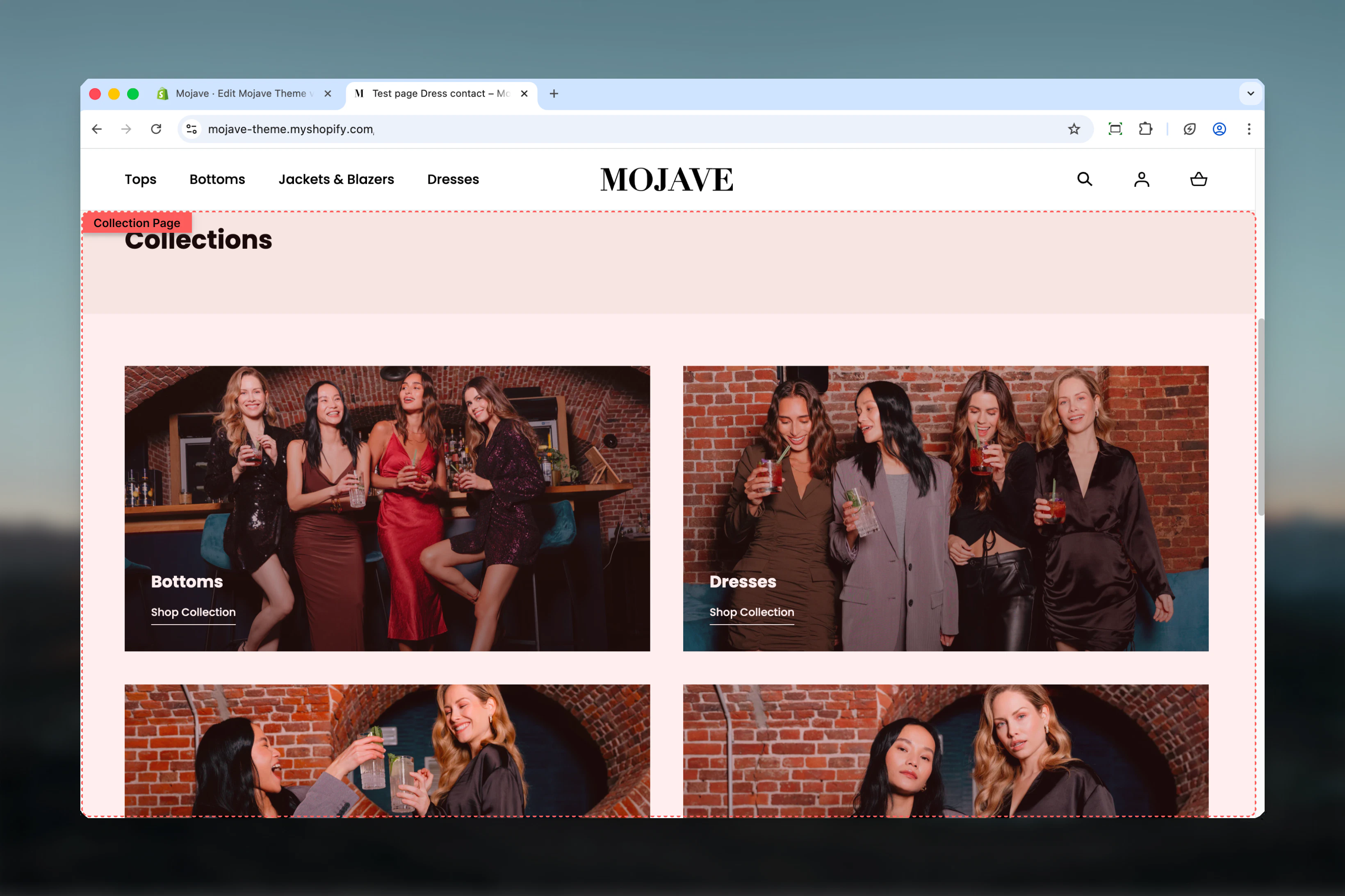
What this section controls
- Products per row on mobile and desktop
- Products per page before pagination
- Product filtering controls
- Sorting dropdown options
- Filter layout (horizontal bar vs. sidebar)
- Filter button styling
Getting started
1
Open Theme Customizer
In your Shopify admin, go to Online Store > Themes and click Customize on your active theme.
2
Navigate to a collection page
Use the page selector dropdown at the top center to select Collections and choose any collection to preview.
3
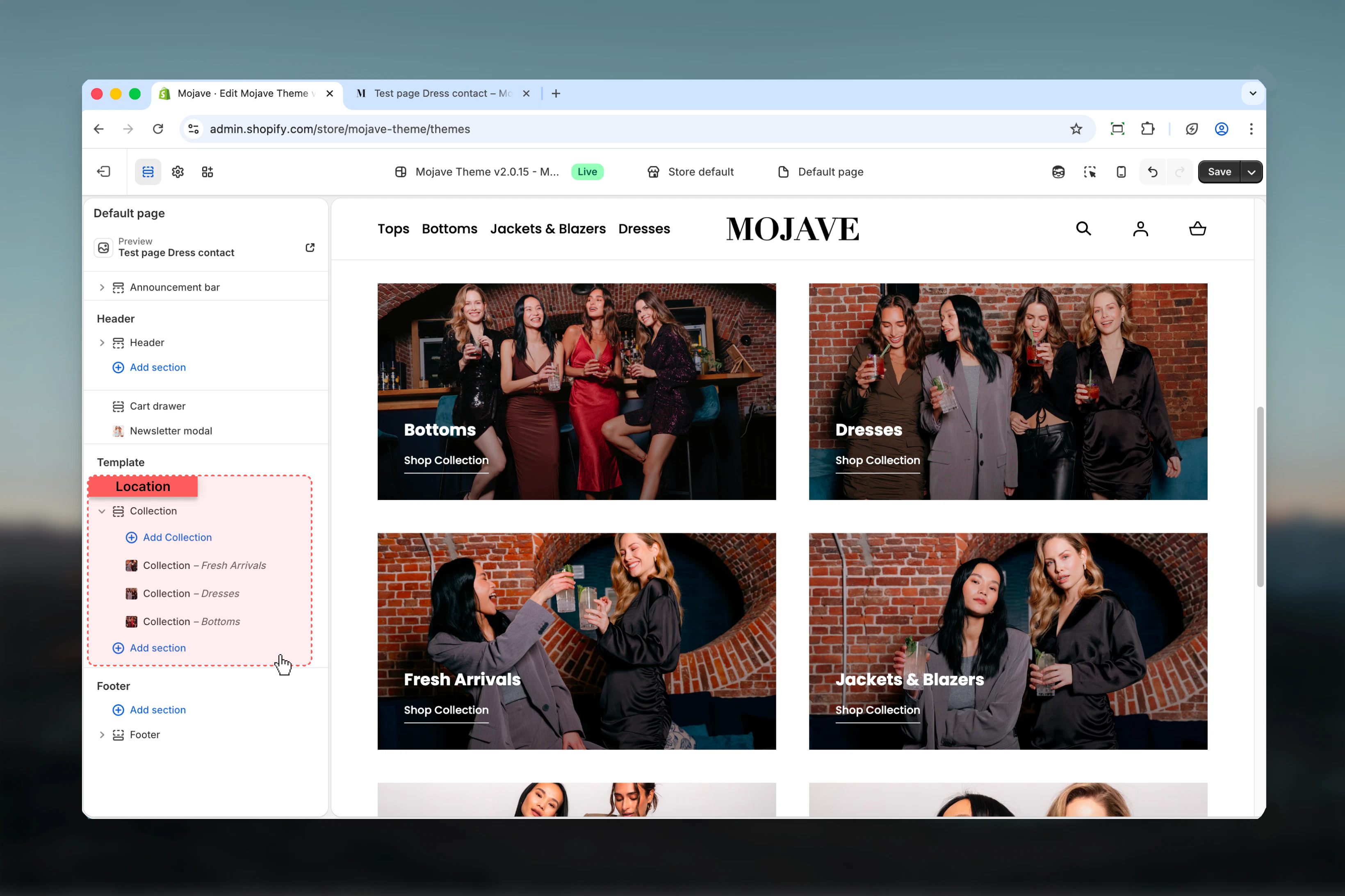
Locate the template
The “Product grid” section controls the main collection template. Additional sections (like collection banner) can be added above it.
Filter layout options
Choose how filtering controls display on desktop:Horizontal filter bar (Default)
Horizontal filter bar (Default)
Filters appear in a horizontal bar above the product grid, with full-width products below.Characteristics:
- Compact filtering interface
- Maximizes product grid width
- Filter style setting (square/round) applies to buttons
- Modern, streamlined appearance
Template settings
- Grid Layout
- Filtering & Sorting
Products per row - Mobile
Products per row - Mobile
Control how many products display side-by-side on mobile devices:
- 1 product: Single column, vertical scrolling - Emphasizes each product with large images
- 2 products (default): Two columns - Balances product size with browsing efficiency
Products per row - Desktop
Products per row - Desktop
Control desktop grid columns:
- 2 products: Large product cards, maximum image size
- 3 products: Balanced layout with good visibility
- 4 products (default): Standard e-commerce grid, efficient browsing
- 2 columns: Image-focused stores (art, photography, luxury goods)
- 3 columns: Balanced approach for most product types
- 4 columns: Efficient browsing, standard for apparel/accessories
- Consider 5-column option if you have many SKUs (requires custom CSS)
Products per page
Products per page
Set how many products display before pagination loads more (2-50 products, default: 12).Sizing recommendations:
- 8-16 products: Standard range, balances page load with browsing
- 24-36 products: Power users, reduces pagination clicks
- 50 products: Maximum, may slow page load on slower connections
- Keep default 12 for most stores
- Increase for collections with extensive filtering (reduces filter re-application)
- Consider page load speed - more products = slower initial load
- Popular numbers: 12, 16, 20, 24 (divisible by common column counts)
Configuring filters
Product filters are managed through Shopify’s Search & Discovery app, not in the Theme Customizer.1
Open Search & Discovery
In Shopify admin, go to Apps → Search & Discovery (or install if not present).
2
Navigate to Filters
Click on Filters in the left sidebar.
3
Customize filter options
- Add/remove filter options (price, availability, product type, vendor, tags, metafields)
- Reorder filters by dragging
- Configure filter types (checkbox, swatch, price range)
- Set filter labels and display names
4
Save and test
Save changes and test on your storefront collection pages.
- Availability: In stock / Out of stock
- Price: Range slider or preset ranges
- Product type: Automatically from product types
- Vendor: Filter by brand/manufacturer
- Tags: Product tags as filters
- Metafields: Custom product properties (color swatches, materials, etc.)
Best practices
Balance grid density
Use 4 columns on desktop for standard browsing efficiency. Consider 3 columns for products requiring larger images (jewelry, art) or 2 columns for luxury/high-detail items.
Optimize products per page
Keep at 12-24 products for best performance. Higher values reduce clicks but slow page load. Test with your target audience’s connection speed.
Enable both filtering and sorting
Most customers expect both options. Only disable when you have strong merchandising reasons to control the exact product order.
Choose filter layout strategically
Use horizontal bar for smaller stores (5-10 filter options). Use sidebar for extensive filtering needs (15+ options) or traditional customer expectations.
Configure filters thoughtfully
In Search & Discovery, enable only relevant filters. Too many filters overwhelm customers. Focus on filters that genuinely help narrow choices (size, color, price).
Mobile-first grid
Test 2-column mobile layout across devices. Single column rarely adds value unless products require extremely detailed views.
Consider pagination numbers
Use numbers divisible by your column count (12 for 3-4 columns, 16 for 4 columns, 18 for 3 columns) for balanced final rows.
Match filter style to theme
Square filters suit modern/minimalist themes, round filters suit friendly/approachable brands. Maintain consistency with button styles elsewhere.
Featured sort for merchandising
Use “Featured” sort (manual collection order) to highlight seasonal items, bestsellers, or high-margin products at the top of collections.
Monitor filter usage
Track which filters customers use most (via analytics). Remove unused filters to reduce interface complexity and improve experience.