

What this section does
The Featured Products section displays a customizable set of products in your choice of slideshow or grid format. You can either:- Pull products automatically from a selected collection (dynamic)
- Manually choose specific products to feature (curated)
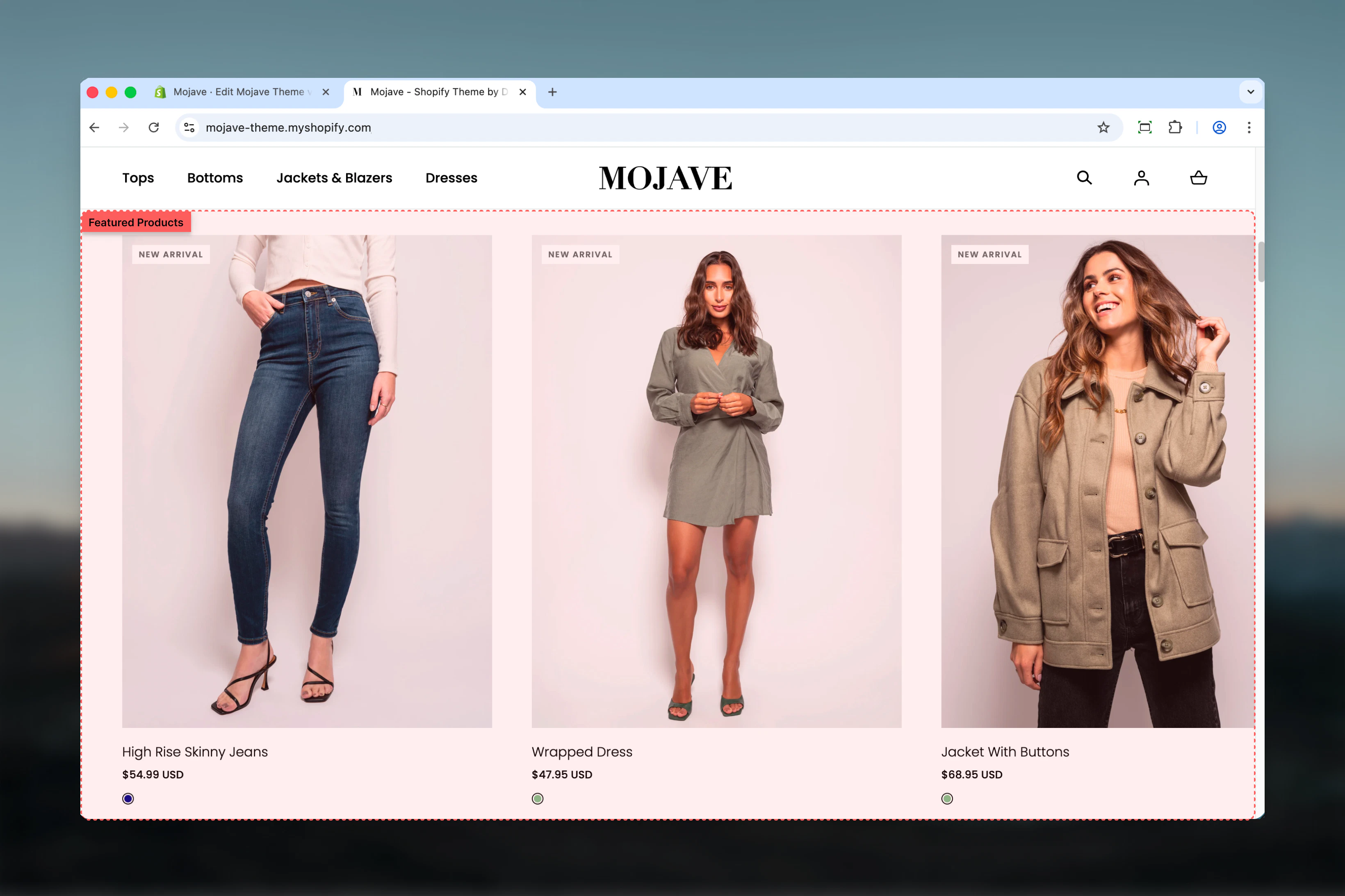
Getting started
1
Add the section
From the Theme Customizer, click Add section and select Featured products
2
Choose product source
Either select a Collection to pull products automatically, OR manually select individual products using the Products picker (up to 12)
3
Configure display
Choose between Slider (carousel) or Grid display style, set section width, and adjust spacing to match your page design
Section settings
- Content
- Display & Layout
Heading
Heading
Textarea (default: “Featured products”)Main heading displayed above the product display. Use to describe the product selection (e.g., “Best Sellers”, “New Arrivals”, “Staff Picks”).
Collection
Collection
Collection picker — Select a Shopify collection to automatically pull products from
- Products display in the collection’s configured sort order
- Updates automatically when collection products change
- Overrides manual product selection if both are configured
Products
Products
Product list picker — Manually select up to 12 specific products
- Choose exact products to feature in exact order
- Maximum 12 products
- Ignored if a Collection is selected above
Link text
Link text
Text field (default: “Explore featured products”)Text displayed on the call-to-action button below the products.
Link URL
Link URL
URL field (default: /collections)Destination URL for the CTA button. Typically links to:
- The source collection page (if using Collection setting)
- A relevant category or landing page
- “Shop All” collections page
Best practices
Choose the right source
Use Collection for dynamic, auto-updating displays (e.g., best sellers). Use Products for static, curated selections (e.g., campaign-specific products).
Slider for many products
Use Slideshow style when featuring 6+ products to avoid overwhelming the page. Grid works best with 3-4 products for immediate visibility.
Match CTA to source
Set the Link URL to the source collection page (if using Collection) or a relevant category page so customers can explore more products.
Section width strategy
Use Full width with Slideshow for dramatic product showcases. Use Narrow with Grid to focus attention on fewer hero products.
Limit product count
Display 6-8 products in Slideshow or 4 products in Grid for optimal user experience. Too many products can cause decision paralysis.
Update seasonally
Refresh featured products or switch collections based on seasons, holidays, or promotional campaigns to keep content relevant.
Coordinate spacing
Use Extra spacing when sandwiched between heavy content sections. Disable it when stacking multiple product sections for tighter layouts.
Descriptive headings
Use specific headings like “Best Sellers”, “New Arrivals”, or “Staff Picks” instead of generic “Featured Products” to set context.
Common use cases
Homepage hero products — Feature your best-selling or newest products immediately after the hero banner to capture visitor attention Sale/promotional sections — Manually select products on sale or part of a campaign using the Products picker for full control Category highlights — Pull products from a specific category collection to introduce customers to that product category Trending items showcase — Use a dynamic collection that auto-updates with best-selling or frequently viewed products Editorial product stories — Curate specific products that tell a brand story or follow a theme (e.g., “Summer Essentials”, “Gift Ideas”)Layout behavior
Desktop - Slideshow style: Products display in a carousel/slider with navigation arrows. Users can click through products horizontally. Desktop - Grid style: Products display in a static grid layout with all products visible simultaneously. Mobile: Regardless of style setting, products always display as a horizontal scrollable row on mobile devices for optimal touch interaction. Product order: Products appear in the order defined by:- Collection sort order (if using Collection setting)
- Manual selection order (if using Products setting)
Related sections
- Featured Collection — Display products from a collection with a large promotional image and split-screen layout
- Recommended Products — Display AI-powered product recommendations based on customer behavior
- Recently Viewed — Show products the customer has recently browsed