

What this section does
The Countdown timer section creates urgency and drives conversions by displaying a live countdown to a specific date and time. Features include:- Live countdown with configurable date/time (year, month, day, hour, minute)
- Customizable timer units: Show/hide days, hours, minutes, seconds
- Two layout modes: With media or without media
- Heading, subheading (with separate mobile version), and CTA button
- Timer end message that displays when countdown reaches zero
- Optional promotional image
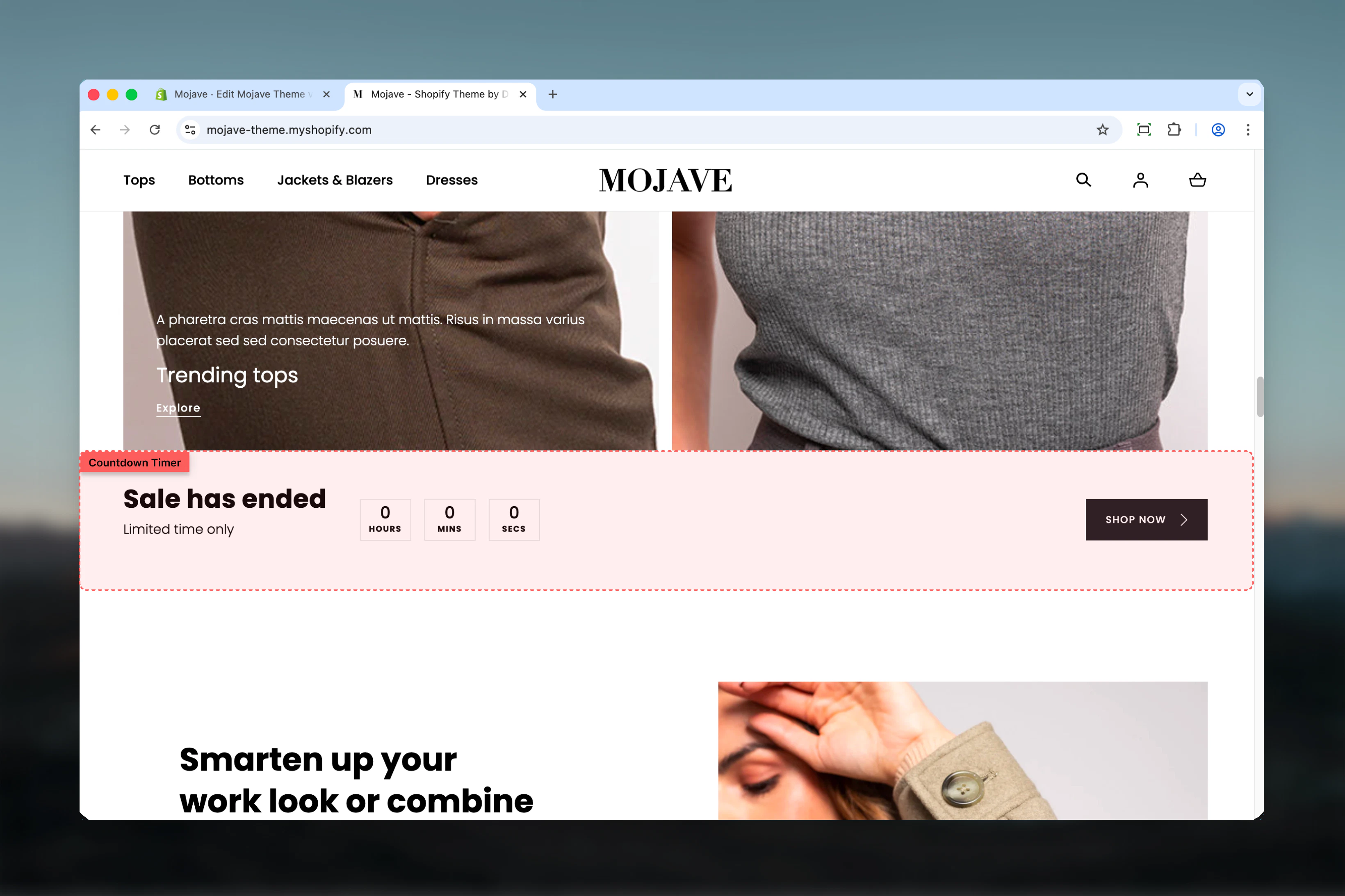
Getting started
1
Add the section
From the Theme Customizer, click Add section and select Countdown timer
2
Set target date & time
Configure the countdown end date: Year, Month, Day, Hour, and Minute
3
Configure timer display
Choose which units to display (days, hours, minutes, seconds) and add your heading/subheading text
4
Optional: Add media
Upload an image and select “Media” layout to include promotional imagery alongside the timer
Section settings
- Layout & Media
- Text Content
- Timer Configuration
Make section full width
Make section full width
Checkbox (default: unchecked)Controls section container width:
- Unchecked: Section contained within standard page width
- Checked: Section spans full browser width (edge-to-edge)
Layout
Layout
Dropdown (default: Media none)Controls whether promotional image is displayed:
- Media: Shows uploaded image alongside timer content
- Media none: Timer only, no image (default)
Image
Image
Image picker (optional)Promotional image displayed when Layout is set to “Media”:
- Appears beside timer content (split-screen on desktop)
- Hidden when Layout is “Media none”
- Use product images, lifestyle photography, or promotional graphics
Image only displays when Layout setting is set to “Media”.
Spacing - Desktop & Mobile
Spacing - Desktop & Mobile
Desktop (default: Default) and Mobile (default: Compact)Controls vertical spacing above and below the section:
- Default: Standard spacing
- Medium: Moderate spacing
- Compact: Minimal spacing
- None: No spacing
Best practices
Seconds for urgency
Keep seconds enabled (default) for maximum urgency. The constant ticking creates psychological pressure to act quickly.
Set realistic deadlines
Use real, enforced deadlines. Fake urgency damages trust. If countdown ends, the offer should actually end.
Match units to duration
For 24+ hour sales: enable days. For 1-24 hours: disable days, show hours. For < 1 hour: show minutes/seconds only.
Clear offer messaging
Heading should immediately communicate the offer (e.g., “50% Off”, “Flash Sale”, “Launch Event”). Make value obvious.
Strong CTAs
Use urgent button text: “Shop now”, “Claim offer”, “Get yours” rather than generic “Learn more” or “Click here”.
Fullwidth for impact
Enable fullwidth for homepage banners or major sales. Contained width works better for secondary placements.
Mobile subheading brevity
Use shorter subheading for mobile to avoid text wrapping or overwhelming small screens.
End message strategy
Timer end message should guide next action: “Sale ended” (passive) vs “Check our new collection” (active redirect).
Common use cases
Flash sales — Homepage banner with countdown to end of limited-time discount (e.g., “24 Hour Flash Sale”) Product launches — Countdown to new product release or collection drop to build anticipation Holiday sales — Black Friday, Cyber Monday, or seasonal sale countdowns on homepage Cart/checkout abandonment — Use in email campaigns or on cart page to create urgency for completing purchase Webinar/event registration — Countdown to event start time to drive registrations Stock limitation — “Limited stock - offer ends in…” to create scarcity and urgency togetherLayout behavior
Desktop - Media layout:- Split-screen: Timer content on one side, image on other
- Timer displays prominently with all enabled units
- Button and subheading clearly visible
- Timer content centered, no image
- Full width allocated to countdown and text
- More prominent, focused display
- Always stacks vertically
- Image at top (if Media layout), then timer, then text/button
- Timer scales responsively
- Uses mobile-specific subheading
Timer behavior
Before countdown end:- Live countdown updates every second (if seconds enabled) or minute
- All enabled units display with current values
- Button and content visible
- Timer display replaced with “Timer end message” text
- Heading and button remain visible (unless customized)
- No automatic page refresh or section hiding
- Countdown uses customer’s local timezone (browser-based)
- Set time in your local timezone, customers see countdown in theirs
- Consider timezone differences for global audiences
Customization tips
For very short sales (< 1 hour):- Disable: Days, Hours
- Enable: Minutes, Seconds only
- Results in: “30:45” (minutes:seconds)
- Set end time to midnight (00:00) of next day
- Enable: Hours, Minutes, Seconds
- Disable: Days (implies daily reset)
- Enable: Days, Hours, Minutes
- Seconds optional (disable for cleaner look)
- Result: “3 days 14:30:00”
- Enable: Days, Hours only
- Disable: Minutes, Seconds
- Creates awareness without anxiety
Related sections
- Hero — Dramatic banners that can include urgency messaging
- Newsletter — Email signup sections for post-sale engagement
- Featured Products — Pair timer with specific sale products
- Banner Fullwidth — Alternative promotional banner without timer