

What this section does
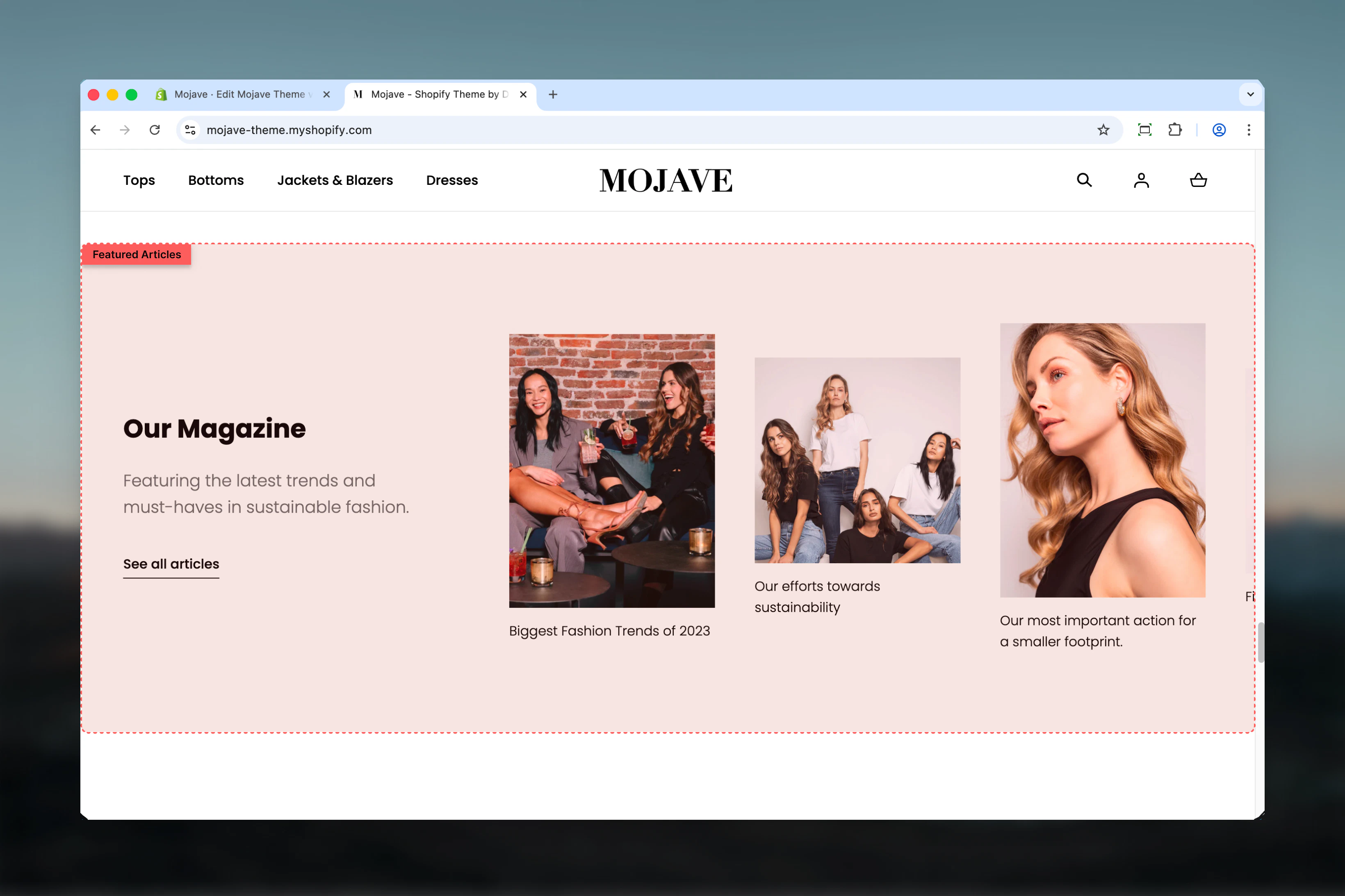
The Featured Articles section displays blog content in an attractive card grid, perfect for promoting your latest posts or highlighting curated content. You can:- Automatically pull recent articles from a selected blog (dynamic)
- Manually select specific articles using blocks (curated)
Getting started
1
Add the section
From the Theme Customizer, click Add section and select Featured articles
2
Choose article source
Either select a Blog to pull articles automatically, OR add Article blocks to manually select specific articles
3
Configure display
Add a heading and subheading, set the article count (if using a blog), and toggle fullwidth mode based on your design preferences
Section settings
- Content
- Spacing
Enable fullwidth
Enable fullwidth
Checkbox (default: checked)Controls the section width:
- Checked: Section spans full browser width (edge-to-edge)
- Unchecked: Section contained within standard page width
Heading
Heading
Text field (default: “Blog posts”)Main heading for the section. Automatically populates with the blog name when you select a blog, but can be overridden.Use descriptive headings like “Latest News”, “From the Blog”, or “Our Stories”.
Subheading
Subheading
Textarea (default: “Give your customers a summary of your blog posts.”)Supporting text that provides context about the blog content. Keep concise (1-2 sentences).
Link text
Link text
Text field (optional)Text displayed on the call-to-action button below the articles (e.g., “Read more”, “View all posts”).
Link URL
Link URL
URL field (optional)Destination for the CTA button. Automatically populates with the blog URL when you select a blog, but can be overridden.Typically links to:
- The main blog page
- A specific blog category
- A custom landing page
Blog
Blog
Blog picker — Select a Shopify blog to automatically pull articles from
- Displays the most recent articles based on publish date
- Updates automatically as new articles are published
- Overrides manual article blocks if both are configured
- Auto-fills Heading and Link URL with blog info (can be overridden)
Articles count
Articles count
Range slider — 4 to 10 articles (default: 4)Controls how many articles are displayed when using the Blog setting.
- 4 articles: Recommended for most layouts (default)
- 6-8 articles: Use when you have more vertical space
- 10 articles: Maximum for comprehensive blog showcases
This setting only applies when a Blog is selected. When using manual article blocks, the number of articles matches the number of blocks added.
Block types
Article block
Add Article blocks to manually select specific articles to feature. Each block represents one article.Article
Article
Article picker — Select a specific blog article to display
- Info: “Overwrites the Blog, if chosen”
- Choose any published article from any blog
- Articles display in the order blocks are arranged in the Theme Customizer
- In the Theme Customizer, click Add block
- Select Article
- Choose the article from the picker
- Repeat to add more articles
- Drag blocks to reorder articles
Best practices
Choose the right source
Use Blog for dynamic, auto-updating displays. Use Article blocks for static, curated selections tied to specific campaigns or themes.
Optimal article count
Display 4 articles by default for balanced visual impact. Use 6-8 only if you have substantial blog content and vertical space.
Fullwidth for impact
Enable fullwidth for dramatic blog showcases that dominate the page. Disable when stacking with other standard-width sections.
Descriptive headings
Use specific headings like “Latest News”, “Style Tips”, or “From the Journal” instead of generic “Blog posts” to set expectations.
Concise subheadings
Keep subheadings to 1-2 sentences that explain the value of your blog content (e.g., “Discover styling tips, trends, and inspiration from our team”).
CTA encourages exploration
Always include Link text and Link URL to drive visitors to your full blog where they can discover more content.
Update featured content
When using manual article blocks, refresh featured articles seasonally or with new campaigns to keep content fresh and relevant.
Coordinate spacing
Use Compact spacing (default) for fullwidth sections. Use Default spacing when the section sits between lighter content areas.
Common use cases
Homepage blog showcase — Feature your most recent blog posts on the homepage to drive traffic to your content and establish brand authority Content hub landing page — Create a dedicated blog landing page that showcases featured or popular articles before the full blog list Campaign-specific content — Manually curate articles related to a seasonal campaign, holiday, or product launch using article blocks Category highlights — Pull articles from a specific blog category to introduce customers to themed content (e.g., “Recipes”, “Tutorials”) Editorial storytelling — Showcase long-form brand stories, founder interviews, or behind-the-scenes content to build emotional connectionsLayout behavior
Desktop: Articles display in a grid layout, typically 2-4 columns depending on the number of articles. Each article card includes:- Featured image
- Article title
- Excerpt (if available)
- Publish date and author (if configured in theme settings)
- Read more link
- Blog mode: Most recent articles first (sorted by publish date)
- Block mode: Order matches the arrangement of article blocks in the Theme Customizer
Content population logic
When using Blog setting:
- Select a blog using the Blog picker
- Heading auto-fills with blog name (can be overridden)
- Link URL auto-fills with blog URL (can be overridden)
- Most recent X articles display (X = Articles count setting)
- All article blocks are ignored
When using Article blocks:
- Leave Blog setting empty
- Add Article blocks for each article you want to feature
- Manually set Heading and Link URL
- Articles display in block order
- Articles count setting has no effect
Related sections
- Featured Collection — Similar editorial layout but for products instead of articles
- Featured Products — Display curated products in a grid or slider
- Main Blog — Full blog template with hero banner, filtering, and pagination