

What this section does
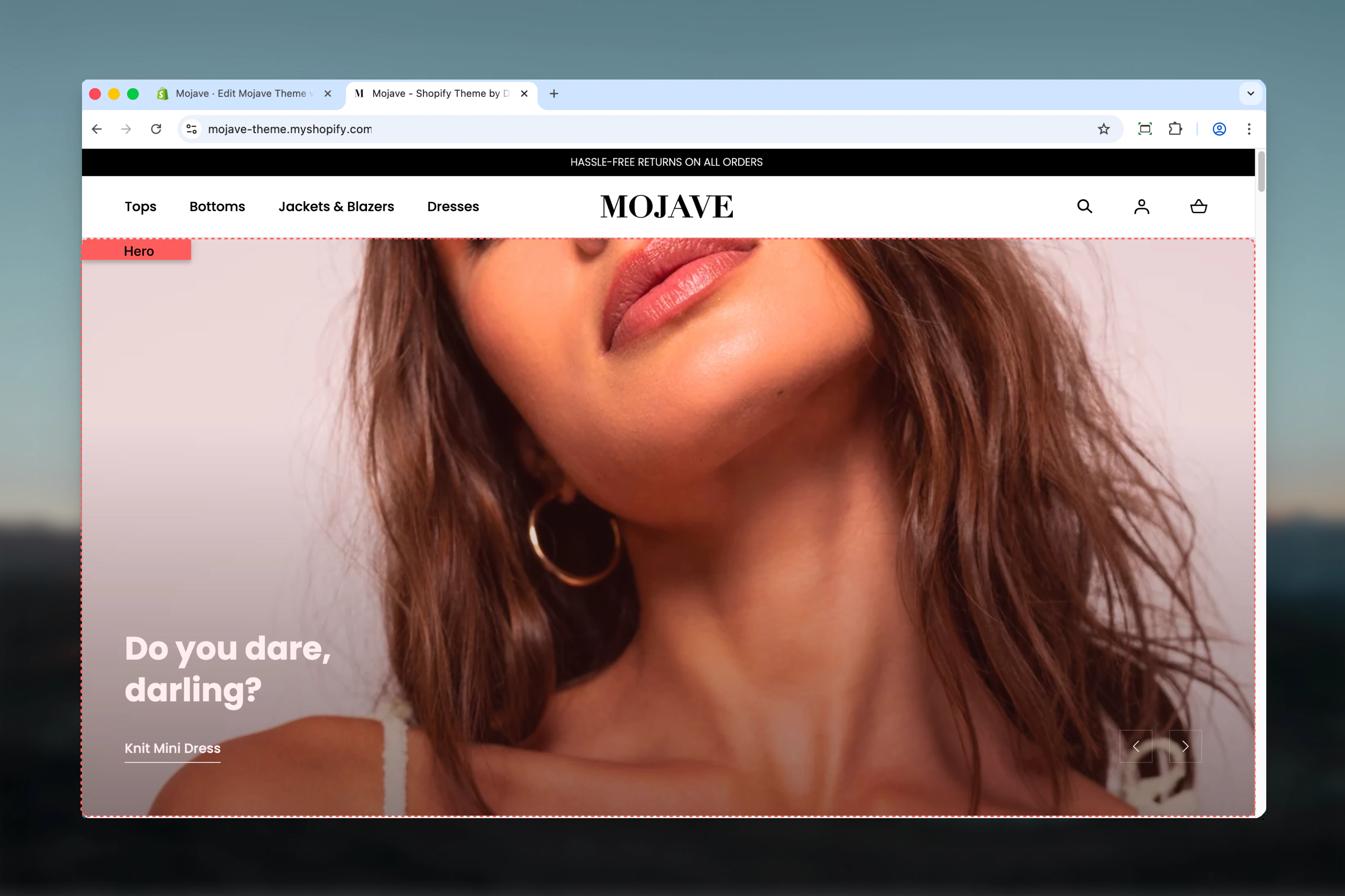
The Hero section creates powerful, attention-grabbing banners at the top of your pages. It supports:- Carousel functionality with multiple rotating slides
- Three layout modes: 70/30 split, 50/50 split, or fullwidth
- Dual content areas per slide: Main (primary) and Aside (secondary)
- Media flexibility: Background images, embedded videos, uploaded videos, or solid colors
- Responsive design: Separate mobile images and mobile-first behavior
Getting started
1
Add the section
From the Theme Customizer, click Add section and select Hero
2
Add slide blocks
Add one or more Hero slide blocks (1-3 recommended). Each block represents one carousel slide
3
Choose layout
For each slide, select your layout: 70/30 (focus on one side), 50/50 (balanced), or Full-width (single dramatic banner)
4
Configure content
Upload images for Main and Aside areas, add headings and call-to-action buttons, adjust overlay and alignment settings
Section settings
Hero height
Hero height
Range slider — 50% to 100% (default: 100%)Controls the height of all hero slides in the carousel.
- 100% (default): Full viewport height for maximum impact
- 75-90%: Prominent but allows content below to peek through
- 50-70%: More compact hero that doesn’t dominate the page
Enable carousel autoplay
Enable carousel autoplay
Checkbox (default: unchecked)Automatically rotates through hero slides without user interaction.
- Checked: Slides auto-advance based on autoplay interval
- Unchecked: Users must click navigation arrows to change slides
Autoplay interval
Autoplay interval
Range slider — 3 to 10 seconds (default: 5)Controls how long each slide displays before auto-advancing to the next.
- 3-4 seconds: Very fast, only for minimal content
- 5-6 seconds: Standard speed for most content
- 7-10 seconds: Slower pace for text-heavy or complex slides
Enable control arrows
Enable control arrows
Checkbox (default: checked)Shows/hides navigation arrows that users click to manually advance slides.
- Checked: Arrows visible for manual control
- Unchecked: No arrows (rely on autoplay or dots)
Block types
Hero slide block
Add Hero slide blocks to create individual carousel slides. Each slide has two potential content areas: Main (primary) and Aside (secondary).- General
- Main Area
- Aside Area
Layout
Layout
Dropdown (default: 70/30)Controls the screen split ratio between Main and Aside areas:
- 70/30 — Main occupies 70% width, Aside occupies 30%
- 50/50 — Equal split for balanced dual messaging
- Full-width — Main only (100% width), Aside settings ignored
- 70/30: Primary content focus with secondary callout
- 50/50: Side-by-side product comparison or dual campaigns
- Full-width: Single, dramatic hero statement without distraction
Flip
Flip
Checkbox (default: unchecked)Reverses the positions of Main and Aside areas:Use flip to create visual variety when featuring multiple slides or when layout direction serves your content better.
- Unchecked: Main on left, Aside on right
- Checked: Aside on left, Main on right
Only applies to 70/30 and 50/50 layouts. Has no effect on Full-width.
Overlay opacity
Overlay opacity
Range slider — 0% to 100% (step: 10%, default: 50%)Controls the darkness of the Main area overlay placed over background images/videos.
- 0%: No overlay, full image/video brightness (text must be readable)
- 30-50%: Moderate overlay for readability while keeping image visible
- 70-100%: Heavy overlay for maximum text contrast
Best practices
Limit slide count
Use 1-3 hero slides maximum. Too many slides dilute messaging and reduce engagement. One dramatic slide often outperforms carousels.
Choose the right layout
Use 70/30 for primary content focus, 50/50 for balanced dual messaging, and Full-width for dramatic single statements.
Upload mobile images
Always provide mobile-specific images optimized for portrait orientation. Desktop images often crop poorly on mobile.
Slow autoplay intervals
If using autoplay, set interval to 7+ seconds minimum so users can read content. Faster rotation is disorienting.
Video best practices
Use short, looping videos (10-15 seconds) that are muted. Keep file sizes under 5MB for performance.
Overlay for readability
Adjust overlay opacity based on image brightness. Dim images need less overlay (20-40%), bright images need more (60-80%).
Concise headings
Keep hero headings to 1-2 lines maximum. Shorter text has more visual impact and is more readable over images.
Aside area on mobile
Remember: Aside area is hidden on mobile. Ensure Main area alone communicates your key message effectively.
Common use cases
Homepage hero — Single fullwidth slide with dramatic imagery and primary CTA to drive visitors into your store Campaign promotion — 70/30 layout with large product image on Main side and promotional text + CTA on Aside Product launches — Carousel with 2-3 slides showcasing different features or colorways of a new product Seasonal campaigns — 50/50 split with seasonal imagery on one side and promotional messaging on the other Video storytelling — Fullwidth layout with brand video background and overlaid heading/CTA Dual promotions — 50/50 layout featuring two different collections or categories with separate CTAs, to promote multiple offerings simultaneouslyLayout behavior
Desktop/Tablet:- 70/30: Main takes 70% width, Aside takes 30%
- 50/50: Equal 50/50 split
- Full-width: Main spans 100%, Aside hidden
- Flip setting reverses Main/Aside positions
- Main area displays at 100% width
- Aside area is completely hidden
- Main image mobile-specific if provided, otherwise desktop image used
- Content stacks vertically below hero image
- Arrows appear on left/right edges (if enabled)
- Dots/indicators appear at bottom center
- Autoplay rotates slides automatically (if enabled)
Layout comparison
Media priority
When multiple media types are configured for Main or Aside, they’re applied in this priority order:- Plain background (if enabled) — overrides all media
- Video file (if uploaded) — overrides external video and images
- External video (if provided) — overrides images
- Image (if uploaded) — fallback media type
Related sections
- Featured Collection — Split-screen section featuring collection with products
- Images with Text — Editorial content sections with image/text combinations
- Banner Fullwidth — Simpler fullwidth banner without carousel capabilities