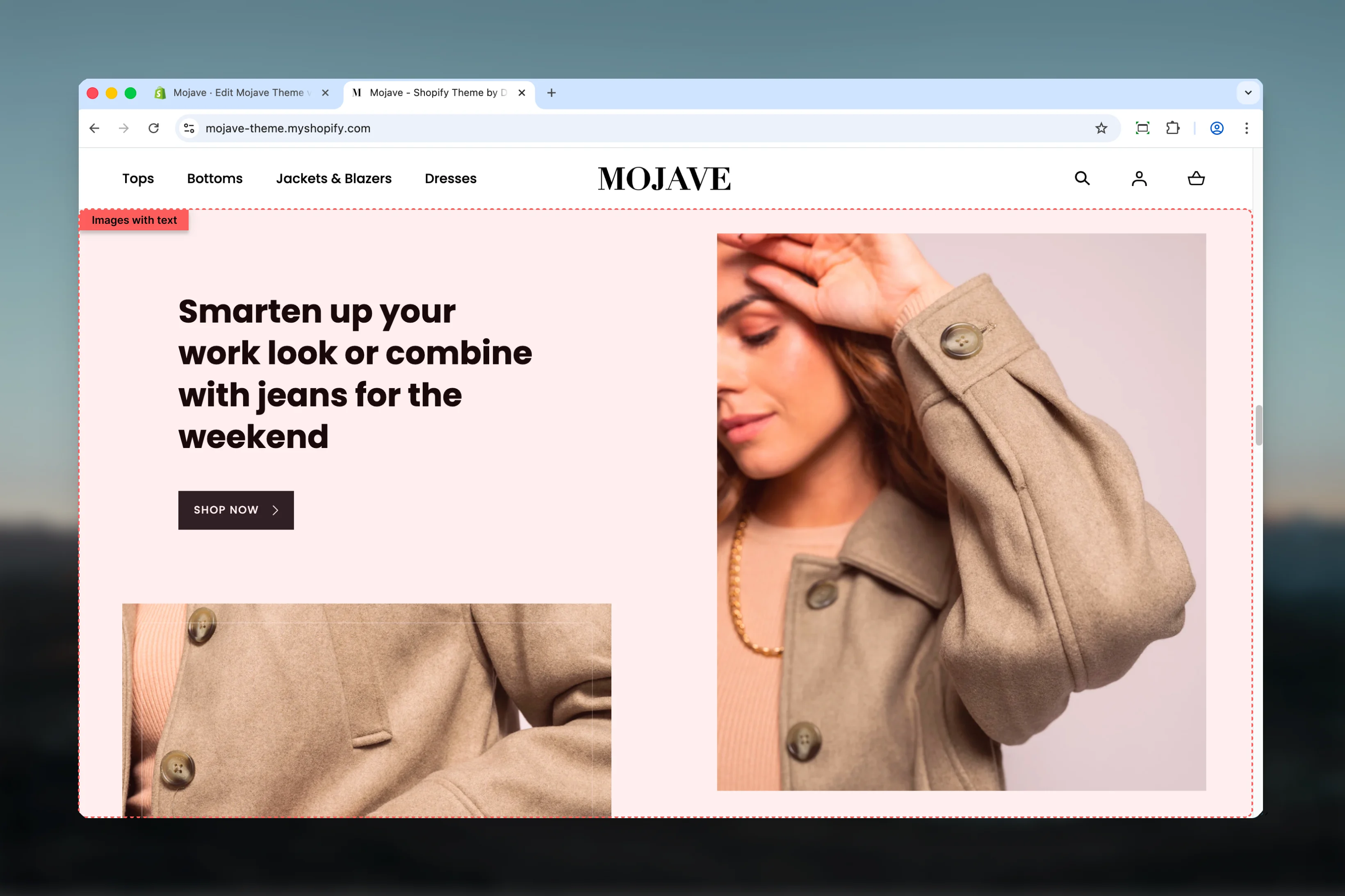
What this section does

The Images with text section creates sophisticated, magazine-style layouts that combine:
  • Two media areas (Primary and Secondary) with images or product cards
  • Text content with heading, body text, button, and link
  • Interactive product dots that overlay on images (up to 3 per image)
  • Two layout styles: Columns (side-by-side) or Rows (stacked)
  • Fullwidth or contained layouts
This versatile section is perfect for brand storytelling, lookbook-style presentations, category introductions, or any content that benefits from visual+text combinations.
Images with Text Section

Getting started

1

Add the section

From the Theme Customizer, click Add section and select Images with text
2

Upload images

Add images to Primary media and Secondary media areas (1200x1370px recommended)
3

Add text content

Fill in heading, content text, button/link, and choose your layout style (Columns or Rows)
4

Optional: Add product dots

Enable product dots, then add Primary product dot or Secondary product dot blocks to create interactive hotspots on your images

Section settings

Checkbox (default: unchecked)Controls section container width:
  • Unchecked: Section contained within standard page width
  • Checked: Section spans full browser width (edge-to-edge)
Fullwidth creates more dramatic, immersive presentations.
Checkbox (default: unchecked)Reverses the order of media and text content:
  • Unchecked: Default arrangement
  • Checked: Flipped arrangement
Use to create visual variety when stacking multiple sections.
Dropdown (default: Columns)Controls the layout structure:
  • Columns: Media and text side-by-side (desktop)
  • Rows: Media and text stacked vertically
Columns is most common for split-screen editorial layouts. Rows works for sequential storytelling.
Desktop (default: Default) and Mobile (default: Compact)Controls vertical spacing above and below the section:
  • Default: Standard spacing
  • Medium: Moderate spacing
  • Compact: Minimal spacing
  • None: No spacing

Block types

Primary product dot

Limit: 3 blocks
Product picker — Select product to display in hotspotWhen clicked, displays a quick view popup of the selected product.
Range slider — 0% to 100% (default: 25%)Horizontal position of the dot on the primary image:
  • 0% = Far left edge
  • 50% = Center
  • 100% = Far right edge
Range slider — 0% to 100% (default: 25%)Vertical position of the dot on the primary image:
  • 0% = Top edge
  • 50% = Middle
  • 100% = Bottom edge
Add up to 3 primary product dots to place multiple products on the primary image.

Secondary product dot

Limit: 3 blocks Identical to Primary product dot, but places hotspots on the secondary image instead.
Same configuration as Primary product dot, but applied to the secondary image.
Add up to 3 secondary product dots to place multiple products on the secondary image.

Best practices

Columns for split-screen

Use Columns style for classic split-screen editorial layouts with images on one side, text on other. Most versatile option.

Rows for storytelling

Use Rows style when you want sequential, stacked presentation—ideal for step-by-step narratives or vertically-focused designs.

Product dots sparingly

Use 1-2 product dots per image maximum. Too many dots create visual clutter and decision paralysis.

High-quality images

Upload images at 1200x1370px for sharp display. Use lifestyle photography that tells a story and shows products in context.

Flip for variety

When stacking multiple sections, alternate flip setting to create flowing, magazine-style layouts that prevent monotony.

Border on secondary

The border effect only applies to secondary images—use it to differentiate or highlight that image within the layout.

Button vs link strategy

Use button for primary CTA, text link for secondary navigation. Or use just one based on hierarchy needs.

Fullwidth for drama

Enable fullwidth for showcase-style sections that should dominate the page. Disable for sections within broader content flows.

Common use cases

Lookbook/Shop the look — Enable product dots on lifestyle images to create interactive “shop the look” sections where customers click dots to view products Brand storytelling — Use columns layout with brand imagery and text to tell your brand story, mission, or values Category introduction — Place at top of collection pages with category imagery and descriptive text Feature highlights — Showcase product features or benefits with supporting imagery in rows layout Editorial content — Create magazine-style content sections with high-quality photography and formatted text Product comparisons — Use two images side-by-side with text comparing products or highlighting differences

Layout behavior

Desktop - Columns style:
  • Media and text arranged side-by-side
  • Flip setting controls which side each appears on
  • Primary and secondary media can be images or product cards
Desktop - Rows style:
  • All content stacks vertically
  • Media, then text, in sequential order
  • Flip may affect stacking order
Mobile (all styles):
  • Always stacks vertically
  • Typically: Primary media → Secondary media → Text content
  • Flip setting may not affect mobile layout
Product dots:
  • Clickable hotspots overlaid on images
  • Show product quickview popup on click or hover
  • Position controlled by X/Y percentage values
  • Up to 6 total dots (3 primary + 3 secondary)

Product dots feature

The product dots feature creates interactive “shop the look” style sections:
  1. Enable product dots in section settings
  2. Add Primary product dot blocks for dots on primary image (max 3)
  3. Add Secondary product dot blocks for dots on secondary image (max 3)
  4. For each dot:
    • Select a product
    • Set X position (horizontal: 0-100%)
    • Set Y position (vertical: 0-100%)
  5. Dots appear as clickable hotspots on images
  6. Clicking dot shows product quick view popup
Best for: Lifestyle imagery where products are visible in context (e.g., styled room, model wearing outfit, table setting with products).
  • Featured Collection — Similar split-screen layout for collection promotion
  • Hero — Dramatic banners with background images and text overlays
  • Multi Column Text — Text-focused content in multiple columns
  • Banner Fullwidth — Simpler fullwidth promotional banners