

What this section does
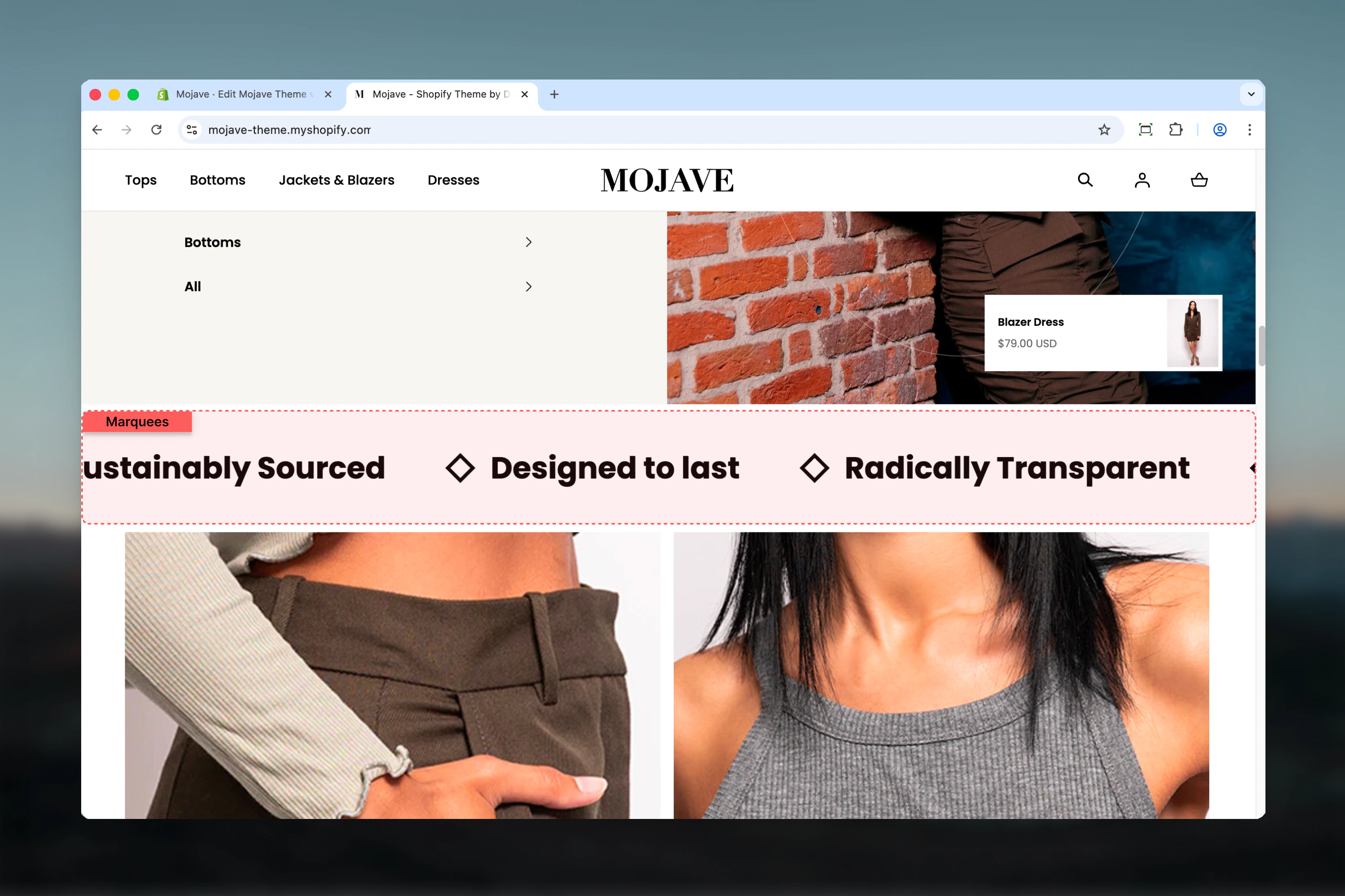
The Marquees section creates horizontally scrolling text banners with continuous animation, perfect for announcements, trust indicators, or repeated messaging. Features include:- Unlimited text items with optional icons and links
- Continuous horizontal scrolling animation (or static display)
- Adjustable animation speed: 1-10 (slower to faster)
- Element sizing: Control text/icon size (1-6 scale)
- Element spacing: Control distance between items
- Four background colors: Body, Main, Accent, Alternative
- Fullwidth default container (or contained)
- Desktop/mobile spacing controls
Getting started
1
Add the section
From the Theme Customizer, click Add section and select Marquees
2
Add text items
Click Add Text item block. Each block creates one scrolling element. Add 3-8 items for optimal marquee effect.
3
Configure animation
Enable animation and adjust speed (1-10) and element size/spacing for desired visual impact
4
Optional: Add icons
Upload icons (images) for each item to create visual interest and brand recognition
Section settings
- Animation
- Desktop Layout
- Layout & Style
Enable animation
Enable animation
Checkbox (default: checked)Controls whether marquee items scroll horizontally:
- Checked: Items scroll continuously from right to left (default)
- Unchecked: Items display statically (no animation)
Animation speed
Animation speed
Range: 1-10 (default: 5)Controls the scrolling speed:
- 1: Fastest scrolling
- 5: Medium speed (default, balanced)
- 10: Slowest scrolling
Higher numbers = SLOWER animation. Adjust based on text length and readability needs.
Block: Text item
Type: item (unlimited blocks) Each block creates one marquee element with optional icon and link.Icon
Icon
Image picker (optional)Custom icon/image displayed before the text:
- Use small icons (50x50px to 100x100px recommended)
- Common: trust badges, logos, icons, emojis
- Scales based on Element size setting
Heading
Heading
Text field (required)The text content for this marquee item.Examples:
- “Free Shipping on Orders $50+”
- “Trusted by 10,000+ Customers”
- “Made in USA”
- “30-Day Money Back Guarantee”
Link
Link
URL field (optional)Makes the entire marquee item clickable:
- Links to collection, product, page, or external URL
- Entire item (icon + text) becomes clickable area
Best practices
3-8 items optimal
Too few items (1-2) creates obvious repetition. 3-8 items creates seamless continuous scrolling without repetitive feel.
Consistent item length
Keep all items similar text length. Mixed short/long creates uneven rhythm and awkward spacing during scrolling.
Speed for readability
Set speed 4-6 for announcements (readable). Use 1-3 for ambient effects or repeated branding (faster).
Icons for recognition
Use icons for trust badges (checkmark, shield) or brand elements. Consistent icon style across all items.
Fullwidth for impact
Keep default Fullwidth setting. Contained marquees feel cramped and lose the continuous scroll effect.
Contrasting backgrounds
Use Accent or Main background for promotional marquees to stand out. Body for subtle trust indicators.
Bottom-none spacing
Use “Spacing - Vertical: Bottom none” when placing marquee immediately above footer for seamless design.
Link strategically
Don’t make all items clickable. Reserve links for promotional items that drive specific actions.
Common use cases
Announcement banner — Below header, fullwidth, Main/Accent background: “Free Shipping Today Only • Flash Sale 50% Off • Limited Time Offer” Trust indicators — Above footer, Body background, static (no animation): “100% Secure Checkout • Free Returns • 24/7 Support • Made in USA” Shipping offers — Homepage or cart page: “Free Shipping $50+ • Express Delivery Available • Ships Within 24 Hours” Brand values — About page or homepage: “Sustainable Materials • Ethically Made • Carbon Neutral • Give Back Program” Product features — PLP/Collection pages: “Waterproof • Lifetime Warranty • Machine Washable • Vegan Leather” Social proof — Homepage: “Trusted by 10K+ Customers • 5-Star Rated • Featured in [Magazine] • Award Winning”Layout behavior
Desktop - Animation enabled:- Items scroll continuously from right to left
- Seamless loop (last item connects to first)
- Speed controlled by Animation speed setting (1-10)
- Items repeat to fill viewport width
- Hover: Animation pauses (optional theme behavior)
- Items display statically in horizontal row
- No scrolling or movement
- Useful for static trust badges or features
- Same scrolling behavior as desktop
- Element size auto-adjusts for mobile (smaller)
- Element spacing can differ from desktop
- Always fullwidth regardless of Section width setting
- Infinite loop: Content duplicates to create seamless scroll
- No start/end: Continuous cycle
- Consistent speed throughout
Content guidelines
Heading text:- 3-8 words ideal for readability
- Use action words for promotional content (“Shop Now”, “Save Today”)
- Use trust language for badges (“Guaranteed”, “Certified”, “Trusted”)
- ALL CAPS optional for emphasis (use sparingly)
- Avoid punctuation except essential symbols (%, $, +)
- Small, simple icons (50x50 to 100x100px)
- Consistent style across all items (all line icons or all filled)
- High contrast with background
- SVG format preferred—upload as PNG if needed with transparent background
- Mix related content: “Free Shipping” + “Easy Returns” + “Secure Checkout”
- Group thematically: All shipping offers OR all trust badges OR all brand values
- Avoid mixing unrelated topics (shipping + social proof + product features)
Customization tips
For announcement banner (below header):- Enable animation, speed 5-6
- Background: Accent (high contrast)
- Section width: Fullwidth
- Spacing vertical: Top none (flush with header)
- Content: Promotional offers with links
- Disable animation (static display)
- Background: Body (subtle)
- Element size: 2-3 (prominent but not overwhelming)
- Small icons (shields, checkmarks, badges)
- Content: Security, support, quality guarantees
- Enable animation, speed 4 (readable)
- Background: Alternative or Accent
- Element size: 1-2 (compact)
- No icons (text-only)
- Content: Product features and benefits
- Enable animation, speed 7-8 (slow, readable)
- Background: Main
- Element size: 4-5 (large, statement-making)
- Brand logo icons
- Content: Brand values and mission
Related sections
- Announcement Bar (structural) — Header-attached announcement (often above header)
- Rich Text — Static text content alternative without animation
- Content Tiles — Grid-based content displays
- Trust Indicators — Dedicated trust badge section (if available in theme)