

What this section does
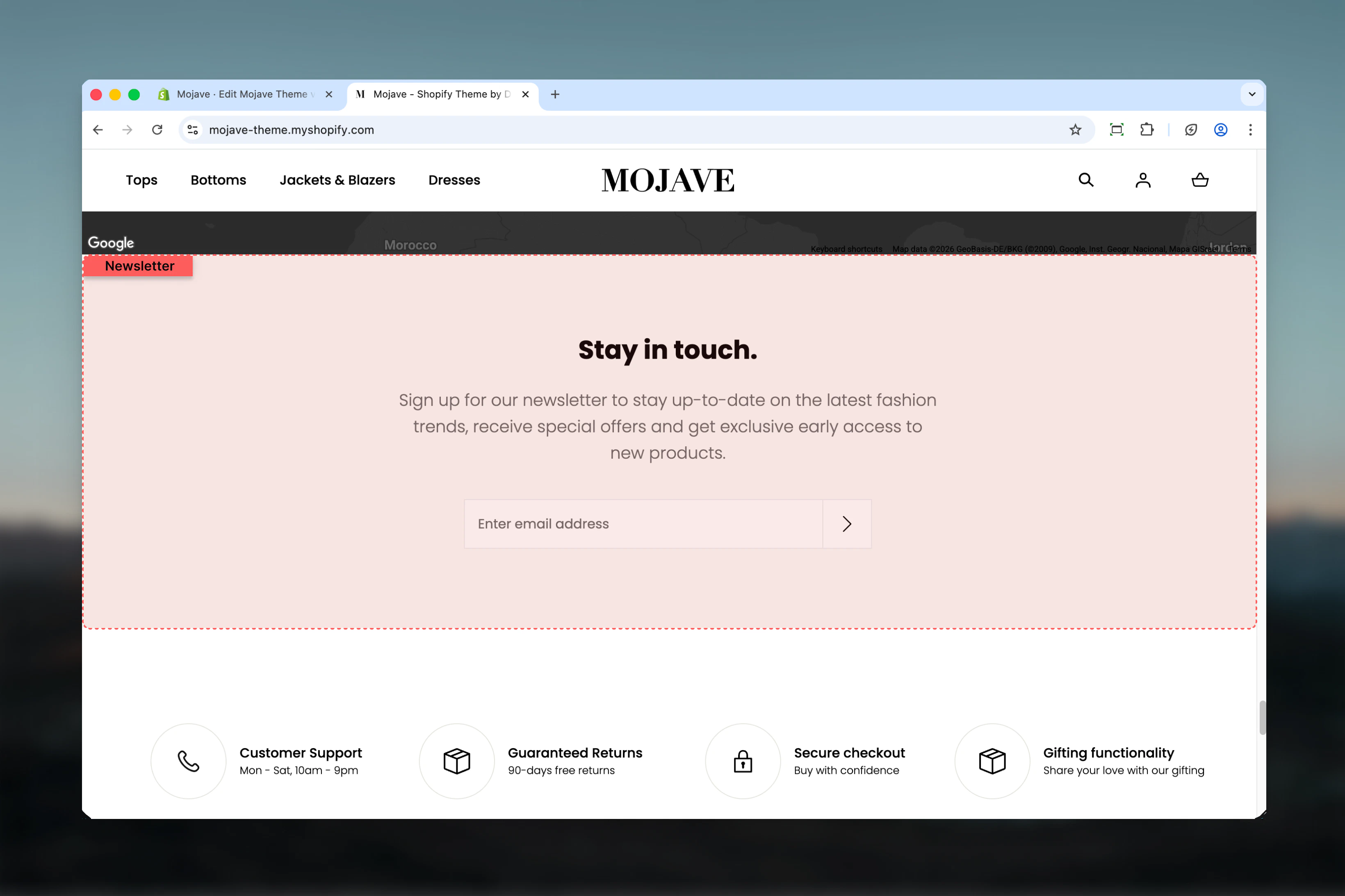
The Newsletter sign up section creates an attractive email collection point with:- Split-screen layout with email form and optional promotional image
- Two style variations: light (main style) or dark (accent colors)
- Integrated with Shopify’s customer email collection system
- Customizable heading and rich text content
Getting started
1
Add the section
From the Theme Customizer, click Add section and select Newsletter sign up
2
Configure content
Add your heading (e.g., “Subscribe to our emails”) and supporting content explaining the value of subscribing
3
Choose style & layout
Select Light or Dark style, optionally upload an image, and adjust layout settings (flip, center, spacing)
Section settings
- Content & Style
- Layout & Spacing
Style
Style
Dropdown (default: Main style / Light)Controls the color scheme of the newsletter section:
- Main style (Light): Uses primary theme colors with light background
- Accent colors (Dark): Uses accent theme colors with darker background
Flip image/content position
Flip image/content position
Checkbox (default: unchecked)Reverses positions of form/content and image:
- Unchecked: Form on left, image on right
- Checked: Image on left, form on right
Center text
Center text
Checkbox (default: unchecked)Centers the heading and content text within the form area:
- Unchecked: Left-aligned text (default)
- Checked: Center-aligned text
Heading
Heading
Textarea (default: “Subscribe to our emails”)Main heading for the newsletter section. Keep concise and action-oriented (e.g., “Join our list”, “Get updates”).
Content
Content
Rich text editor (default: “Be the first to know about new collections and exclusive offers.”)Supporting text that explains the value of subscribing. Can include:
- Benefits of subscribing (early access, exclusive offers, etc.)
- Frequency of emails
- Privacy assurance
Image
Image
Image picker (optional)Promotional image displayed beside the email signup form.
- Recommended size: 1440x1200px
- Use lifestyle imagery, product photos, or brand graphics
- If empty, form spans full width (no split-screen)
- Controls height of image relative to section height
- 100% = image fills full section height
- Lower values create shorter images
Best practices
Communicate value
Clearly explain why visitors should subscribe: early access, exclusive discounts, style tips, etc. Value proposition drives signups.
Use compelling images
Upload lifestyle or product photography at 1440x1200px that represents your brand and appeals to your target audience.
Dark style for contrast
Use Dark (accent colors) style when placing newsletter section between product sections or on light backgrounds for visual break.
Center when no image
If skipping the image, enable Center text for a focused, minimal newsletter signup that doesn’t feel off-balance.
Keep it brief
Limit heading to 3-5 words and content to 1-2 sentences. Overly long copy reduces signup rates.
Homepage footer placement
Most effective when placed near page bottom (but above footer) where visitors have engaged with content and are ready to commit.
Flip for variety
When stacking multiple split-screen sections, alternate flip setting to create flowing, magazine-style layouts.
Privacy assurance
Include brief privacy assurance in content (“We respect your privacy”) to increase trust and signup rates.
Common use cases
Homepage email collection — Place near bottom of homepage to capture engaged visitors before they leave Landing page lead generation — Feature prominently on campaign landing pages to build targeted email lists Post-purchase signup — Add to thank you pages to convert customers into subscribers for future marketing Blog sidebar — Integrate into blog layouts to convert content readers into email subscribers Exit intent replacement — Static alternative to popup modals for less intrusive email collectionLayout behavior
Desktop:- When image is present: Split-screen with form/content on one side, image on other (controlled by flip)
- When no image: Form/content spans full width
- Email input and submit button display horizontal inline
- Always stacks vertically: image at top (if present), then heading, content, and email form
- Flip setting does not affect mobile layout
- Email form remains horizontal inline
- Email input with placeholder text
- Submit button
- Success message displays after submission
- Integrates with Shopify customer email collection
Email collection integration
The newsletter section automatically integrates with:- Shopify Customer Privacy API — Complies with privacy regulations
- Customer accepts marketing checkbox (if required by region)
- Shopify’s email marketing apps (e.g., Shopify Email)
- Third-party email providers via app integrations
Related sections
- Newsletter Modal — Popup version of newsletter signup
- Footer — Footer often includes simpler inline newsletter signup
- Multi Column Text — Can include newsletter signup via custom blocks