

What this section does
The Video section creates professional video players with:- YouTube/Vimeo embedding or self-hosted video uploads
- Six aspect ratio options (1:1, 4:3, 16:9, 3:1, 3:2, fullscreen)
- Optional cover image before video plays
- Autoplay muted video option
- Fullwidth or contained layout
- Accessibility-friendly video descriptions
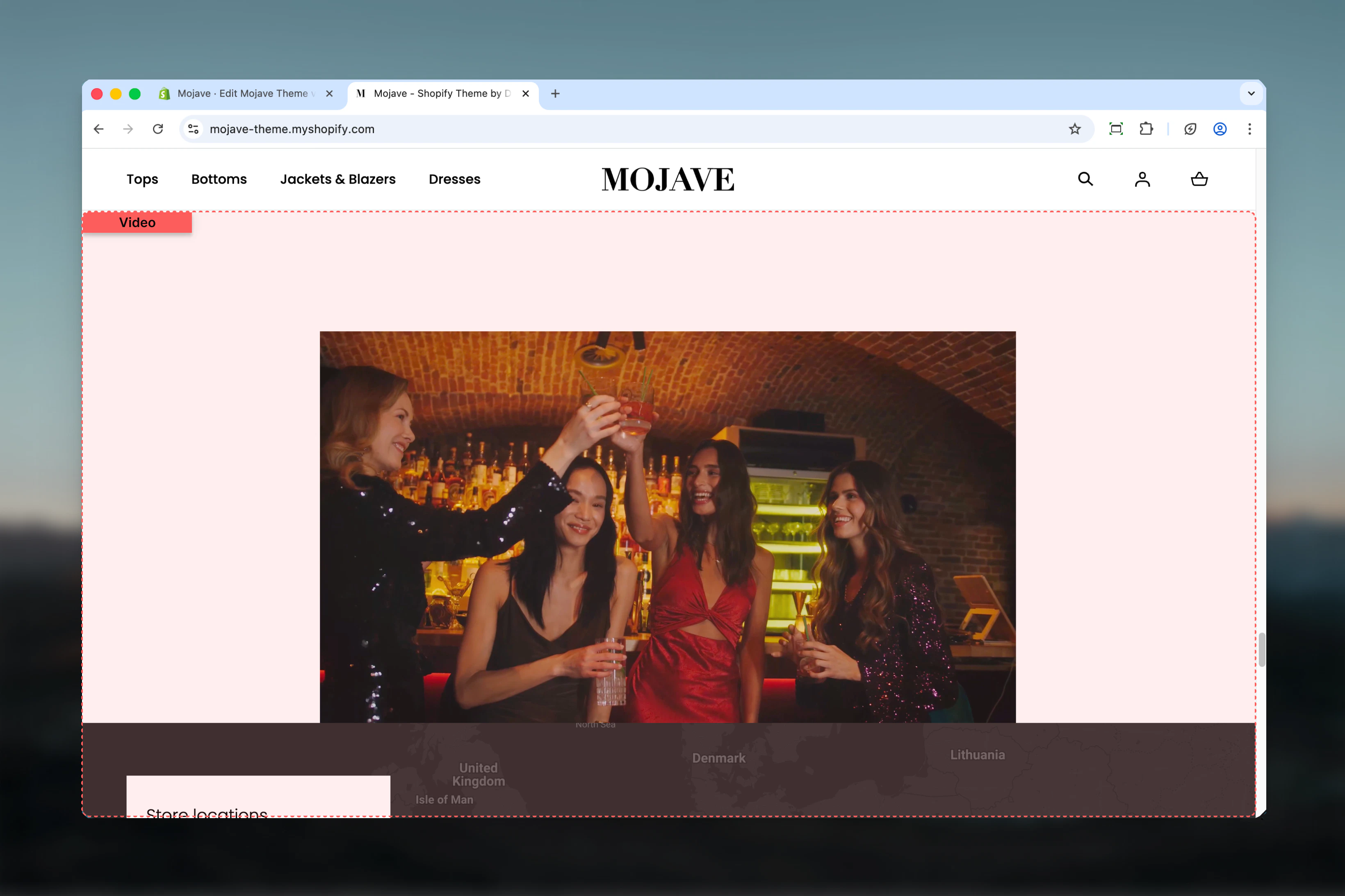
Getting started
1
Add the section
From the Theme Customizer, click Add section and select Video
2
Add your video
Either paste a YouTube/Vimeo URL in External video OR upload an MP4 file in Video. Self-hosted video takes priority if both are provided.
3
Configure display
Select aspect ratio, optionally add a cover image, enable fullwidth mode, and add accessibility description
Section settings
Cover image
Cover image
Image picker (optional)Static image displayed before video plays (video poster/thumbnail):
- Shows until visitor clicks play button
- Useful for branding or creating visual interest before video loads
- Should be representative frame from video or custom thumbnail
- If empty, video first frame appears or video loads immediately (if autoplay enabled)
Video
Video
Video file uploadUpload self-hosted video files (MP4 recommended):
- Recommended aspect ratio: 16:9
- File format: MP4 (most compatible)
- Takes priority over External video if both are provided
- Videos loop automatically when autoplay is enabled
- Full control over video quality and compression
- No external dependencies (YouTube/Vimeo)
- Faster load times with optimized files
- No branding from external platforms
External video
External video
Video URL field (default: YouTube example)Paste YouTube or Vimeo video URL to embed from external platforms:
- Accepts: YouTube and Vimeo URLs
- Recommended aspect ratio: 16:9
- Ignored if Video (self-hosted) is uploaded
- Leveraging existing YouTube/Vimeo content
- Very long videos (no file size concerns)
- YouTube/Vimeo analytics integration
- YouTube:
https://www.youtube.com/watch?v=VIDEO_ID - Vimeo:
https://vimeo.com/VIDEO_ID
Video description text
Video description text
Text field (optional but recommended)Accessibility description for screen reader users:
- Describes video content for visually impaired visitors
- Does not display visually, only read by assistive technologies
- Best practice: Briefly describe what’s happening in the video
Providing video descriptions improves accessibility compliance and SEO.
Make section full width
Make section full width
Checkbox (default: checked)Controls section container width:
- Checked: Video spans full browser width (edge-to-edge)
- Unchecked: Video contained within standard page width
Autoplay muted video
Autoplay muted video
Checkbox (default: unchecked)Automatically plays video on page load (muted, as required by browsers):
- Checked: Video starts playing immediately, muted, in a loop
- Unchecked: Video requires click to play (shows cover image or first frame)
- Short ambient/lifestyle videos (5-15 seconds)
- Background videos without important audio
- Hero sections with looping visuals
- Talking-head videos or content with important dialogue
- Tutorials or demos requiring audio
- Long-form content
Aspect ratio
Aspect ratio
Dropdown (default: 16:9)Controls the width-to-height proportions of the video player:
- 1:1 — Square (Instagram-style)
- 4:3 — Classic TV format
- 16:9 — Widescreen (most common, recommended)
- 3:1 — Ultra-wide cinematic
- 3:2 — Standard photography
- Fullscreen — Matches viewport height (100vh)
- 16:9: Default for most YouTube/Vimeo content
- 1:1: Product videos shot for social media
- Fullscreen: Hero videos or immersive brand stories
- Match aspect ratio to your source video to avoid black bars
Best practices
16:9 for compatibility
Use 16:9 aspect ratio for most videos—it matches YouTube/Vimeo standards and looks professional on all devices.
Compress videos
For self-hosted videos, compress files to under 10MB. Use tools like HandBrake to optimize without quality loss.
Cover images are key
Always provide compelling cover images unless using autoplay. Good thumbnails significantly increase play rates.
Autoplay only for ambient
Only use autoplay for short (5-15s), looping, ambient videos. Never autoplay videos with important dialogue or sound.
Add descriptions
Always provide video description text for accessibility. It improves SEO and helps visually impaired customers.
Fullwidth for impact
Use fullwidth mode for hero videos or standalone video sections. Disable for videos within broader content layouts.
External for analytics
Use YouTube/Vimeo external videos when you need view analytics, engagement metrics, or existing video library.
Self-hosted for control
Use self-hosted videos for critical brand content where you need full control over quality, performance, and branding.
Common use cases
Product demonstrations — Show products in action with 16:9 videos featuring usage, assembly, or styling Brand storytelling — Feature fullwidth, autoplay muted videos with your brand story or mission statement Customer testimonials — Embed YouTube testimonial videos with cover images to build trust Tutorial content — Step-by-step guides for product usage, styling tips, or how-to content Homepage hero videos — Fullscreen aspect ratio with autoplay muted for dramatic, immersive homepage experience Category intros — Place videos at top of collection pages to introduce product categories or showcase collectionsLayout behavior
Desktop:- Fullwidth mode: Video spans edge-to-edge across full browser width
- Contained mode: Video centered within standard page width container
- Aspect ratio maintains proportions regardless of screen size
- Always responsive, scaling proportionally
- Fullwidth spans full mobile screen width
- Play button overlay for non-autoplay videos
- Autoplay videos may pause on mobile depending on browser/connection
- External videos: YouTube/Vimeo native controls (play, pause, volume, fullscreen)
- Self-hosted videos: Browser default HTML5 video controls (play, pause, volume, scrubbing, fullscreen)
Video priority
When multiple video sources are configured, they’re used in this priority order:- Video (self-hosted upload) — highest priority
- External video (YouTube/Vimeo) — used if no self-hosted video
- Fallback: If neither is provided, section displays empty or placeholder
Autoplay vs. cover image
Related sections
- Hero — Hero banners with background video support and text overlays
- Banner Fullwidth — Promotional banners that can include video media
- Images with Text — Combine video with editorial text layouts