

main-password-header, banner, and main-password-footer sections, so the final result depends on both page-level content and shared brand or social settings.
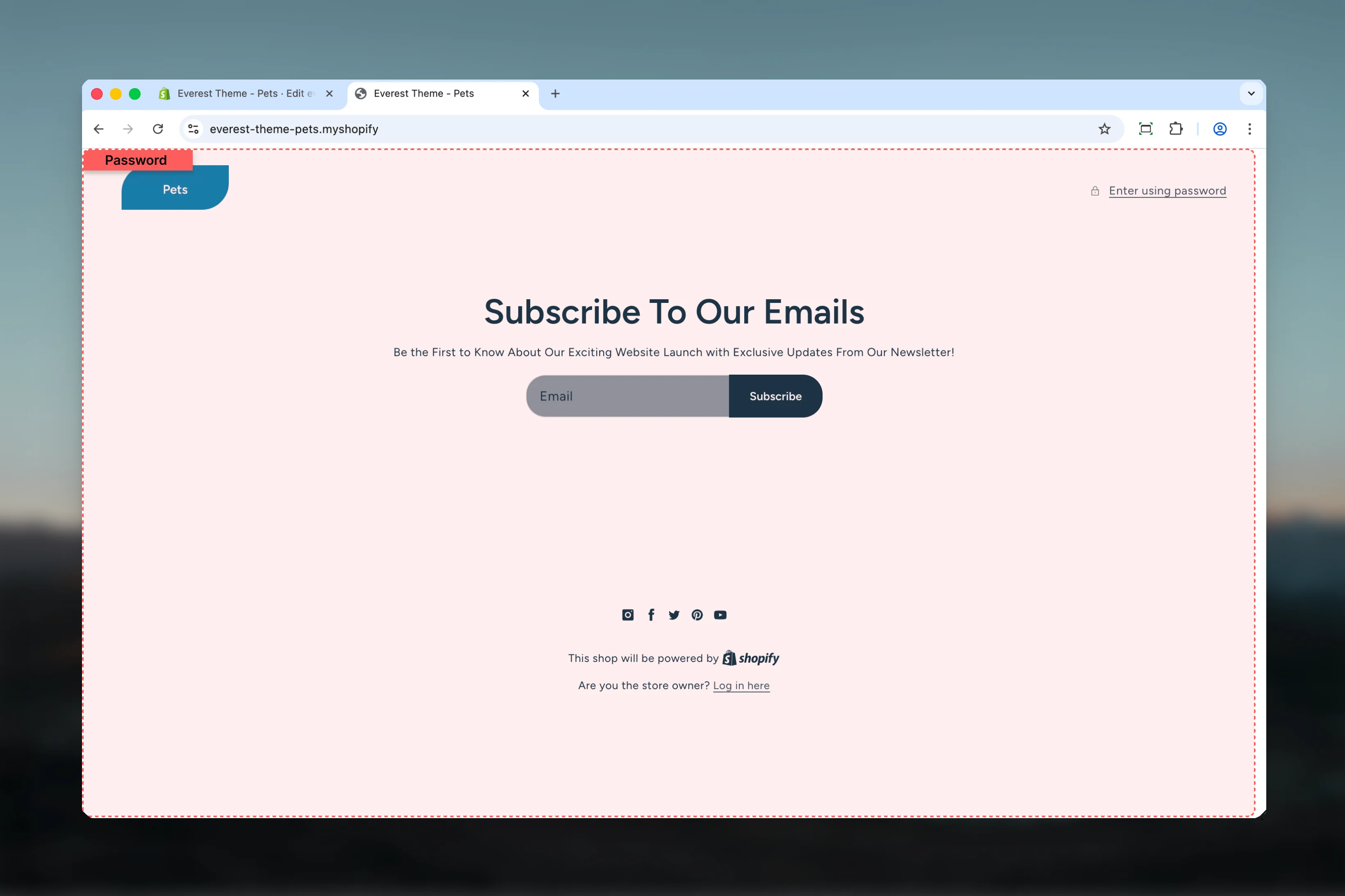
What this template controls
- Brand logo or shop name display at the top of the locked store
- The password entry modal and admin access link
- Shopify password message output
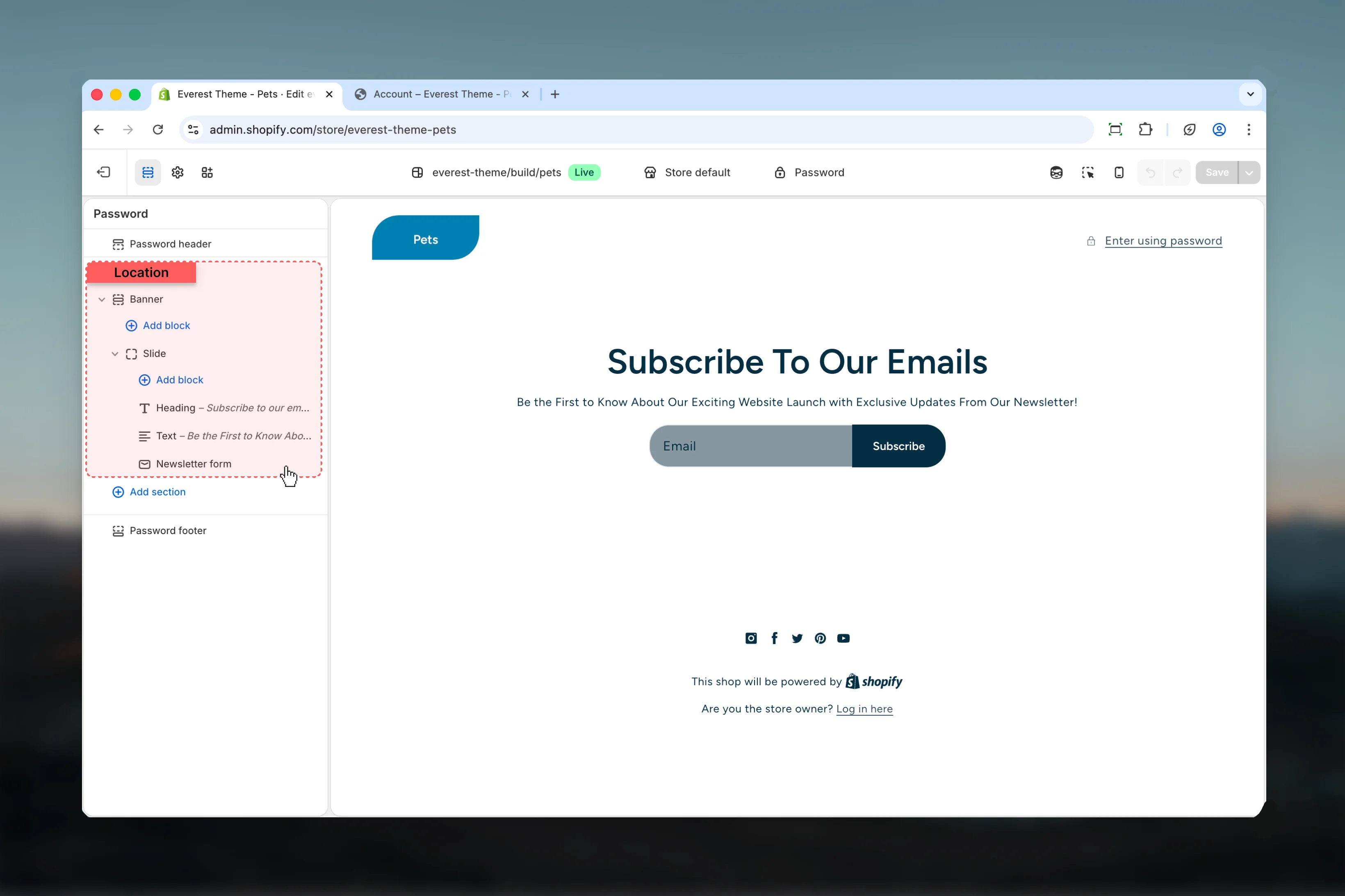
- The main banner content used for launch messaging or newsletter signup
- Social icons and footer utility content on the password page
- Color schemes for the dedicated password header and footer sections
Template structure
This template uses the following password-specific layout pieces by default:- Password Header
- Banner
- Password Footer
Getting started
1
Open the password template
In Theme Customizer, open the password template while the store password is enabled.
2
Set your launch message
Start with the banner content because it carries the main message visitors see before the store opens.
3
Review brand and access elements
Check the header logo, store name fallback, password entry flow, and any store password message set in Shopify.
4
Finish with footer utilities
Review social icons and footer styling last so the page feels complete without distracting from the launch message.
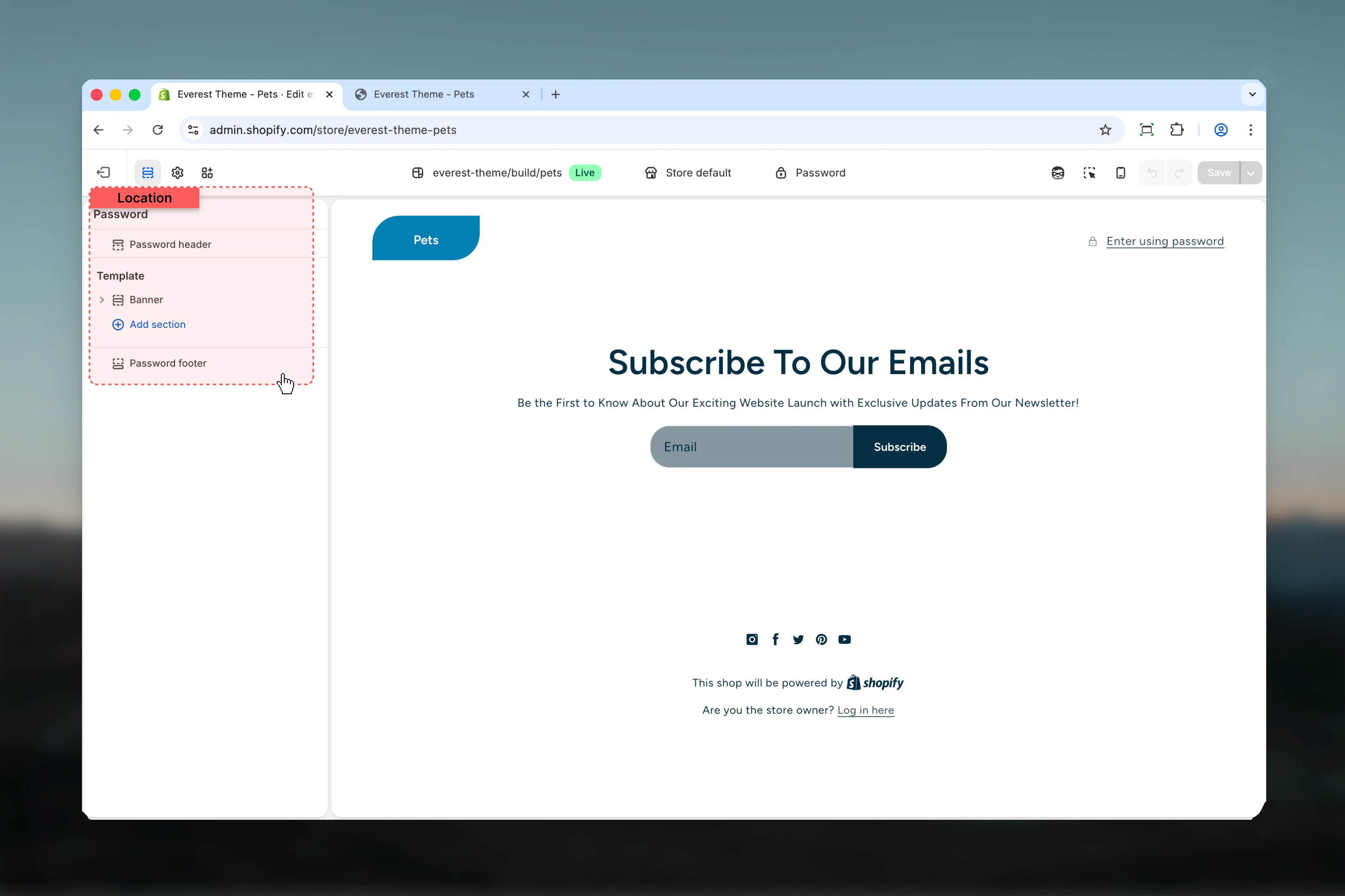
How Everest’s password page works
Password Header
Password Header
The header shows the brand logo when a global brand logo or SVG logo exists. If no logo is configured, Everest falls back to the shop name.It also displays the optional Shopify password message and opens the storefront password form inside a modal dialog.
Dedicated password layout
Dedicated password layout
Everest uses
layout/password.liquid for this page type instead of the standard storefront layout. That is why the password page has its own header and footer sections separate from the main storefront header and footer.Section settings
Password Header and Password Footer
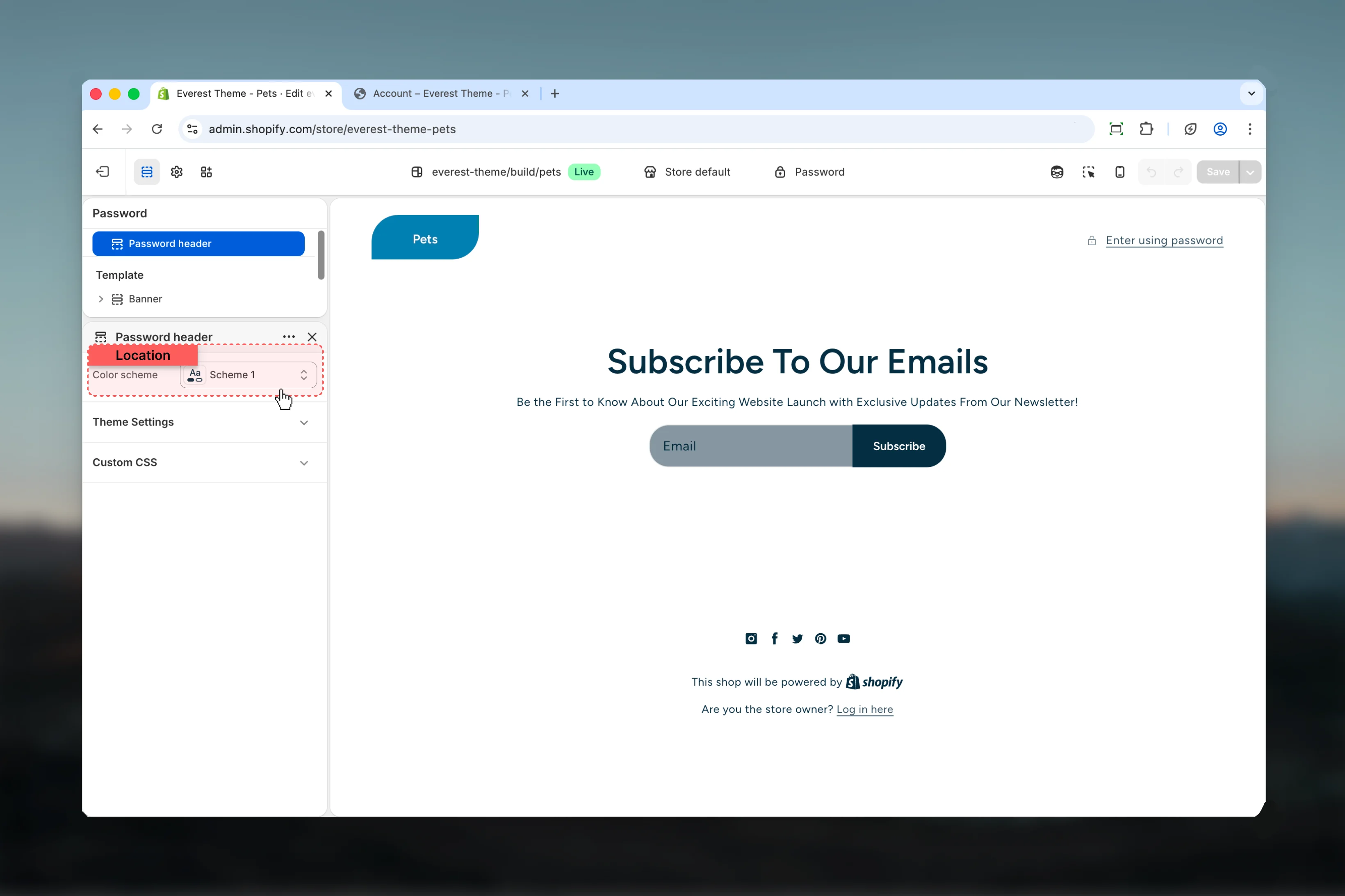
Color scheme
Color scheme
Both password-specific utility sections expose a single color scheme setting so you can keep the locked-store experience aligned with the rest of your launch styling.
Banner dependency
Best practices
- Keep the banner message short so visitors understand the launch state immediately.
- Configure brand and social settings before troubleshooting missing password-page content.
- Test the password modal on mobile to make sure access remains easy while the store is locked.
- Use the password page to support a launch goal such as email capture, early access, or simple status messaging.