

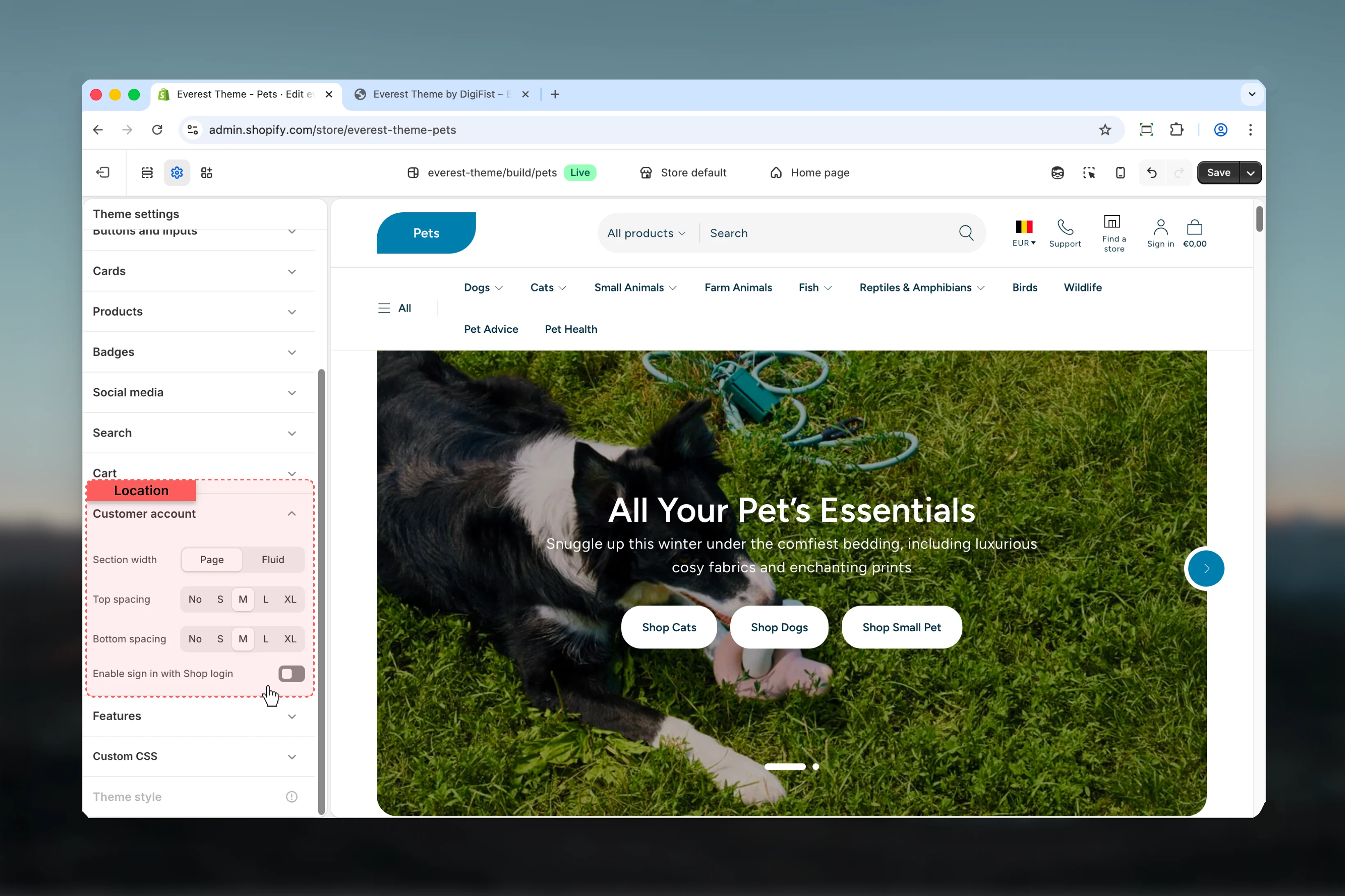
What these settings control
- Layout structure, width, alignment, and spacing
How to access
1
Open the Theme Customizer
In Shopify admin, go to Online Store -> Themes -> Customize.
2
Open Theme settings
Select Theme settings in the customizer sidebar.
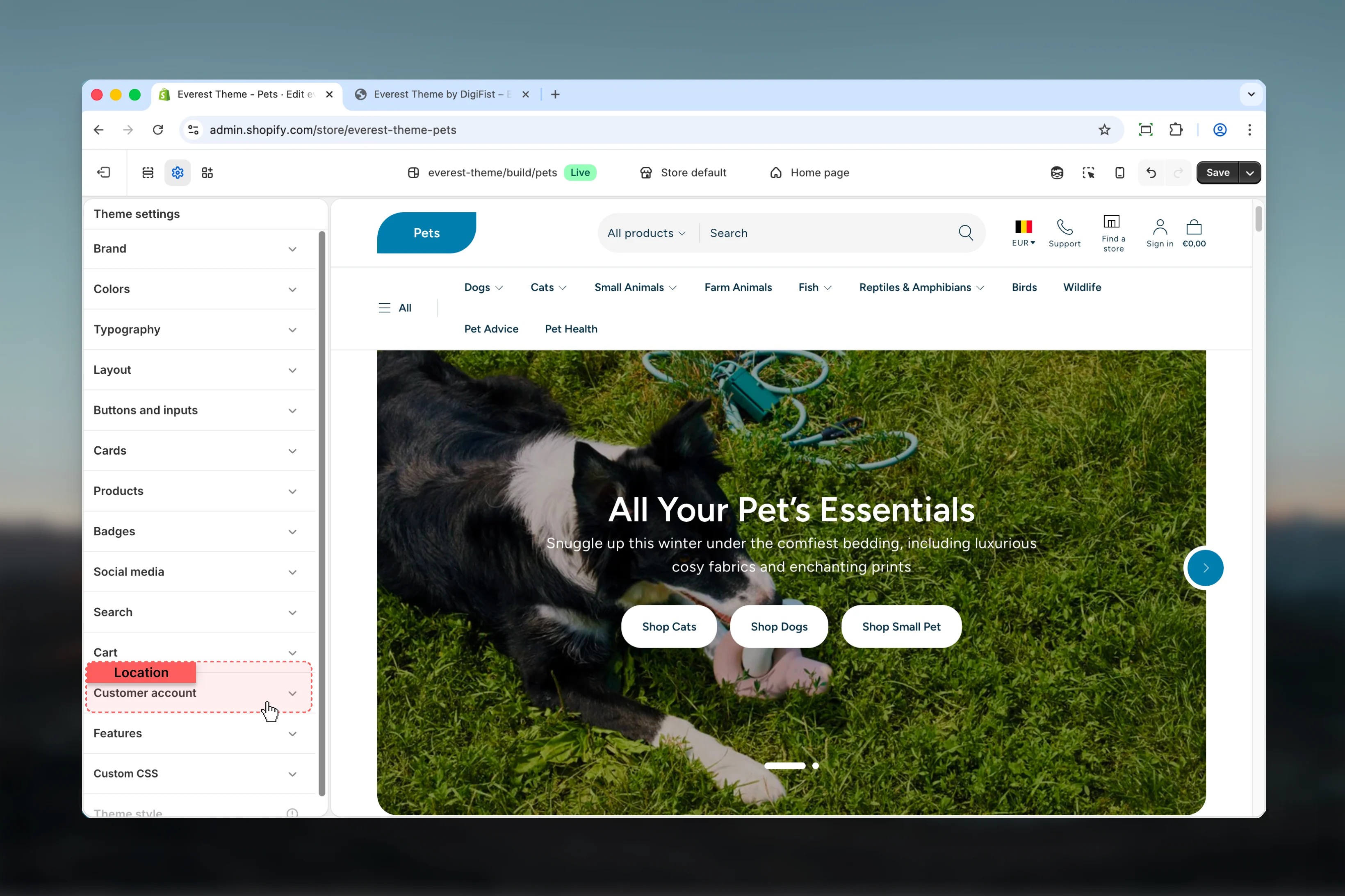
3
Choose Customer Account
Open Customer Account to review and update the shared settings in this category.
Settings
Settings
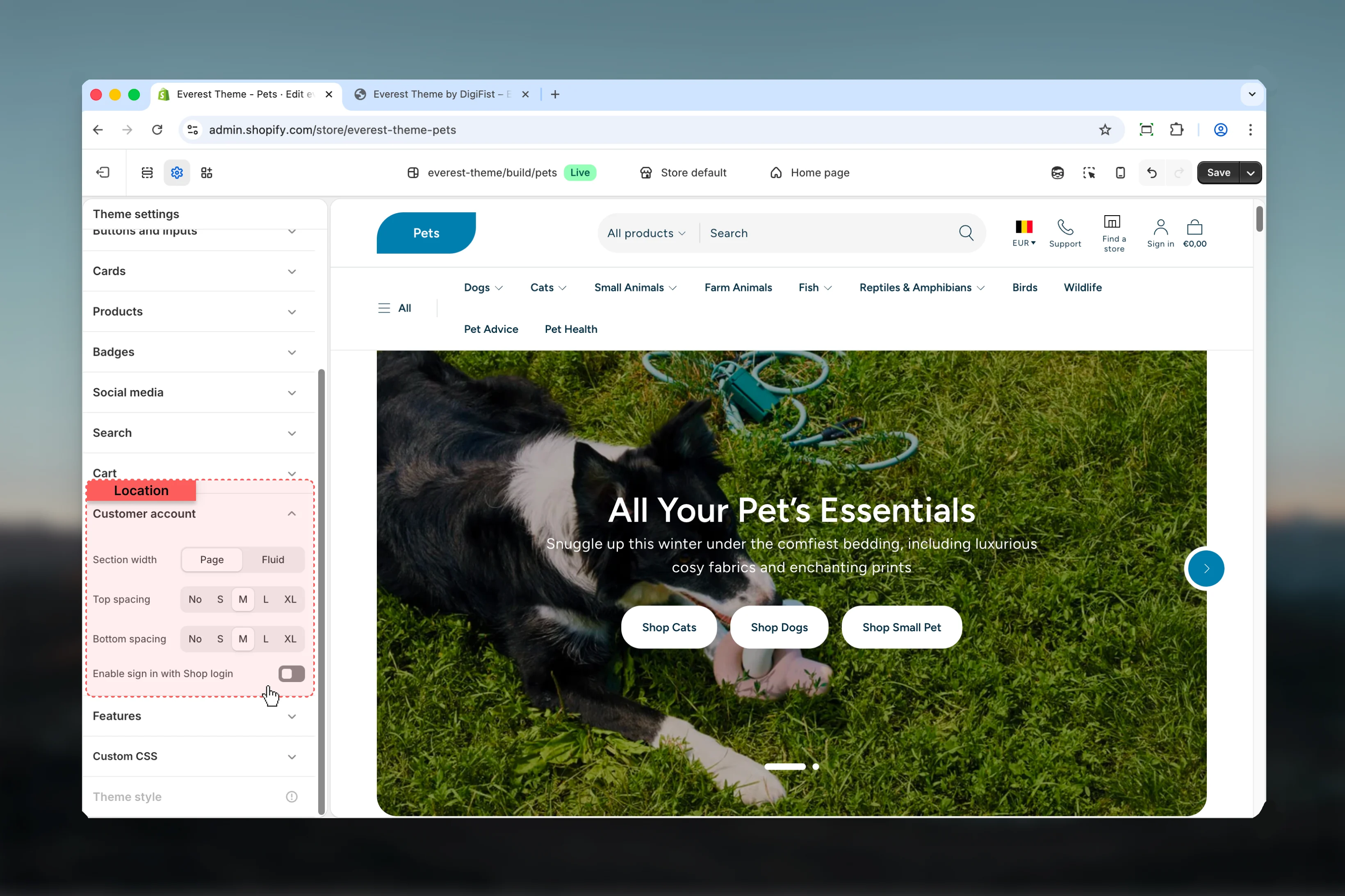
Section width
Section width
Choose how Section width behaves in the section.This setting shapes the section container and how it sits against surrounding content.Available options: Page, Fluid.Default:
pageTop spacing
Top spacing
Choose how Top spacing behaves in the section.This setting shapes the section container and how it sits against surrounding content.Available options: No, S, M, L, XL.Default:
2Bottom spacing
Bottom spacing
Choose how Bottom spacing behaves in the section.This setting shapes the section container and how it sits against surrounding content.Available options: No, S, M, L, XL.Default:
2Enable sign in with Shop login
Enable sign in with Shop login
Enable or disable Enable sign in with Shop login.Default:
disabledBest practices
- Adjust layout changes alongside neighboring sections so page rhythm stays consistent.
- Change one global setting area at a time and preview multiple templates before publishing.
- Remember that theme settings affect many sections at once, so small adjustments can have wide impact.