

What this feature controls
- Global badge position on product cards
- Badge corner radius styling
- Sale and sold-out badge color schemes
- Product page badge placement through the Product Badge block
- Search result badge styling for page-type results
Getting started
1
Open badge theme settings
In Theme Customizer, go to Theme settings -> Badges to configure the shared badge style first.
2
Review product-card behavior
Check collection cards or other product-card surfaces to confirm the global position and color choices feel balanced.
3
Add the Product Badge block if needed
On the product template, add or review the Product Badge block if you want the same state labels shown on the product page.
4
Test real product states
Verify badge output with at least one on-sale product and one sold-out product so both styling paths are covered.
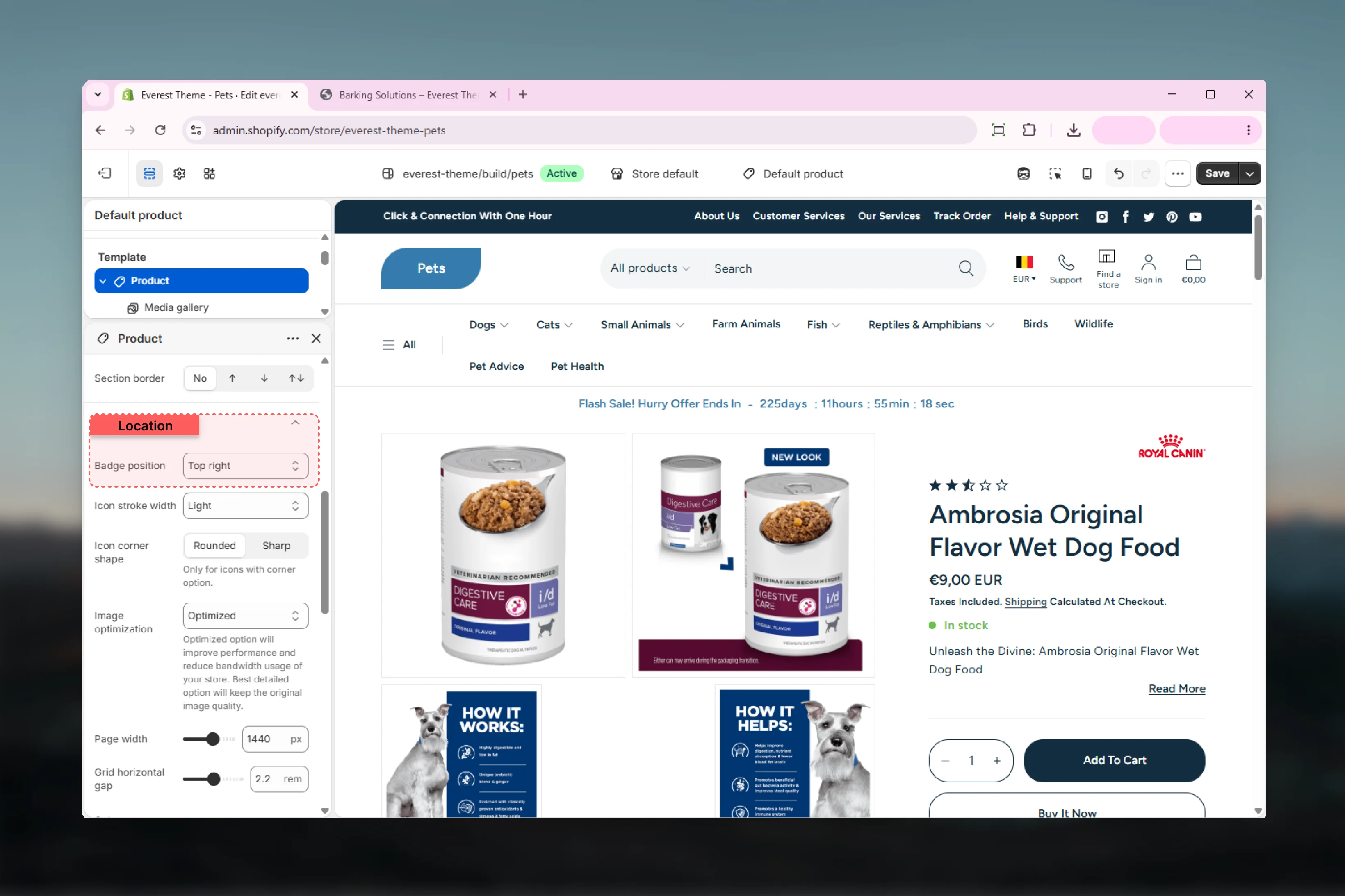
Global badge settings
Badge position
Badge position
Controls the default overlay position for badges rendered on product cards.Available options:
Default:
Bottom left, Bottom right, Top left, Top rightDefault:
Top rightBadge corner radius
Badge corner radius
Controls how rounded the badge corners appear.Range:
Default:
0px to 40pxDefault:
40pxSale badge color scheme
Sale badge color scheme
Sets the color scheme used when a product is available and its compare-at price is higher than its selling price.Default:
scheme-5Sold out badge color scheme
Sold out badge color scheme
Sets the color scheme used when a product is unavailable.Default:
scheme-3Product page block settings
Badge position
Badge position
The Product Badge block can place badges either inline with other product content or as an overlay.Available options:
Default:
Inline, OverlayDefault:
OverlaySpacing bottom
Spacing bottom
Controls the space below the Product Badge block on the product page.
Display logic
Sold out state
Sold out state
Everest shows the sold-out badge whenever the selected product is unavailable.
On sale state
On sale state
Everest shows the sale badge when the selected product is available and its compare-at price is greater than its current price.
Search page badge
Search page badge
On
main-search, the badge snippet can also render a page-type label for search result cards that represent pages rather than products.Important limitation
Everest does not use the broader tag-based custom badge system documented in some other themes. The built-in badge snippet only handles sale and sold-out product states automatically, so custom promotional badge text is not a native Everest badge feature.Best practices
- Choose badge colors that remain readable over real product imagery.
- Keep badge placement consistent across cards and product pages unless there is a clear layout reason to change it.
- Test both sold-out and on-sale states because each badge can use a different color scheme.
- Avoid relying on Everest badges for custom campaign messaging unless you plan to extend the theme code.