

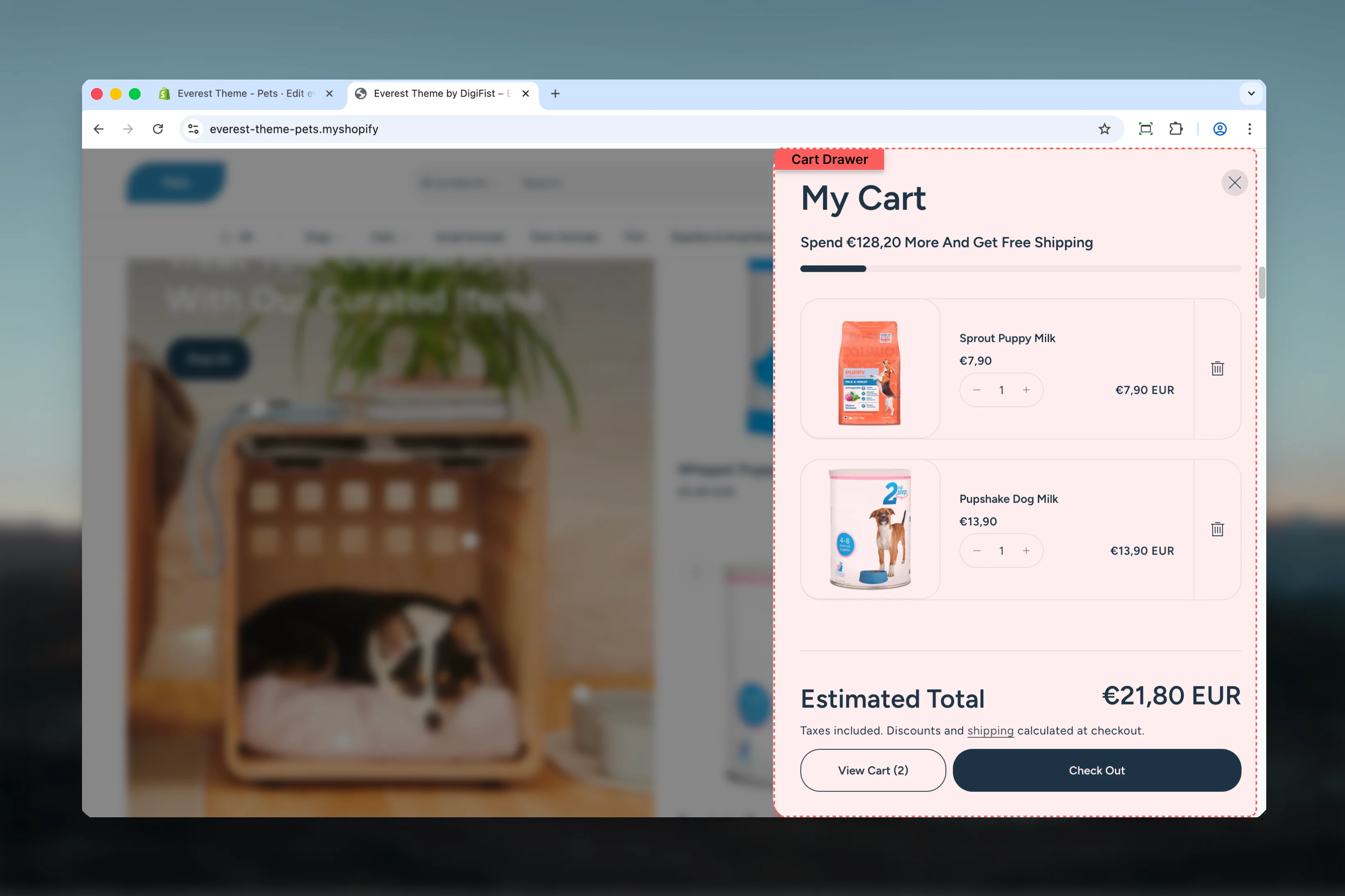
What this feature controls
- Drawer-based cart interactions and checkout flow
- Line item display, empty-state behavior, and subtotal area
- Optional cart recommendations and supporting cart content
How it is configured
1
Open the relevant template or theme settings
Start in the Theme Customizer or the related theme settings category that controls this feature.
2
Check the connected section or block
Review the product, header, cart, or search area that surfaces this helper so you can understand where the storefront output comes from.
3
Preview the real storefront behavior
Because these helpers react to live cart, product, or search data, verify the result with realistic content before publishing.
Key implementation notes
Snippet-driven output
Snippet-driven output
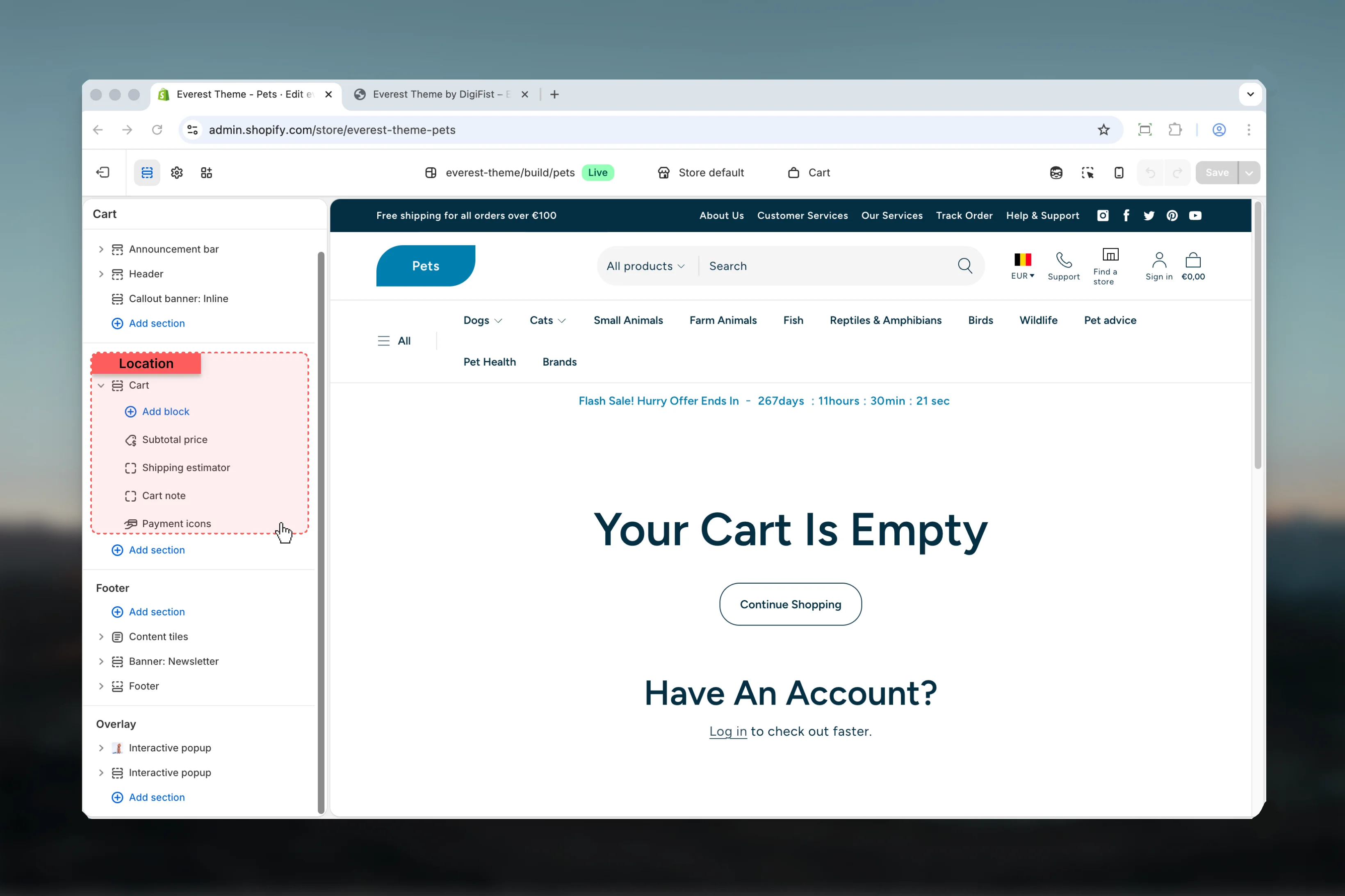
The cart drawer is rendered through a shared snippet, so there is no regular section settings panel for it.
Global cart dependencies
Global cart dependencies
Cart settings, line items, upsell logic, and customer cart state all influence the final drawer experience.
Best places to review changes
Best places to review changes
Test the empty state, a cart with multiple items, and the checkout action area before publishing changes that affect the drawer.
Best practices
- Start with the structural settings first, then refine decorative styling after the layout feels settled.
- Preview the section with realistic content length to catch spacing and wrapping issues early.