

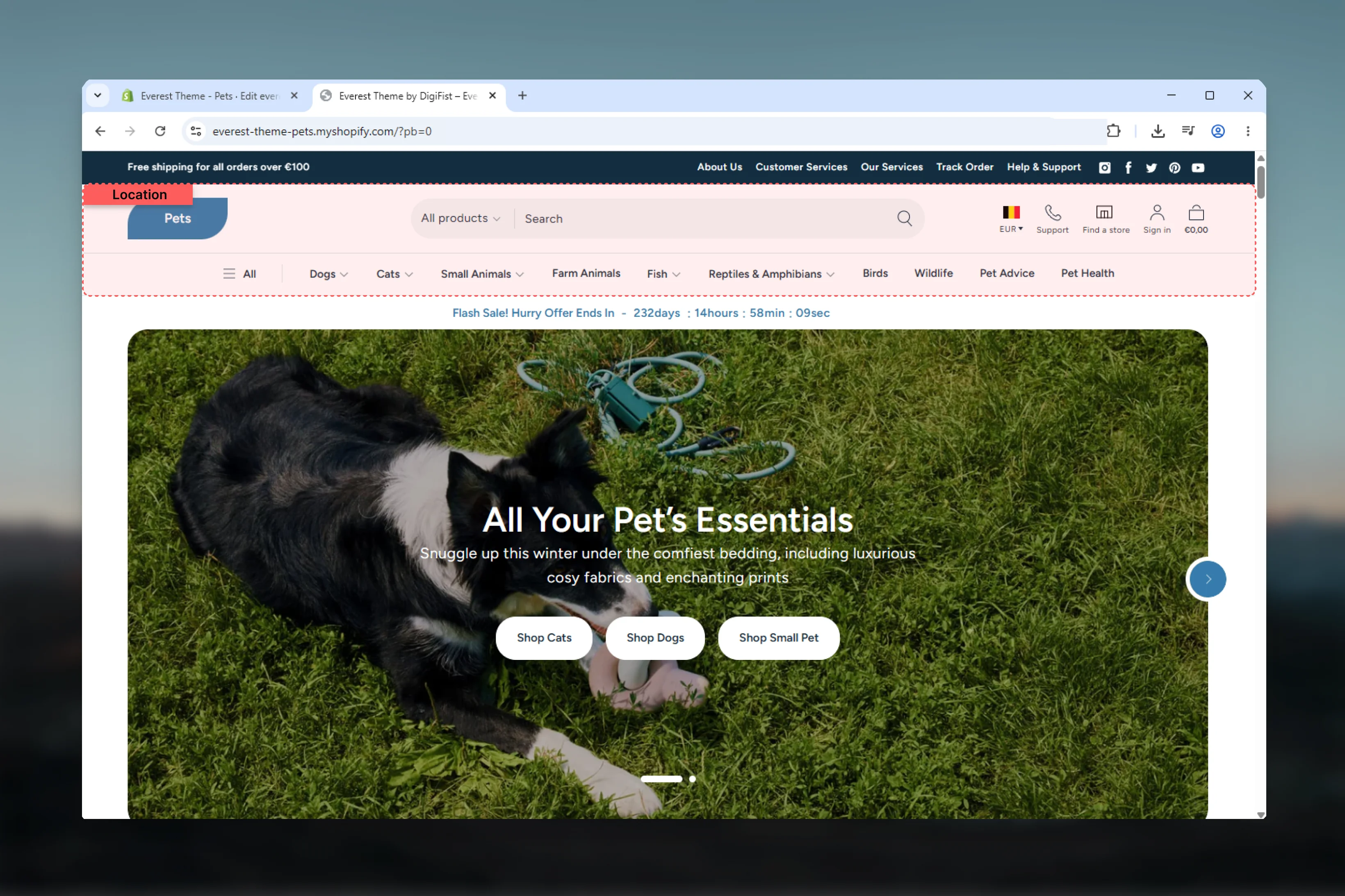
What this section controls
- Desktop header layout and menu placement
- Sticky header behavior
- Desktop dropdown or mega menu behavior
- Menu trigger mode for desktop navigation
- Country and language selectors
- Customer avatar display
- Two optional additional icon links
- Header width, colors, and border treatment
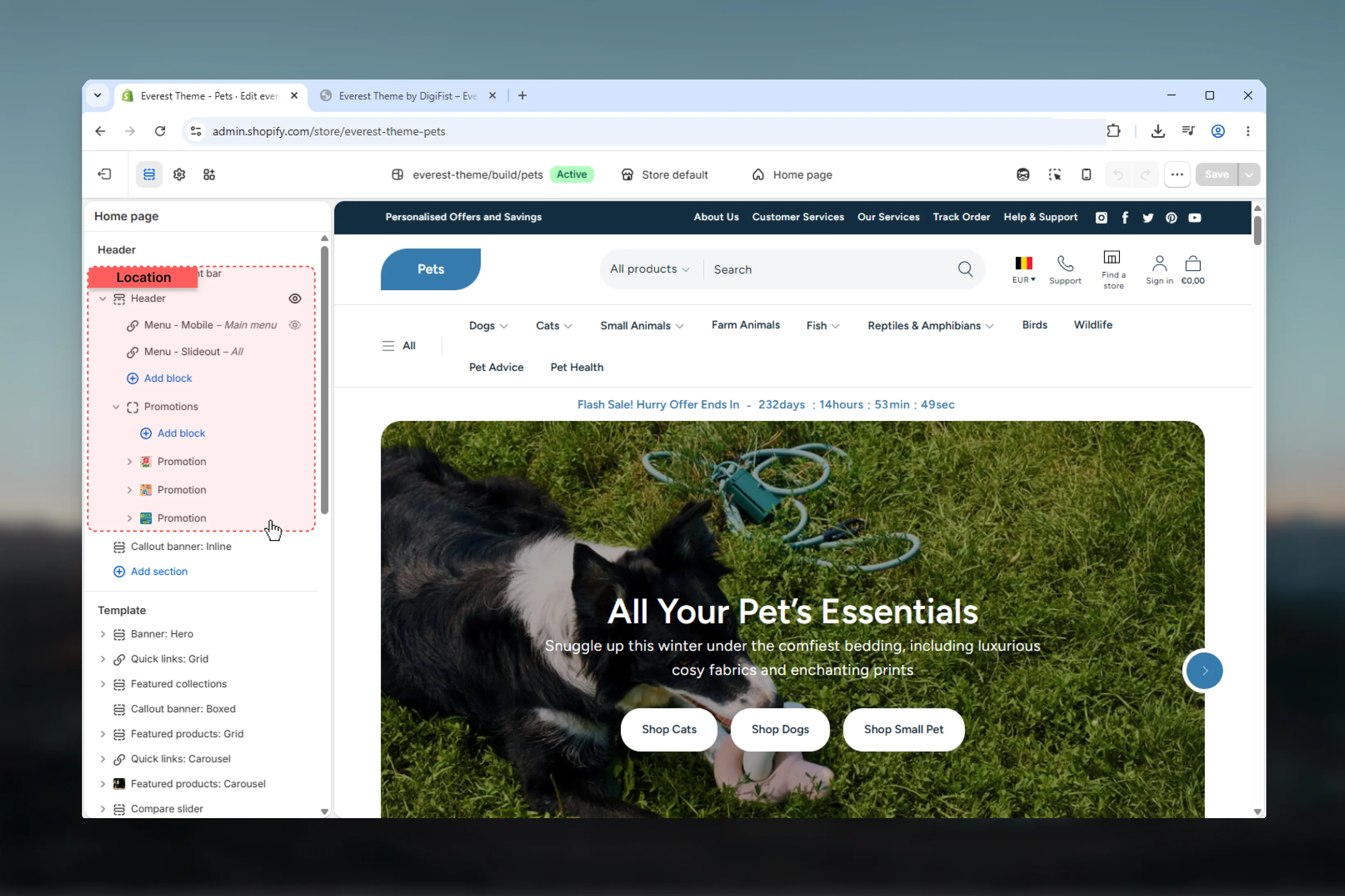
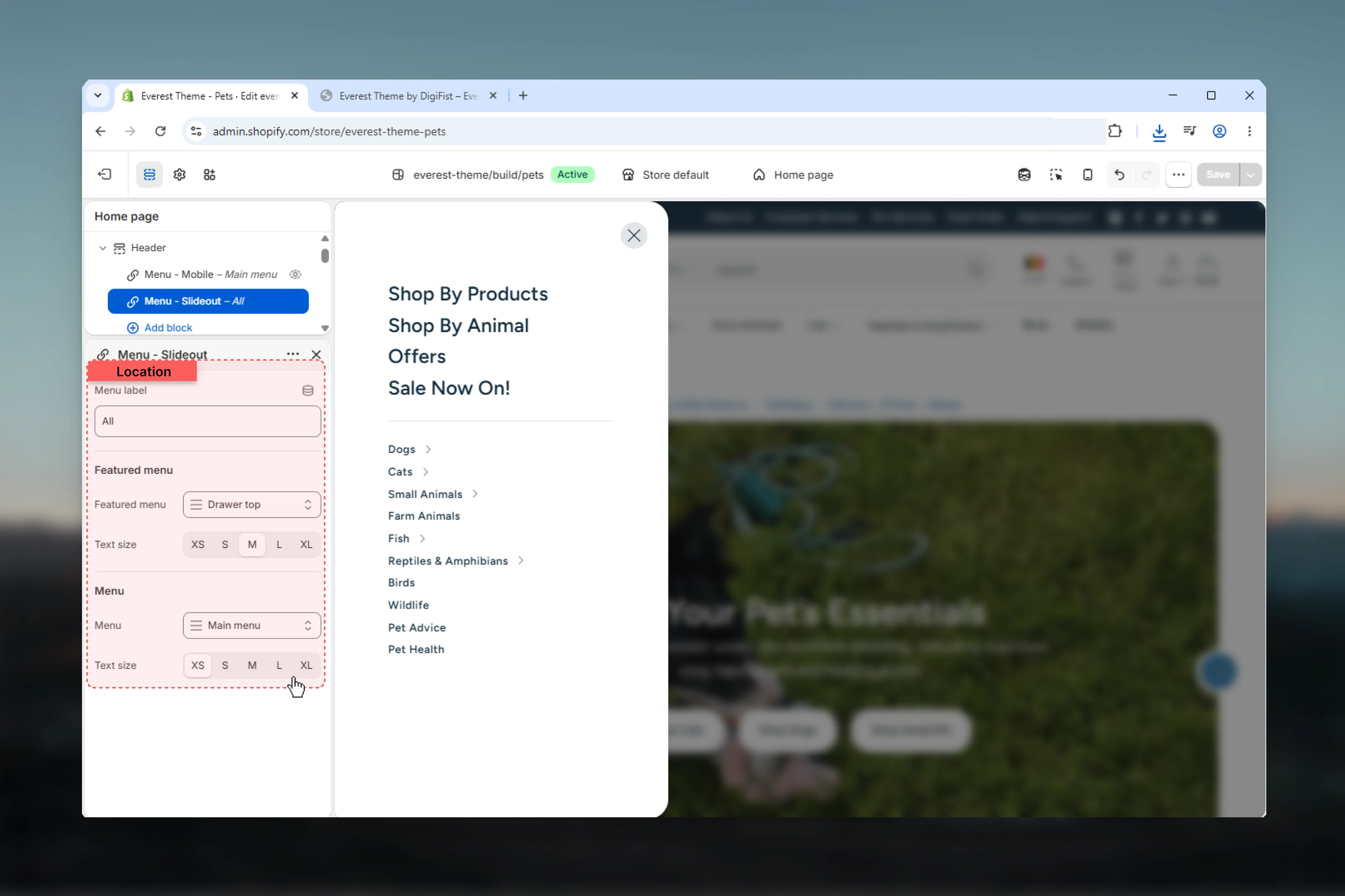
- Static mobile and slideout menu blocks
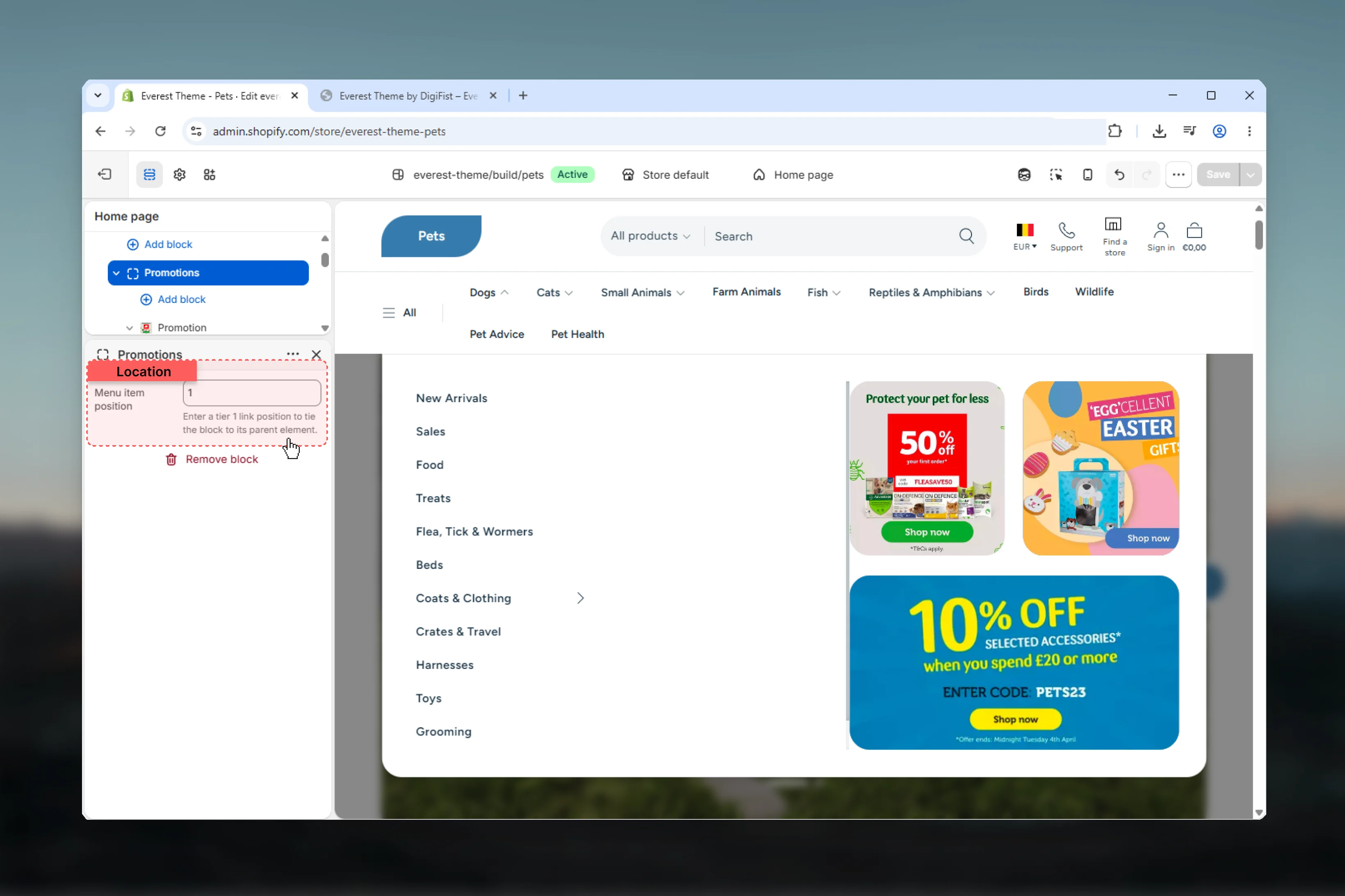
- Mega menu promotion blocks
How Everest header works
The section renders three main zones:- Start area: mobile menu trigger and search
- Center area: logo or text-based brand mark
- End area: localization, additional icons, account, app blocks, and cart
The header also reads several global theme settings, especially for logo, search, cart, and social links. Those controls are documented later on this page so you can tell which behavior belongs to the section and which comes from theme settings.
Getting started
1
Open the Theme Customizer
In Shopify admin, go to Online Store -> Themes -> Customize.
2
Open the Header section
In the header group, select Header to access the main section settings.
3
Choose the layout and menu style
Start with header layout, menu trigger, and desktop menu type so the main navigation structure is in place first.
4
Review the static menu blocks
Open the built-in mobile and slideout menu blocks, then configure promotion blocks only if you are using the mega menu layout.
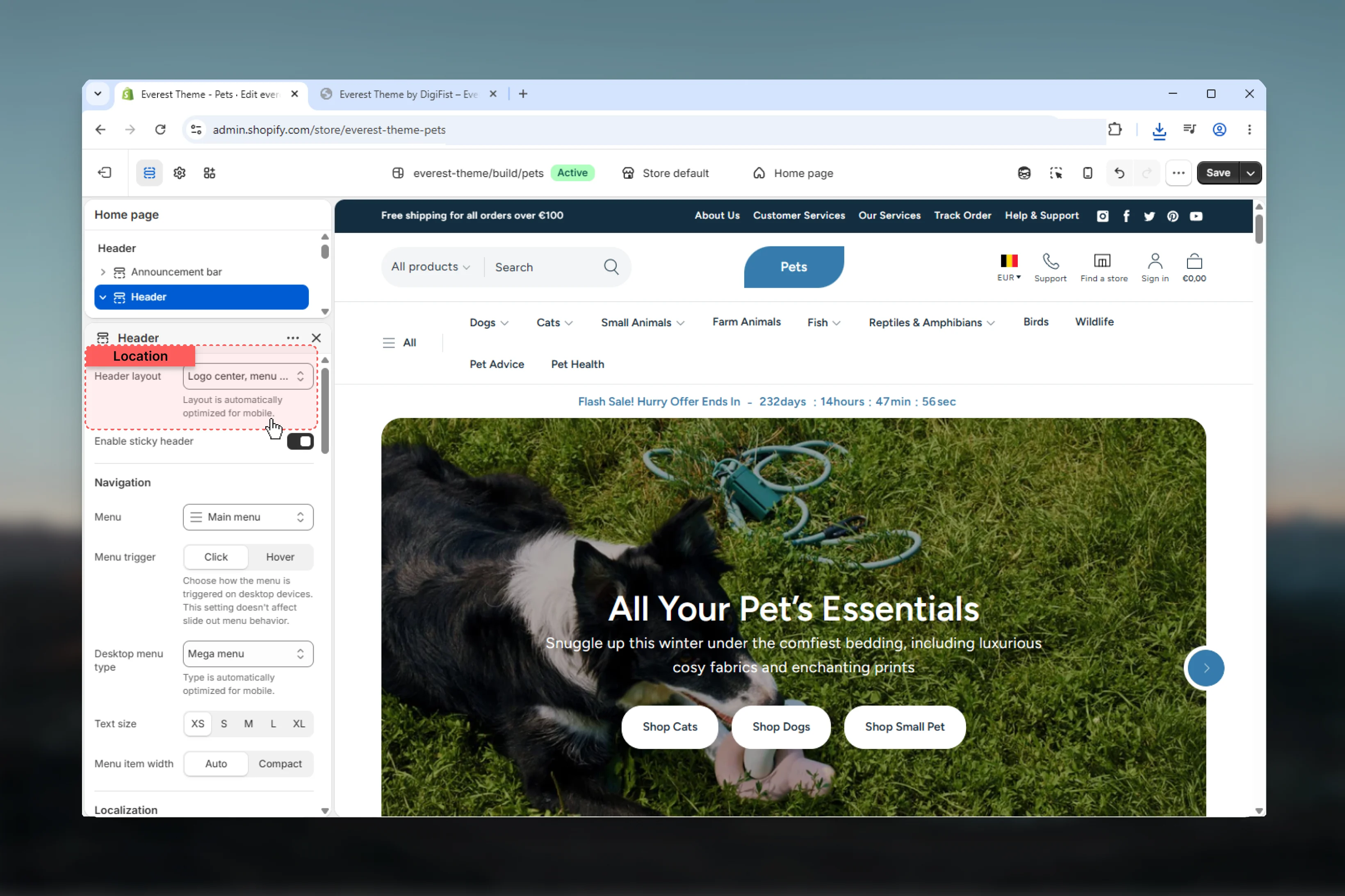
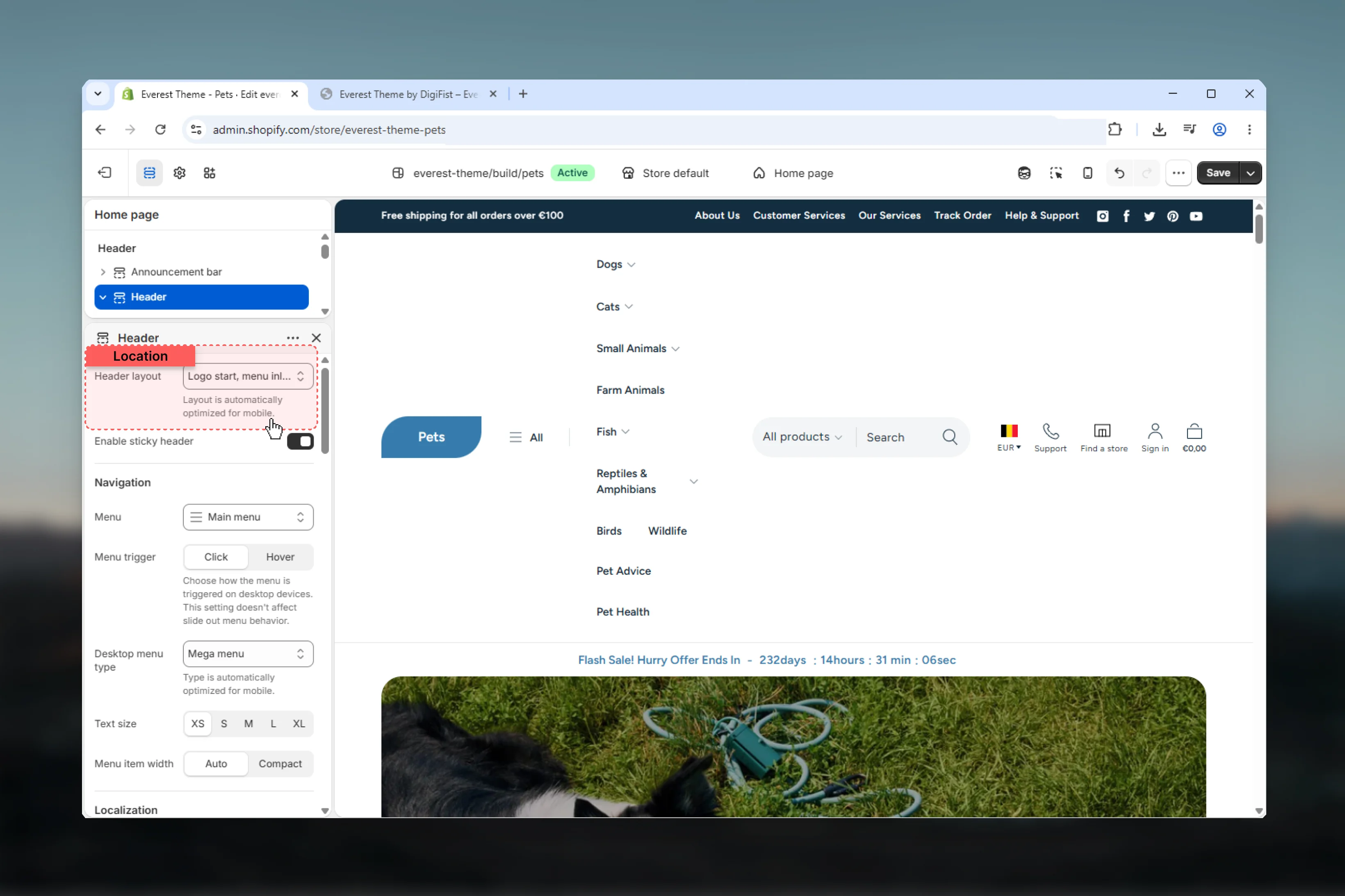
Layout options
Logo stays on the left and the main menu moves to a dedicated row below it.This layout gives longer menus more room and creates a clearer separation between branding and navigation.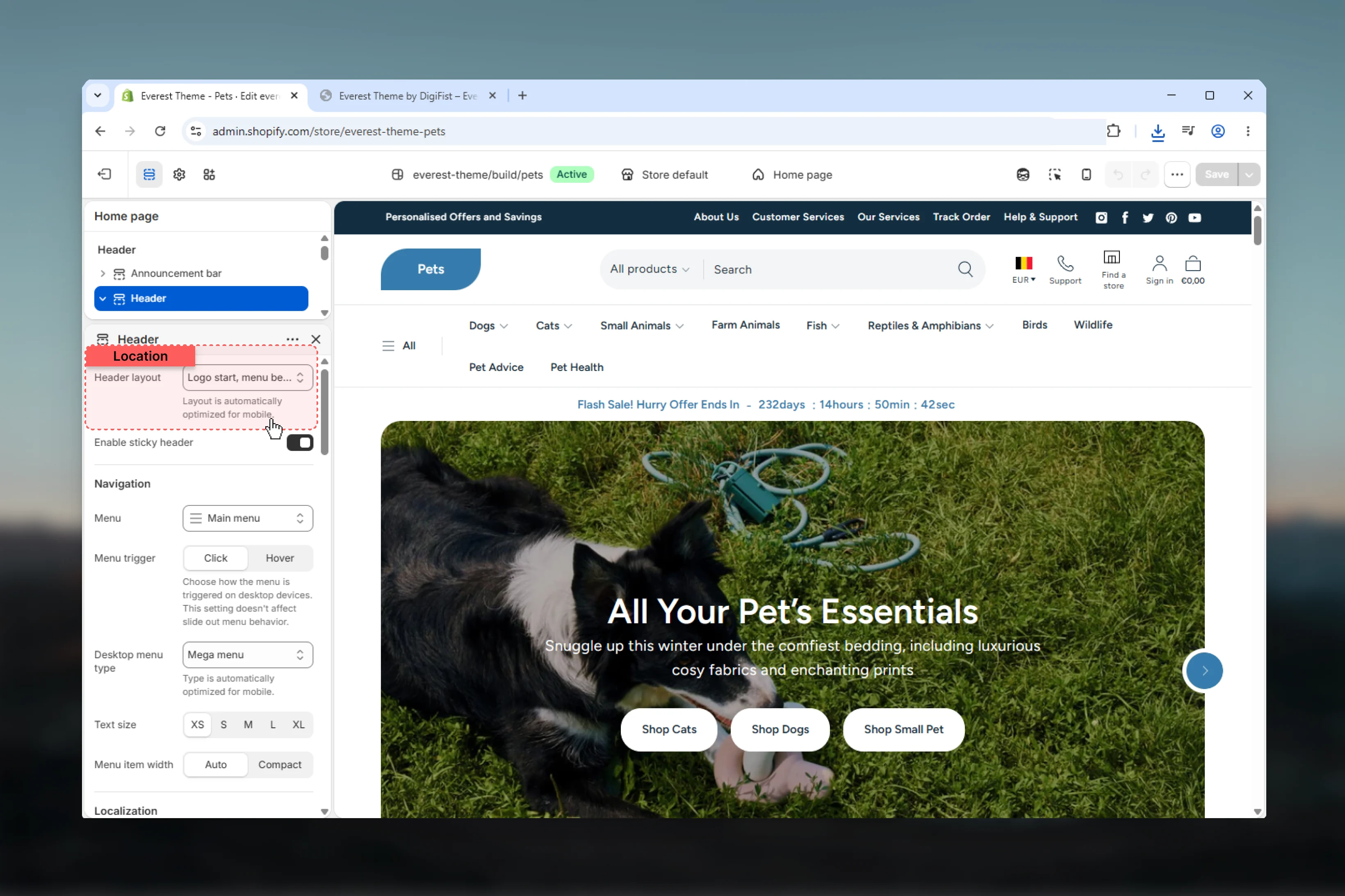
Navigation settings
- Structure
- Typography & Width
- Sticky Header
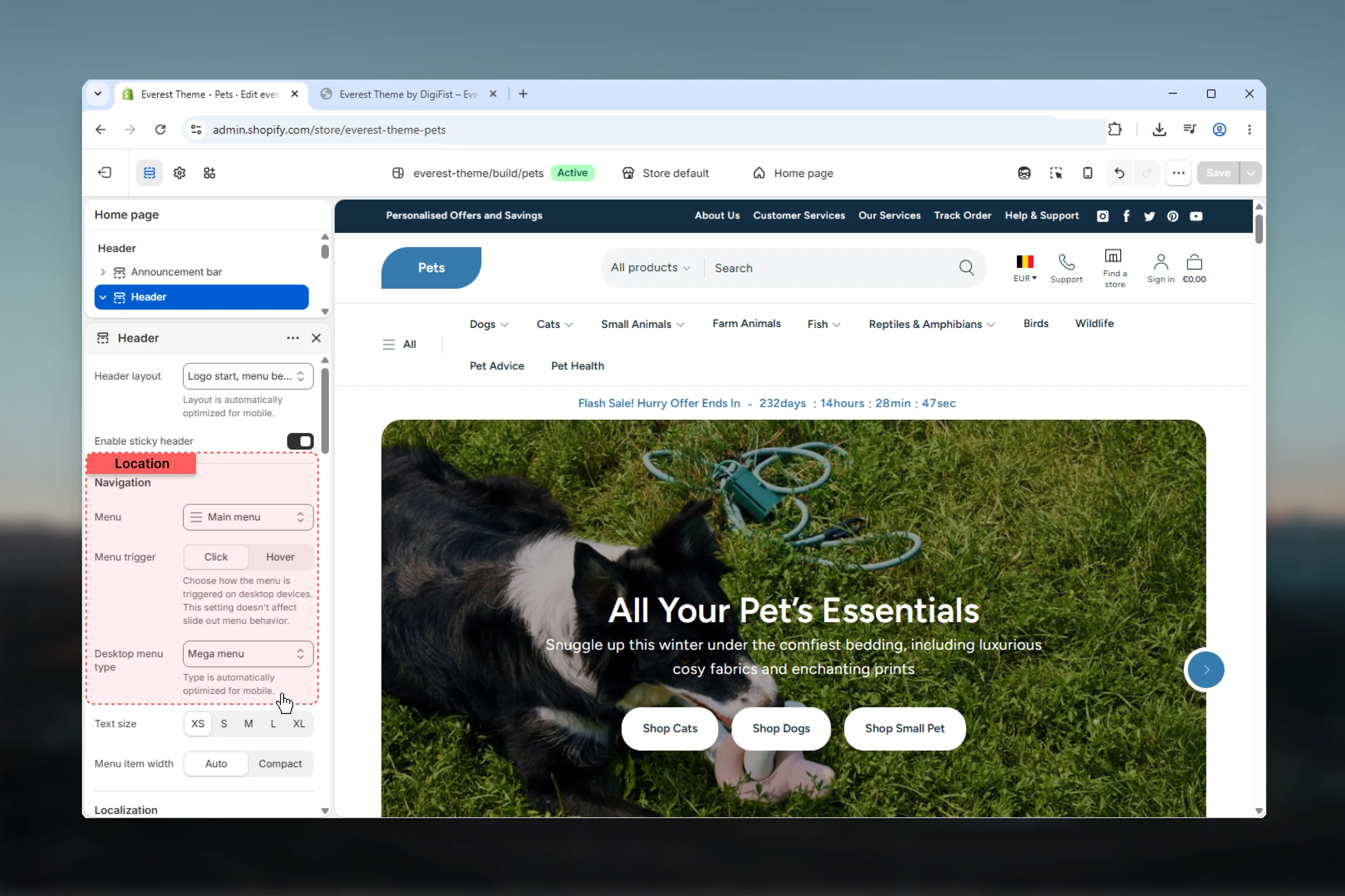
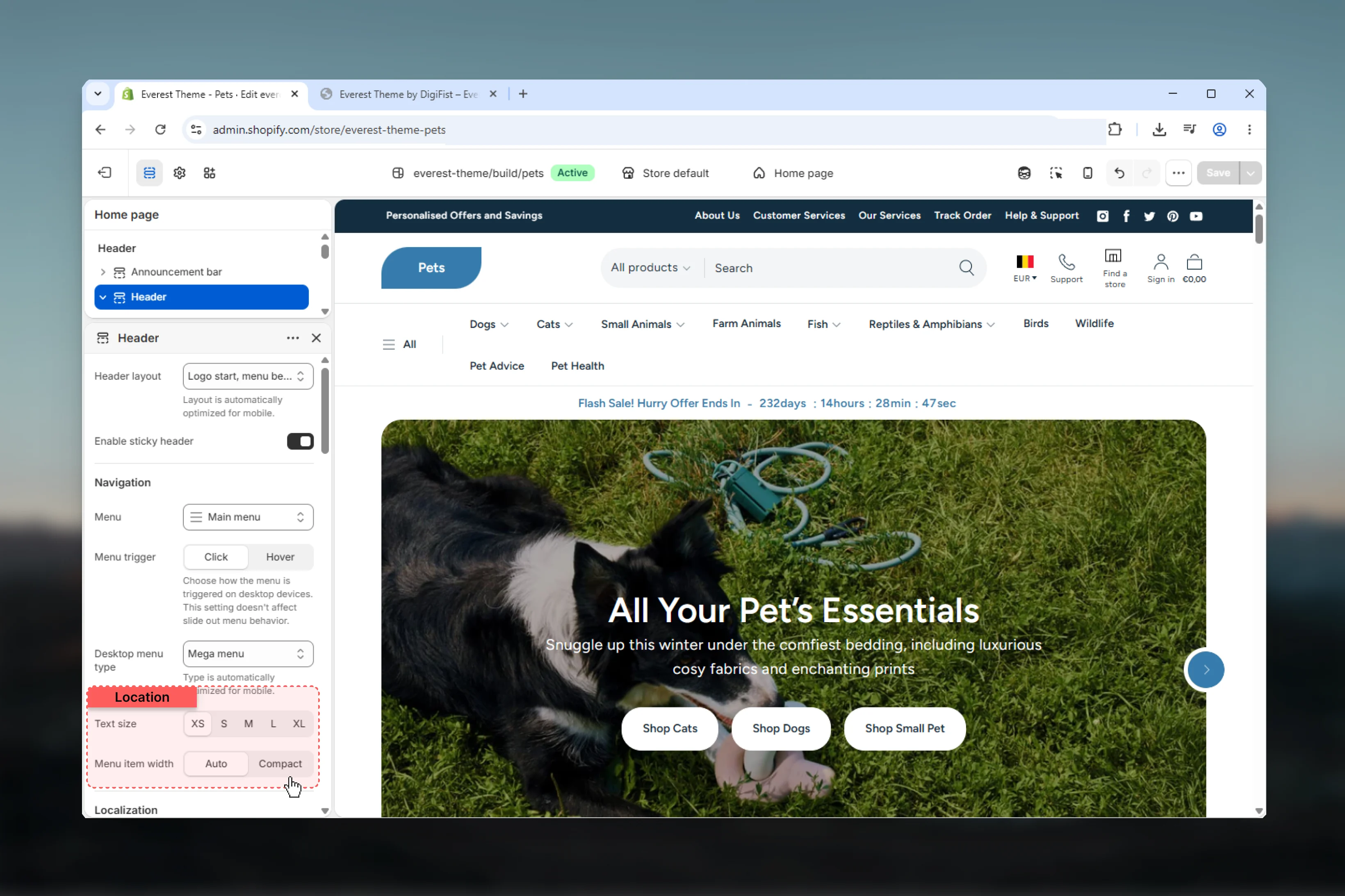
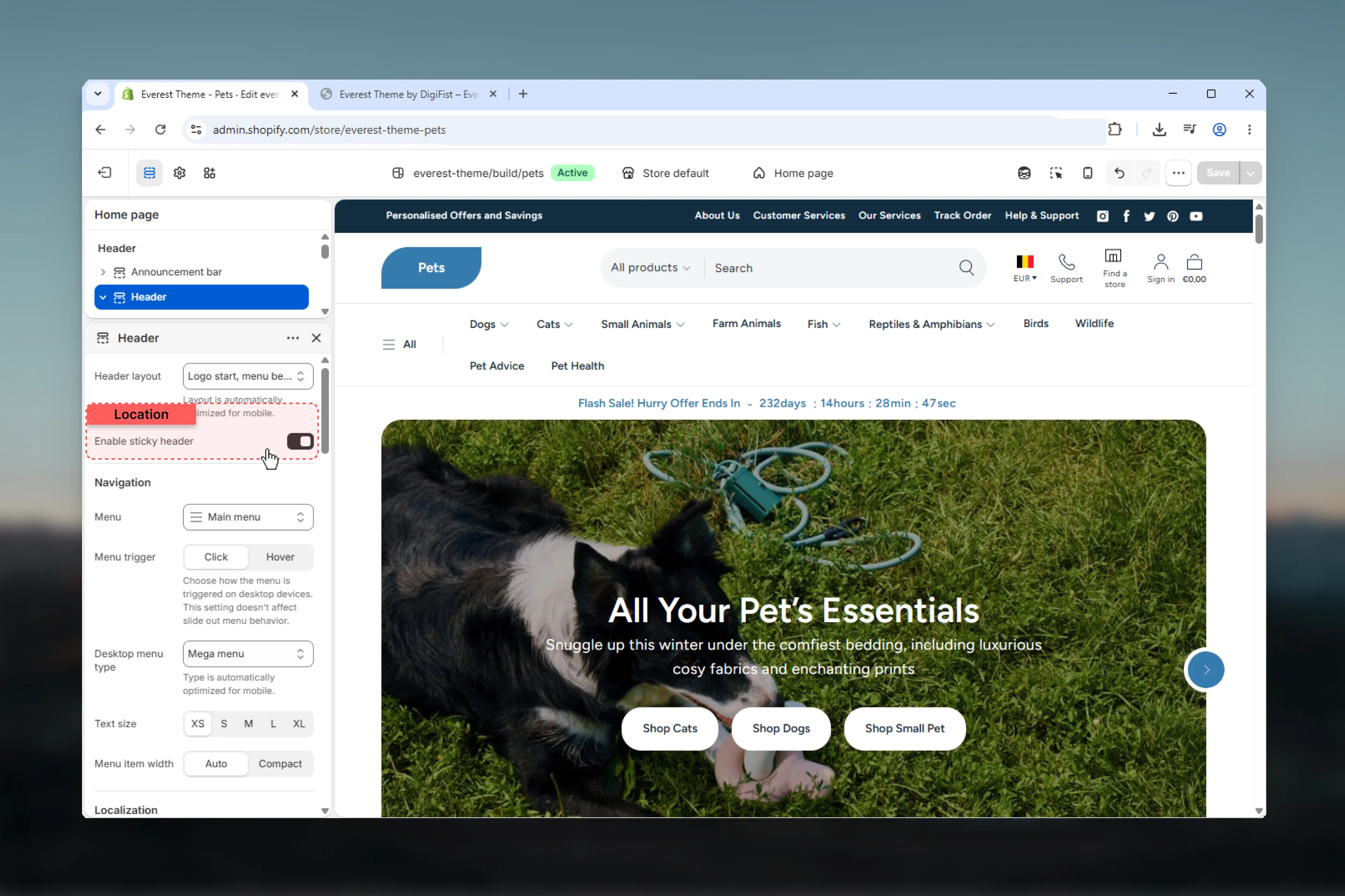
Localization and account
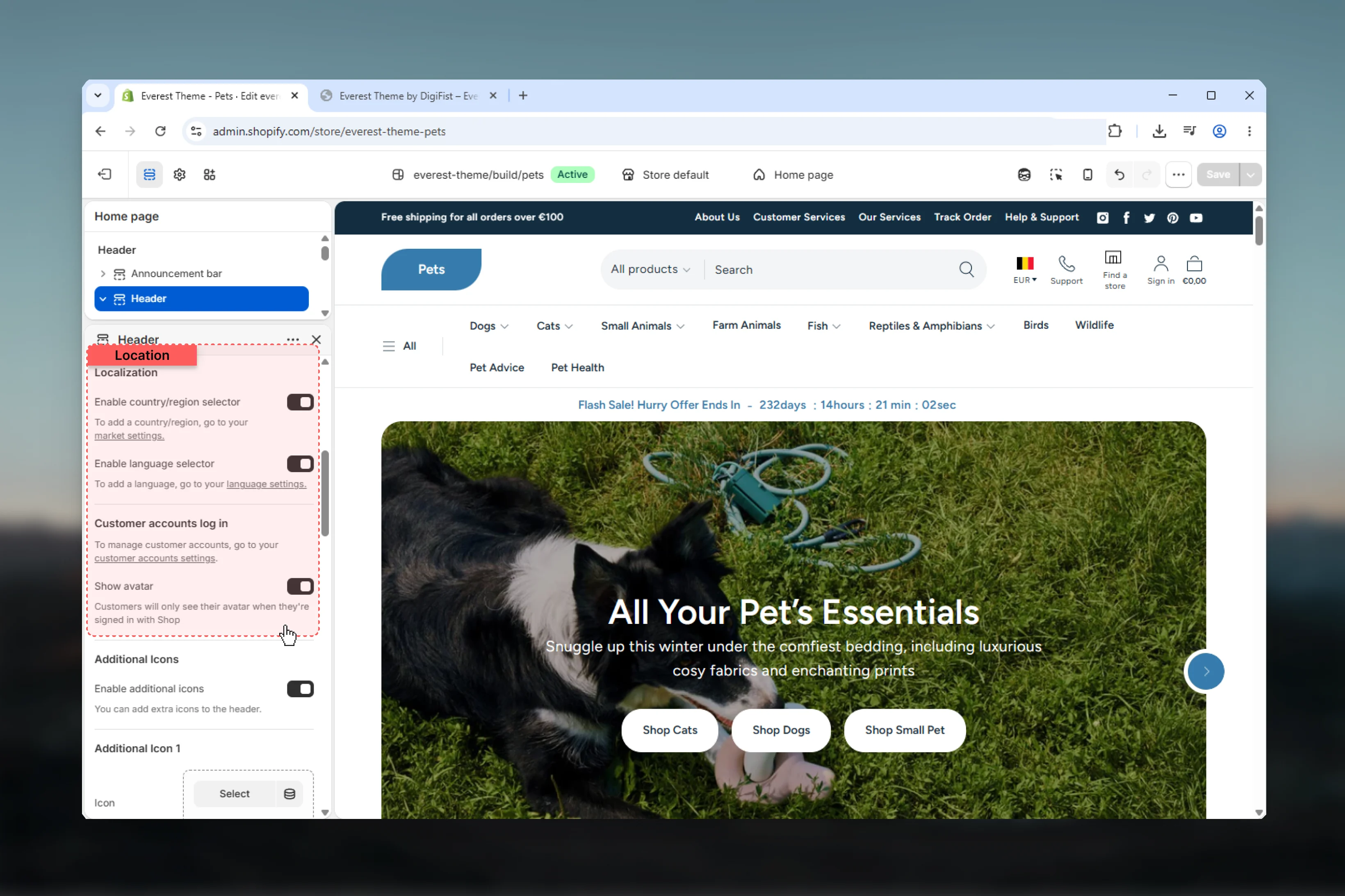
Enable country/region selector
Enable country/region selector
Displays the country selector in the header icon area when your store has more than one available country.The selector uses Shopify Markets data and renders a searchable country list when enough countries are available.
In the current header implementation, the country selector is rendered only on desktop screens.
Enable language selector
Enable language selector
Displays the language selector in the header icon area when your store has more than one available language.
In the current header implementation, the language selector is also desktop-only.
Enable customer avatar
Enable customer avatar
Changes how the account icon behaves when Shopify customer accounts are enabled.If enabled and the signed-in customer has an avatar, the avatar is shown. Otherwise the standard user icon is displayed.
Additional icons
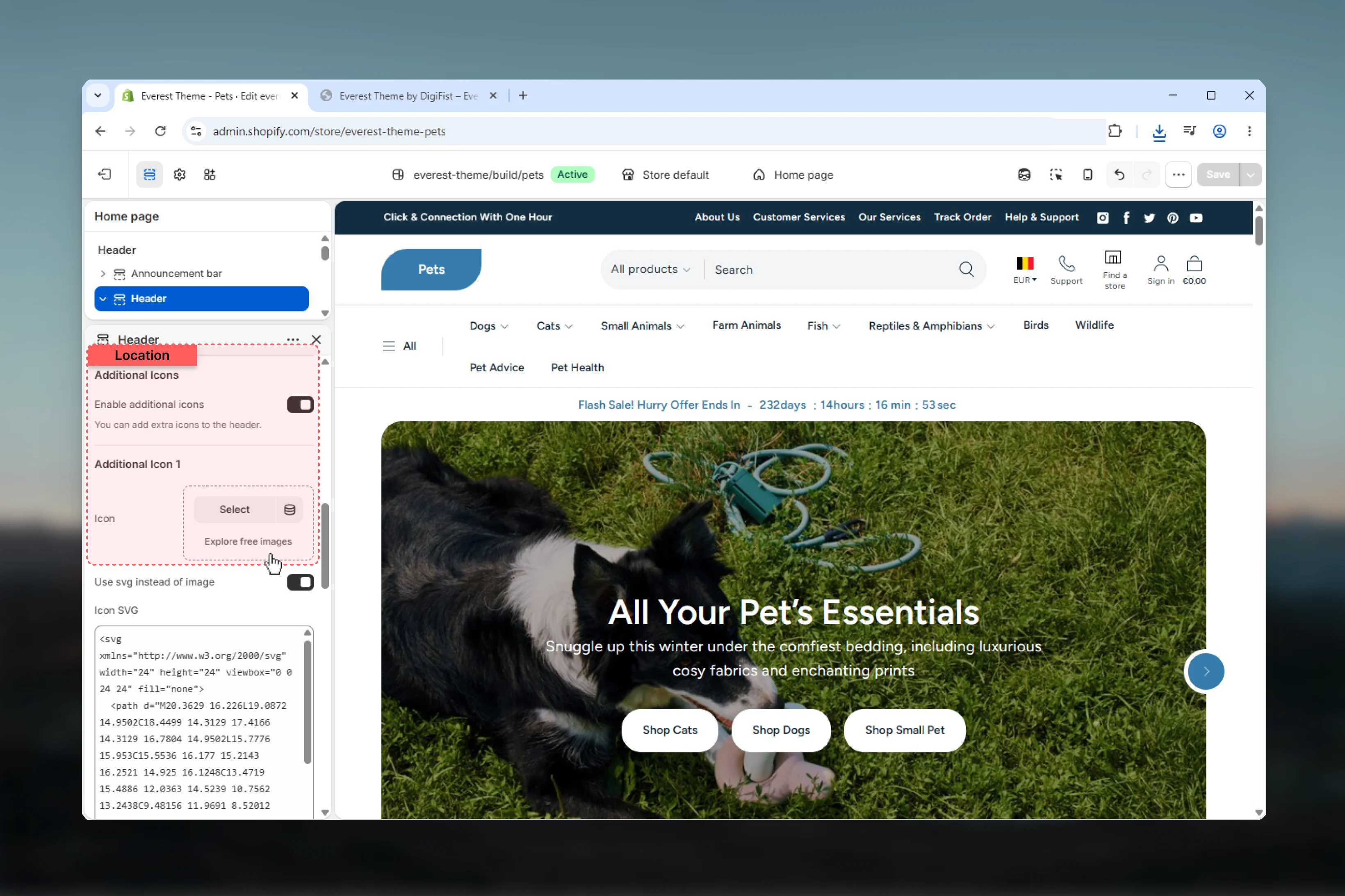
Enable additional icons
Enable additional icons
Turns on two optional desktop-only quick-link slots inside the header.These work well for actions such as Track order, Help center, or Store locator.
Icon slot 1
Icon slot 1
Each icon slot supports:
- image icon
- optional SVG override
- text label
- destination link
Icon slot 2
Icon slot 2
The second icon slot uses the same structure as the first one.Empty icon slots are skipped automatically, so you do not need to fill both.
Design settings
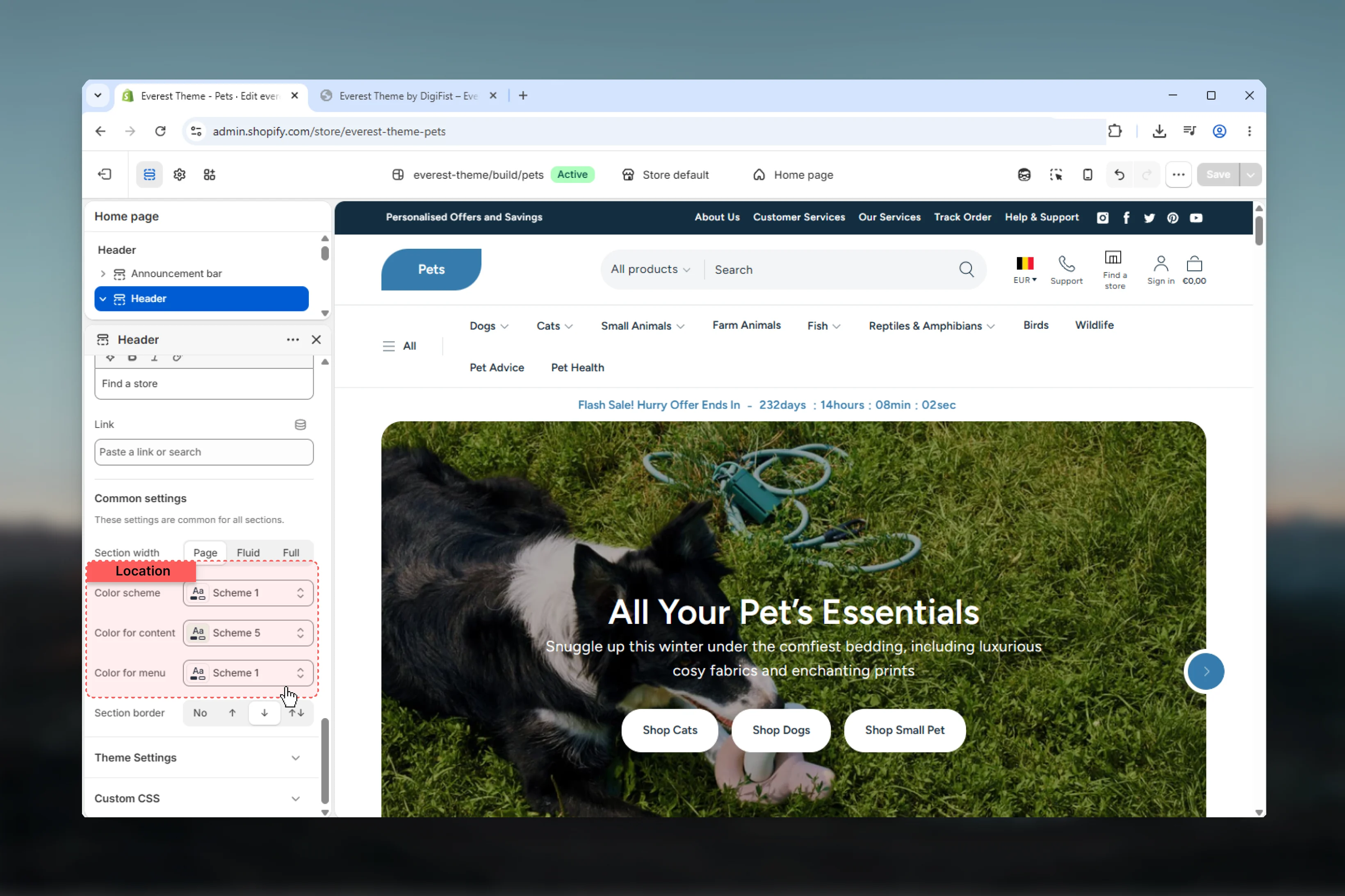
- Width & Border
- Color
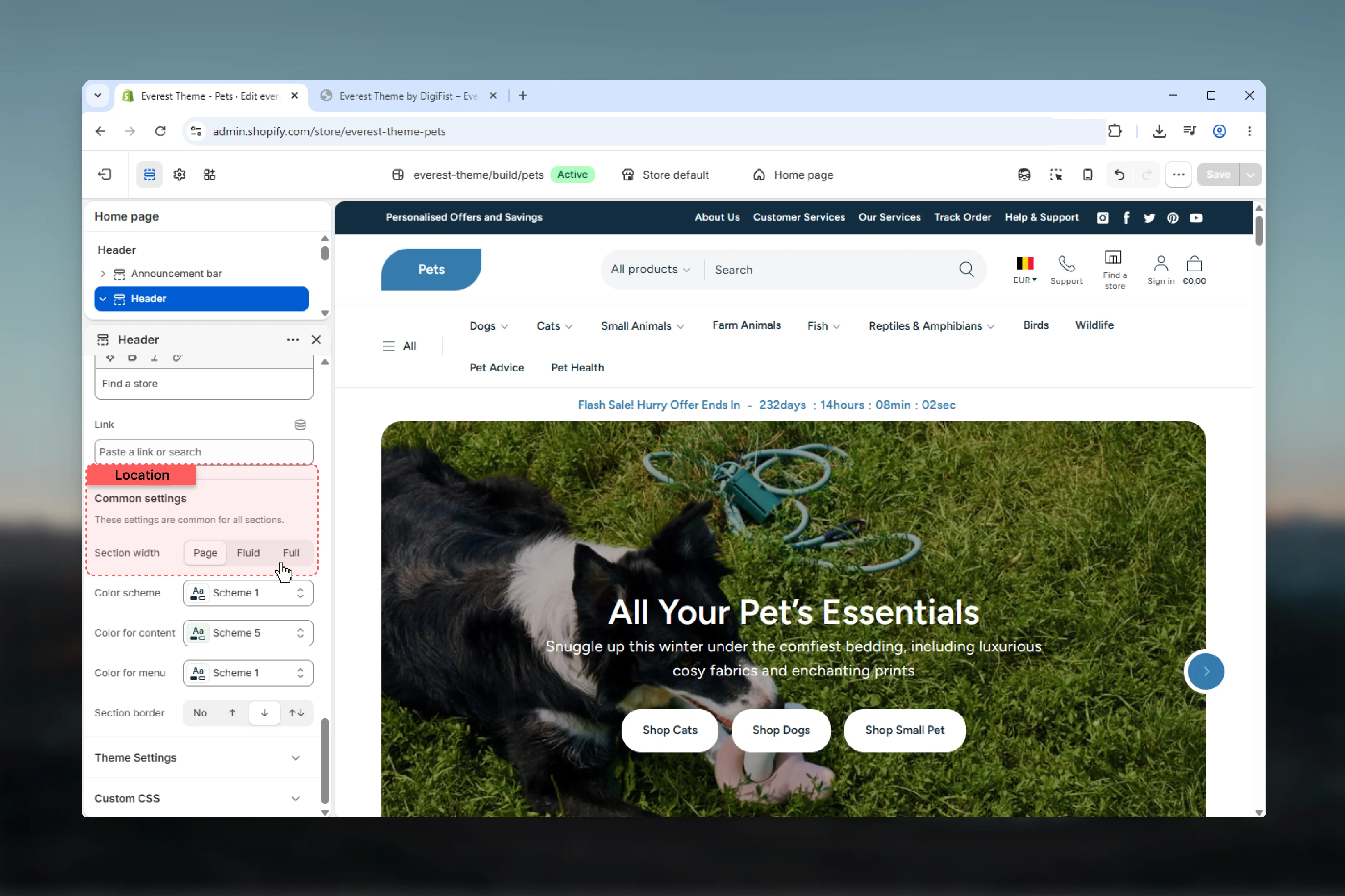
Section width
Section width
Controls the header container width.Page keeps the header aligned to the theme’s standard content width.Fluid expands the header more generously while still respecting page gutters.Full stretches the header edge to edge.
Section border
Section border
Adds top, bottom, or dual borders using the shared section styling system.Available options are None, Top, Bottom, and Both.
Block settings
- Header Promotions
- App Block
Controls the mobile and tablet drawer navigation.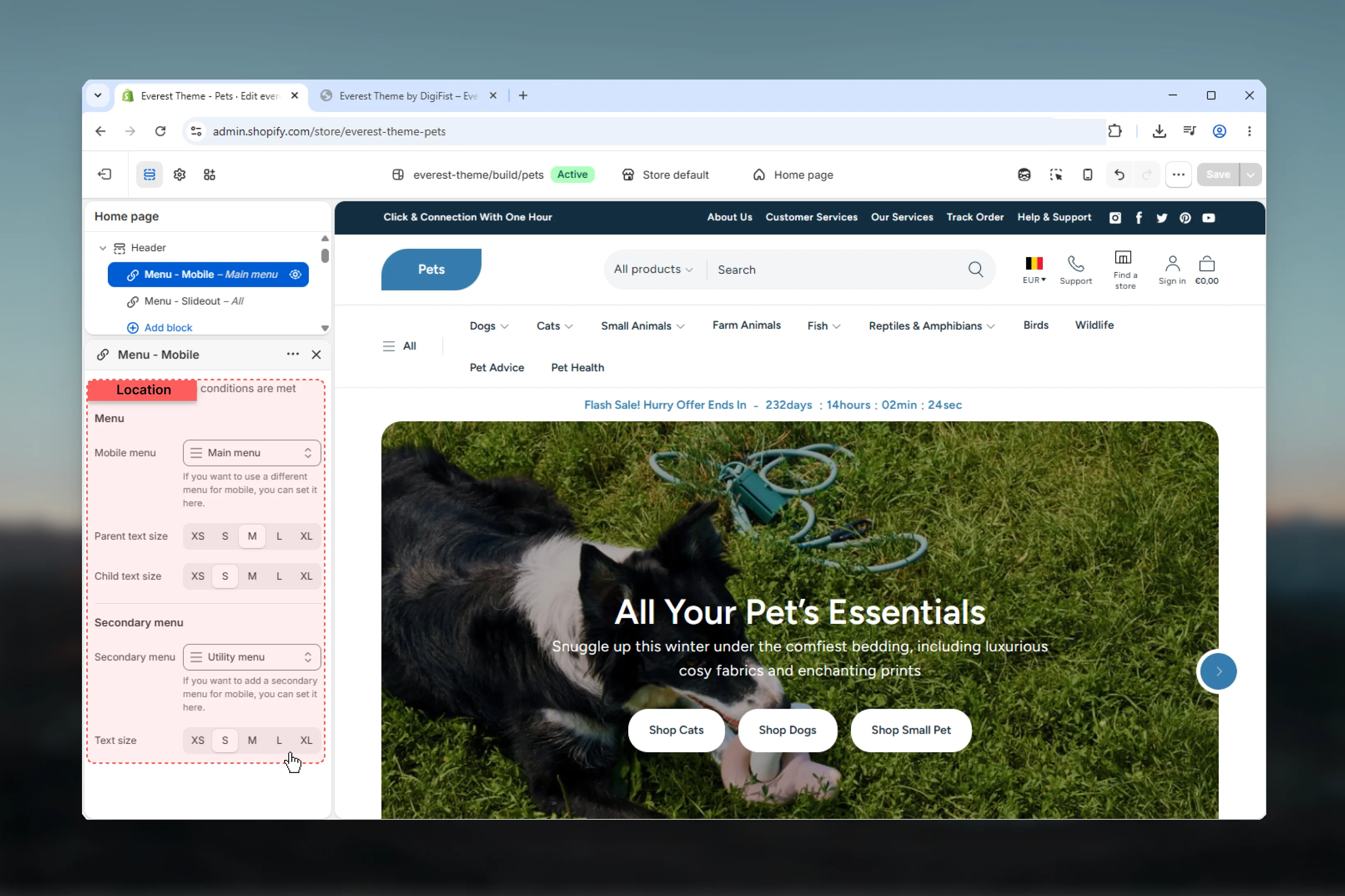
Parent and child text sizes
Parent and child text sizes
Use Parent text size for top-level drawer links and Child text size for nested links.This helps preserve hierarchy in deeper mobile menu structures.
The mobile drawer also renders social links in its utility area when those links are configured in global theme settings.

Global theme settings that affect the header
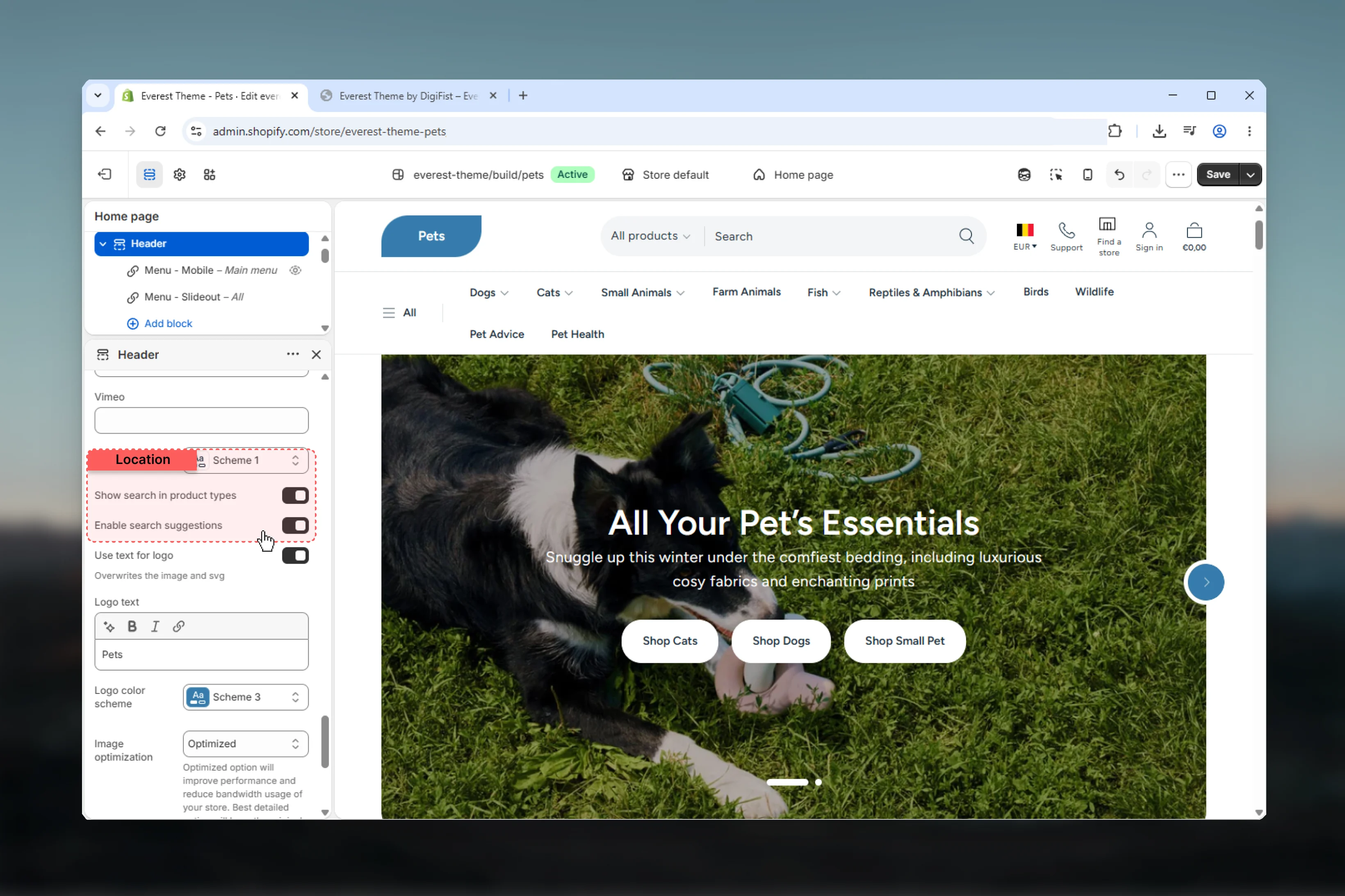
- Brand & Logo
- Search
Everest header output depends on global brand settings for: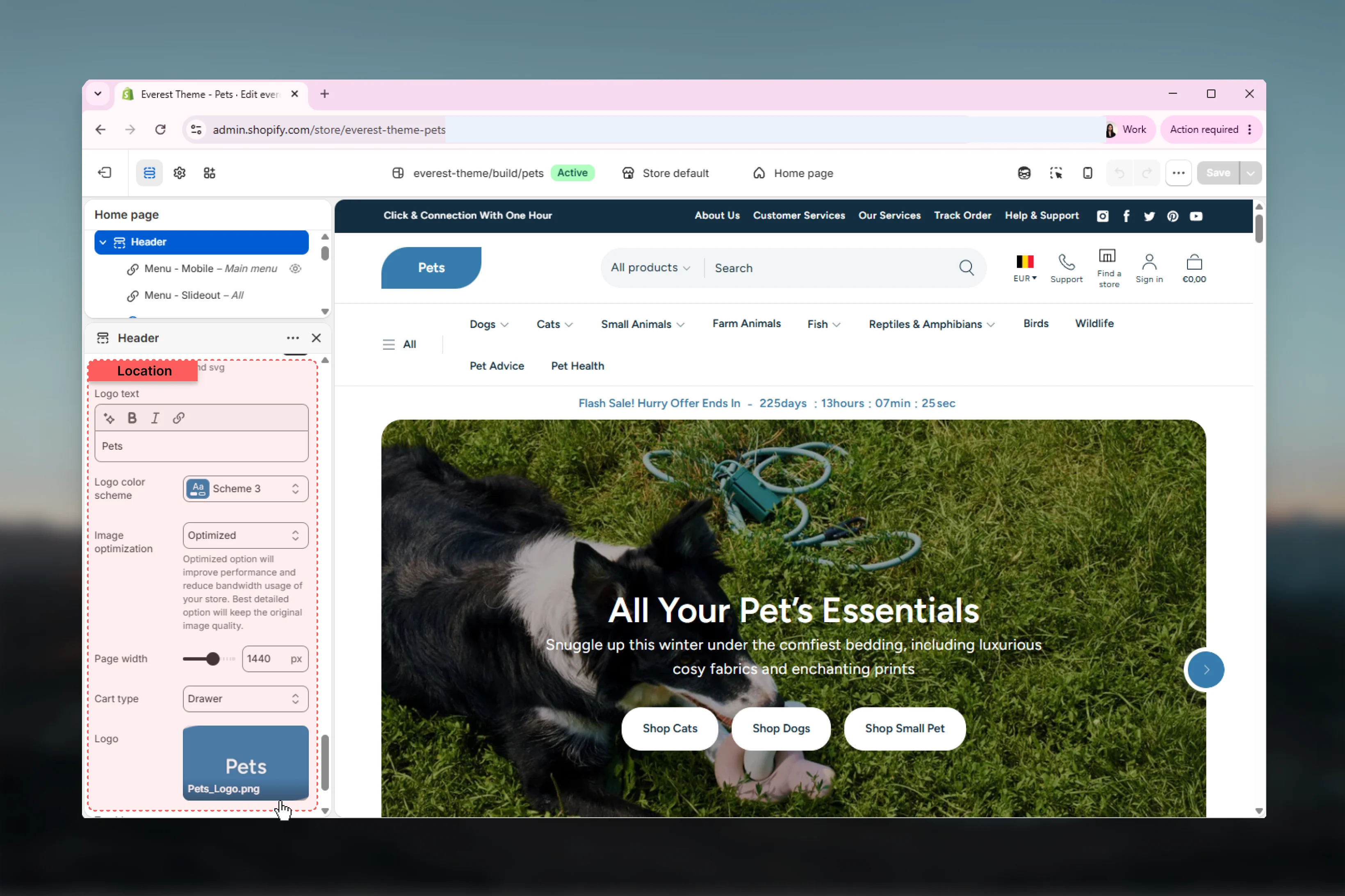
- logo image
- SVG logo
- text logo mode
- logo text
- logo color scheme
- logo width
- Use text for logo overrides image and SVG usage
- SVG logo overrides uploaded logo image when SVG code is present
- if no logo is configured, the store name is shown

Best practices
Match layout to menu depth
Use menu below layouts when your store has longer top-level labels or more categories to scan.
Use mega menus selectively
Reserve the mega menu for categories that genuinely need multi-level navigation or promotional support.
Separate mobile priorities
Create a dedicated mobile menu instead of mirroring every desktop navigation choice one-to-one.
Keep utility icons focused
Use additional icons for one or two high-value actions so the header stays easy to parse.
Check localization requirements
Country and language selectors appear only when your Shopify Markets and language setup includes multiple options.
Review global logo settings
Unexpected logo behavior usually comes from Brand settings, not from the Header section itself.
Test sticky behavior
Review sticky header behavior on real devices, especially if your first viewport is already busy with navigation, search, and icons.
Map promotions carefully
Tie header promotions to the correct top-level menu position and verify them in mega menu mode before publishing.
Related guides
Everest Introduction
Start with the theme overview and preset context before documenting other Everest sections.
Theme Icons
Review the shared icon reference used across DigiFist theme documentation.