

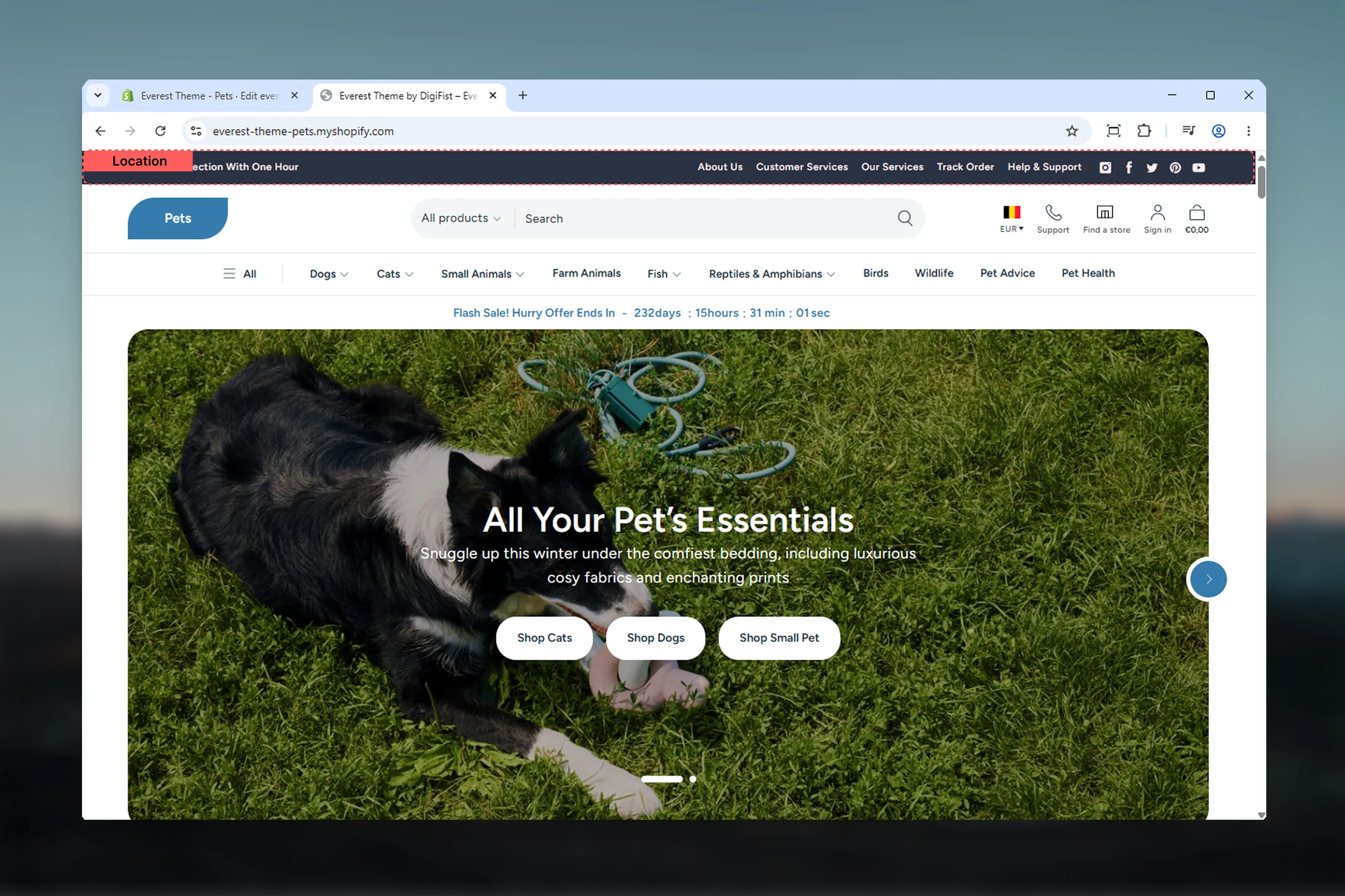
What this section controls
- The overall width and color treatment of the announcement bar
- Rotating message behavior through the announcements slider block
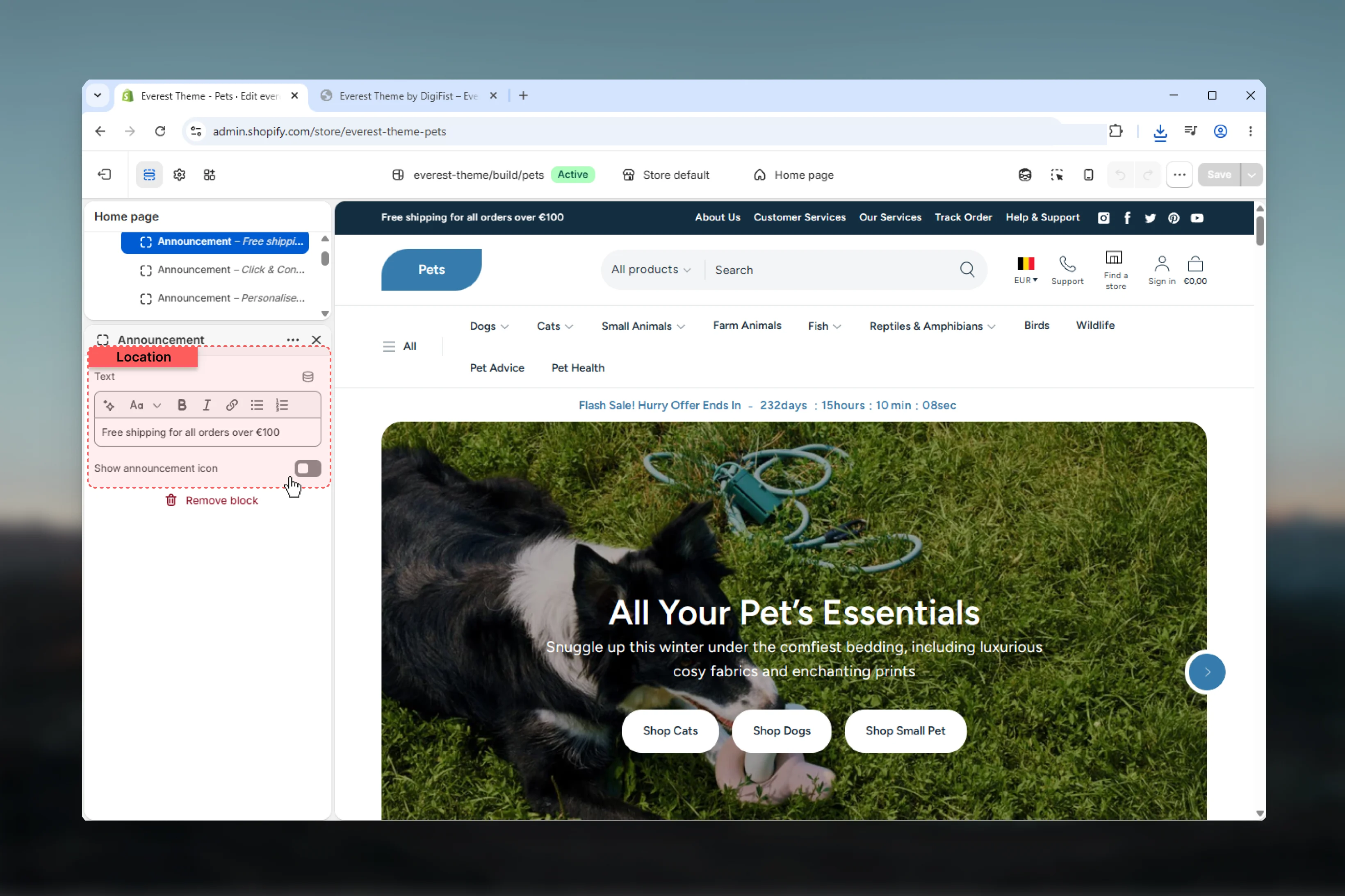
- Individual announcement slides inside that slider
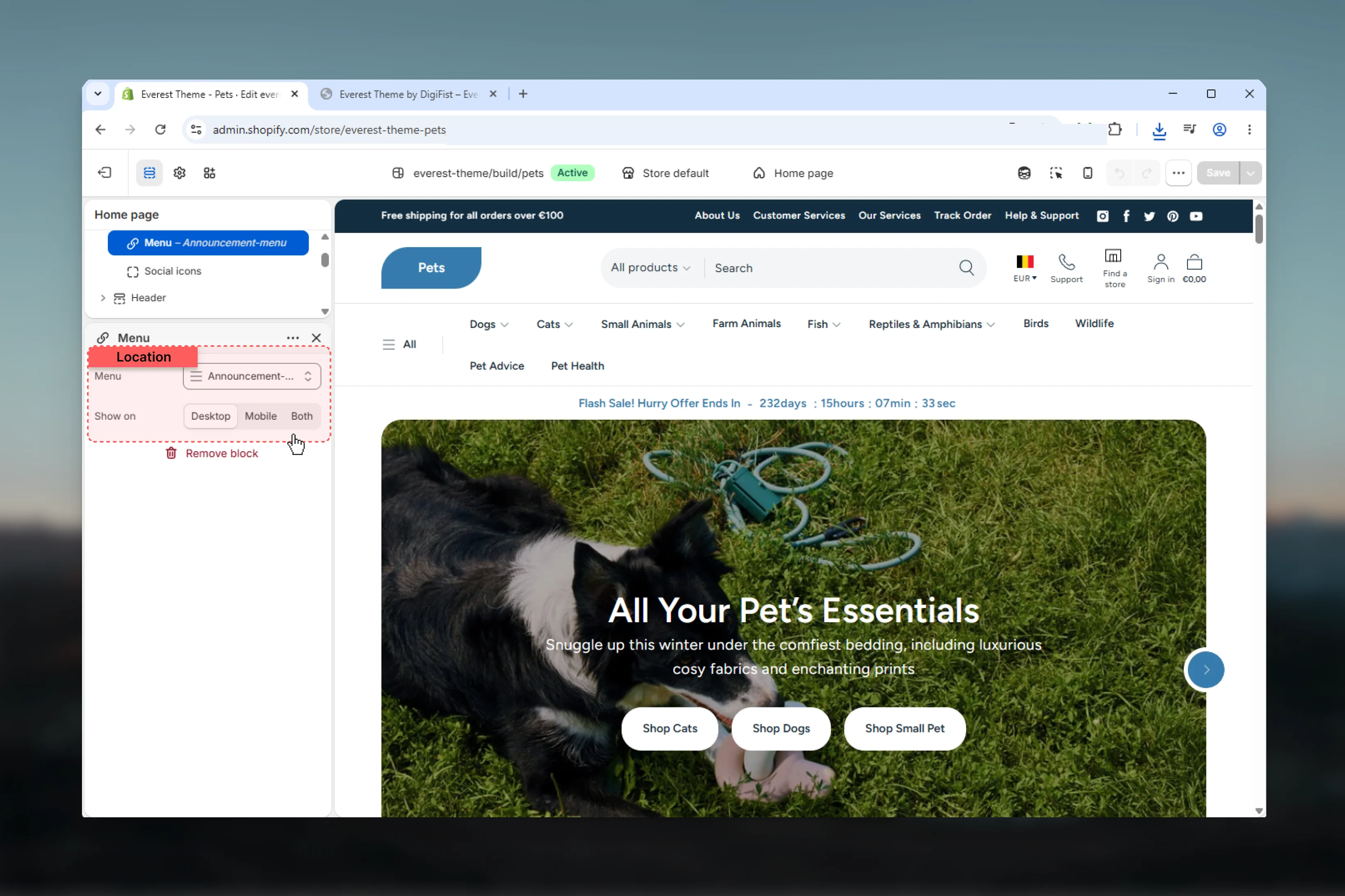
- A simple top-level utility menu
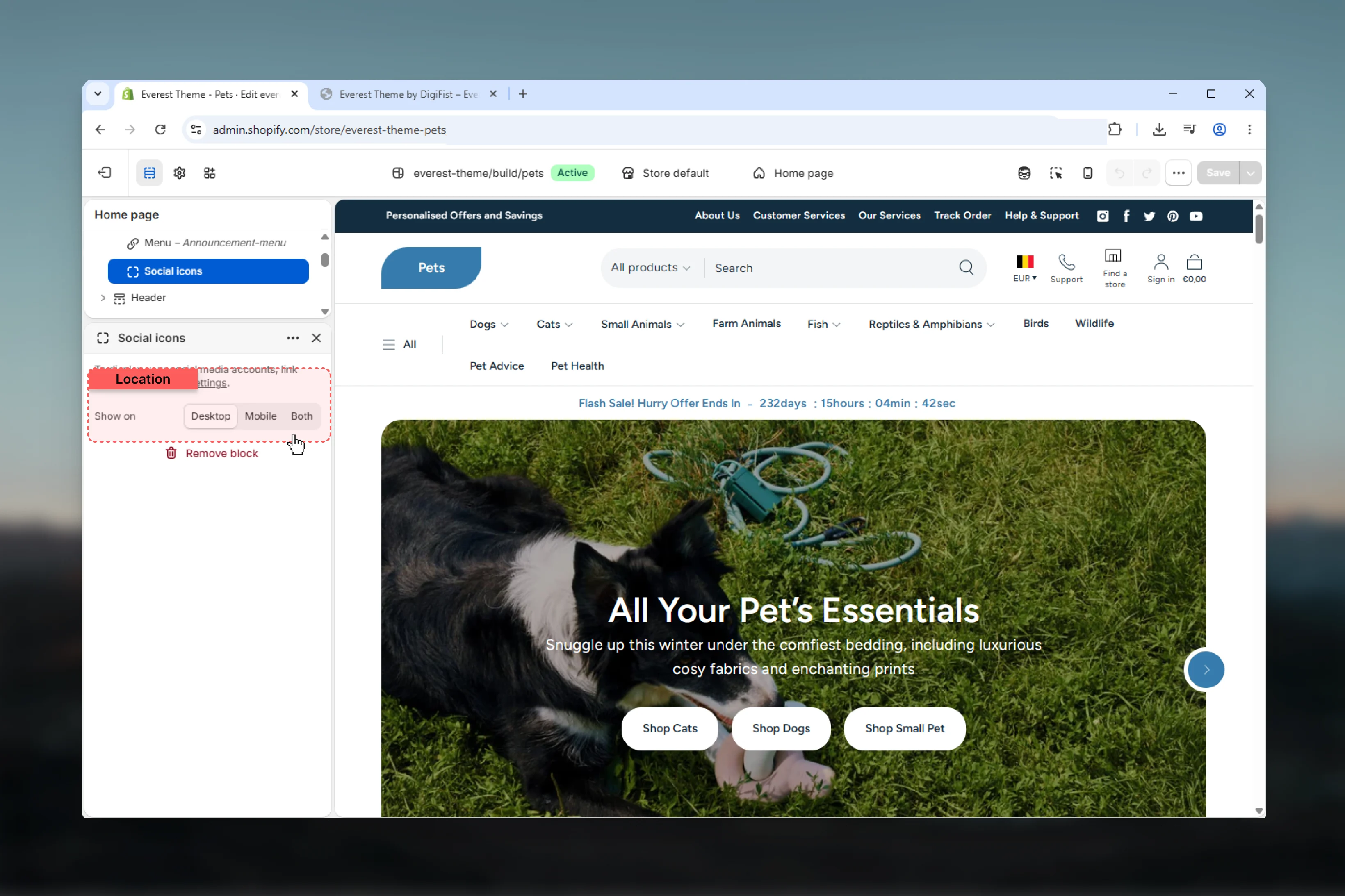
- Social icon output tied to global theme settings
- Desktop and mobile visibility for each top-level block
How Everest announcement bar works
The section itself only controls the outer wrapper. The actual content comes from three supported block types:- Announcements for the rotating message area
- Menu for a simple inline link list
- Social for social media icons
Everest always uses the announcements slider structure for message content. Disabling autoplay stops automatic rotation, but the message area still uses the same slider-based block.
Getting started
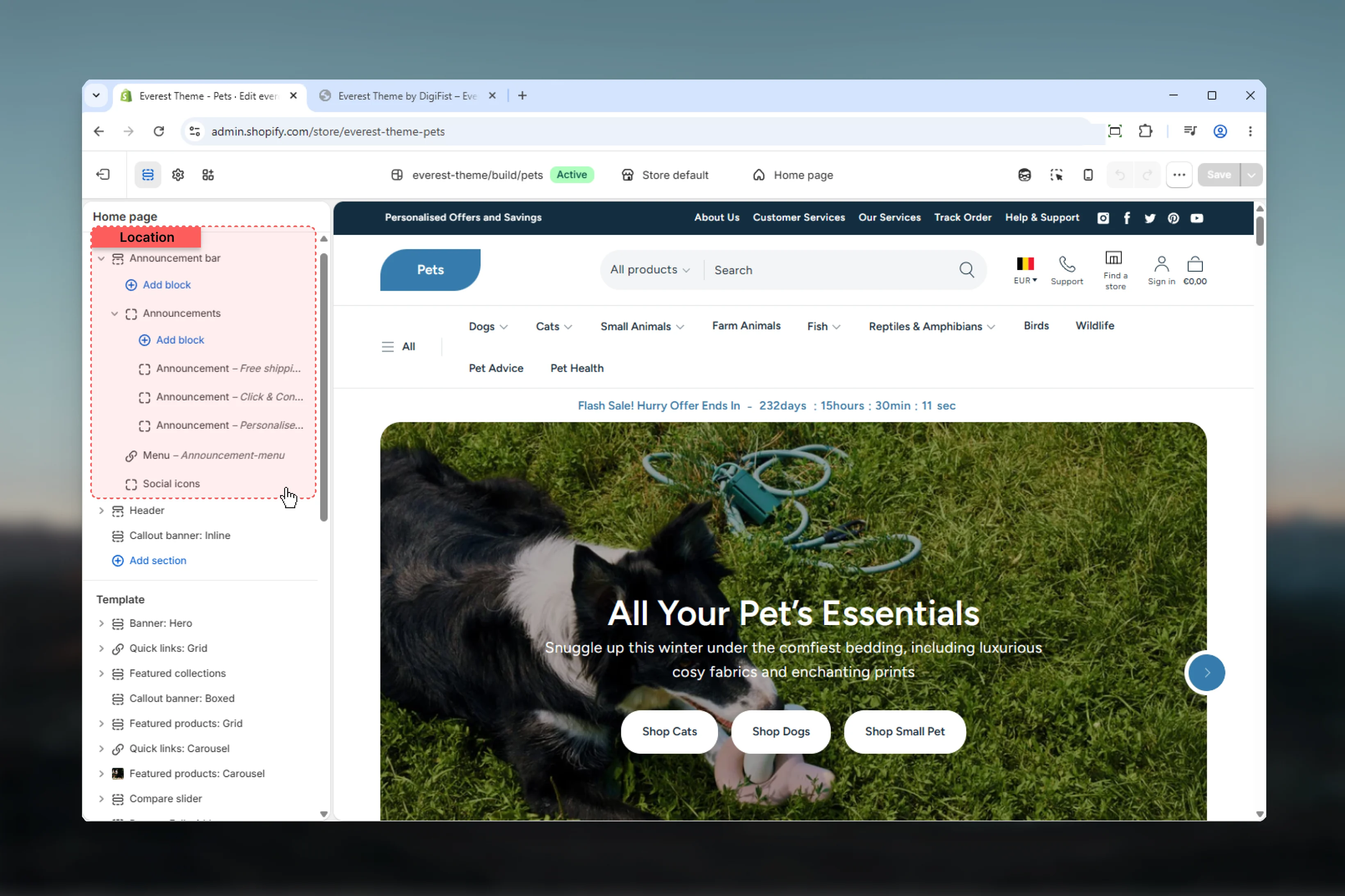
1
Open the Theme Customizer
In Shopify admin, go to Online Store -> Themes -> Customize.
2
Open the Announcement bar section
In the header group, select Announcement bar to access the section settings and block list.
3
Set the overall layout first
Choose the section width and color scheme before adjusting content blocks so you can judge spacing and contrast more accurately.
4
Build the content blocks
Configure the announcements slider first, then add or refine the menu and social blocks based on how much utility content you want in the bar.
Section settings
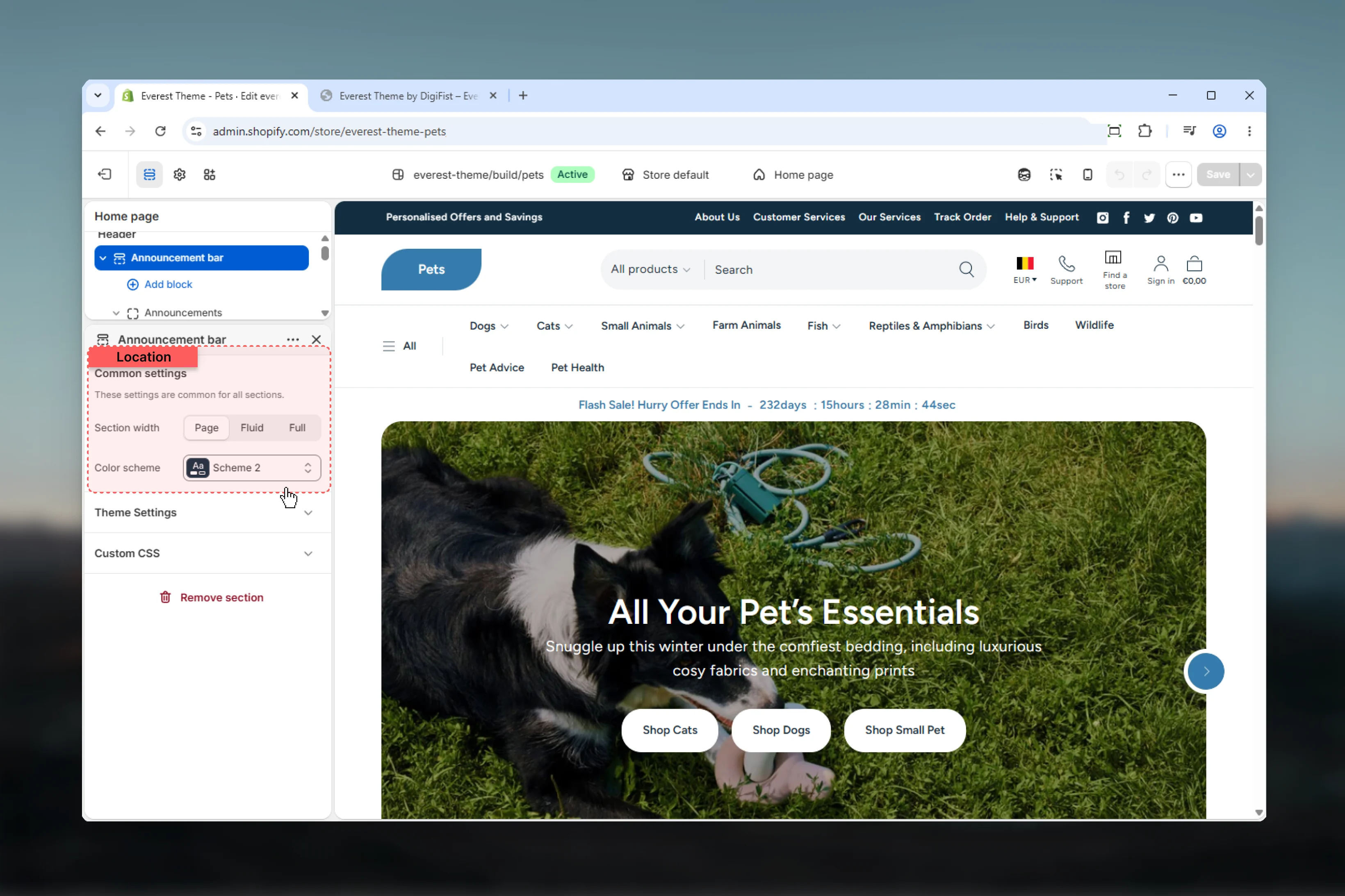
Section width
Section width
Controls the maximum width of the inner announcement bar container.Page keeps the bar aligned to Everest’s standard page width.Fluid gives the content a wider container while still respecting page gutters.Full stretches the bar edge to edge.The schema default is Full, while the default header-group preset uses Page.
Color scheme
Color scheme
Controls the overall background and foreground treatment of the announcement bar wrapper.Use this to keep the bar visually connected to the header or intentionally separate it as its own utility layer.
Block settings
- Announcements
- Single Announcement
This is the parent slider block for all rotating messages in the bar.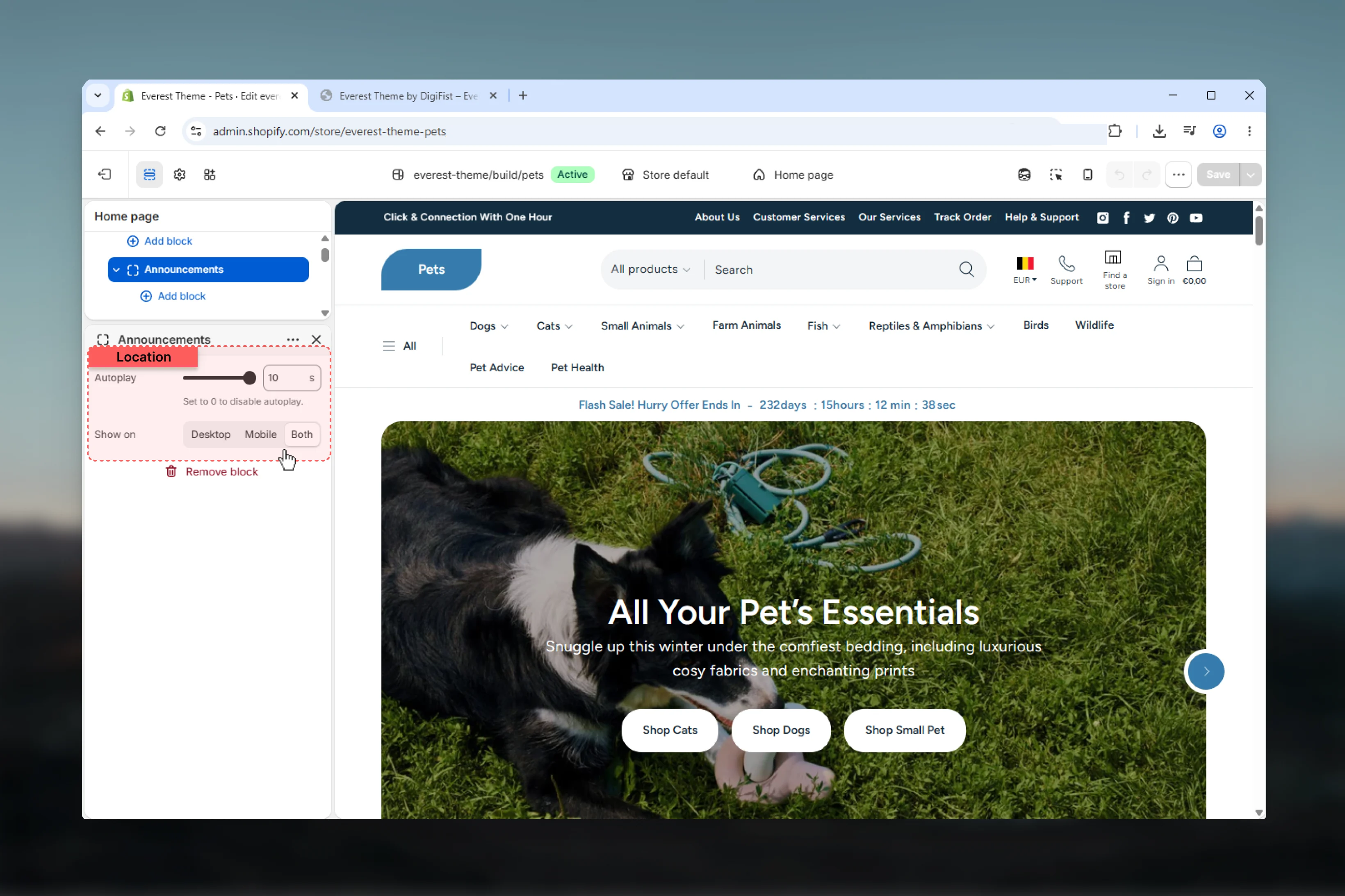
Autoplay
Autoplay
Controls how quickly the slider rotates through messages.Range:
0 to 10 seconds0 seconds disables automatic rotation.In Everest’s swiper implementation, autoplay only activates when there is more than one announcement slide.Show on
Show on
Controls where the announcements slider appears.Desktop shows the block only on larger screens.Mobile shows the block only on smaller screens.Both shows the block across devices.
Important behavior and limitations
No dedicated localization block
No dedicated localization block
The announcement bar wrapper still contains a conditional reference to localization-related classes, but the current section schema does not expose country or language selector settings here.In practice, Everest’s announcement bar should be documented as a message, menu, and social utility bar rather than a localization bar.
Mobile layout stacks vertically
Mobile layout stacks vertically
On smaller screens, the announcement bar container switches to a column layout and centers announcement slide content.This is another reason to keep message text brief and utility content limited.
Best practices
Keep messages short
Everest’s announcement bar is strongest when each slide is brief, scannable, and easy to read in a single line.
Limit utility links
Use the menu block for a few supporting links such as shipping, help, or store policies rather than a full navigation set.
Use autoplay carefully
Rotation helps when you have two or three important messages, but faster timing can reduce readability.
Set social links globally
Add platform URLs in theme settings before relying on the social block, otherwise the bar may feel incomplete.