

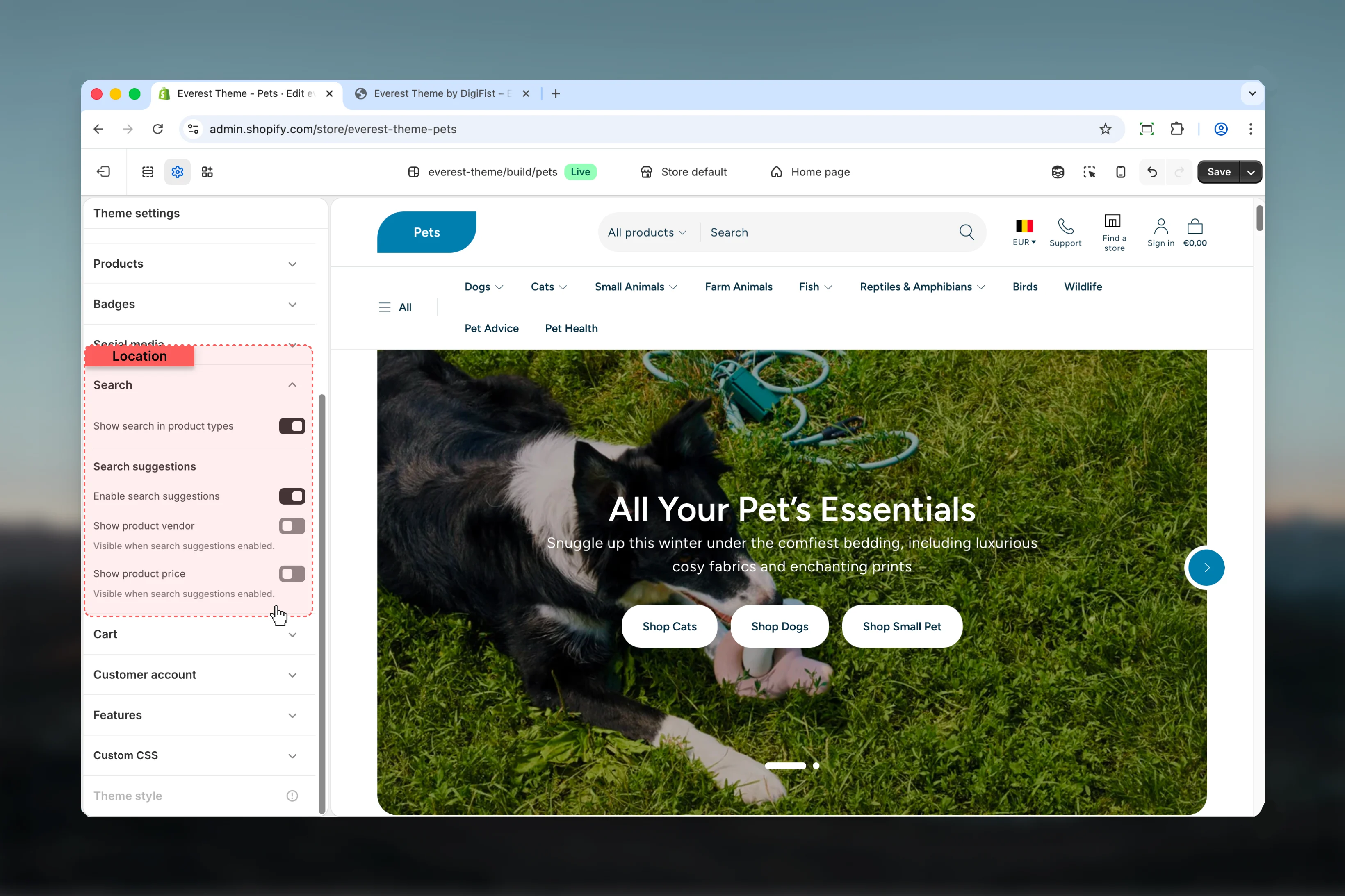
What these settings control
- Product, collection, or cart-related storefront behavior
- Search, filter, and sorting behavior for product discovery
How to access
1
Open the Theme Customizer
In Shopify admin, go to Online Store -> Themes -> Customize.
2
Open Theme settings
Select Theme settings in the customizer sidebar.
3
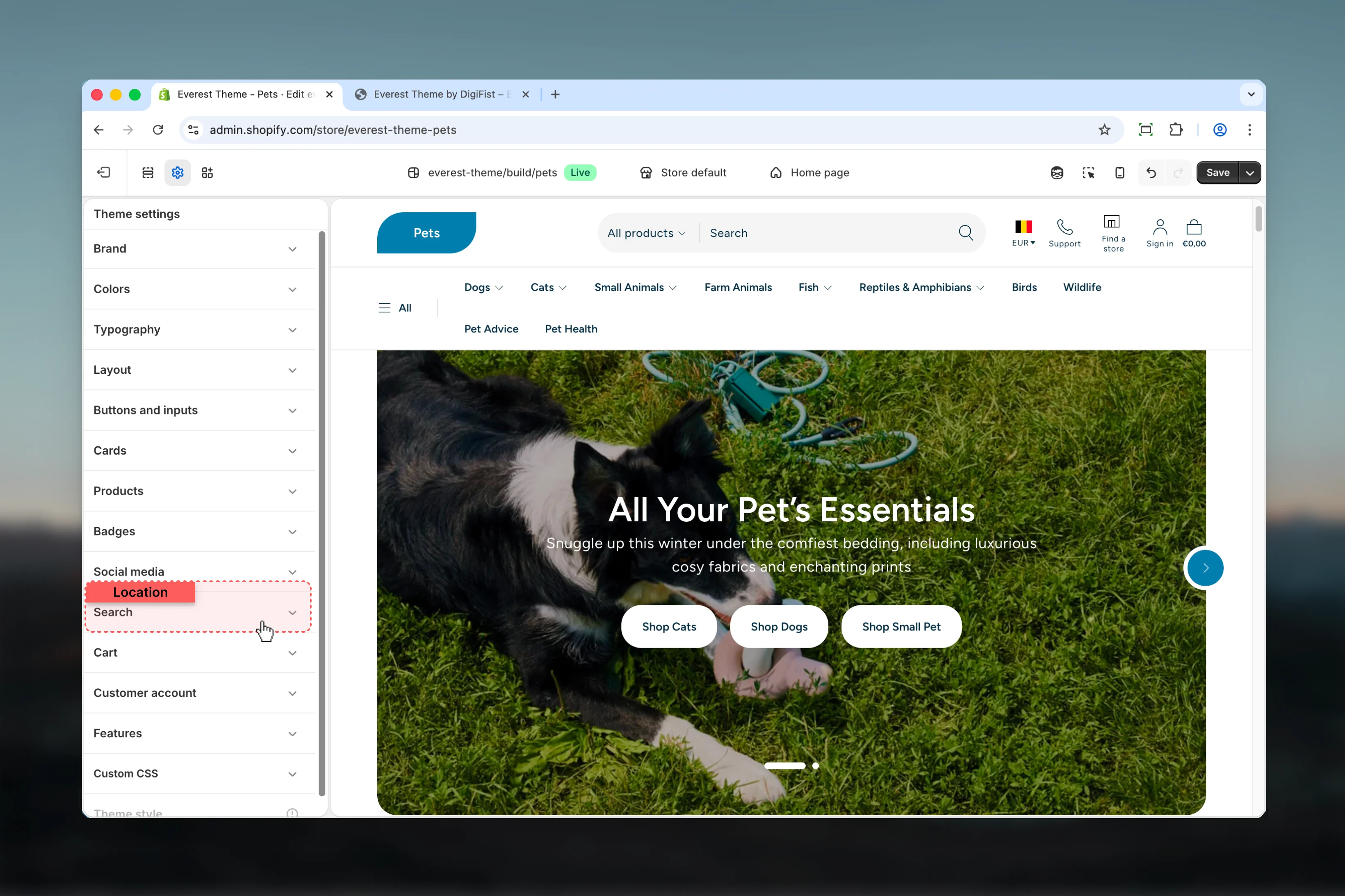
Choose Search
Open Search to review and update the shared settings in this category.
Settings
Settings
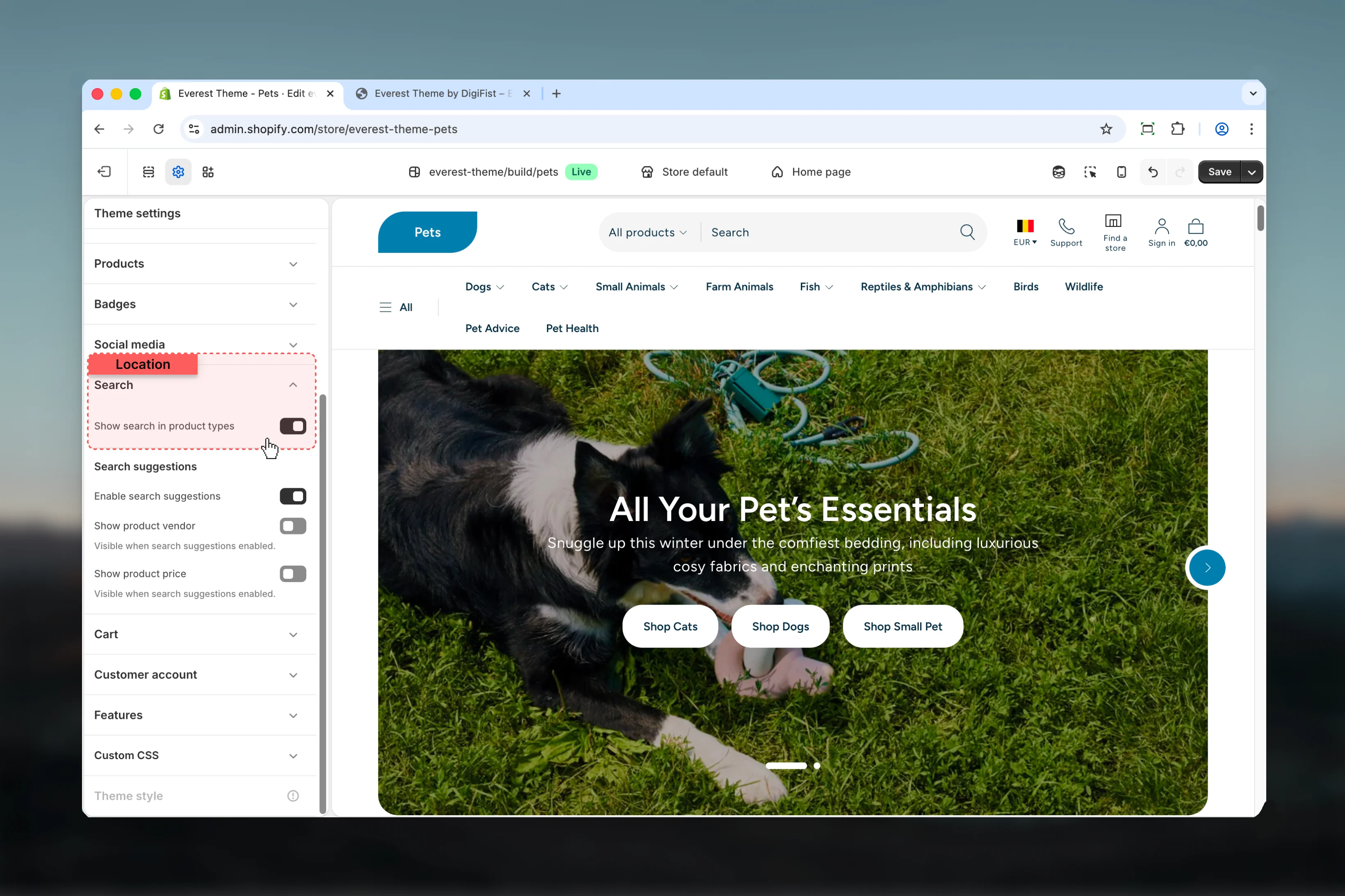
Show search in product types
Show search in product types
Enable or disable Show search in product types.Make sure the chosen option still feels easy to scan and use on smaller screens.Default:
enabledSearch suggestions
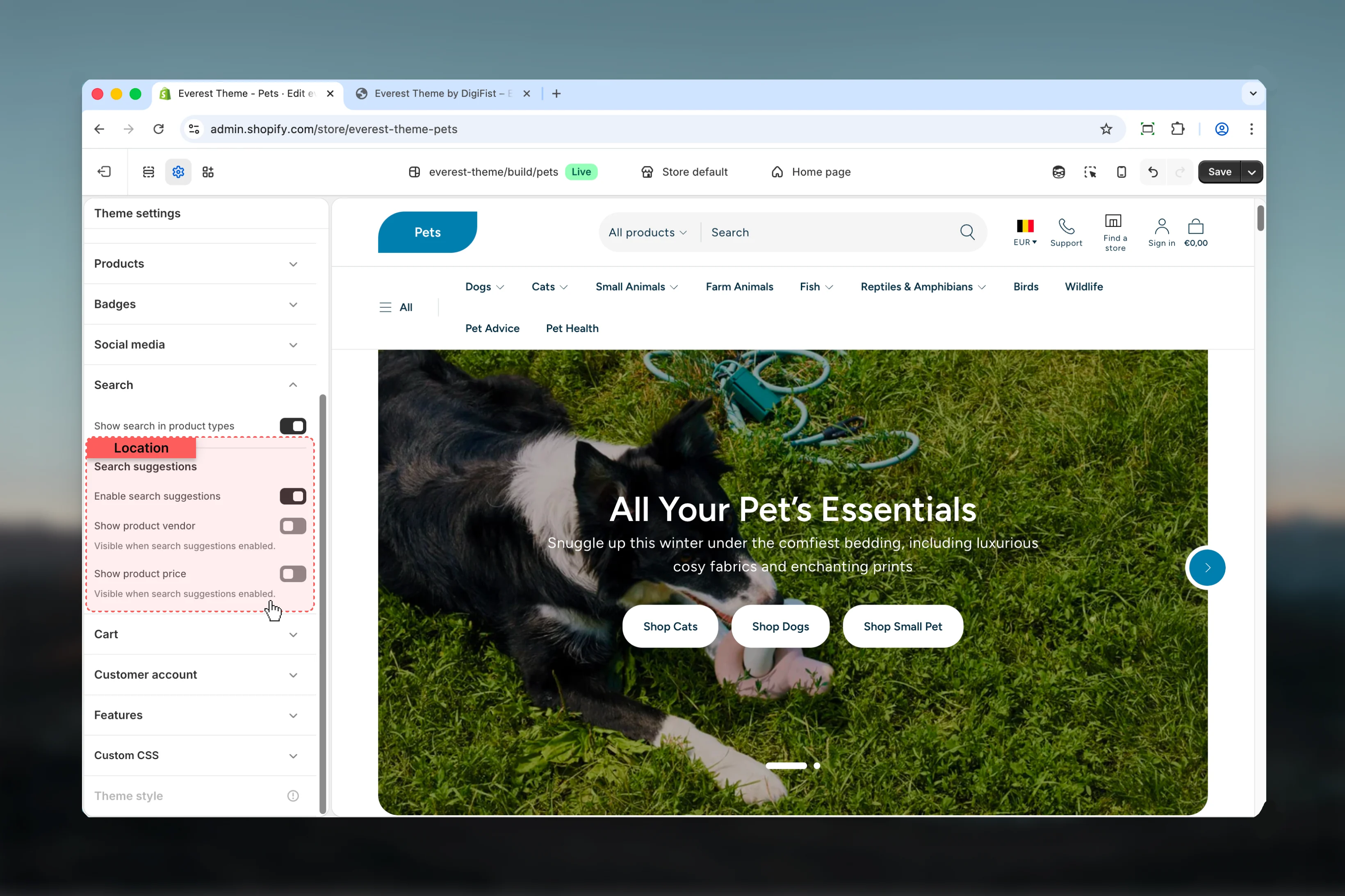
Enable search suggestions
Enable search suggestions
Enable or disable Enable search suggestions.Make sure the chosen option still feels easy to scan and use on smaller screens.Default:
enabledShow product vendor
Show product vendor
Enable or disable Show product vendor.Make sure the chosen option still feels easy to scan and use on smaller screens.Default:
disabledVisible when search suggestions enabled.Show product price
Show product price
Enable or disable Show product price.Make sure the chosen option still feels easy to scan and use on smaller screens.Default:
disabledVisible when search suggestions enabled.Best practices
- Change one global setting area at a time and preview multiple templates before publishing.
- Remember that theme settings affect many sections at once, so small adjustments can have wide impact.