

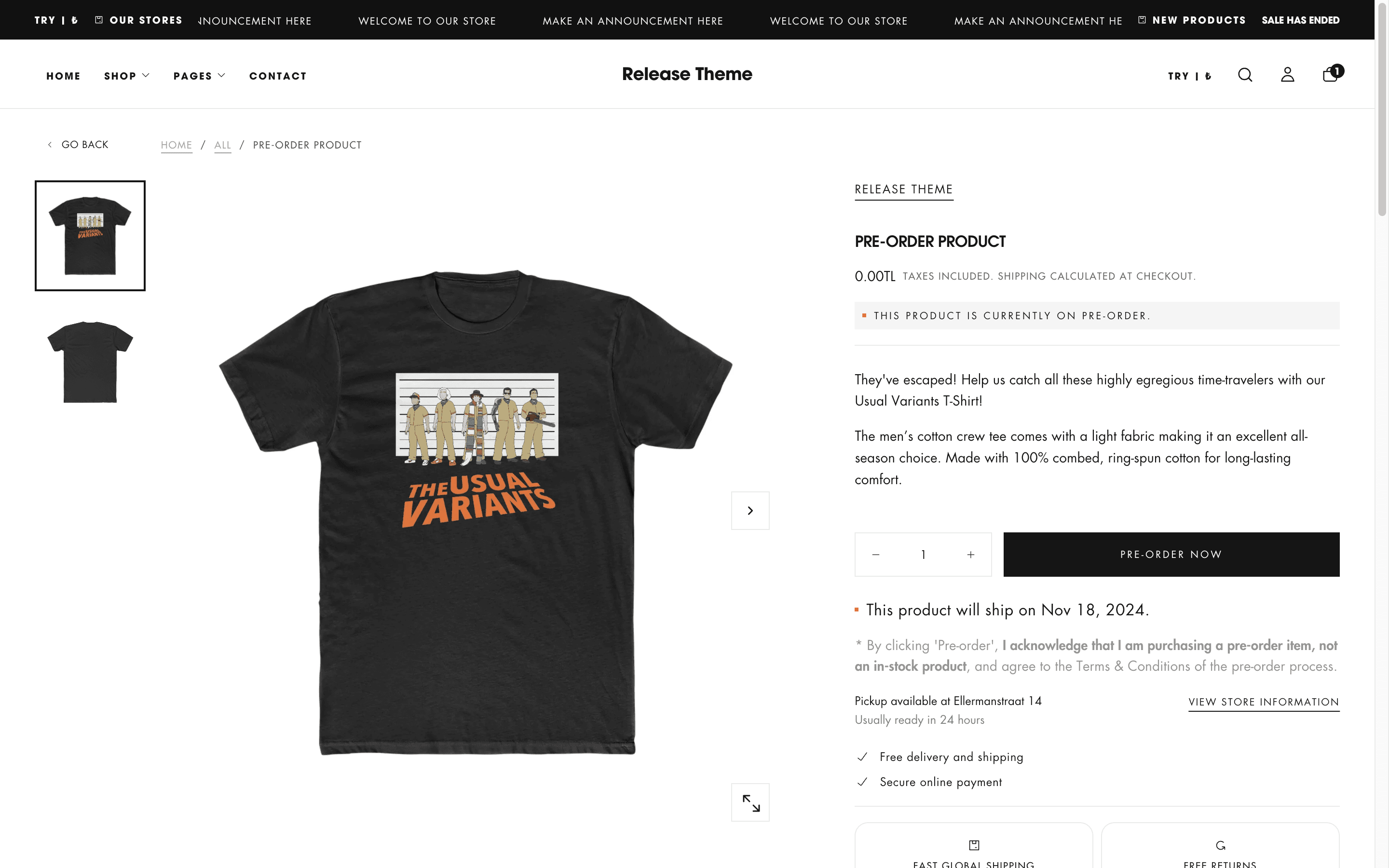
What this feature controls
Pre-order functionality manages:- Pre-order availability - Enable products for advance purchase before launch
- Custom button labels - Replace “Add to cart” with “Pre-order” button
- Shipping date display - Show estimated availability/shipping dates
- Product badges - Display “Pre-order” badges on product cards
- Metafield integration - Use Shopify metafields to mark pre-order products
- Inventory management - Accept orders while awaiting stock arrival
- Customer expectations - Clearly communicate future delivery dates
- Launch momentum - Build anticipation and secure early sales
Getting started
1
Create pre-order metafield definition
Set up the metafield to mark products as pre-order.
- In Shopify admin, go to Settings → Custom data → Metafield definitions
- Click Products → Add definition
- Create the Preorder metafield:
- Name: Preorder
- Namespace and key:
theme.preorder - Type: True or false
- Description: “Enable pre-order for this product”
- Save the definition
The namespace and key must be exactly
theme.preorder for the theme to recognize pre-order products.2
Create shipping date metafield (optional)
Add a metafield for estimated shipping/availability dates.
- In Settings → Custom data → Metafield definitions → Products
- Click Add definition
- Create the Preorder shipping date metafield:
- Name: Preorder shipping date
- Namespace and key:
theme.preorder_shipping_date - Type: Date
- Description: “Estimated shipping or availability date”
- Save the definition
3
Enable pre-order for products
Set metafields on products you want to offer as pre-order.
- Go to Products and open a product
- Scroll to the Metafields section
- Set Preorder to
True - (Optional) Add Preorder shipping date if you have an estimated date
- Save the product
You can enable pre-order on products with or without inventory. Pre-order works for both out-of-stock items awaiting restock and unreleased products.
4
Configure pre-order in Theme Customizer
Enable pre-order display on product pages and cards.
- Go to Online Store → Themes → Customize
- Navigate to Product pages
- Add the Pre-order block to the product page template
- Configure block settings (messaging, date format)
- Go to Theme settings → Products
- Enable Pre-order option in product card settings
- Save your changes
5
Test pre-order functionality
Verify pre-order appears correctly on your storefront.
- Visit a product with pre-order enabled
- Check that “Pre-order” button replaces “Add to cart”
- Verify shipping date displays (if set)
- Check pre-order badge on product cards
- Test adding pre-order item to cart
How pre-order works
Pre-order transforms the standard purchase flow to accommodate unreleased or out-of-stock products:Standard purchase vs. Pre-order
Standard purchase:- Product is in stock
- “Add to cart” button
- Ships immediately after order
- Inventory decremented on purchase
- Product not yet available
- “Pre-order” button (customizable)
- Ships on future date
- Captures orders before availability
- Inventory managed separately or accepts unlimited orders
Pre-order flow
- Product marked as pre-order - Metafield set to True
- Customer visits product page - Sees “Pre-order” button and estimated date
- Customer adds to cart - Item added with pre-order status
- Checkout process - Standard checkout, payment collected
- Order fulfillment - Held until product available
- Shipping on date - Order fulfilled when inventory arrives
Metafield structure
- Preorder metafield
- Shipping date metafield
Namespace and key:
Type: True or false
Purpose: Indicates if product is available for pre-orderValues:
theme.preorderType: True or false
Purpose: Indicates if product is available for pre-orderValues:
True- Product is pre-order, shows pre-order messagingFalseor empty - Standard product, normal buy button
- Product page buy button text
- Product page messaging
- Product card badges
- Cart item display (optional)
Pre-order configuration
Product page settings
Configure how pre-order appears on individual product pages: Location: Theme Customizer → Product pages → Add Pre-order blockPre-order block
Pre-order block
Type: Block
Location: Product page templateAdd the Pre-order block to customize pre-order messaging and button text.Block settings:Buy button text
Location: Product page templateAdd the Pre-order block to customize pre-order messaging and button text.Block settings:Buy button text
- Customize “Pre-order” button label
- Examples: “Pre-order now”, “Reserve yours”, “Order in advance”
- Default: “Pre-order”
- Text displayed near button
- Explain pre-order terms
- Example: “This item will ship when available”
- Toggle to display estimated date
- Uses
theme.preorder_shipping_datemetafield - Formats date based on locale
- Choose how date displays
- Options: Full date, Month/Year, Custom
Pre-order messaging
Pre-order messaging
Type: Text input
Default: EmptyAdditional message explaining pre-order terms or shipping timeline.Effective messaging examples:
Default: EmptyAdditional message explaining pre-order terms or shipping timeline.Effective messaging examples:
- “This item will ship when available in March 2026”
- “Pre-order now. Estimated shipping: [date]”
- “Reserve yours today. Ships upon release.”
- “Launching soon. Pre-order to guarantee yours.”
- “Your card will be charged now. Item ships [date].”
- When product will ship
- When payment is charged (now or later)
- That this is a pre-order product
- Any pre-order benefits (discount, exclusivity)
Shipping date display
Shipping date display
Type: Toggle
Default: EnabledShow or hide the estimated shipping date from the
Default: EnabledShow or hide the estimated shipping date from the
theme.preorder_shipping_date metafield.When enabled:- Date displays prominently on product page
- Formats automatically based on store locale
- Updates if metafield date changes
- No date shown to customers
- Use when dates are uncertain
- Rely on pre-order message text instead
Product card settings
Configure pre-order badges and indicators on product cards: Location: Theme Customizer → Theme settings → ProductsPre-order badge
Pre-order badge
Type: Toggle
Default: EnabledDisplay “Pre-order” badge on product cards for pre-order items.When enabled:
Default: EnabledDisplay “Pre-order” badge on product cards for pre-order items.When enabled:
- Badge appears on collection pages
- Shows on search results
- Visible on homepage product sections
- Clearly identifies pre-order products
- Usually displays near product image
- Styled to match theme badge design
- Can combine with other badges (New, Sale)
Common use cases
- New product launch
- Out of stock restock
- Seasonal collection
- Limited edition
- Made-to-order
- Crowdfunded product
Generate buzz and secure sales before official release.Setup:
- Set
theme.preorderto True - Add
theme.preorder_shipping_datewith launch date - Enable pre-order badges on cards
- Button text: “Pre-order now”
- Message: “Launches [date]. Pre-order to guarantee yours.”
- Open pre-orders 2-4 weeks before launch
- Offer pre-order incentive (10% off, free shipping)
- Build email list of pre-order customers
- Create urgency with limited quantities
- Send reminder emails as launch approaches
- Generate revenue before launch
- Gauge demand accurately
- Build anticipation and buzz
- Reduce launch day traffic issues
Best practices
Clear communication
Always clearly communicate that this is a pre-order. State when payment is charged (now or later) and when product ships. Transparency prevents confusion and disputes.
Set realistic dates
Only provide shipping dates you’re confident you can meet. Missing pre-order dates damages trust and creates refund requests. Build in buffer time.
Update customers
Send regular updates to pre-order customers. Notify when shipping date changes, when product is ready, and when order ships. Keep customers informed.
Pre-order incentive
Offer incentive to pre-order: 10-15% discount, free shipping, exclusive variants, or bonus items. Reward customers for committing early.
Transparent terms
Include pre-order terms on product page: when charged, when ships, cancellation policy, refund terms. Link to full pre-order policy page.
Inventory management
Decide if pre-orders track inventory or accept unlimited orders. Set limits if you want to cap pre-order quantity at production capacity.
Payment timing
Decide when to charge: immediately (most common) or upon shipping. Immediate payment is simpler. Charging later reduces chargebacks but complicates accounting.
Disable when available
Remove pre-order metafield when product becomes available. Switch to standard “Add to cart” button once inventory arrives and ships immediately.
Email segmentation
Tag pre-order customers in email system. Send targeted updates about their pre-order. Thank them for early support. Notify first when product launches.
Mobile optimization
Test pre-order messaging on mobile devices. Ensure shipping dates and messages display properly. Pre-order button should be clearly tappable.
Legal and operational considerations
Refund policies: Clearly state your pre-order refund/cancellation policy. Some jurisdictions require allowing cancellations before shipping. Make policy easy to find.
Operational checklist
Before launching pre-orders:- Create clear pre-order terms and policy page
- Set up email templates for pre-order updates
- Plan production/ordering timeline with buffer
- Decide payment timing (now or at shipping)
- Set up inventory tracking or limits
- Configure notification systems for updates
- Train support team on pre-order questions
- Test full pre-order flow (order to fulfillment)
- Prepare post-launch communication plan
- Set calendar reminders for status updates
Technical notes
Metafield namespace: The theme specifically looks for
theme.preorder and theme.preorder_shipping_date namespaces. Using different namespaces will not work without theme code modifications.Combining with other features
Pre-order works alongside:- Product badges - Add
badge:pre_ordertag for pre-order badge - Inventory tracking - Can track pre-order inventory or accept unlimited
- Variants - Each variant can have separate pre-order dates
- Discounts - Apply discount codes to pre-order products
- Back in stock notifications - Disable when switching from pre-order to in-stock
Related guides
Product Page
Configure the product page template and Pre-order block
Product Badges
Add pre-order badges to product cards
Metafields Guide
Learn more about Shopify metafields and custom data
Inventory Management
Managing inventory for pre-order products