

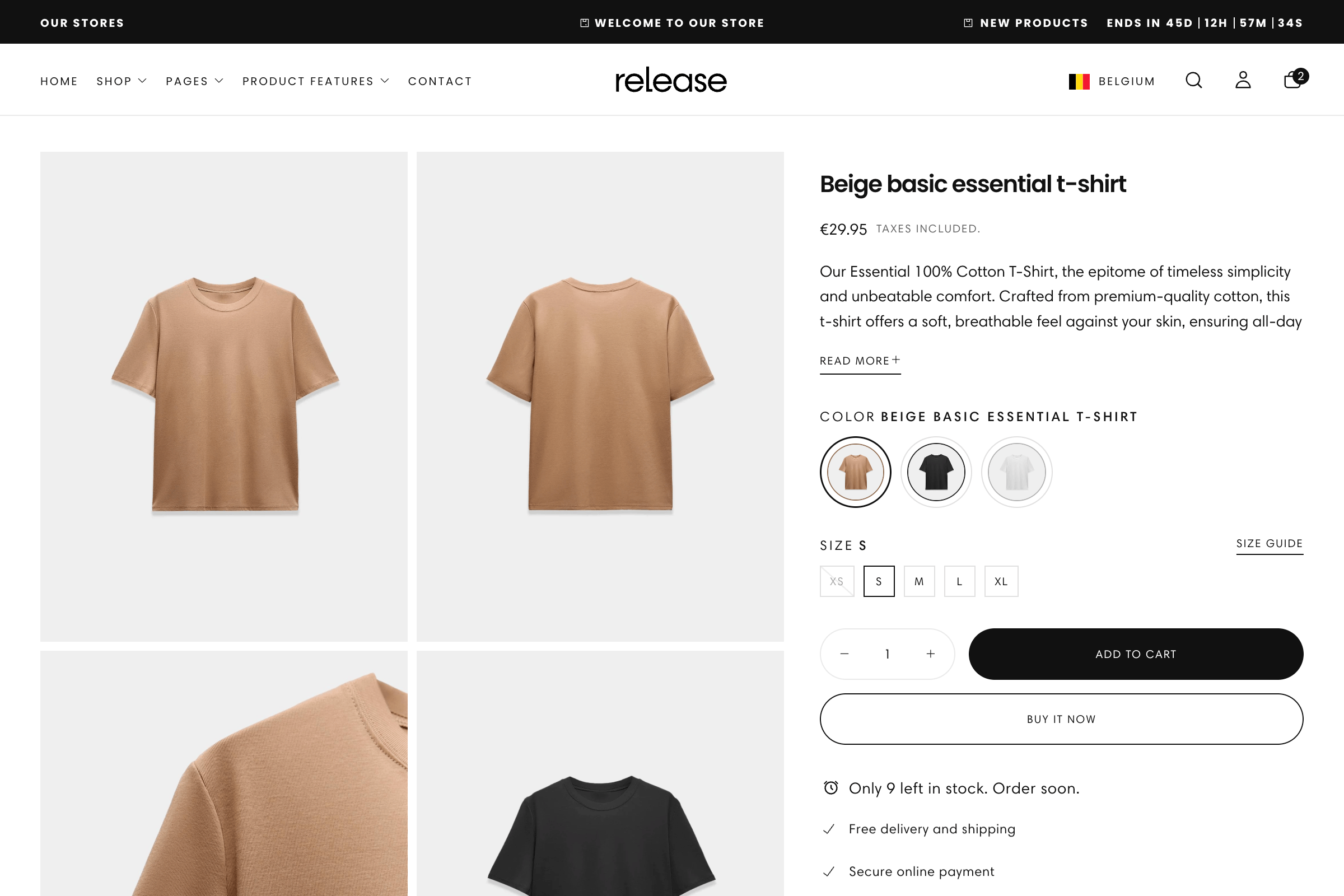
What this feature controls
Product Groups manages:- Product linking - Connect separate products to act as variant options
- Navigation between products - Allow customers to switch between grouped products
- Display types - Show groups as swatches, images, text, or product thumbnails
- Metaobject integration - Use Shopify metaobjects to define product relationships
- Custom option values - Set custom images or text for variant options
- Card and page display - Control how groups appear on product cards vs. pages
- Native variant integration - Works alongside standard product variants
Getting started
1
Create Product Groups metaobject definition
Set up the metaobject structure for product groups.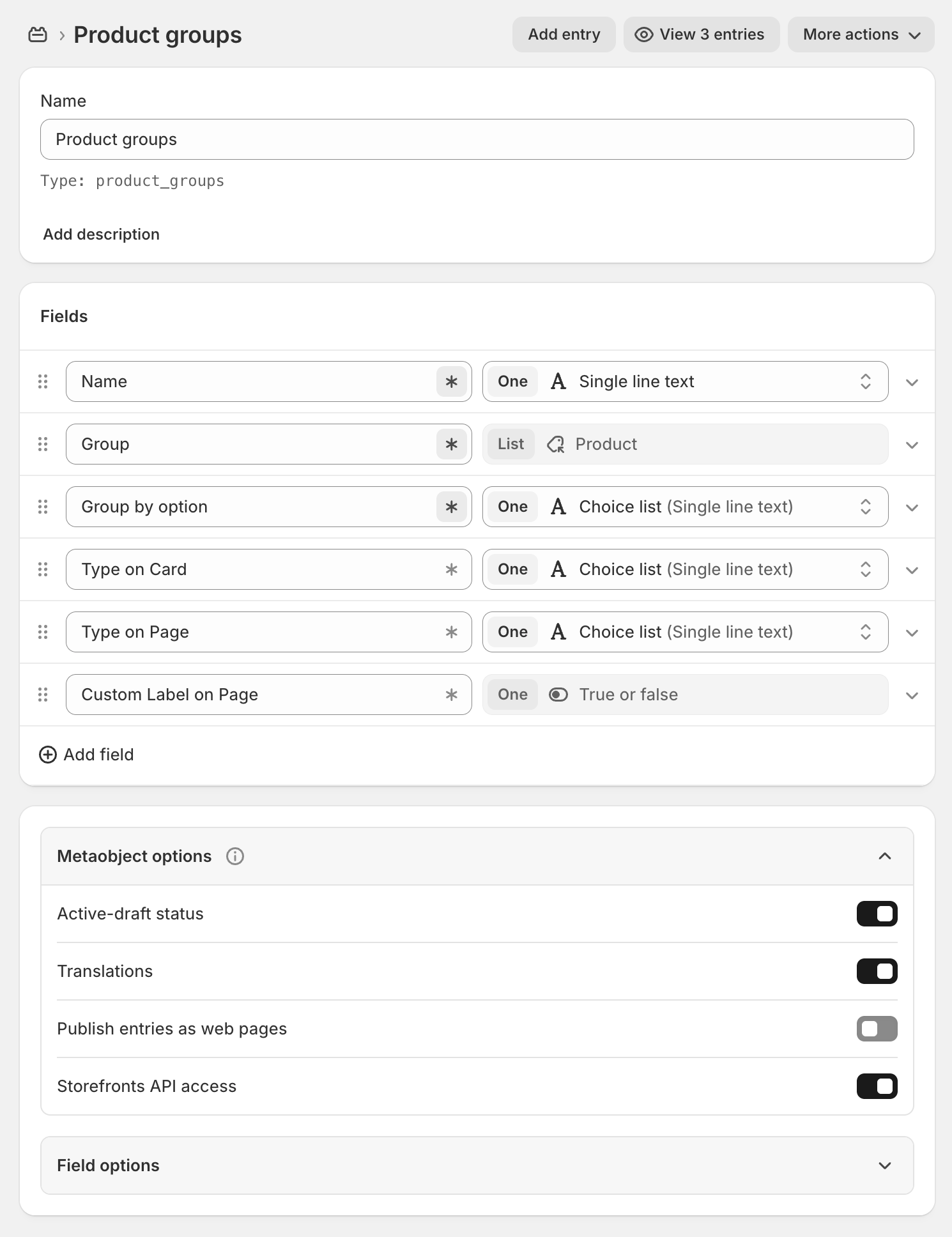
- In Shopify admin, go to Content → Metaobjects → Add definition
- Create a Product Groups metaobject definition:
- Name: Product Groups
- Handle:
product_groups
- Add the following fields to the definition:
-
For Group by option field, add common options:
- Color
- Size
- Capacity
- Material
- Style
-
For Type on card and Type on page fields, add these options:
- Swatch
- Image
- Text
- Product
- Save the definition
2
Create Product Options Type Values metaobject
Set up custom option values for images and text.
- In Shopify admin, go to Content → Metaobjects → Add definition
- Create a Product Options Type Values metaobject definition:
- Name: Product Options Type Values
- Handle:
product_options_type_values
- Add the following fields:
- Save the definition
This metaobject is optional. Only create it if you want custom images or text labels for your product group options.
3
Link metaobjects in Theme Settings
Connect the metaobject definitions to your theme.
- Go to Online Store → Themes → Customize
- Open Theme settings → Products
- Scroll to Product Groups section
- Select the Product Groups metaobject definition you created
- If you created it, select the Product Options Type Values metaobject
- Save your changes
4
Create your first product group
Add products to a group.
- Go to Content → Metaobjects → Product Groups → Add entry
- Fill in the fields:
- Name: Descriptive name (e.g., “T-Shirt Collection”)
- Group: Select 2+ products to link together
- Group by option: Choose what differentiates them (e.g., “Color”)
- Type on card: How to display on collection pages (e.g., “Swatch”)
- Type on page: How to display on product pages (e.g., “Product”)
- Custom label on page: Enable if using custom labels
- Save the product group
5
Create custom option values (optional)
Add custom images or text for option values.
- Go to Content → Metaobjects → Product Options Type Values → Add entry
- For each custom value, add:
- Name: Option value name (must match variant option exactly)
- Image: Upload custom image (for Image type display)
- Text: Custom text label (for Text type display)
- Save each entry
6
Test product groups
Verify groups appear correctly on your storefront.
- Visit a product that’s part of a group
- Check that group options appear as configured
- Test switching between products in the group
- Verify display on both collection cards and product pages
How Product Groups work
Product Groups create relationships between separate products, making them appear as different variants of the same item:Standard variants vs. Product Groups
Standard variants:- Single product with multiple variants (e.g., one t-shirt with colors)
- All variants share same description and product details
- Limited to 3 variant options (Shopify limit)
- All managed within one product
- Multiple separate products linked together
- Each product has its own description, images, pricing
- No limit on number of products in a group
- Each product can have its own variants too
Display types
Product Groups can be displayed in four different ways:Swatch display
Swatch display
Best for: Color variations, patterns, materialsDisplays small circular or square swatches representing each product in the group. Uses Shopify’s native color swatch metaobject (
shopify--color-pattern) by default.When to use:- Color variations (Red, Blue, Black)
- Pattern variations (Striped, Solid, Checkered)
- Material swatches (Cotton, Linen, Silk)
- Small clickable swatches below product image
- Shows color or pattern visually
- Hover to preview product name
Image display
Image display
Best for: Style variations, design differencesDisplays small thumbnail images for each product option. Can use product’s main image or custom images from Product Options Type Values metaobject.When to use:
- Different styles or designs
- Pattern variations needing visual display
- Products where appearance matters more than text
- Small square thumbnails
- Shows actual product or custom image
- Click to switch products
Text display
Text display
Best for: Size, capacity, specific namesDisplays text labels for each product option. Can use product’s option value or custom text from metaobject.When to use:
- Size variations (Small, Medium, Large)
- Capacity options (8oz, 16oz, 32oz)
- Named variations (Classic, Premium, Deluxe)
- Text buttons or pills
- Clear readable labels
- Selected state highlighting
Product display
Product display
Best for: Complete product cards, related itemsDisplays full product cards with images and details for each product in the group.When to use:
- Very different products in the group
- When customers need to see full product details
- Related product recommendations
- Full product cards in a row
- Shows image, title, price
- More visual weight than other types
Custom option values
When you want more control over how options appear, use the Product Options Type Values metaobject: Without custom values:- Theme uses product’s variant option name (e.g., “Navy Blue”)
- Swatch type uses Shopify’s color swatch metaobject
- Image type uses product’s featured image
- Custom images - Upload specific images for Image type display
- Custom text - Use different text labels than variant names
- Better control - Ensure consistent appearance across products
Custom value Name must exactly match the product’s variant option value. Matching is case-sensitive.
Metaobject structure
Product Groups metaobject
- Required Fields
- Optional Fields
Name (
name)- Type: Single line text
- Purpose: Internal name for the product group
- Example: “T-Shirt Collection - Summer 2024”
group)- Type: List of Products
- Purpose: Select all products to include in this group
- Requirement: Minimum 2 products
- Example: [Product A, Product B, Product C]
group_by_option)- Type: Choice list (Single line text)
- Purpose: Variant option that differentiates products
- Example: “Color”, “Size”, “Material”
- Must match variant option name on products
type_on_card)- Type: Choice list (Single line text)
- Purpose: How to display group on collection/card views
- Options: Swatch, Image, Text, Product
type_on_page)- Type: Choice list (Single line text)
- Purpose: How to display group on product pages
- Options: Swatch, Image, Text, Product
Product Options Type Values metaobject
- Field Structure
Name (
name)- Type: Single line text
- Purpose: Must exactly match product variant option value
- Example: “Navy Blue” (if product has Navy Blue variant)
- Case-sensitive matching
image)- Type: Image (File)
- Purpose: Custom image for Image type display
- Recommended: 100x100px or larger
- Format: JPG, PNG, WebP
text)- Type: Single line text
- Purpose: Custom label for Text type display
- Example: Use “L” instead of “Large”
Common use cases
- Color variations
- Style variations
- Capacity options
- Material variations
- Collection series
- Product bundles
Link products that differ only by color.Setup:
- Group by option: “Color”
- Type on card: “Swatch”
- Type on page: “Swatch” or “Product”
- Products: Same item in different colors
- T-Shirt in Red, Blue, Black, White
- Each color is a separate product
- Customers switch colors without leaving page
- Each color has unique images showing actual color
- Different colors can have different inventory
- Each color product can have its own size variants
Best practices
Match option names
Ensure “Group by option” exactly matches the variant option name on your products. If products have “Color” option, use “Color” not “Colour” or “Colors”.
Consistent product structure
All products in a group should have the same variant option structure. Don’t mix products with “Color” option and products without it.
Choose right display type
Use Swatch for colors, Image for styles, Text for sizes/capacities. Match display type to what customers need to see.
Different types per location
Use different display types for cards vs. pages. Example: Swatch on card, Product on page for more detail.
Logical grouping
Group products that truly belong together. Customers should understand why these products are linked.
Custom images quality
When using custom option images, use high-quality 100x100px+ images. Keep consistent style across all options.
Limit group size
Don’t create groups with 20+ products. Large groups overwhelm customers. Keep to 3-8 products per group typically.
Test switching behavior
Always test switching between products in a group. Ensure images, prices, and descriptions update correctly.
Mobile considerations
Test product groups on mobile. Swatches should be large enough to tap easily. Too many options may need scrolling.
Handle naming carefully
Metaobject field handles must be exact. Double-check handles when setting up. Incorrect handles break functionality.
Technical notes
Native swatch integration: The theme automatically uses Shopify’s native color swatch metaobject (
shopify--color-pattern) for Swatch type display. You don’t need to create custom swatches for standard colors.Product type display: When using “Product” as the display type, the theme shows each product’s featured image and basic information. Clicking switches to that product while staying on the product page.
Related guides
Product Page
Configure the product page template where groups display
Product Badges
Add badges to products in groups for sales or new items
Metaobjects Documentation
Learn more about Shopify metaobjects and custom data
Product Variants
Understanding standard Shopify product variants