

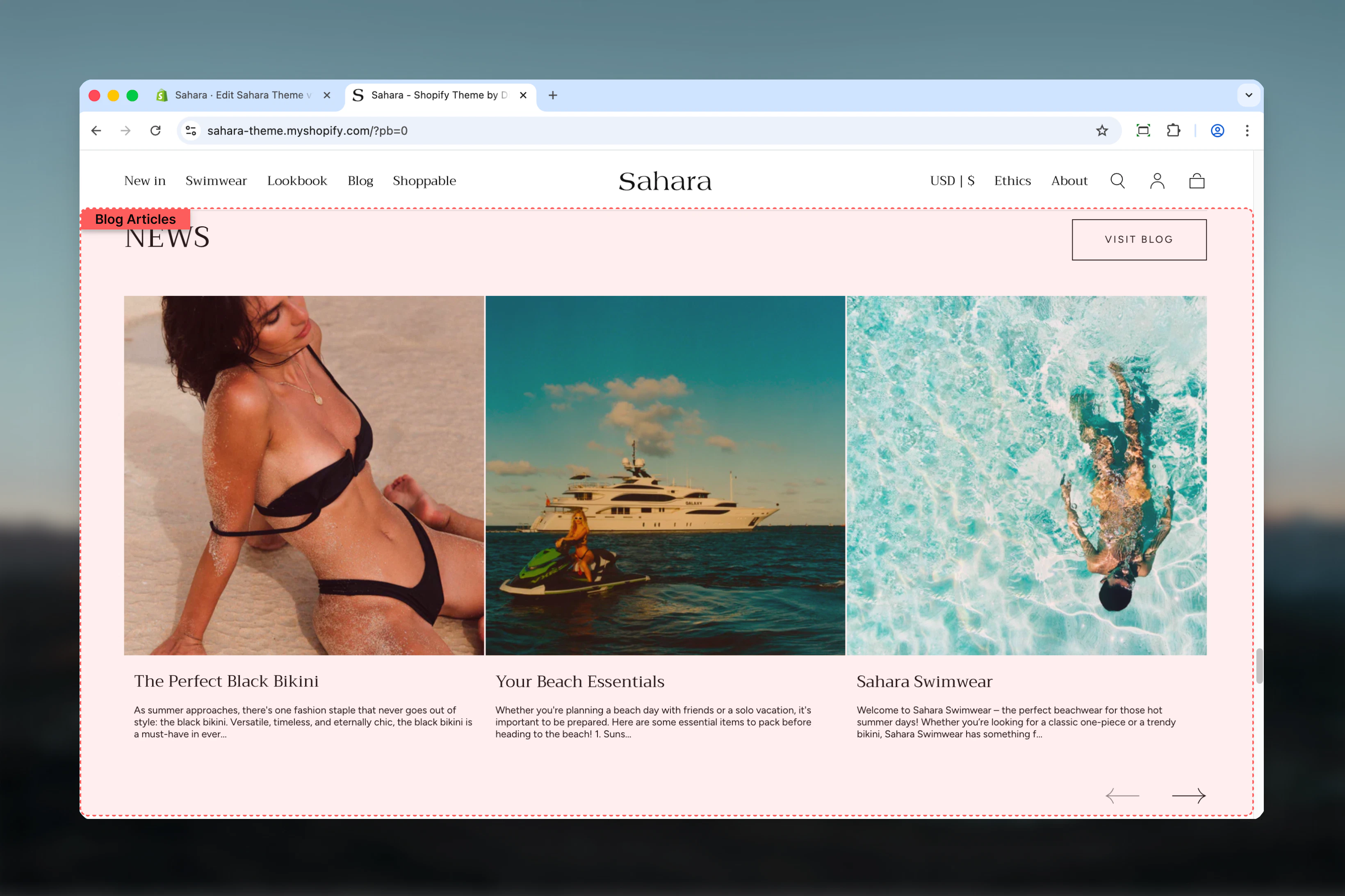
What this section controls
This section controls blog article displays with the following capabilities:- Automatic article display from selected Shopify blog
- Manual article selection via Article blocks
- Two distinct layout options
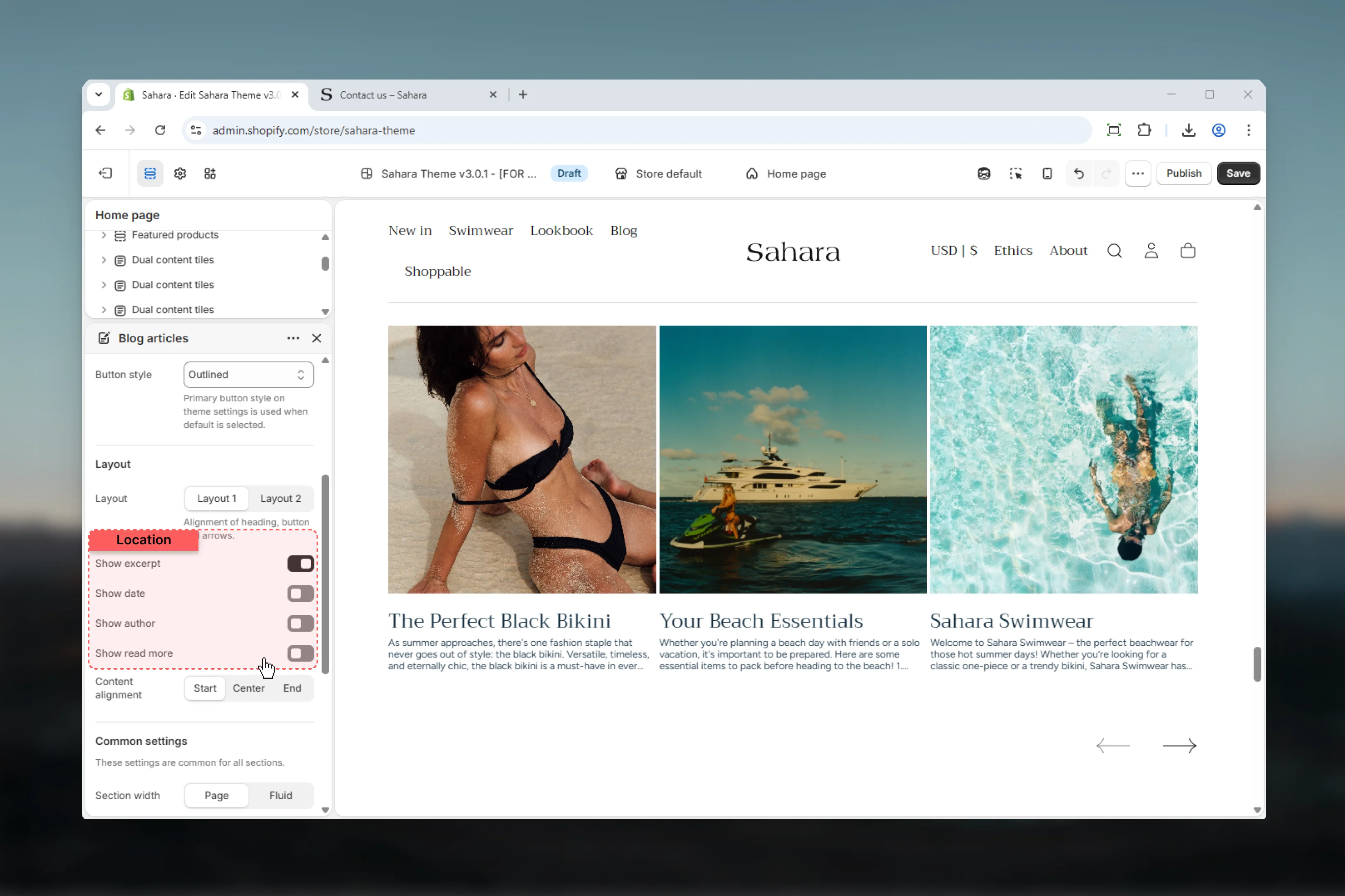
- Customizable metadata visibility (excerpt, date, author, read more link)
- Flexible content alignment
- Section-level button linking to blog
- Responsive grid design
How Blog articles works
The Blog articles section uses a flexible content system: Automatic mode:- Select a Shopify blog as the source
- Displays most recent articles automatically
- Updates when new blog posts are published
- Add Article blocks to hand-pick specific posts
- Override automatic ordering
- Curate featured content manually
Getting started
1
Open Theme Customizer
From Shopify admin, access the Theme Customizer.
2
Add Blog articles section
Add the section to your homepage or page template.
3
Select blog source
Choose which Shopify blog to pull articles from using the Blog selector.
4
Add manual articles (optional)
Click “Add block” and select Article to manually choose featured posts.
5
Configure metadata
Toggle excerpt, date, author, and read more link visibility.
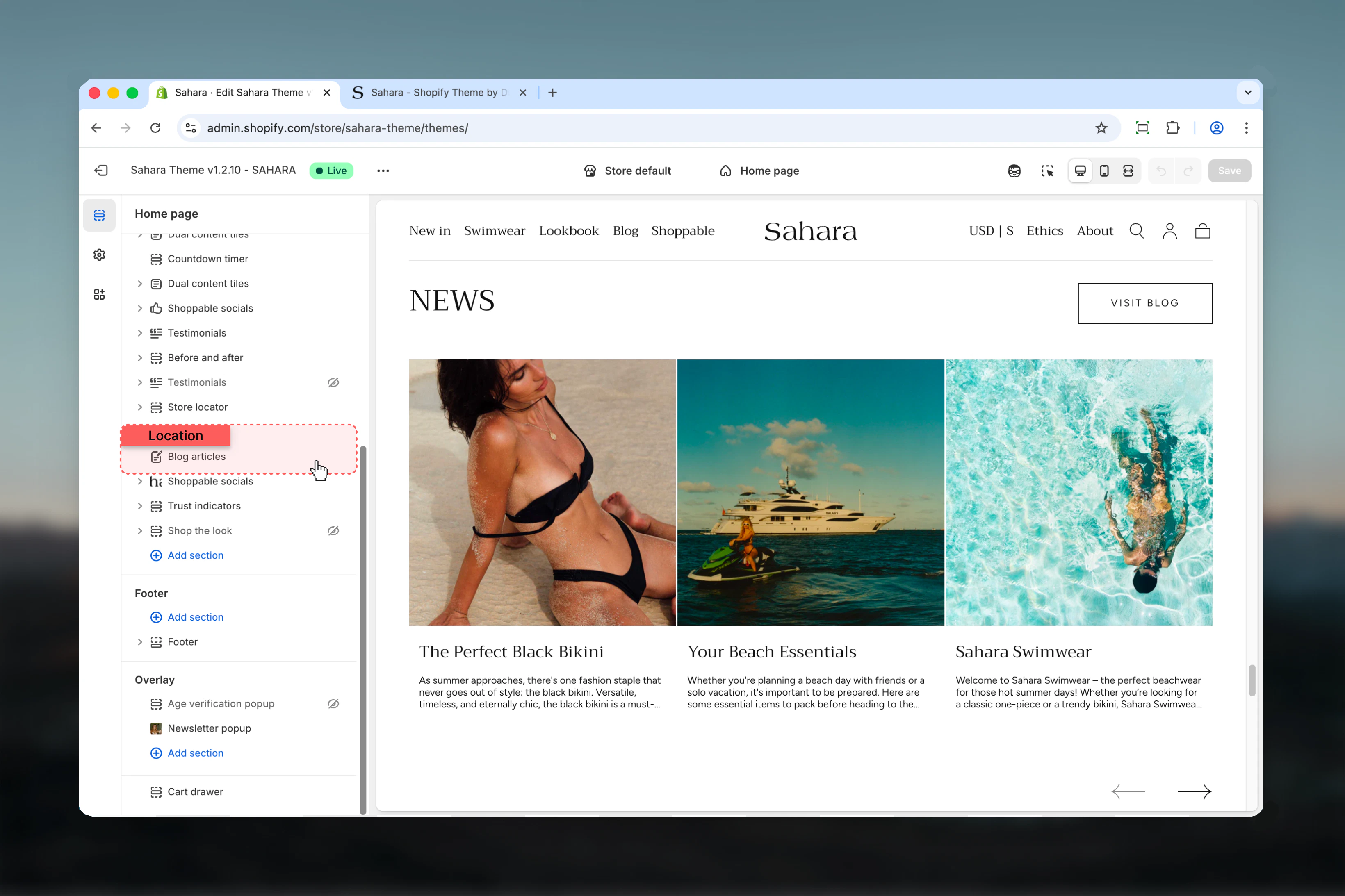
Section settings
- Content
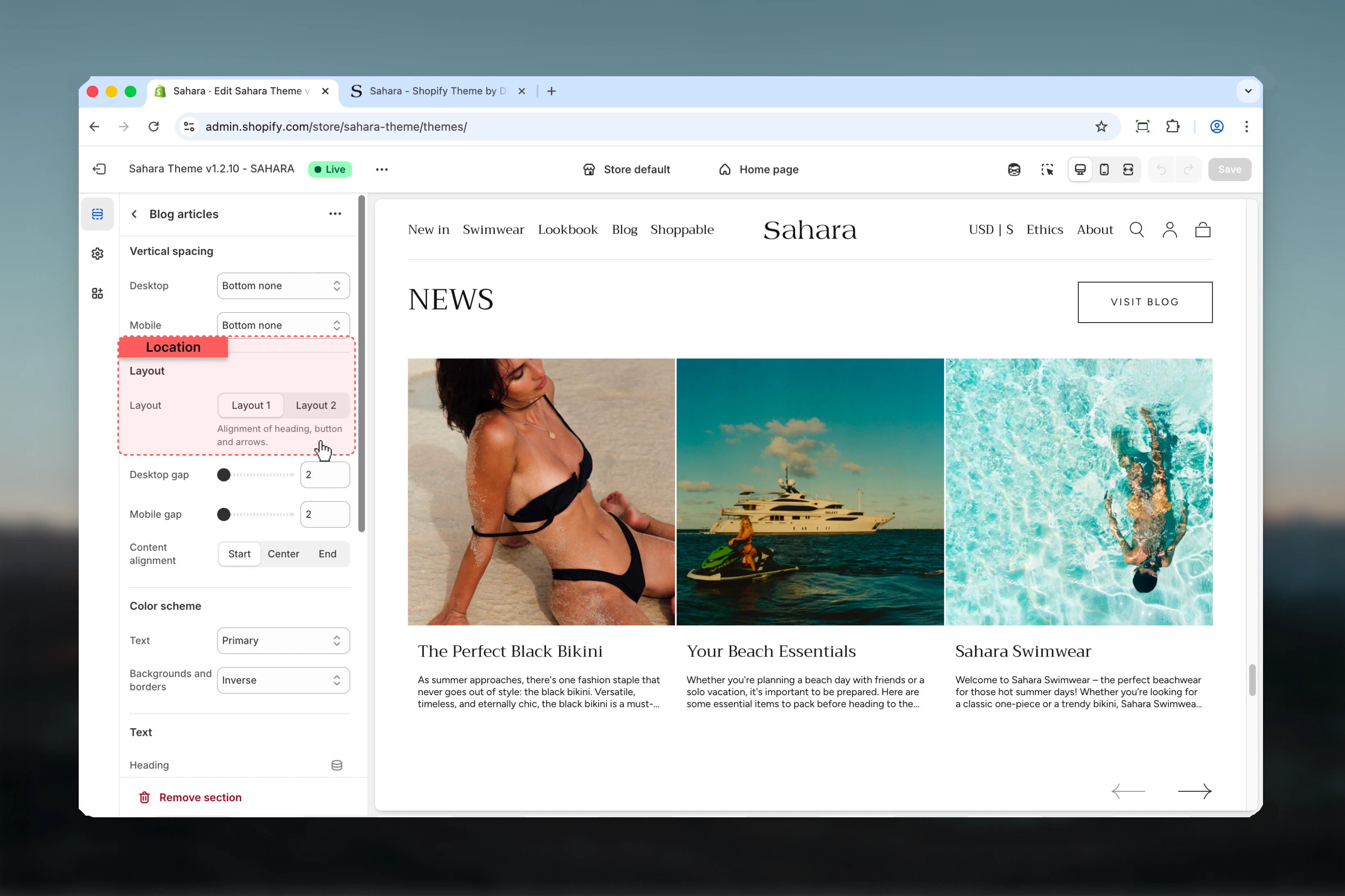
- Layout
- Metadata
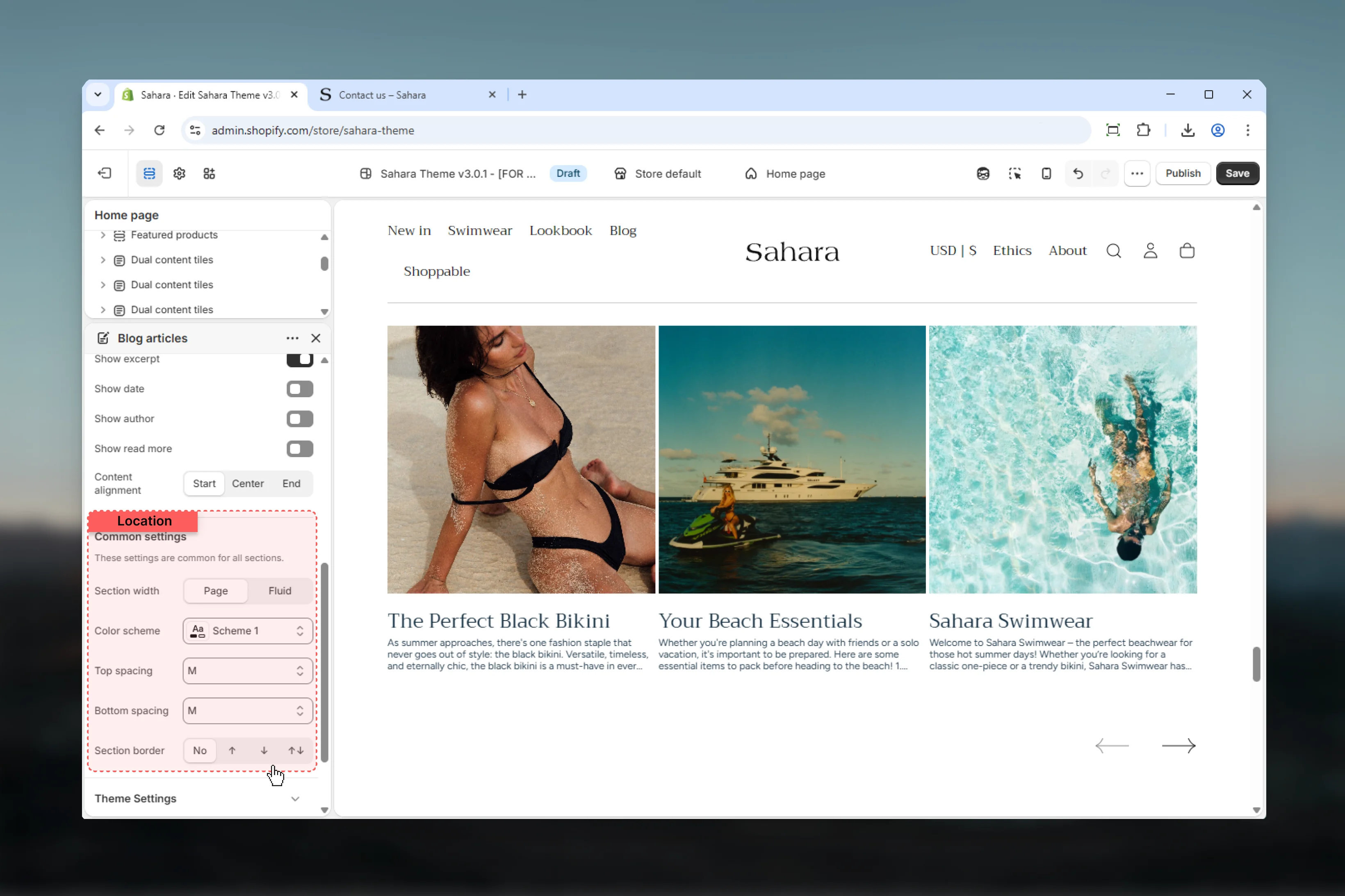
- Styling
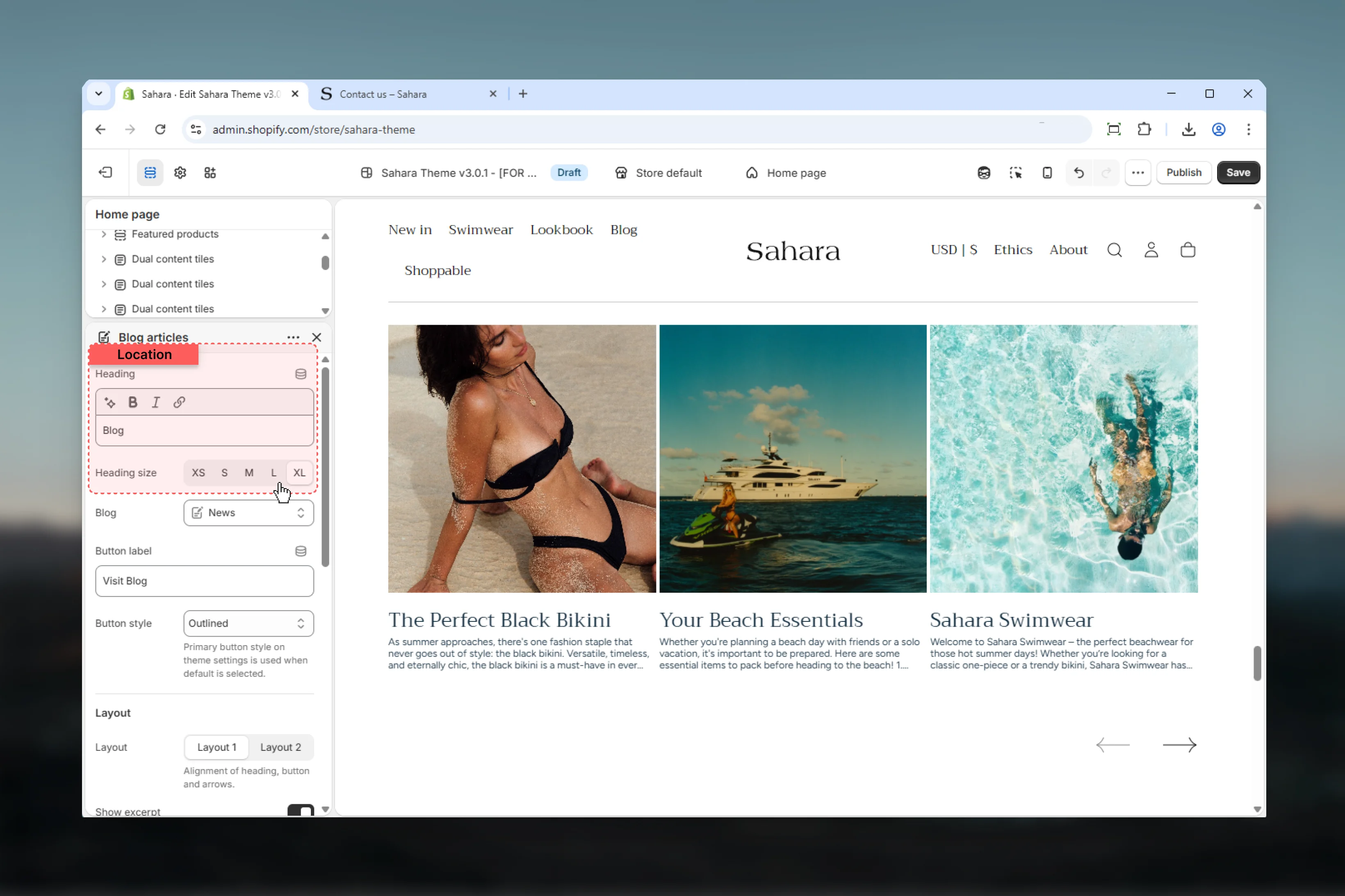
Heading
Main title text for the section.- Inline rich text supported (bold, italic, links)
- Default: “Blog”
Heading size
Controls the size of section heading.Options: XS, S, M, L, XLDefault: XL
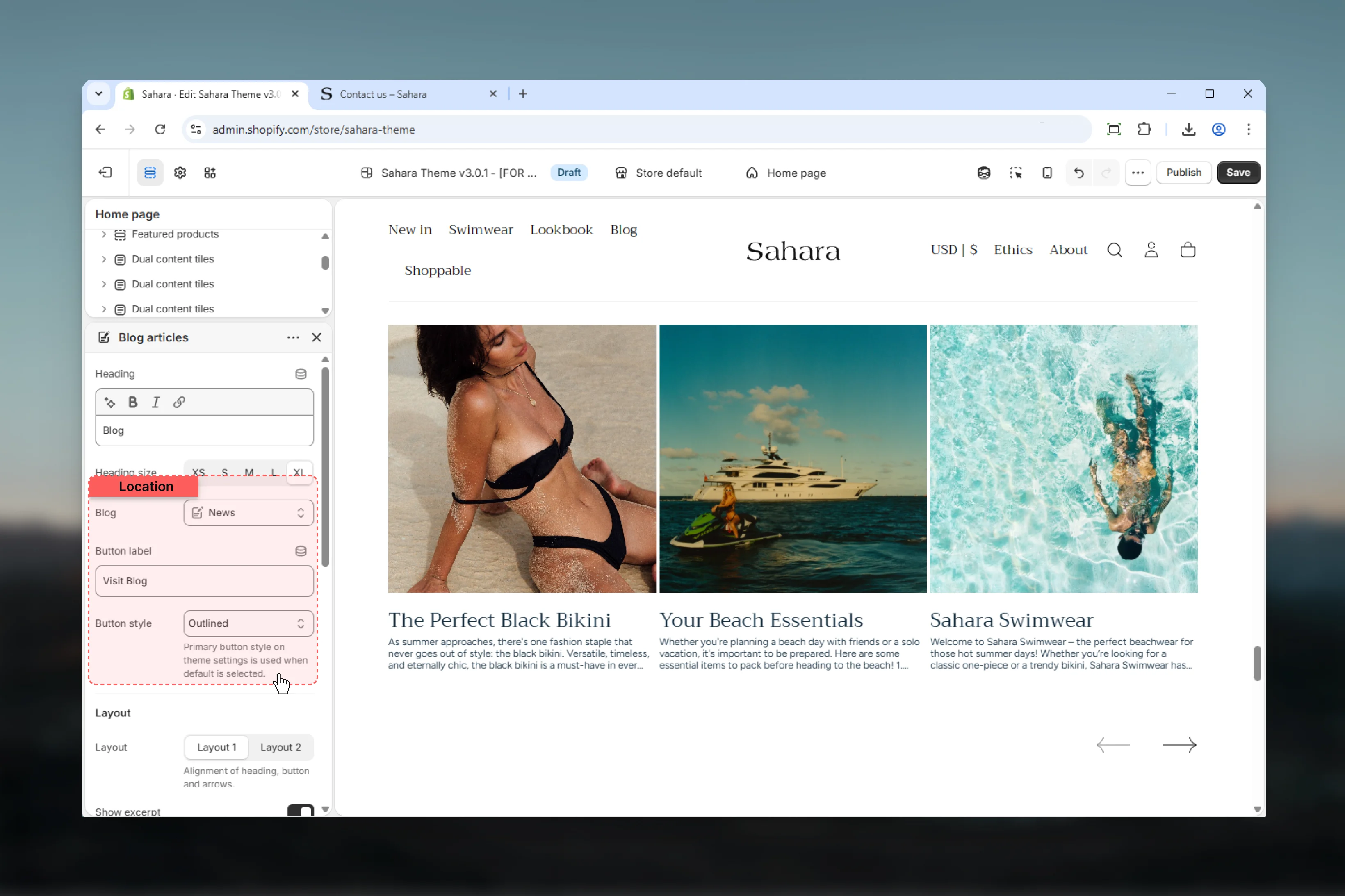
Blog
Select which Shopify blog to display articles from.- Shopify blog selector
- Provides automatic article source
- Manual Article blocks override automatic ordering
If you add manual Article blocks, they appear first, followed by automatic articles from the selected blog.
Button text
Label for section-level button linking to the blog.- Plain text
- Default: “Visit Blog”
- Leave empty to hide button
Button style
Visual style of the section button.Filled
Filled
Solid background with contrasting text (default).Best for: Primary CTAs, strong visibility
Outlined
Outlined
Border-only style with transparent background.Best for: Secondary actions, subtle CTAs
Default
Default
Standard text link styling.Best for: Minimal designs, non-intrusive links
Block settings
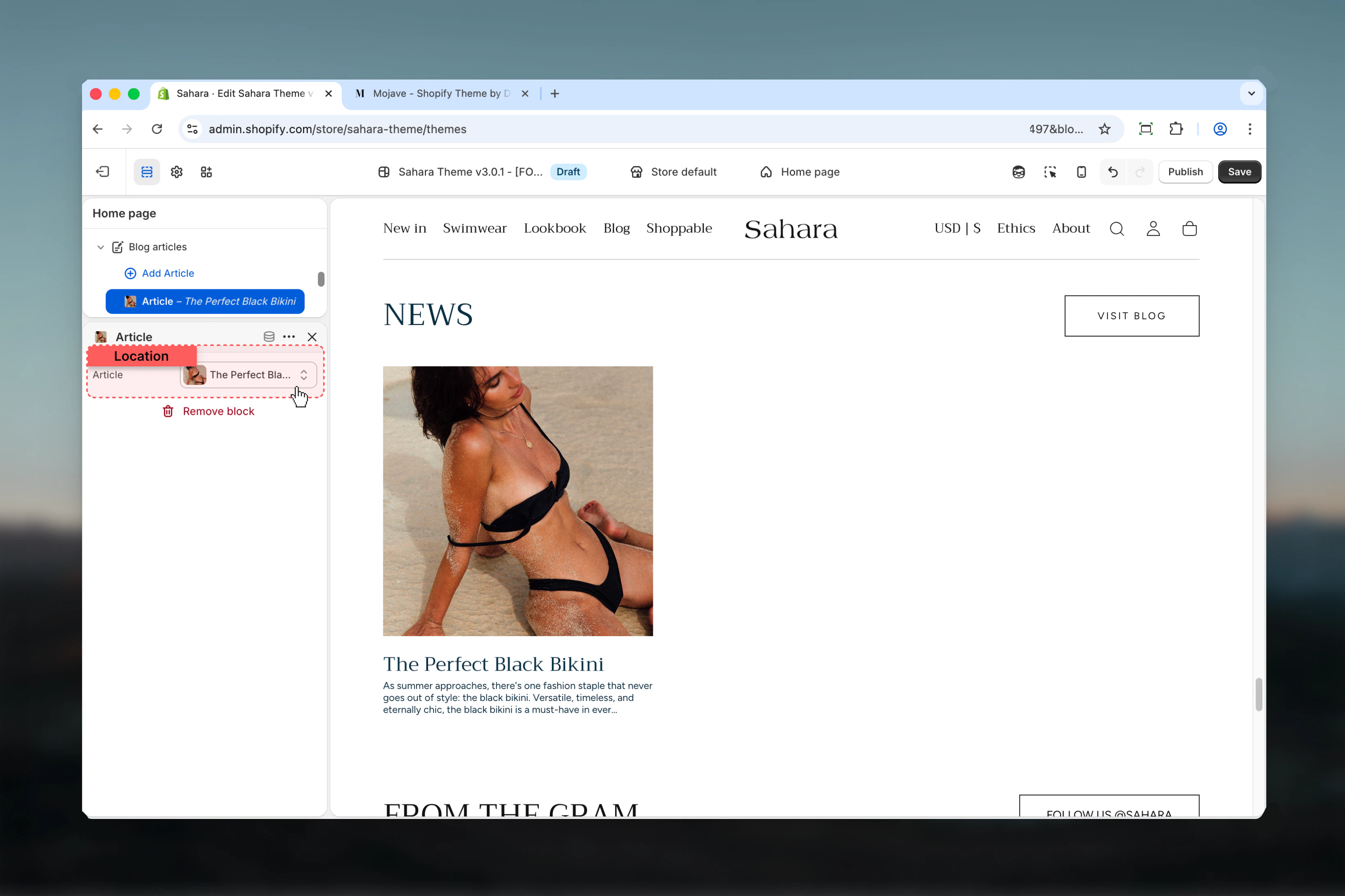
Article blocks allow manual selection of specific blog posts, overriding automatic blog ordering.- Article block
Article
Select a specific Shopify article to display.- Shopify article selector
- Pick from any blog in your store
- Manual articles appear first, before automatic blog articles
When to use Article blocks
When to use Article blocks
Manual curation scenarios:
- Highlighting featured or important posts
- Showcasing specific campaigns or announcements
- Creating curated collections of articles
- Overriding chronological order
- Fresh content sites
- High-frequency publishing
- Dynamic, time-based content
- Minimal manual maintenance
Best practices
Curated features
Use manual Article blocks to highlight key content or featured posts at the beginning of the section.
Context with excerpts
Keep excerpts enabled for editorial layouts to provide content previews and improve engagement.
Minimal metadata
Hide author or date for minimal designs focused on visual impact and clean aesthetics.
Consistent imagery
Ensure article featured images use consistent aspect ratios for visual harmony across all cards.
Limit metadata
Show only essential metadata (1-2 items) to reduce visual clutter and improve readability.
Blog button
Use section button to drive traffic to your main blog page for deeper content exploration.
Layout consistency
Choose Layout 1 for standard blog displays, Layout 2 when differentiating from other sections.
Content alignment
Use center alignment for image-focused cards, left alignment for text-heavy editorial content.
Common use cases
Homepage blog preview
Homepage blog preview
Select main blog, show excerpt and date. Hide author and read more. Center alignment. Layout 1. Button: “Read our blog” (filled style). Show 3-4 most recent articles automatically.
Featured content showcase
Featured content showcase
Add 3 manual Article blocks for curated posts. Show excerpt only (hide date, author, read more). Center alignment. Layout 2 for visual distinction. Button: “View all articles” (outlined style).
Editorial blog section
Editorial blog section
Select blog, show all metadata (excerpt, date, author). Enable read more link. Left alignment. Layout 1. Button: “Explore more stories” (default style). Emphasize written content.
Minimal news updates
Minimal news updates
No manual articles, select main blog. Hide all metadata except title. Center alignment. Layout 2 with tight spacing. Button: “All news” (filled style). Focus on article images.
Related sections
Carousel
Sliding card displays for varied content
Featured collections
Collection showcase with custom styling