

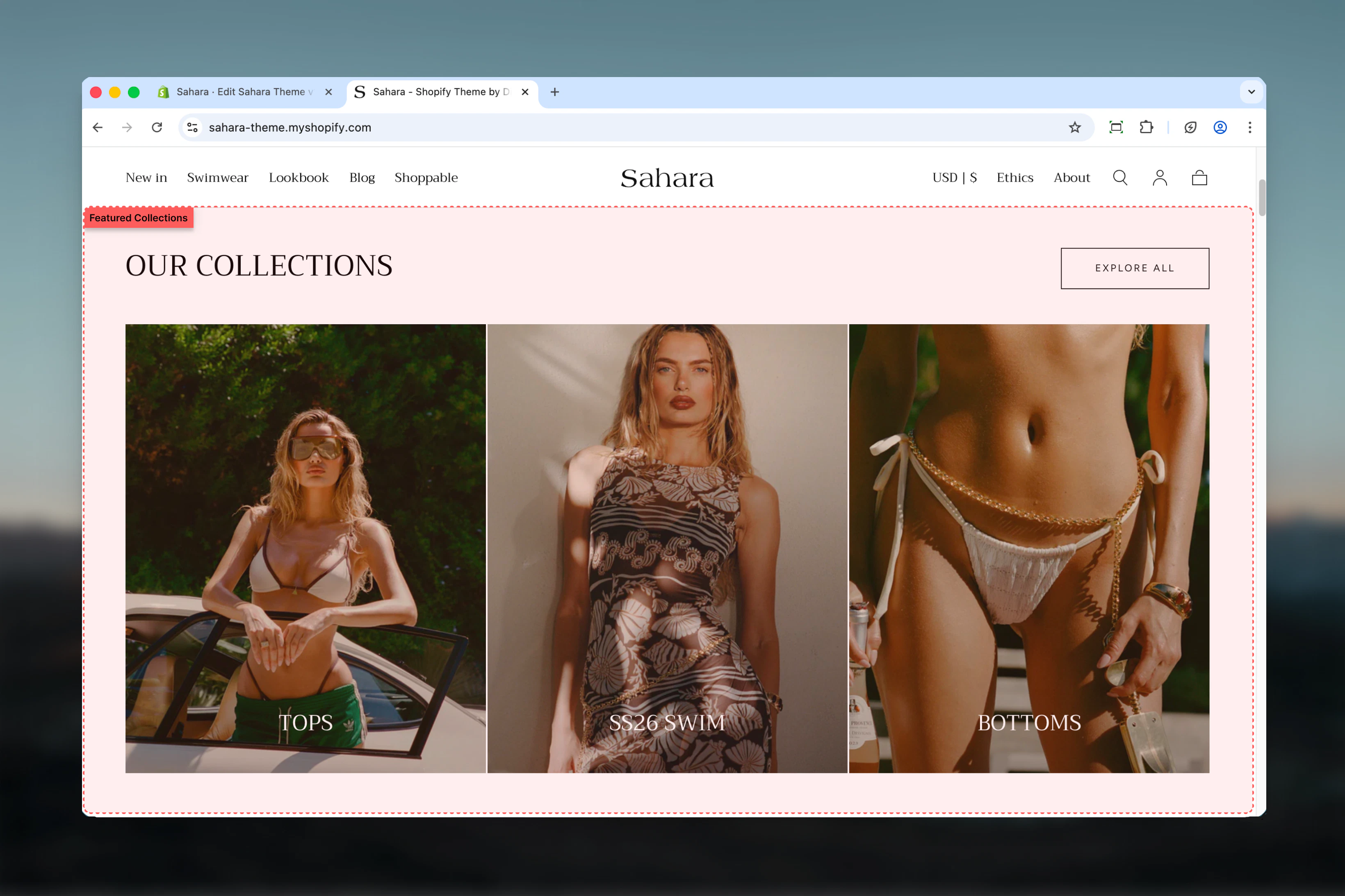
What this section controls
This section controls collection showcase displays with the following capabilities:- Multiple collection cards with custom images and headings
- Two layout options for heading and button positioning
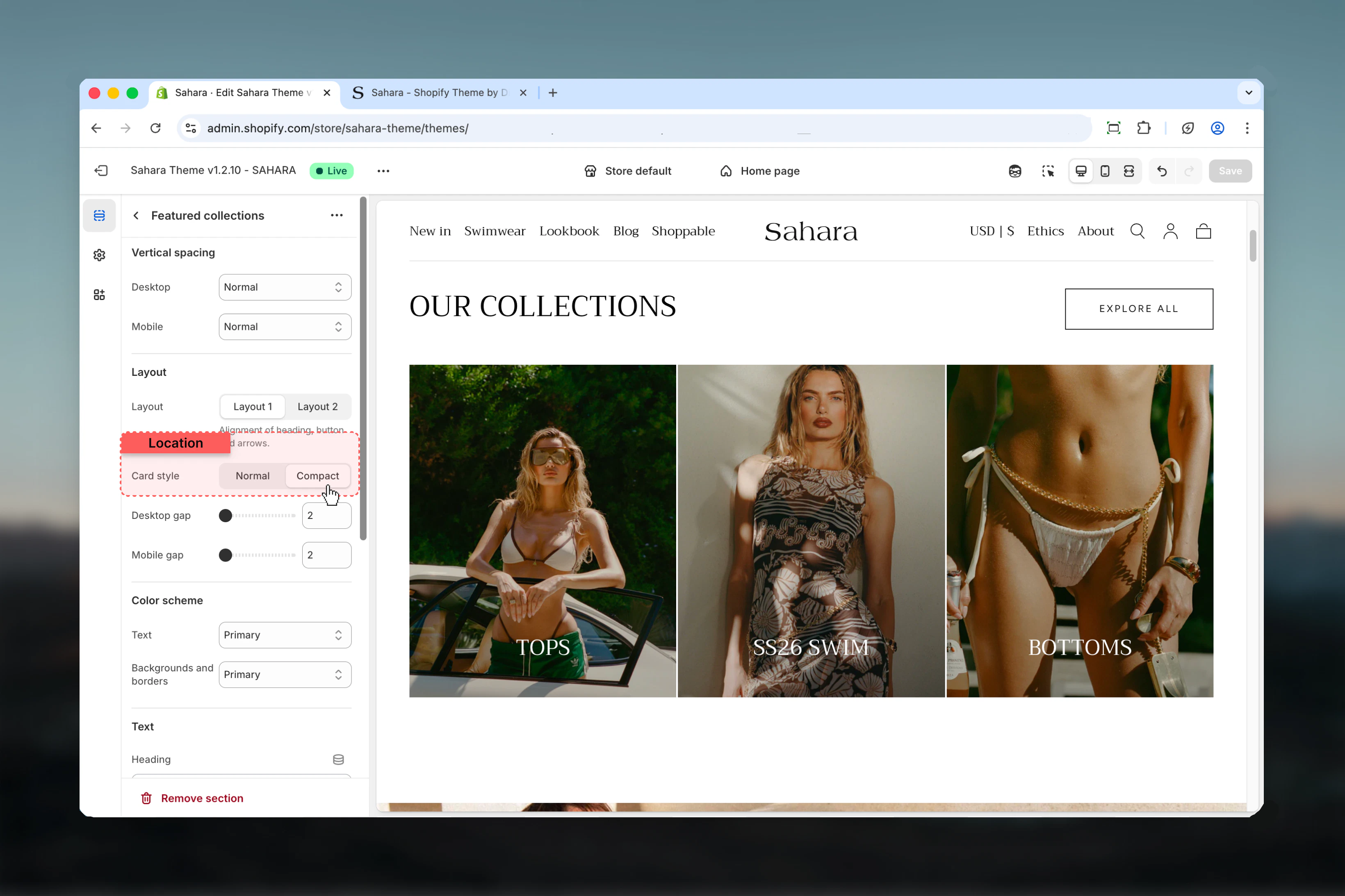
- Normal or compact card styling
- Individual color schemes per collection
- Section-level button for viewing all collections
How the Featured collections section works
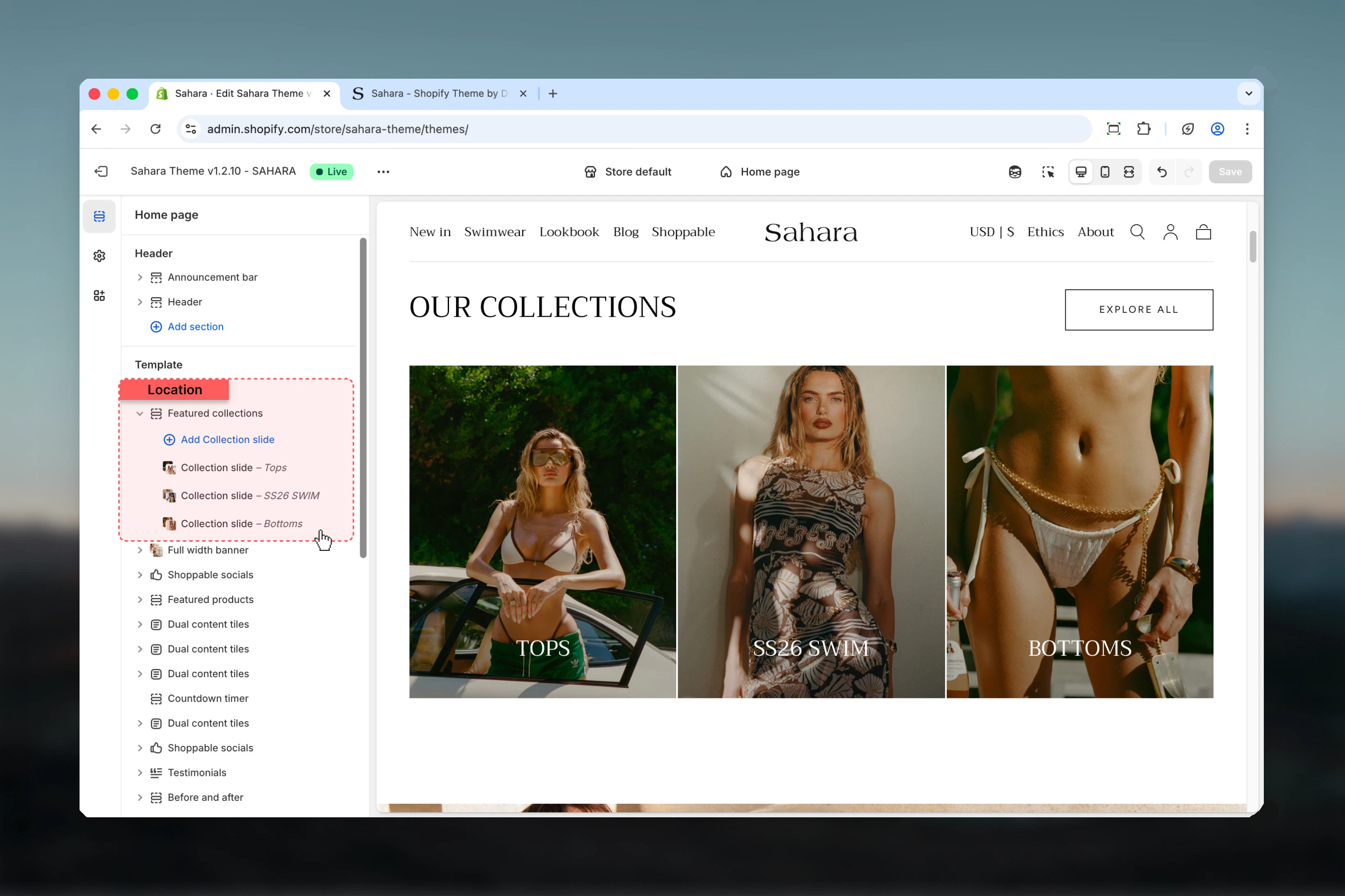
The section uses collection-slide blocks where each block represents one collection card. You can add custom images to override collection defaults, write custom headings, and apply individual styling to each collection card.Getting started
1
Open Theme Customizer
From Shopify admin, access the Theme Customizer.
2
Add Featured collections section
Add the Featured collections section to your page or template.
3
Add collection slides
Click “Add block” and select “Collection slide” to add collections.
4
Select collections
Choose a Shopify collection for each slide and customize as needed.
Section settings
- Layout & Content
- Collection Cards
- Styling
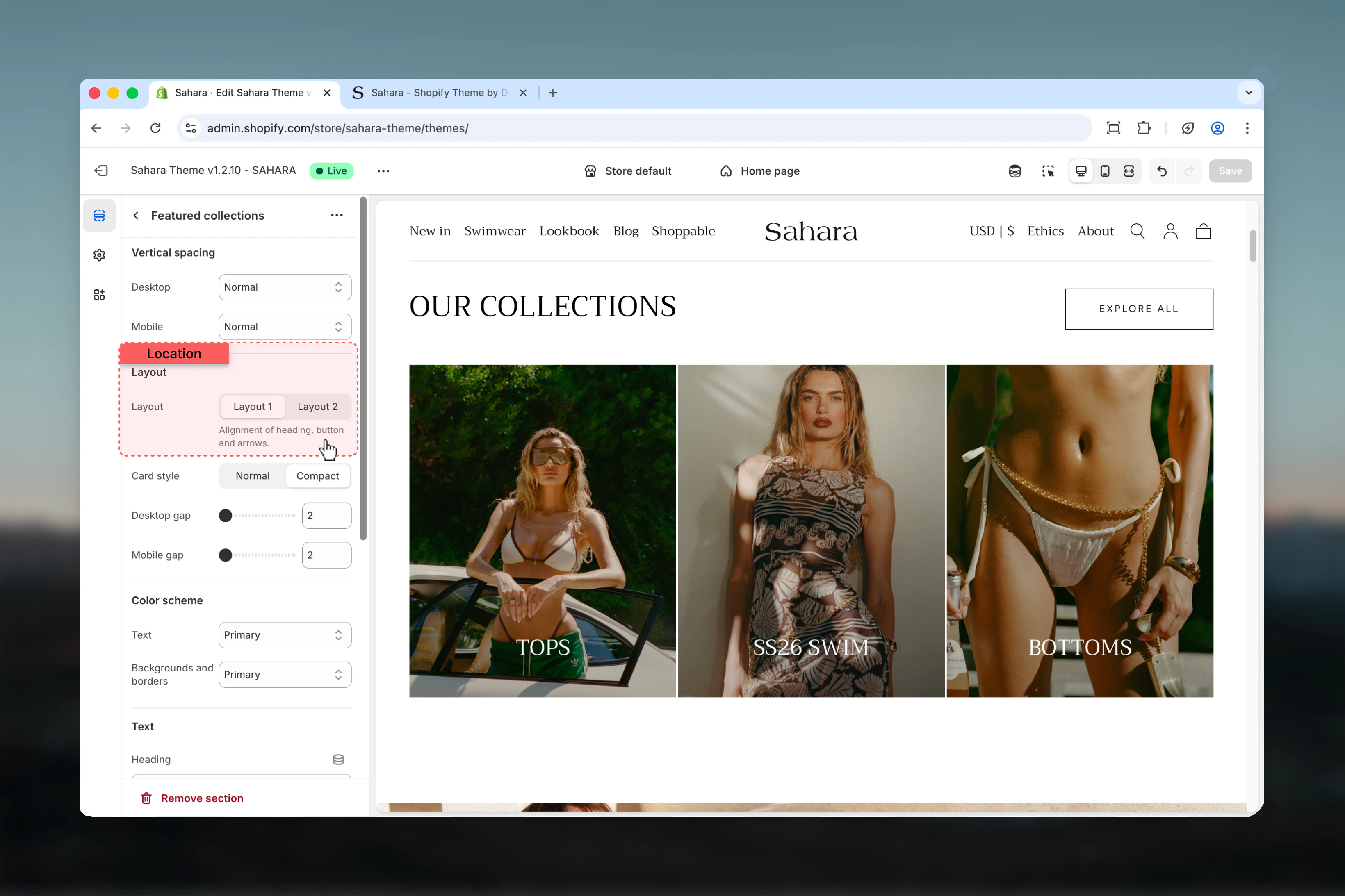
Layout
Controls the positioning of the section heading and button.Layout 1
Layout 1
Heading aligned to the start (left), button aligned to the end (right).When to use:
- Standard collection sections
- When button is secondary to heading
- Horizontal balance in content layout
Layout 2
Layout 2
Heading and button both centered, with button displayed at the section bottom.When to use:
- Centered page designs
- Promotional collection showcases
- Creating visual symmetry
Heading
Main section heading text supporting rich text formatting (bold, italic, links).Default: “Heading for Featured Collections”Heading size
Controls the visual size of the heading.Available options: XS, S, M, L, XL (default)Button settings
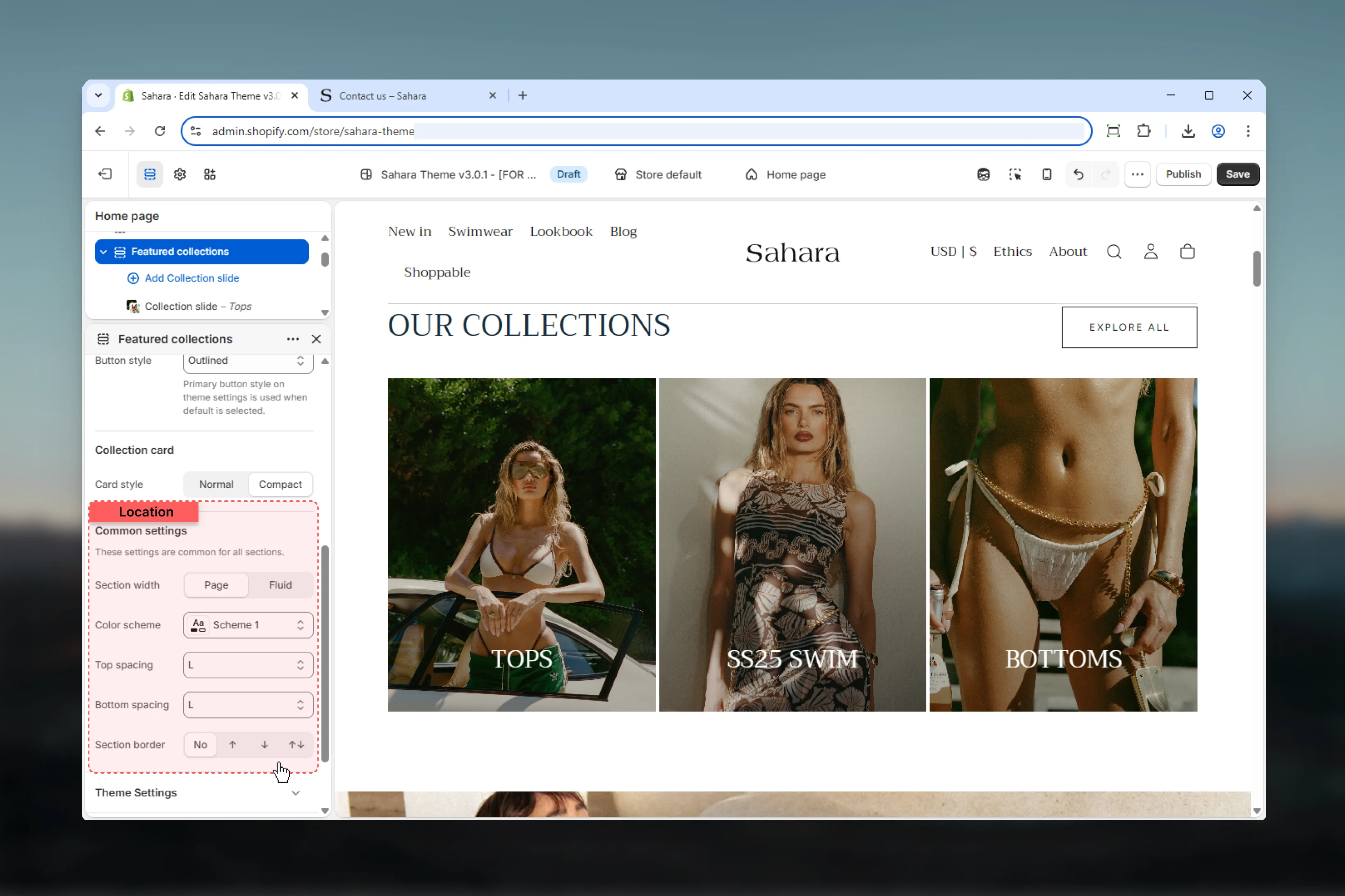
Block settings
Each collection-slide block represents one collection card in the display.- Collection
- Content
- Styling
Collection selection
Select a Shopify collection to display.Collection behavior
Collection behavior
The selected collection determines:
- Default collection image (if custom image not set)
- Collection link destination
- Default heading (if custom heading not provided)
- Product count and availability
Custom image
Upload a custom image to override the collection’s default image.When to use custom images
When to use custom images
Use custom images when:
- Collection default image doesn’t match your design
- Creating seasonal or promotional variants
- Maintaining visual consistency across all cards
- Collection has no default image set
- High resolution (at least 800px width)
- Consistent aspect ratios across all collection cards
- Clear focal points that work at different sizes
- Optimized file sizes for web performance
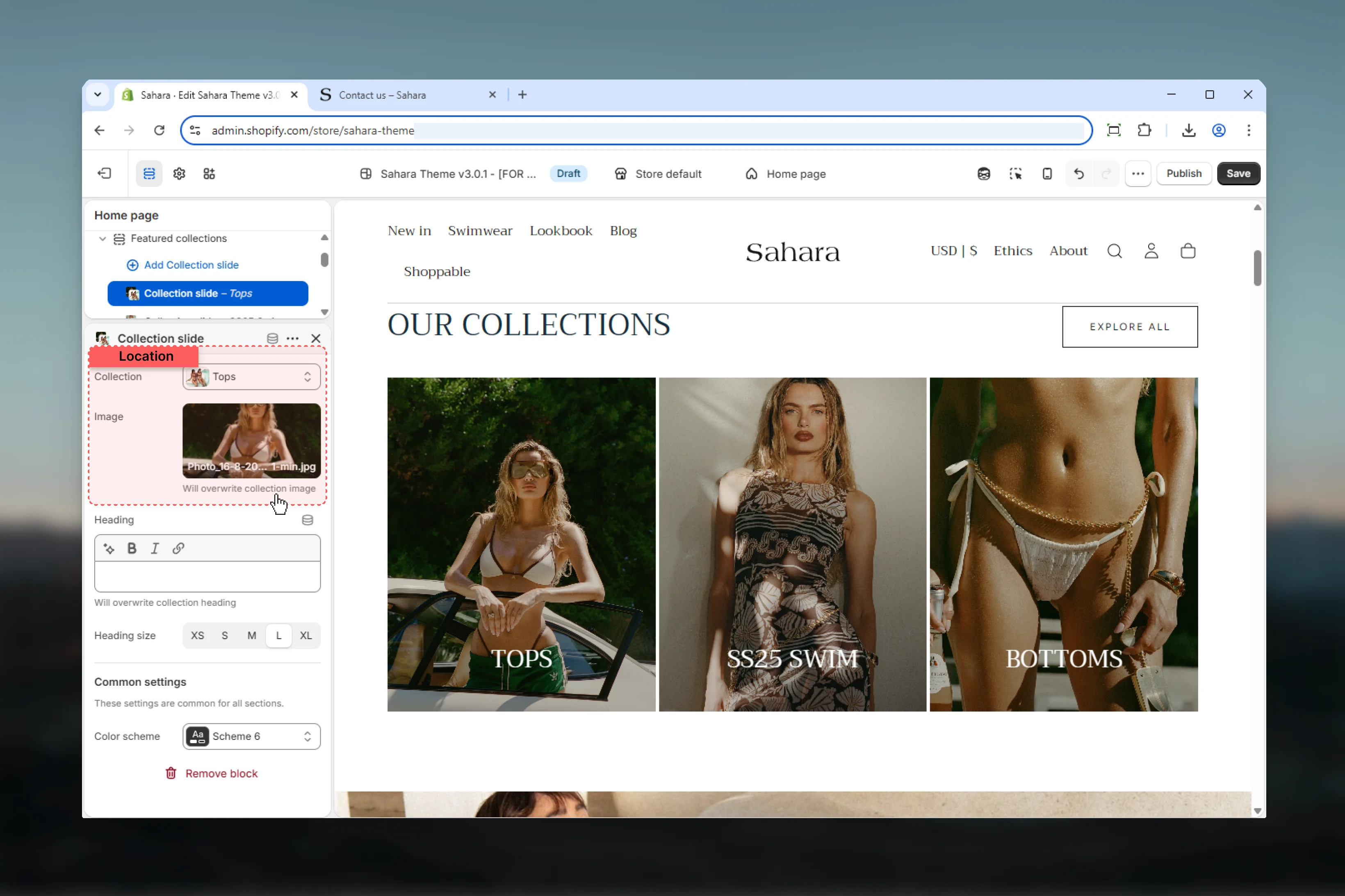
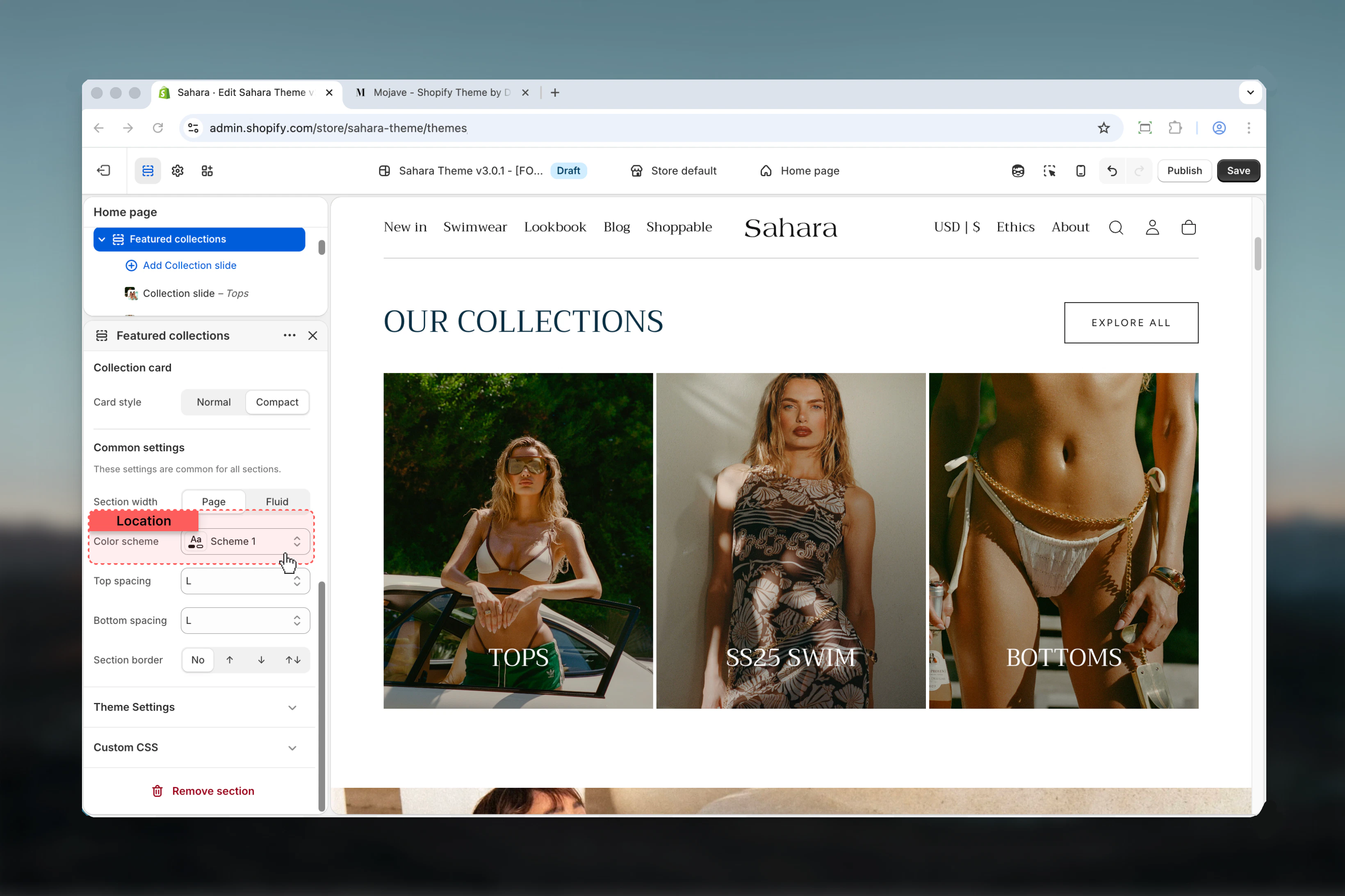
Best practices
Consistent imagery
Use similar aspect ratios and image styles across all collection cards for professional appearance.
Clear headings
Use descriptive, action-oriented headings that explain what customers will find in each collection.
Strategic count
Display 3-6 collections for optimal browsing. Too many collections overwhelm customers.
Compact for many
Use compact card style when displaying 5+ collections to save space and reduce scrolling.
Color purposefully
Use individual color schemes sparingly. Too many colors create visual chaos.
Update seasonally
Refresh collection selections and custom images seasonally to keep content relevant.
Common use cases
Seasonal collection showcase
Seasonal collection showcase
Use 3 collection slides with custom seasonal images. Apply individual color schemes matching seasonal themes (warm/cool tones). Use custom headings like “Winter Essentials 2024”.
Shop by style landing page
Shop by style landing page
Create 4-8 style-based collections with Layout 2 (centered). Use normal card style for prominent imagery. Add custom images showing lifestyle shots of each style.
Brand category page
Brand category page
For multi-brand stores, display brand collections with their logos as custom images. Use compact cards to fit more brands. Apply individual color schemes matching brand colors.
Related sections
Featured products
Display individual products instead of collections
Collection list page
Learn about the all-collections page template